How to Reopen a Google Form After Its Response Limit

Raise a reached total response limit from 2 to 3, keep the original answers and responder link, and verify automatic closure again. Simultaneous submissions can exceed the limit.

Khanan Grauer

Khanan Grauer

No date
18 steps
1

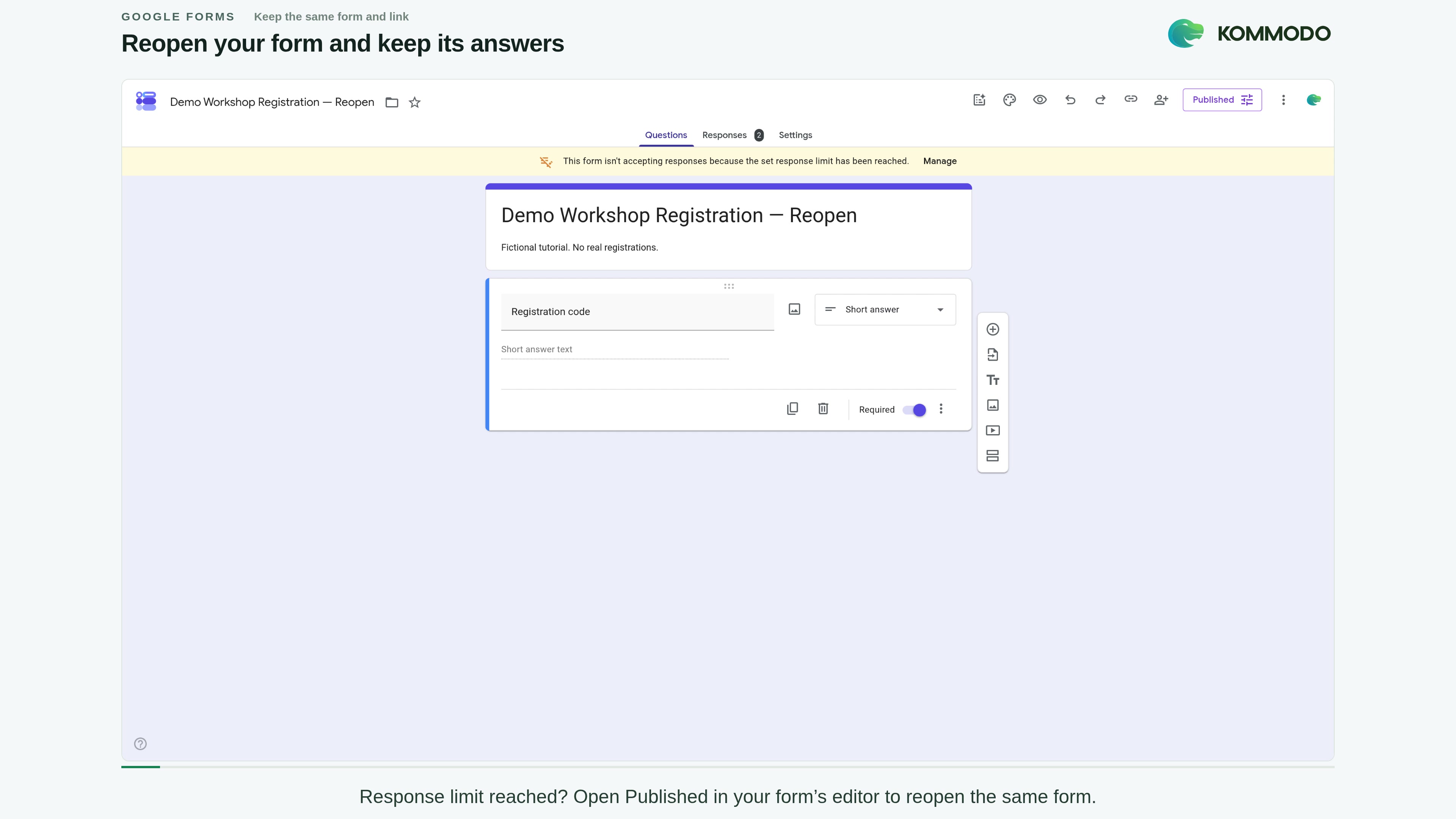
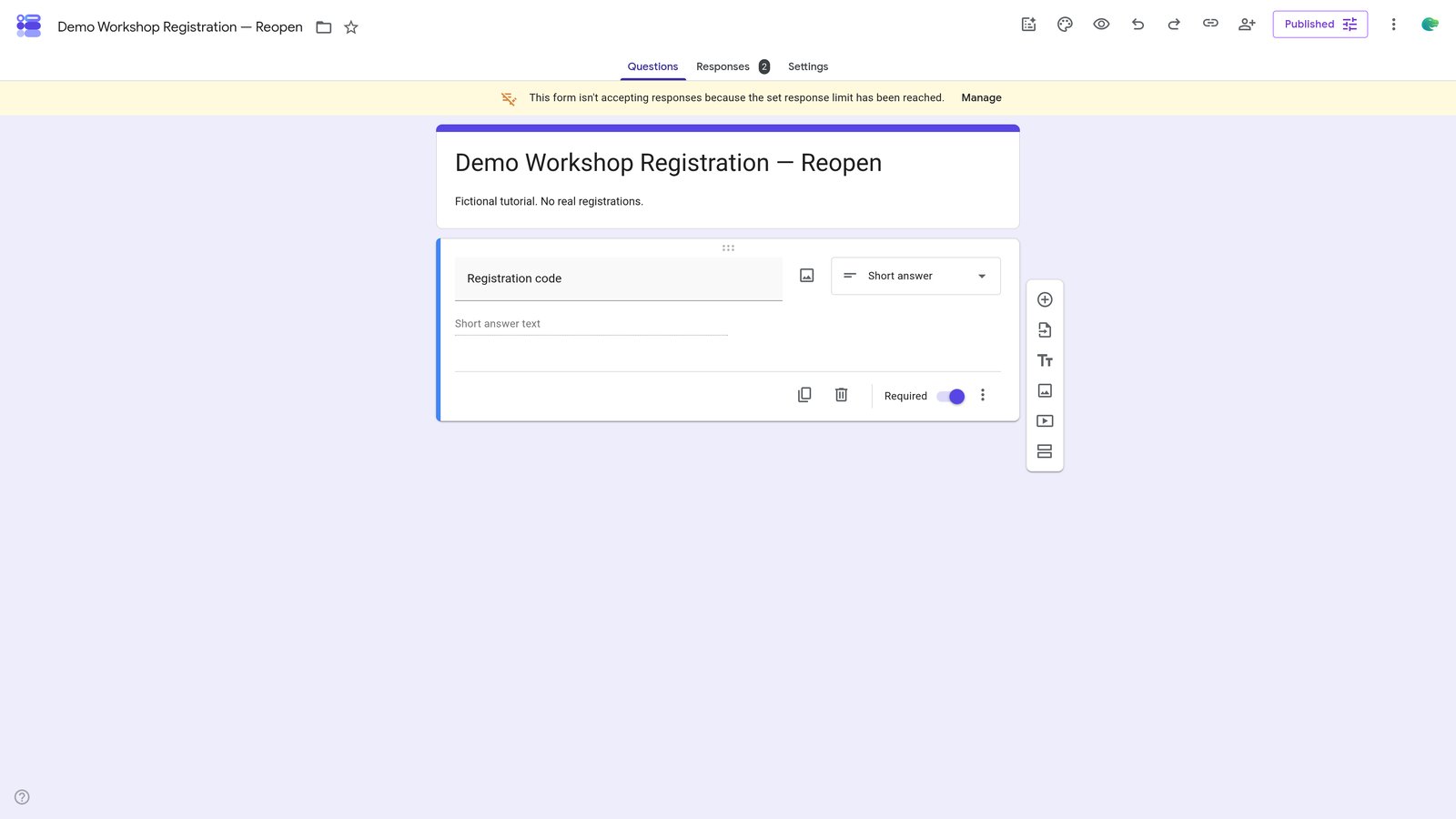
Open the existing Google Form in its editor.
2

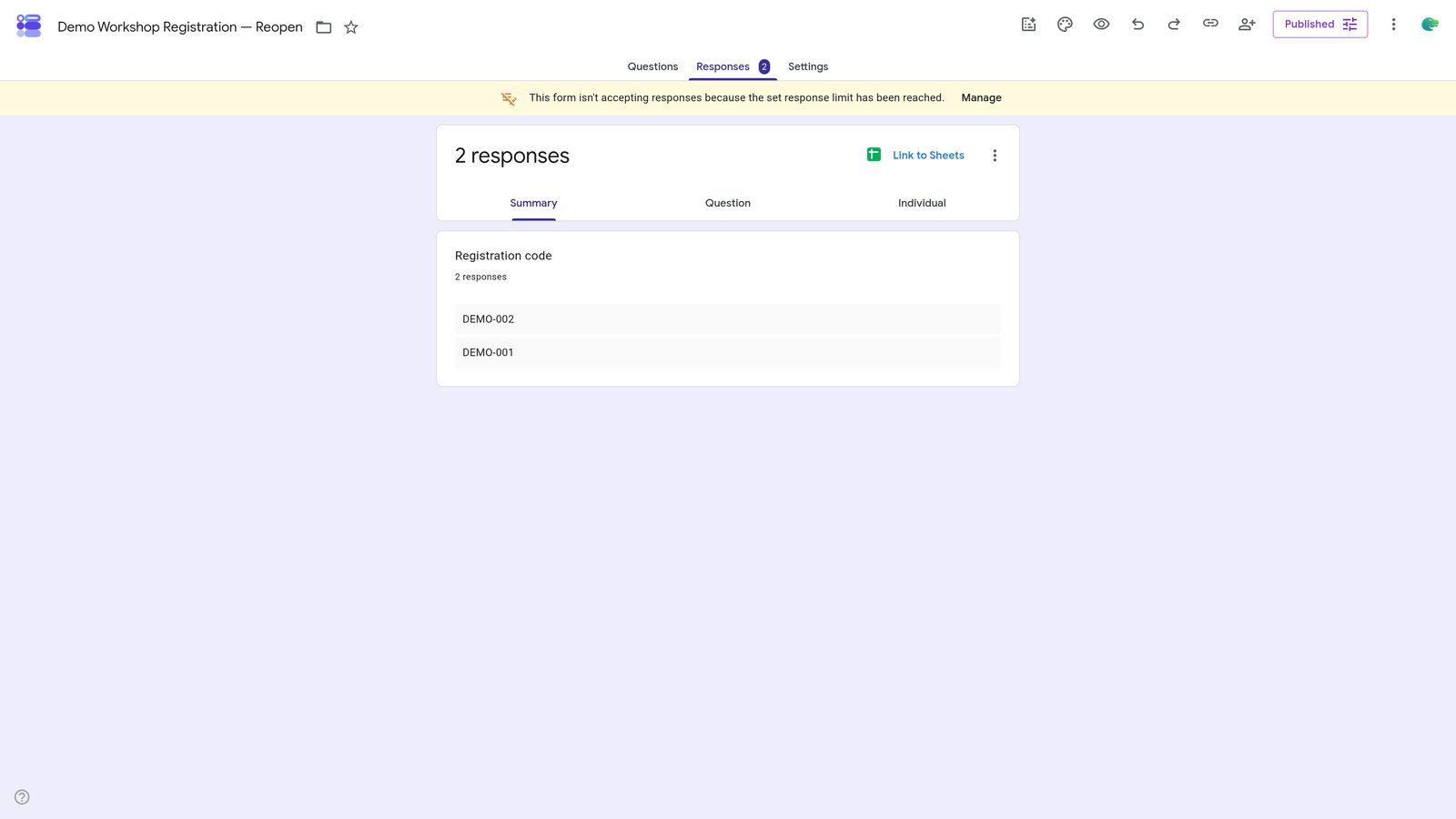
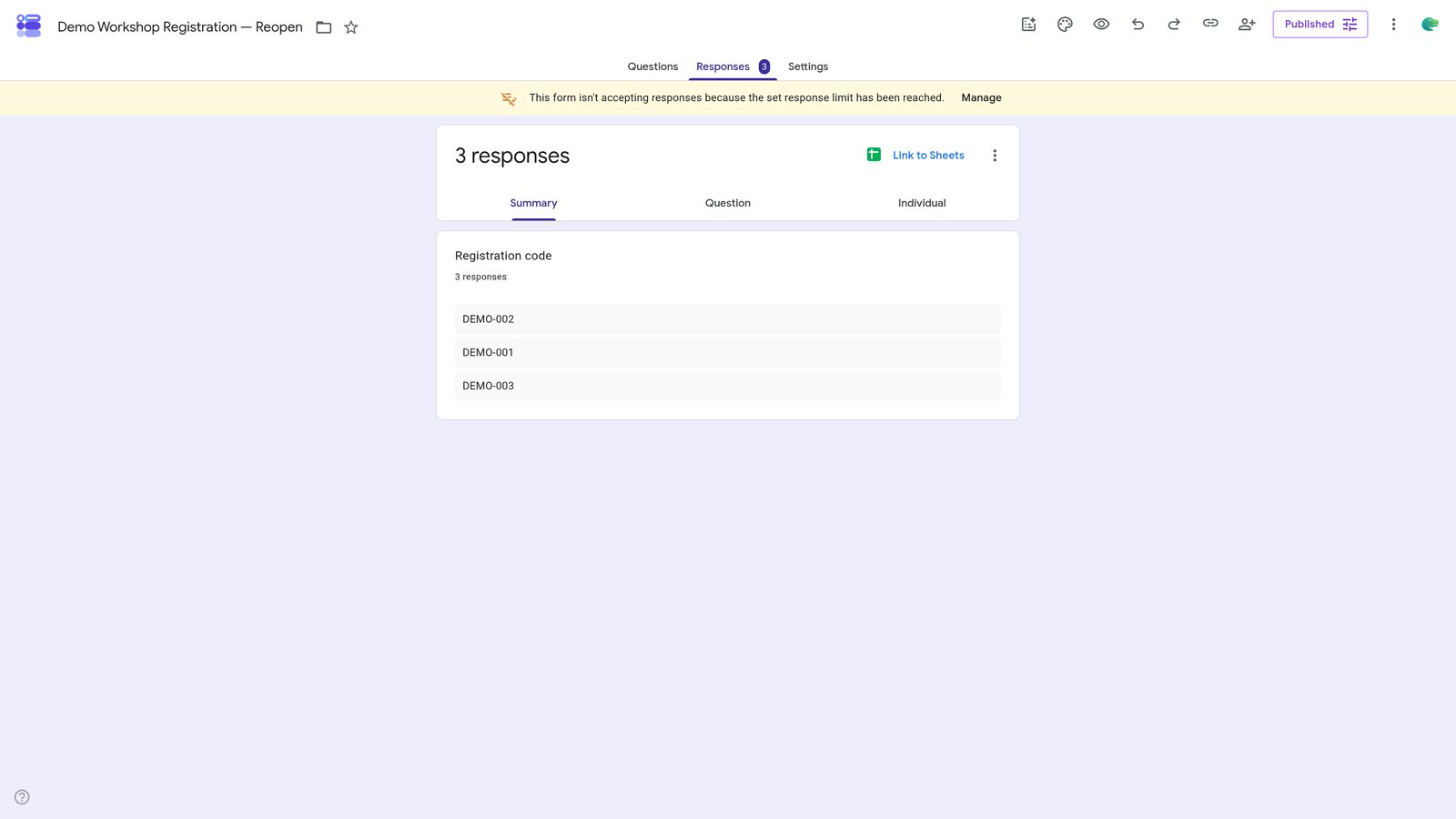
Click on the 'Responses' tab.

step
3

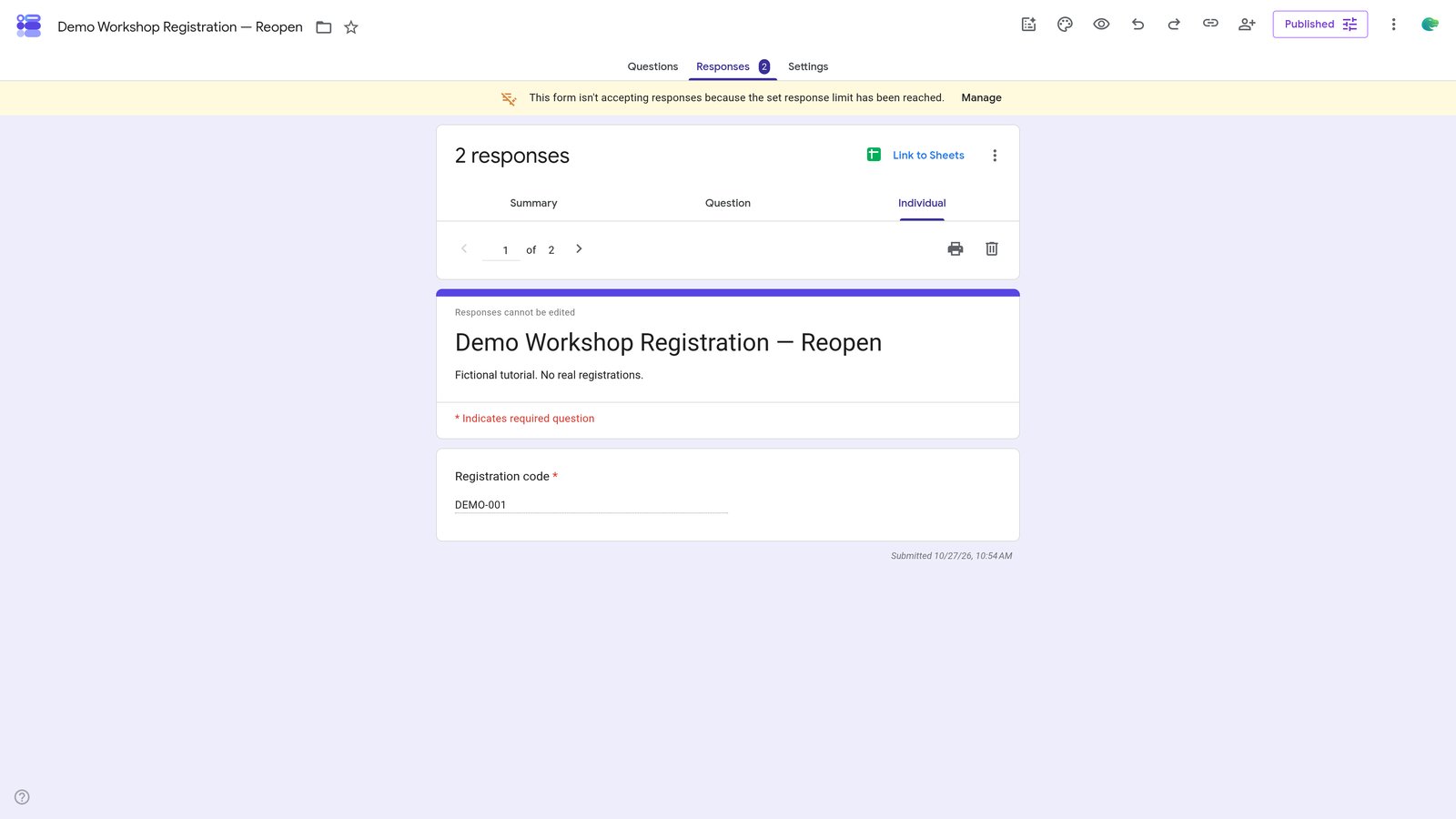
Click on the 'Individual' tab.

step
4

Click on the 'Questions' tab.

step
5

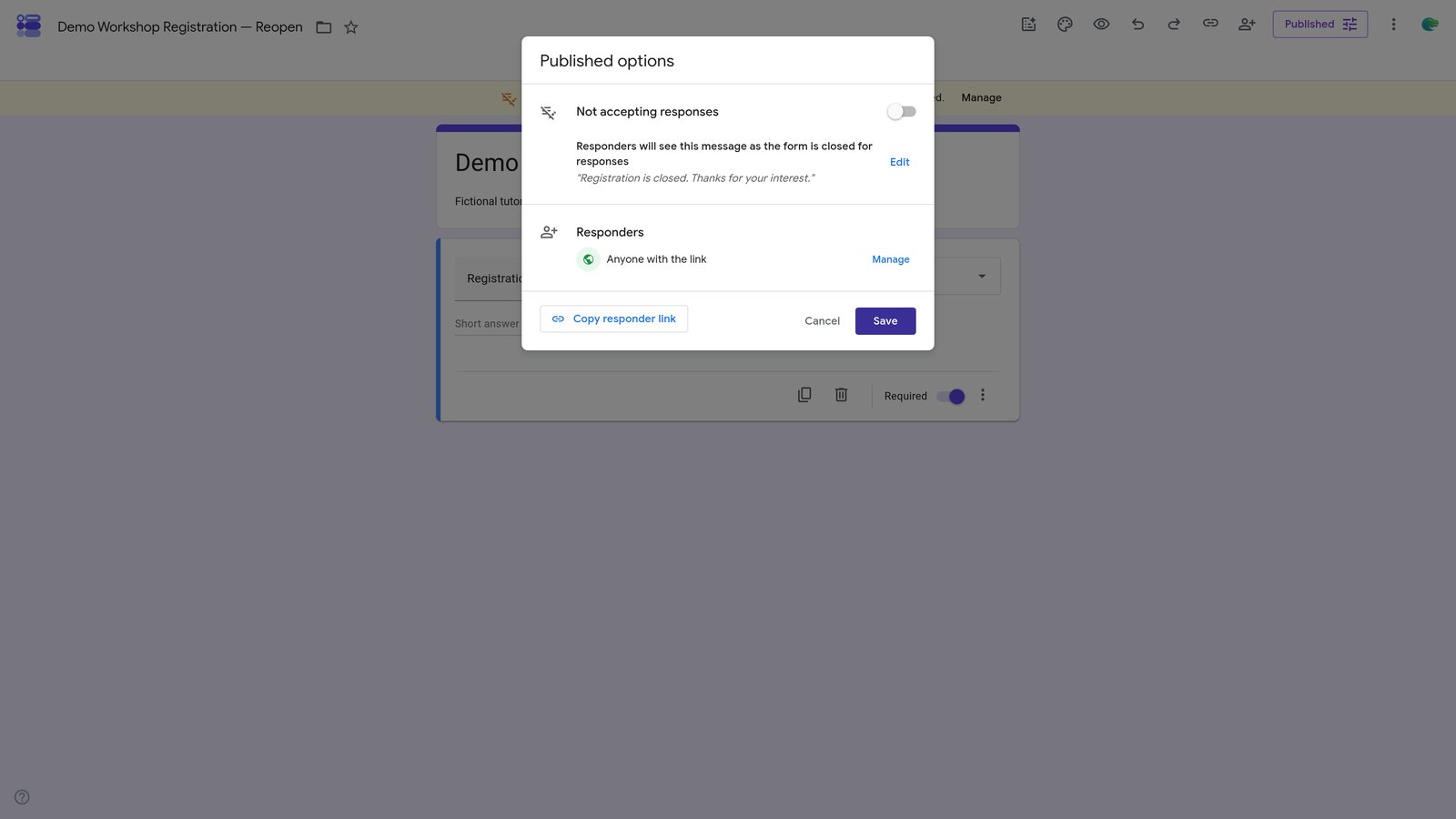
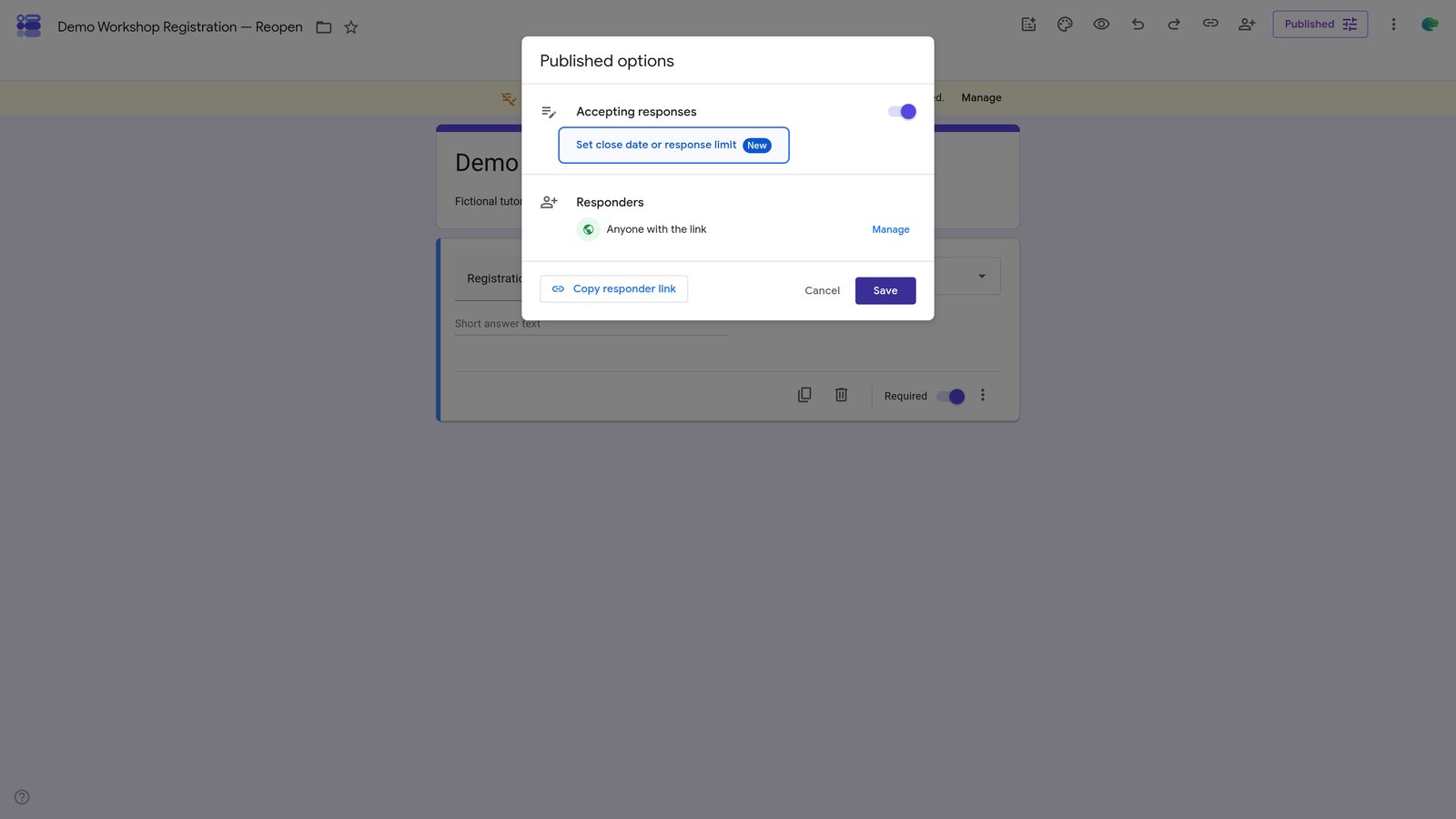
Click on the 'Published' button.

step
6

Turn the switch on so Not accepting responses changes to Accepting responses.

step
7

Click the 'Set close date or response limit' button in the 'Published options' section.
step
8

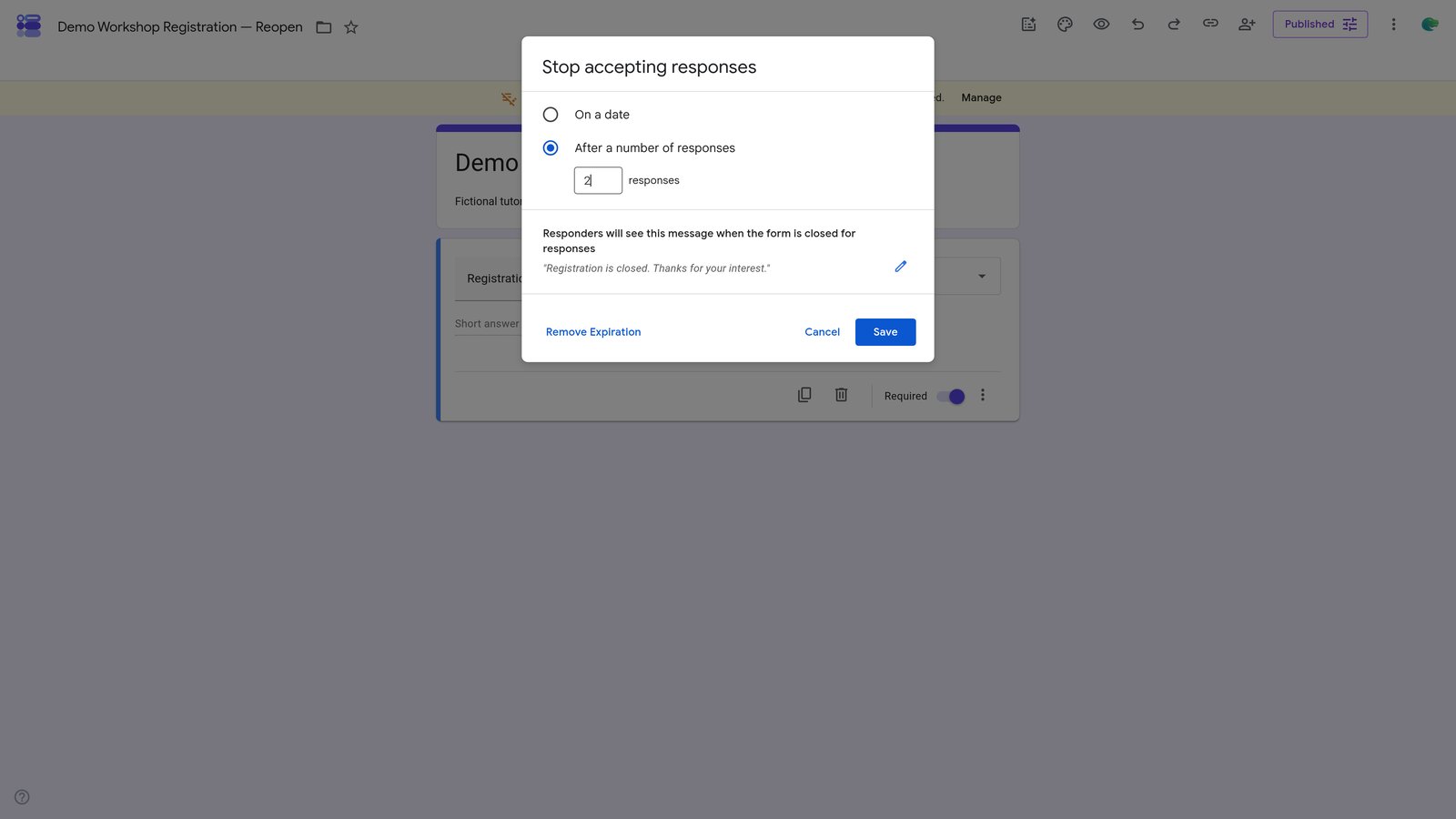
Select the existing 2 in Number of responses and replace it with 3.

step
9

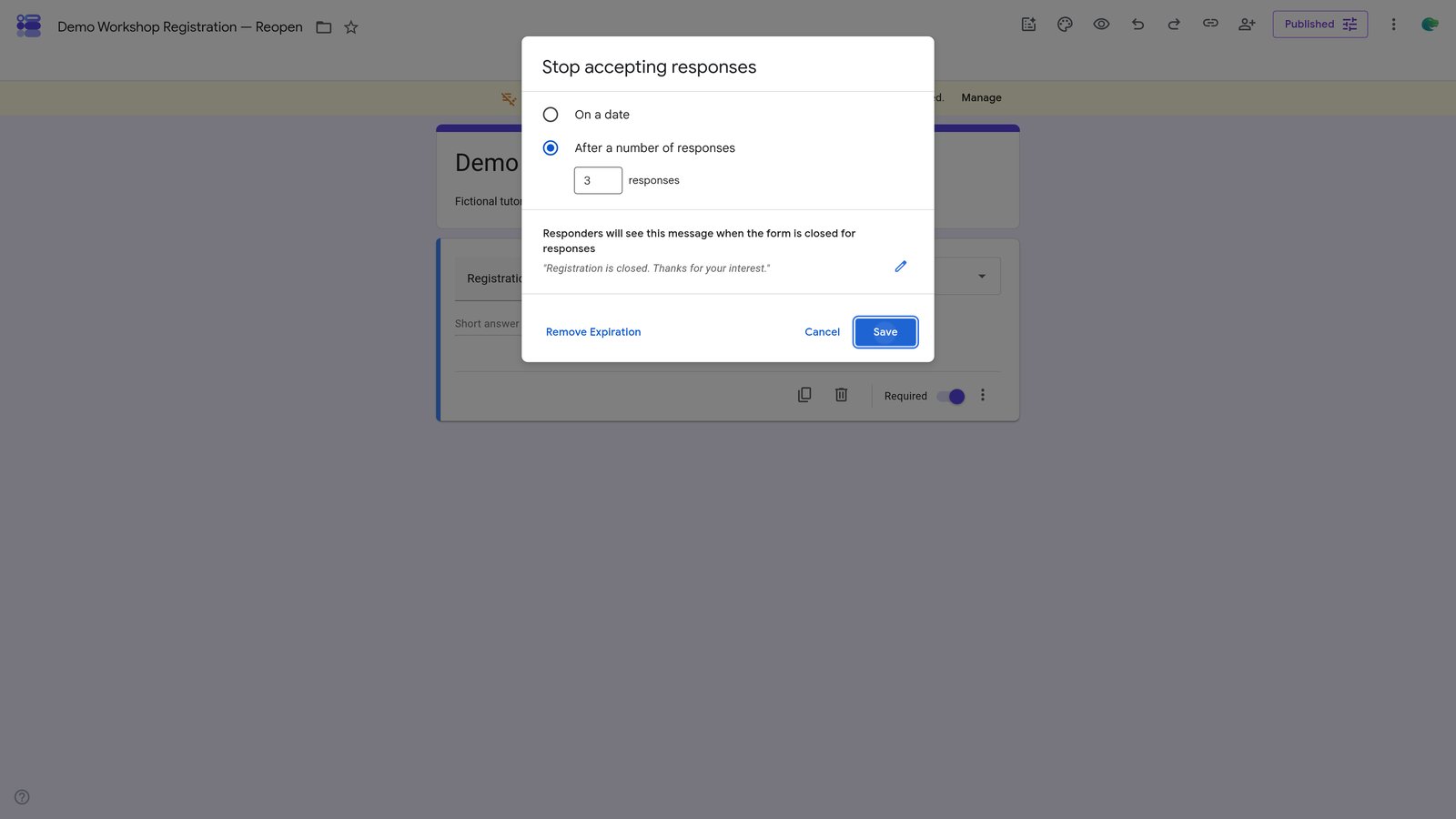
Click the Save button in the Stop accepting responses section.

step
10

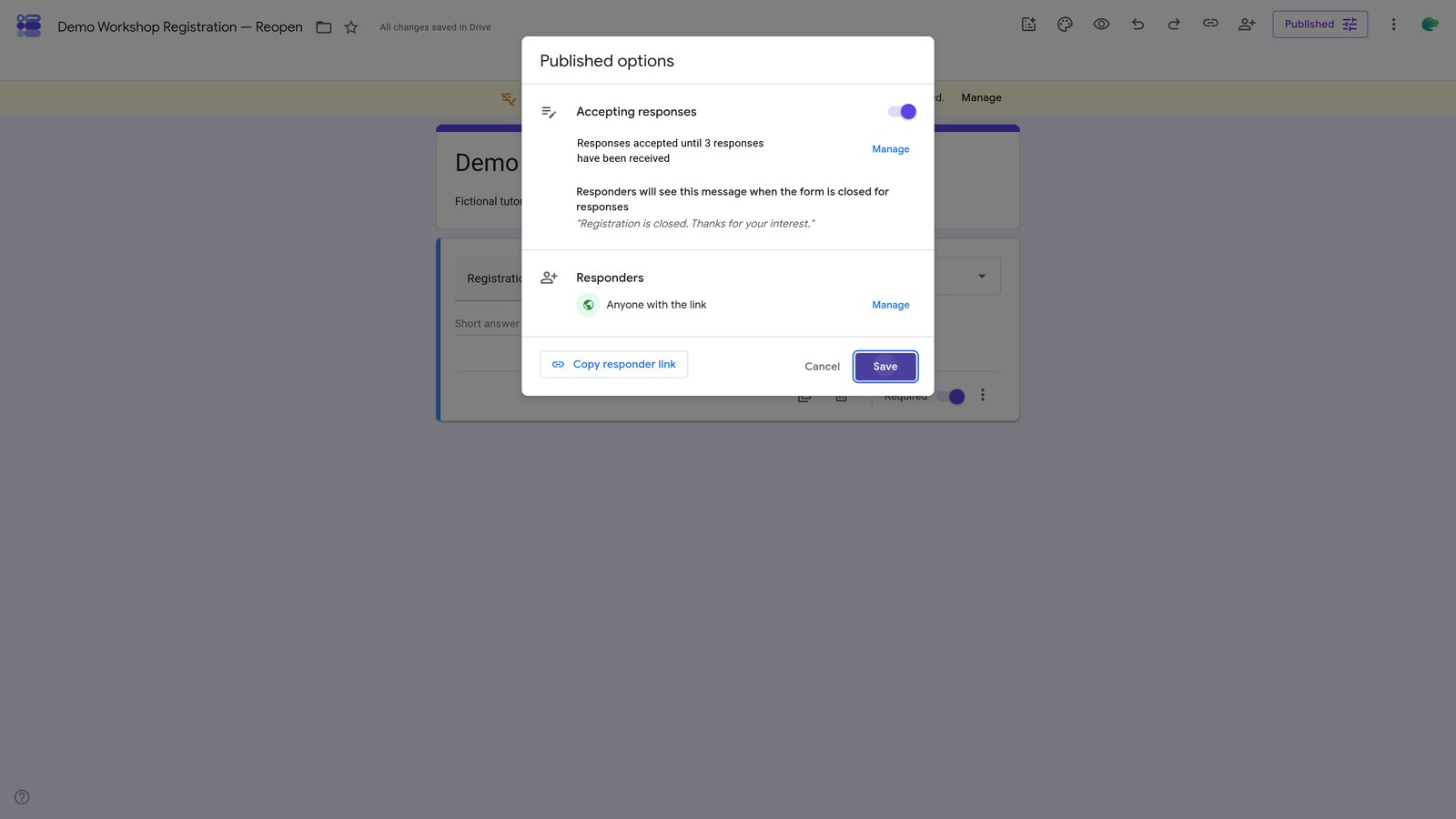
Click the Save button in the Published options section.

step
11

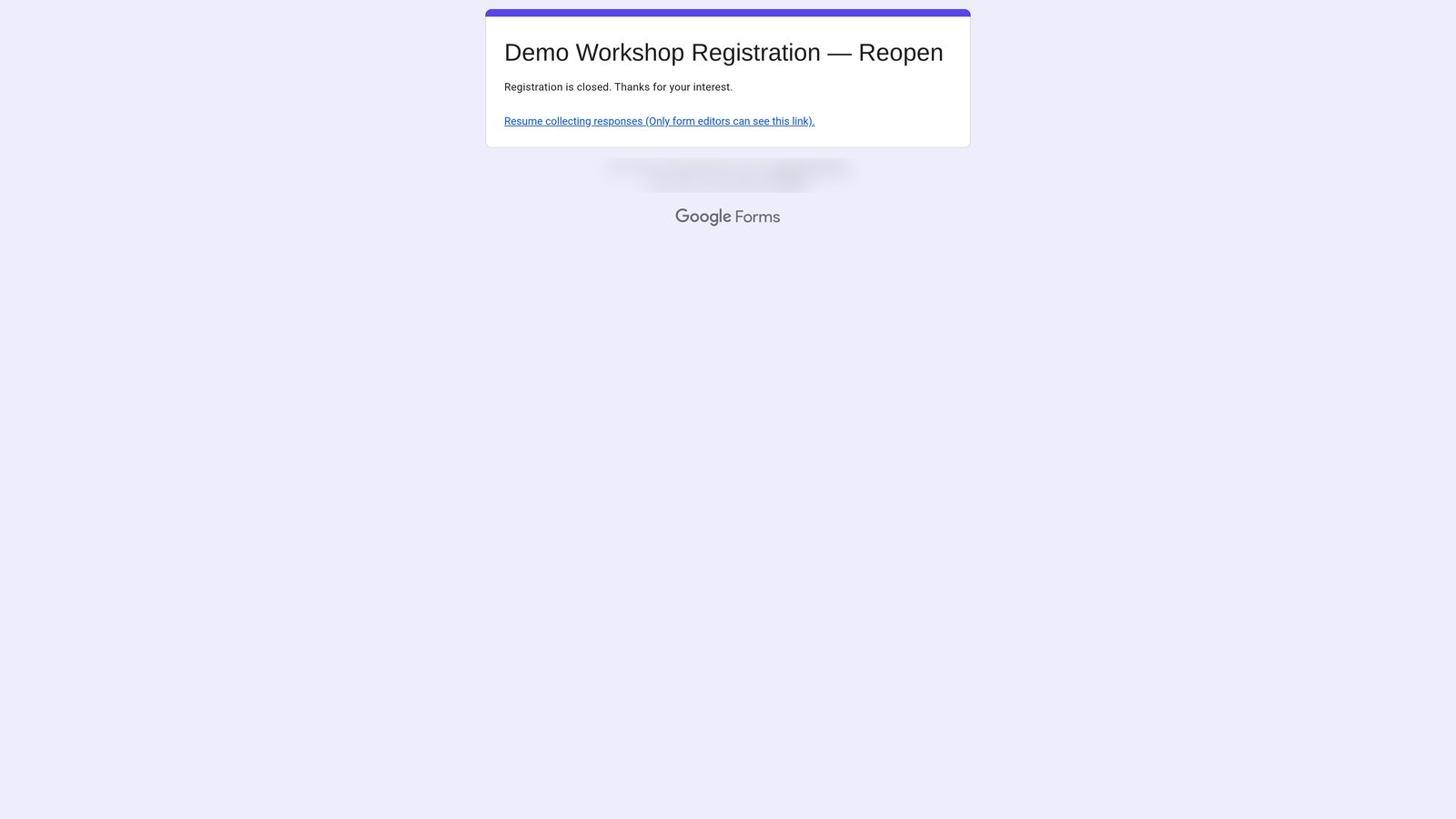
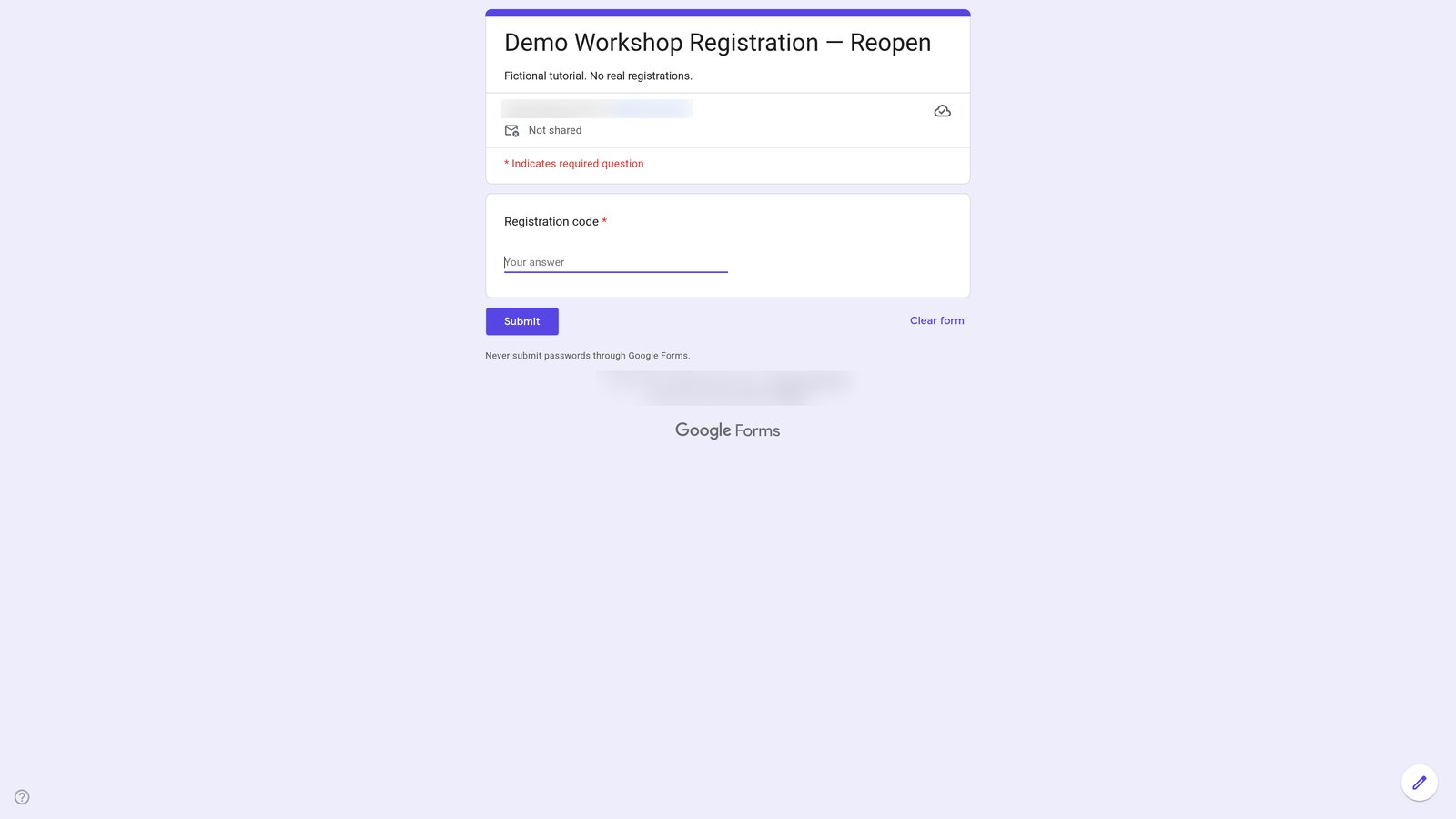
Go to "Demo Workshop Registration — Reopen" (docs.google.com)
12

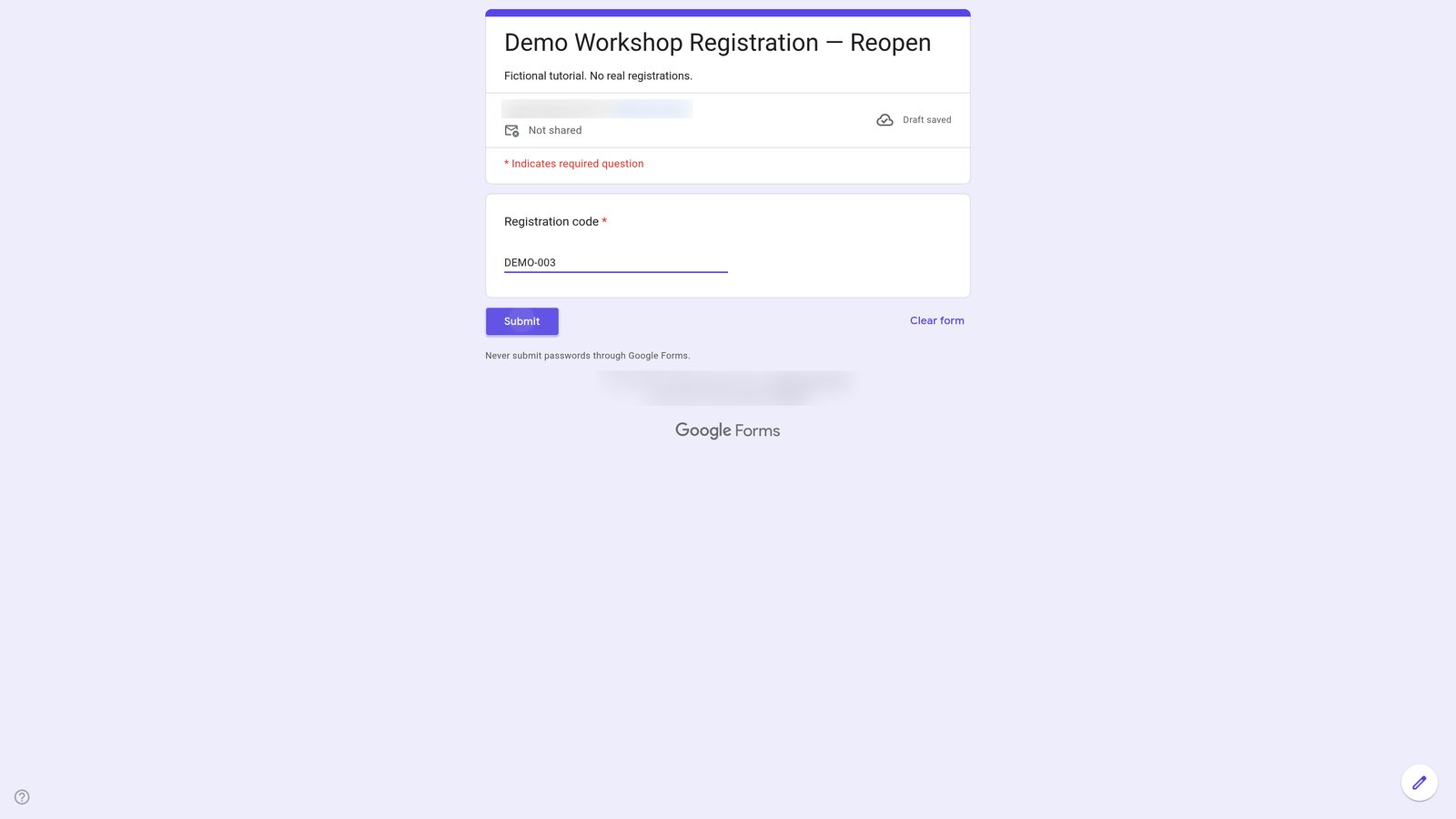
Type "DEMO-003" into the "Registration code *" input field.

step
13

Click the Submit button.

step
14

Go to "Demo Workshop Registration — Reopen - Google Forms" (docs.google.com)

15

Click on the 'Responses' tab.

step
16

Click on the 'Individual' tab.

step
17

Go to "Demo Workshop Registration — Reopen" (docs.google.com)
18

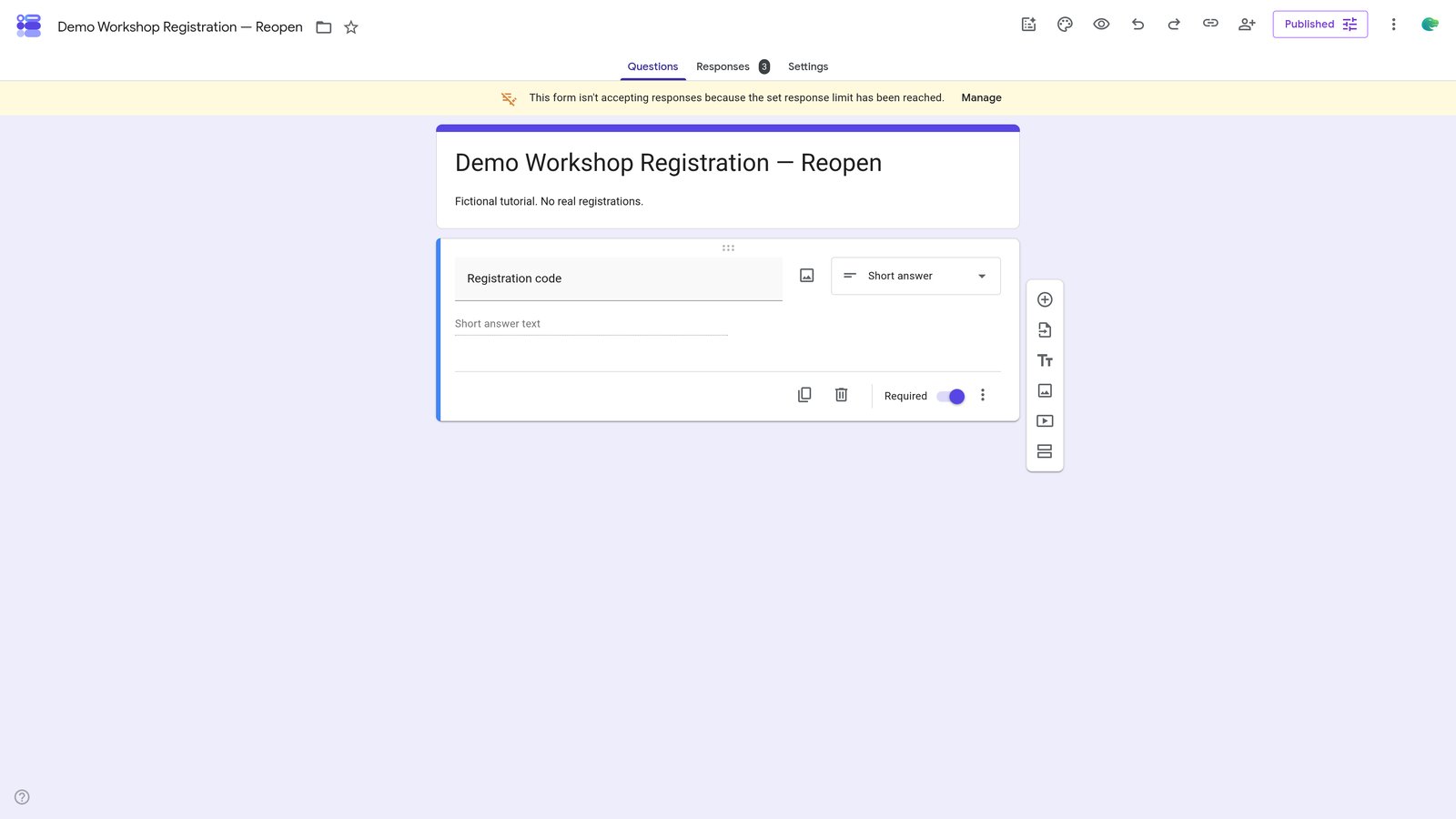
Done! This is the result.

step

You made it to the end!

18 steps complete