How to Set Up the 3CX Phone System Spreadsheet (MTV Phone Distribution Tab)
Follow these steps to manage phone assignments, update hardware details, and prepare your 3CX phone system spreadsheet for programming.

Michael Falgares
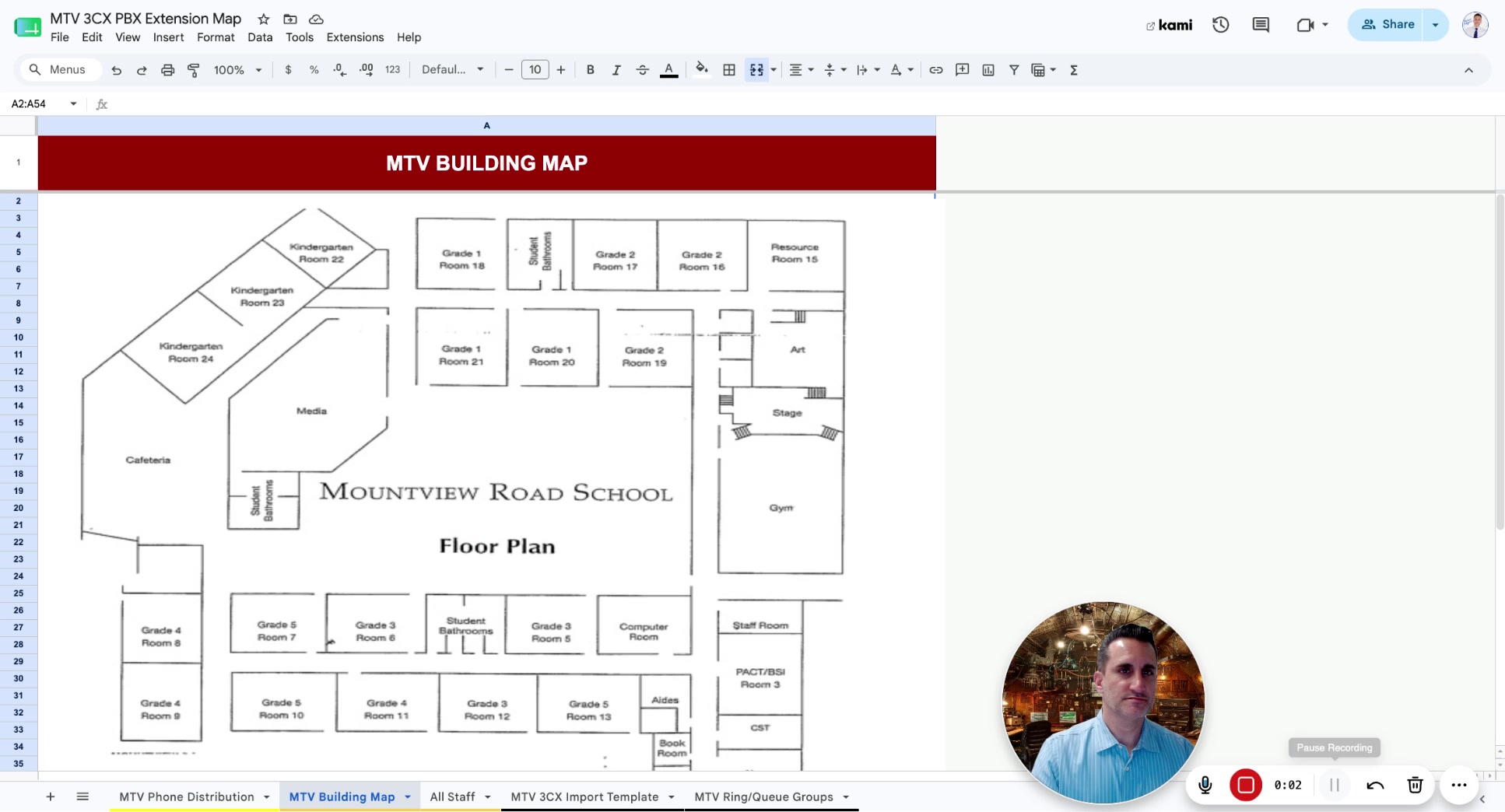
Open the 3CX spreadsheet file.
This is the main file you'll be working in.

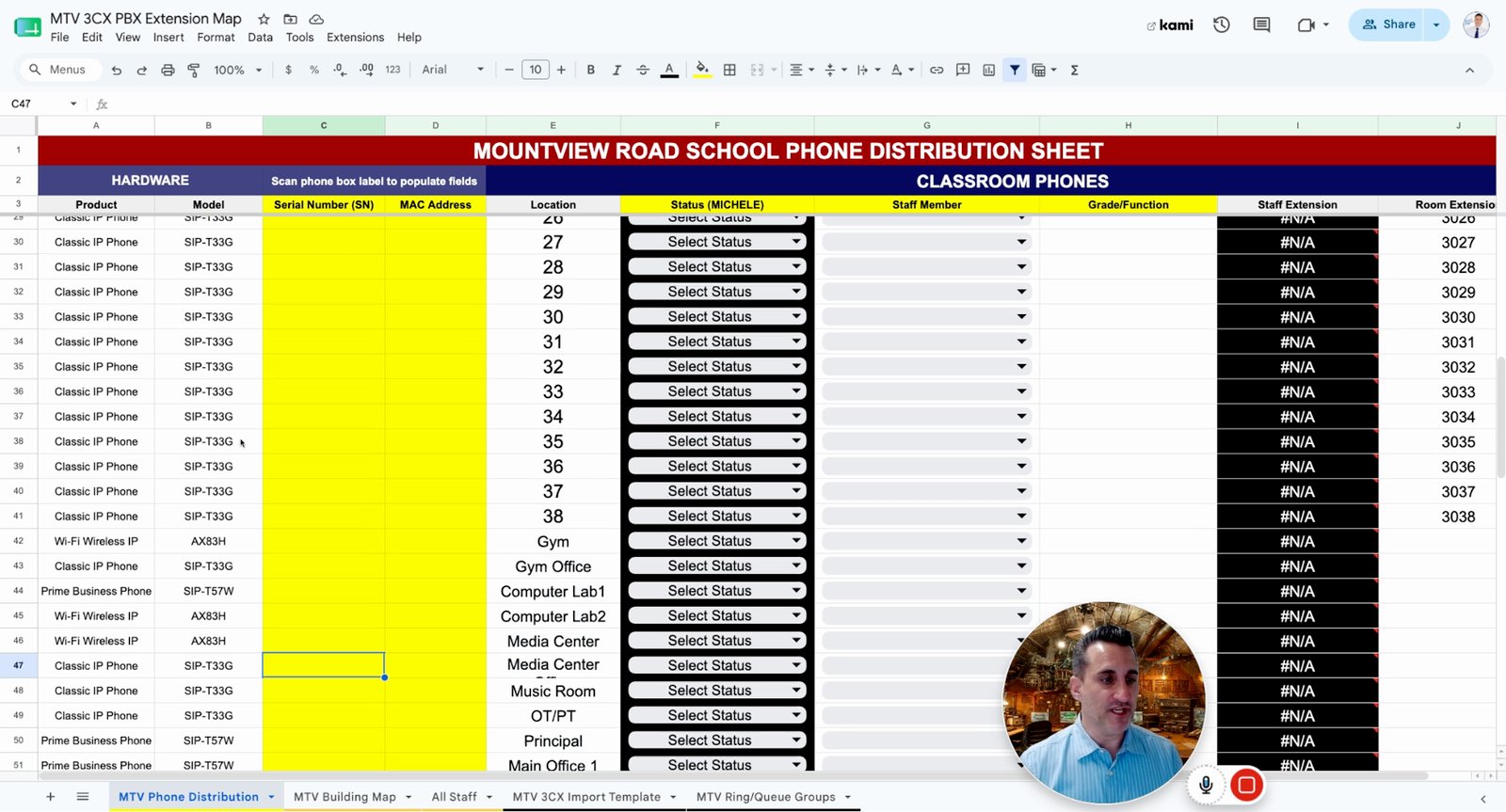
Click on the MTV phone distribution tab.
This is the only tab you need to edit for phone assignments.

Identify columns C, D, F, G, and H highlighted in yellow.
These columns are the ones you need to update.

Review the list of locations in column E.
Column E lists all the rooms or locations in your building.

Delete any unnecessary room rows by right-clicking the row and selecting delete row.
Remove rooms that do not exist in your building.

Add a new row if you need to include an additional room by right-clicking and selecting add row below.
Insert rows for any missing rooms.

Check columns A and B to see the hardware assigned to each room.
These columns show the phone models for each location.

Identify the phone type for each room (e.g., T33G, T57W, AX A3H).
T33G is for most classrooms, T57W is a nicer phone for offices, AX A3H is wireless.
Locate all phone hardware in your building's boiler room.
All hardware should be stored here before installation.

Take a cart and gather the required phones for each room.
This helps organize the installation process.

Unbox the phone and assemble any necessary pieces.
Prepare the phone for installation.

Plug the included Ethernet wire into the back of the phone.
This provides network connectivity and power (if PoE).

Plug the other end of the Ethernet wire into the wall Ethernet port.
Ensure the phone is connected to the network.

If the phone powers on and lights up, change the status of that room to 'ready' in the spreadsheet.
Indicates the phone is correctly installed and powered.

If the phone does not light up, update the status to 'installed, no power.'
This means the phone is installed but not receiving power.

If there is no Ethernet in the room, set the status to 'no Ethernet.'
Indicates the room cannot be connected at this time.

If a room does not need a phone, set the status to 'no phone needed.'
Use this for locations like boiler rooms if applicable.

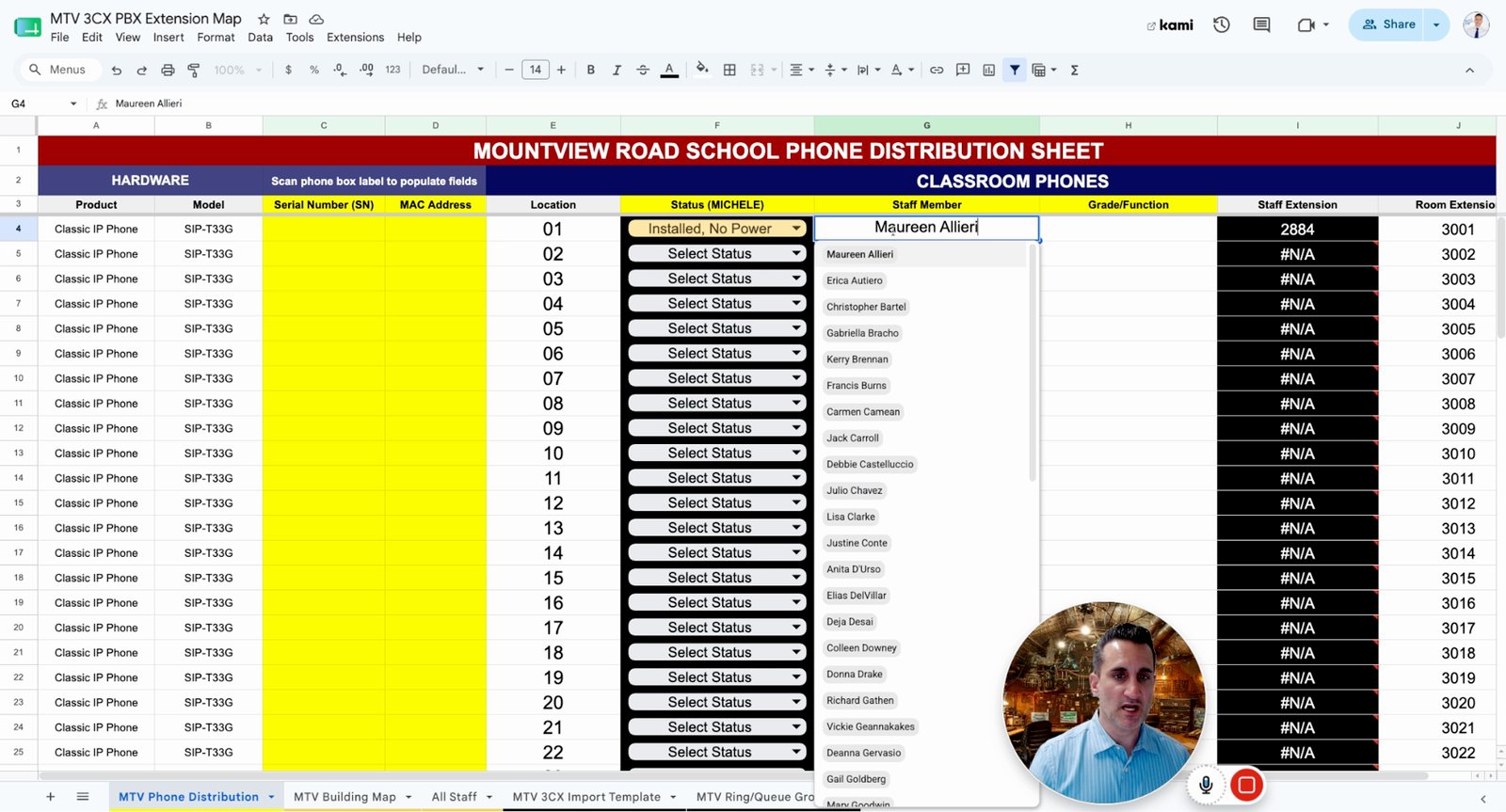
Enter the staff member assigned to each room in column G using the dropdown list.
Assigns responsibility for each phone.
Select the room's primary function (e.g., technology, computer lab) in the appropriate column.
This helps categorize the room's use.

For Wi-Fi phones (AX A3H), use a cell phone to connect to the phone's Wi-Fi SSID and enter the password.
Wi-Fi phones do not use Ethernet and must be set up wirelessly.

Once all rooms are updated and statuses are green for ready, notify the system administrator for programming.
The system is now ready for final programming.

You made it to the end!
21 steps complete