How to Convert Canva Website to WordPress Using CanviPress (Step-by-step)
Learn to transfer your Canva website landing page to WordPress with pixel-perfect accuracy using the CanvaPress plugin.

Sakinur Rahman
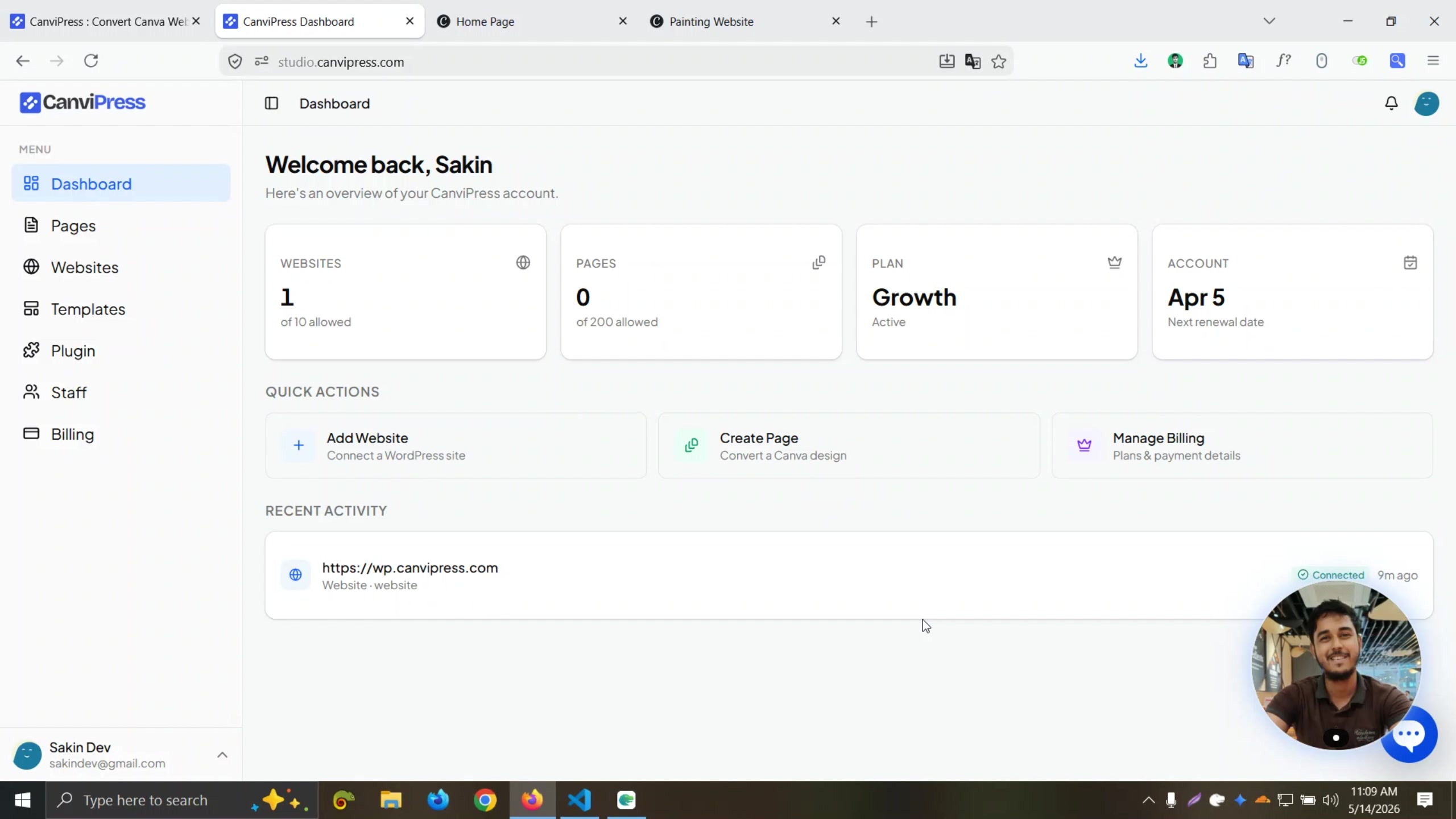
Purchase the CanvaPress plugin
You need to buy the plugin to begin the conversion process. You can purchase the plugin from Canvipress.com

Access the CanvaPress dashboard at studio.canvipress.com
After purchase, you will receive access to the dashboard.

Click Connect website in the dashboard
This allows you to link your WordPress site to CanviPress.

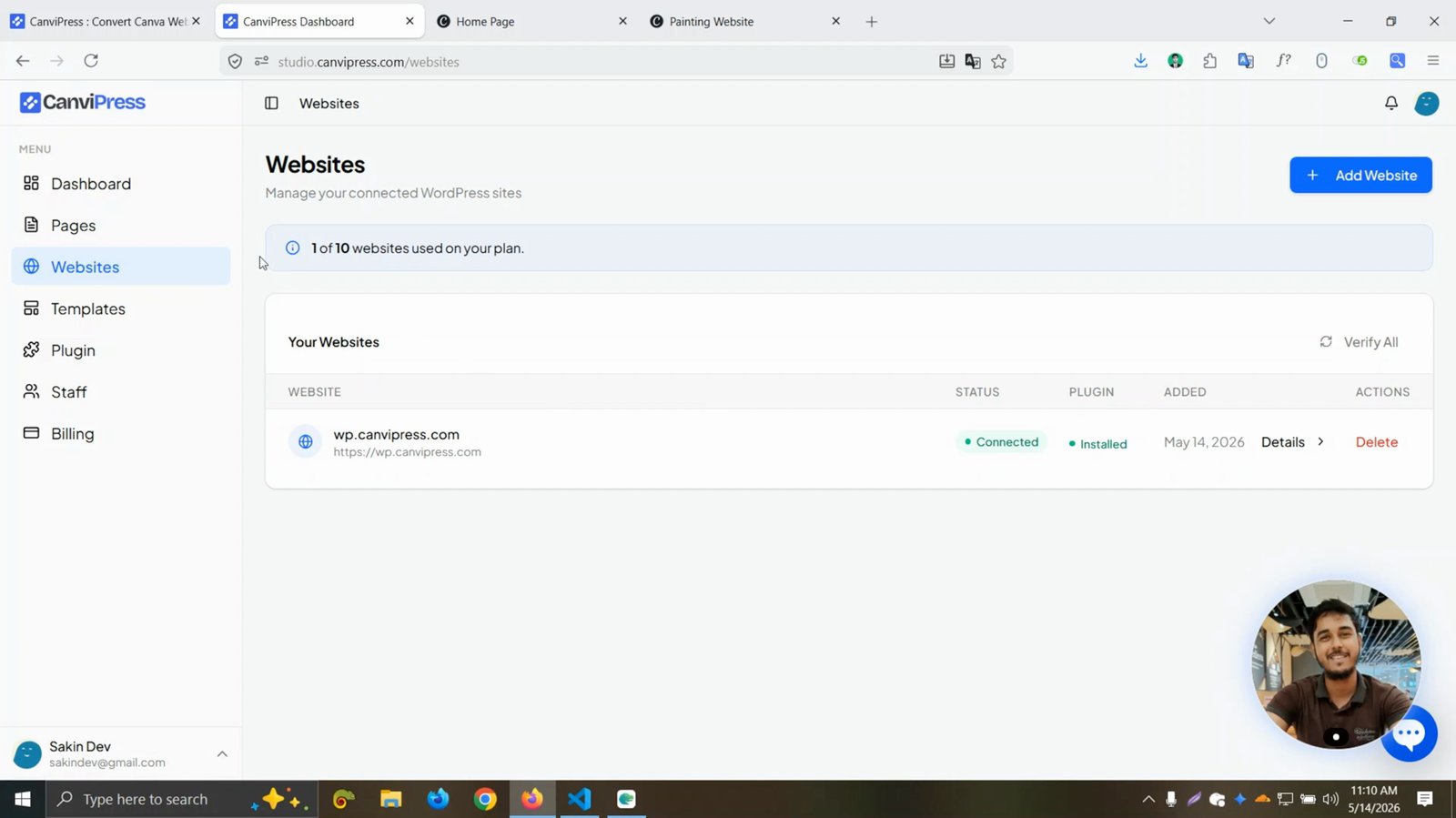
Click Website and then Add website
Add your WordPress website to the CanviPress dashboard.

Move to the Pages section in the dashboard
Navigate to where you can manage and create new pages.
Click Create page in the Pages section
Start the process of converting a Canva page.

Select the website you want to add the page to
Choose from your connected websites if you have more than one.
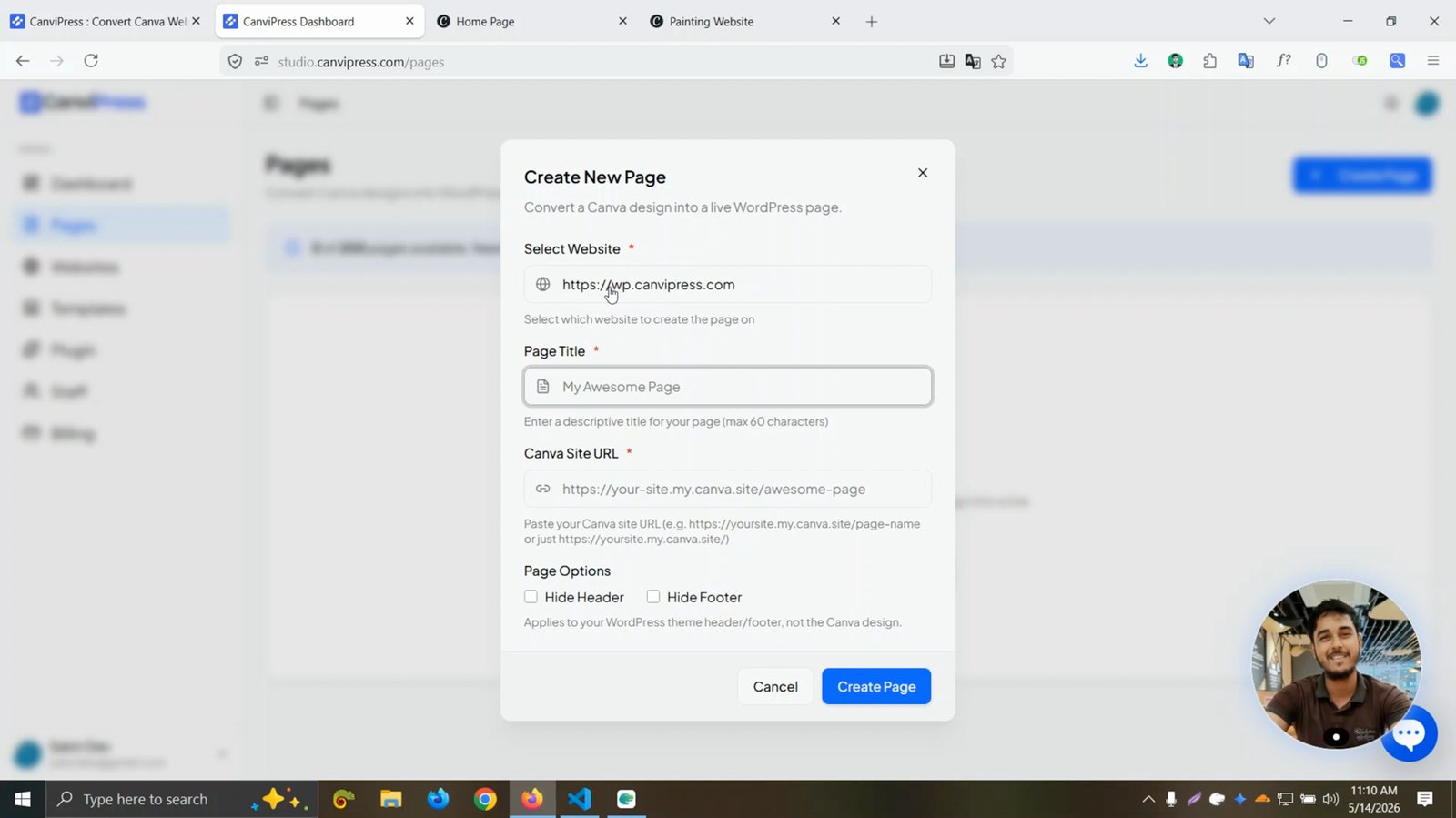
Enter a page title for your new WordPress page
Give your new page a descriptive name.

Copy the full Canva site URL of the template you want to convert
Get the direct link to your Canva design.

Paste the Canva site URL into the provided field
This tells CanvaPress which Canva page to convert.

Adjust page options such as Hide header and Hide footer if desired
You can choose to hide the default WordPress header and footer for a cleaner look.
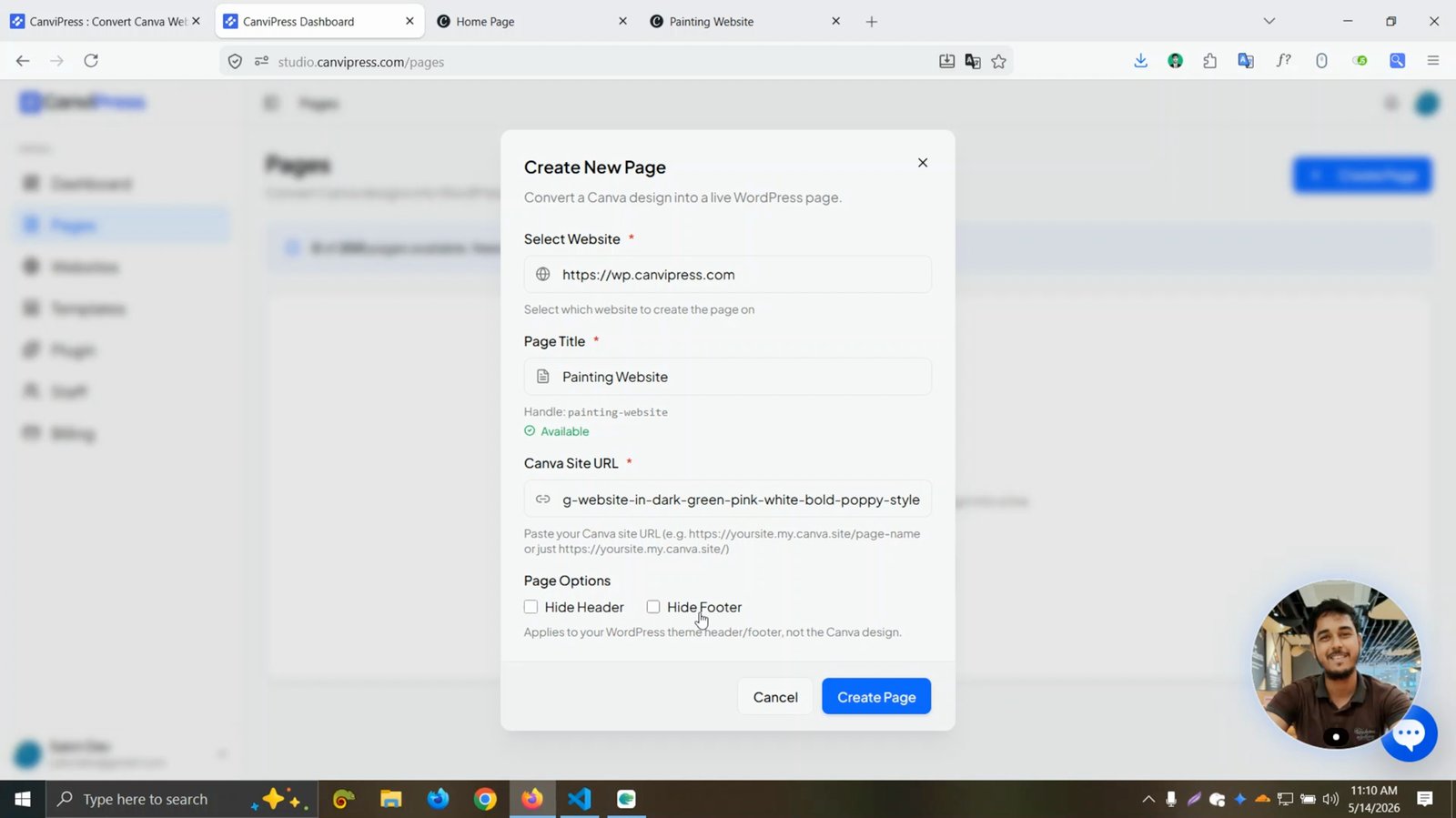
Check or uncheck the Hide header and Hide footer options as needed
Customize the appearance of your converted page.

Click Create page to start the conversion
This will initiate the conversion process from Canva to WordPress.
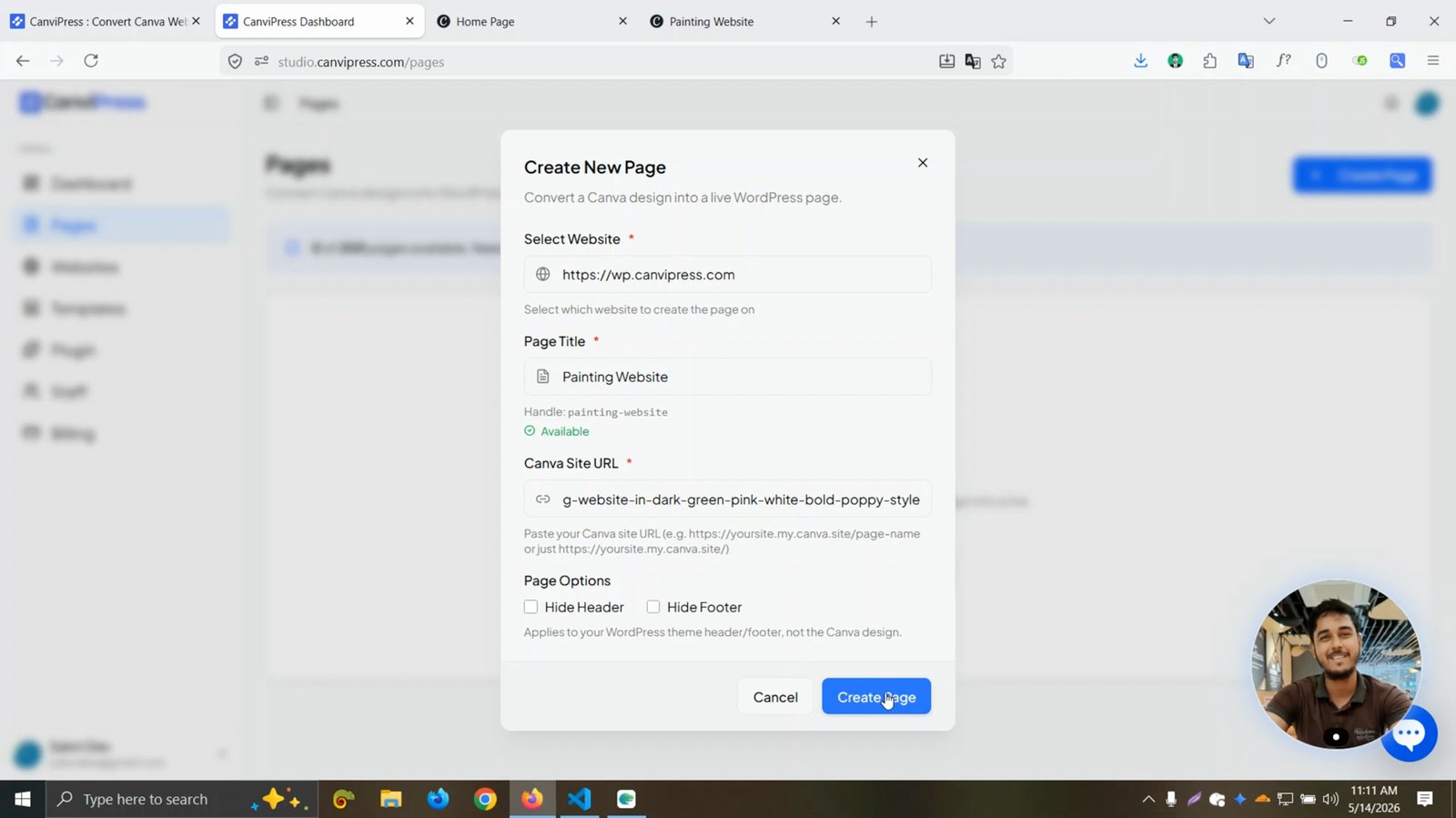
Wait for the conversion process to complete (about 1-2 minutes)
The plugin processes your Canva page and prepares it for WordPress.
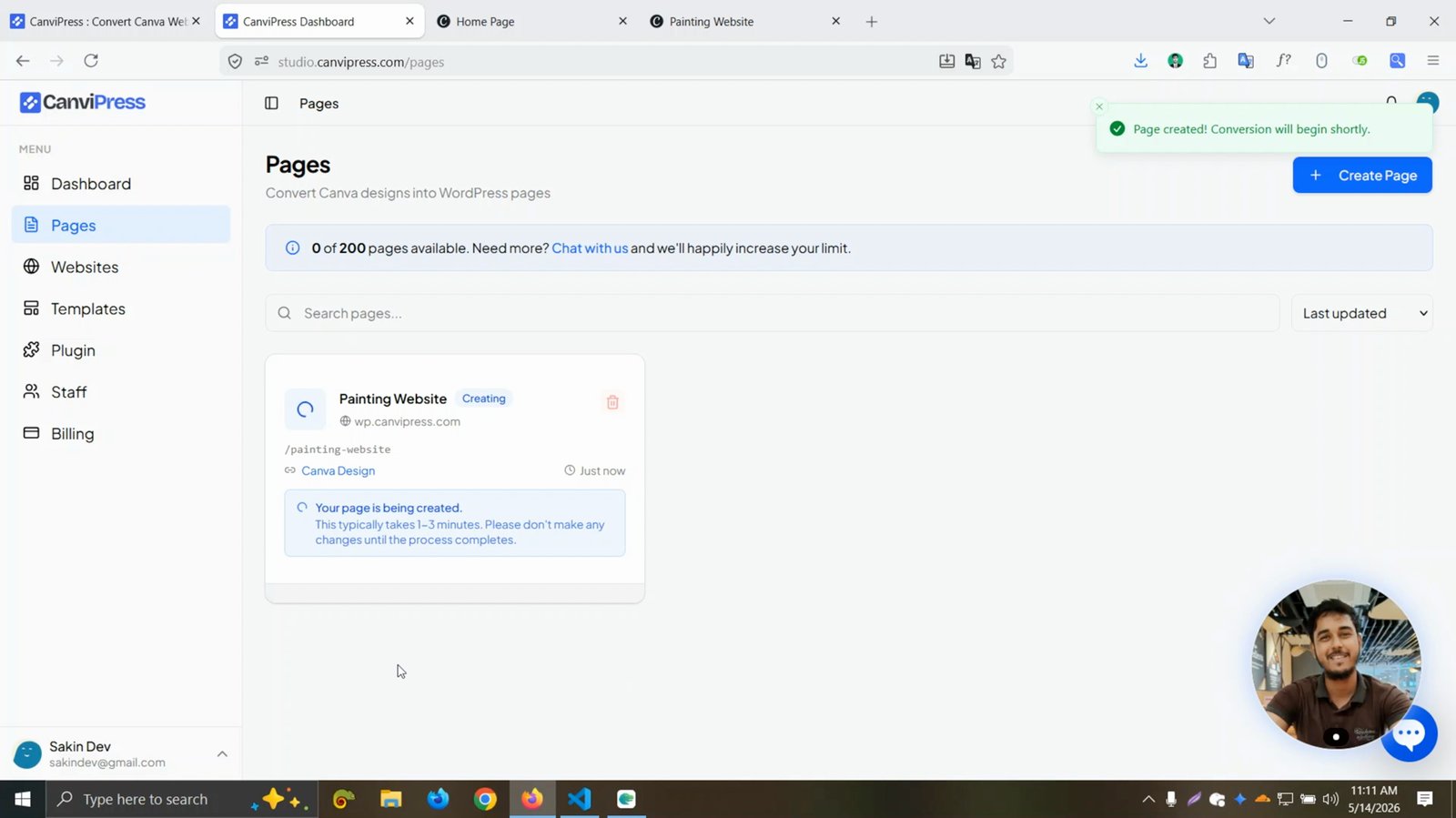
View the converted page in the dashboard
Your new WordPress page is now available.
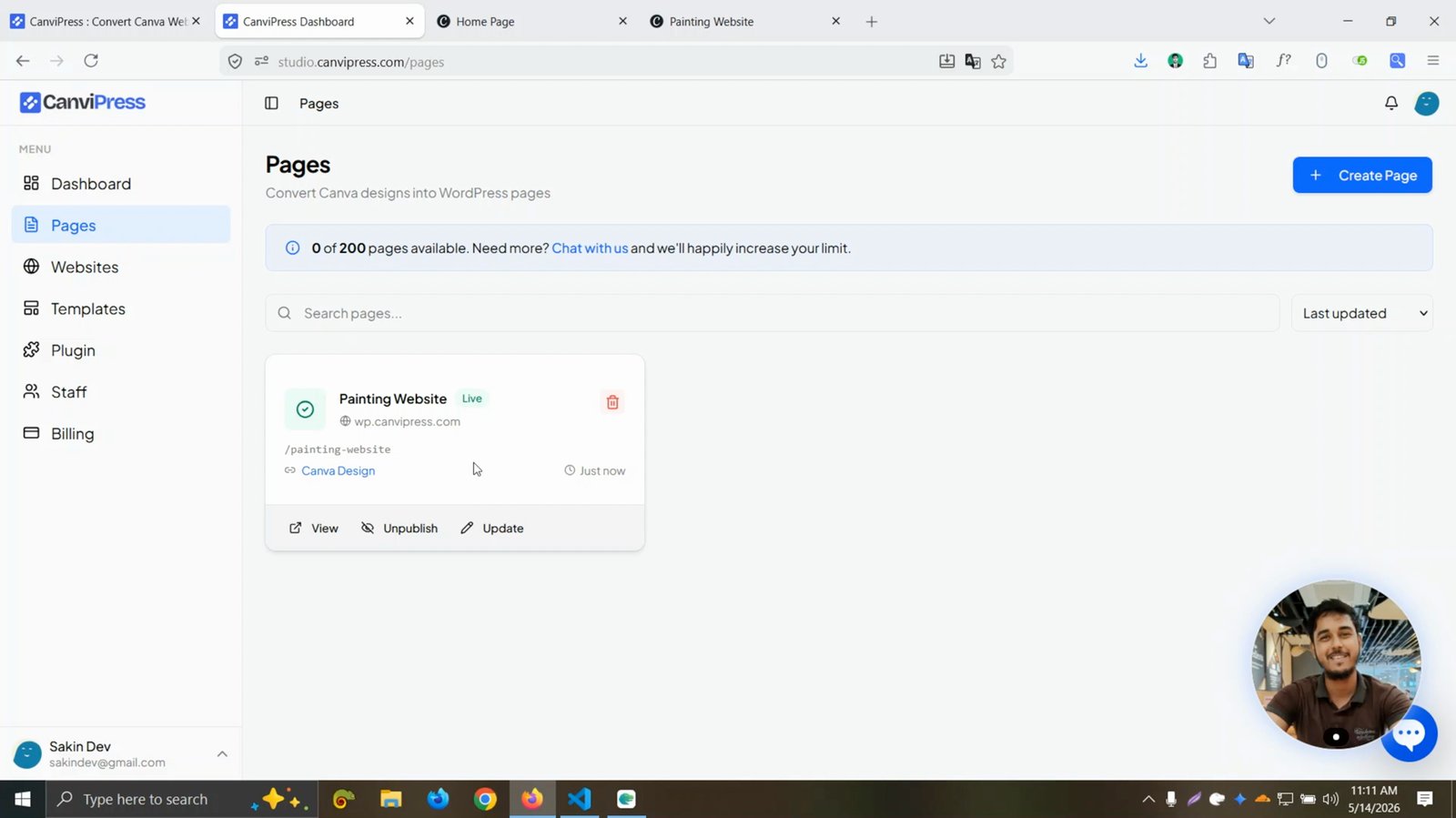
Click View to open the converted page on your WordPress site
See the live result of your conversion.
Observe that the page is fully converted and pixel perfect
The WordPress page should look identical to your Canva design.

Compare the original Canva page and the WordPress page side by side
Verify the accuracy of the conversion.
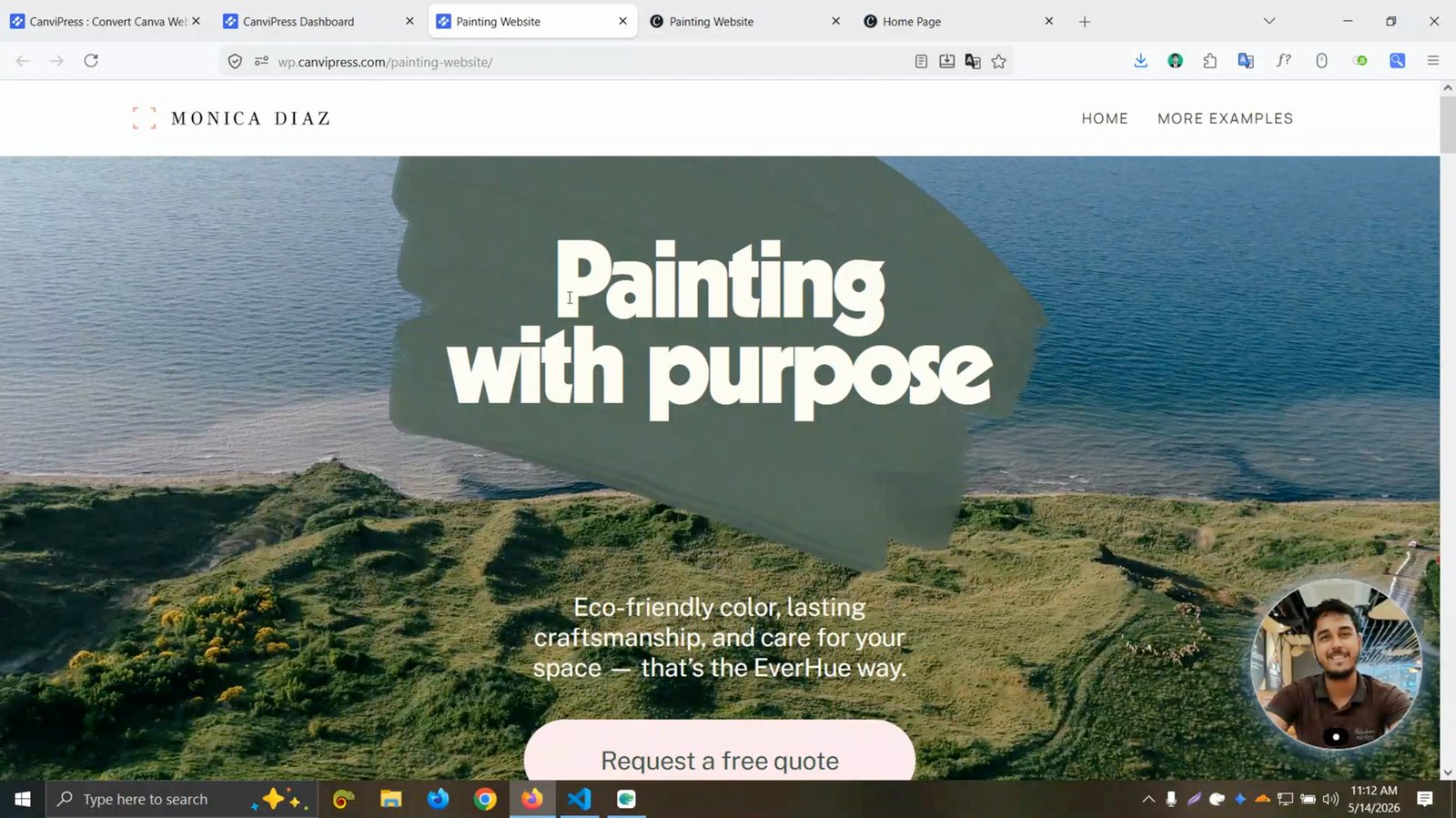
Repeat the process to convert another Canva page
You can convert multiple Canva pages using the same steps.

Name the new page and enter the Canva site URL
Provide a title and the URL for the next Canva page.
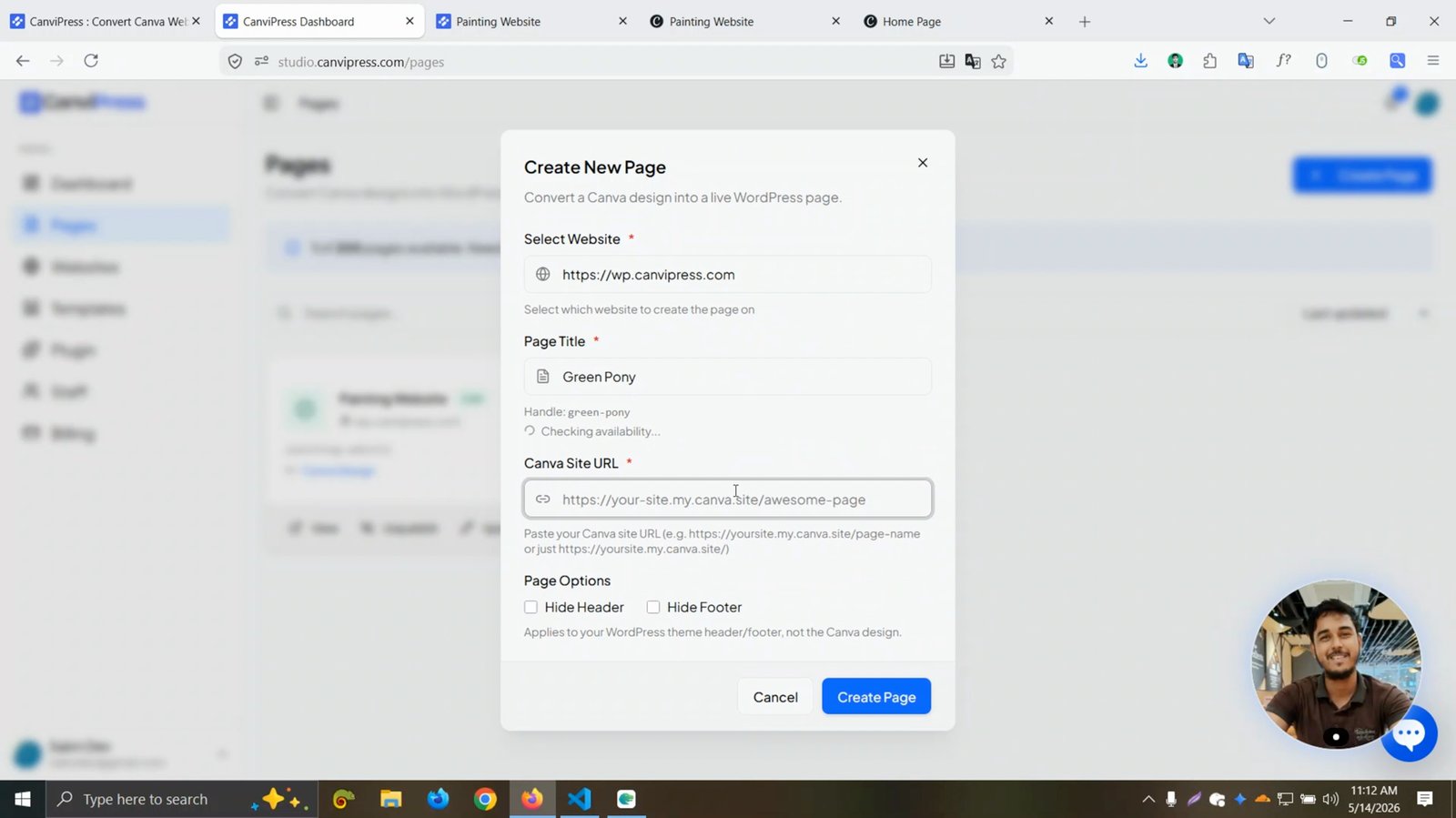
Click Create page to convert the second Canva page
Start the conversion for the new page.

View the second converted page in the dashboard
Check that the second page has been created successfully.

Click View to open the second converted page on WordPress
Review the new page on your WordPress site.
Observe that the second page is converted exactly like the Canva template
The second WordPress page should match the Canva design.

Compare the landing page on Canva and WordPress to confirm accuracy
Final check to ensure your landing page is identical on both platforms.

You made it to the end!
25 steps complete