
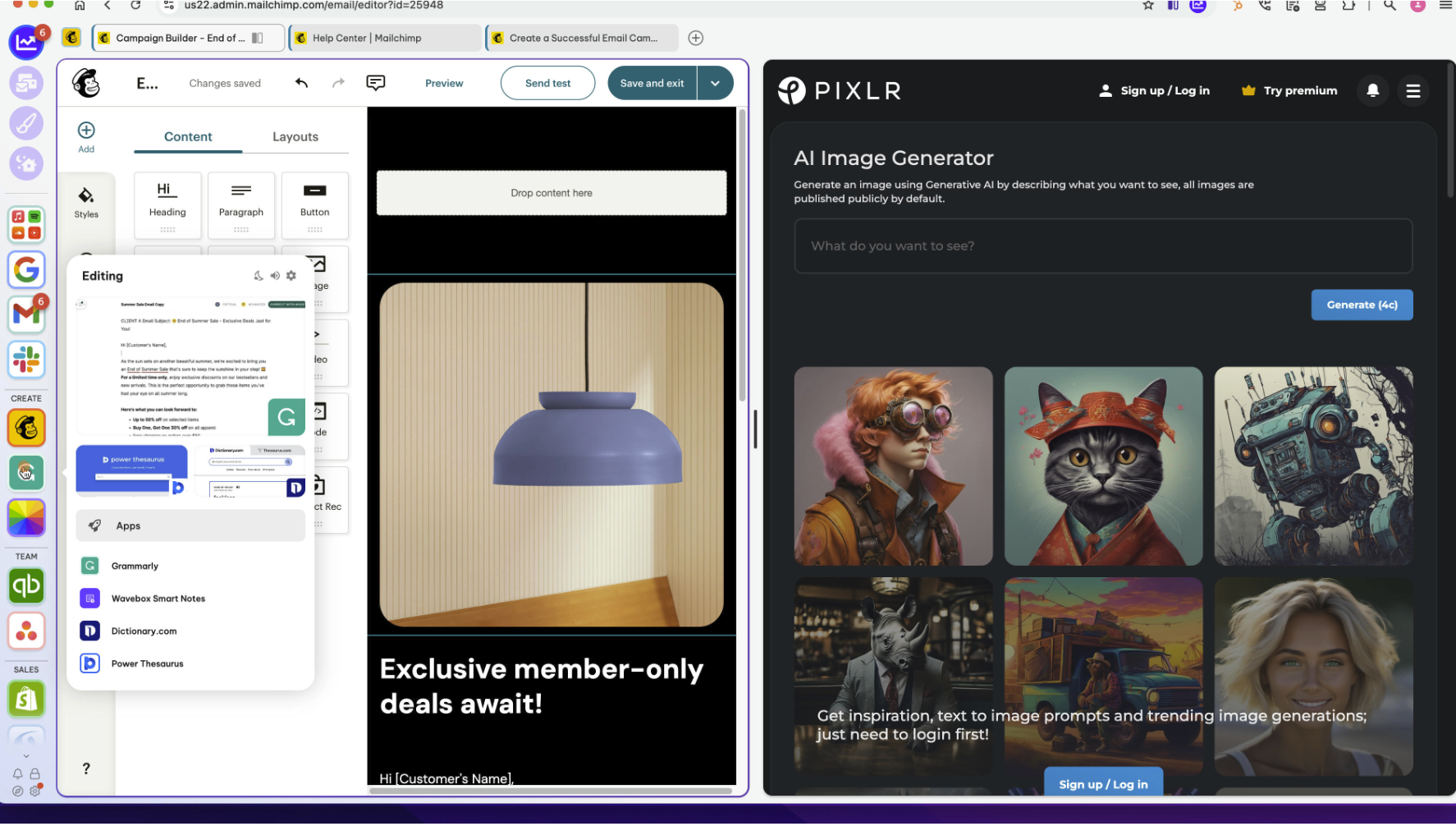
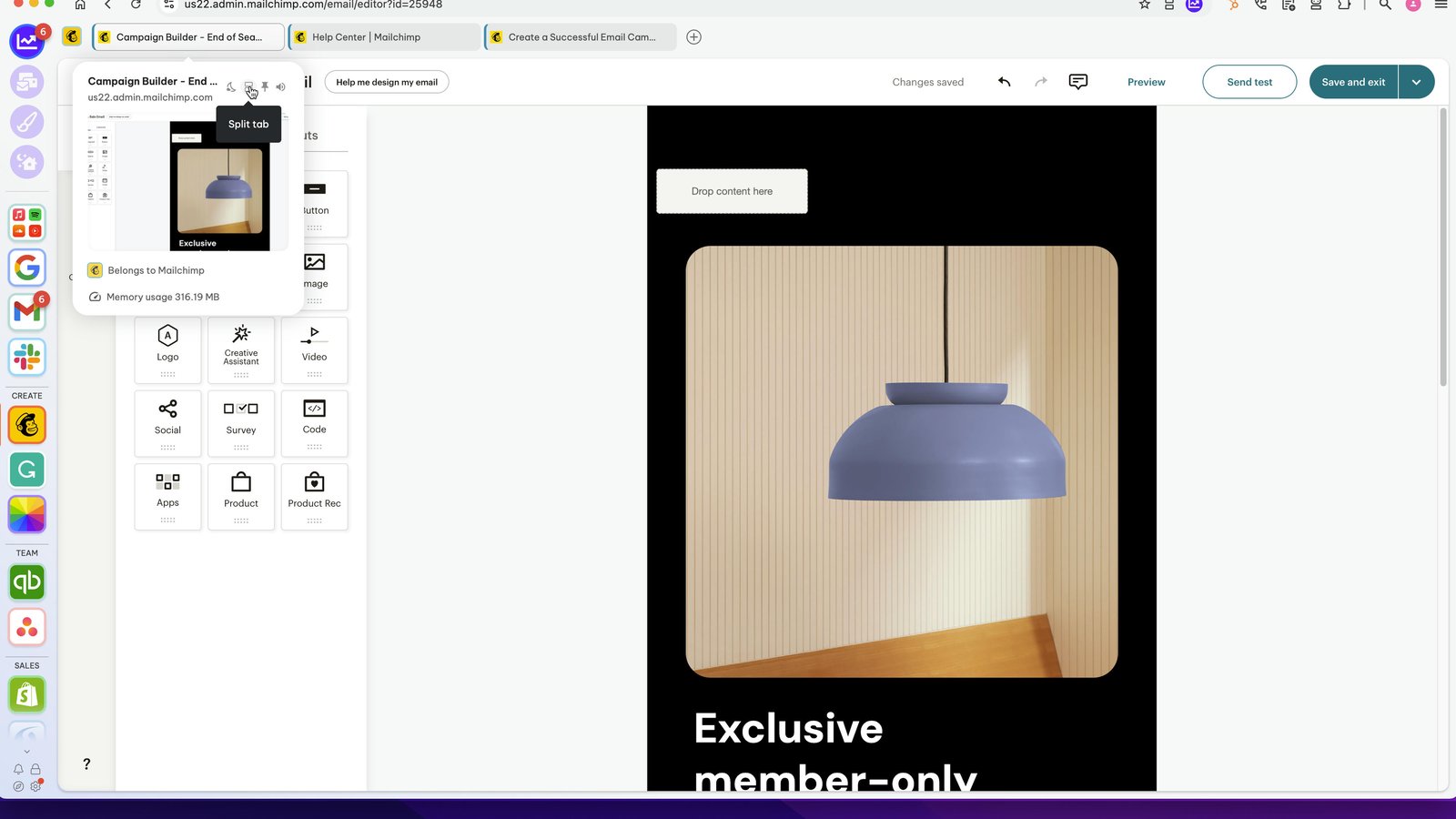
Click on the app/tab you want to split, then click on the split-screen icon in the tab pop-over.
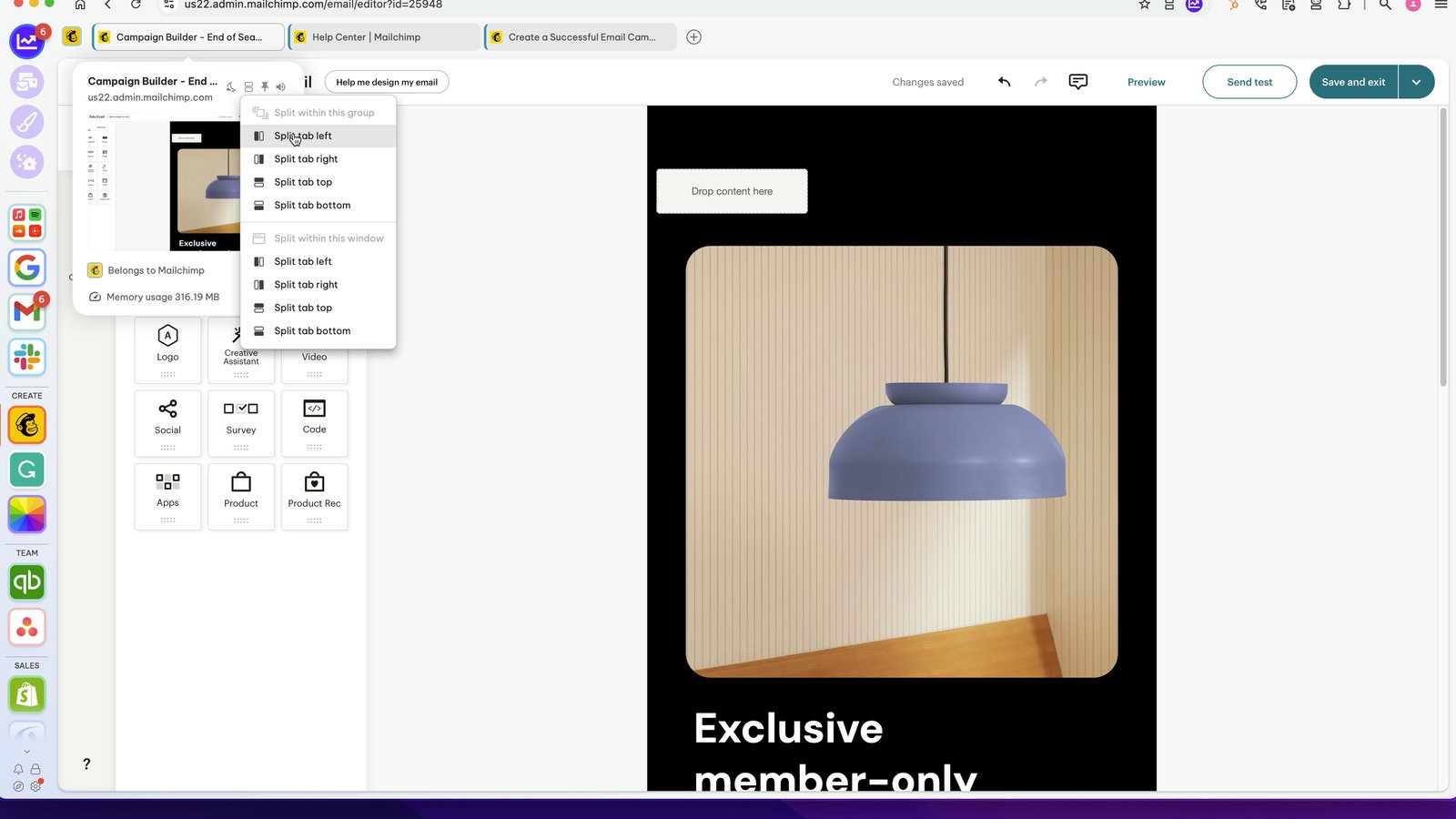
Click on the split option you want left/right/top/bottom
Choosing the option to "split within the group' will only split apps and tabs in this group. It will save this as the group setting until your unsplit it.
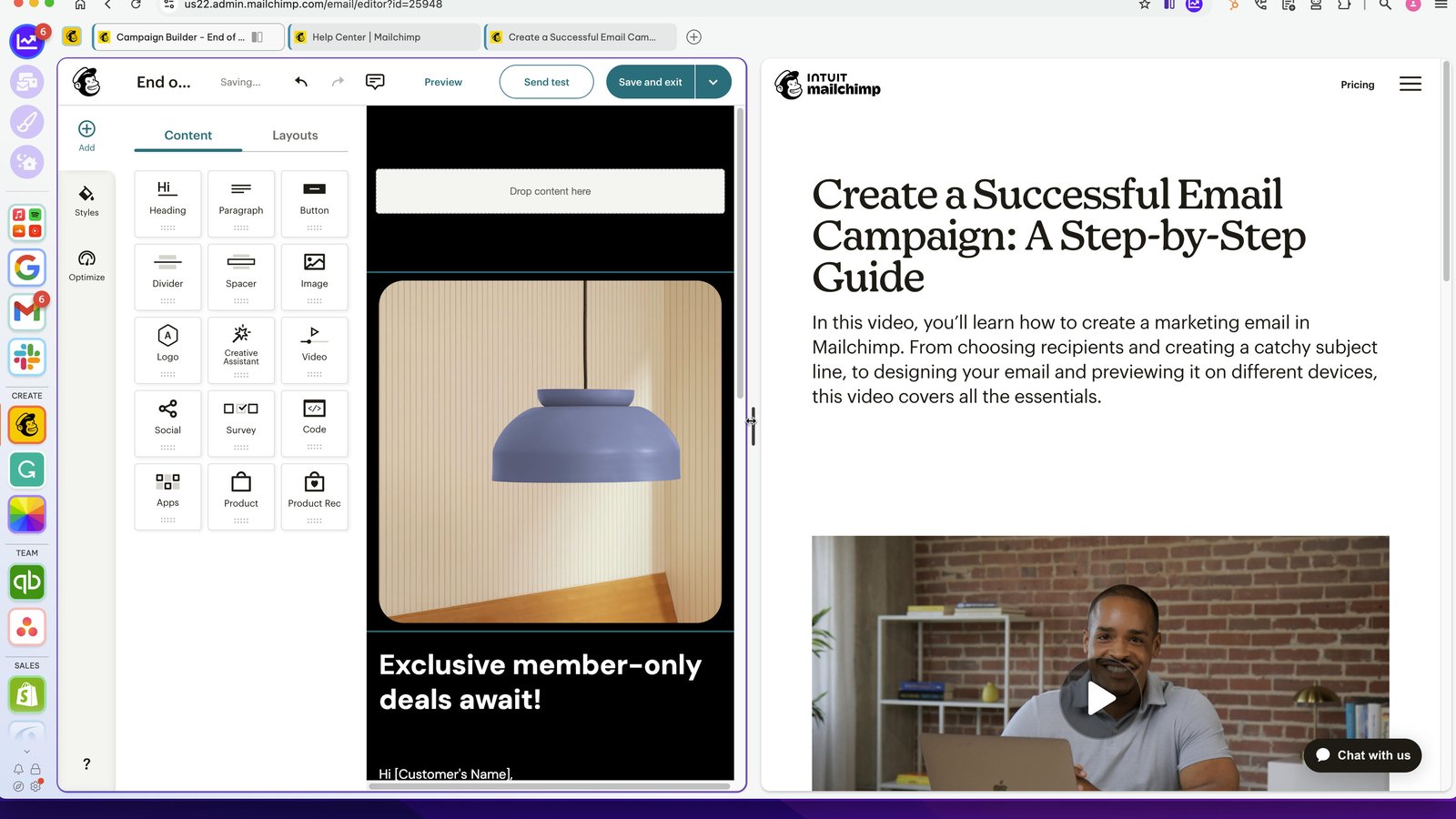
Your can drag the two splits wider and narrower.
Try clicking on other tabs in the group.
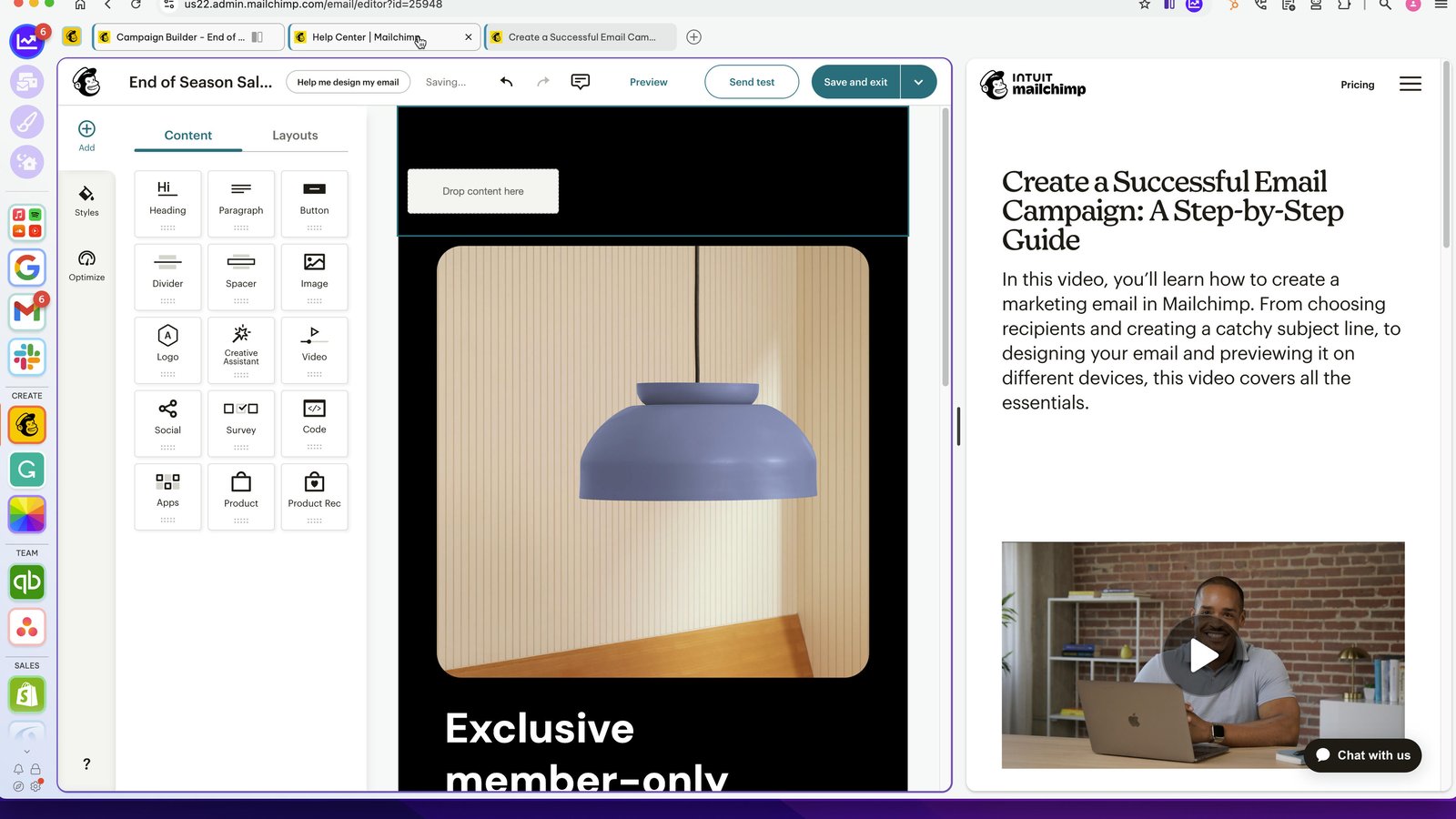
Always click on the app/tab first when you want to split it or make a change to the split.
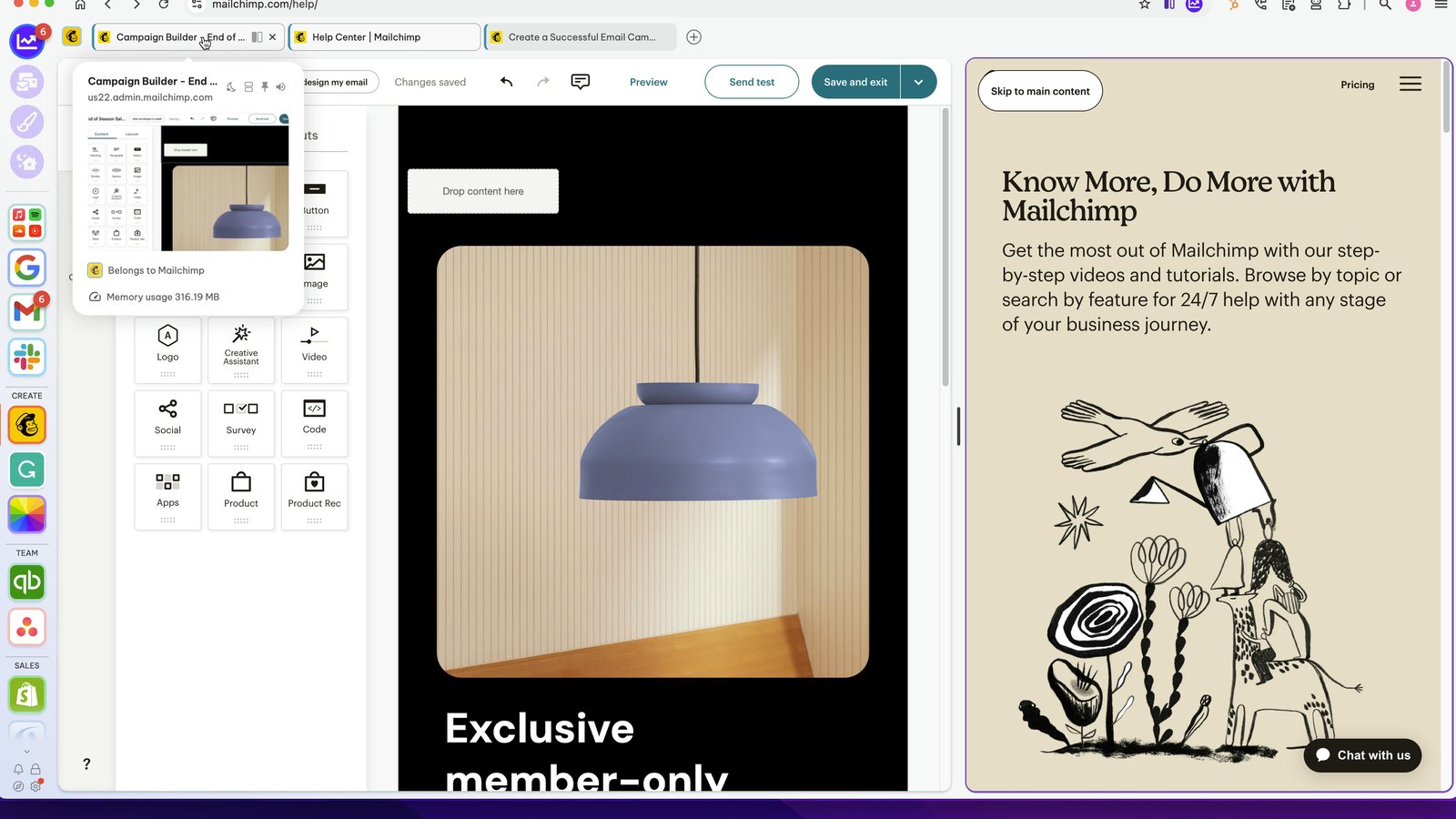
Then chose a different option from the split-screen dropdown.
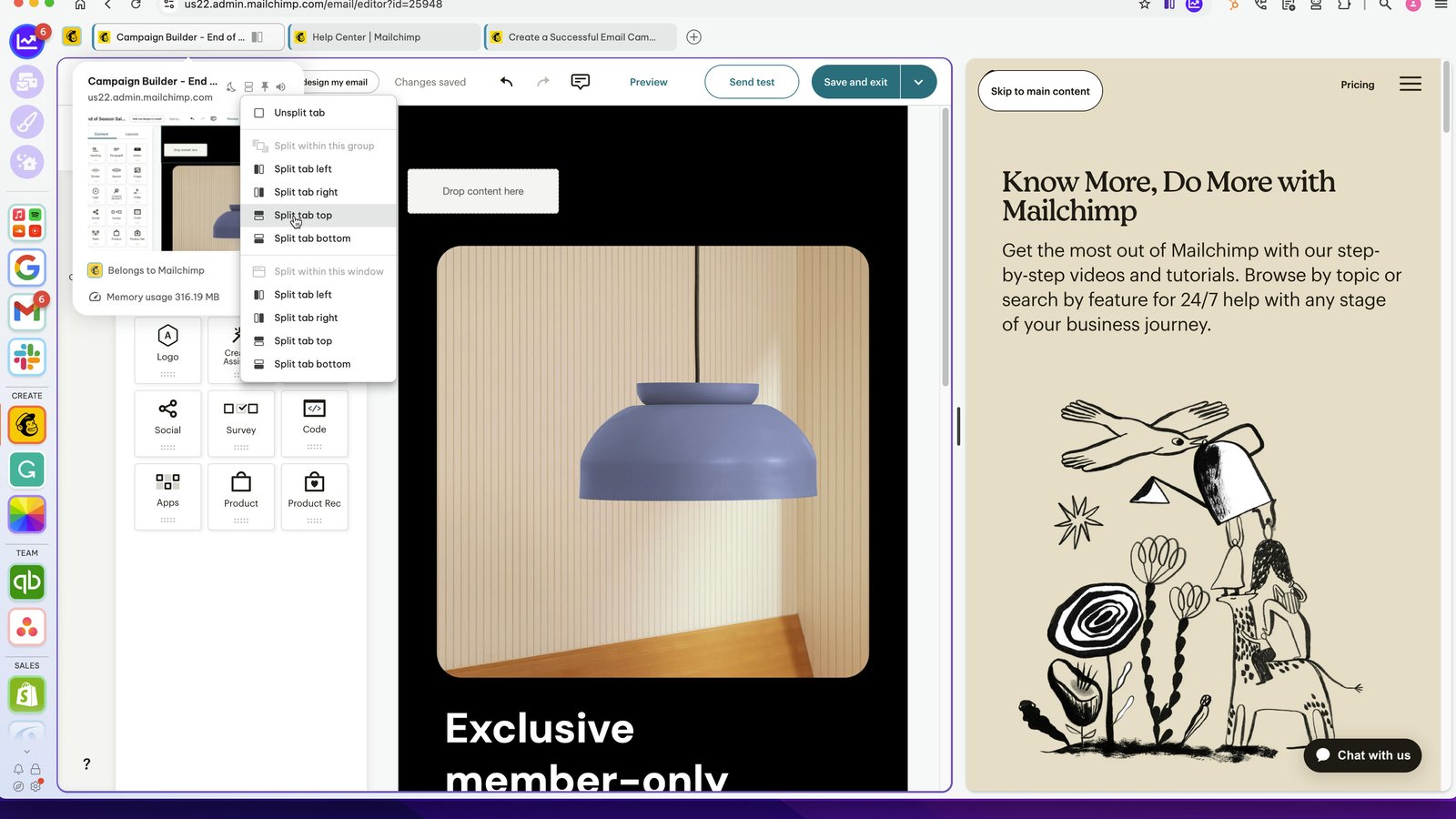
This is the top/bottom split.
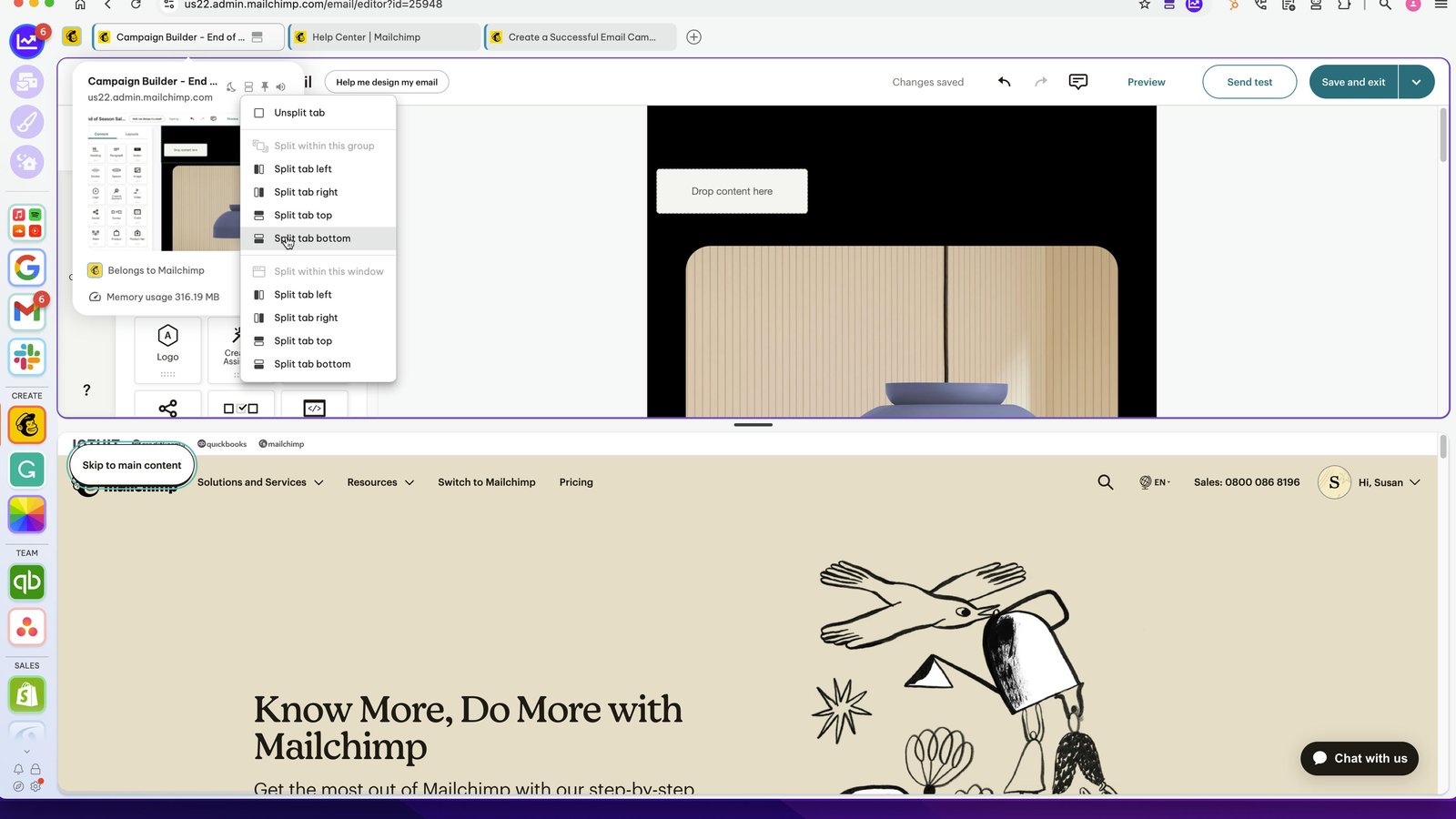
This is the bottom/top split.
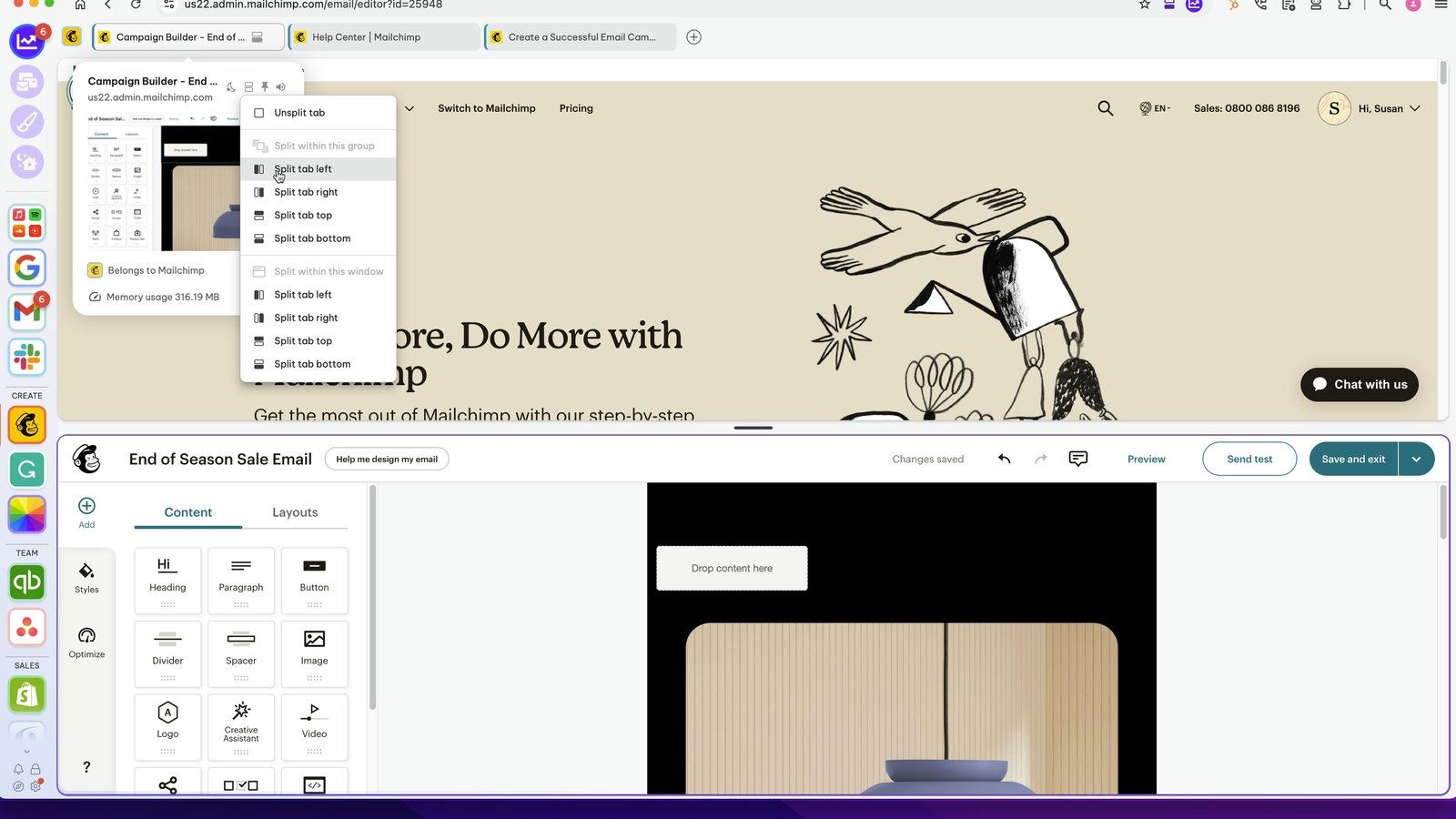
The group will stay in split-screen, until it's turned off.
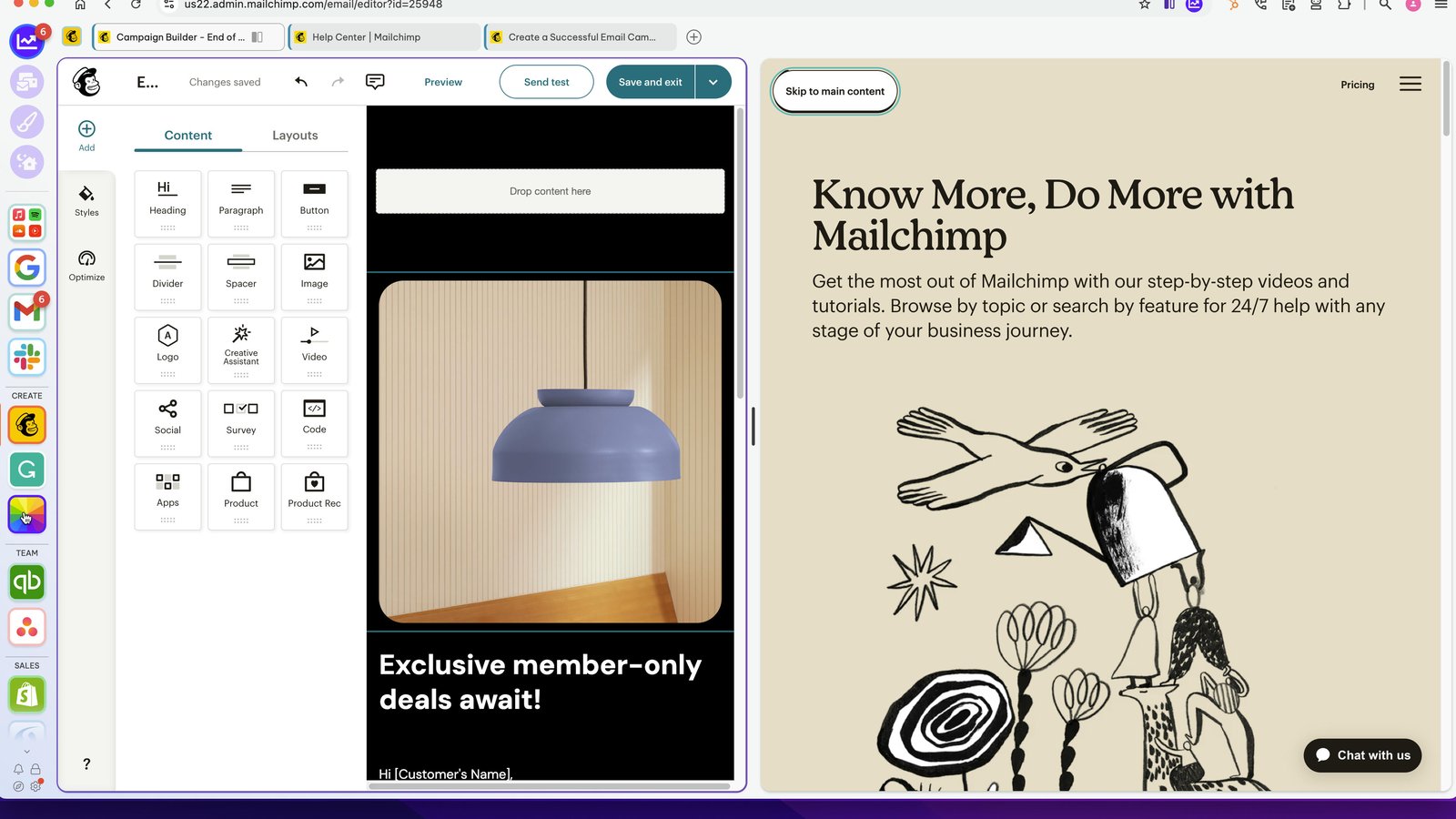
For example, this group isn't using split-screen at the moment.
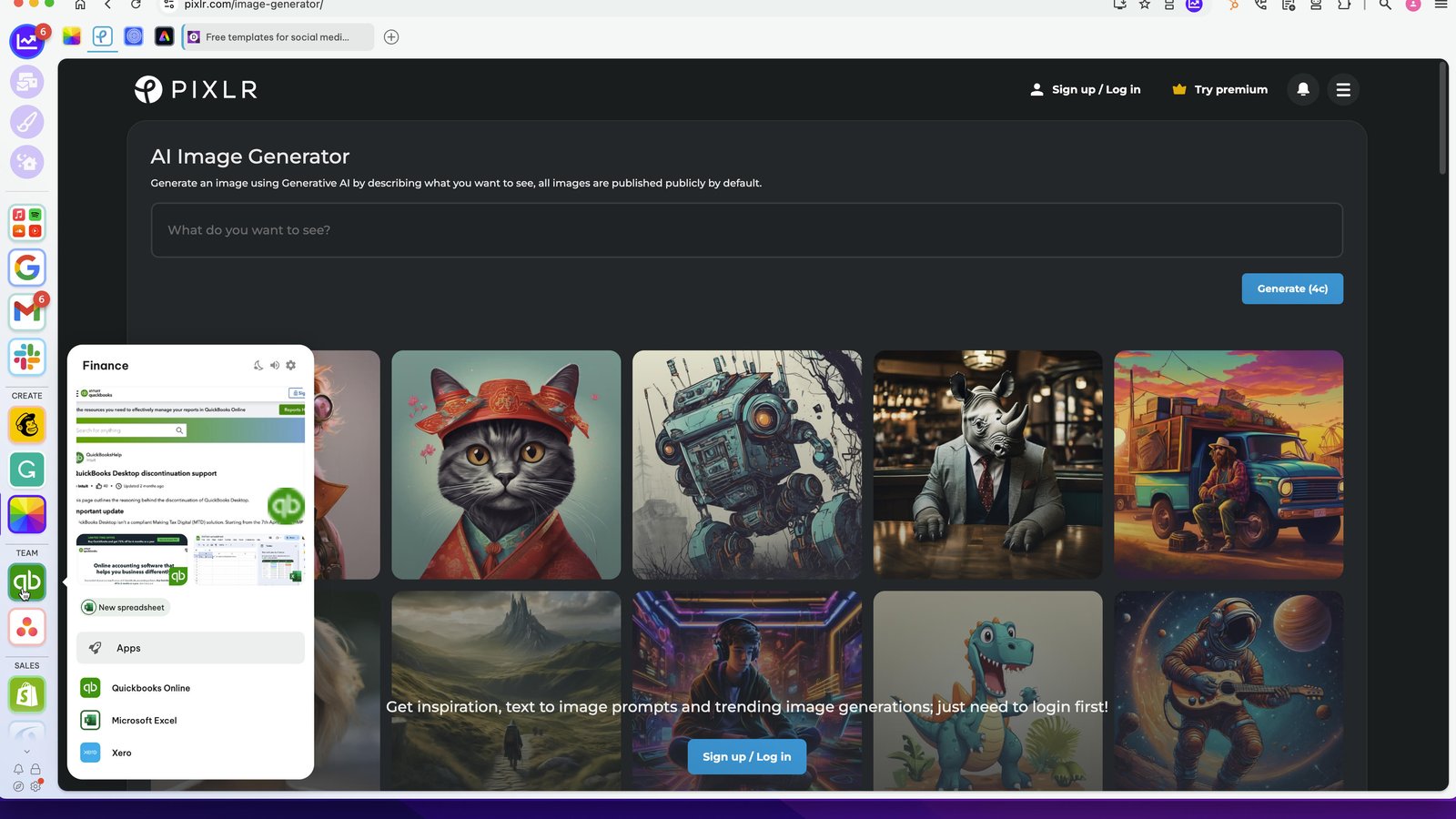
This Group is using split-screen.
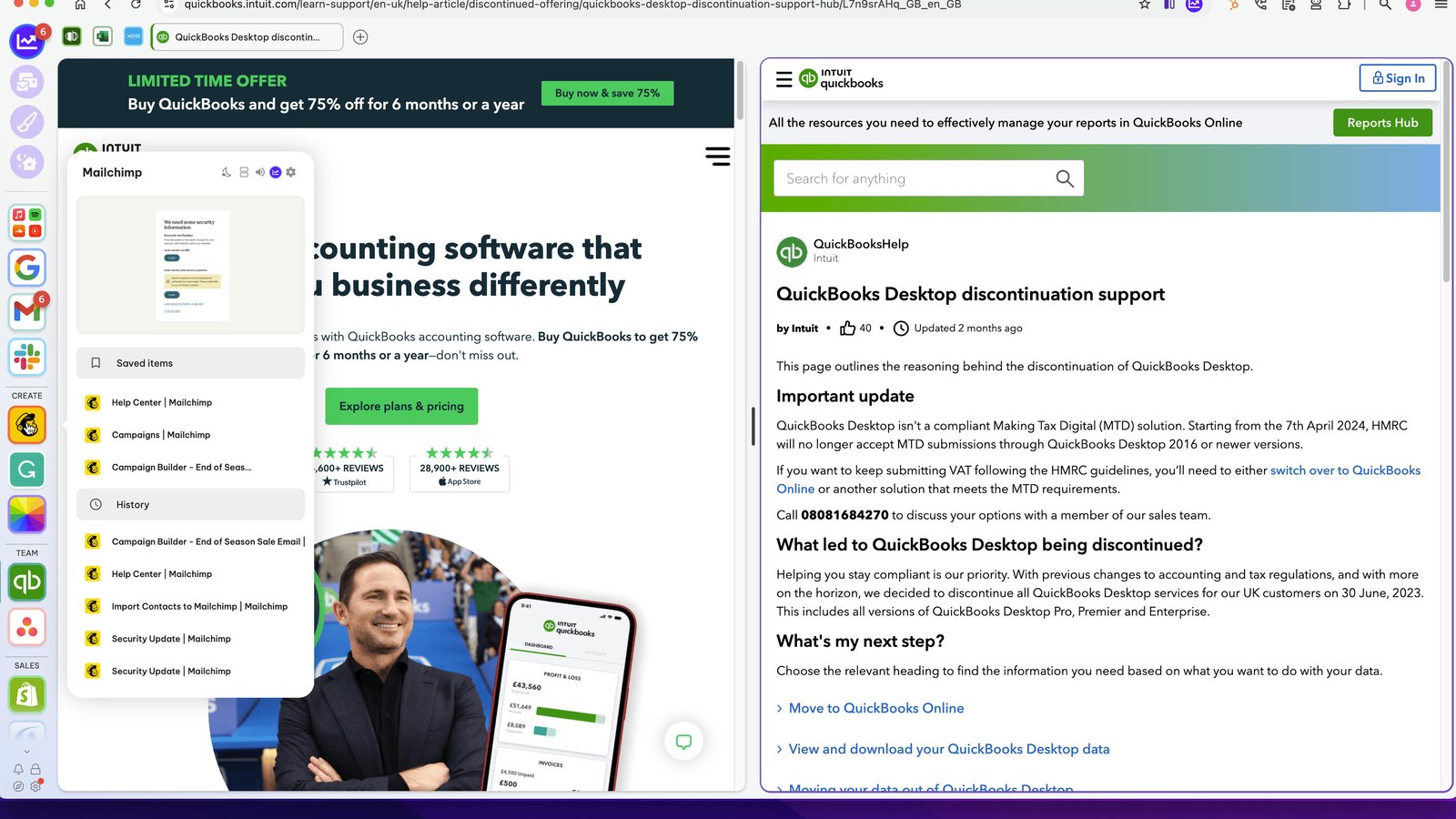
Back in Mailchimp, click on the split-screen icon in the address bar on the far-right.
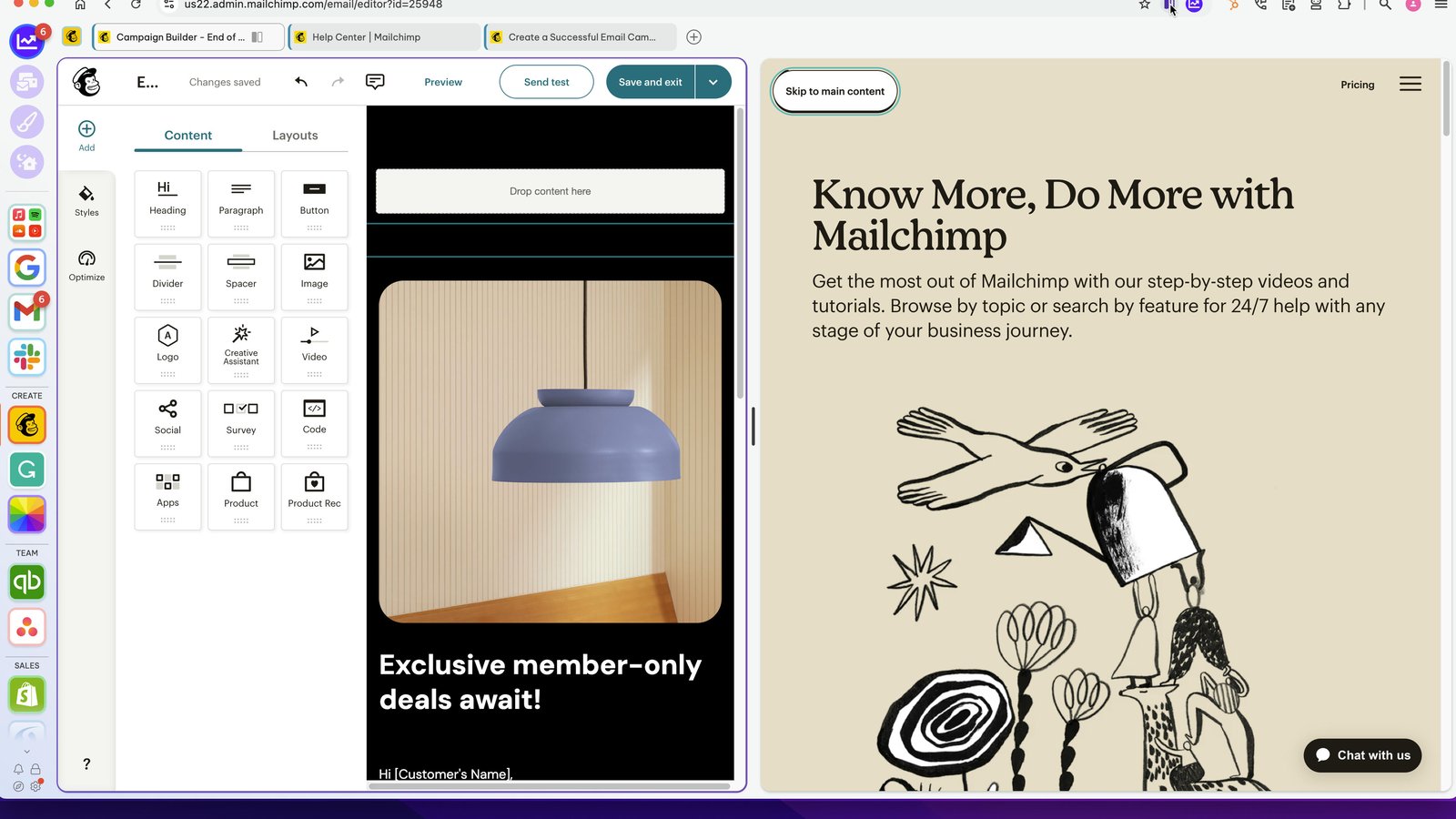
This time, choose the option under 'split within this window'. This means you can split with any other tab/app in Wavebox (not just in the group).
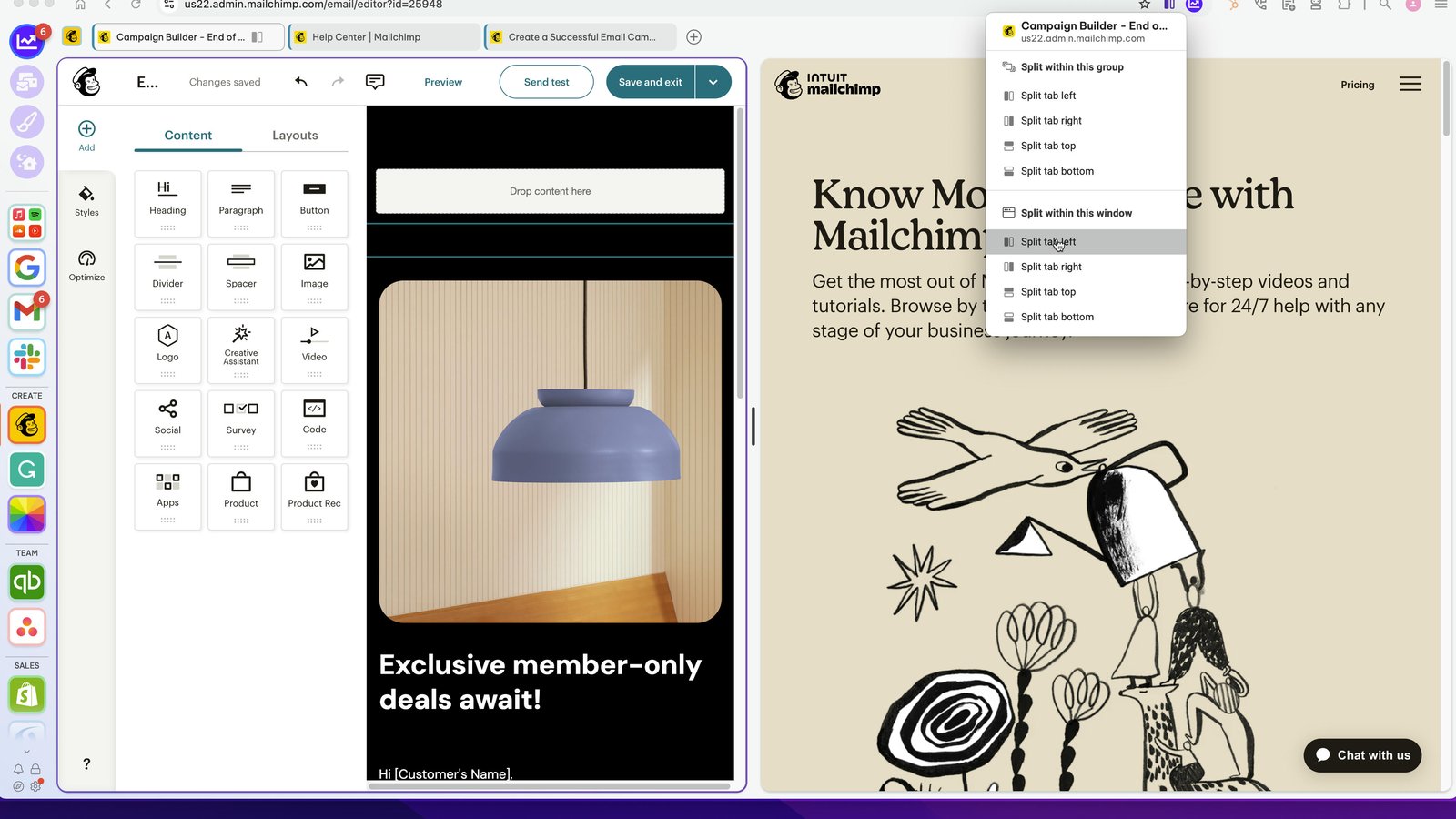
The first split will be with the last app/tab you used outside of the current group.
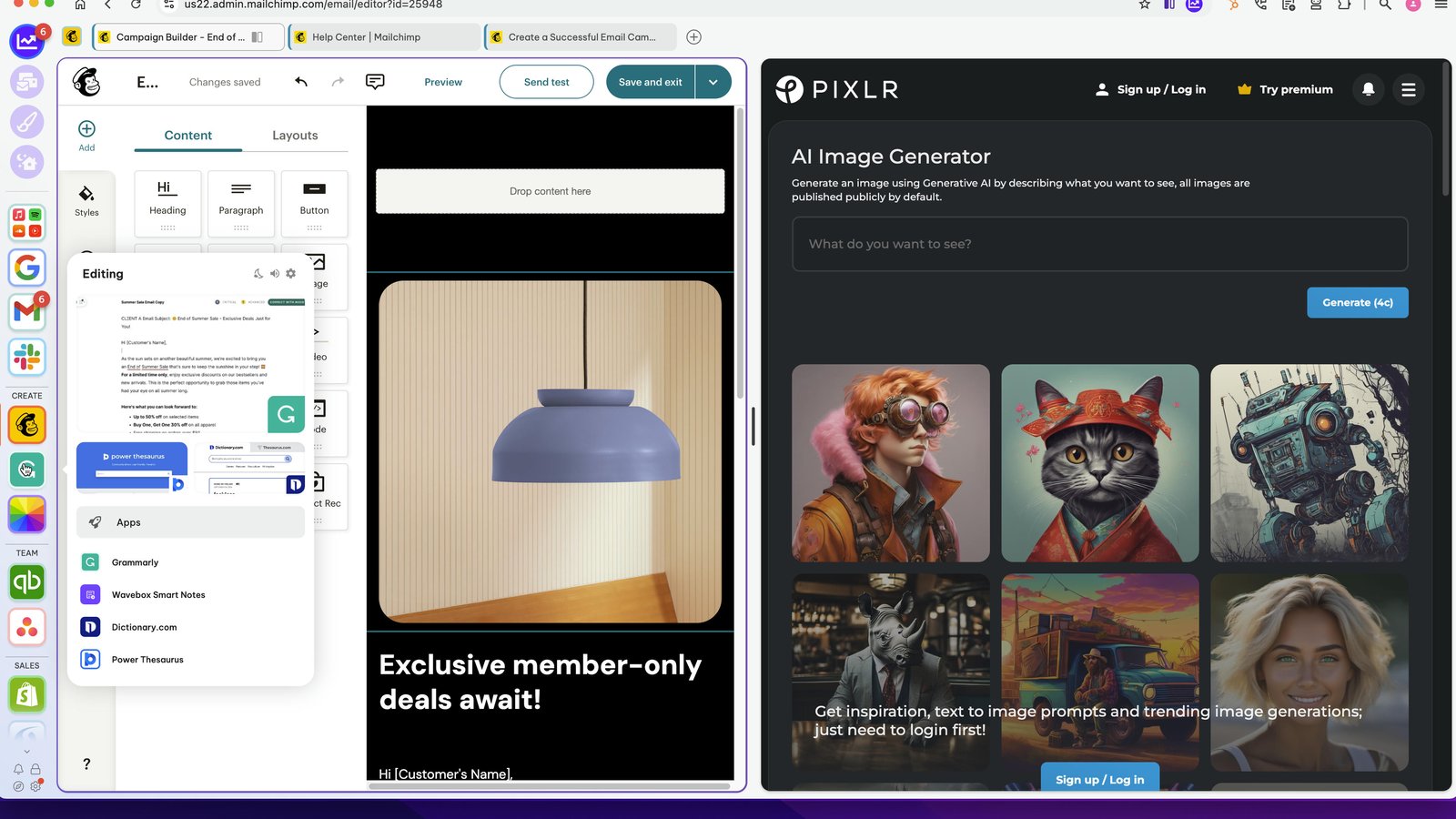
You can use split-screen for lots of things, including copy/paste from one App to another.
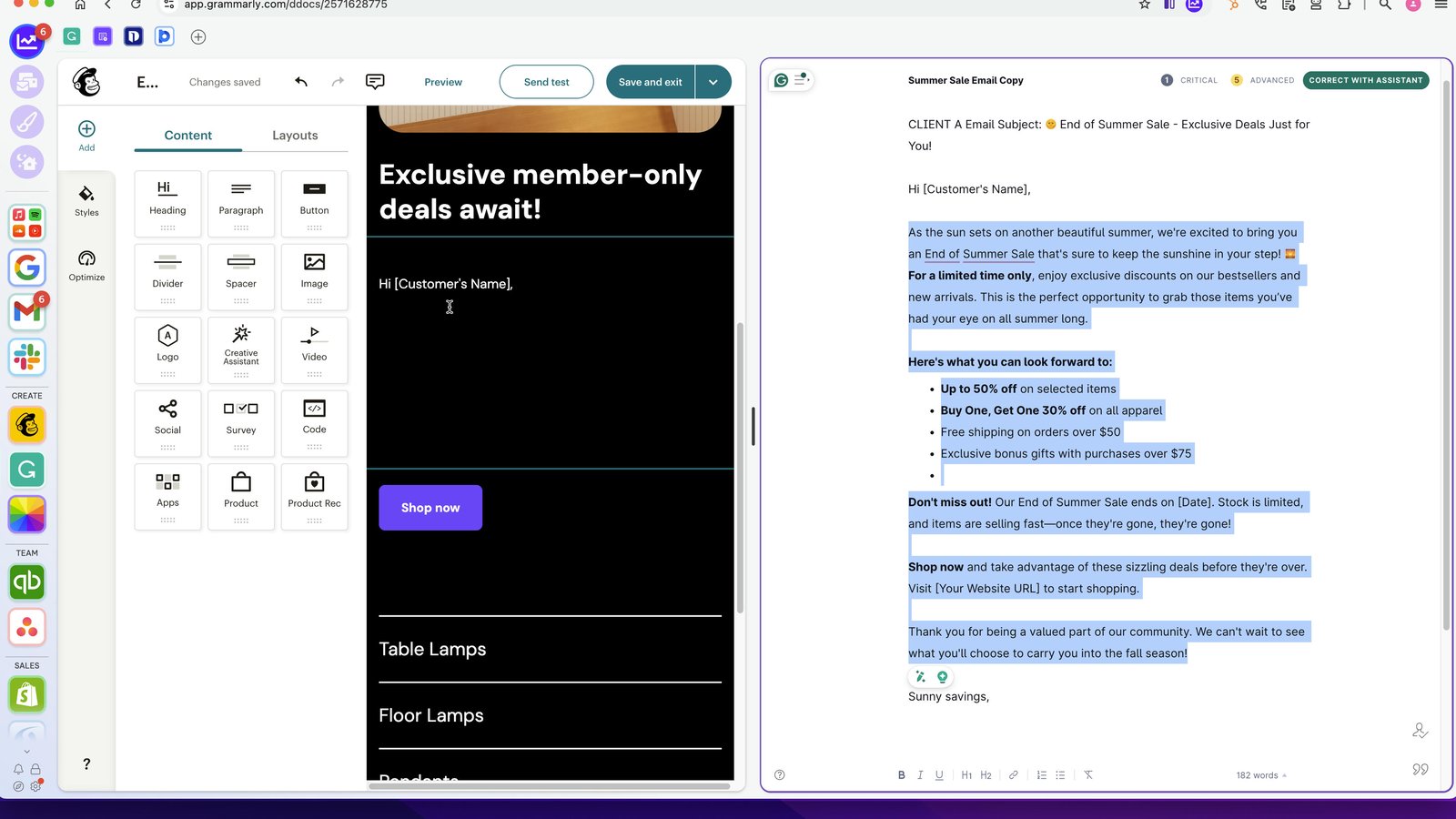
Try splitting with other apps in different Groups.
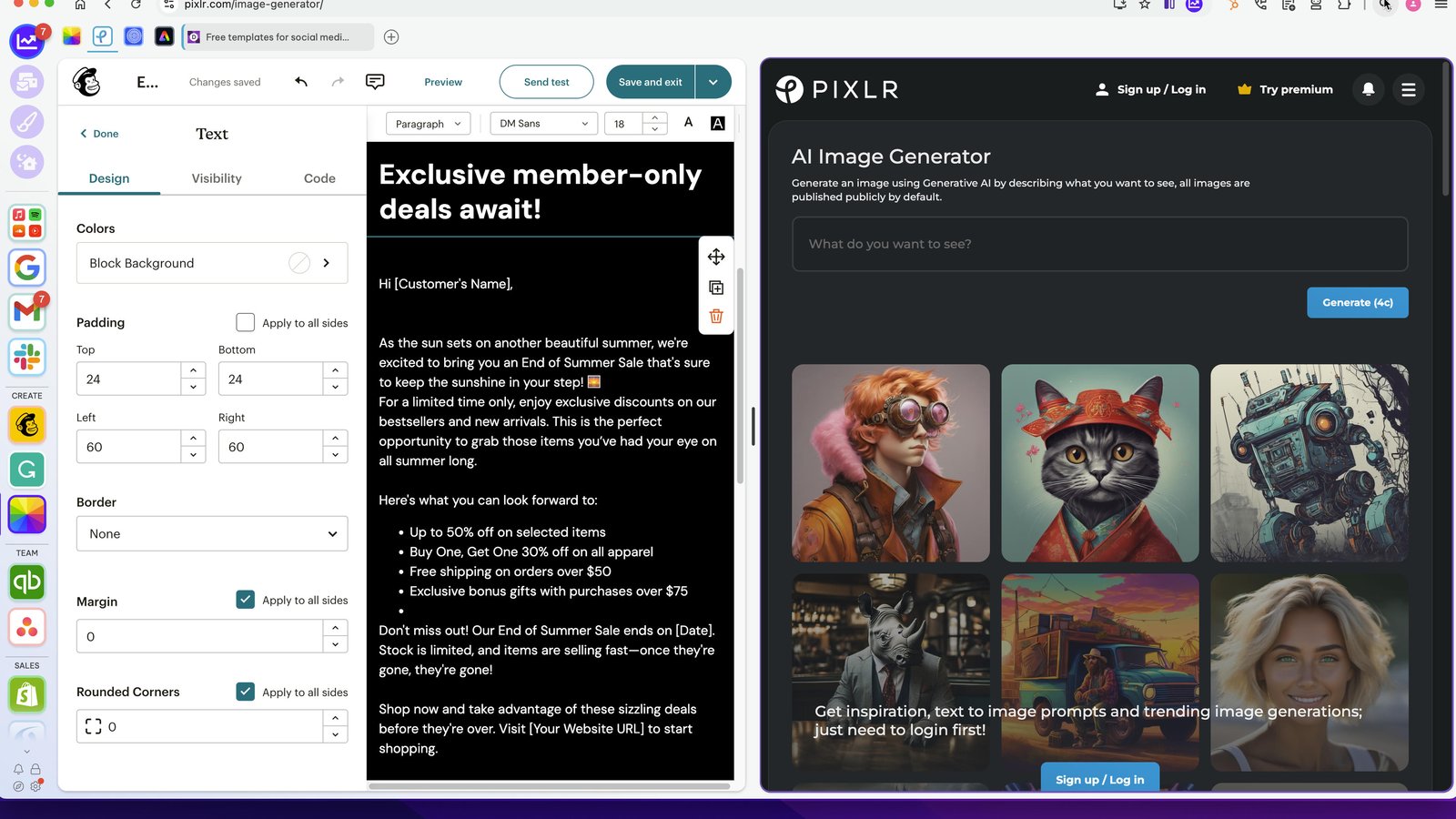
You can also use Search to find the right tab, and also the Ctrl+Tab keyboard shortcut.
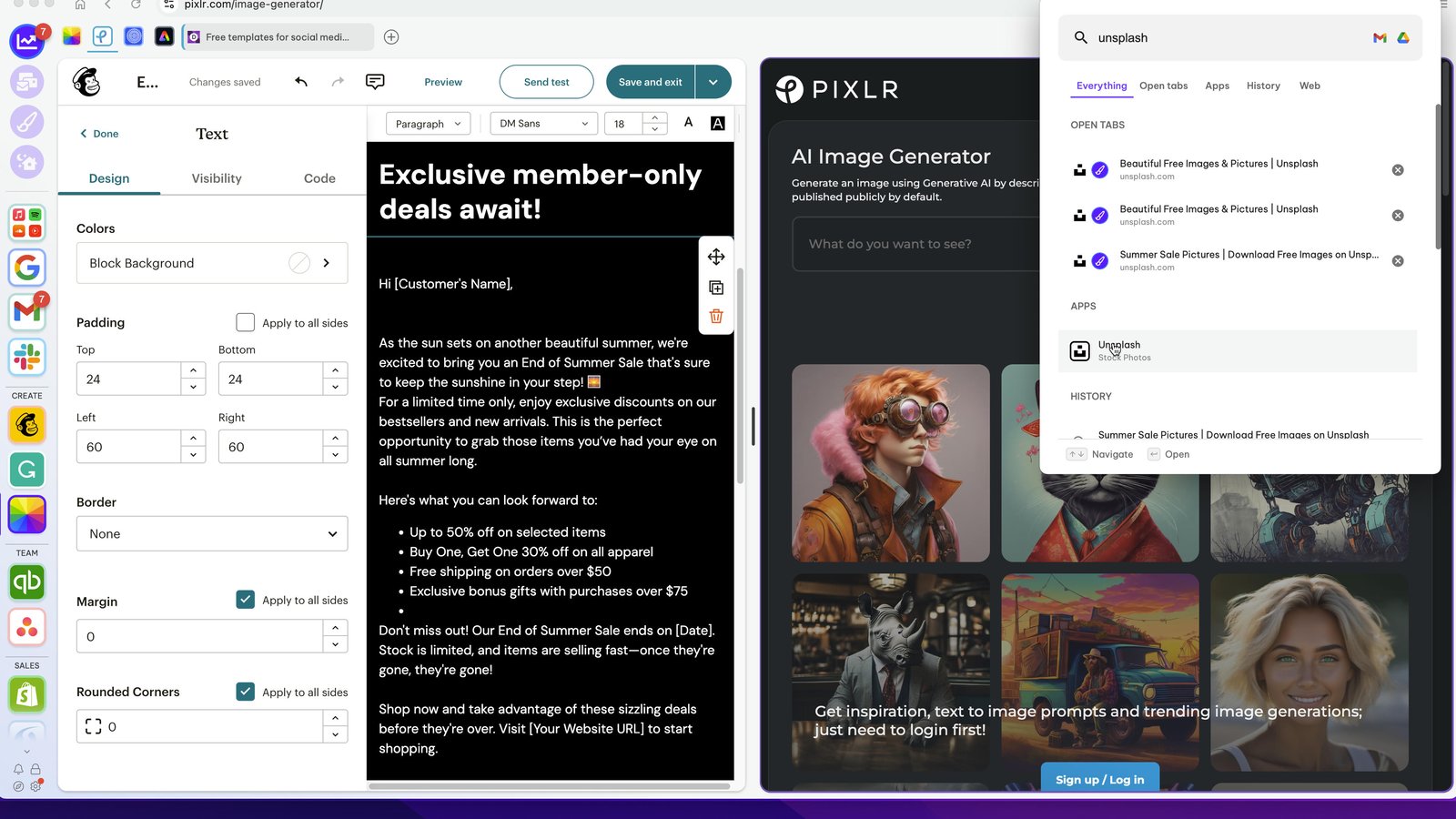
Click on the original split tab, and then select 'Unsplit tab' when you're done.
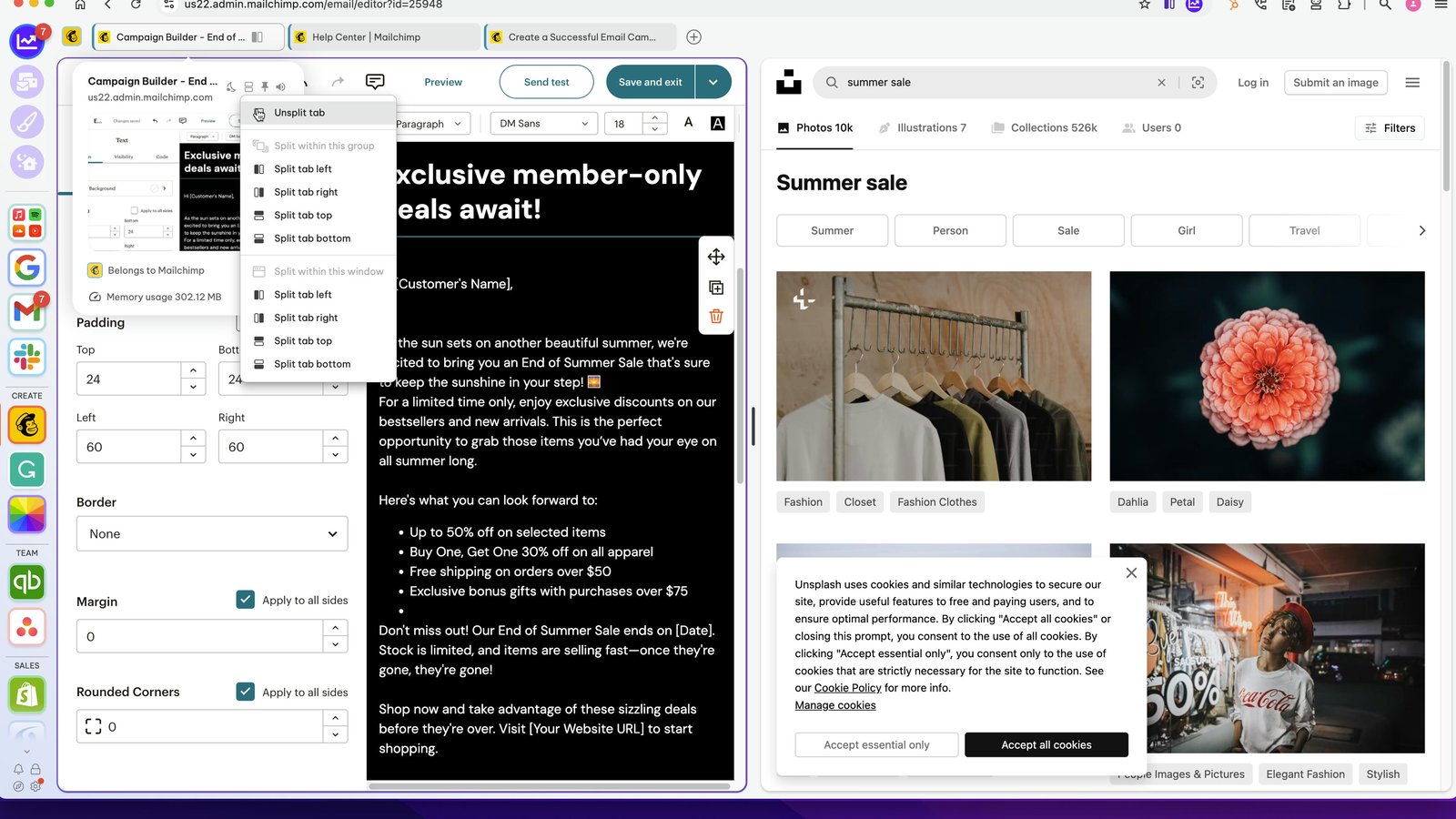
You can also use split-screen in secondary windows using the icon in the address bar (on the far right).
You made it to the end!
19 steps complete