WagePoint: Navigation Tutorial ✓
Time by Wagepoint is our supplementary application for scheduling, time tracking, and managing clock in and clock out records. It works in conjunction with our main Wagepoint payroll system, which is integrated with our Xero accounting software.
In Time by Wagepoint, management builds the master schedule. Employees then log in using their mobile devices or our physical on site kiosk to clock in and out for their shifts. Once these hours are recorded and approved, they are imported directly into Wagepoint for payroll processing.

Accounting MIXERS
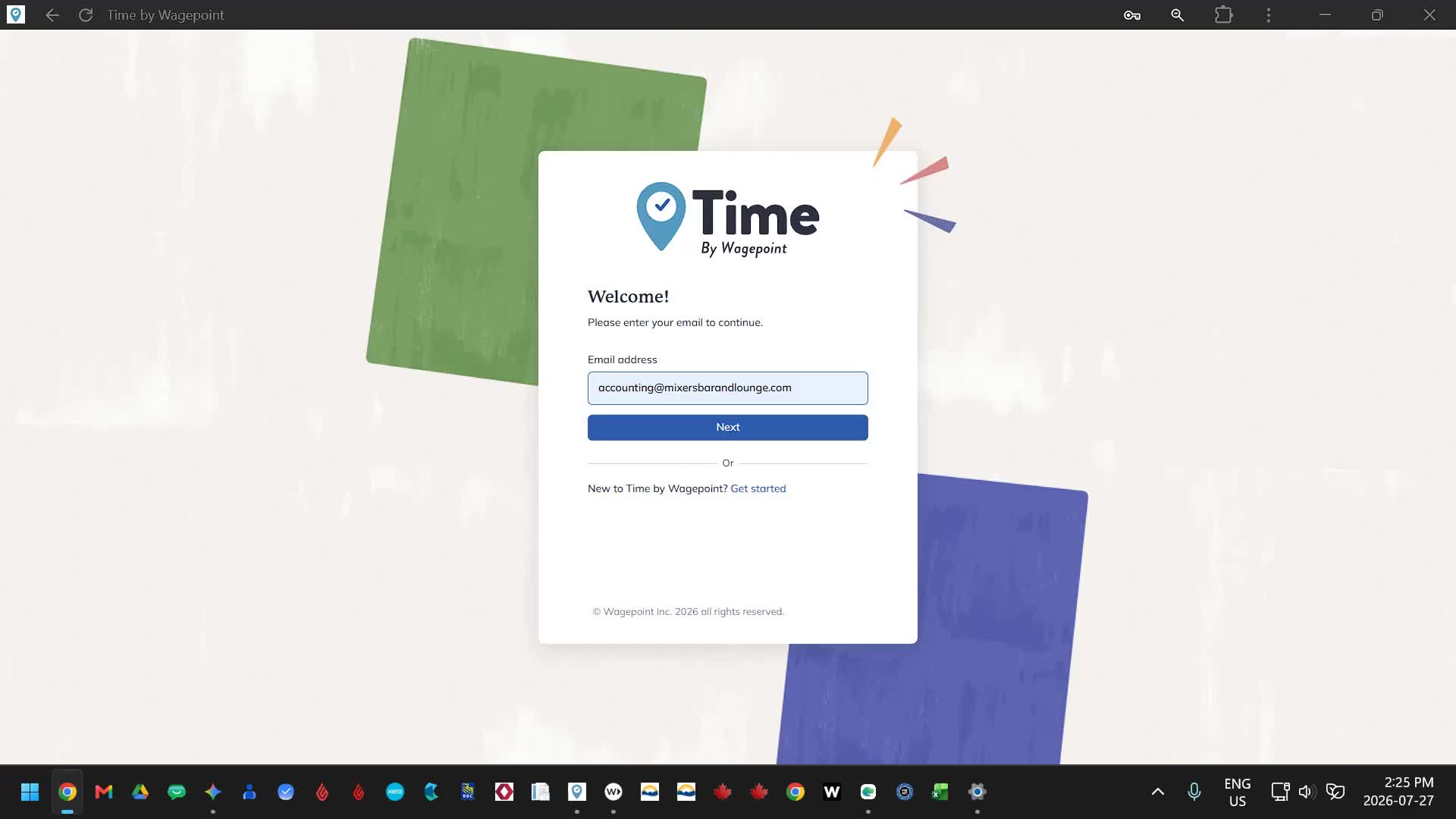
Time by WagePoint is integrated with WagePoint payroll.
It works in conjunction with WagePoint payroll and Xero accounting software.
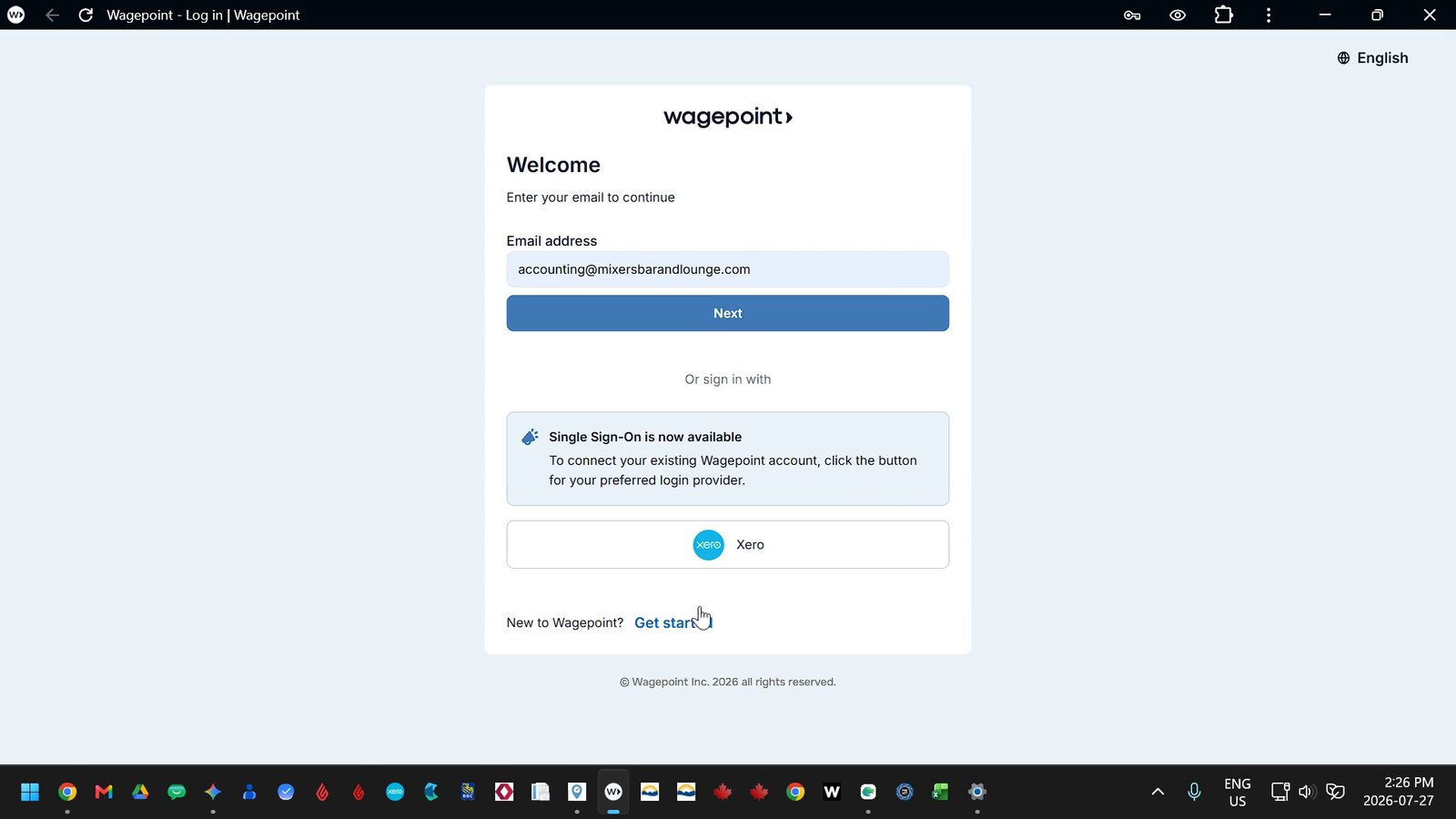
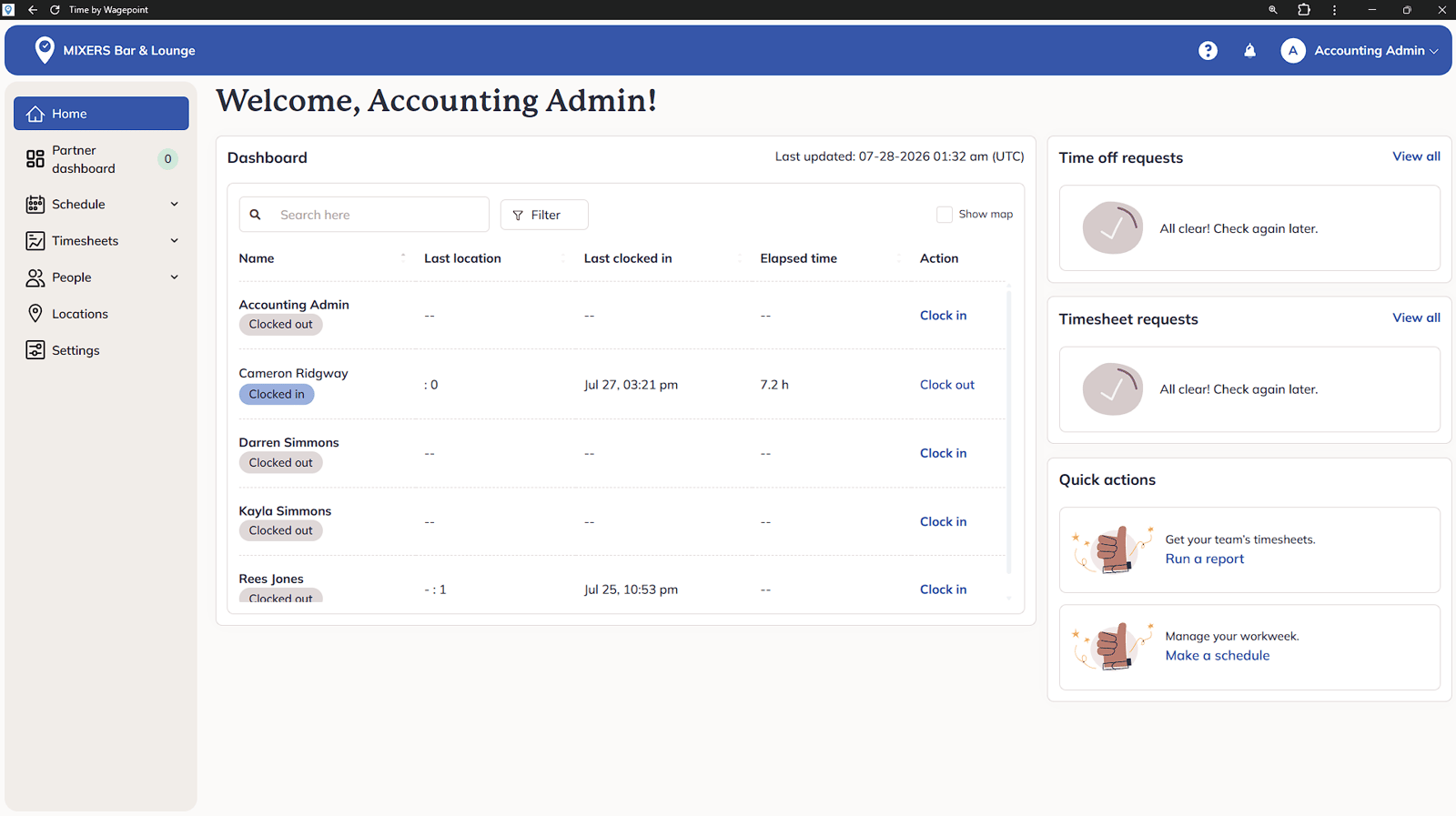
Dashboard landing page
This main dashboard serves as your primary management hub. At the top, you will see a list of all active employees, their current status showing whether they are clocked in or clocked out, their last recorded location, and their most recent clock in time.
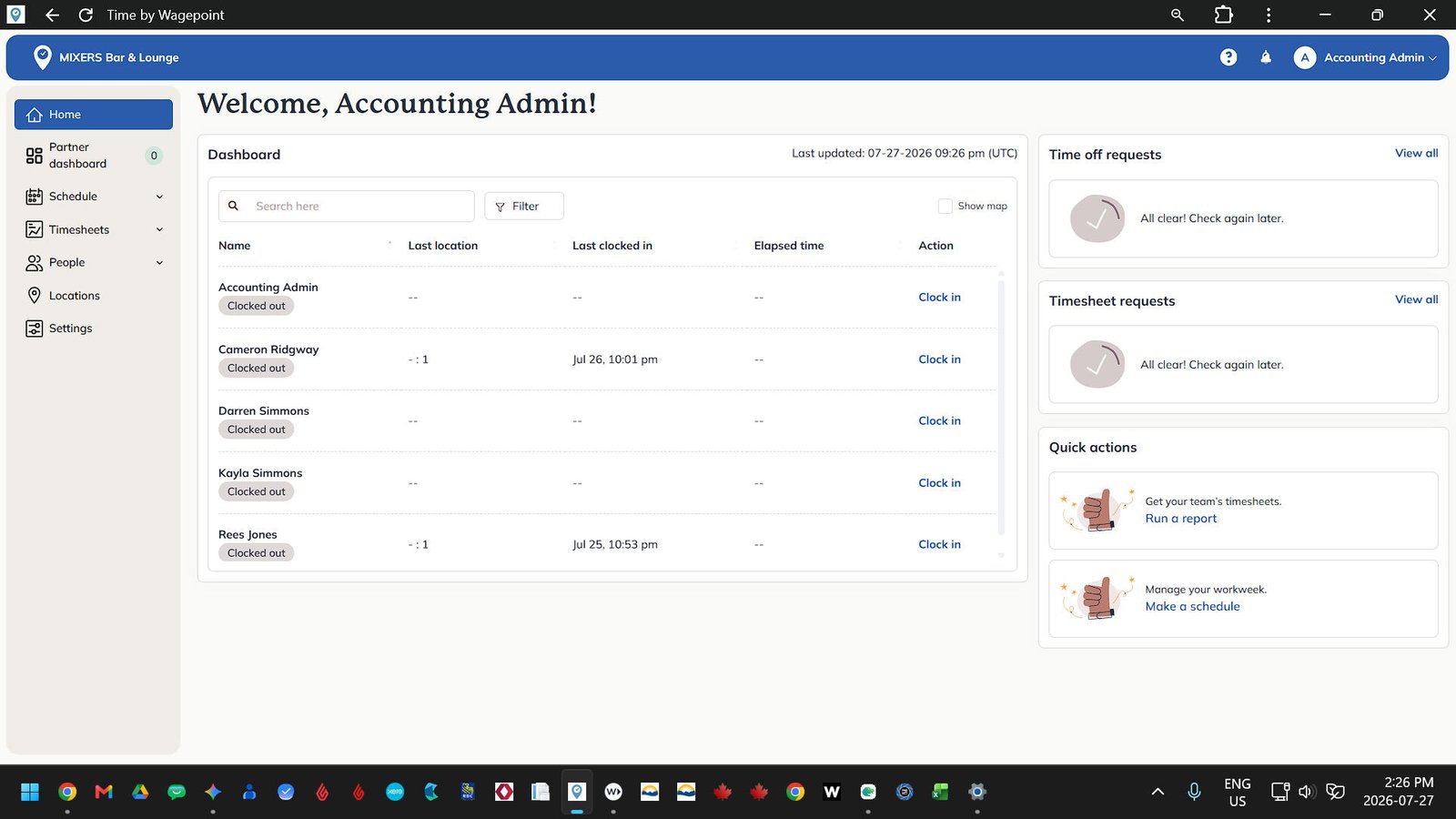
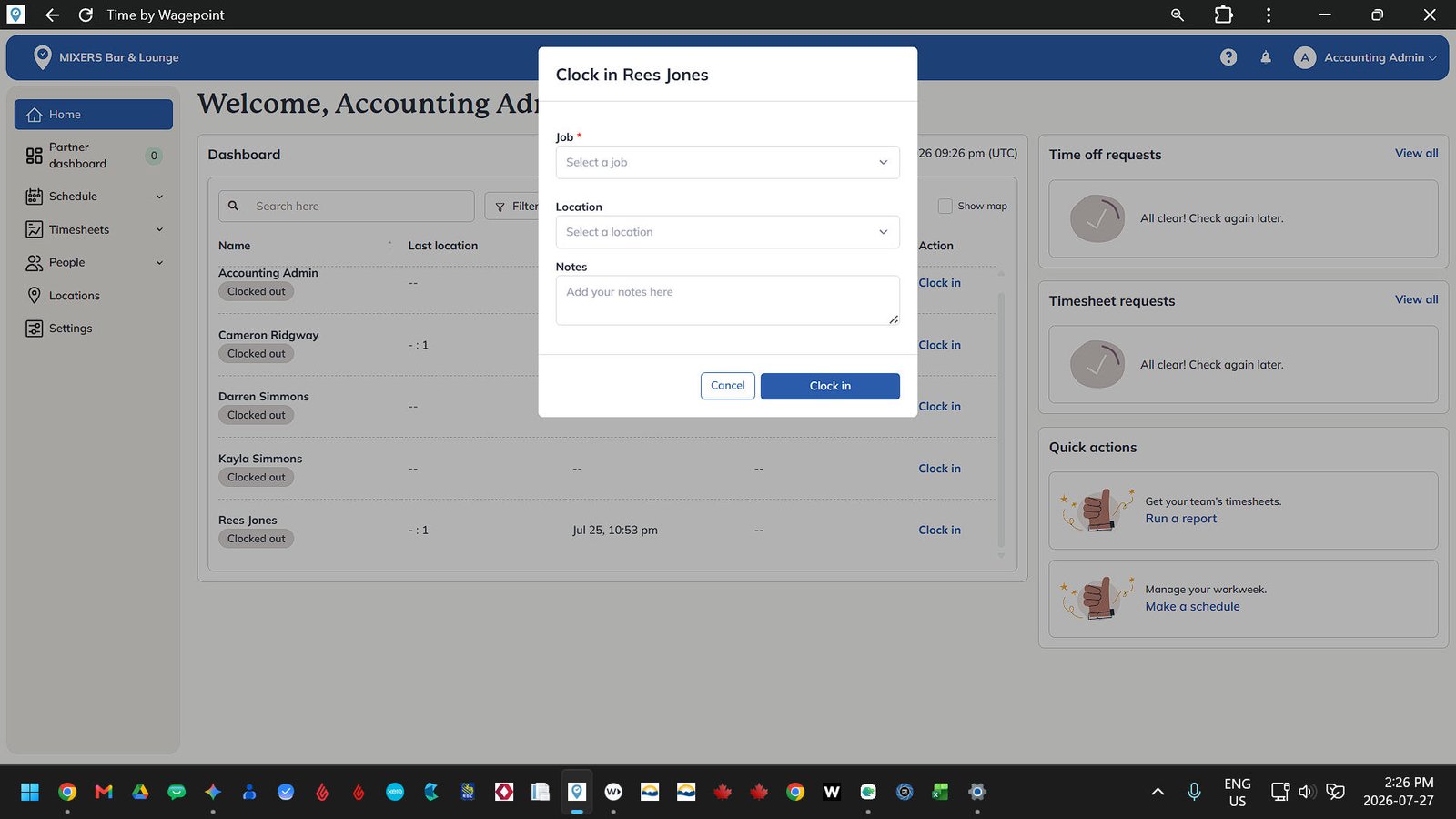
Clock in an Employee manually
Here you can manually clock in an employee by clicking Clock in next to their name if required.
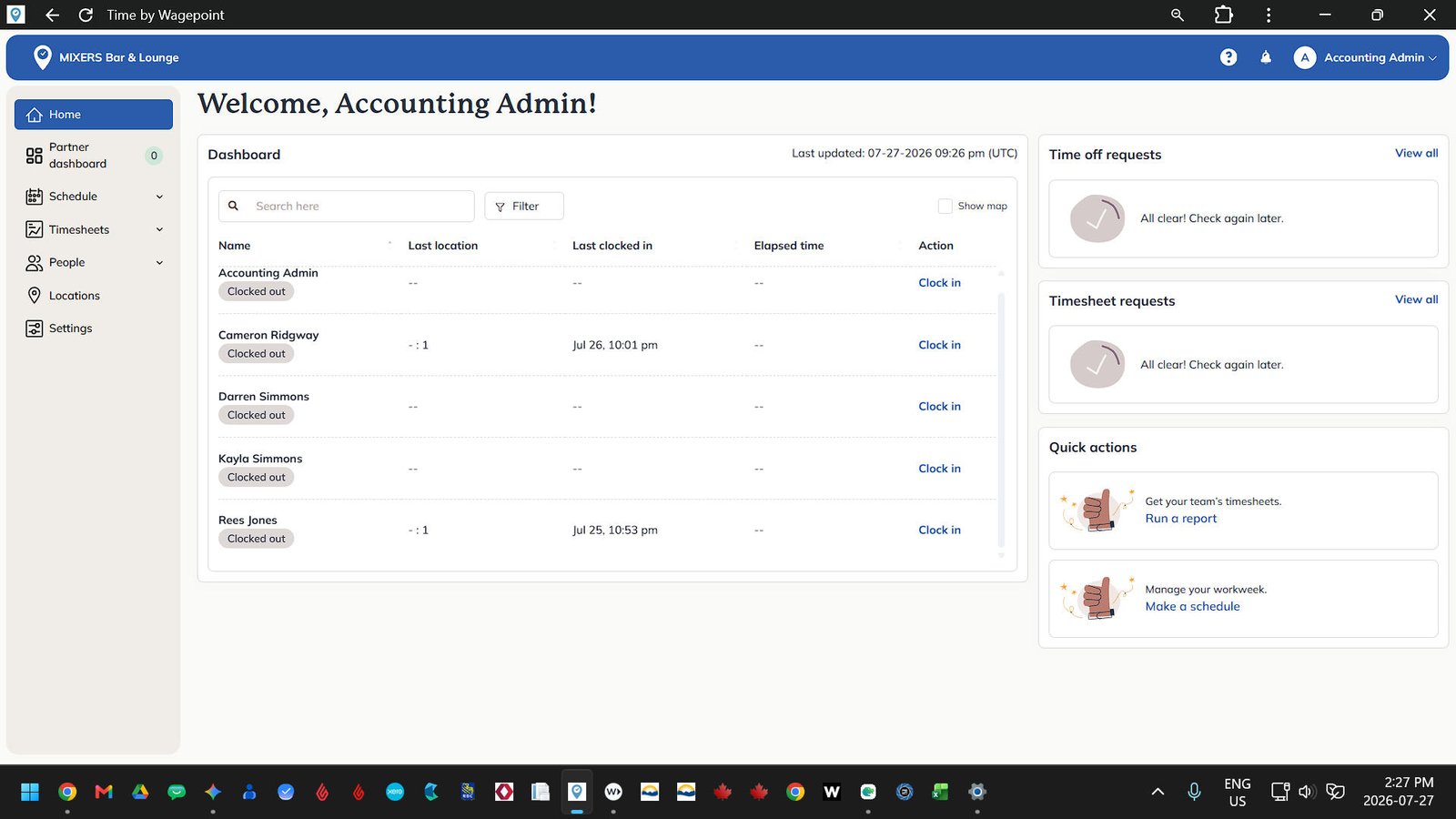
Time off Requests
Any pending time off requests requests will appear here for personal days, vacation, or sick leave. Click to view all.
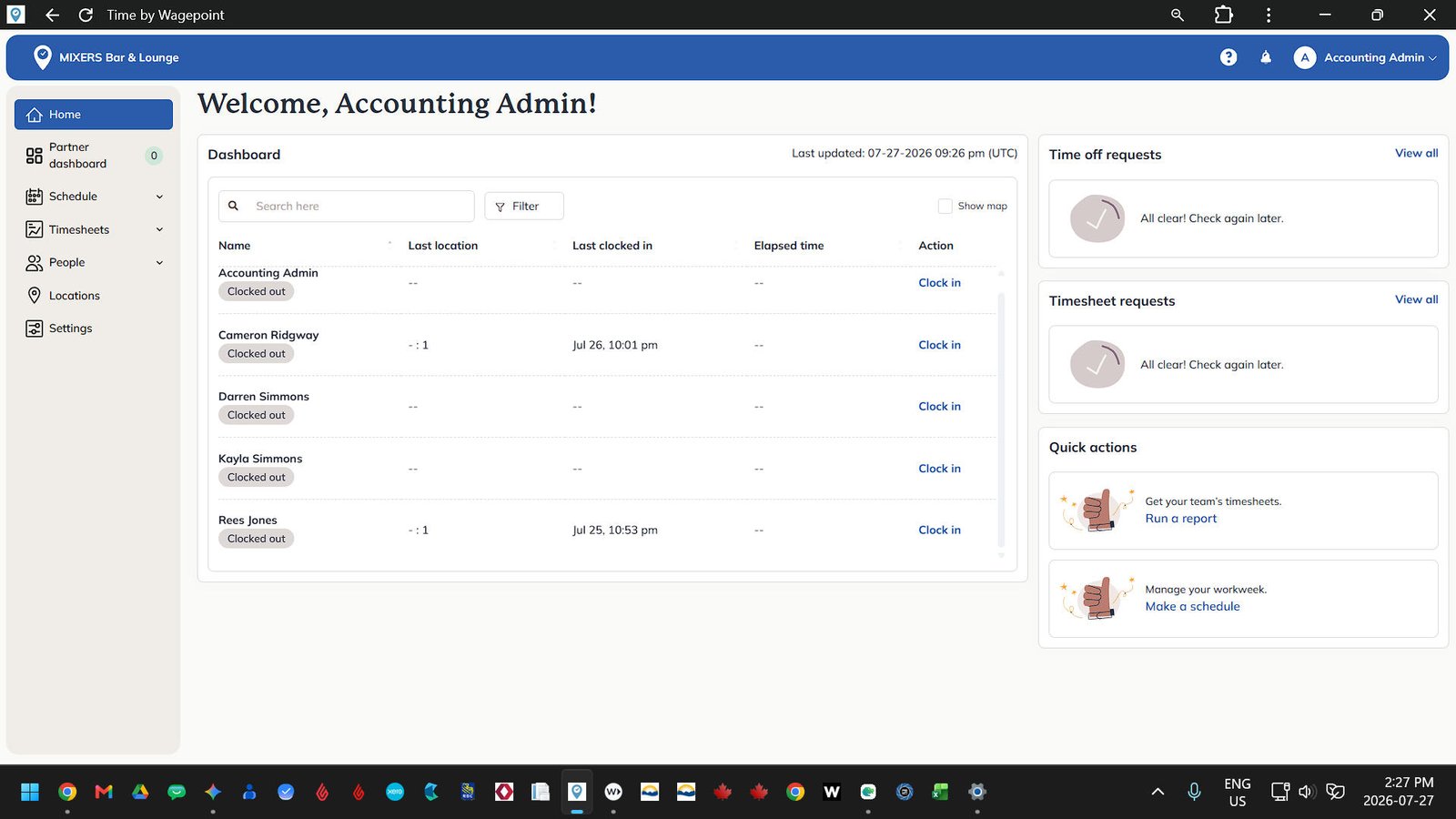
Timesheet Requests
Timesheet requests are submitted by employees who need to add, edit, or adjust a recorded shift. Click to view all and review.
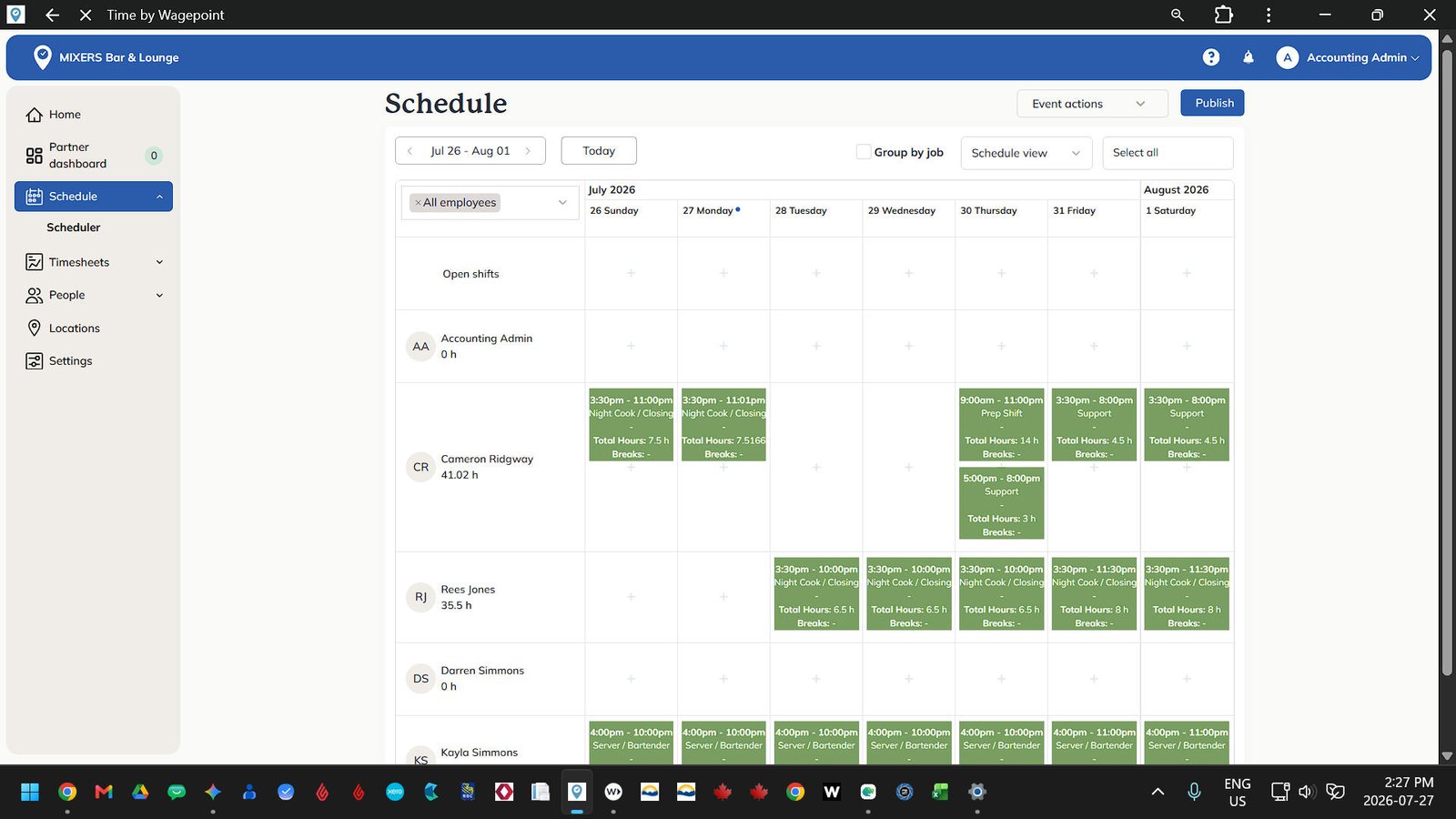
Employee Schedule
Located in the lefthand navigation column. The default view is "Schedule View."
Timeline View
A horizontal, hour by hour shift comparison view. If you select Timeline view, remember to scroll horizontally to view shift blocks across the day.
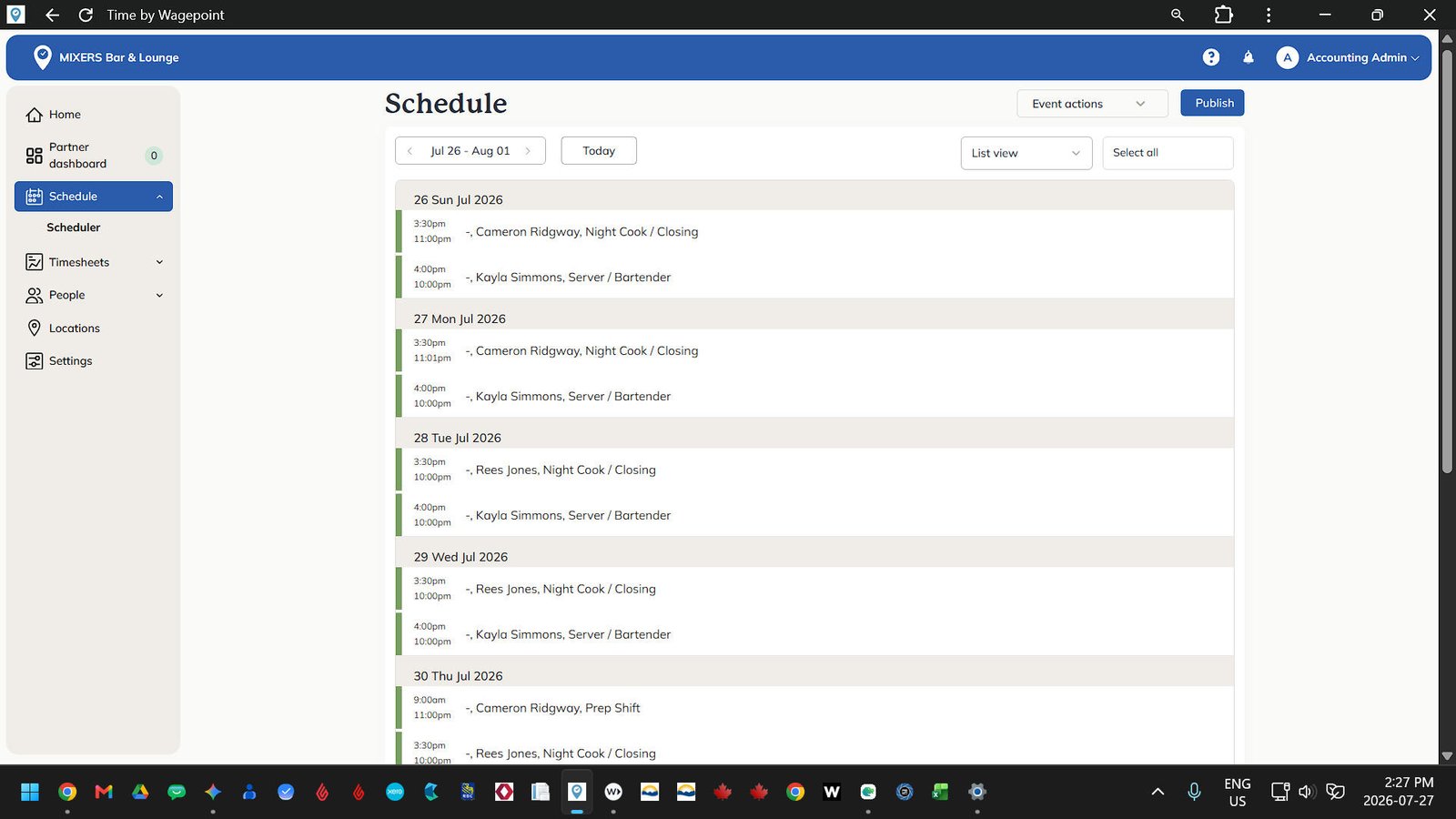
List View
A vertical, non-visual chronological list style view of employees and shift organized by day.
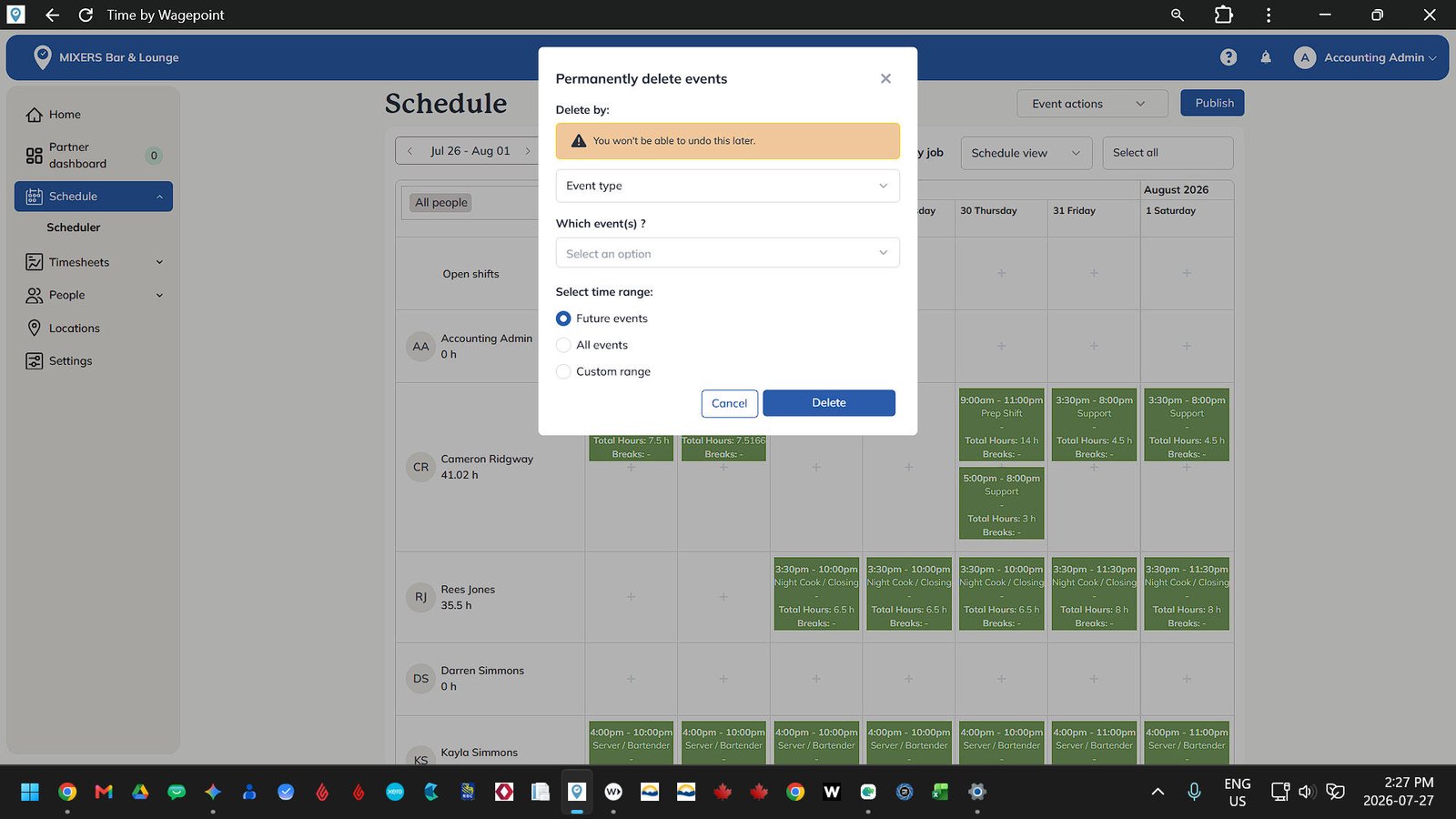
Event Actions - Delete Shifts
Delete shifts allows you to clear shifts by individual employee, by group, or by specific date ranges.
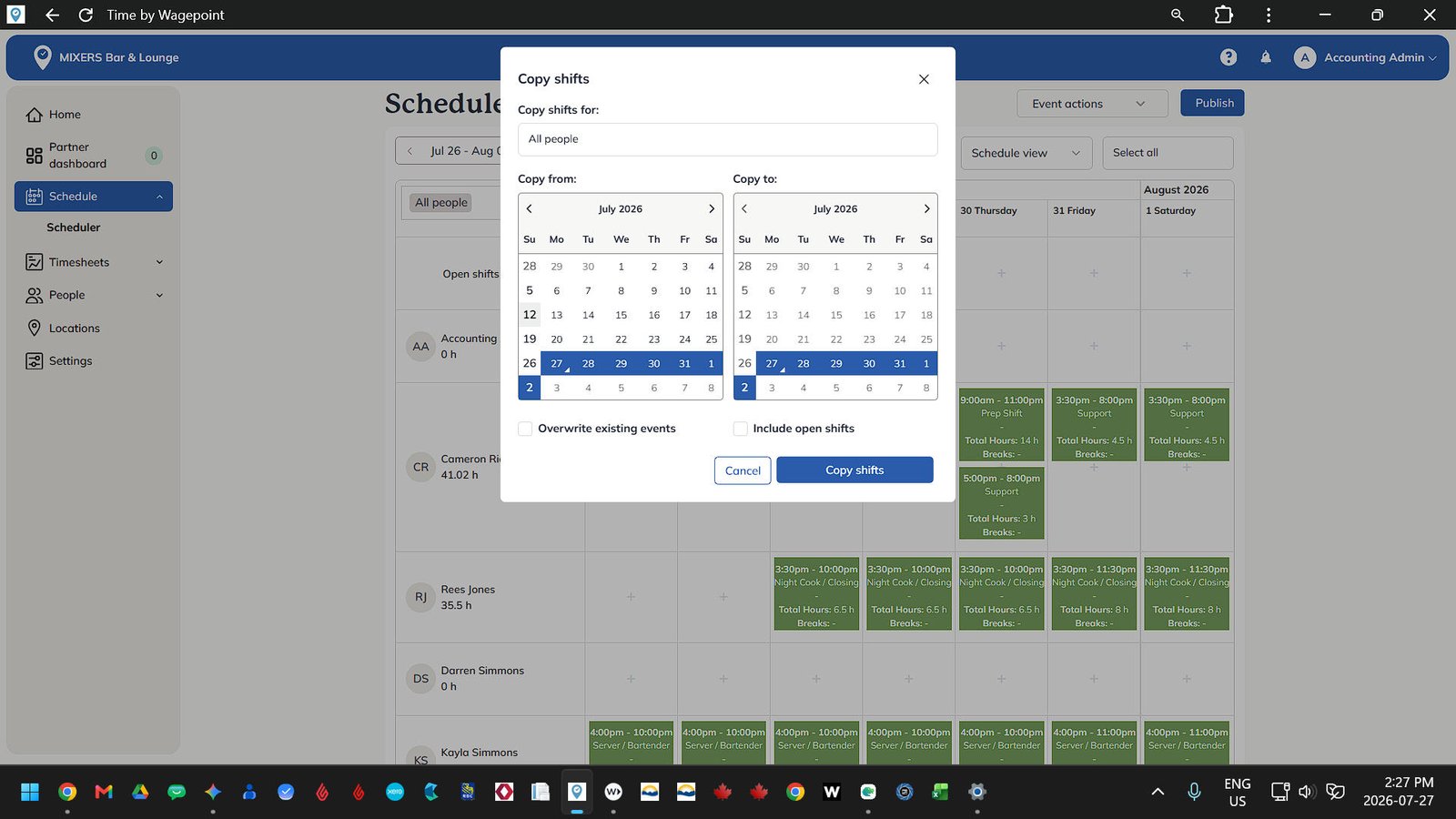
Event Actions - Copy Shifts
Schedules can be copied forward for individuals or the entire team using Copy Shifts. Options include overwriting existing events and including open shifts.
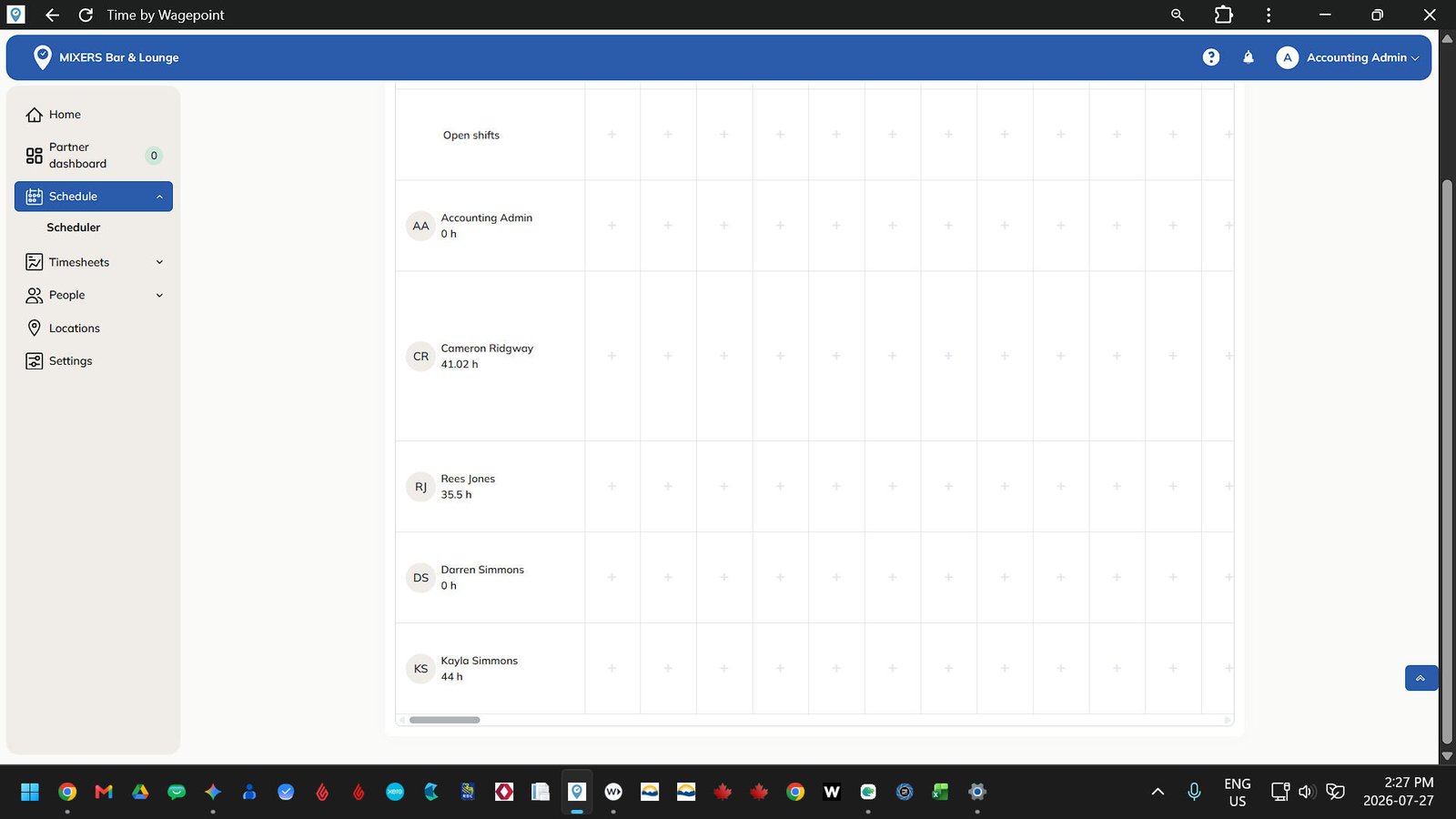
Open Shifts
Open shifts are unassigned shifts that staff can claim via their app for extra hours or available optional or required support shifts.
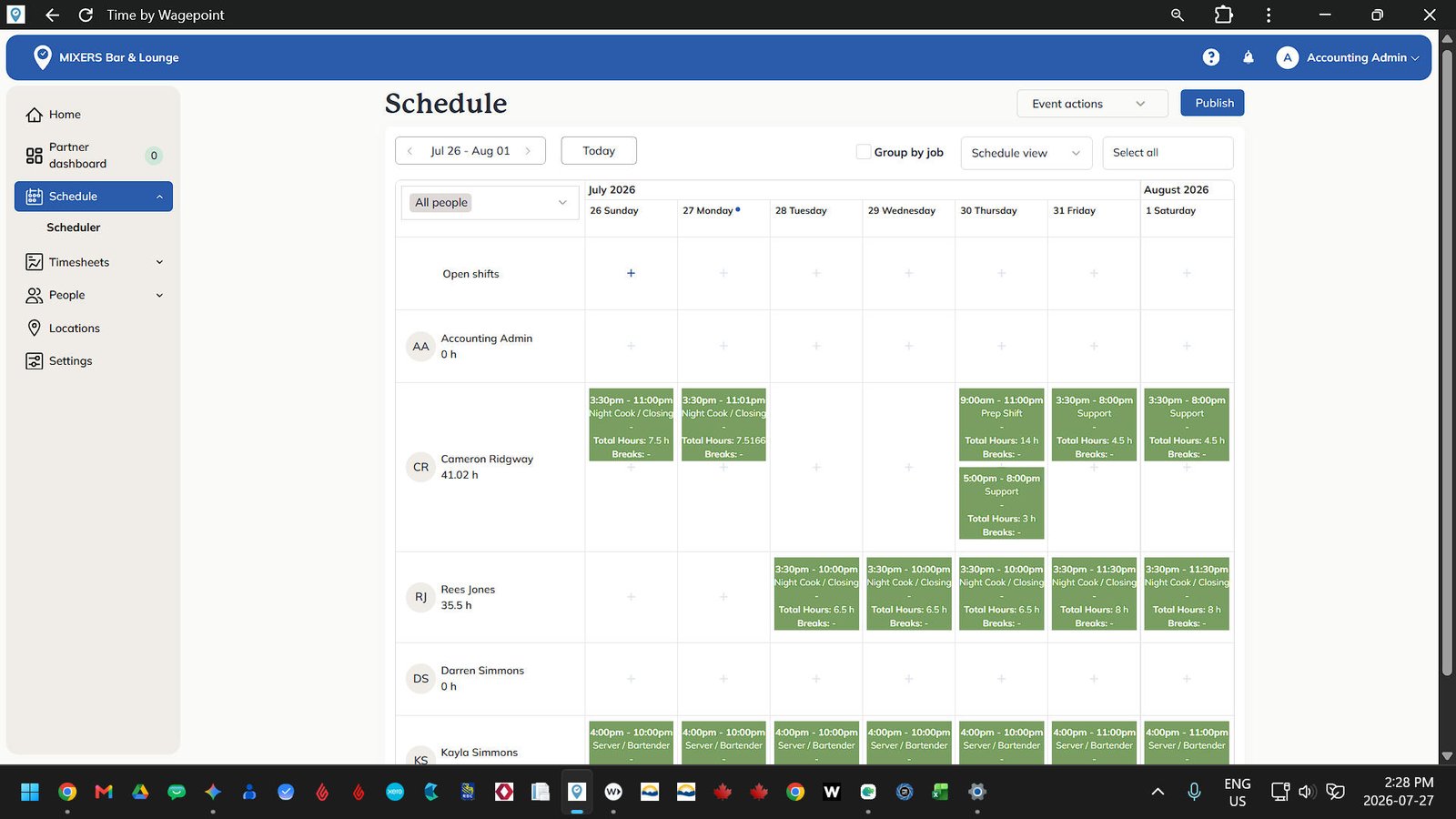
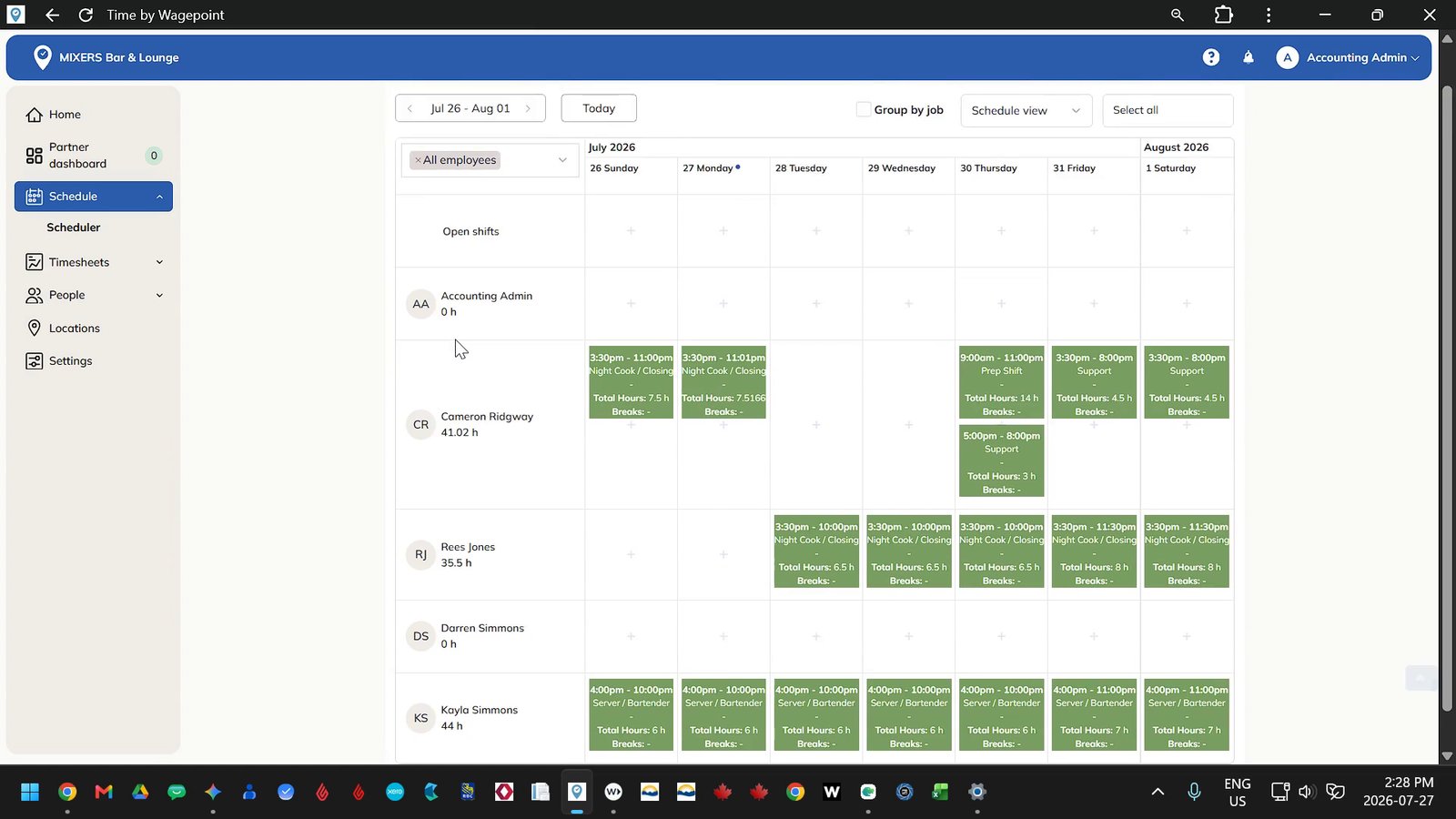
Employee List
Employees are listed alphabetically along the left side of the scheduler grid. Accounting Admin is listed here but not in use.
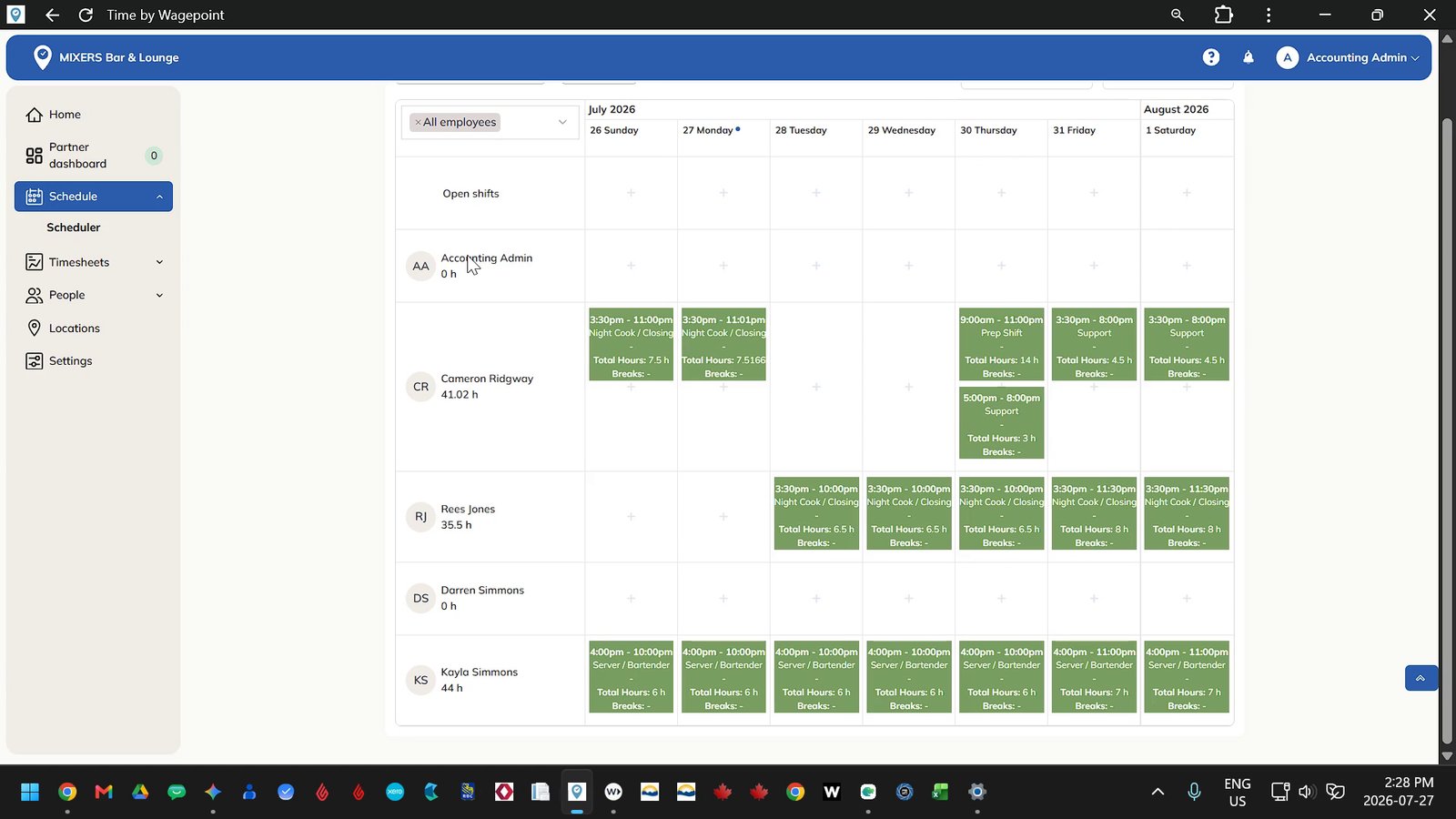
Add a New Shift (Event)
Click the plus icon on any date block in an employee's row to add a new shift.
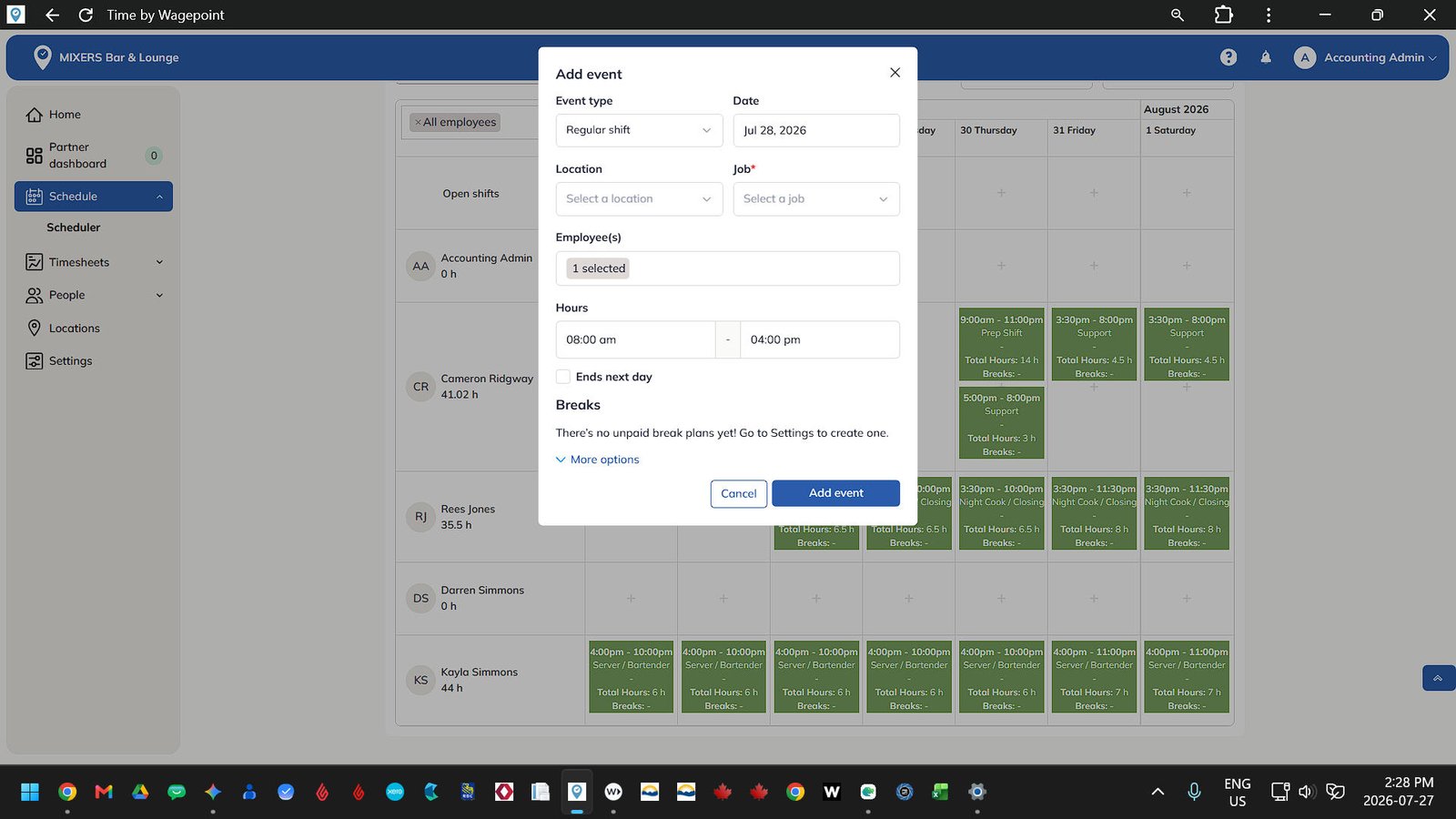
Enter Shift Details
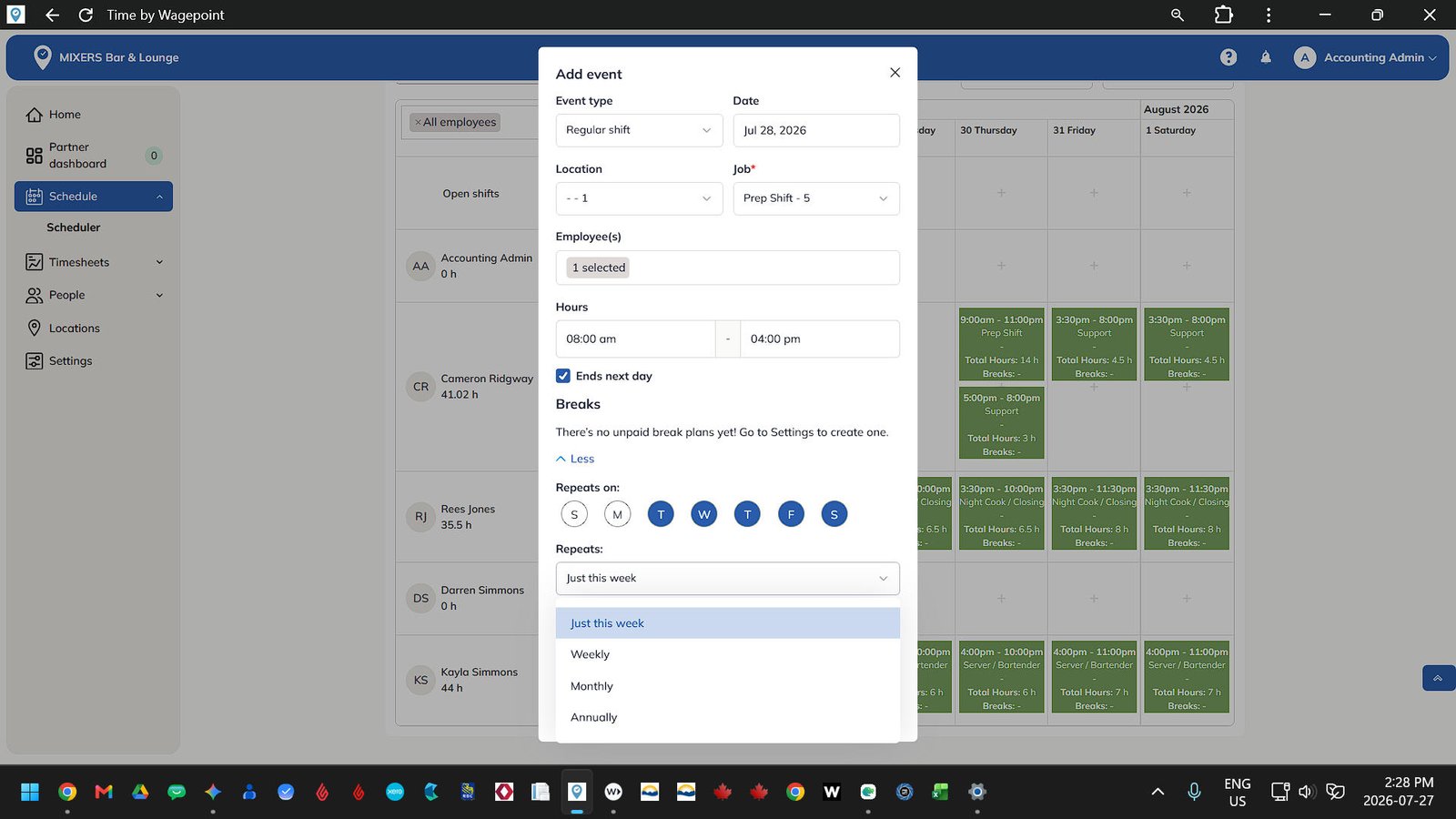
Select type, location, job role, and enter start and end times for the shift. Check 'Ends next day' for shifts ending after midnight.
Repeating Shifts
Expand the options menu to create repeating shifts for specific days of the week, repeating weekly, monthly, or annually.
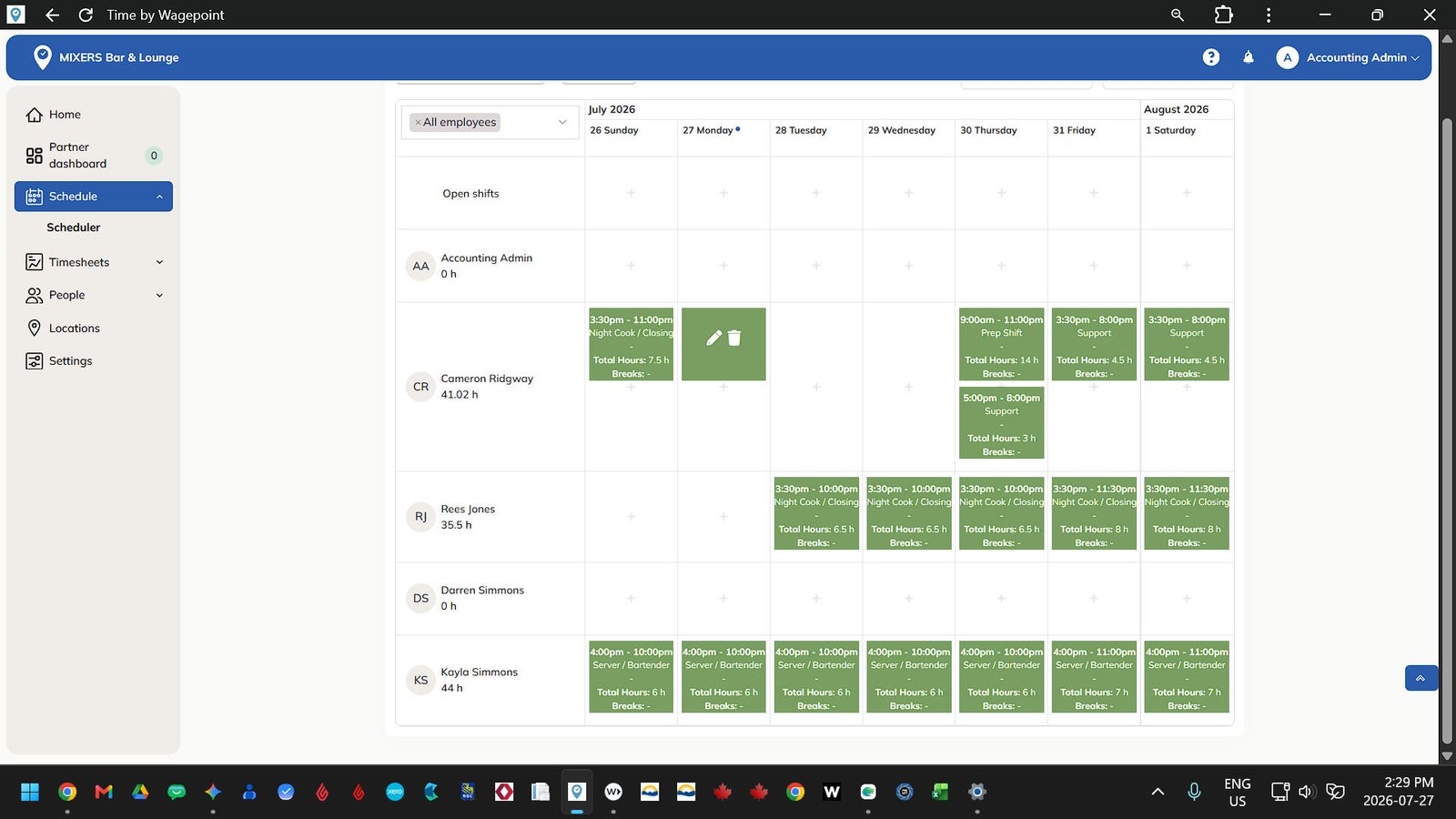
Edit a Shift
To edit an existing shift, click the pencil icon in its shift block
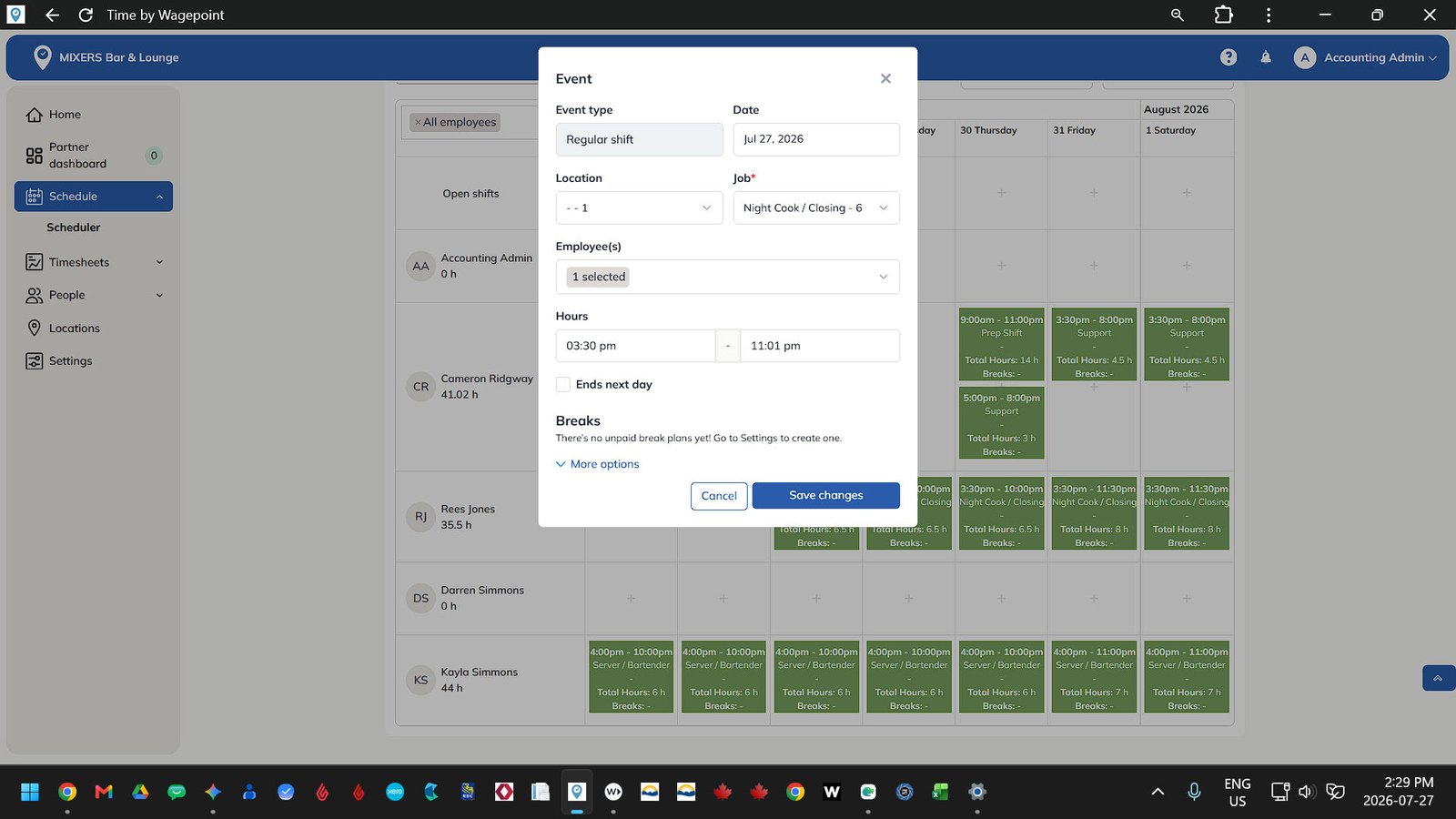
Update shift details
Change start or end times, roles, or change repeating settings. Click save.
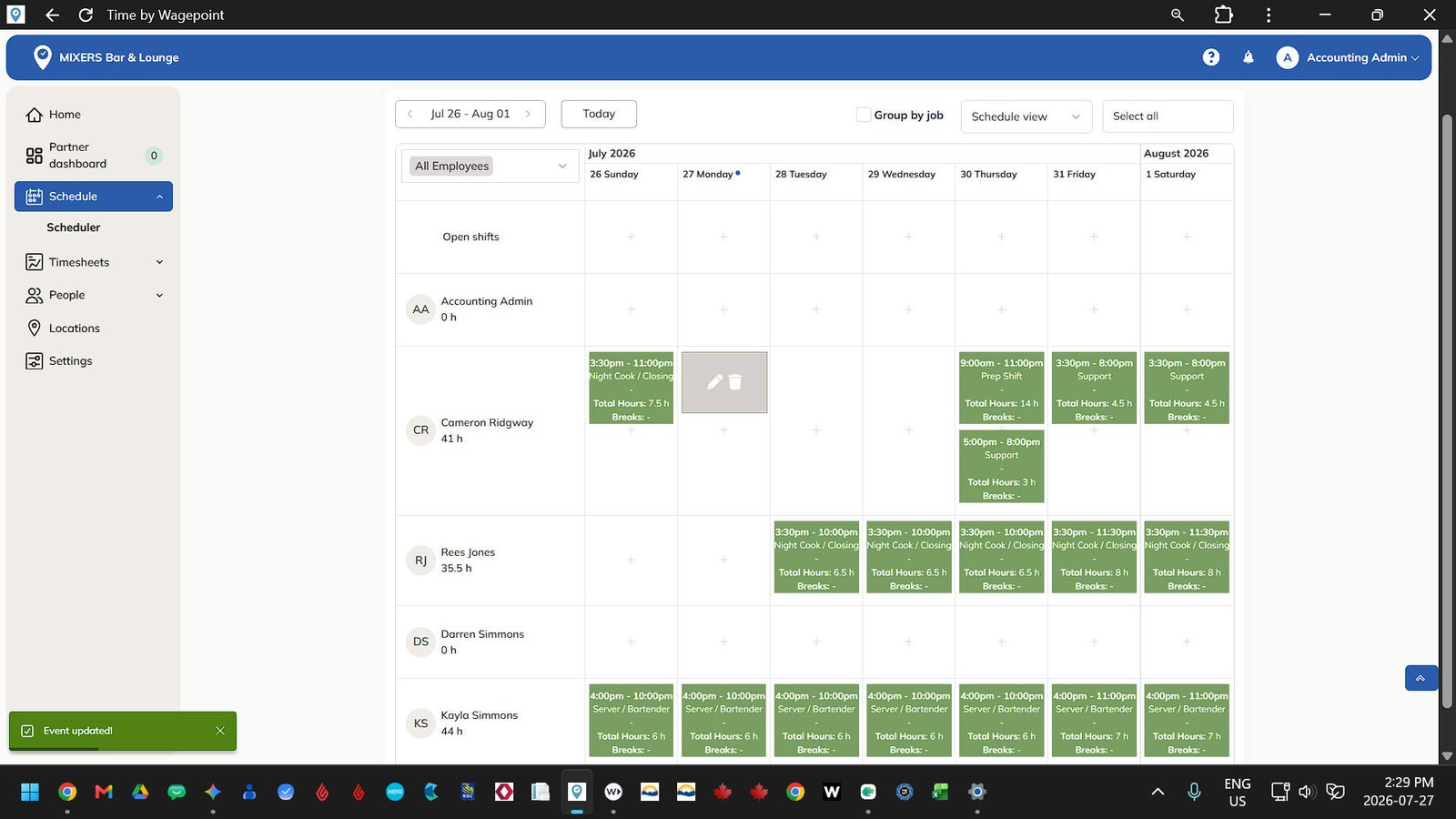
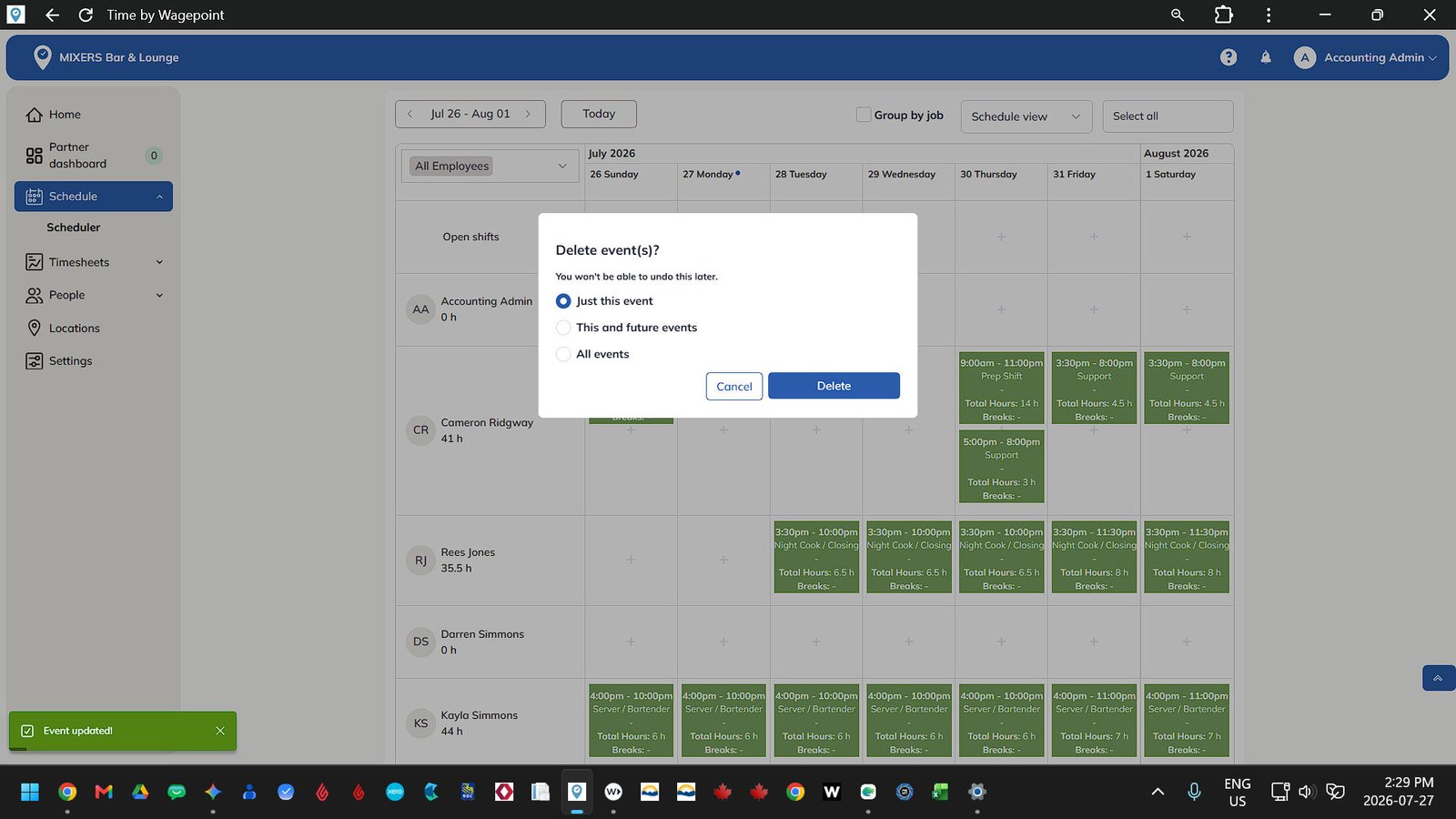
Delete a Shift
Click the garbage can icon to delete a shift.
Important Note
When deleting a shift, choose between deleting only this specific event or deleting this event and all future repeating events. Avoid deleting all events to preserve accurate past scheduling history.
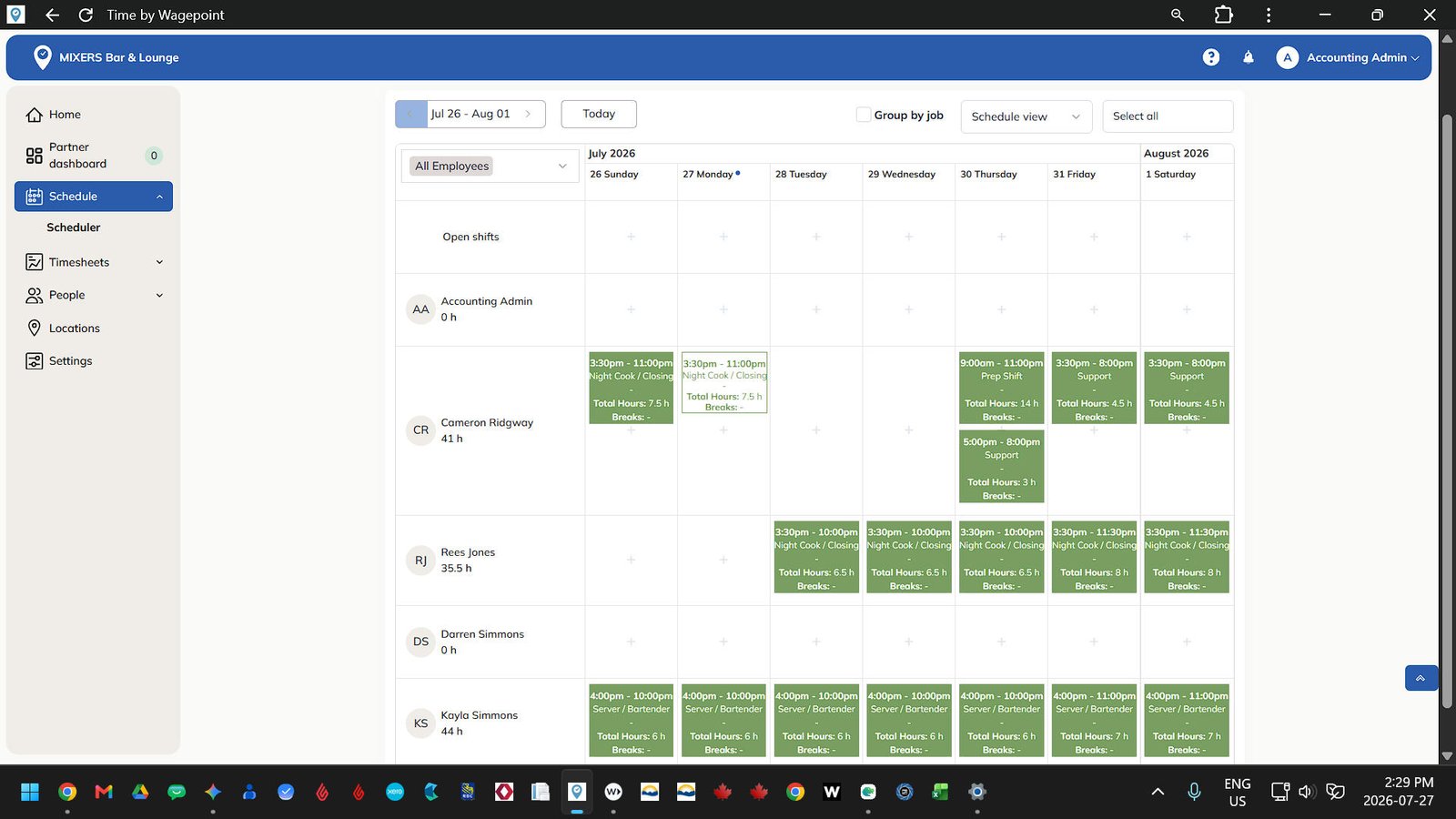
Navigate Period by Week
Click the left and right arrows to navigate forward or back a week. Click the "Today" button at anytime to return to the current week.
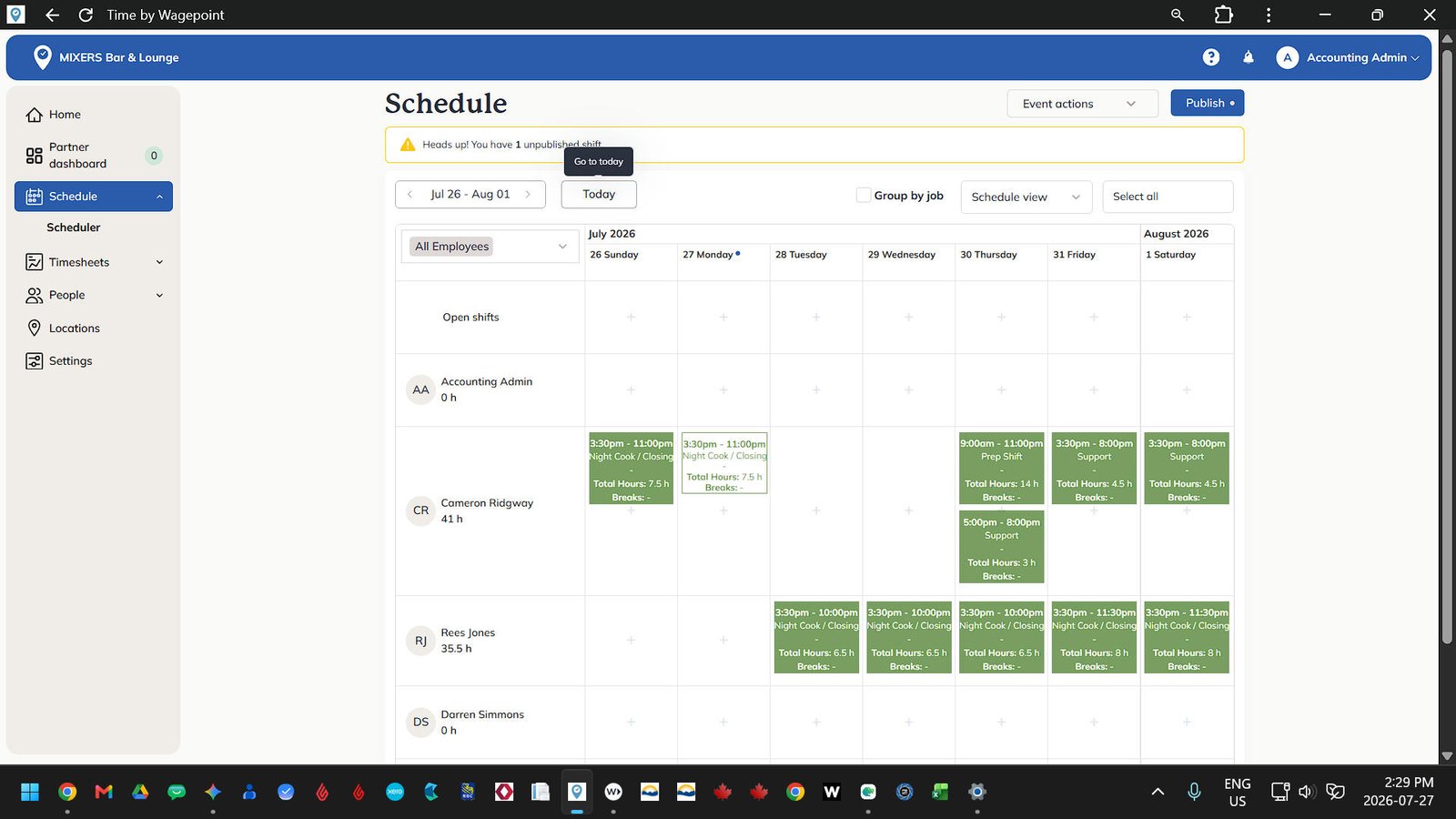
Group by Job Checkbox
You can also use the Group By filter to sort employees by job role to ensure all shifts and departments are properly covered.
Edited & New Shifts
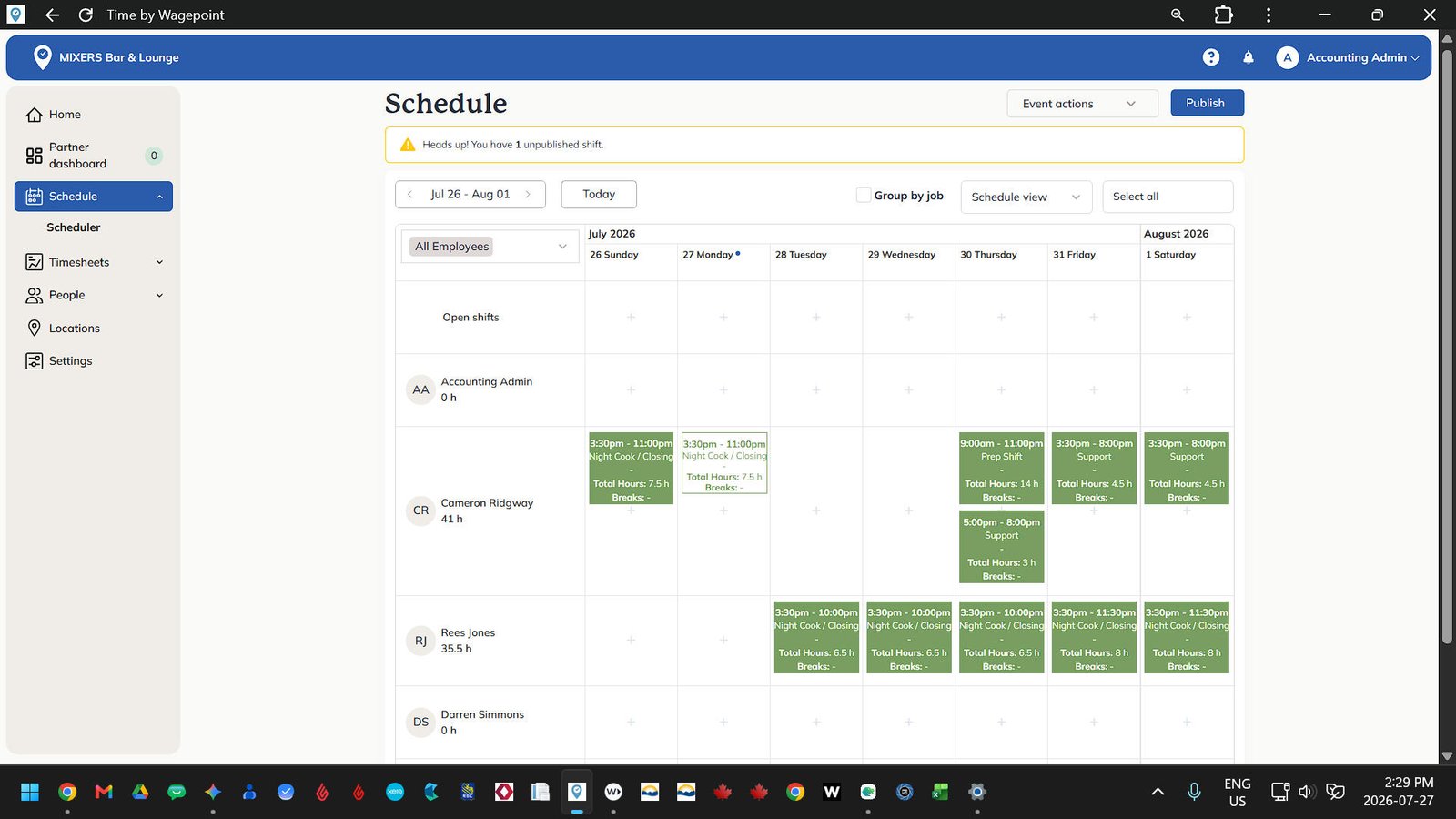
Unpublished (edited or new) shifts are displayed with a white background and green outline indicating that the change is not finalized and public yet. Helpful while making bulk changes.
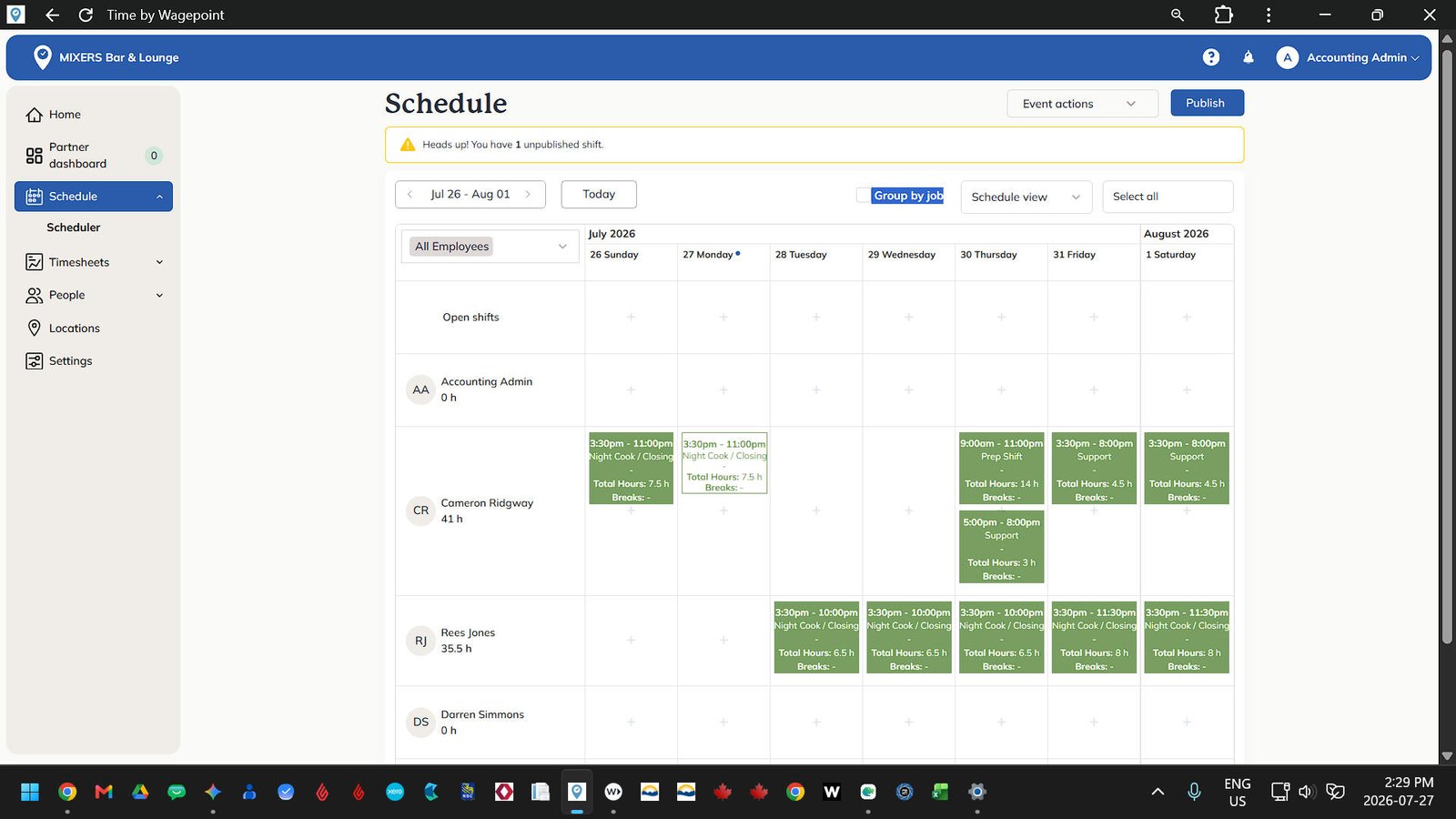
Publish Shift(s)
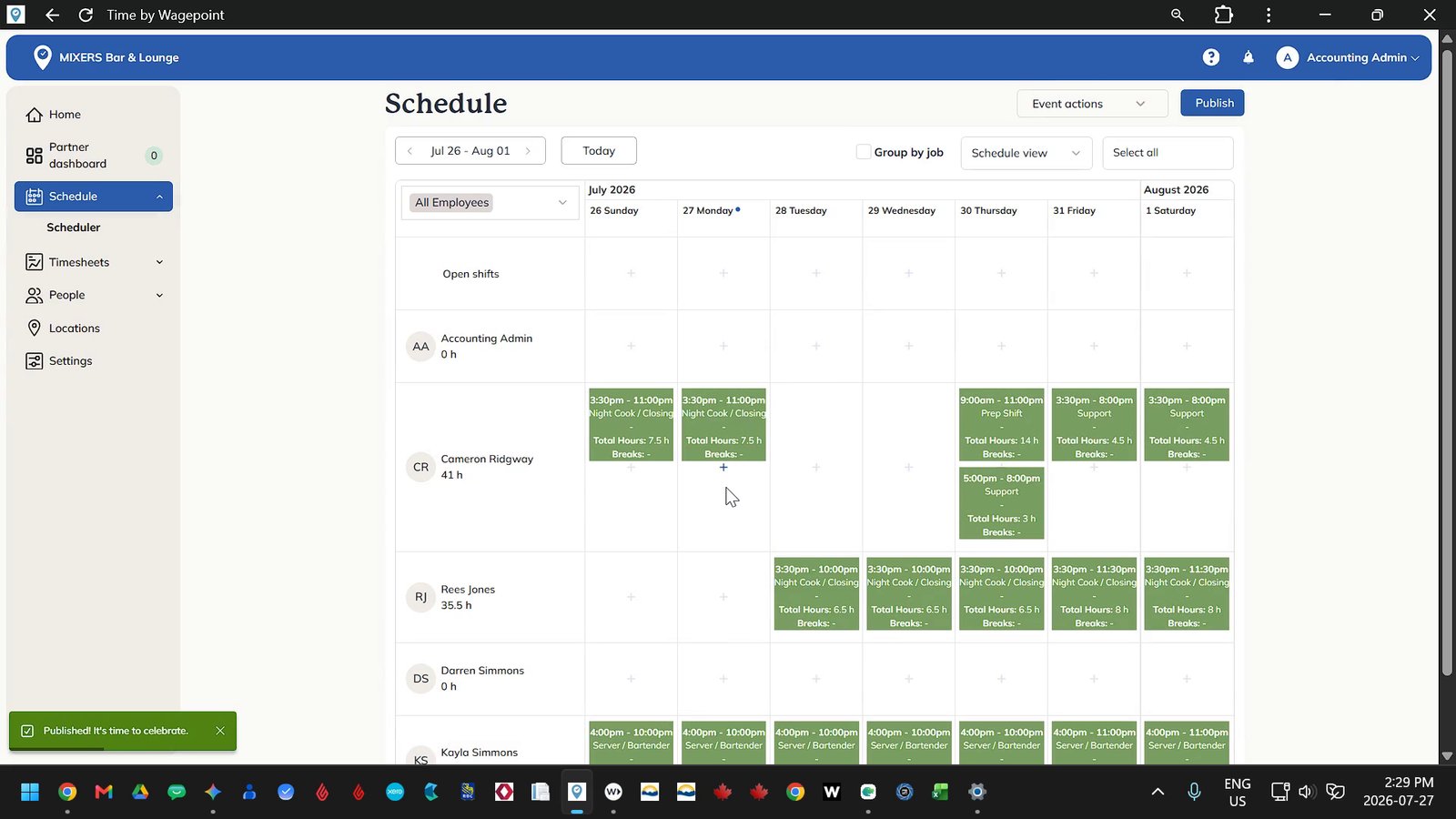
Once your schedule adjustments are complete, click the Publish button. You can choose whether to send an automated notification to the affected employees. Once published, the shift block will turn solid green, confirming that it is live and visible to staff.
Important Note
Employees can only see their assigned shifts via the mobile app or kiosk, not the full schedule.
Timesheets
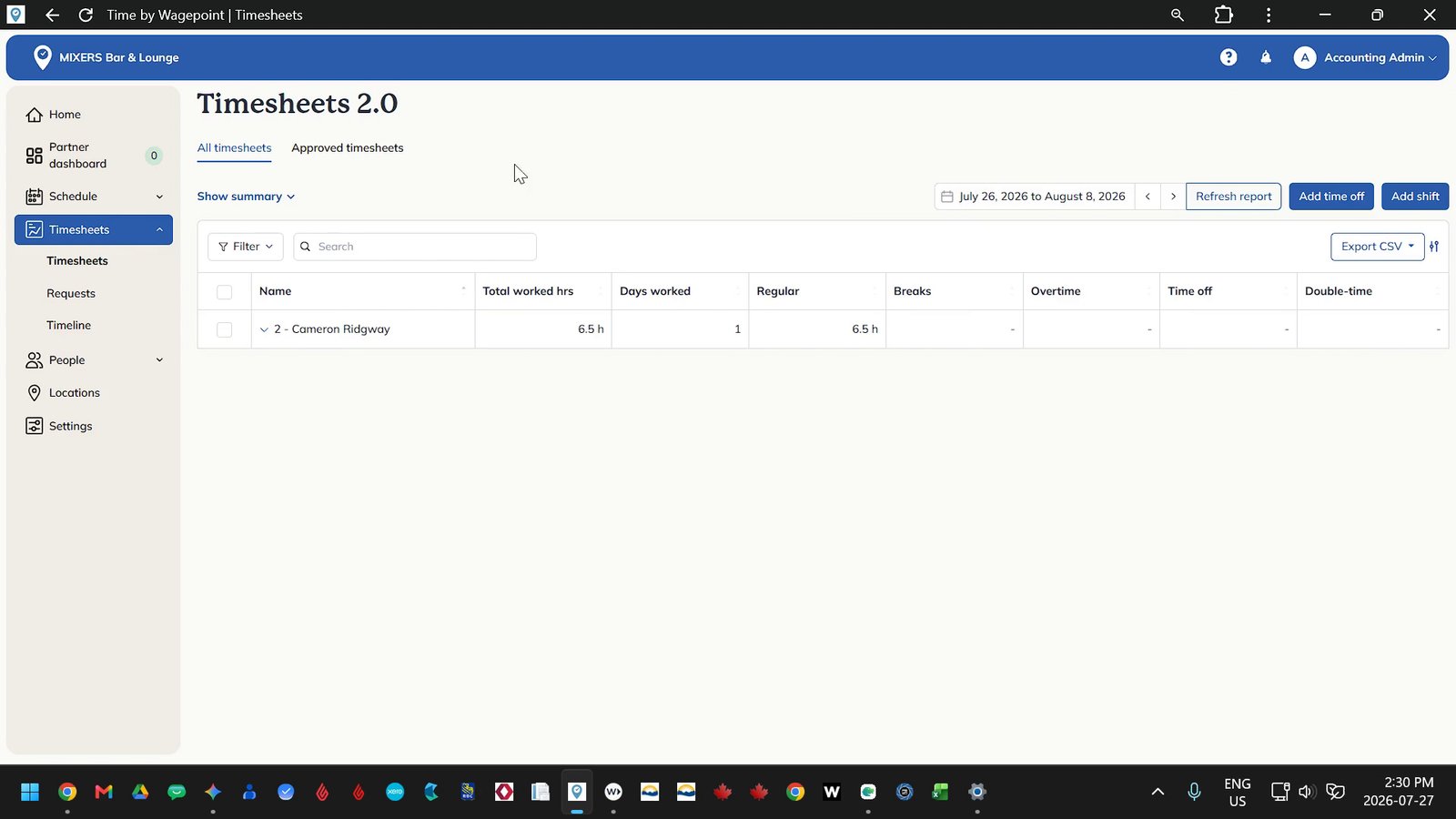
This opens the Timesheets two point zero interface, which defaults to the current pay period running Sunday to Saturday.
Period Navigation
All Timesheets displays current shift data for the selected pay period. You can use the date arrows to review past periods to see all employees who worked.
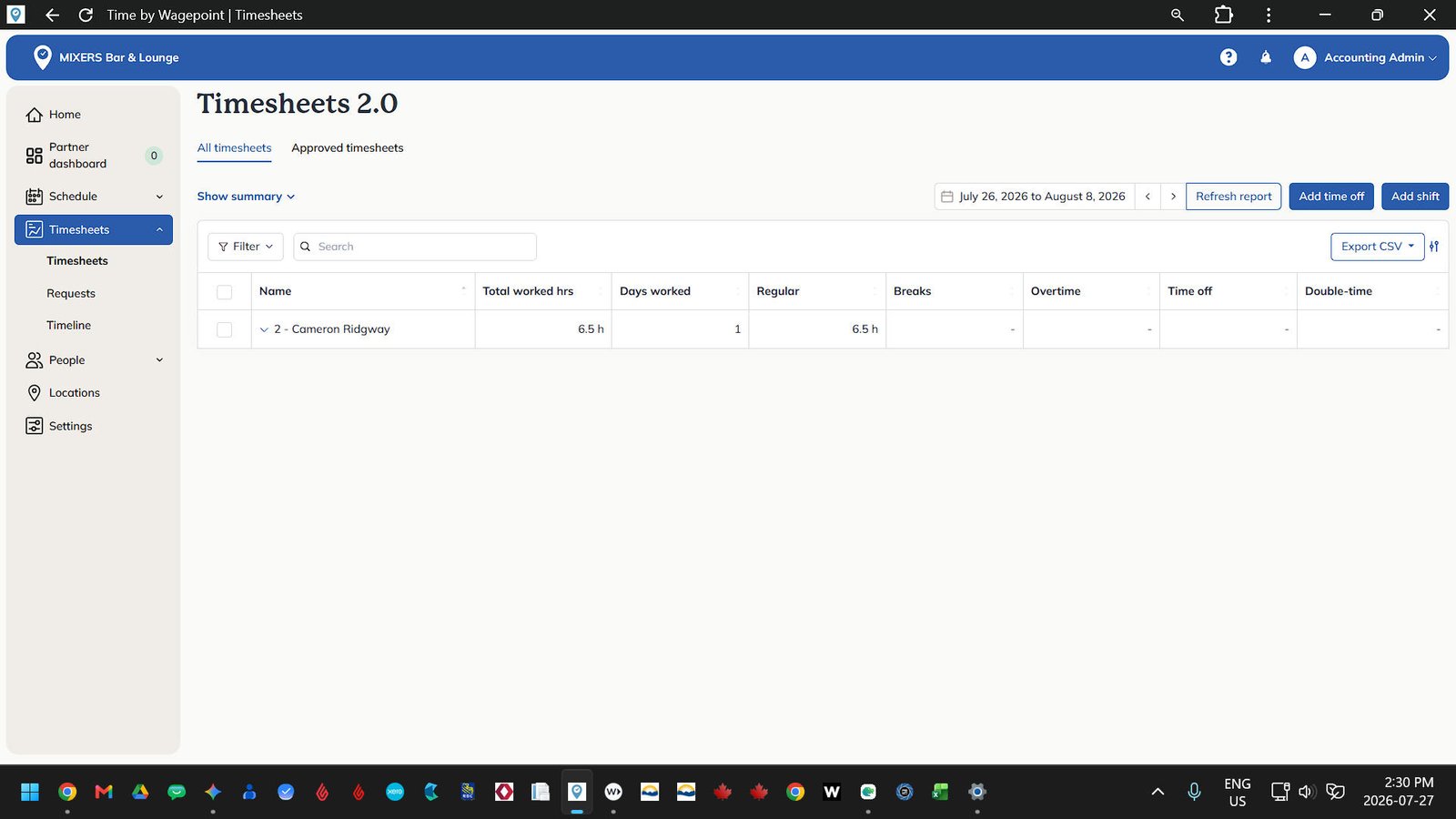
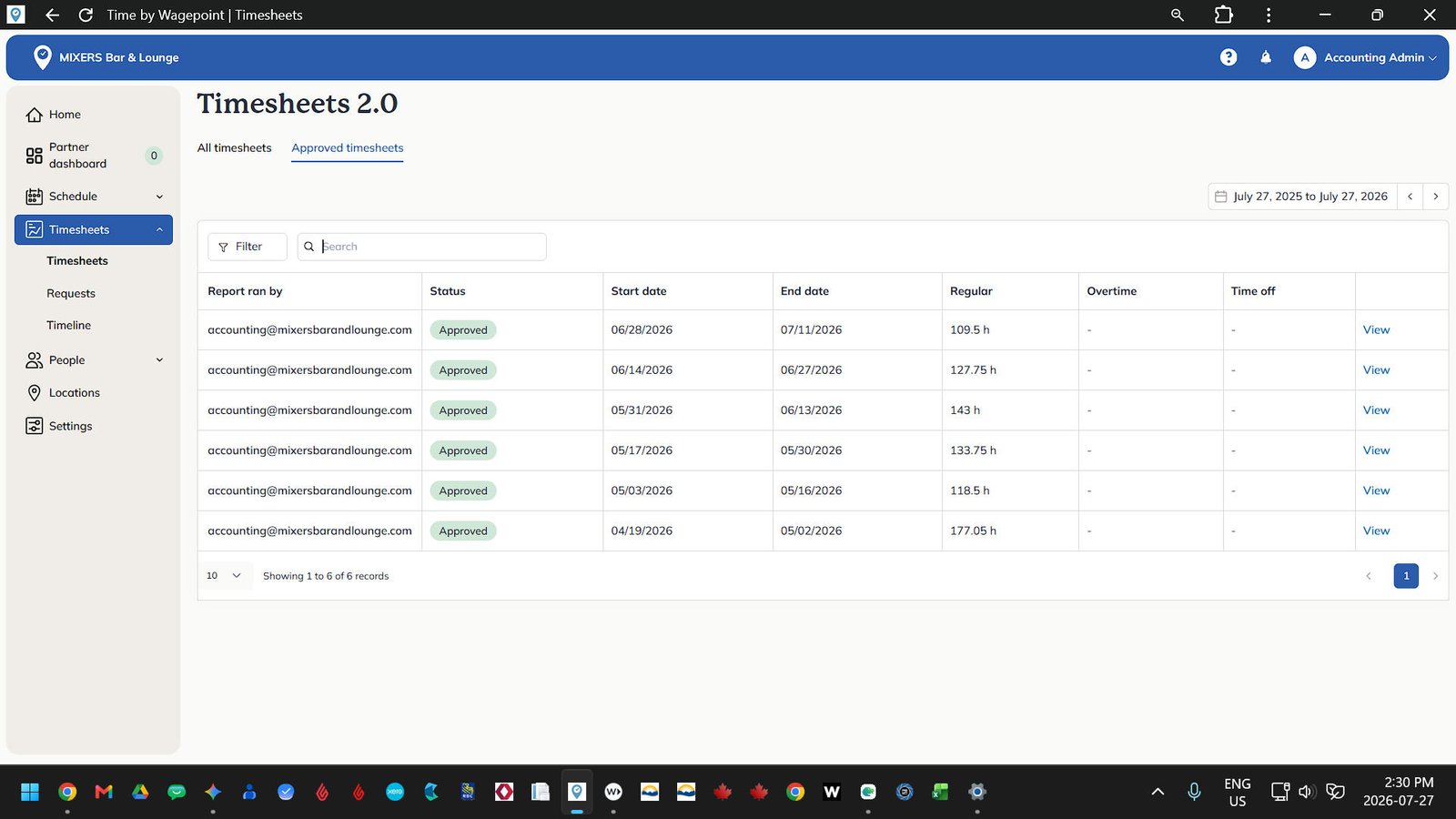
Toggle to Approved Timesheets
Switch to Approved timesheets tab to view historical approved time records.
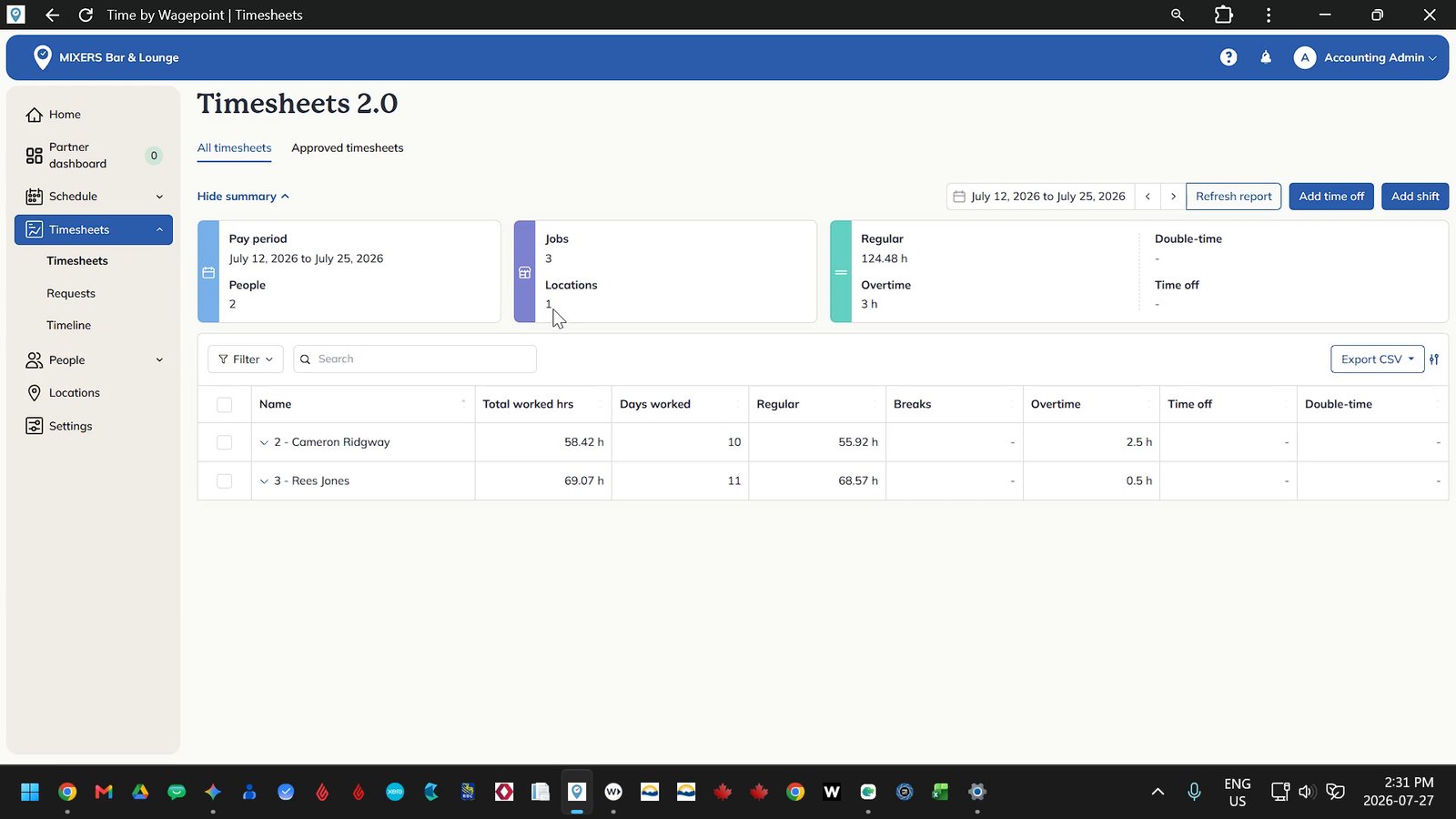
View Summary
On the All Timesheets view, you can review the Pay Period Summary. This section displays total jobs worked, total regular hours, overtime, double time, and recorded time off.
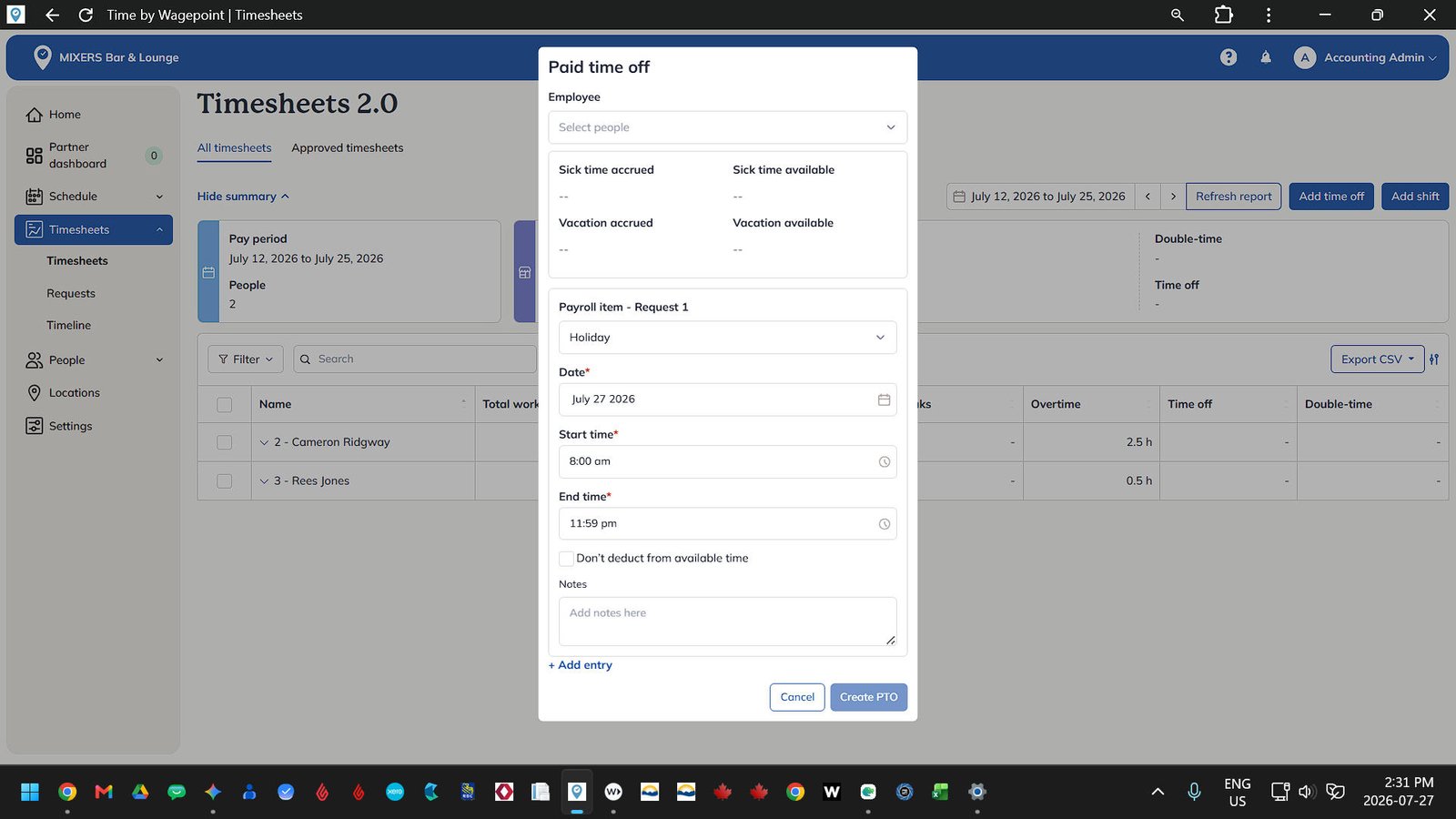
Add Paid Time Off
To add time off, select the employee, select the leave type such as sick or vacation, choose the dates and start time, and specify whether the hours should be deducted from their accrued balance.
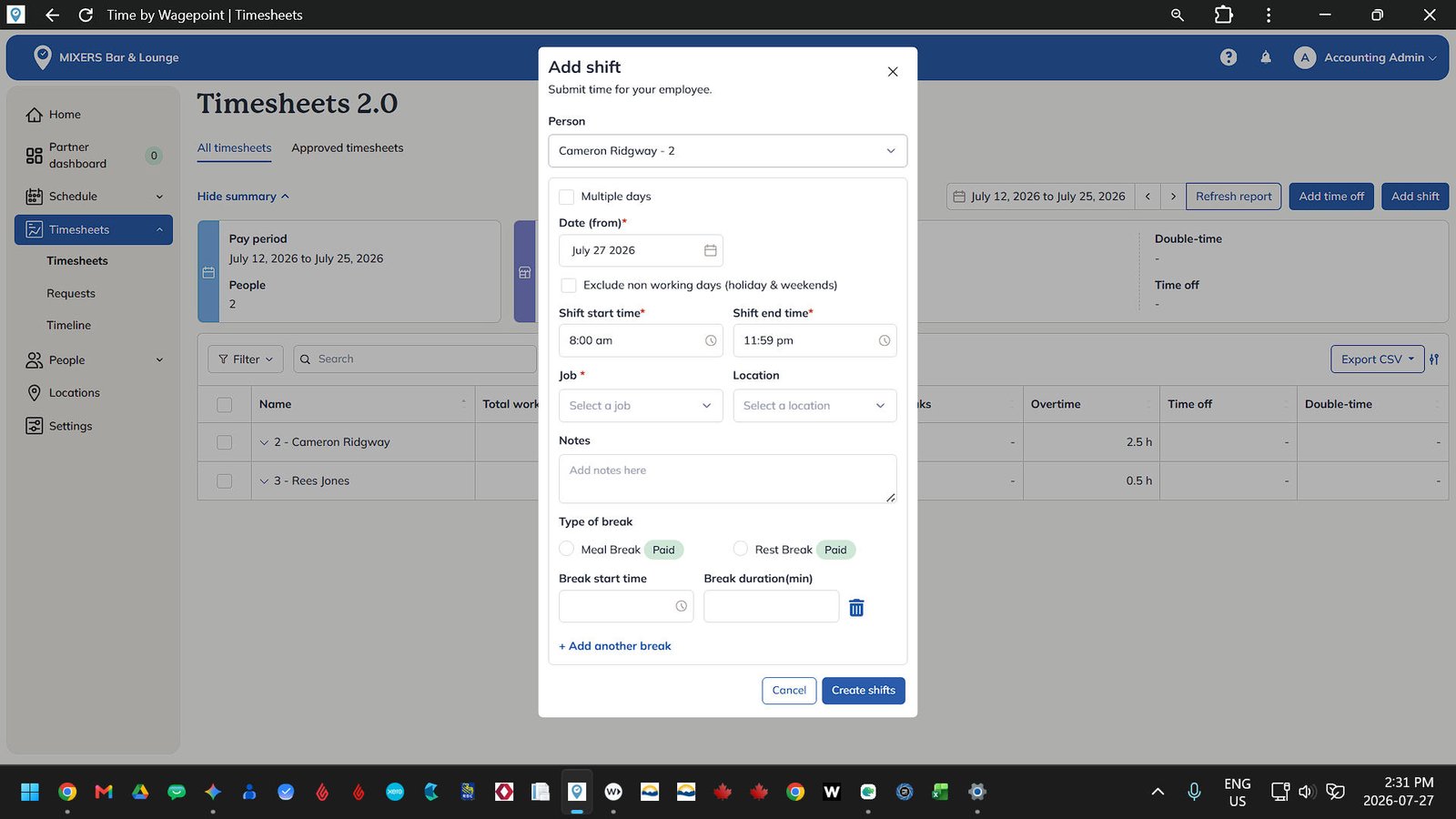
Add Missed Shift
To add a missed shift, click Add Shift, select the employee, enter the start and end times, assign the job role and location, and add any explanatory notes.
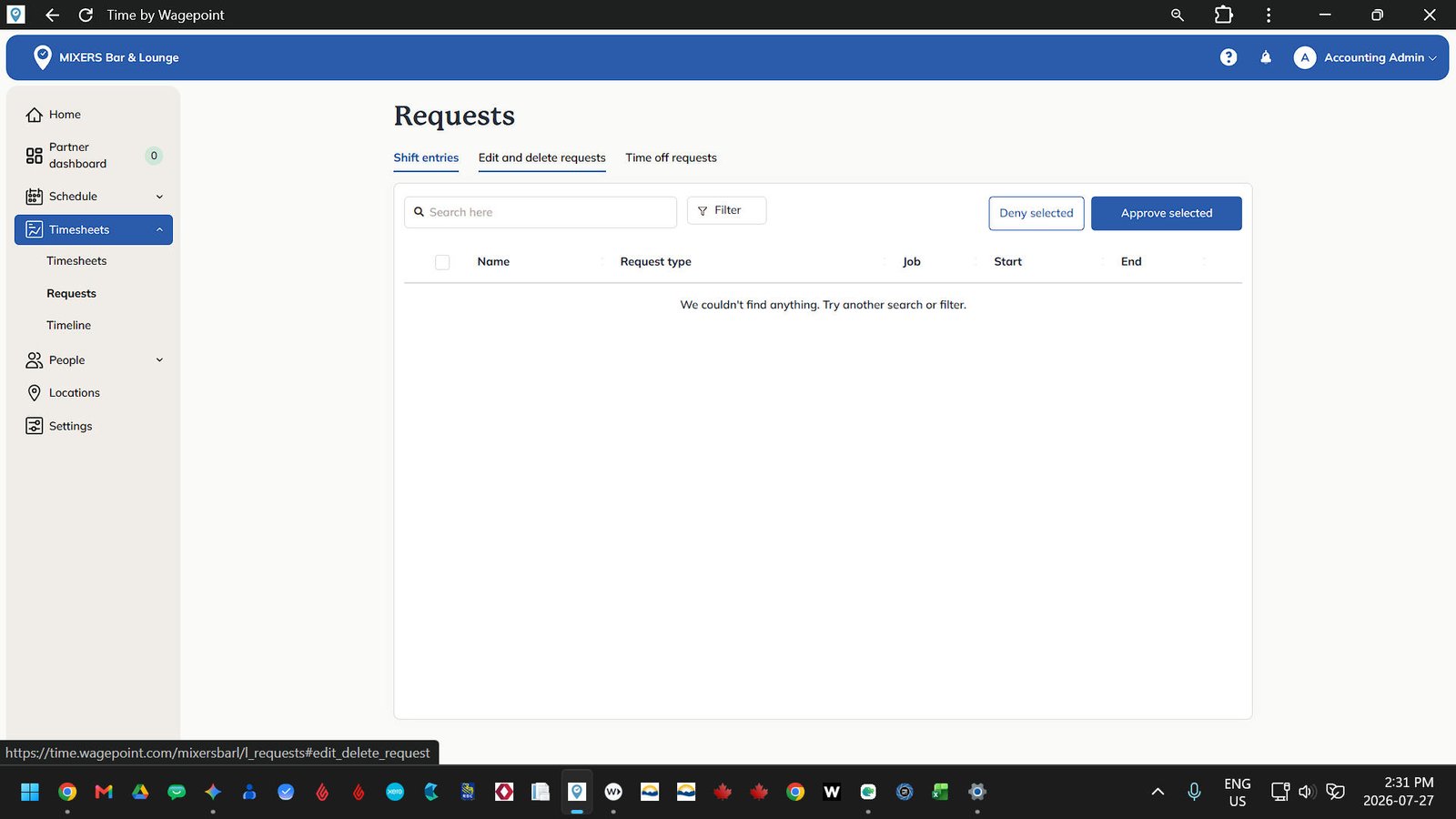
Timesheets - Requests
This screen consolidates all pending shift requests, edit or delete requests, and time off requests submitted by employees. Management can review, approve, or deny each request from this dashboard.
Timesheets - Timeline
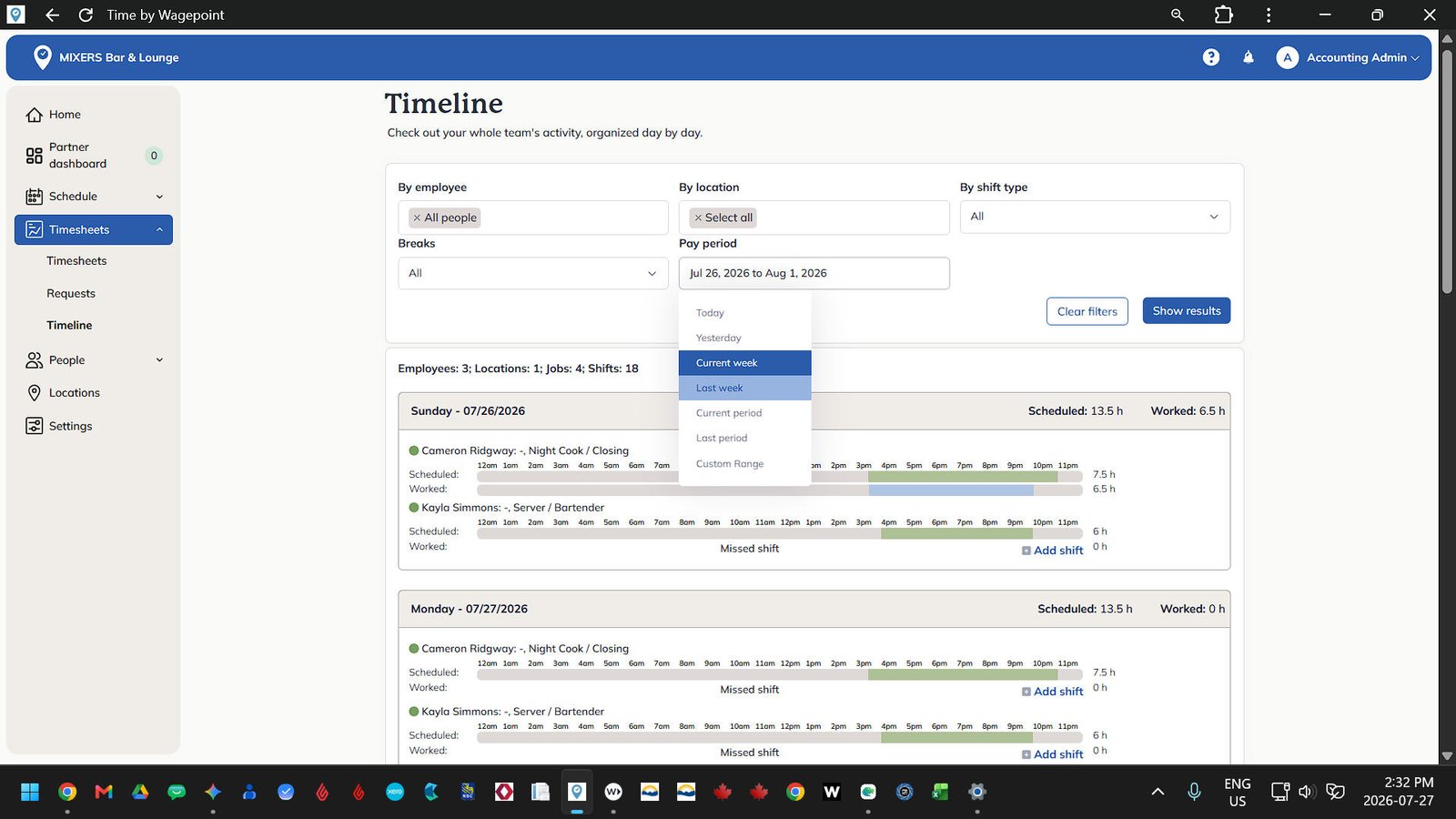
This view provides a visual comparison of scheduled hours versus actual worked hours for the team across any selected date range.
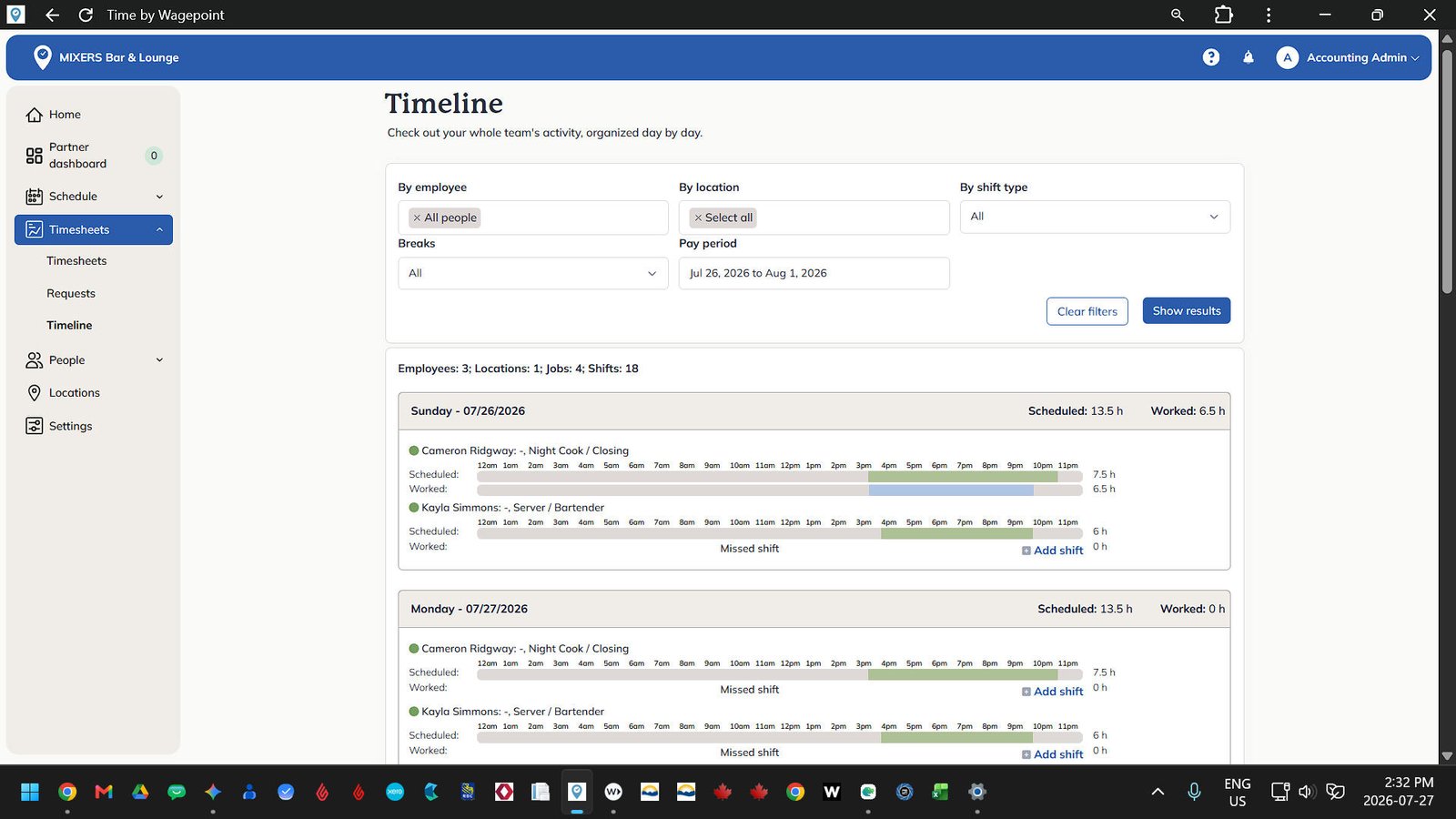
Timeline Features
Scheduled shifts appear in green, while actual worked hours appear in blue. Viewing previous pay periods on this timeline provides a clear visual check for early clock ins, late clock outs, or unexcused absences.
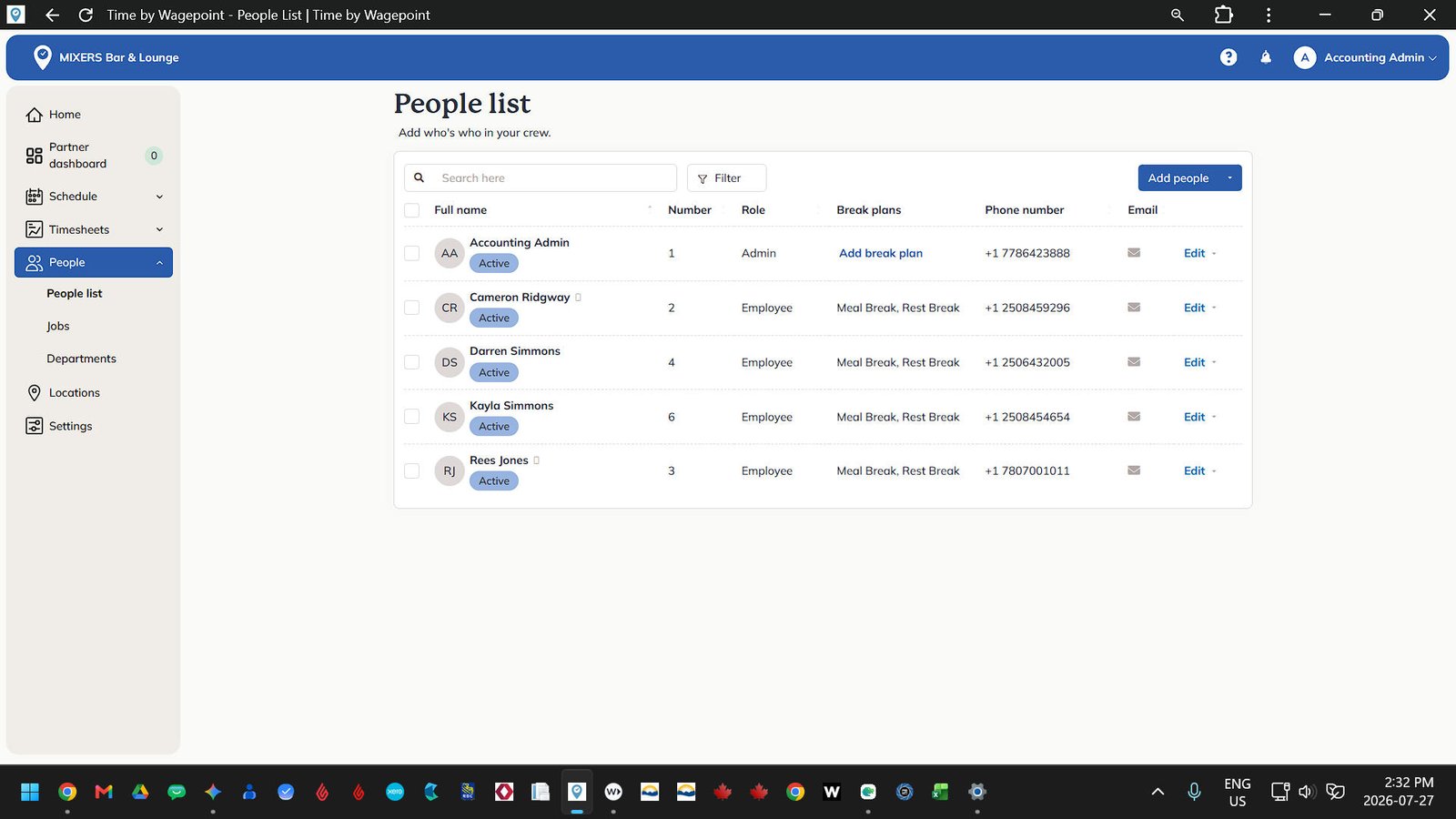
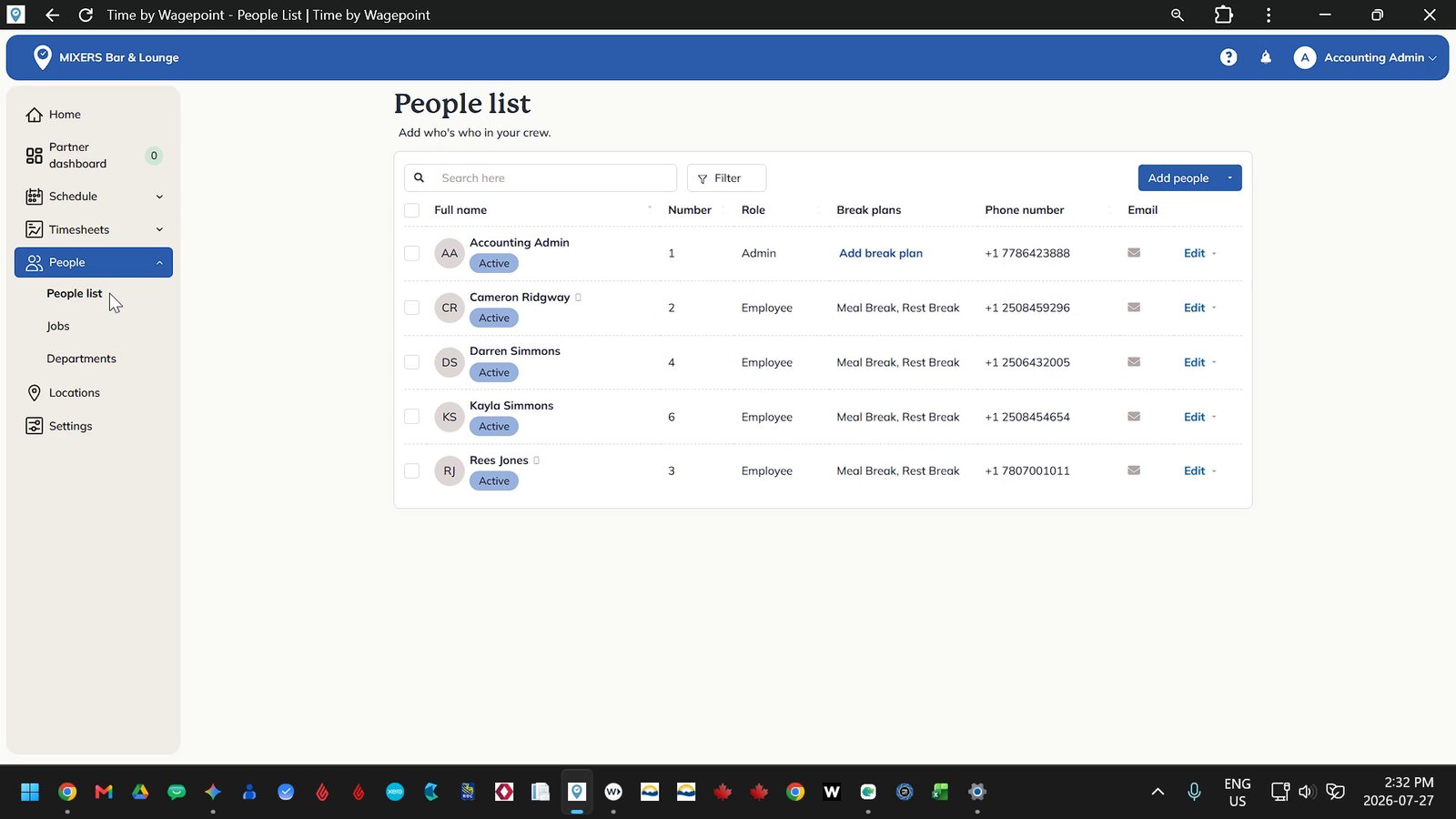
People - List
This page displays all active employee profiles.
Edit Employee Profile
Clicking on an employee profile allows you to manage their account settings. Set their kiosk PIN, assign their system role, permitted job roles, primary work location, department, meal break plans, sick leave accruals, and vacation pay rules.
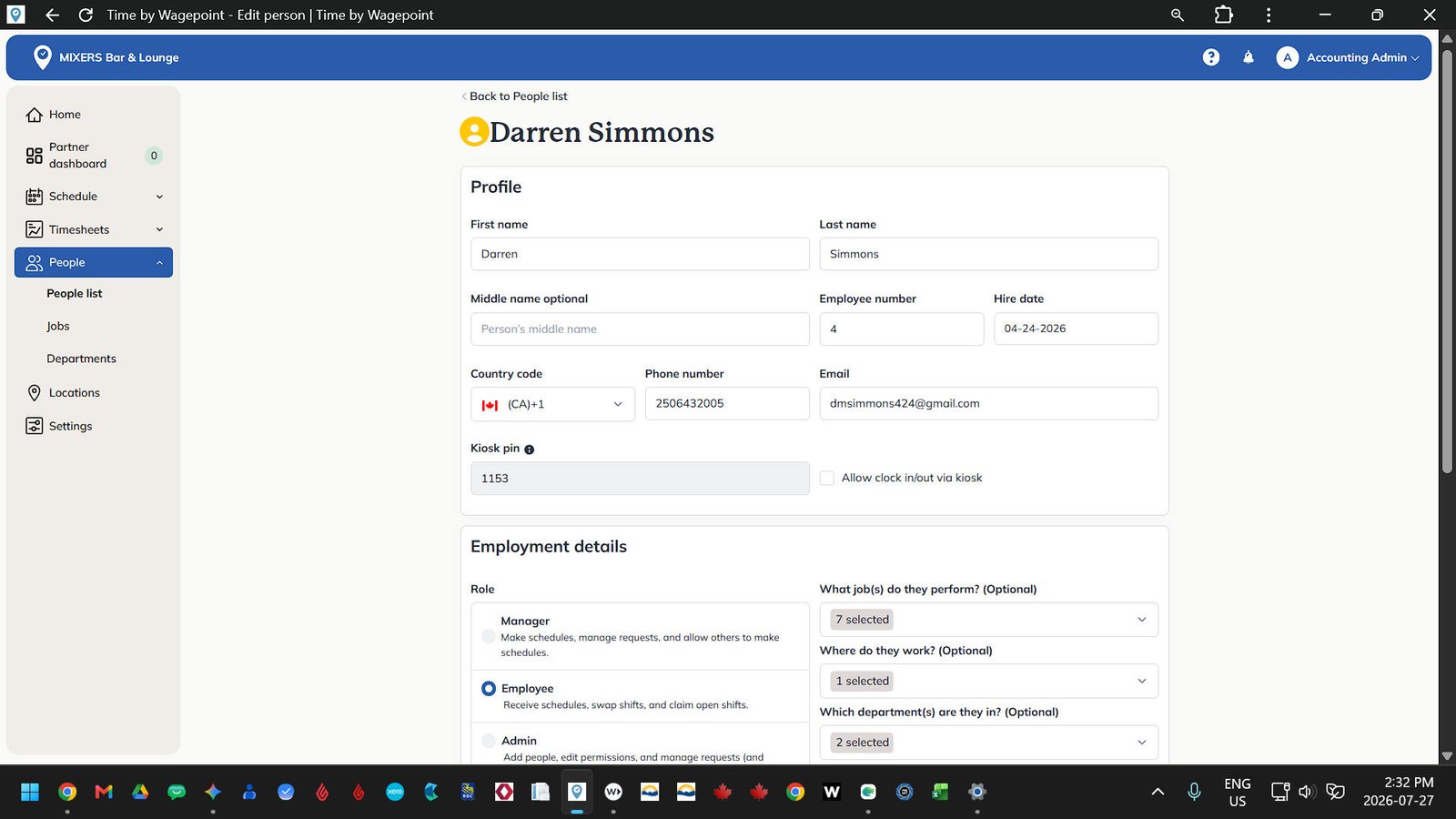
Add a new Employee
See our "Time by Wagepoint, Adding an new employee" Tutorial.
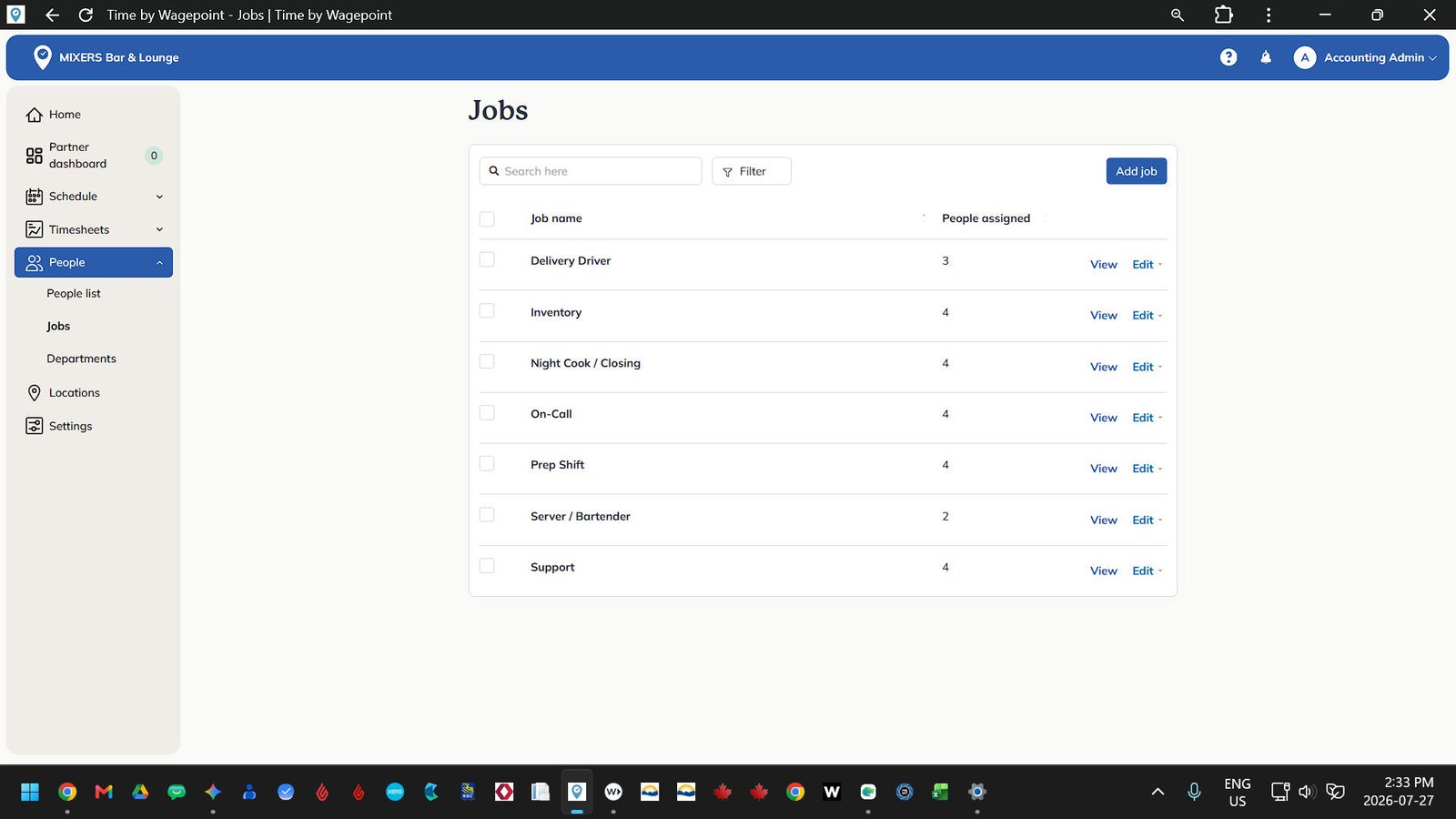
People - Jobs
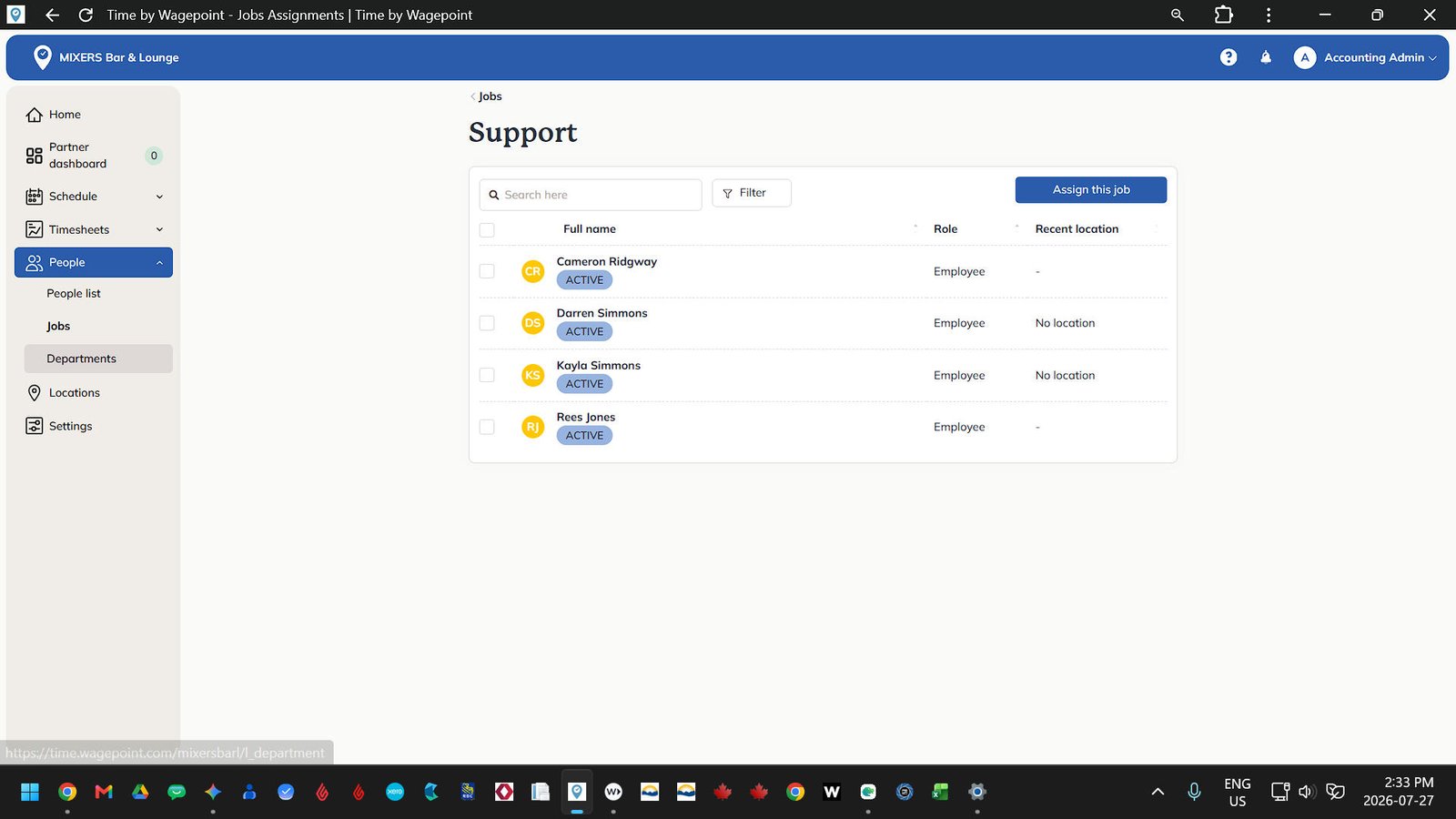
This section allows management to create, edit, and assign job roles, such as delivery driver, inventory, prep cook, server bartender, and support staff. Multiple jobs can be assigned to a single employee profile and multiple employees can be assigned to one job title.
People - Departments
Here you can view and organize our operational units, including Administration, Front of House, and Kitchen.
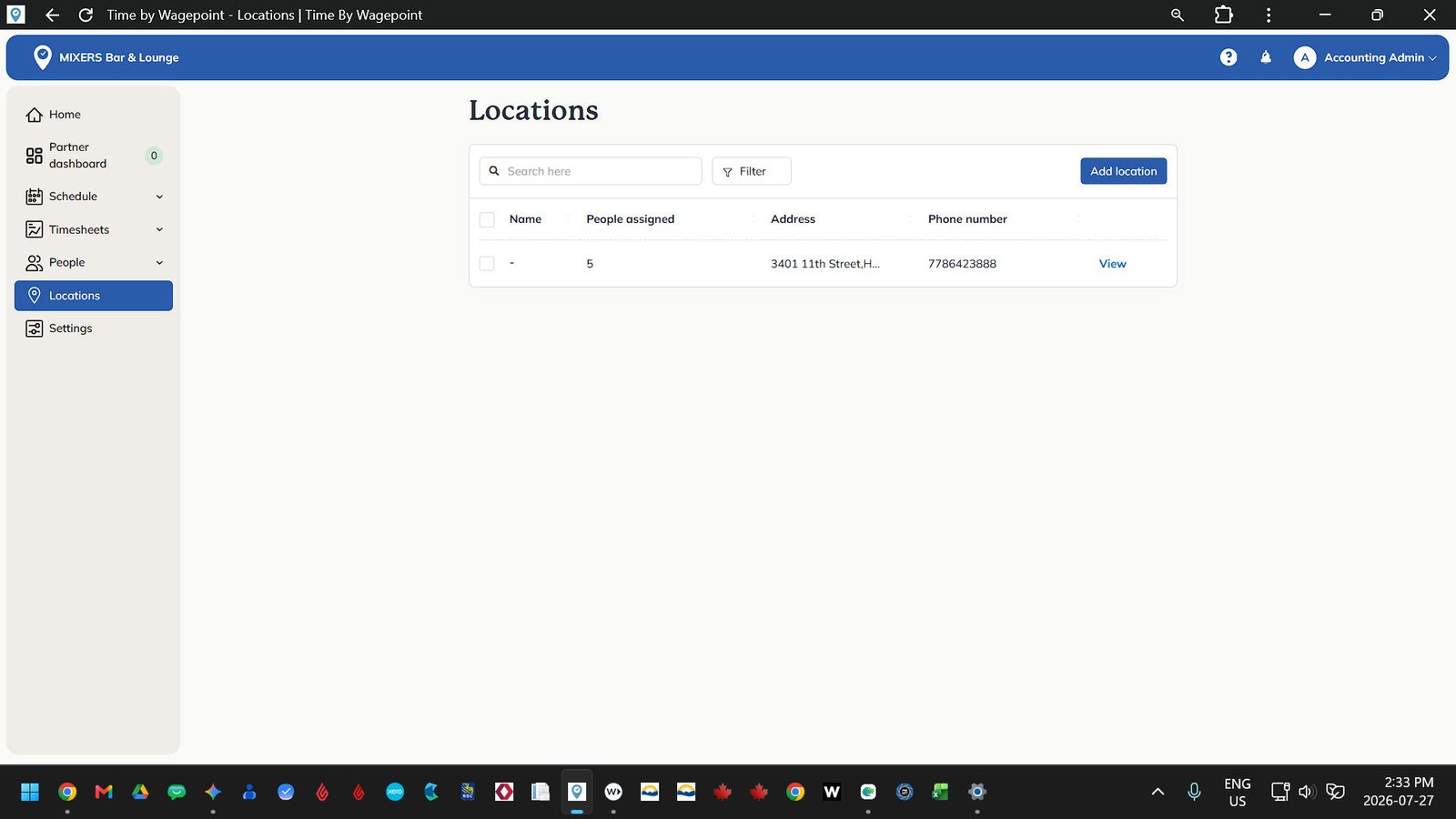
Locations
Our venue operates under a single location profile named Dash/(-) to keep schedule displays clean and scannable.
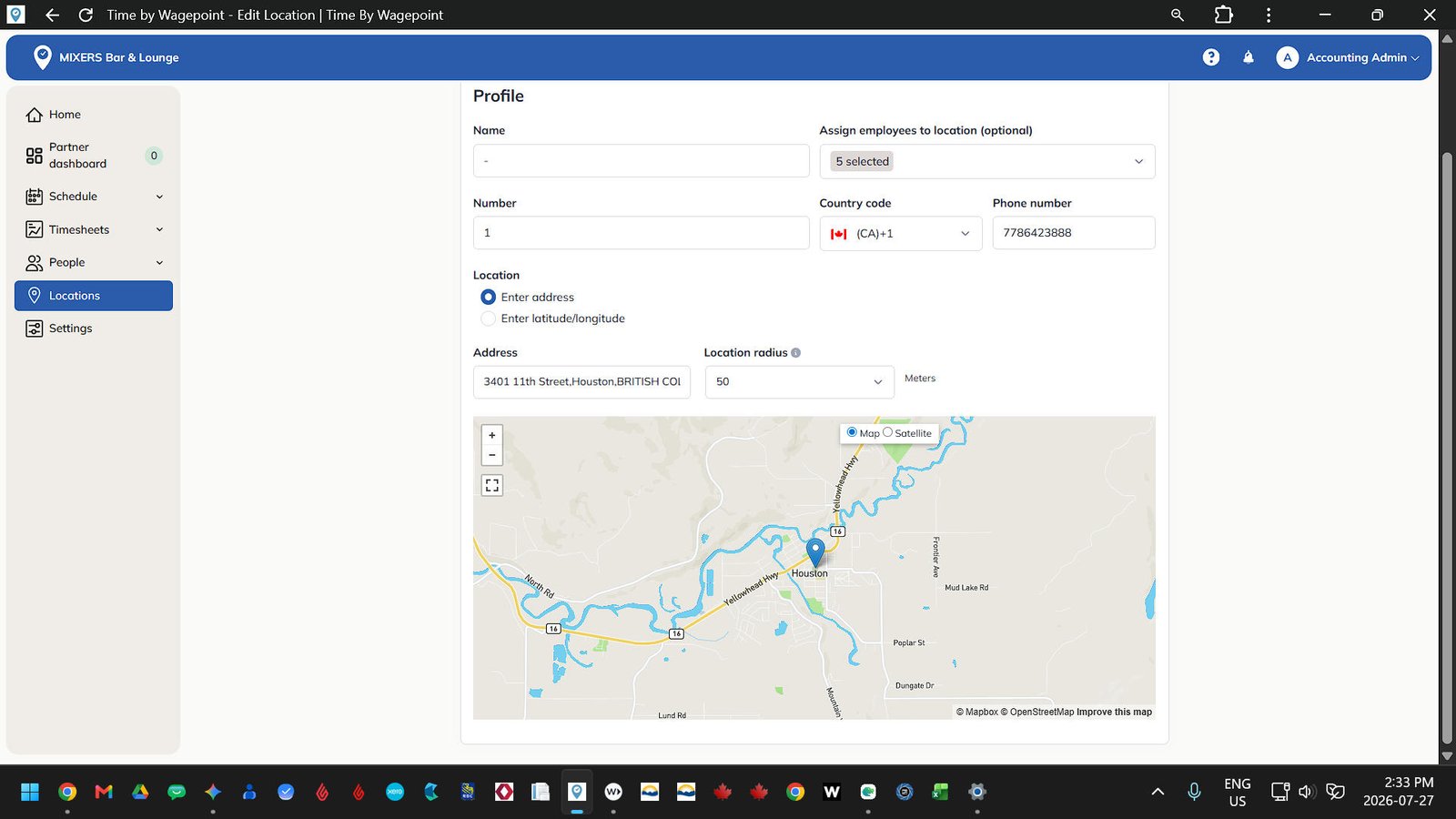
Location Settings
This page displays all assigned staff members, geographic map boundaries, and location specific schedules. The embedded map defines the geofence radius for clocking in, ensuring employees are physically on site when using the mobile app to clock in or out.
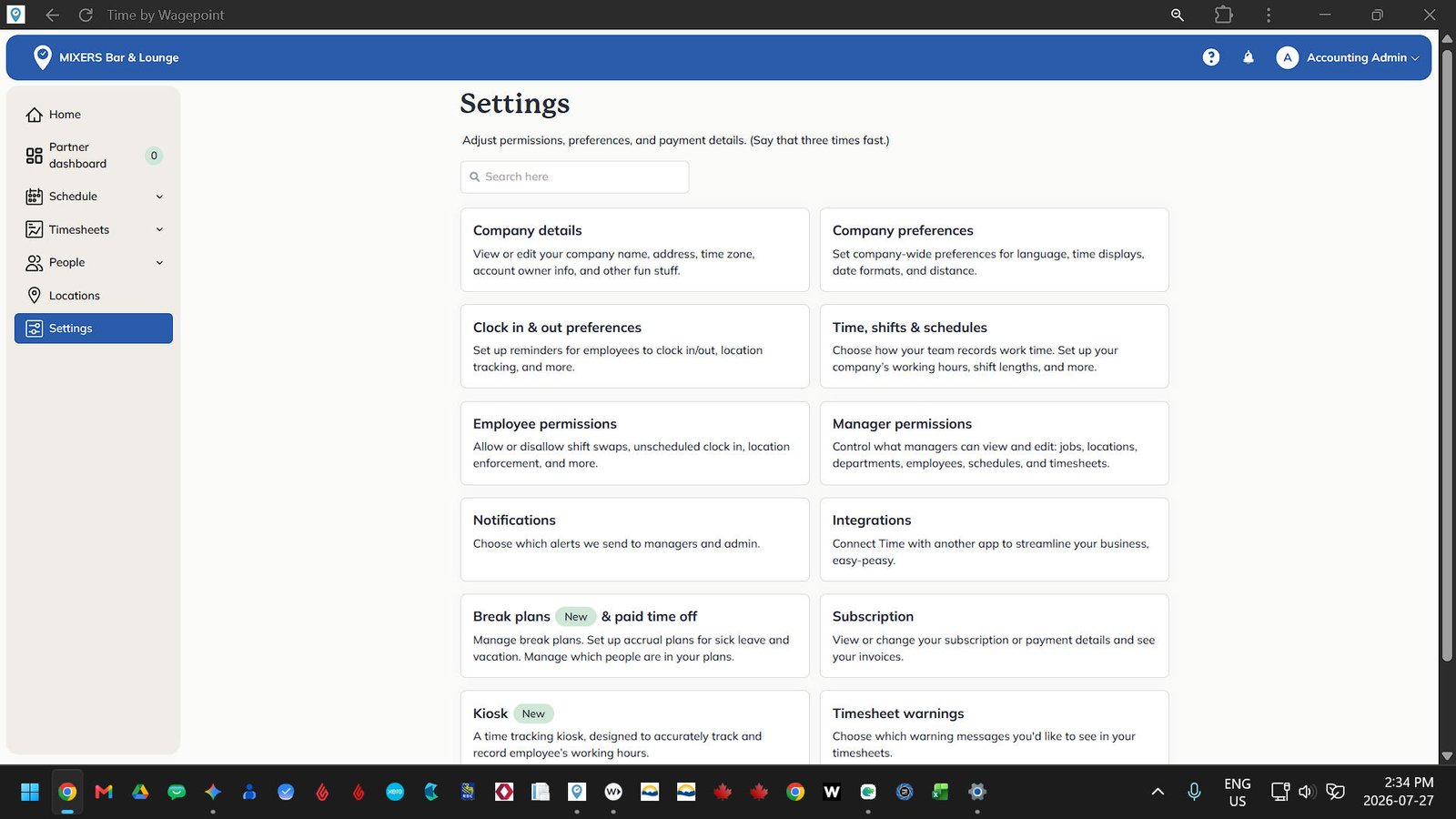
Location Settings
Navigate to the bottom of the left hand menu and select Settings. This panel contains administrative controls for system preferences:
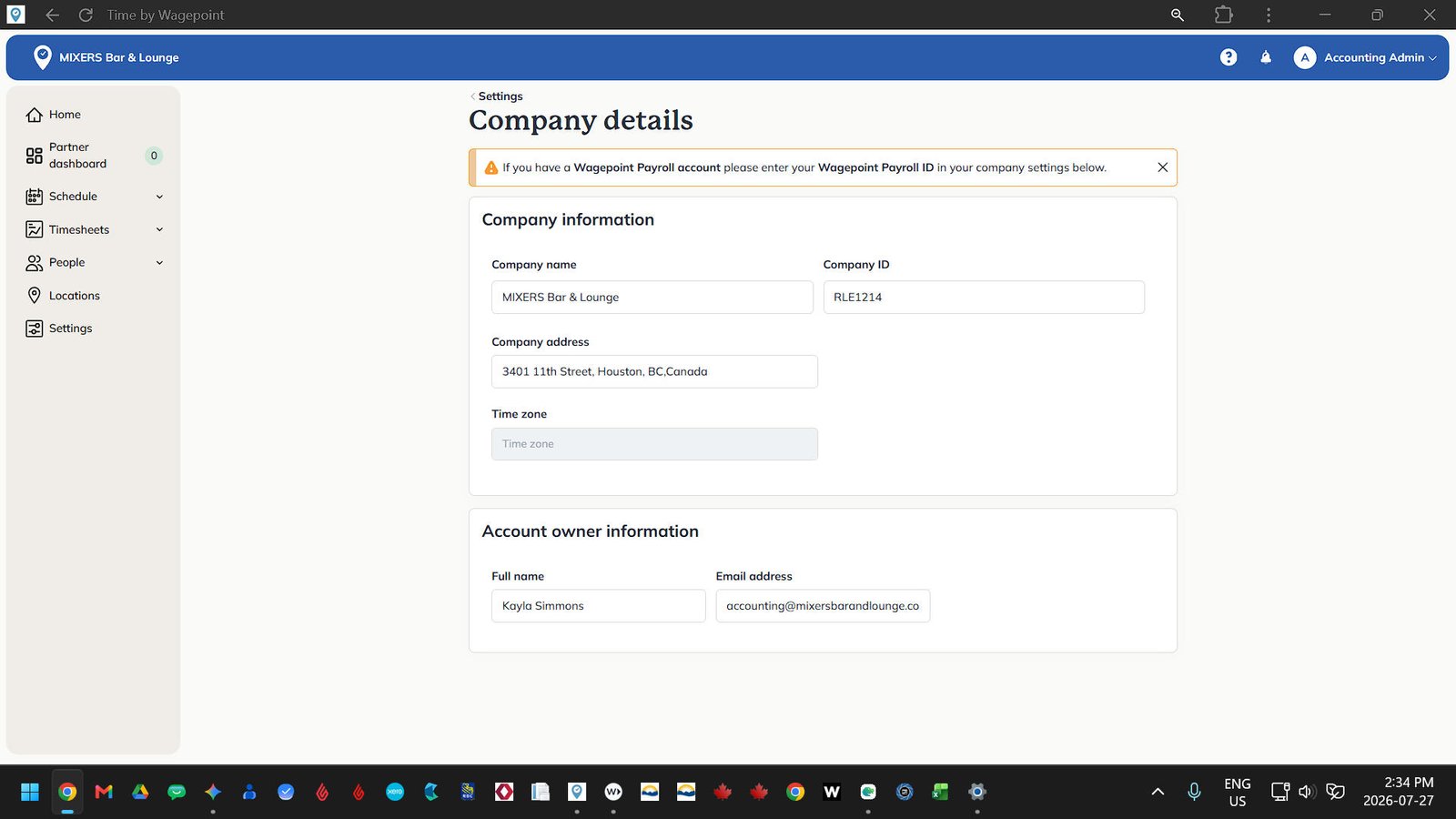
Settings - Company Details
This menu displays integration links to our main Wagepoint payroll account and corporate payroll ID.
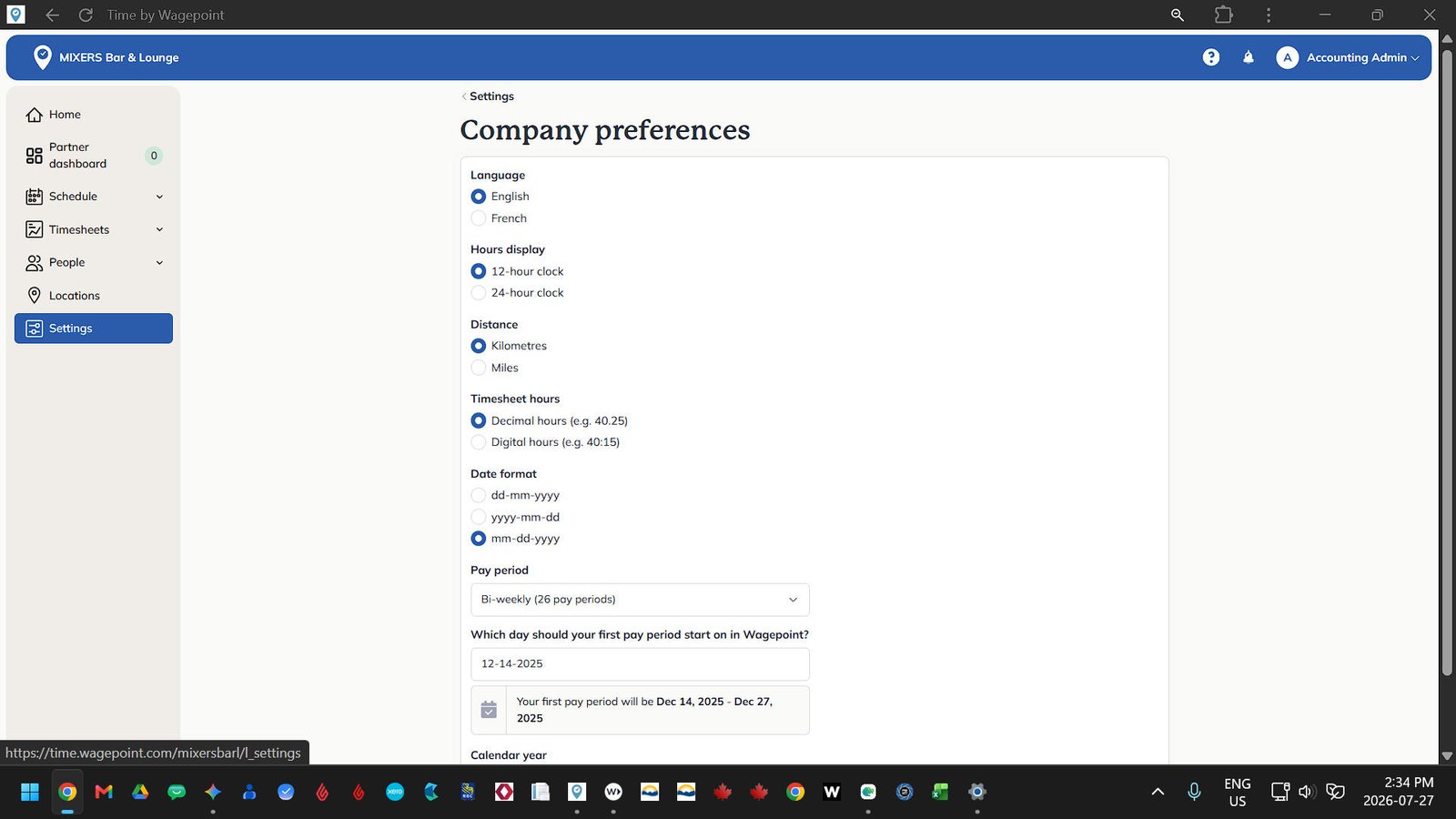
Settings - Company Preferences
This menu displays system default settings. Our account uses English, a twelve hour clock format, decimal hour calculations, and a pay period cycle starting on Sunday following the standard calendar year.
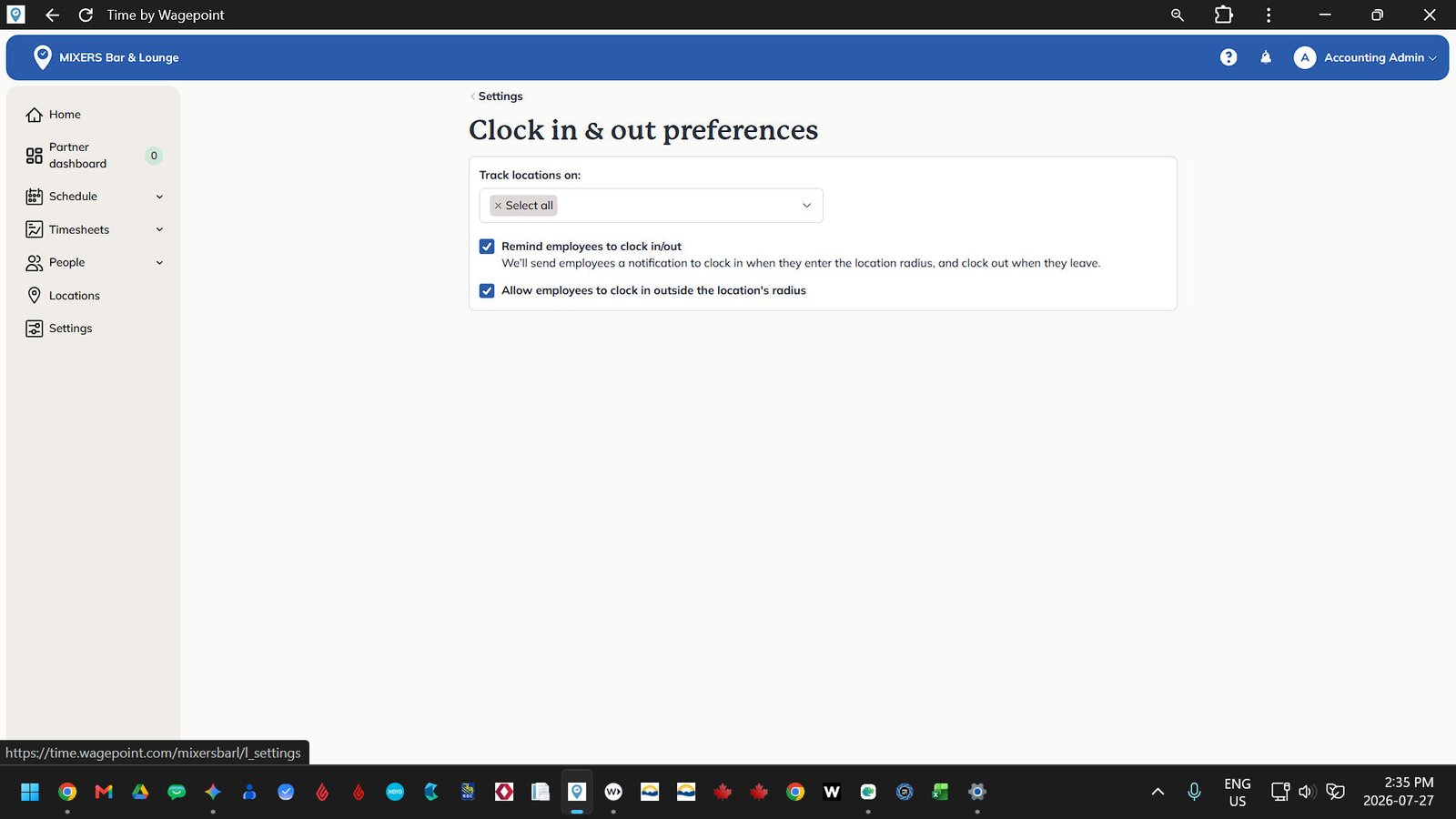
Settings - Clocking Preferences
This menu allows configuring geofencing controls and automated clock in reminders for staff.
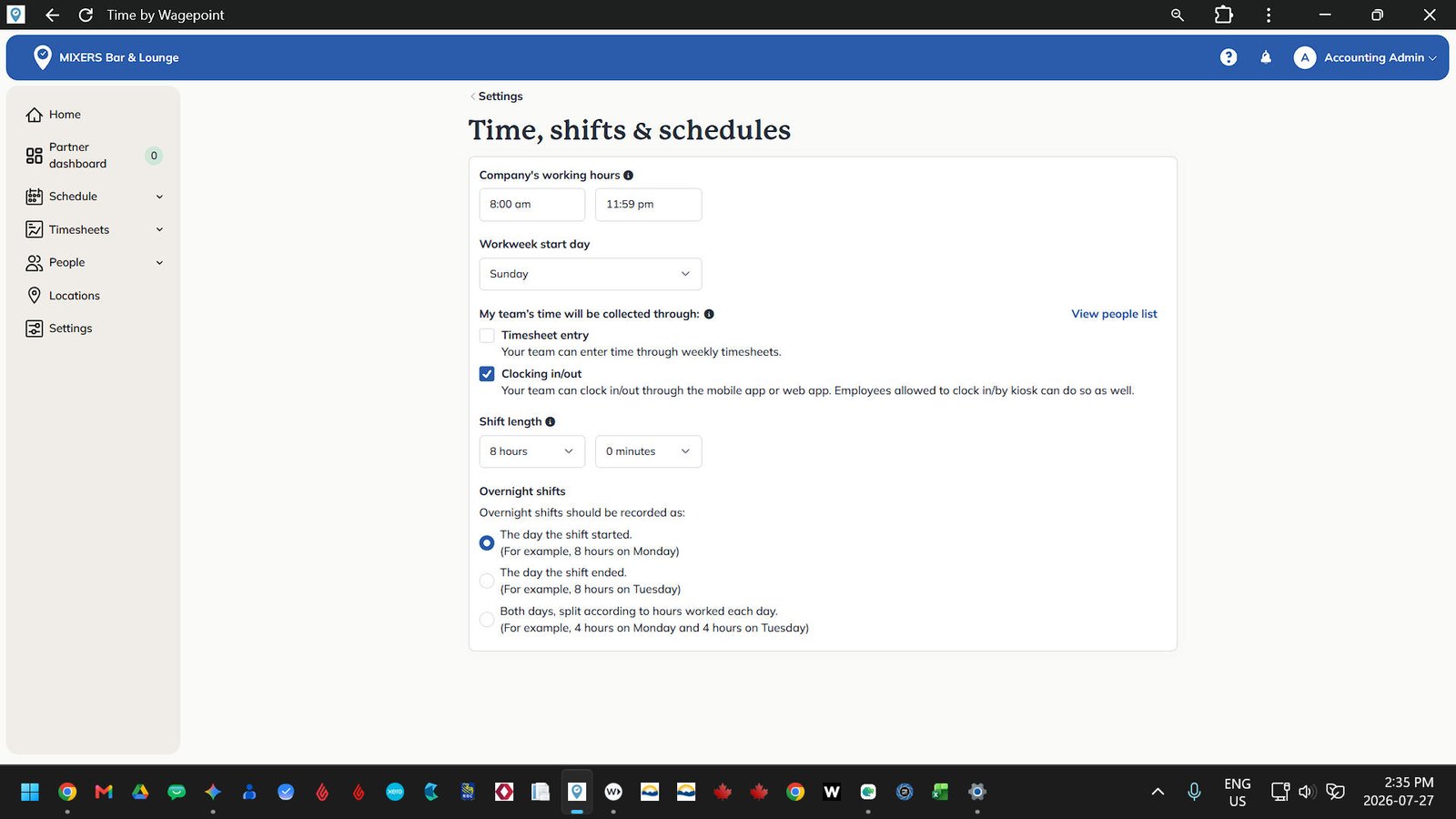
Settings - Time, Shifts, and Schedules
Here we’ve defined standard operating hours from eight am to eleven fifty nine pm, standard eight hour shift lengths, and rules for recording overnight shifts under the day the shift began.
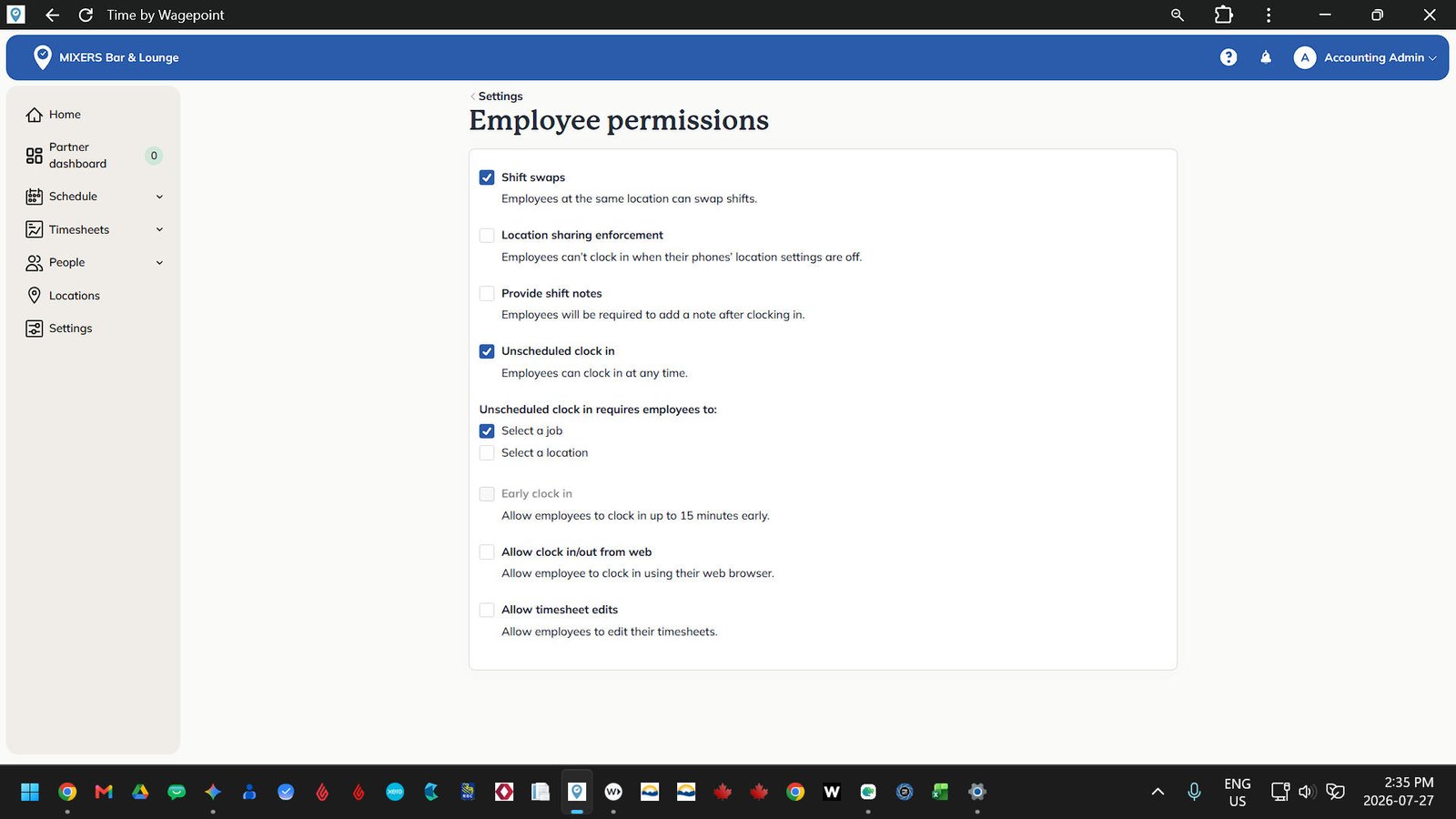
Settings - Employee Permissions
This menu displays employee control feature access. Our system restricts employees from editing timesheets, clocking in early, or logging in through web browsers.
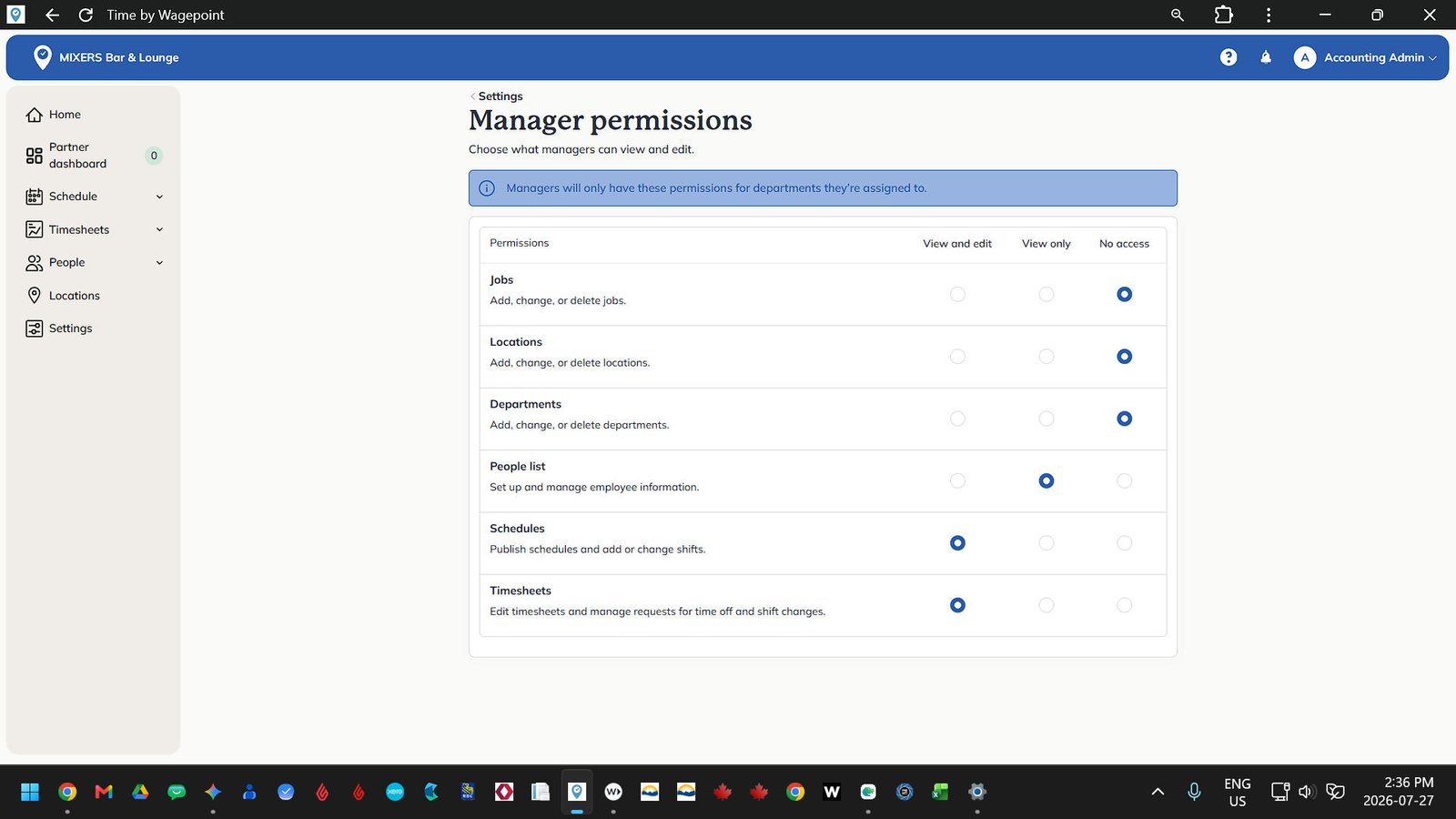
Settings - Manager Permissions
In the event that a User is added as a manager, here we can restrict or allow managing people, schedules, and timesheets, corporate settings, job creation, and department management.
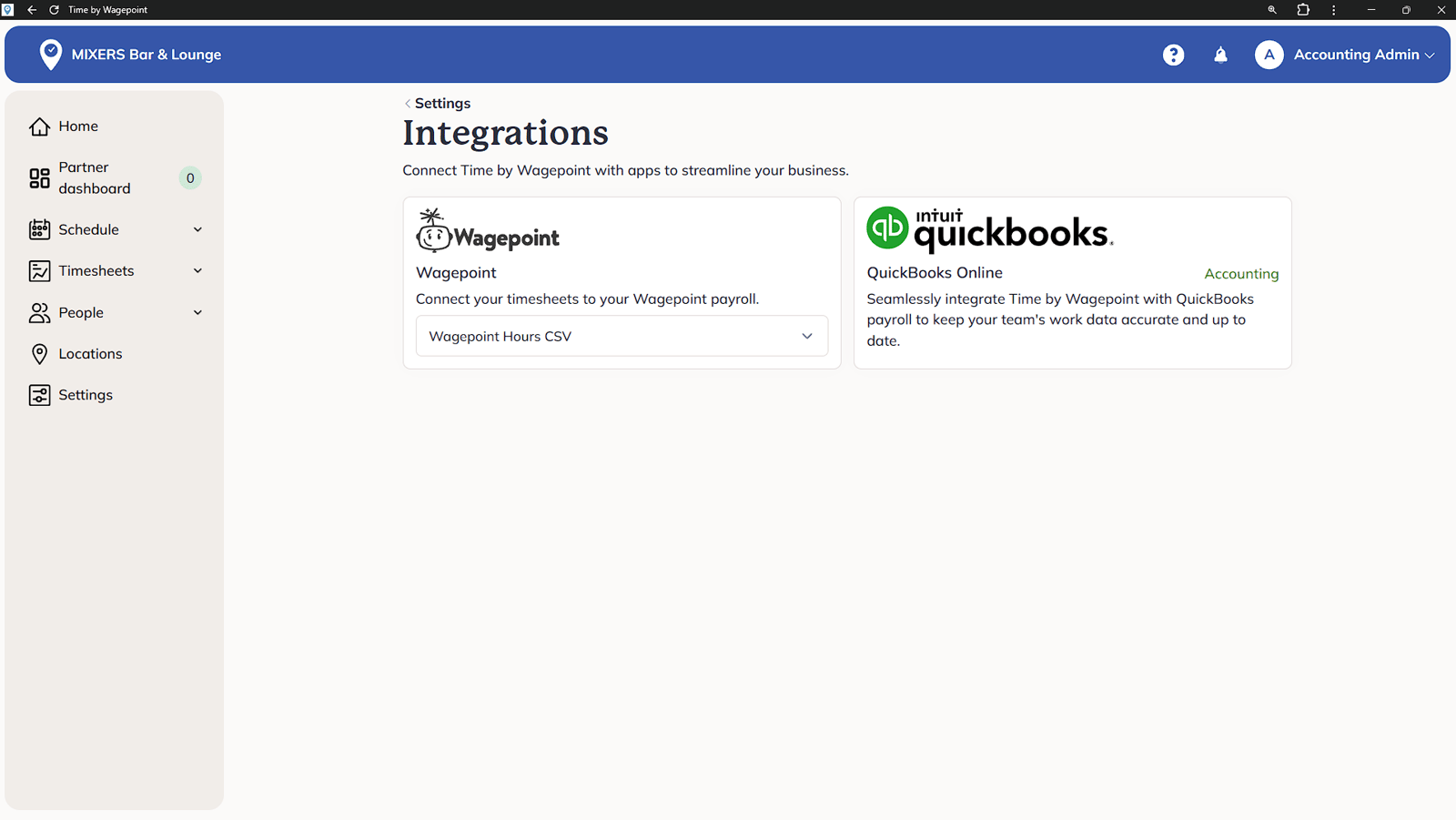
Settings - Integrations
Displays the active data sync between Time by Wagepoint and our main Wagepoint payroll module.
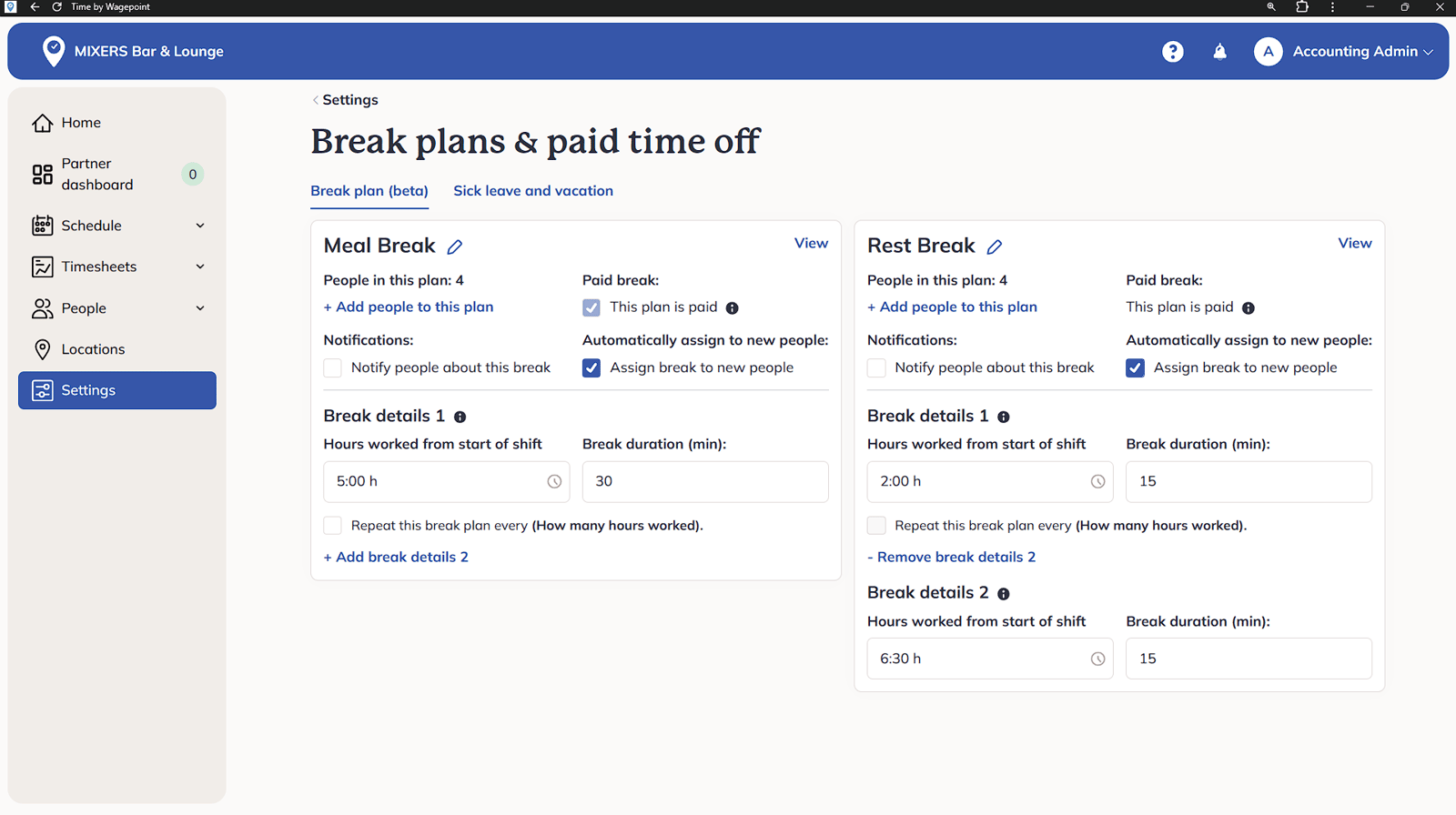
Settings - Break Plans
In this setting menu are the configurations for automatic meal and rest break rules according to British Columbia labor standards, assigning paid fifteen minute rest breaks and thirty minute meal breaks based on shift length.
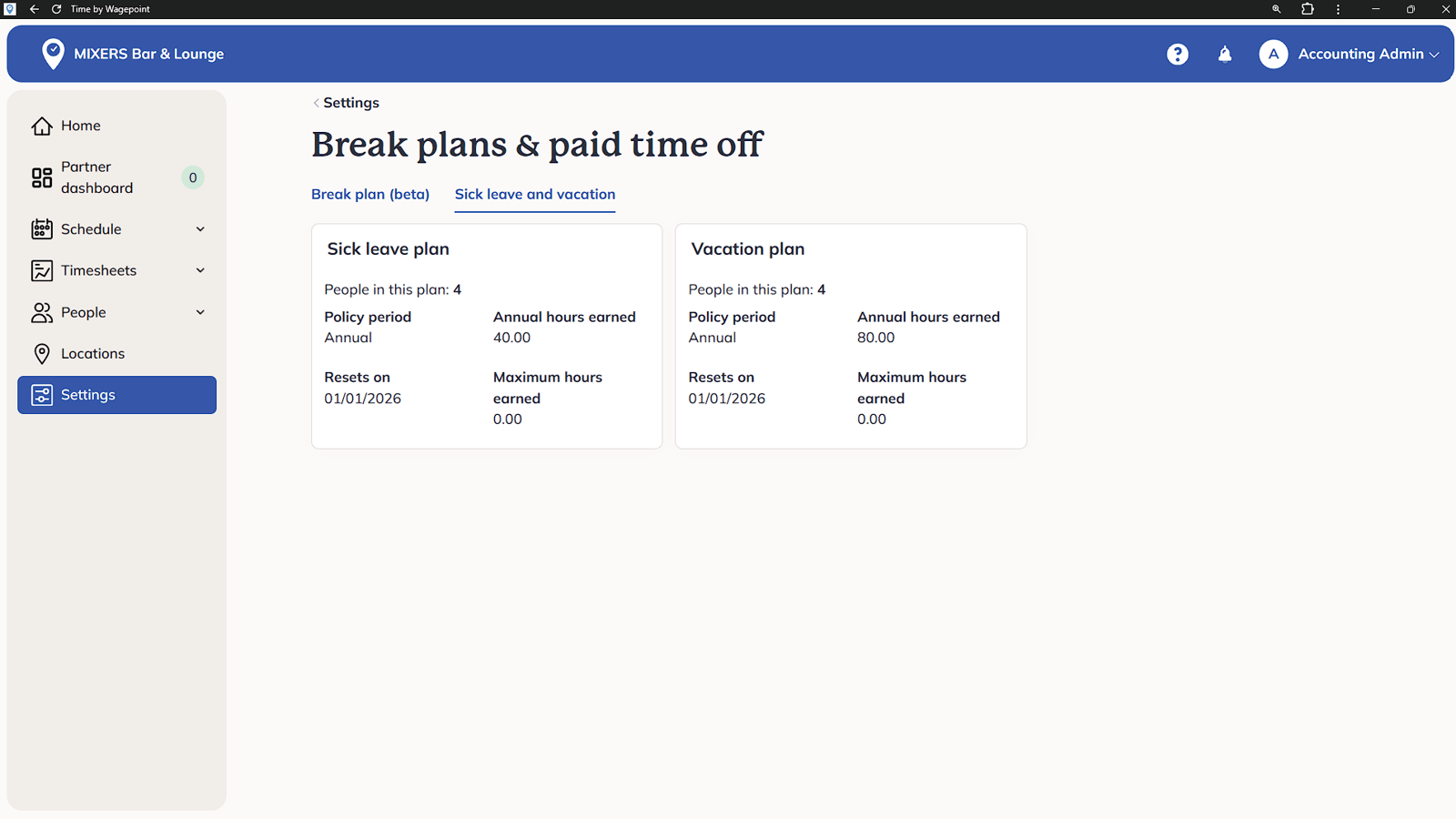
Settings - Time Off Plans
Manage vacation and sick leave settings in this menu. Tracking such leaves according to provincial regulations, providing eligible staff with five paid and three unpaid sick days per calendar year.
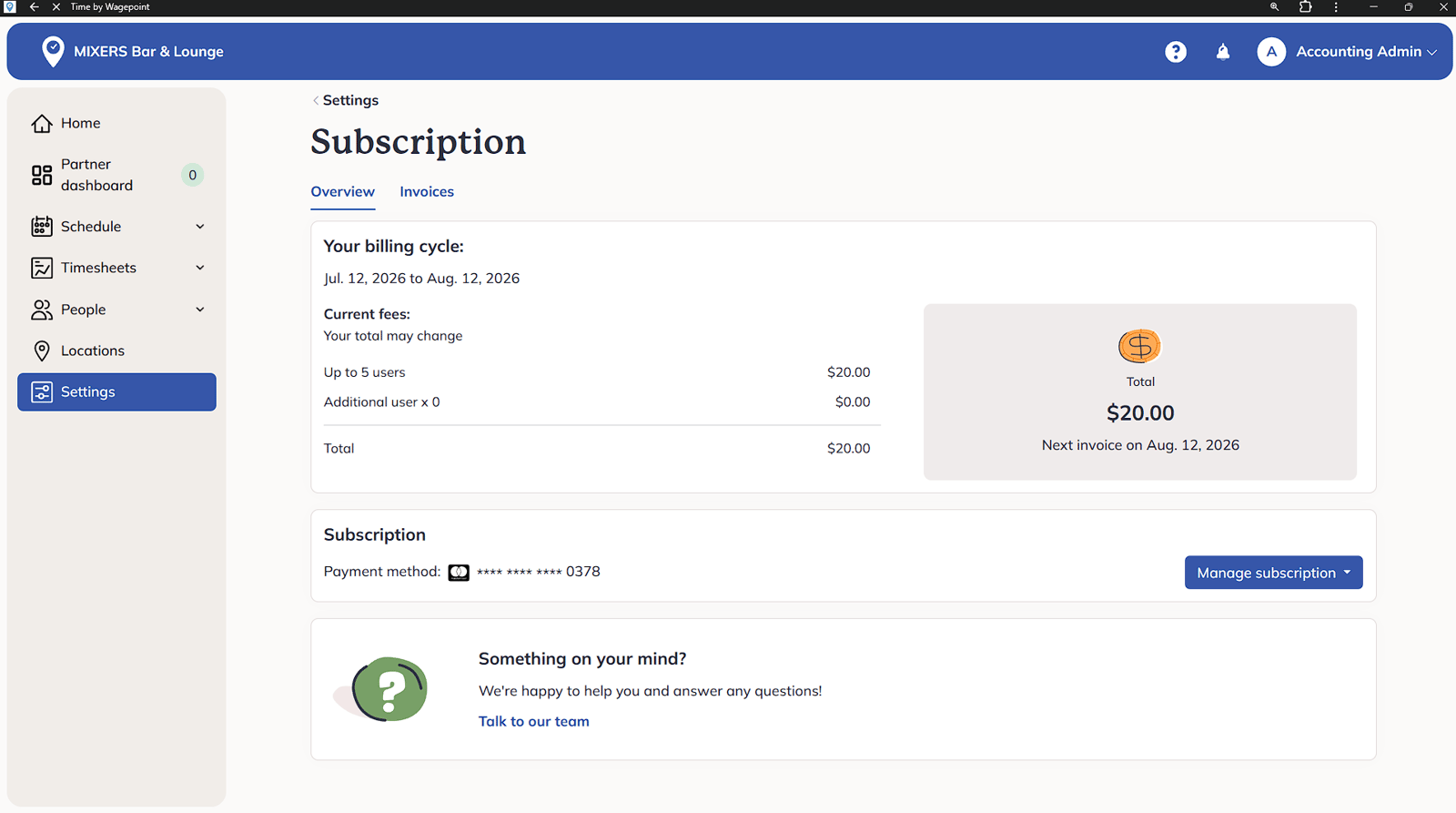
Settings - Subscription
See the subscription settings and Invoices. Here you will find the account tier details, active user counts, and billing history.
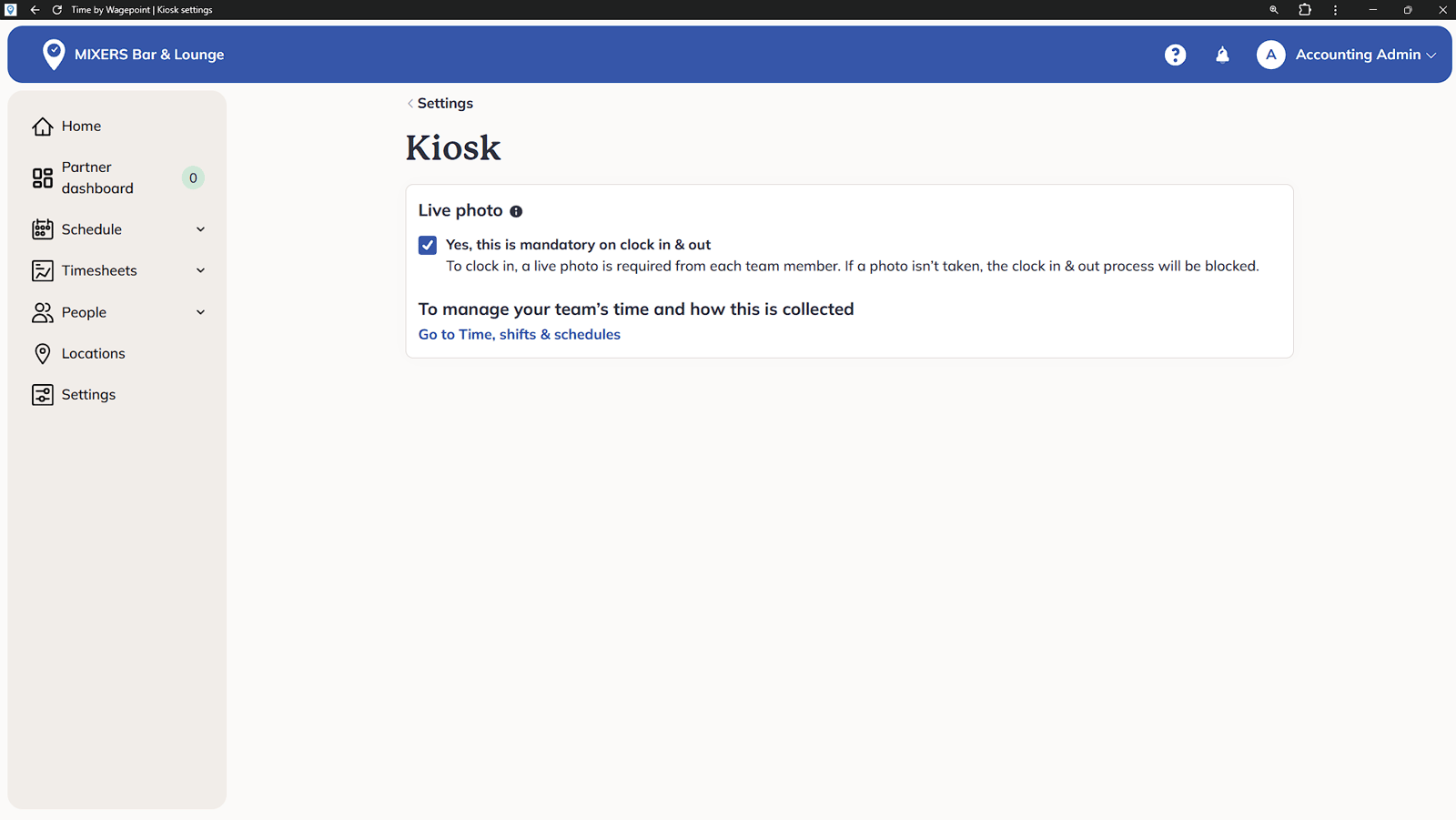
Settings - Kiosk
Simple settings control for the physical on site clock in tablet, including mandatory photo capture upon clocking in to confirm employee identity.
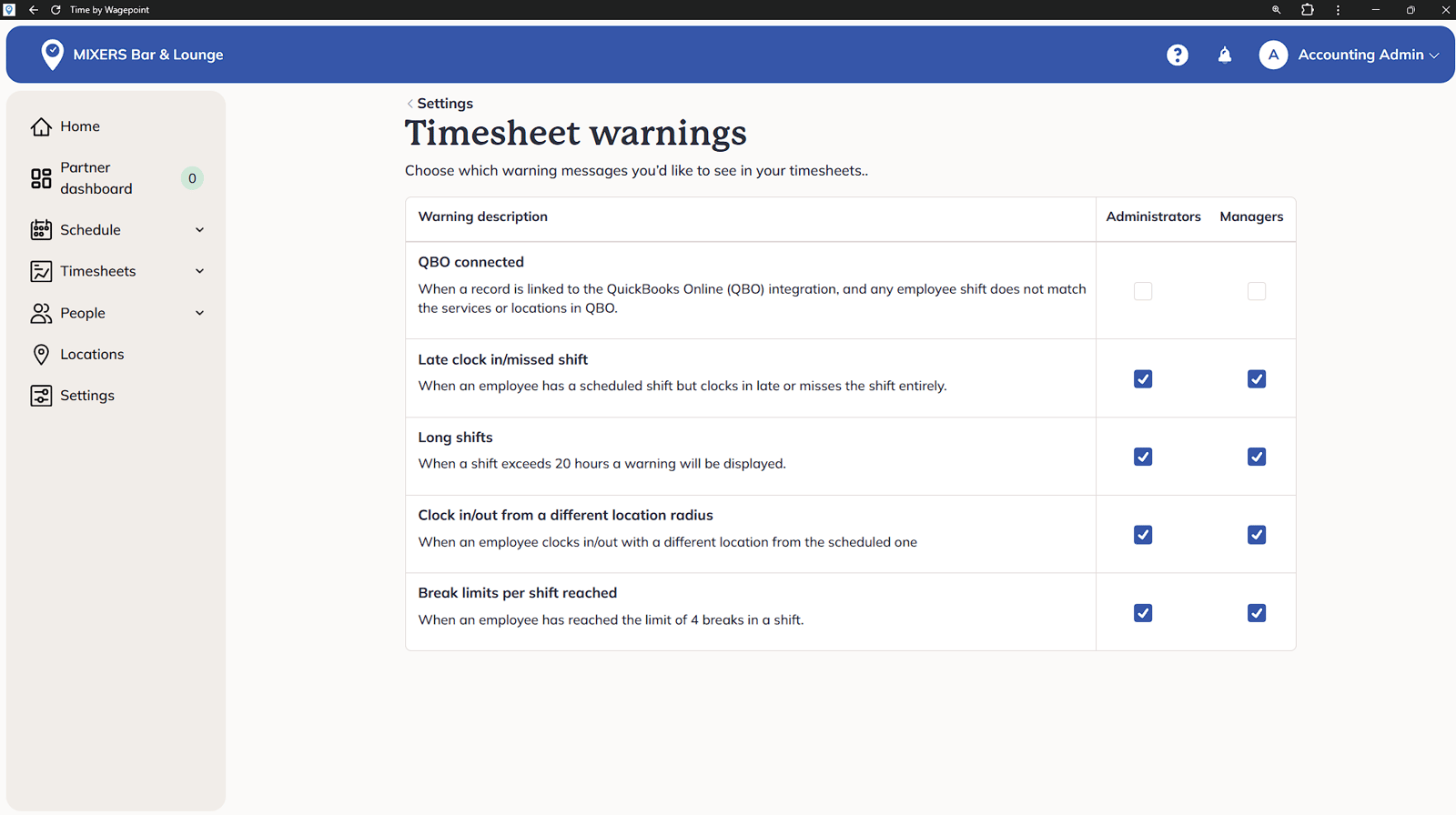
Settings - Timesheet Warnings
Configure automated system alerts for missed shifts, late clock ins, shift overruns, and geofence exception here.
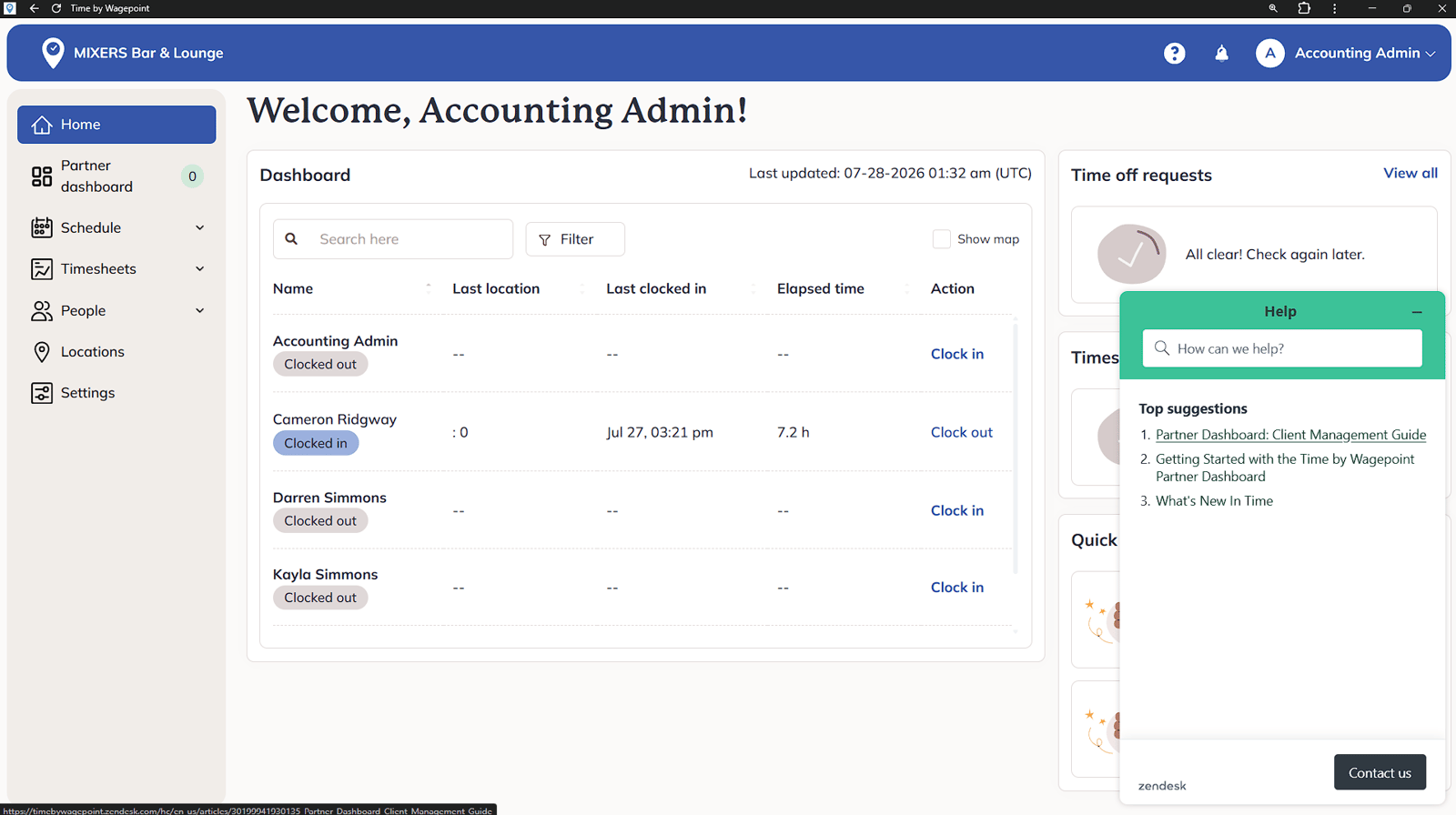
Help
The Question Mark icon opens the help center, user guides, and direct live chat support.
New Features
The Bell icon opens the Notification Center, displaying software updates and feature announcements.
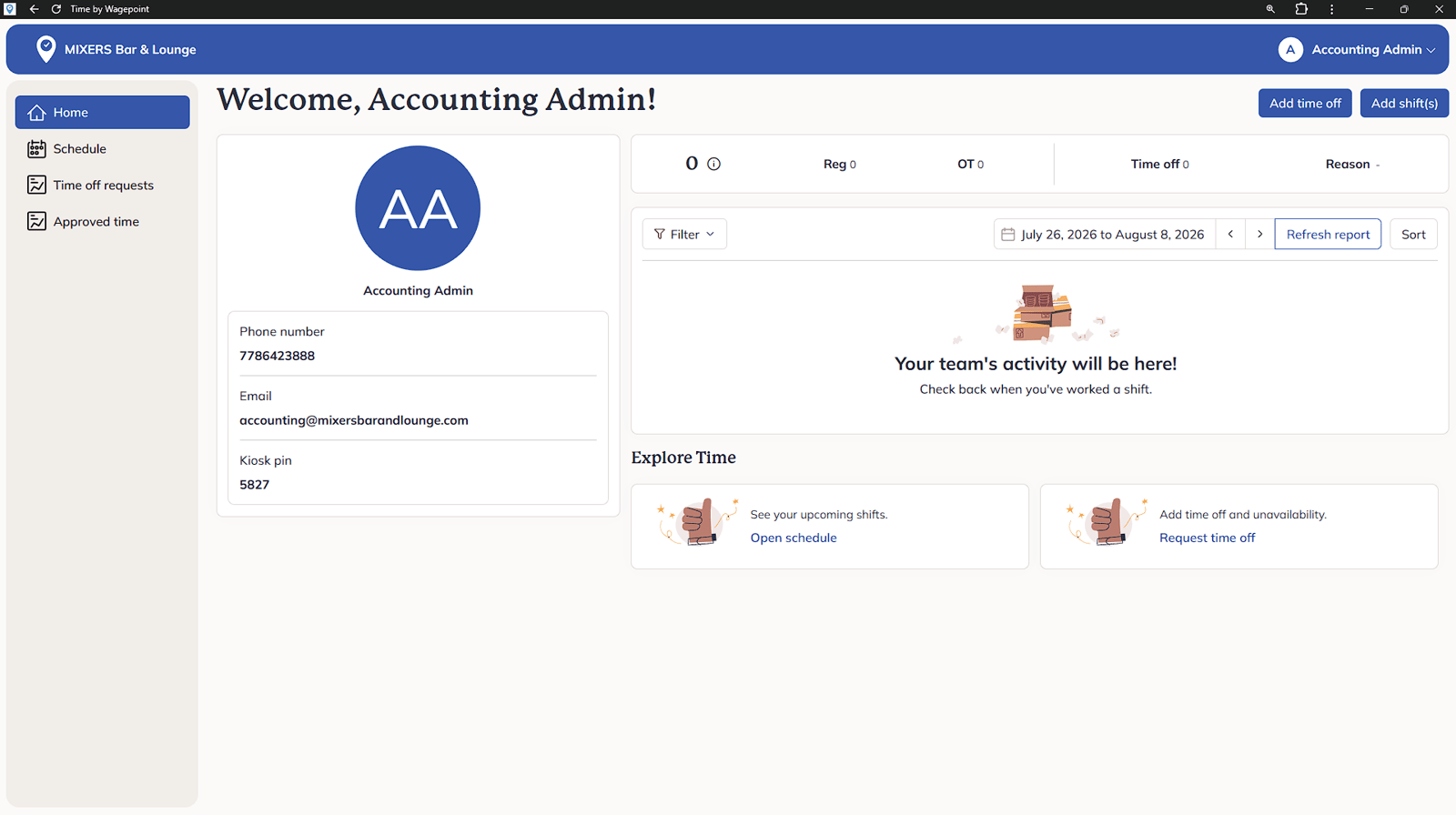
Profile - Switch to Employee View Toggle
Selecting Switch to Employee View toggles the display to show exactly what a standard employee sees, including their personal schedule, time off balances, and shift history.
Completed
This completes the navigation tutorial for Time by Wagepoint. You may now click on your profile icon in the upper right corner and select Log Out to safely exit the system.
You made it to the end!
58 steps complete