How to Book Car Transfers Using Rolzo
Learn how to select transfer details, review vehicle options, and send quotes using the Rollso platform.
Valentina OKane
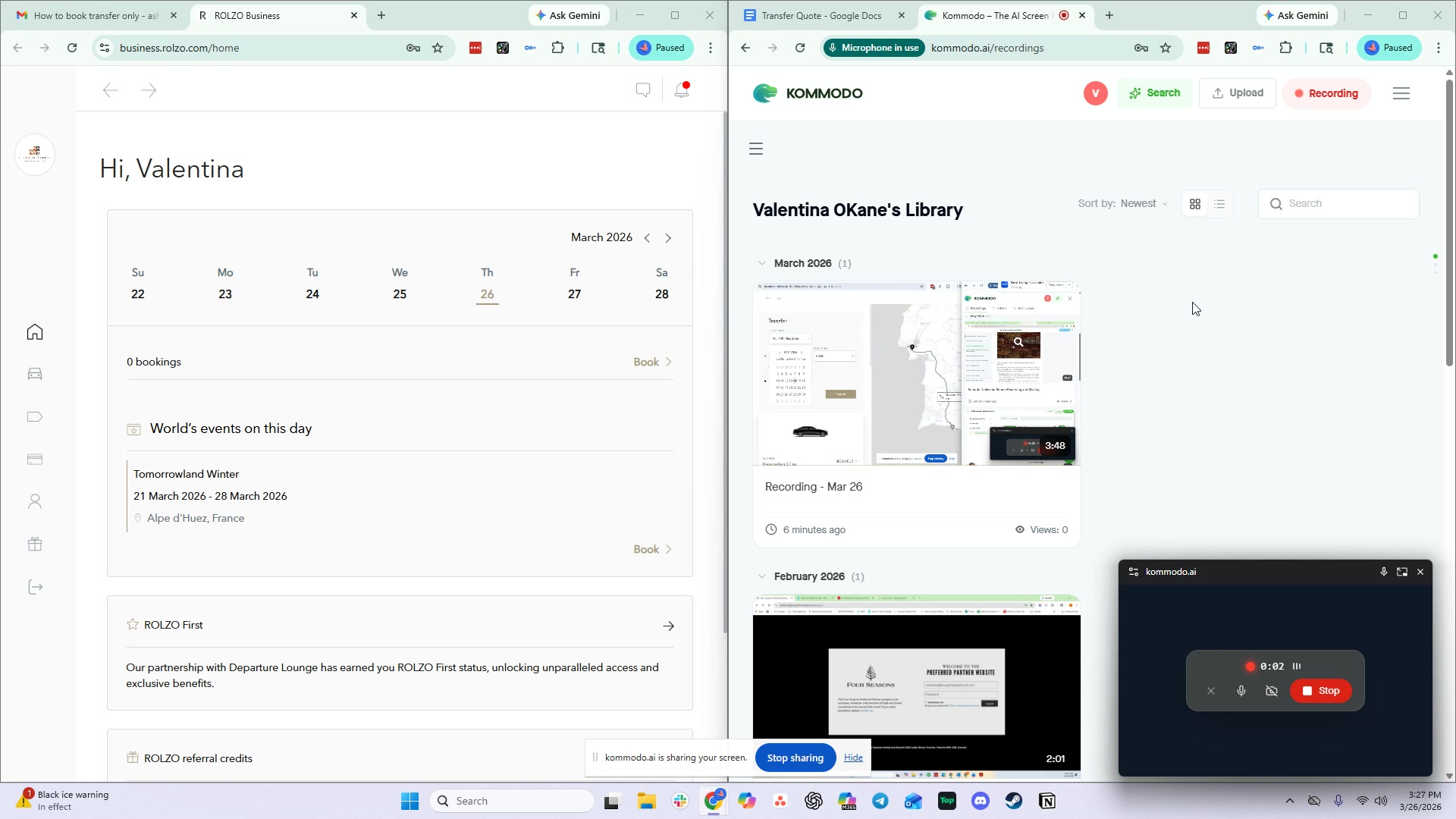
Log in to the Rollso platform
Access the Rollso platform to begin the booking process.
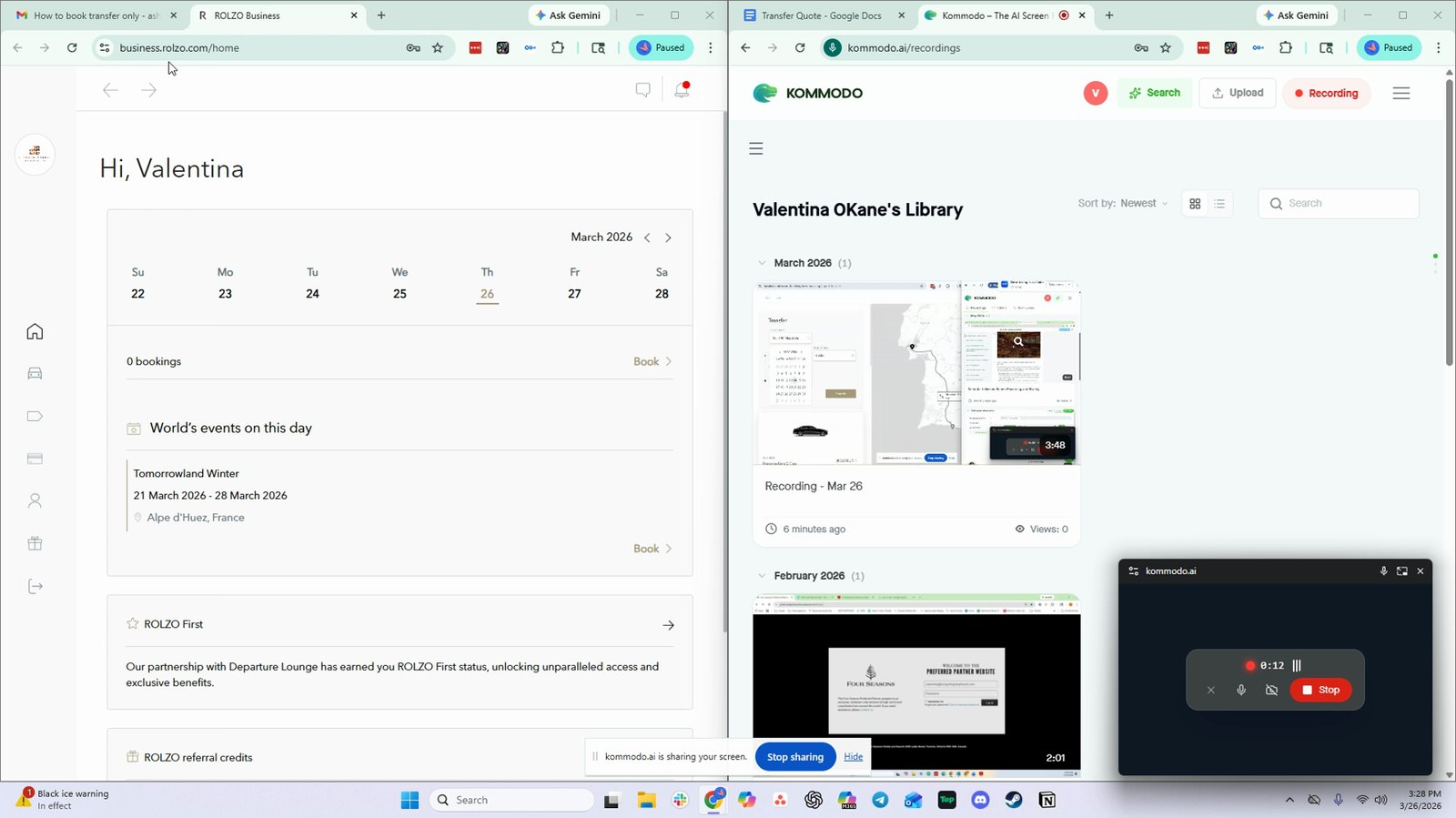
Go to Bookings in the left-hand side menu
Navigate to the bookings section to start a new transfer.

Click Transfer
Begin the process for a new car transfer.

Use the outbound information for this booking
Set up the transfer as an outbound trip.

Select May 24th as the outbound date
Choose the correct date for the outbound transfer.

Click to select the date
Confirm the date selection.

Enter Lisbon Airport as the pickup location
Specify the starting point for the transfer.

Wait for the location pop-up to appear
The system will suggest matching locations.

Select the airport option from the pop-up
Choose the correct airport from the suggestions.

Set 9am as the placeholder time for pickup
Enter a tentative pickup time.

Enter the drop-off location
Specify where the transfer will end.

Copy and paste the drop-off location
Use copy-paste to ensure accuracy.

Wait for the drop-off location to pop up
The system will suggest matching drop-off locations.
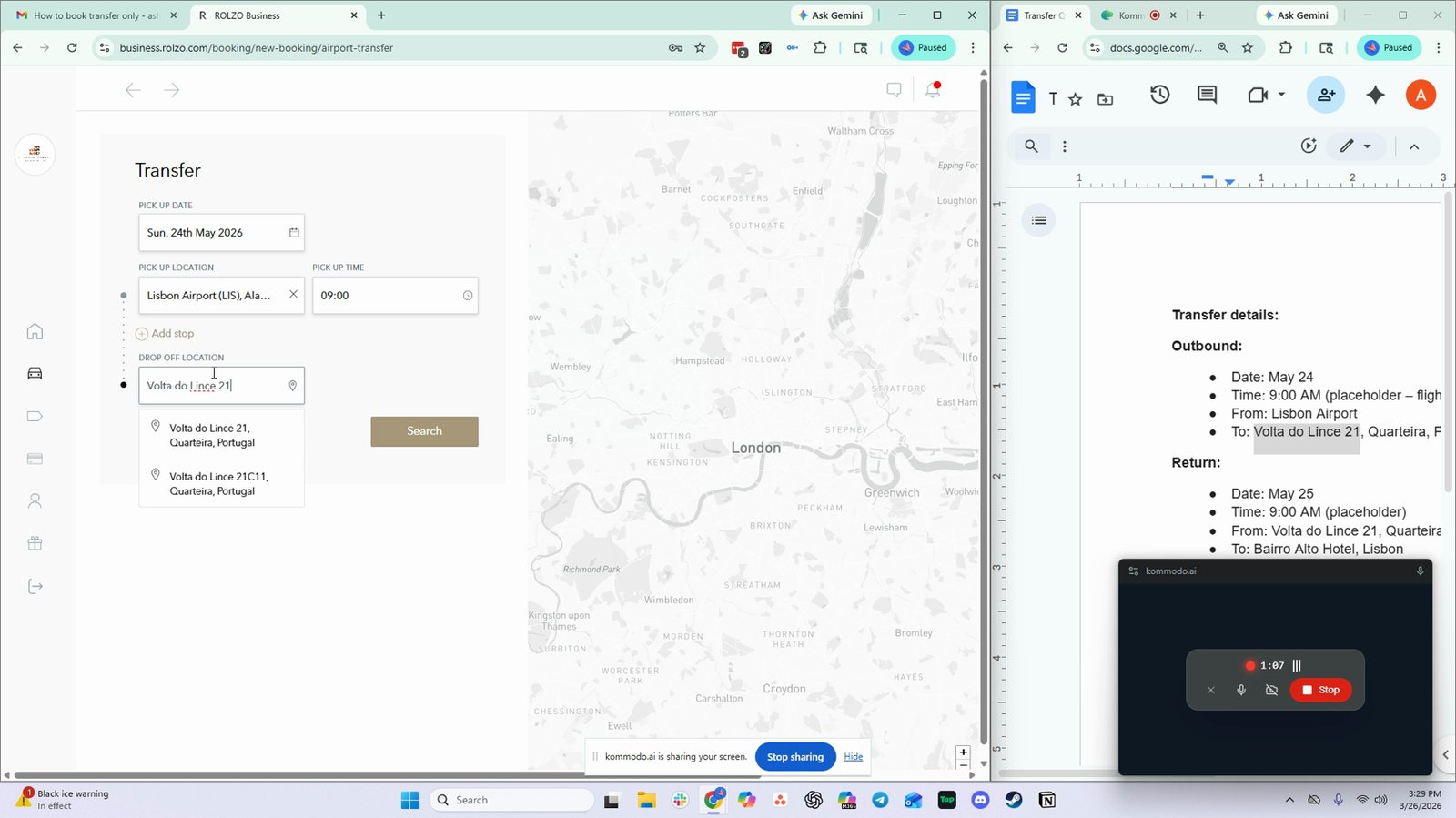
Verify that the location is correct
Ensure the selected location matches your intended destination.

Click Search to view available vehicles
Display the list of vehicle options and prices.

Copy the outbound vehicle information
Record the details of the selected vehicle for the outbound trip.

Enter the vehicle name and price (e.g., E-Class, 885 Euro)
Document the vehicle type and cost for the quote.

Note the capacity for each vehicle (e.g., two people for E-Class)
Record the number of passengers each vehicle can accommodate.

Repeat for other vehicle options (e.g., B-Class, S-Class, Sprinter Van)
Gather details for all relevant vehicle types and prices.

Optionally, add business class as an option
Include business class vehicles if needed.

Move on to the next vehicle options (e.g., S-Class, Sprinter Van)
Continue recording details for all available vehicles.
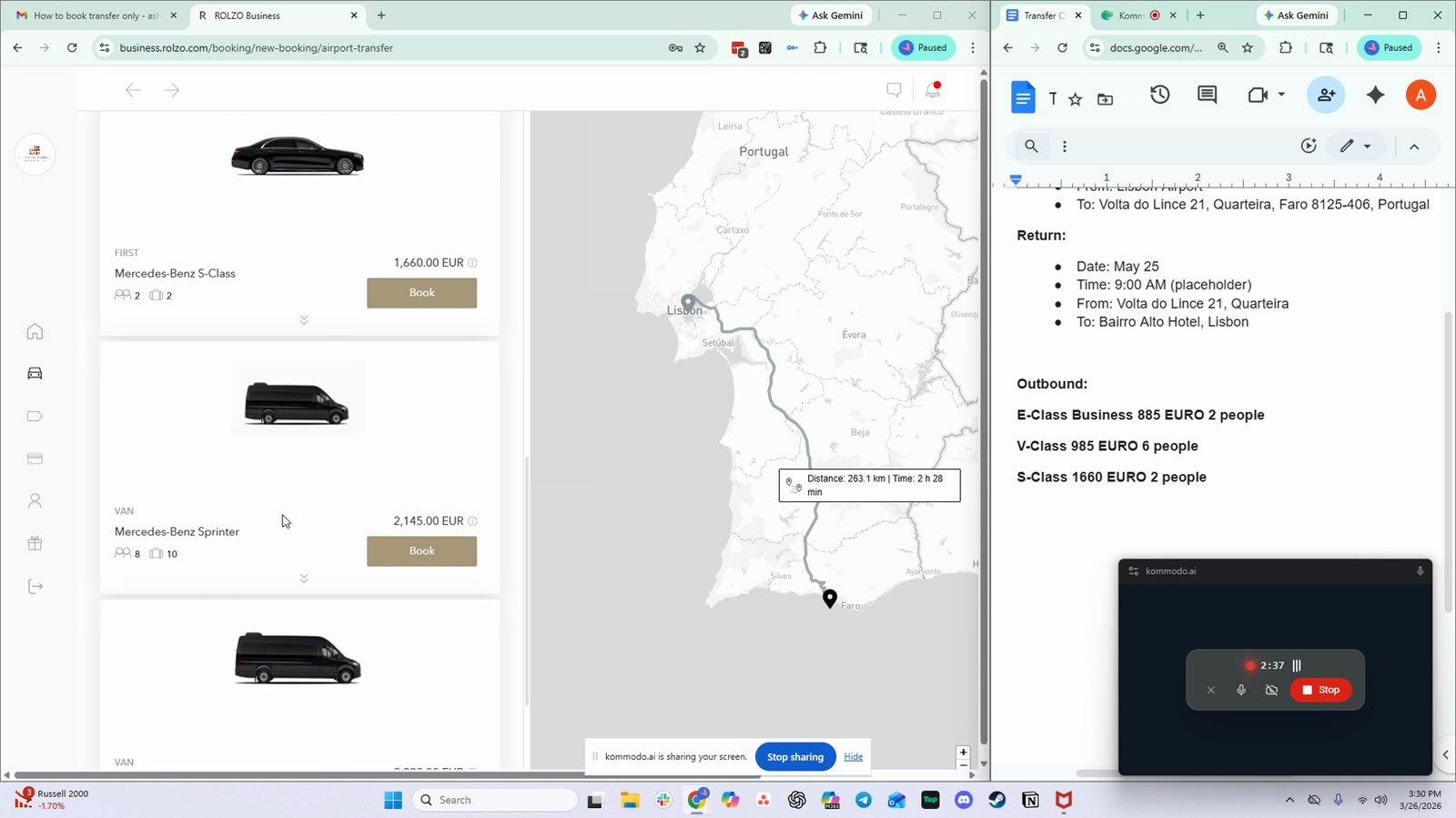
Start the return quote by selecting May 25th as the date
Set up the return leg of the transfer.

Copy and paste the pickup location for the return trip
Ensure the correct starting point for the return journey.
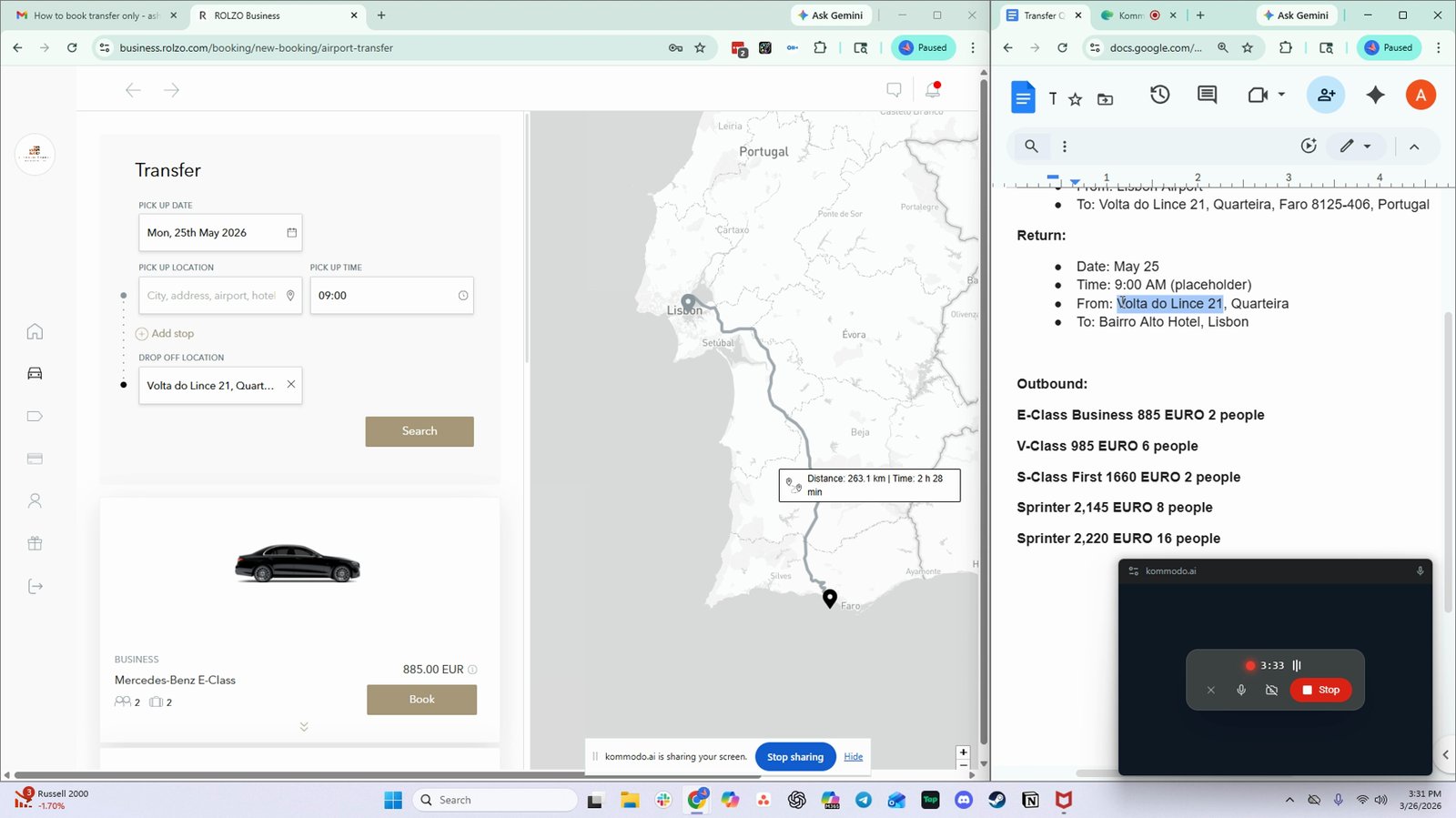
Wait for the drop-down to appear and select the location
Confirm the pickup location for the return trip.

Set 9am as the placeholder time for the return trip
Enter a tentative time for the return transfer.

Exit out of the drop-off location field
Clear the field to enter the new drop-off location.

Copy and paste the hotel information as the drop-off location
Set the hotel as the destination for the return trip.

Select the hotel from the suggestions
Confirm the hotel as the drop-off location.

Click Search to view return vehicle options
Display available vehicles for the return trip.

Copy the return vehicle information and note as return
Record the details for the return journey.

Repeat for all return vehicle options (class, price, capacity)
Gather all relevant return vehicle quotes.
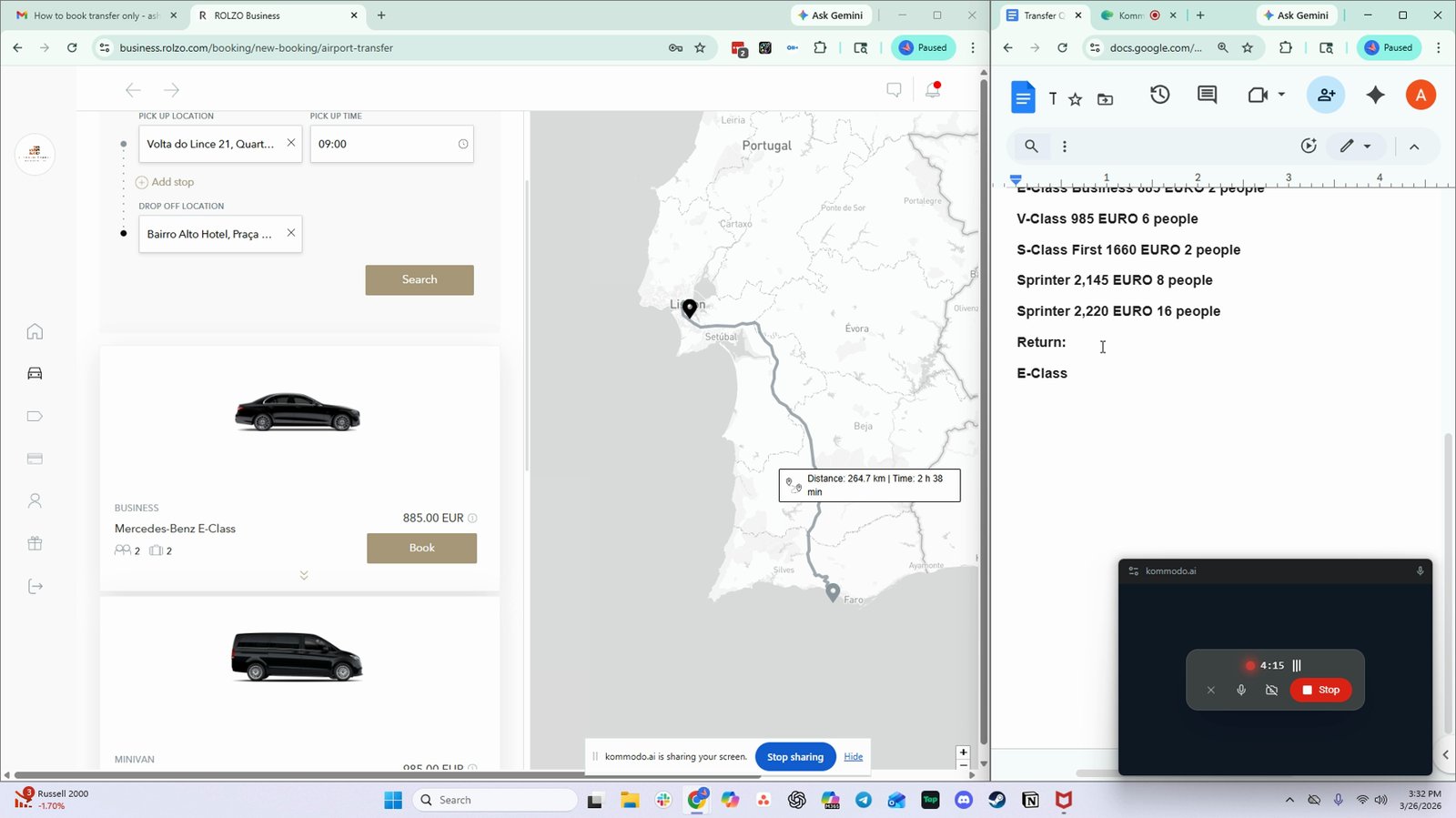
Send the gathered quotes to Valentina or the client
Share the compiled transfer options with the appropriate person.

You made it to the end!
32 steps complete