How to Edit Time on Service Appointments

Timjon Wilkinson

Timjon Wilkinson

No date
17 steps
1

Open Google Chrome - SA-26744 | Service Appointment | Salesforce
step
2

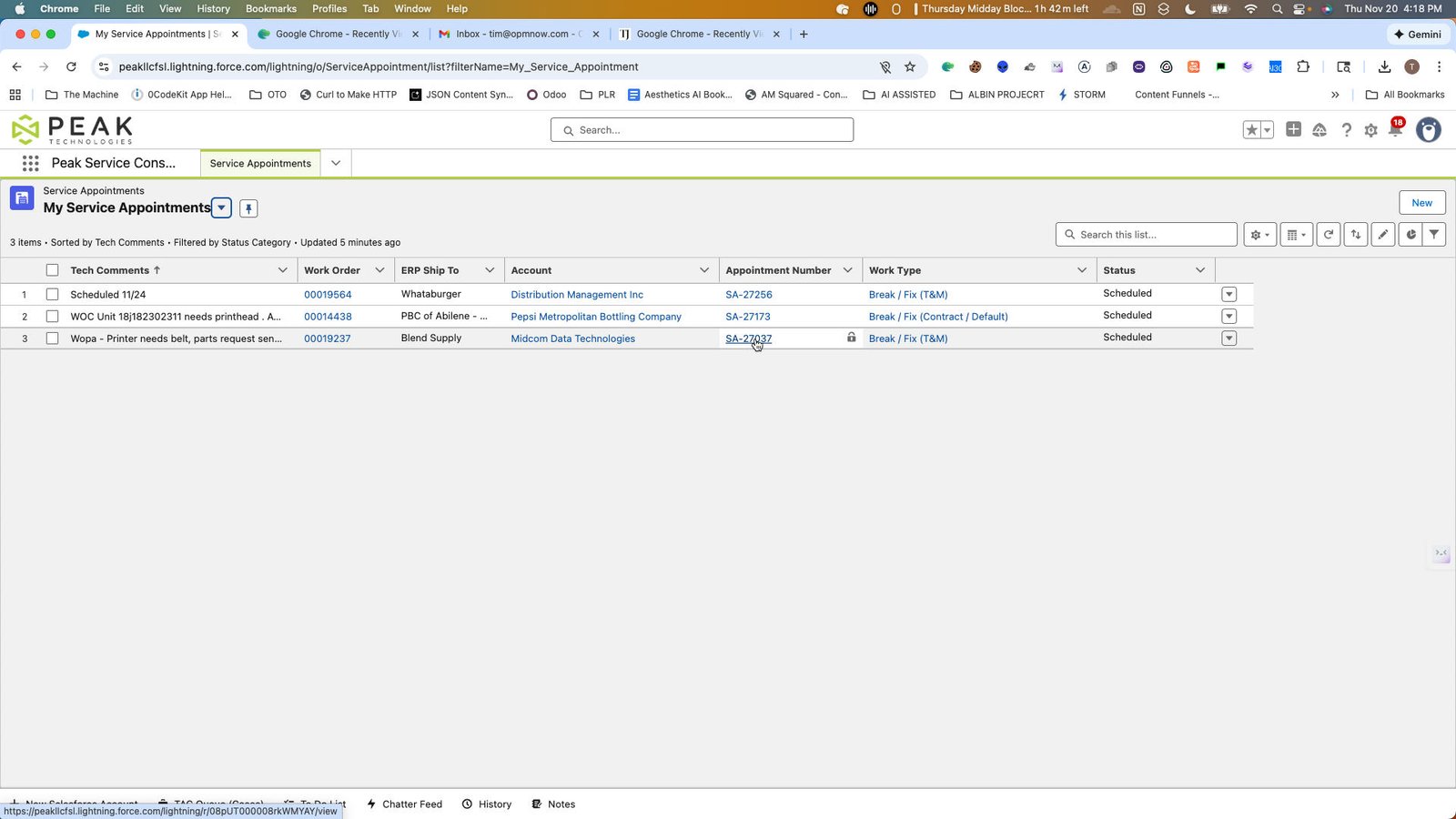
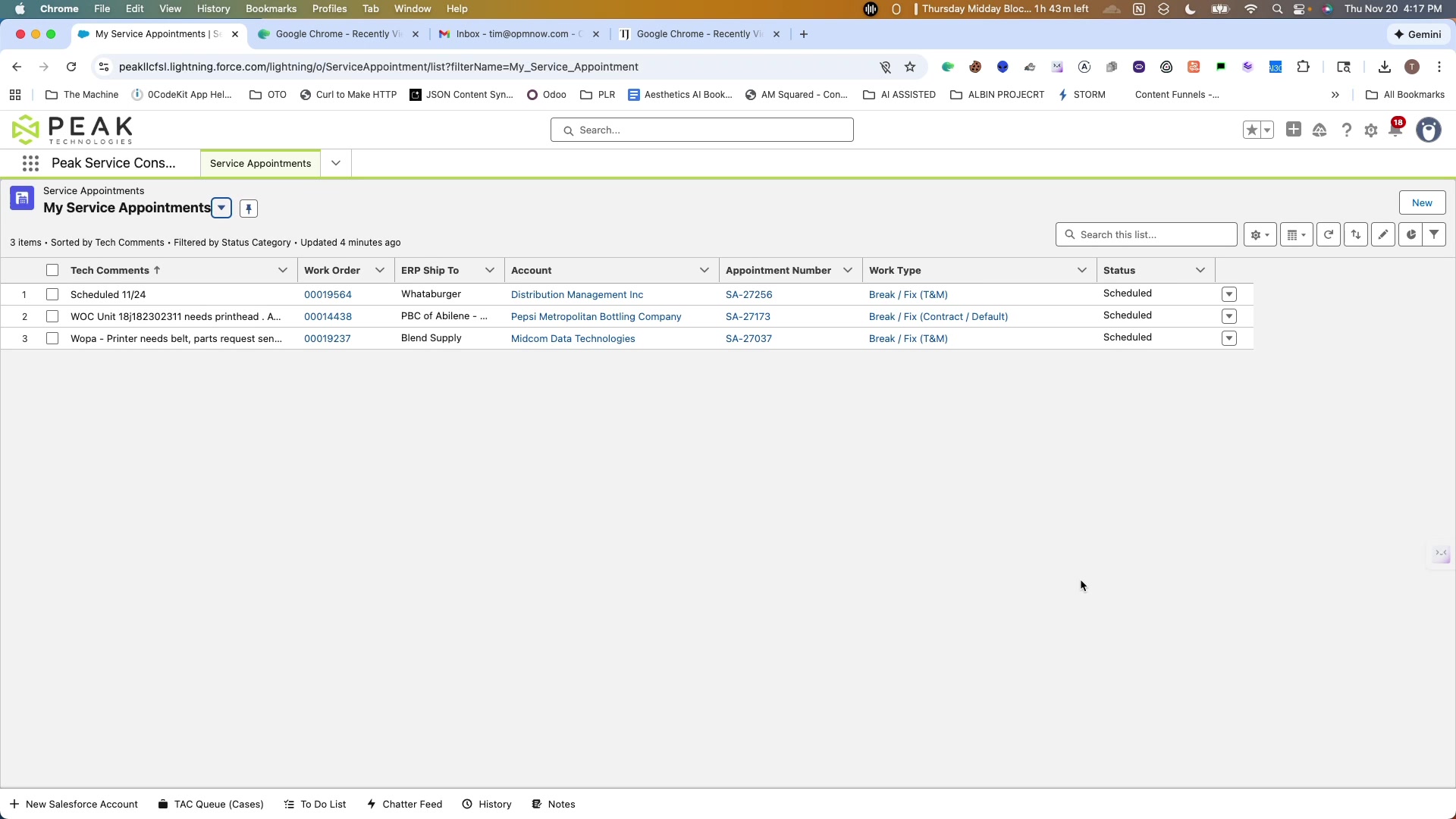
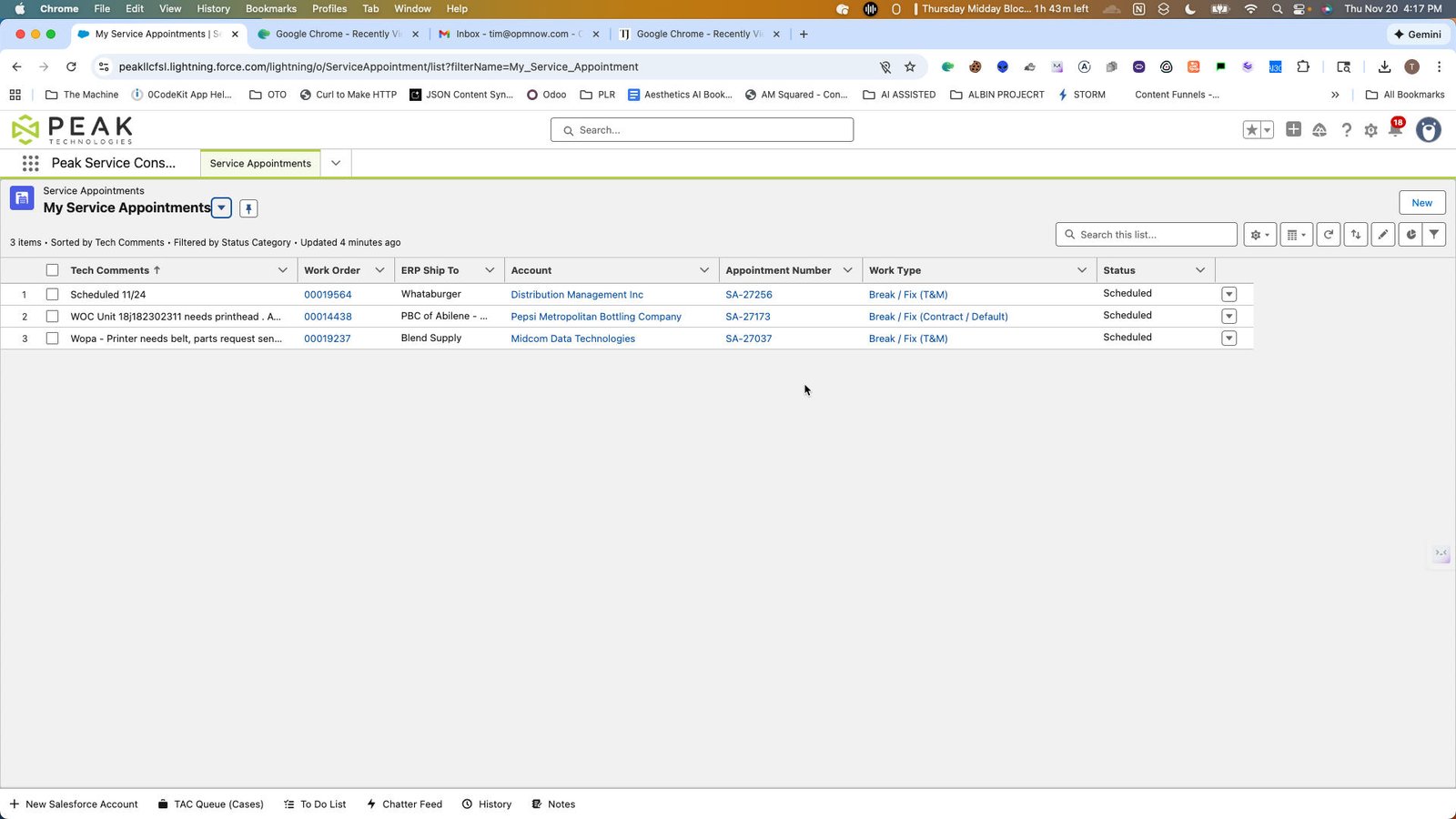
Open Google Chrome - My Service Appointments | Service Appointments | Salesforce
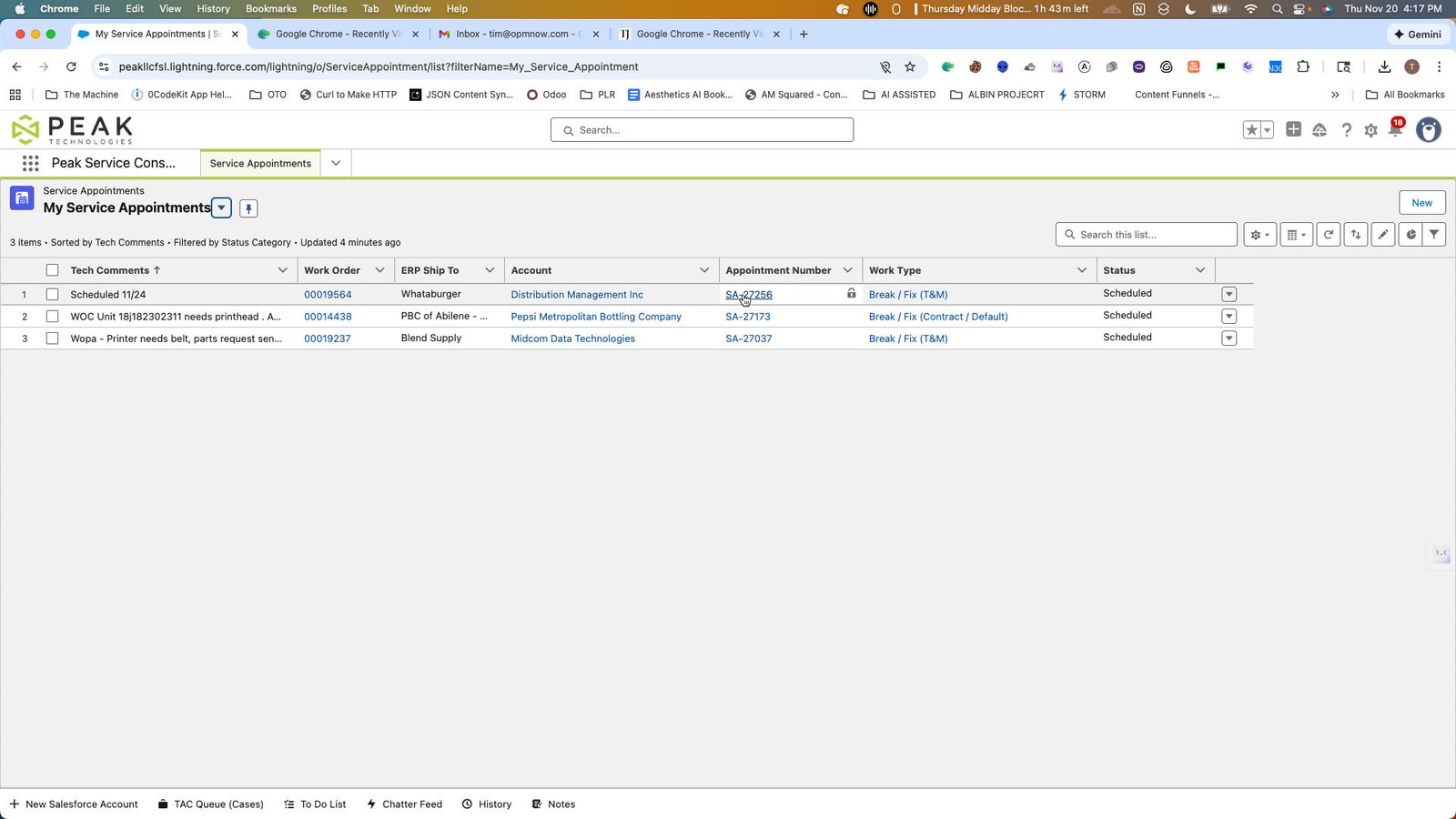
step
3

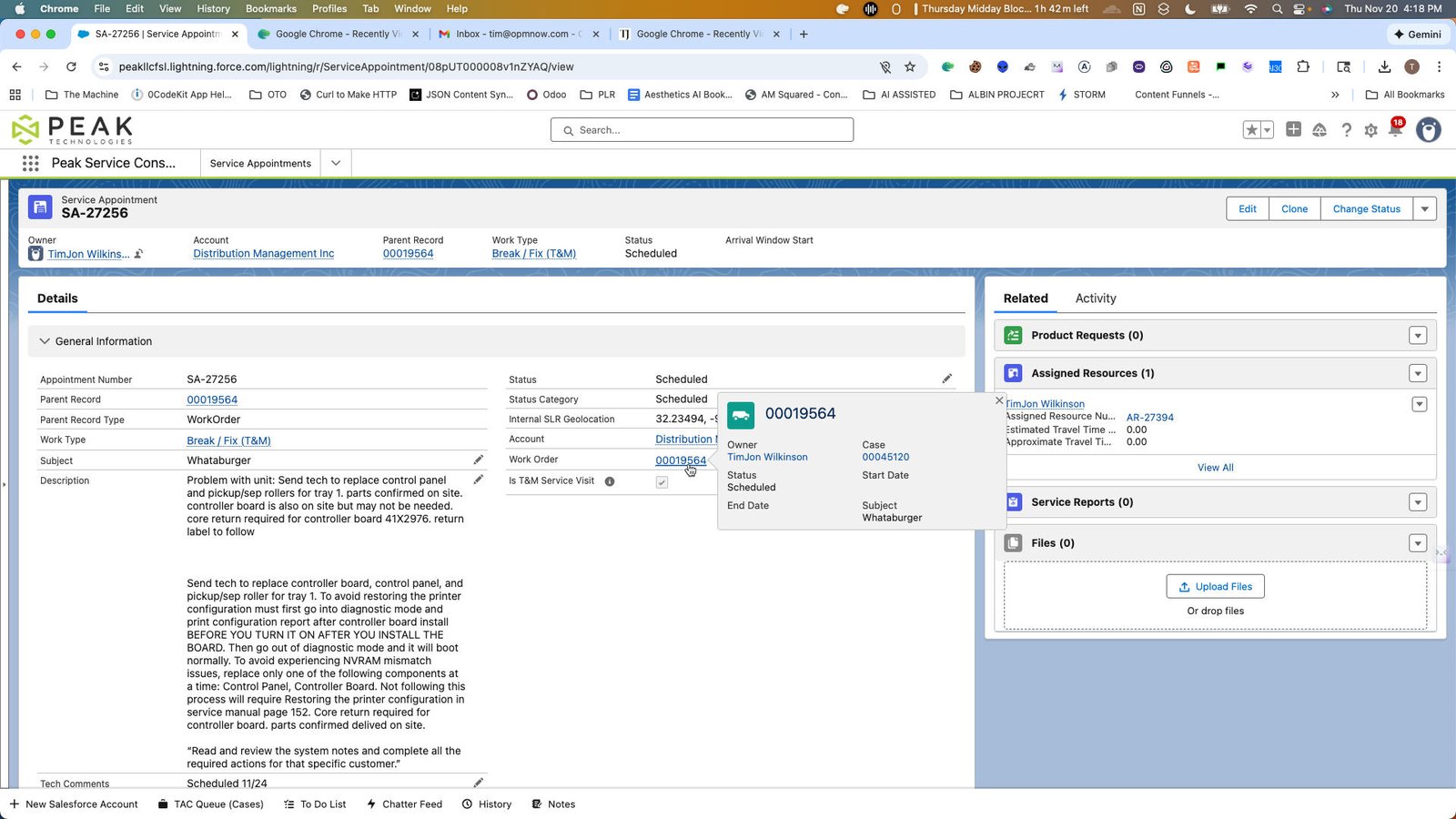
Click the 00019564

step
4

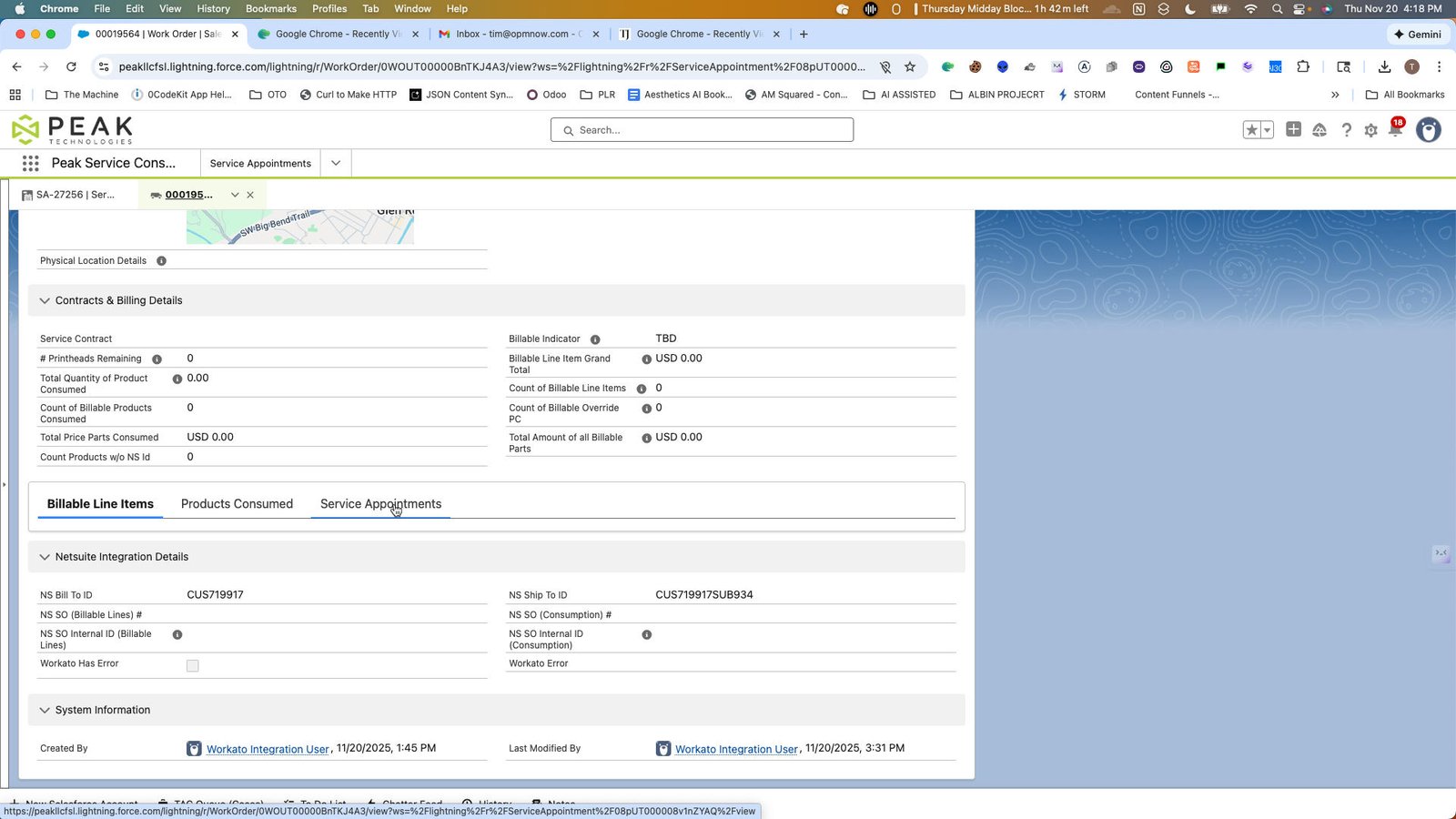
Click this group

step
5

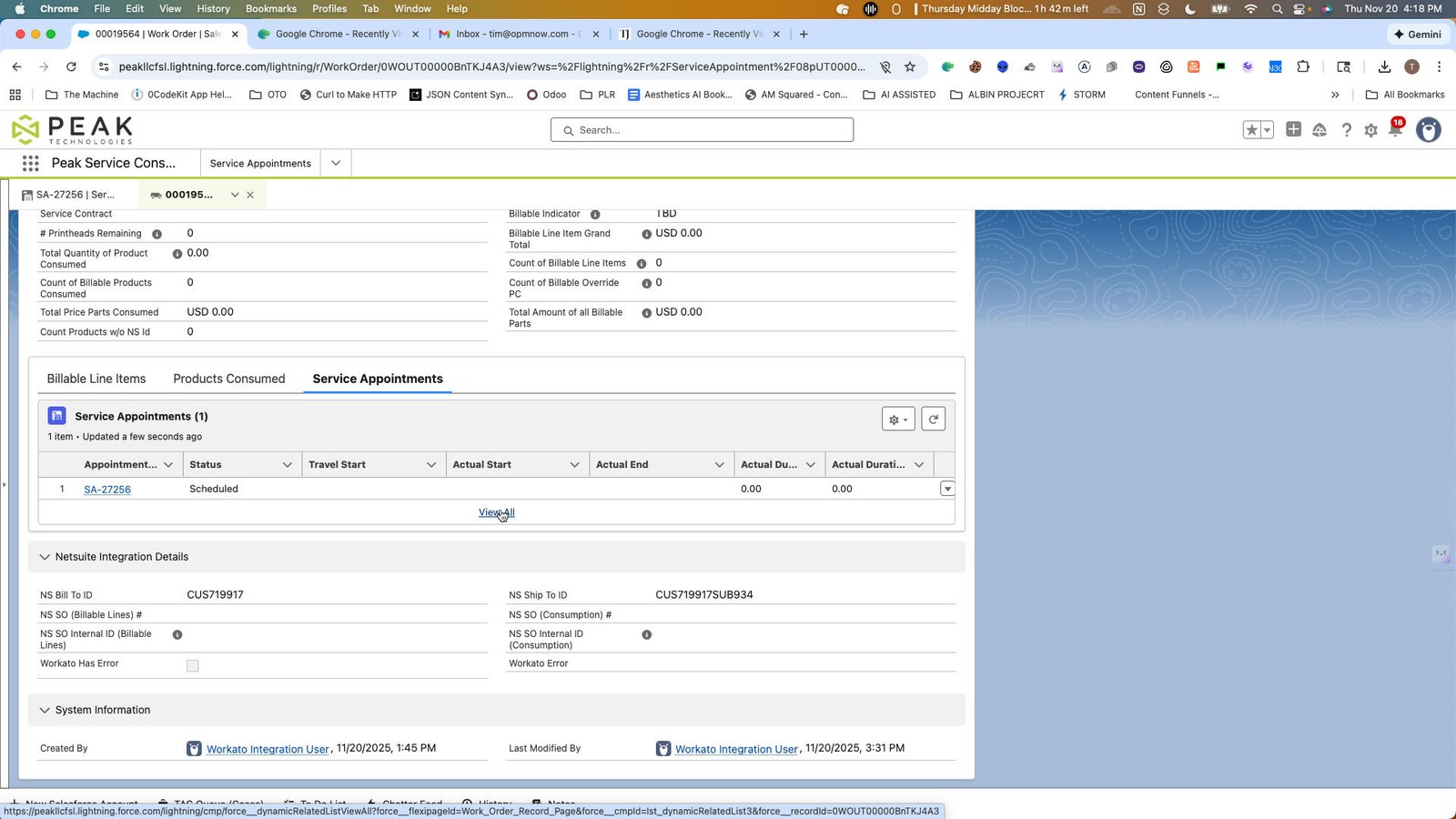
Click here

step
6

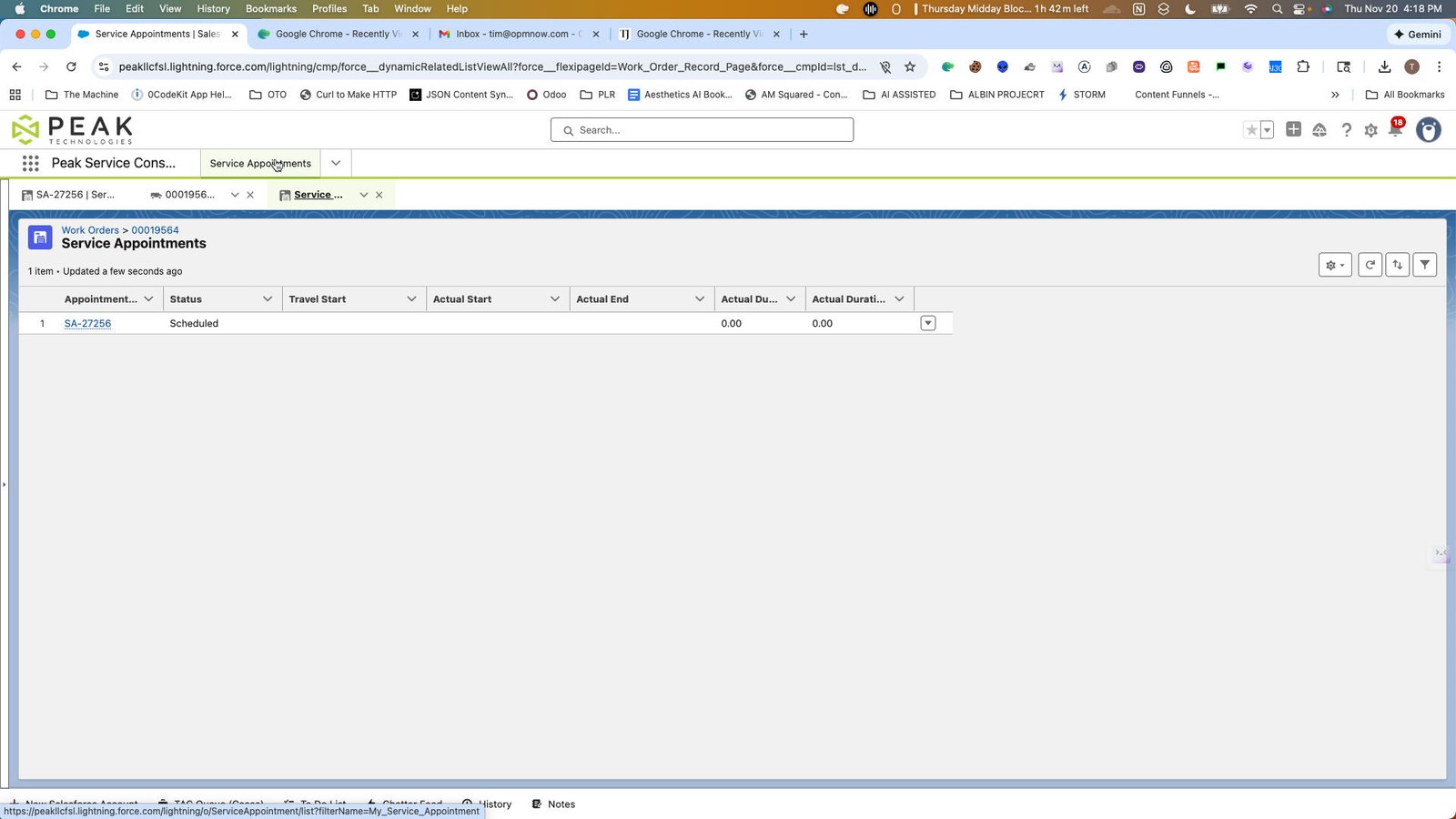
Click this group

step
7

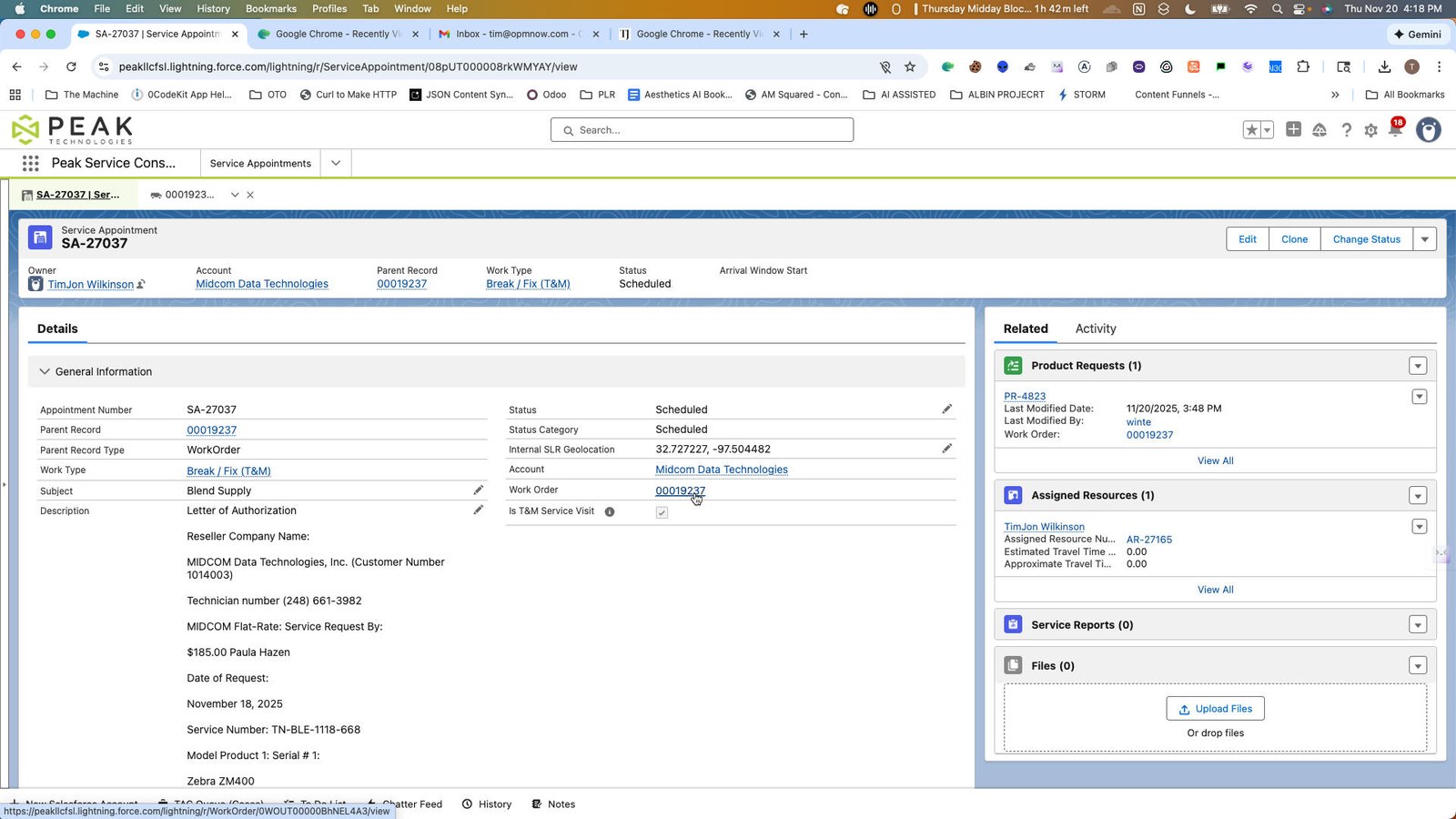
Click the SA-27037

step
8

Click the 00019237

step
9

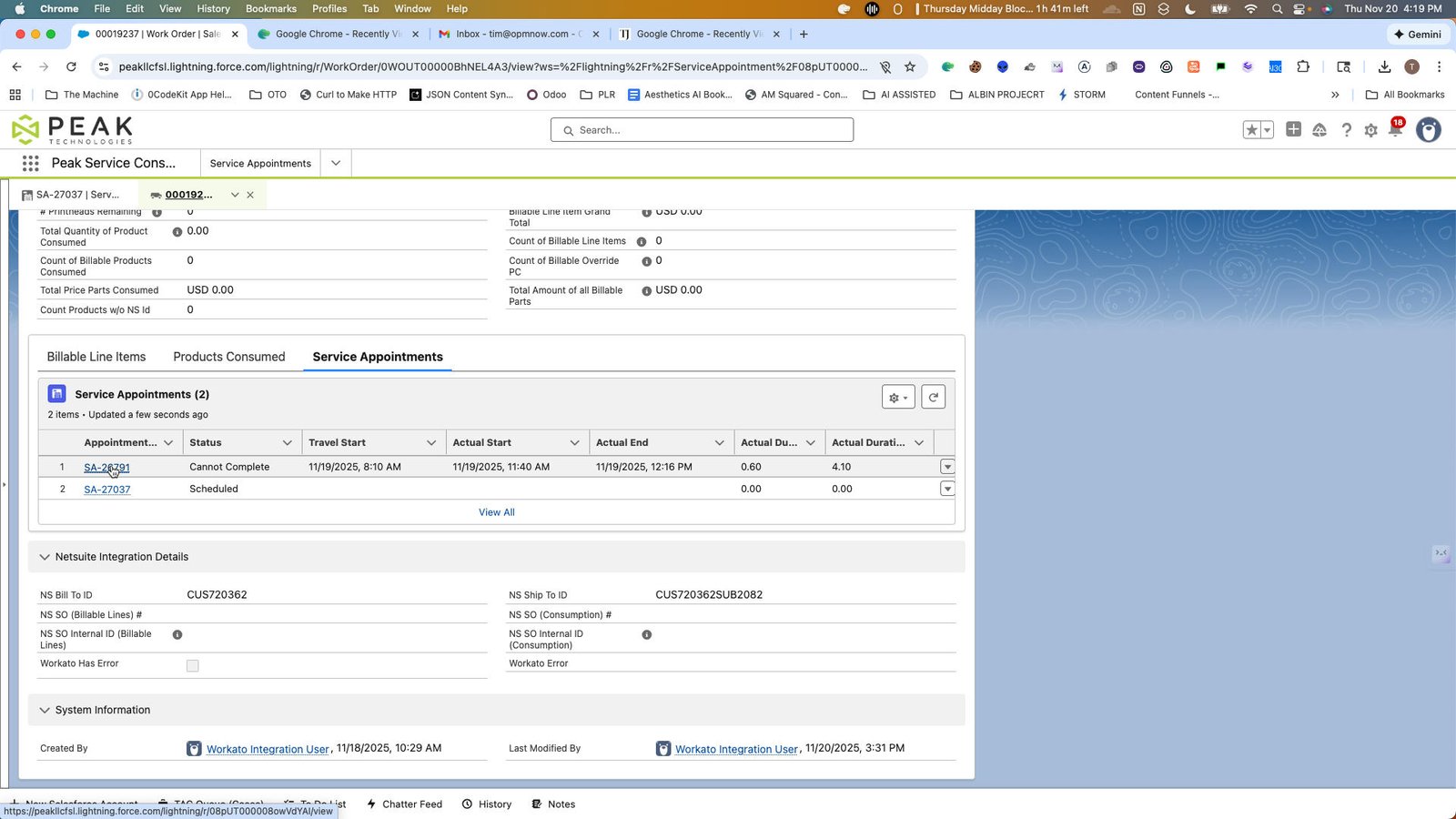
Click the 00019237 | Work Order | Salesforce

step
10

Click this group

step
11

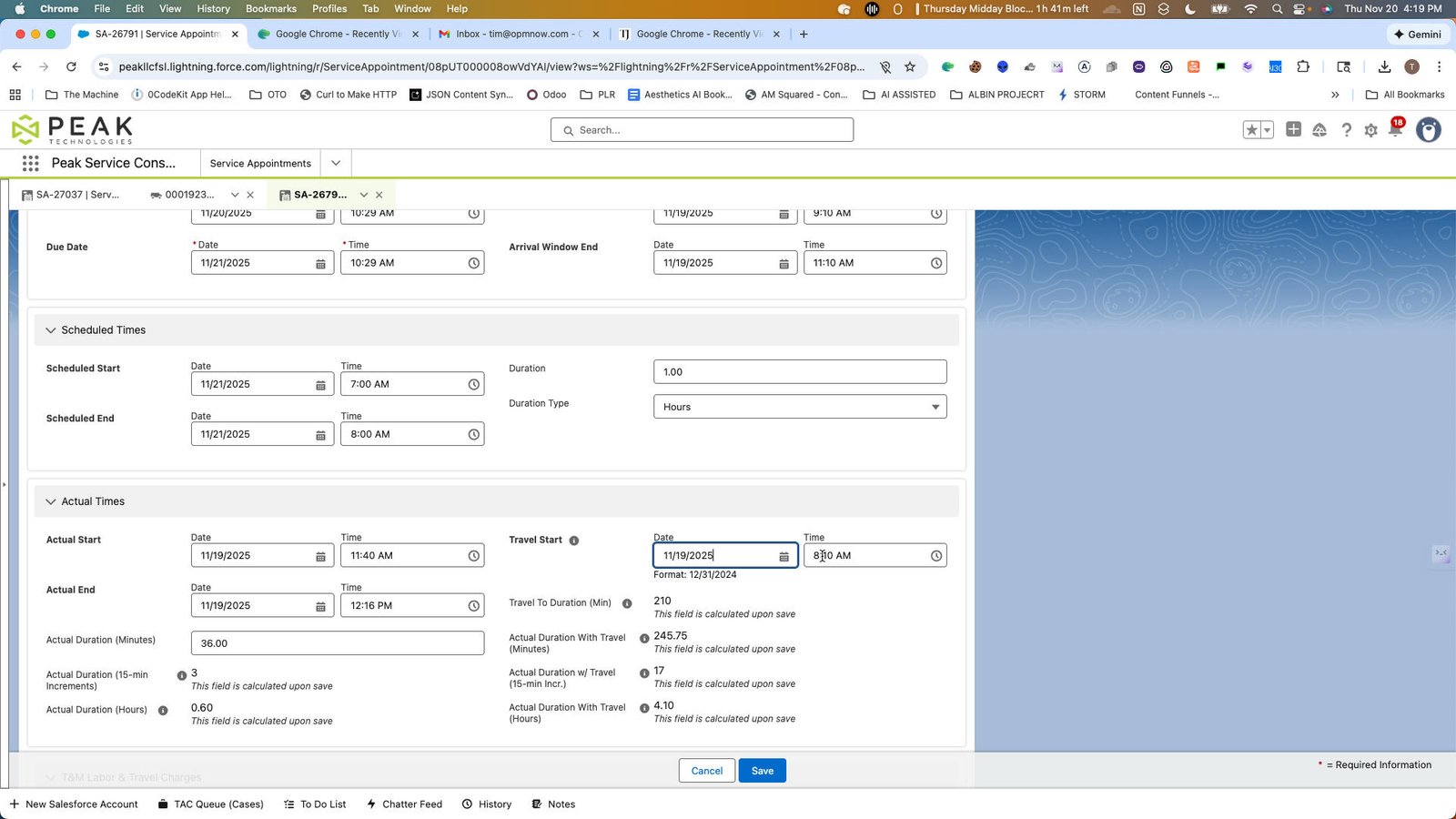
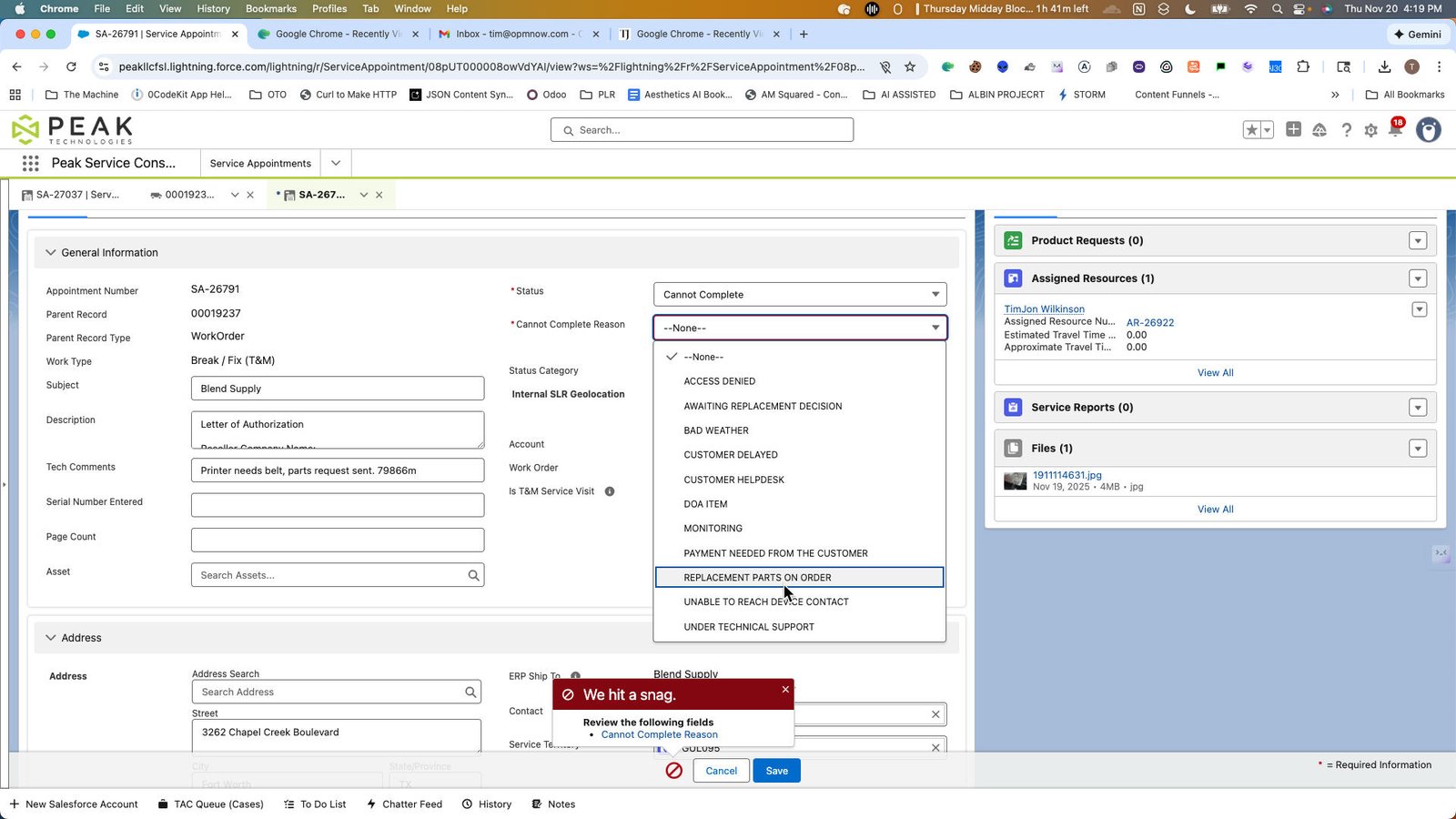
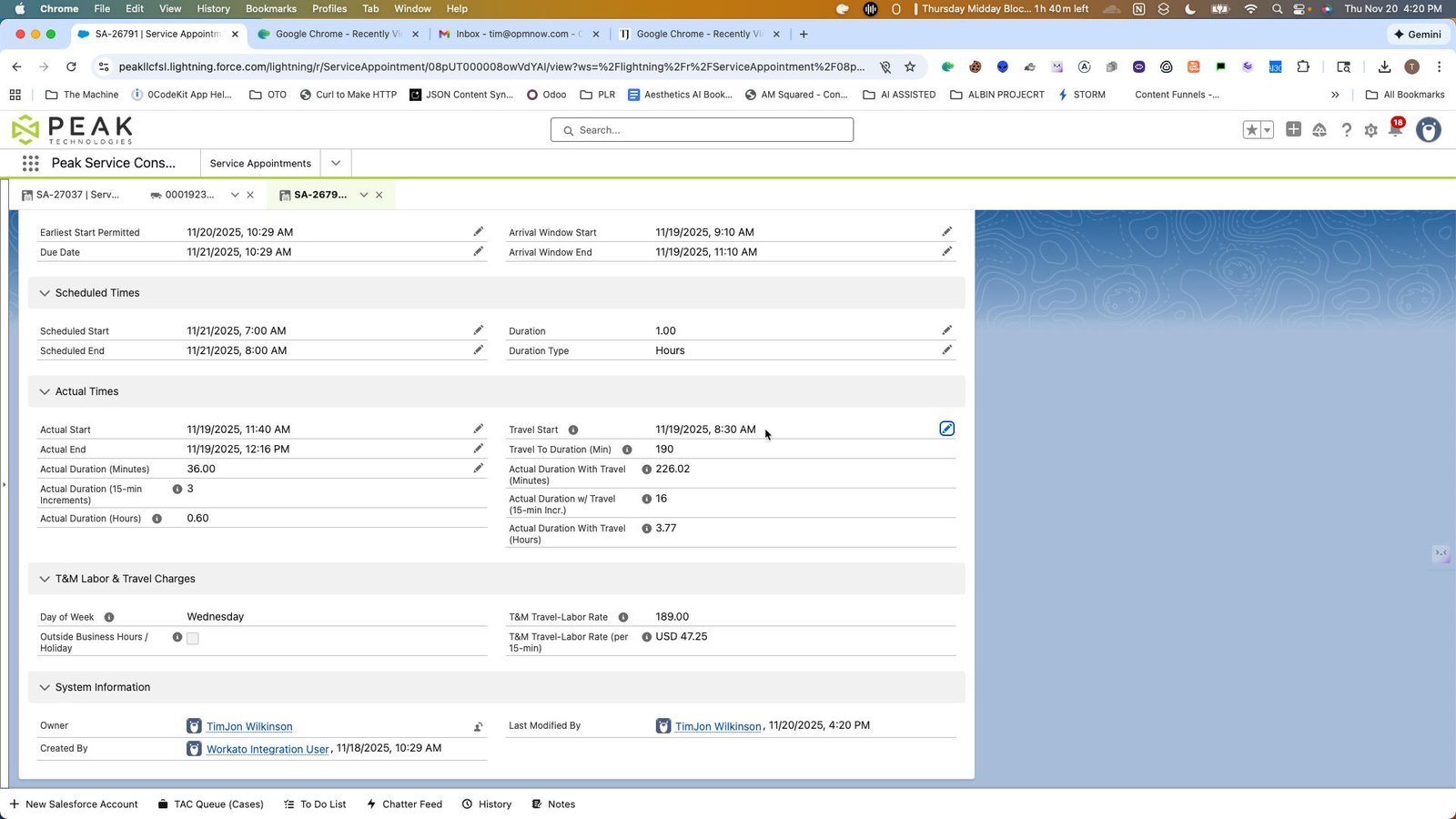
Click the SA-26791 | Service Appointment | Salesforce

step
13

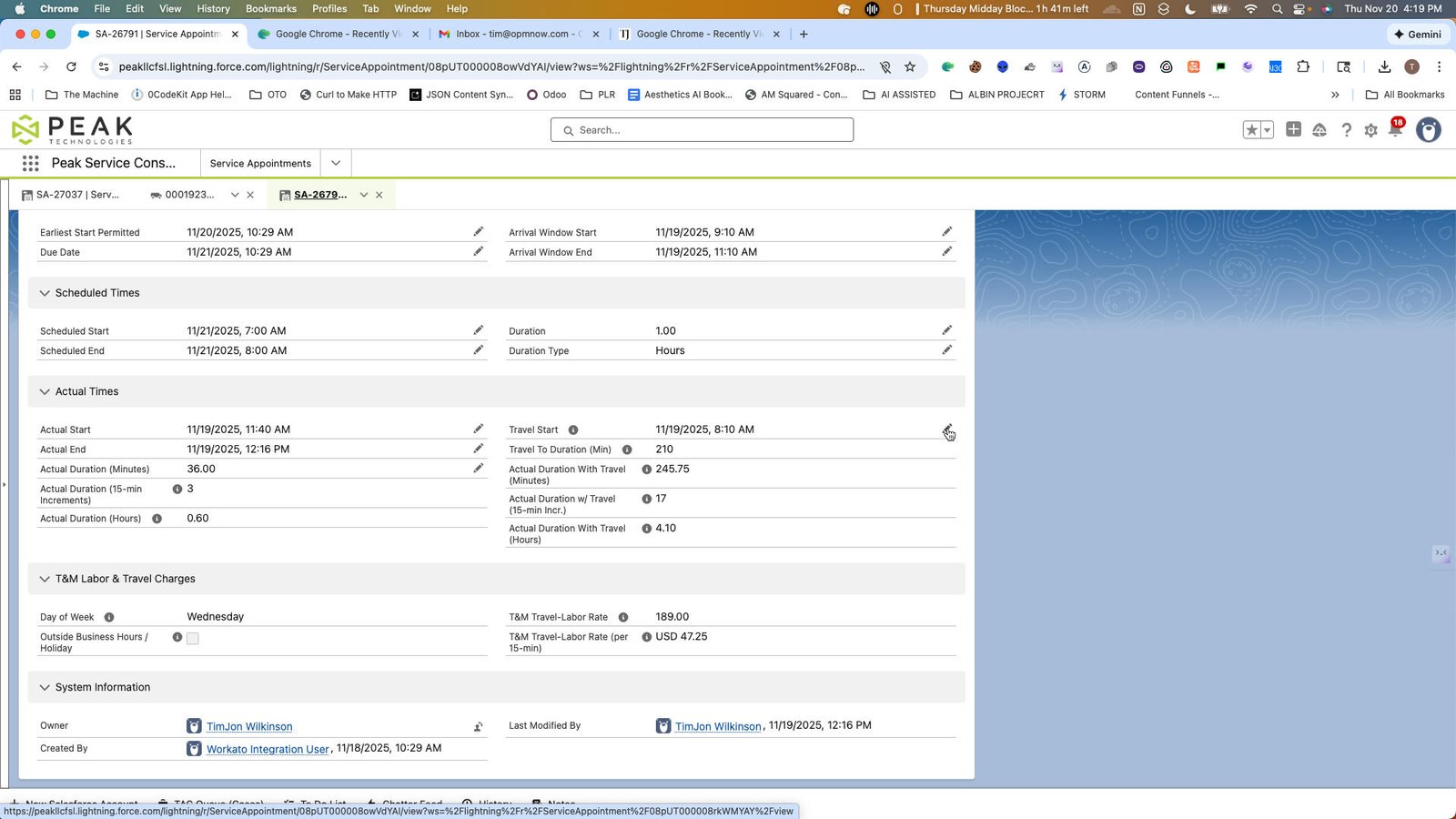
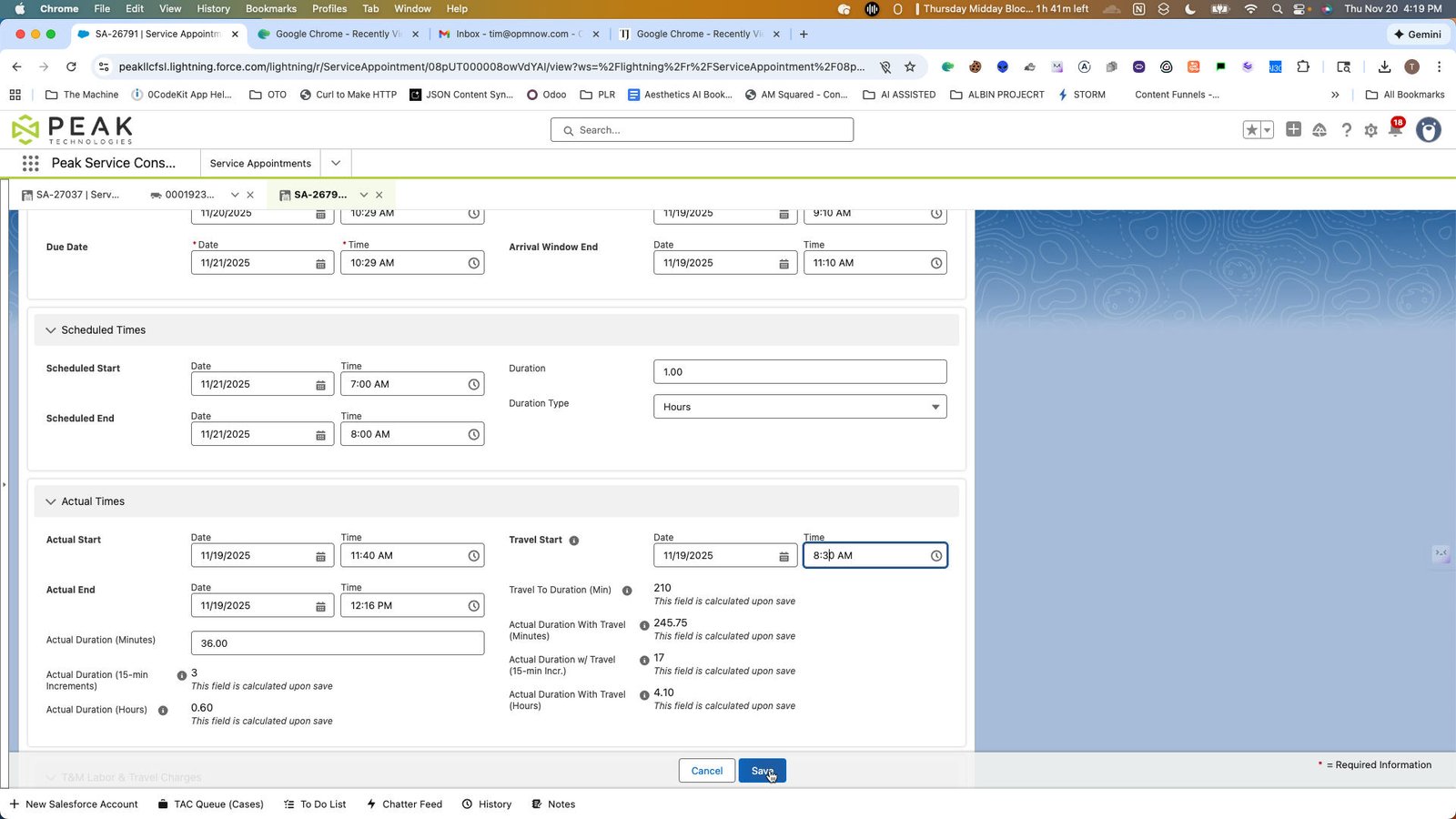
Click the SA-26791 | Service Appointment | Salesforce

step
14

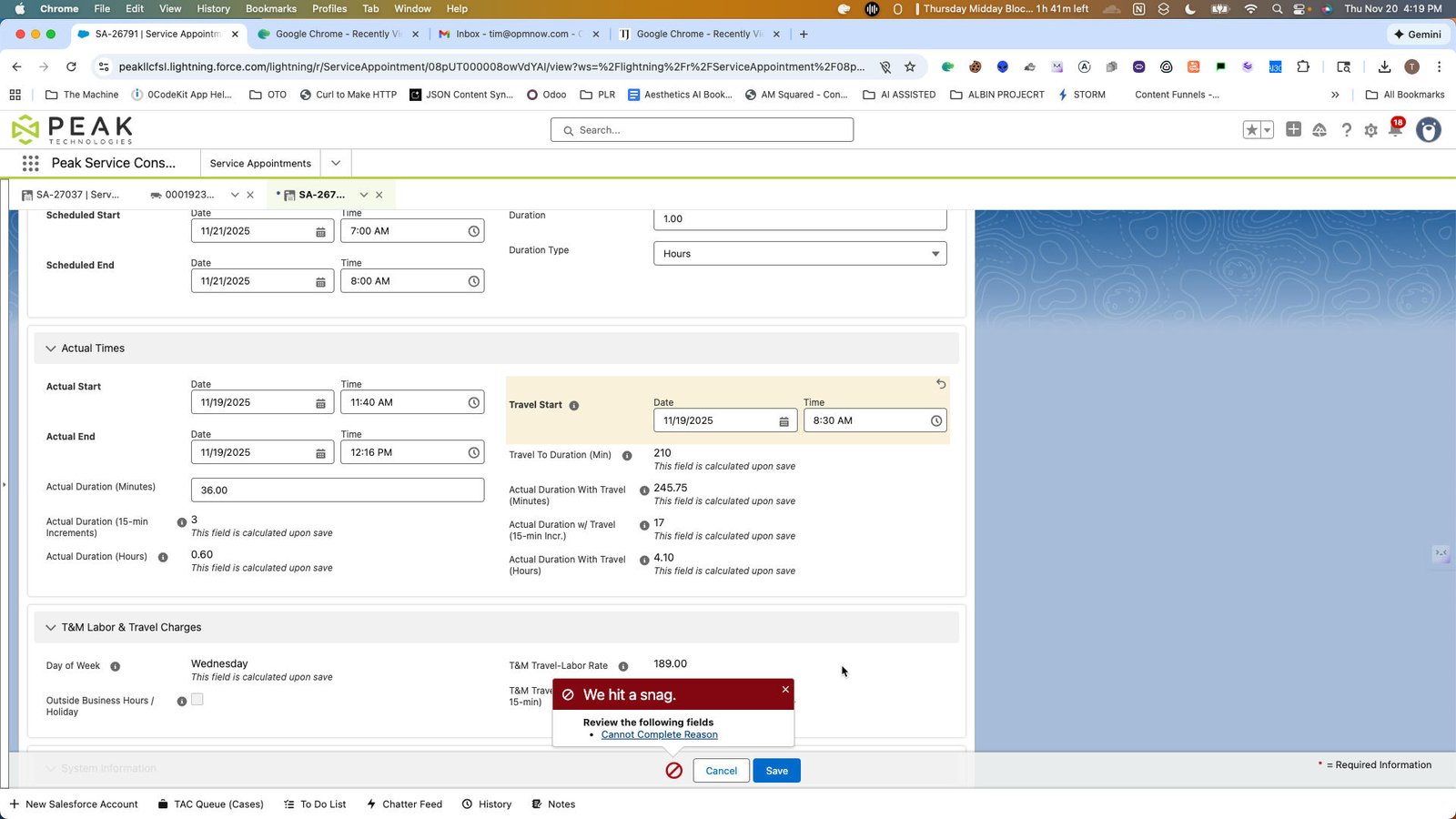
Click this group

step
15

Click this content list

step
16

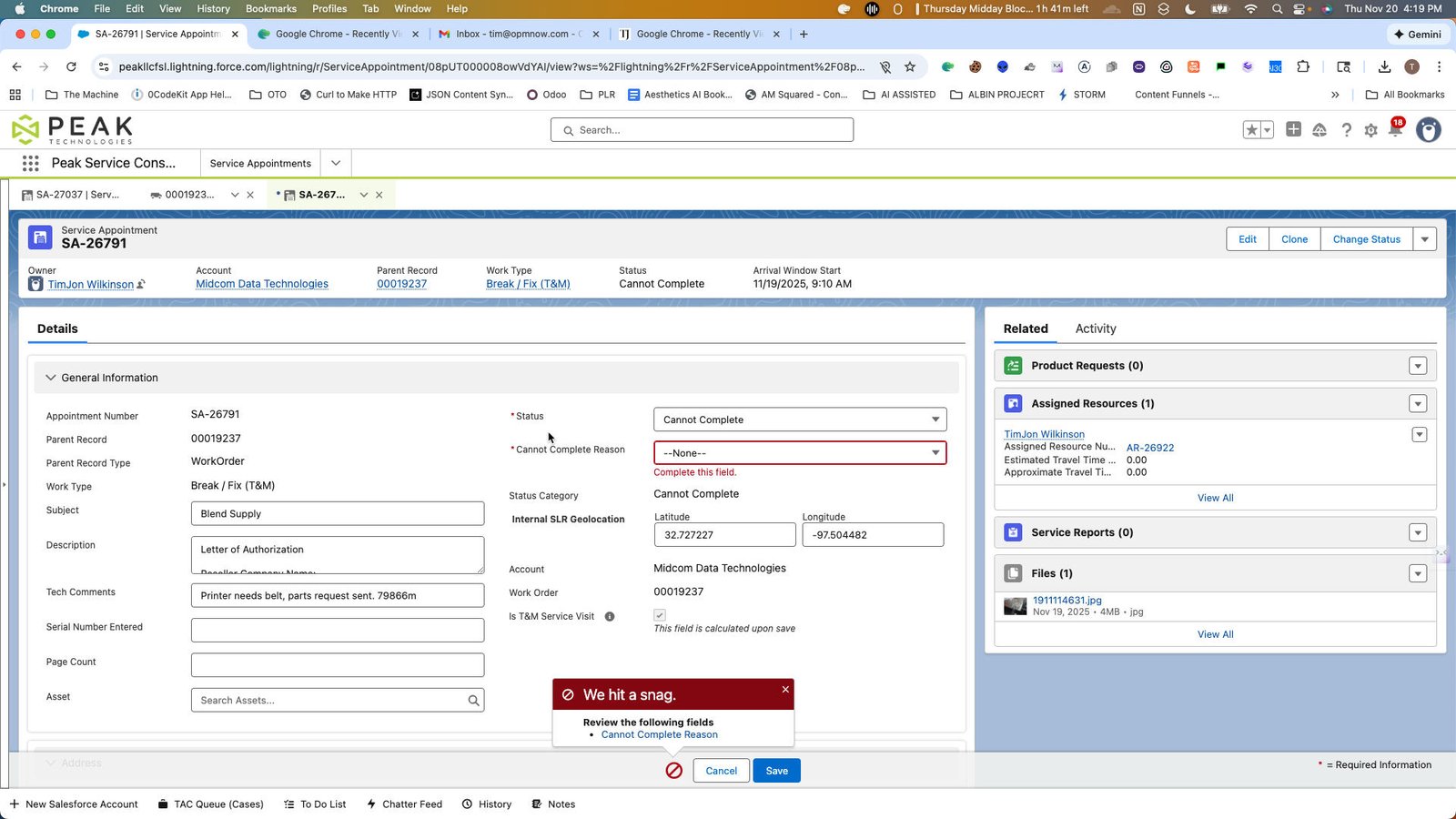
Click the SA-26791 | Service Appointment | Salesforce

step

You made it to the end!

17 steps complete