How to Create and Post a New Job in Frontline/AppliTrack
This guide walks you through posting a new job, setting up details, and ensuring permissions in Frontline/AppleTrack.

Michael Falgares
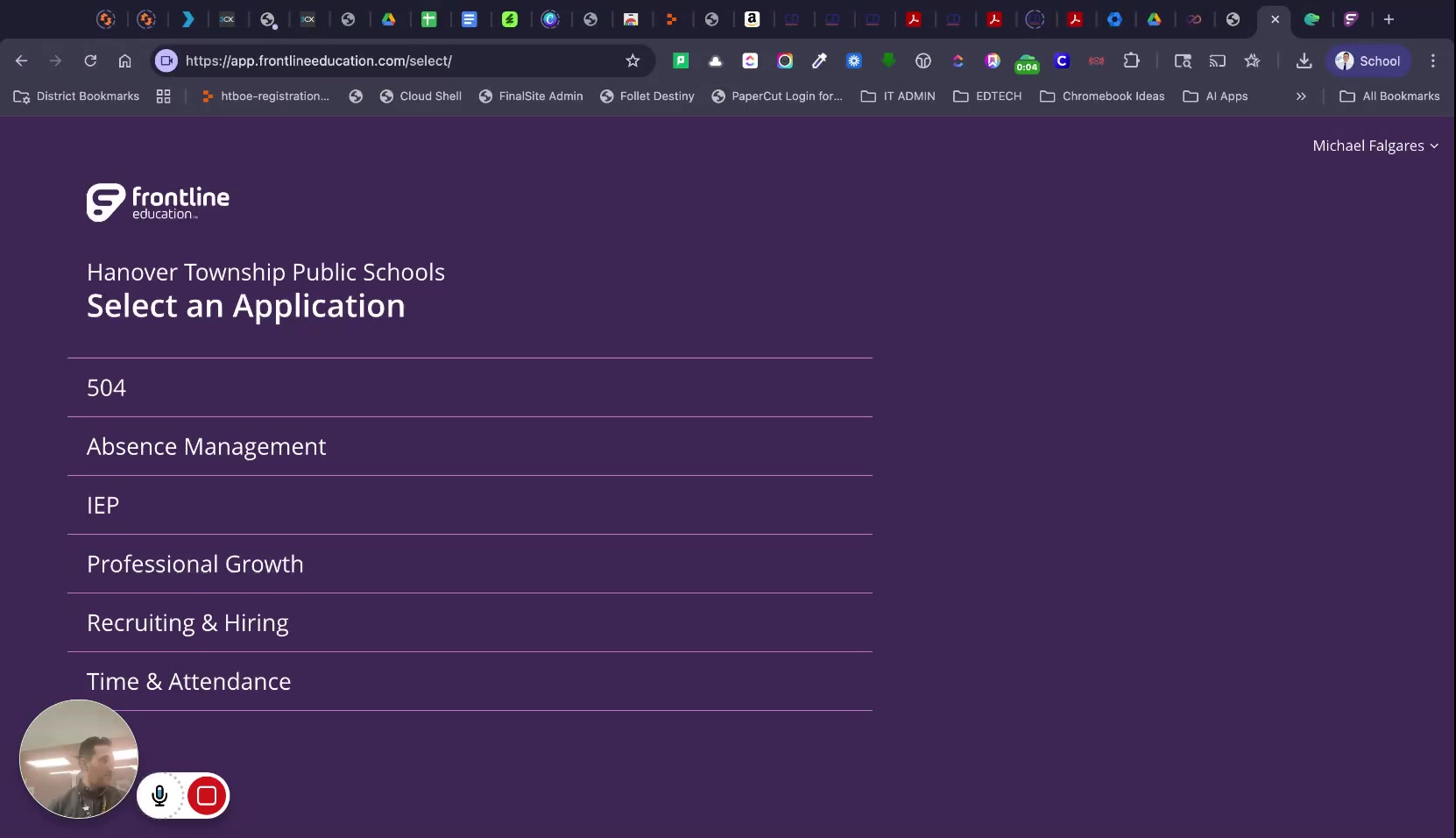
Go to district bookmarks in the navigation menu
Access the main navigation to begin the job posting process.
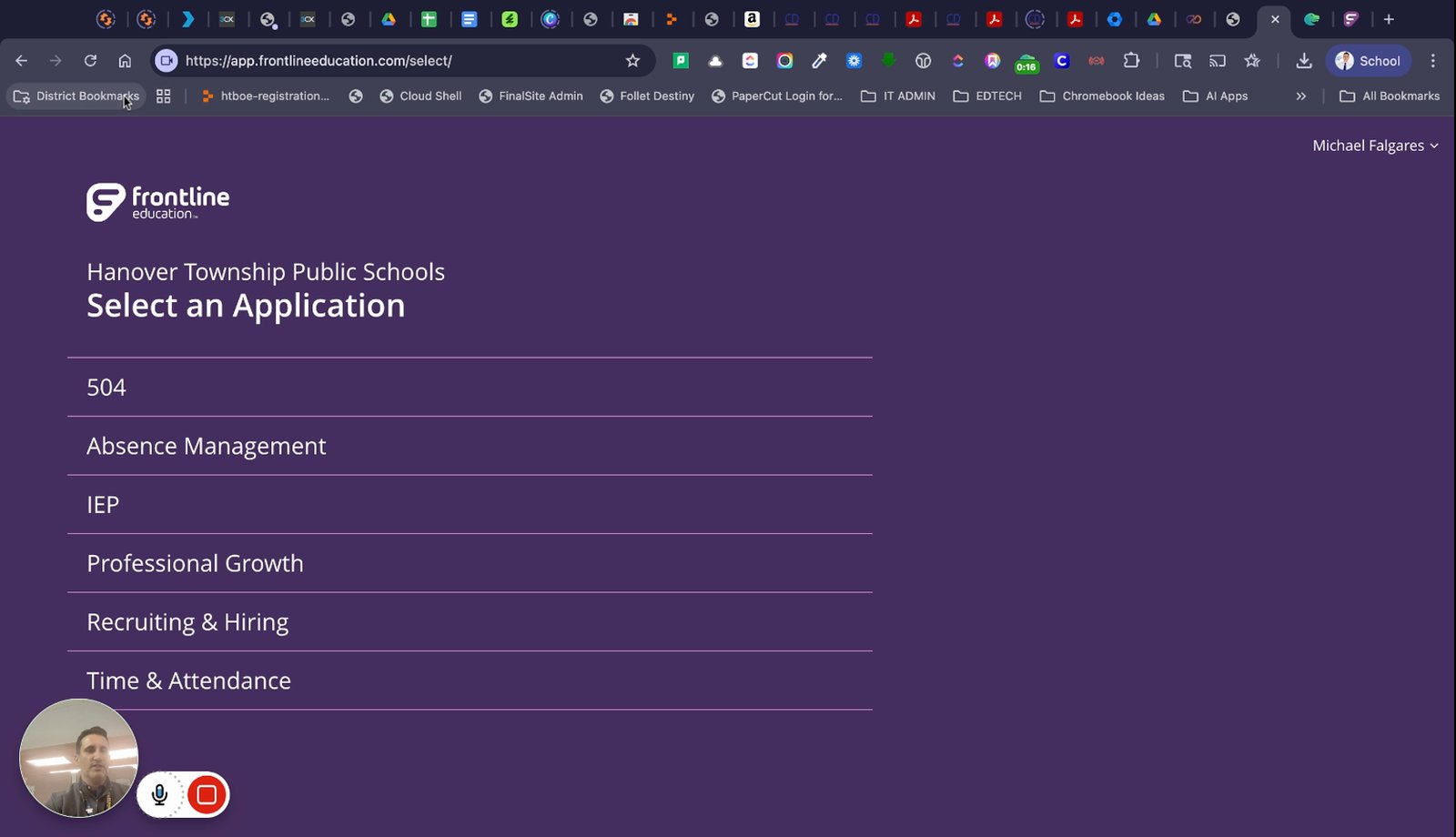
Go down to admin applications
Navigate to the admin applications section.
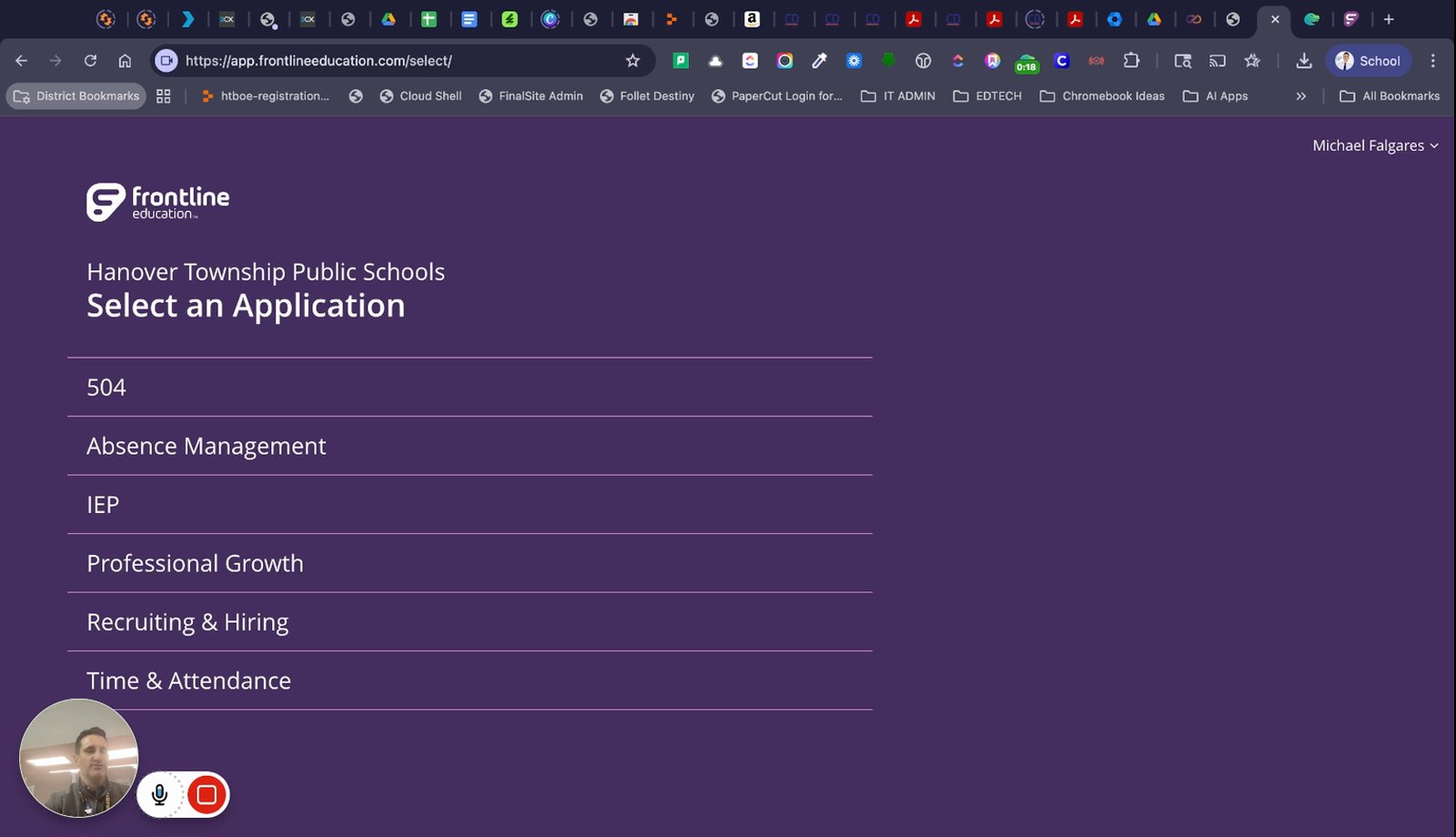
Select Frontline from the menu
Choose the Frontline application to manage job postings.
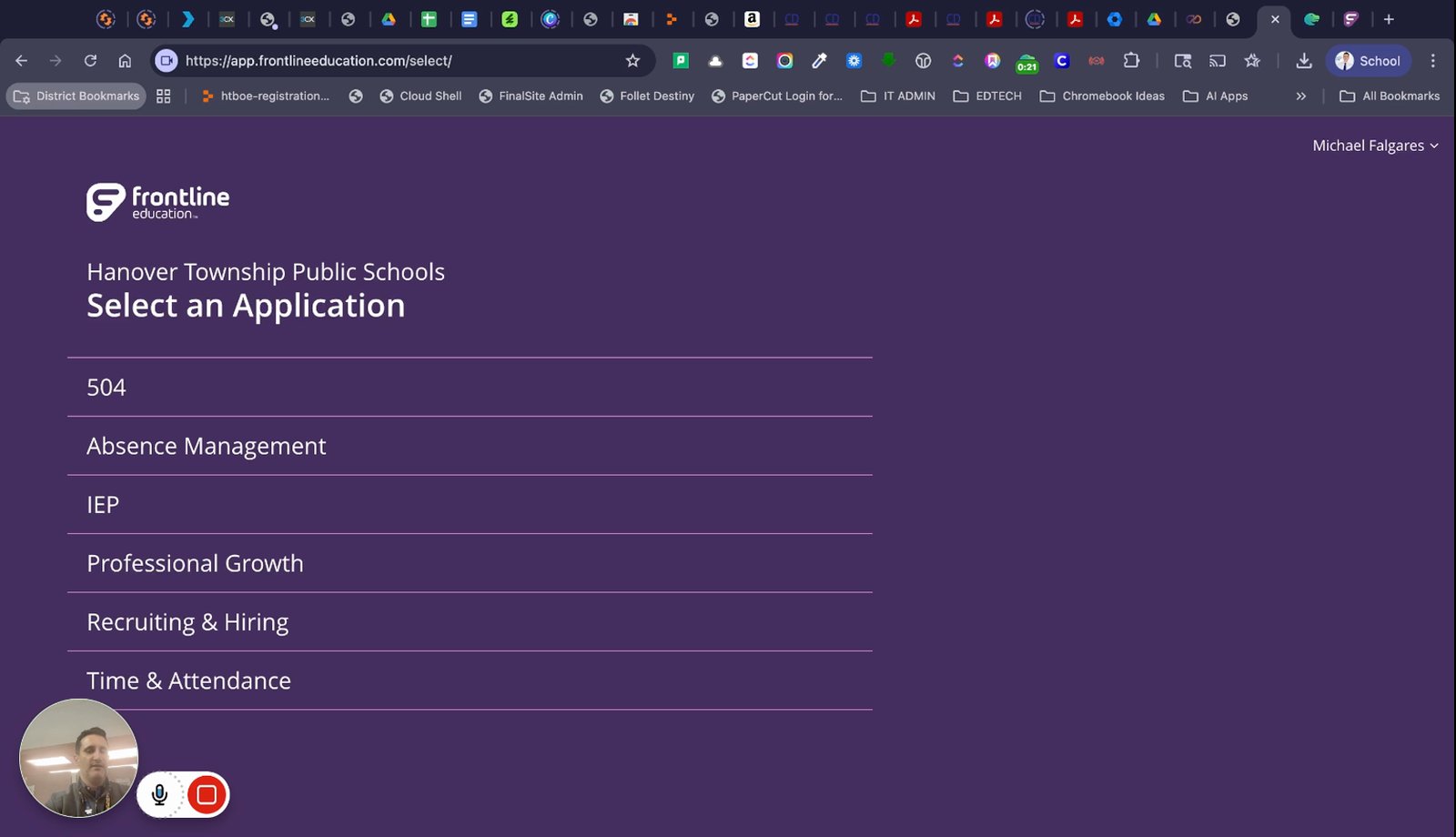
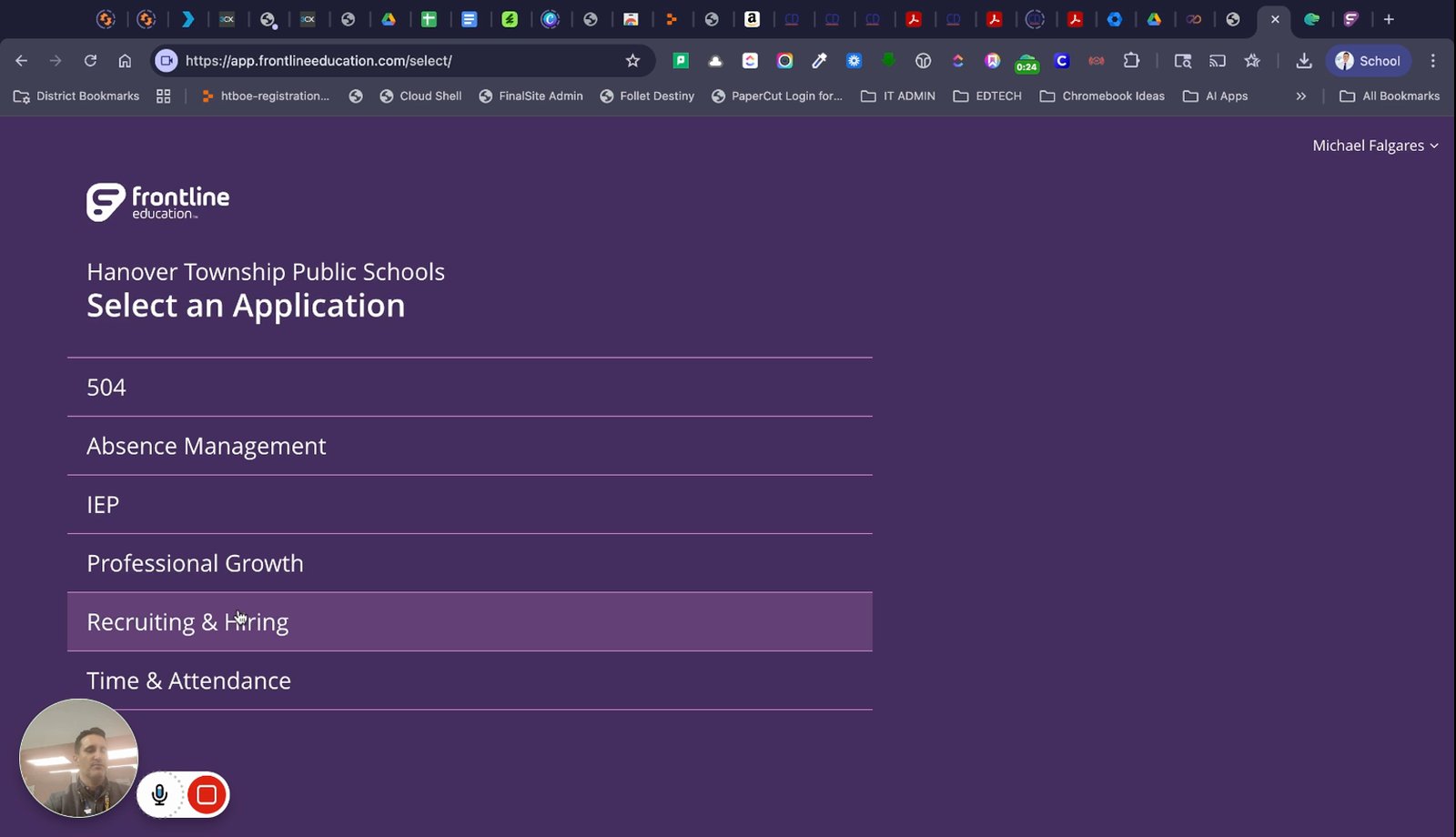
Go to recruiting and hiring
Access the recruiting and hiring section.
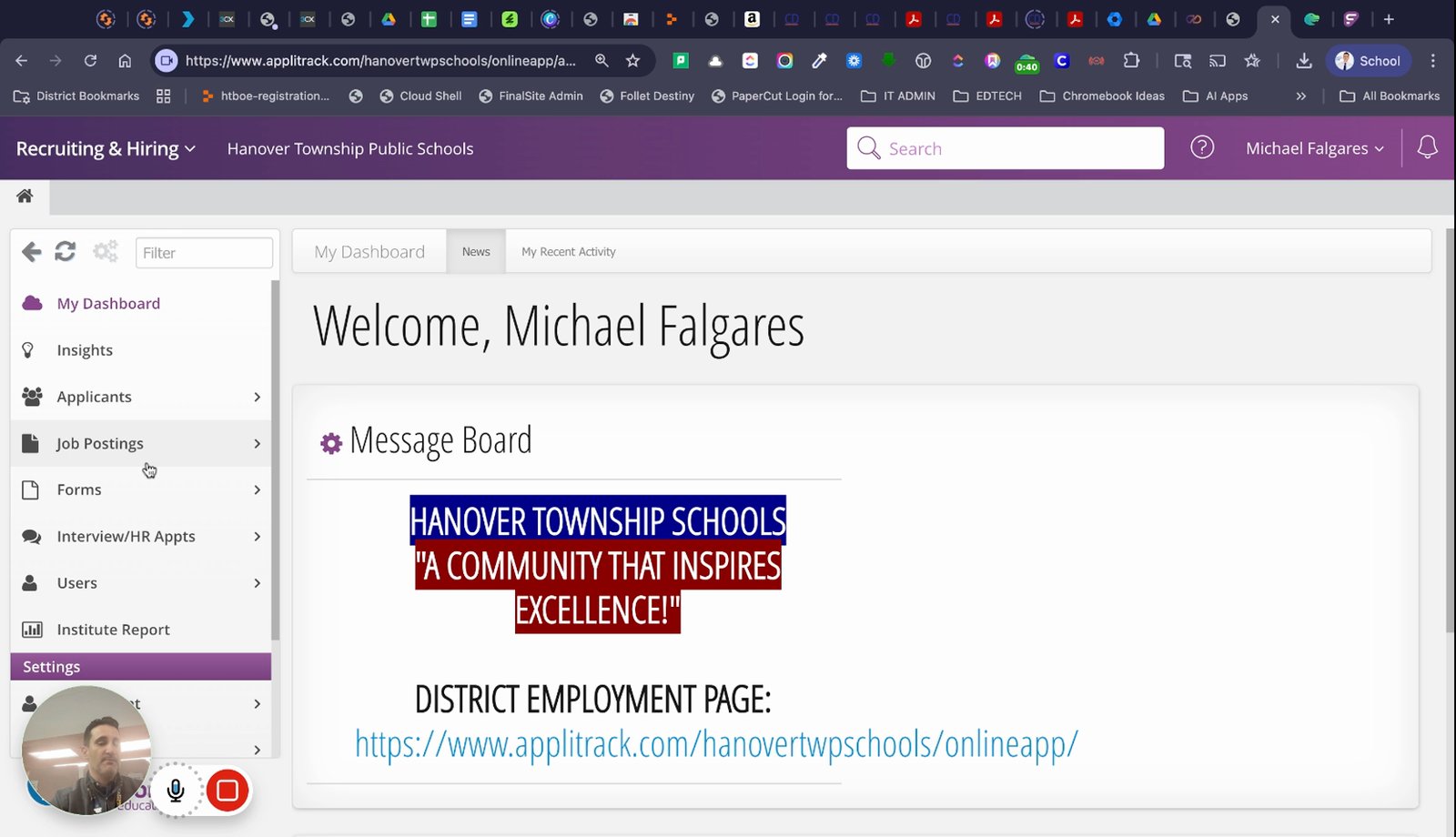
Go to job postings
Open the job postings area to view or create postings.
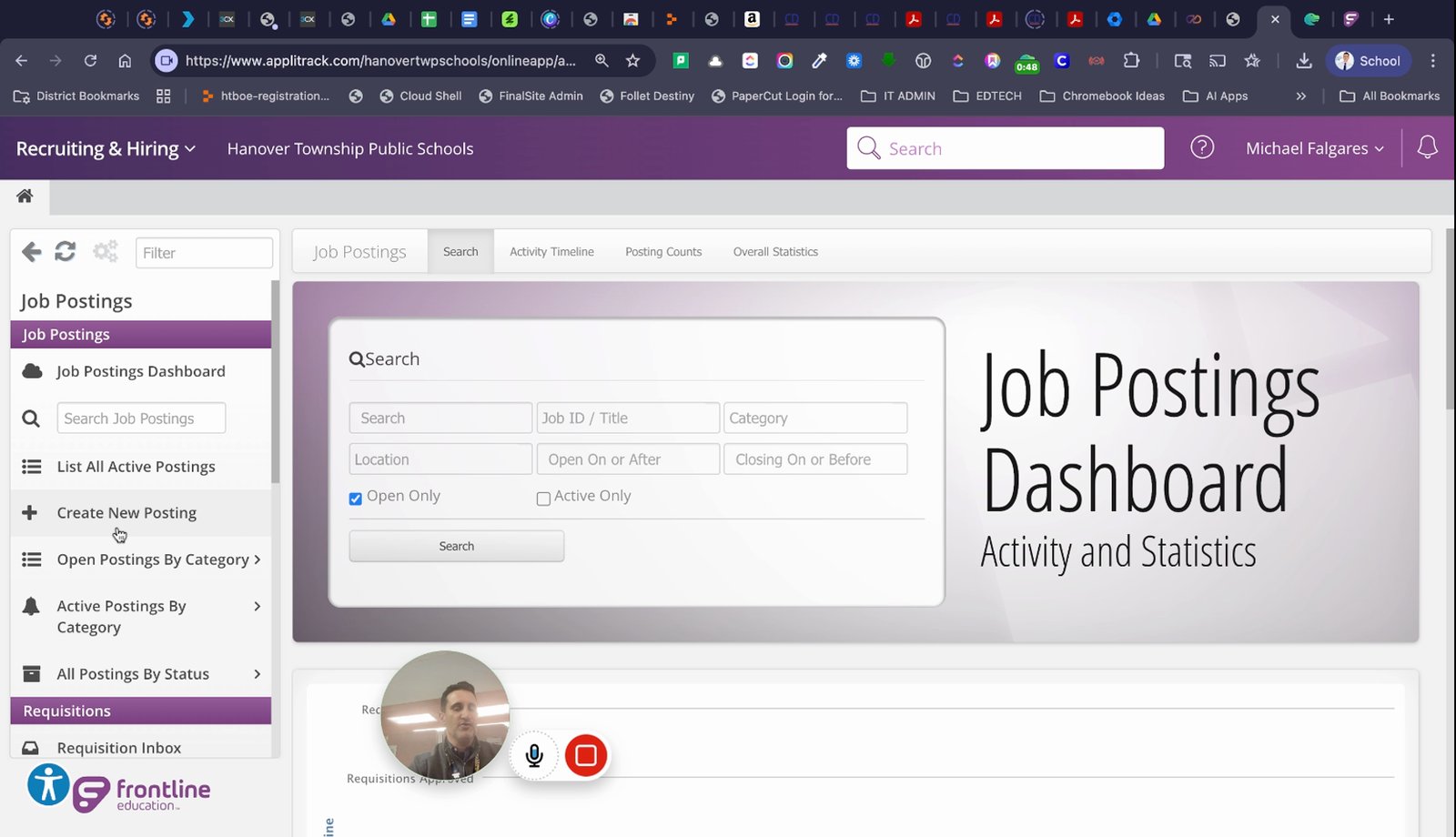
Click create new posting in the side menu
Start the process to create a new job posting.
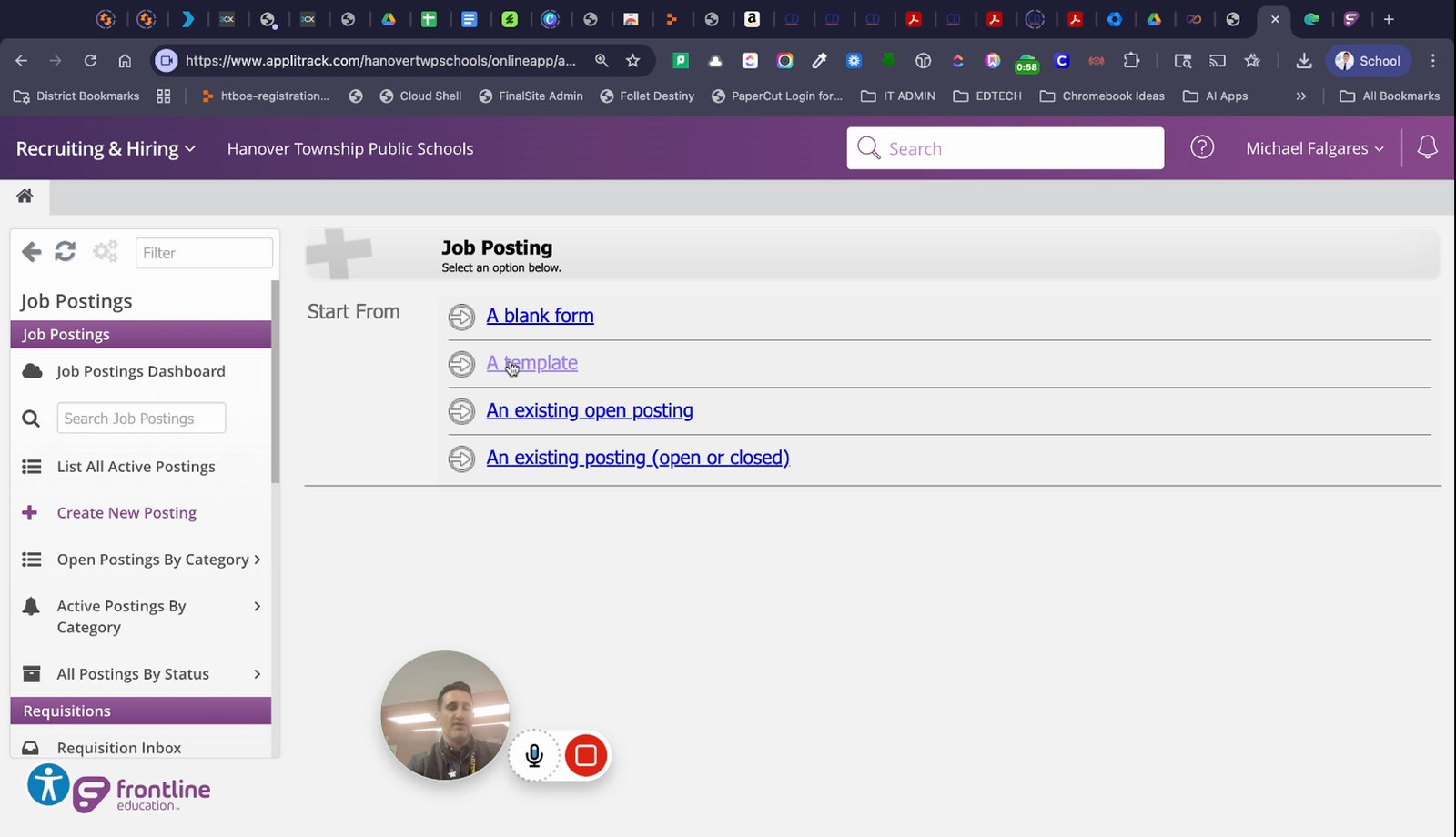
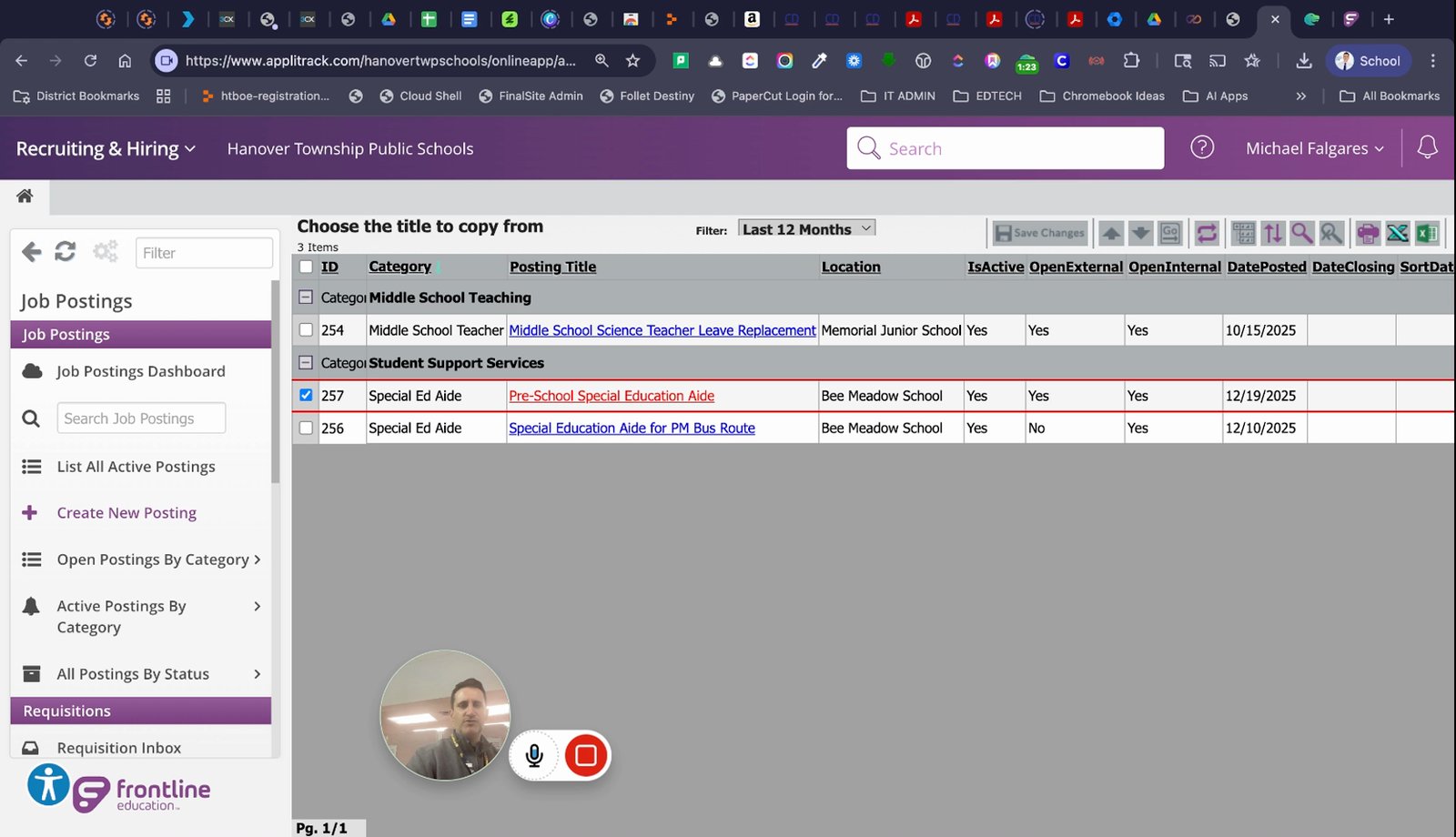
Choose to start with a template or an existing job if available
Preferably use a template or copy from an open/current job to save time.
Select the job title for the new posting
Choose the appropriate job title for your posting.
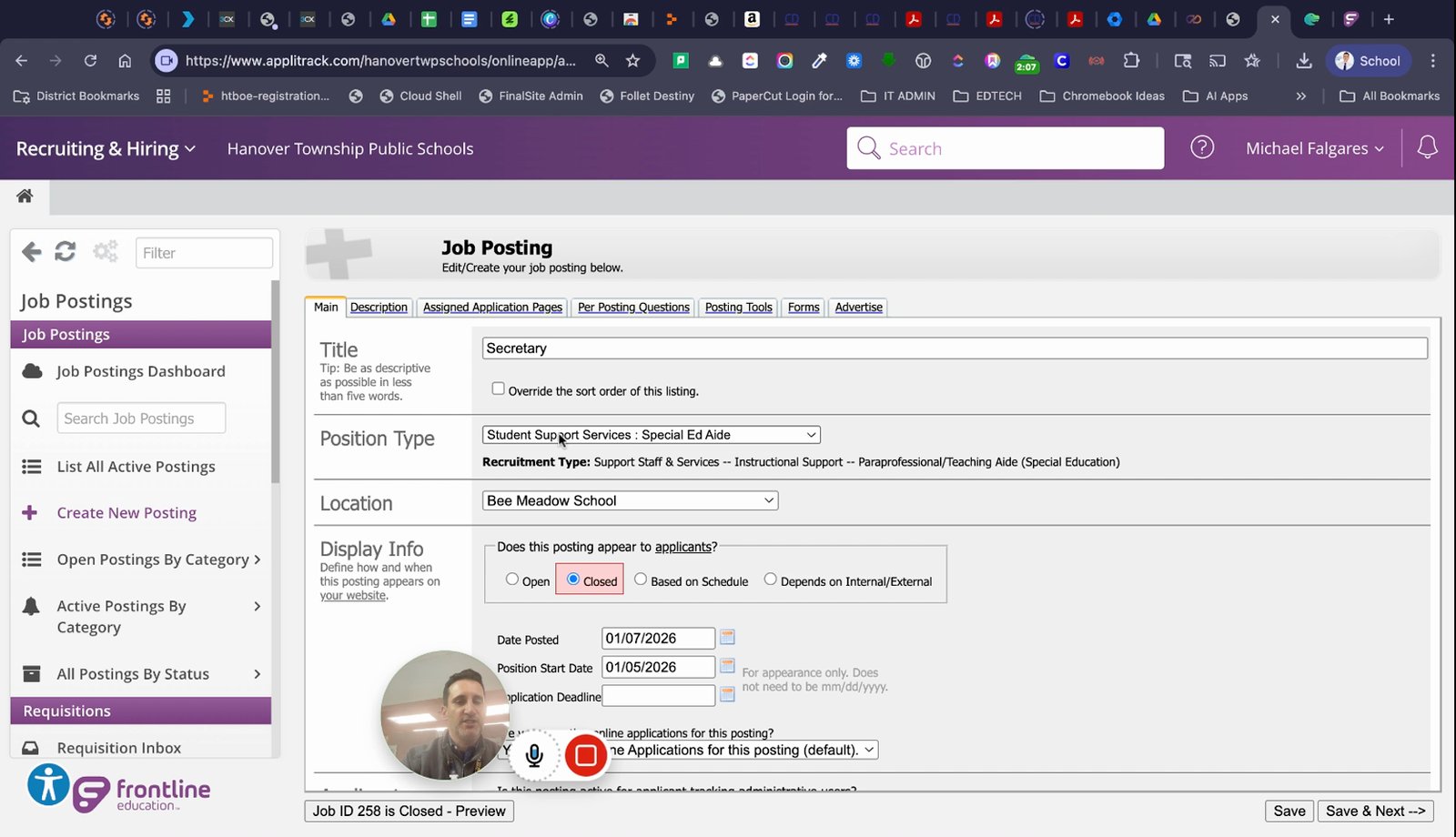
Edit the position type and other job details as needed
Change the position type and fill in job-specific details.
Set the job start date
Specify when the job will begin.
Set the application deadline or keep it open
Decide if you want to set a deadline for applications.
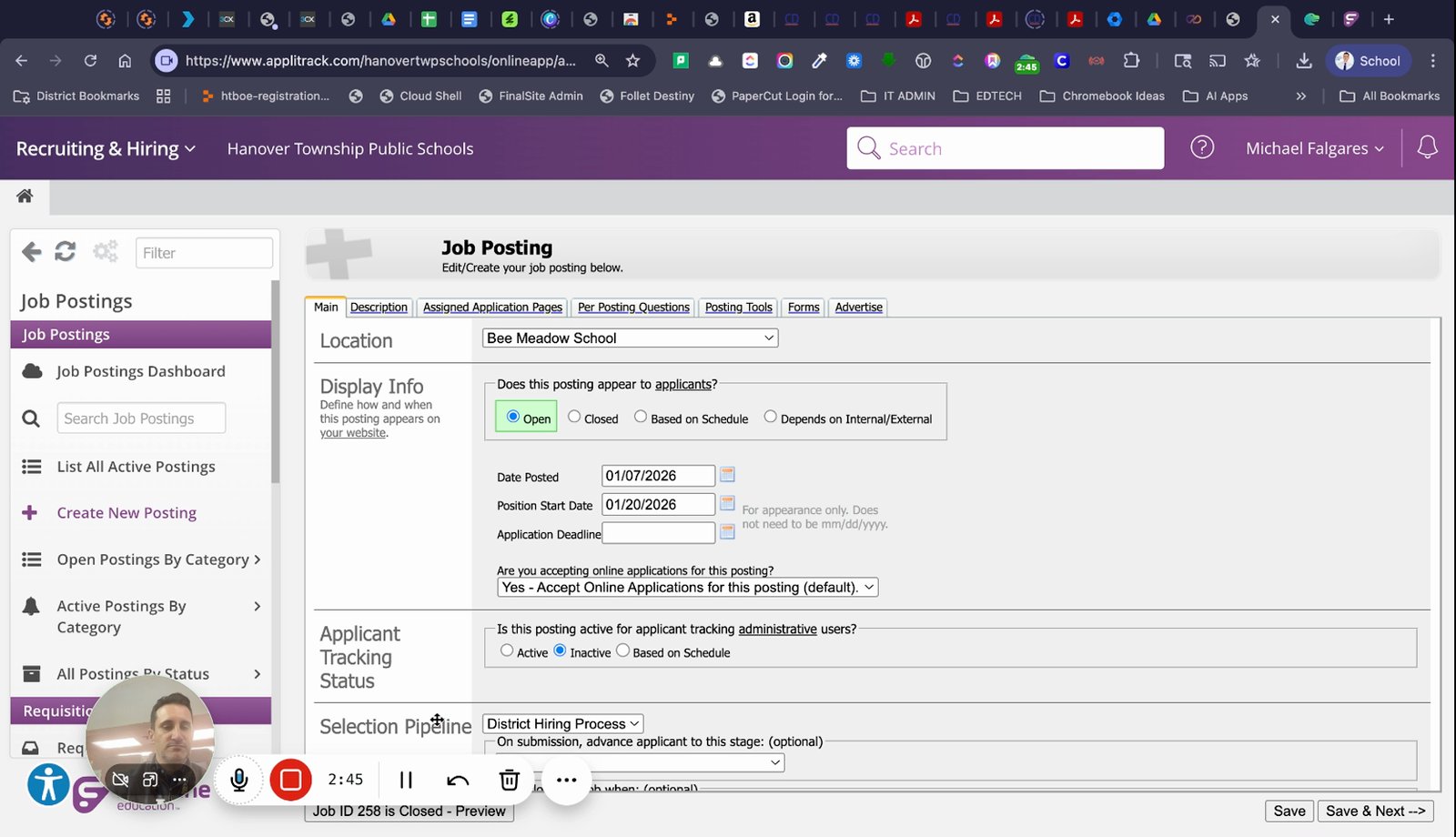
Indicate if you are accepting online applications
Specify whether applicants can apply online.
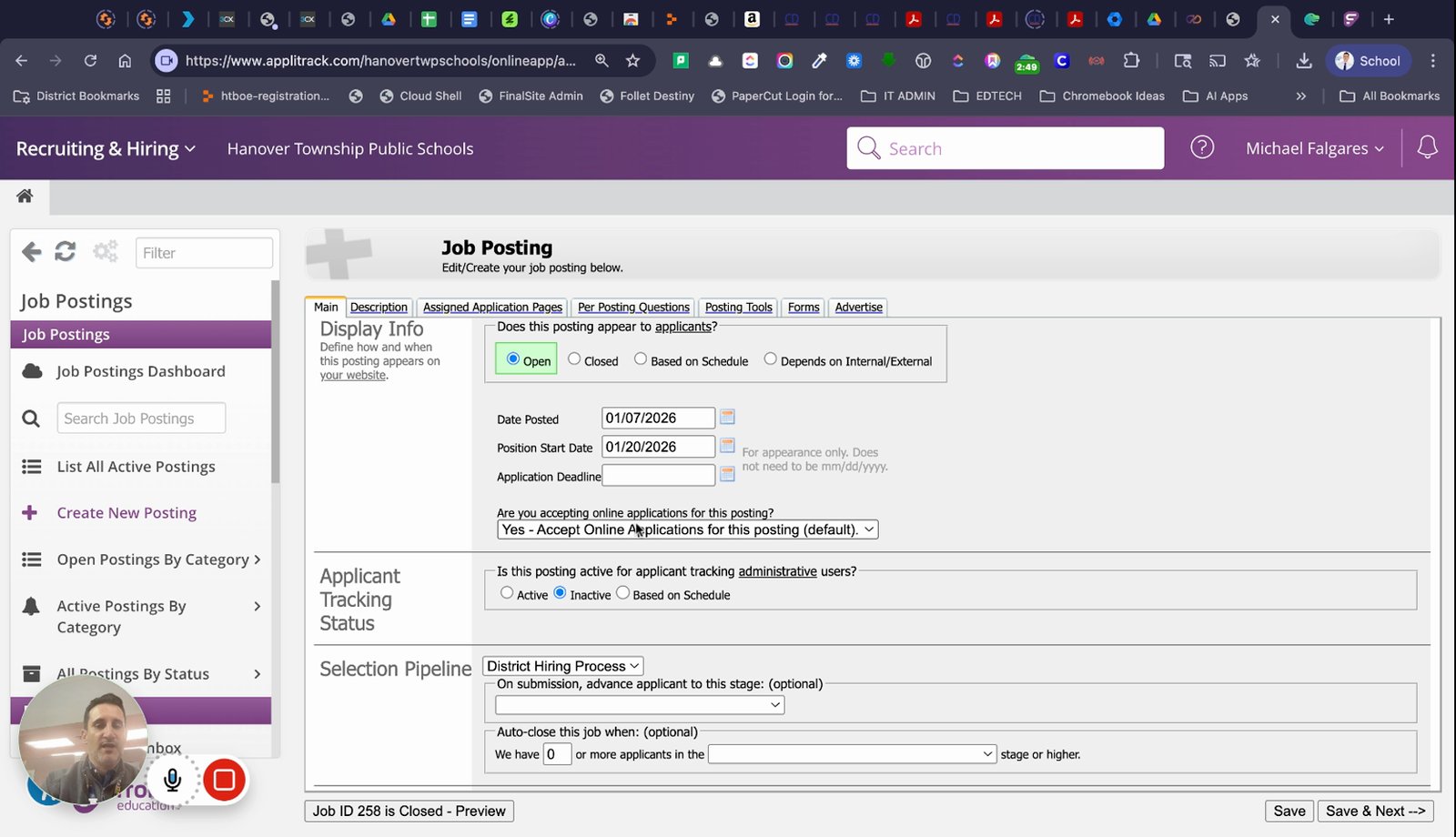
Set the posting as active for applicant tracking users
Enable applicant tracking for administrative users.
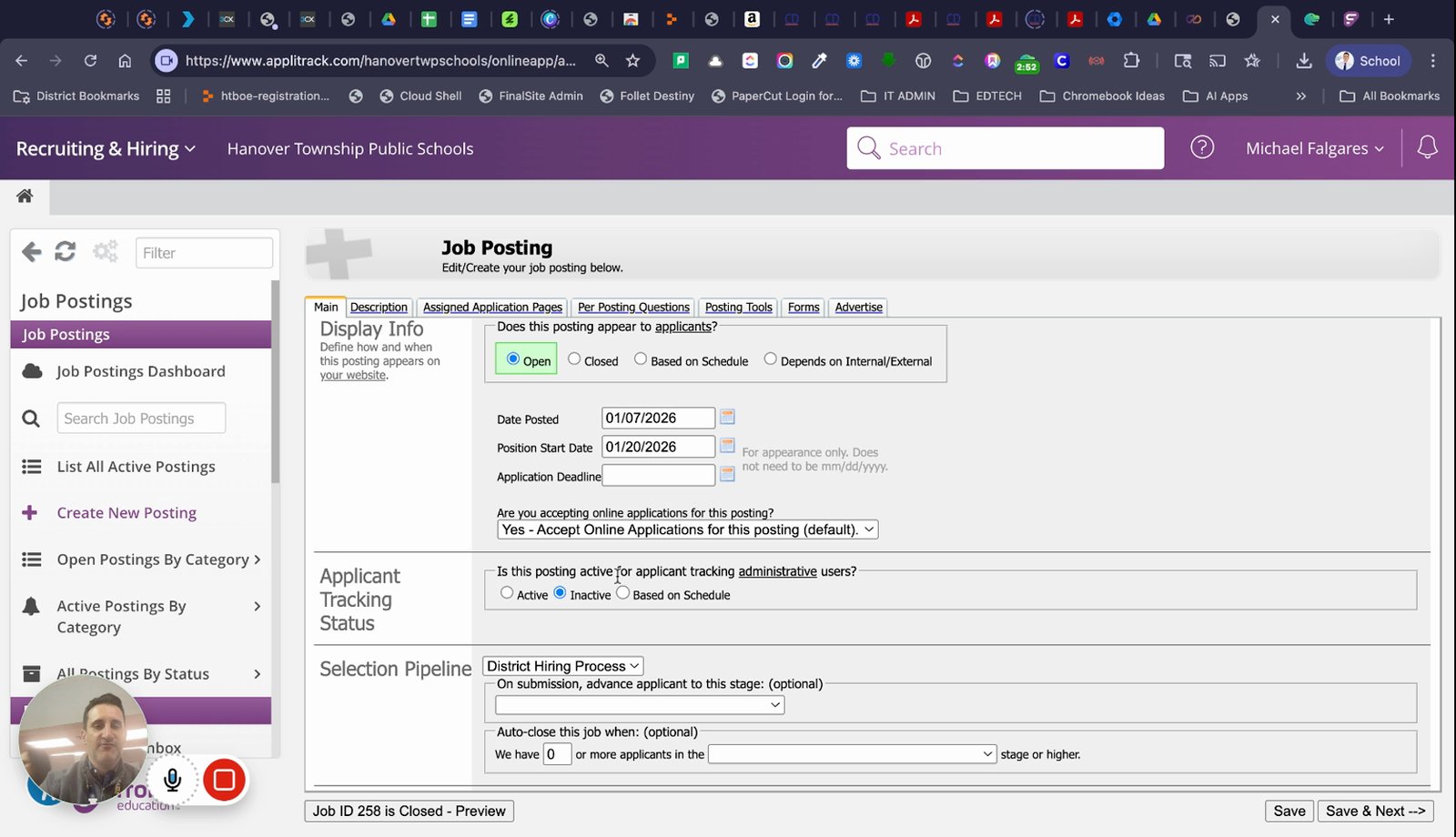
Save and go to the next step
Proceed to the next section of the job posting wizard.
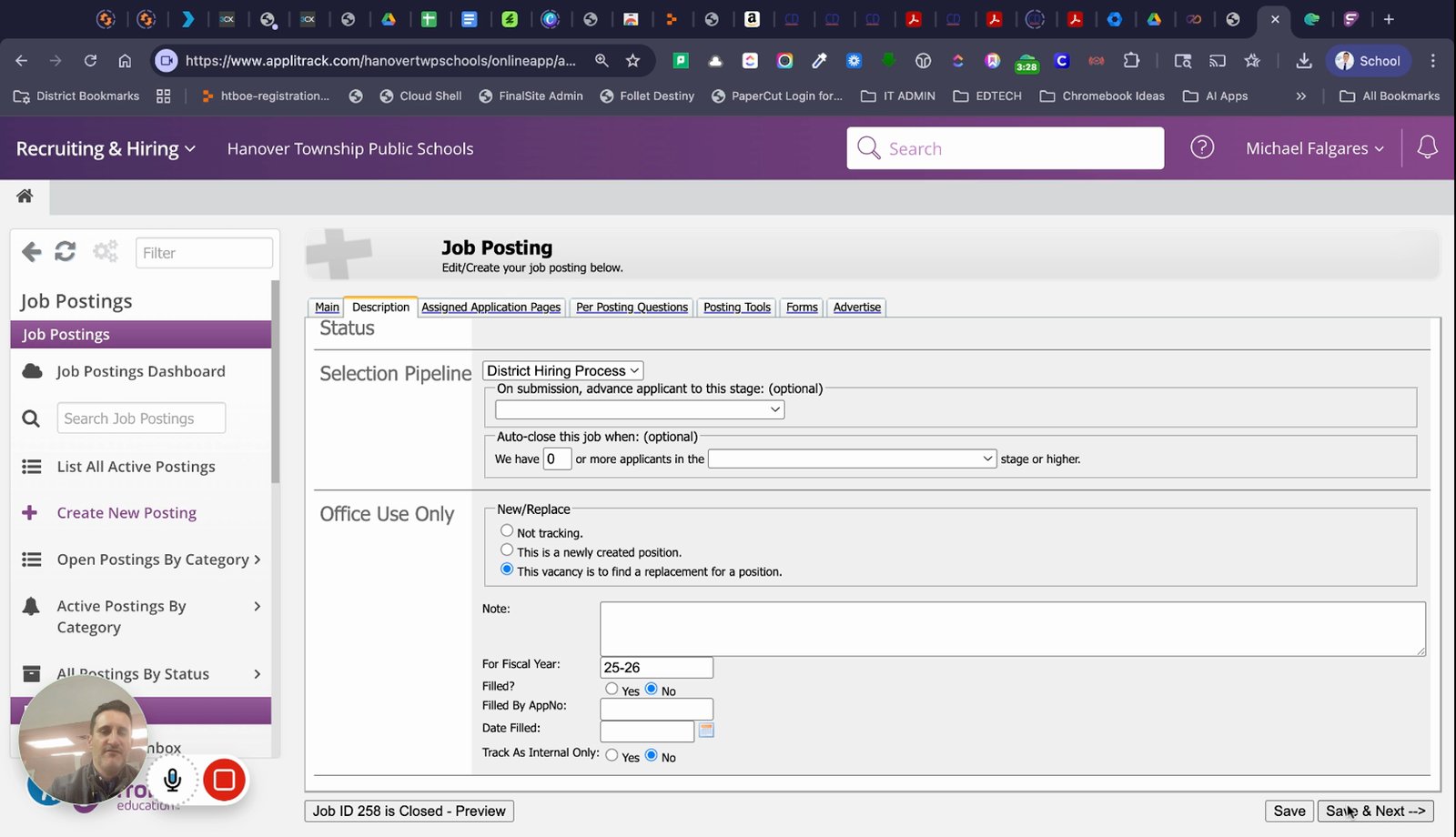
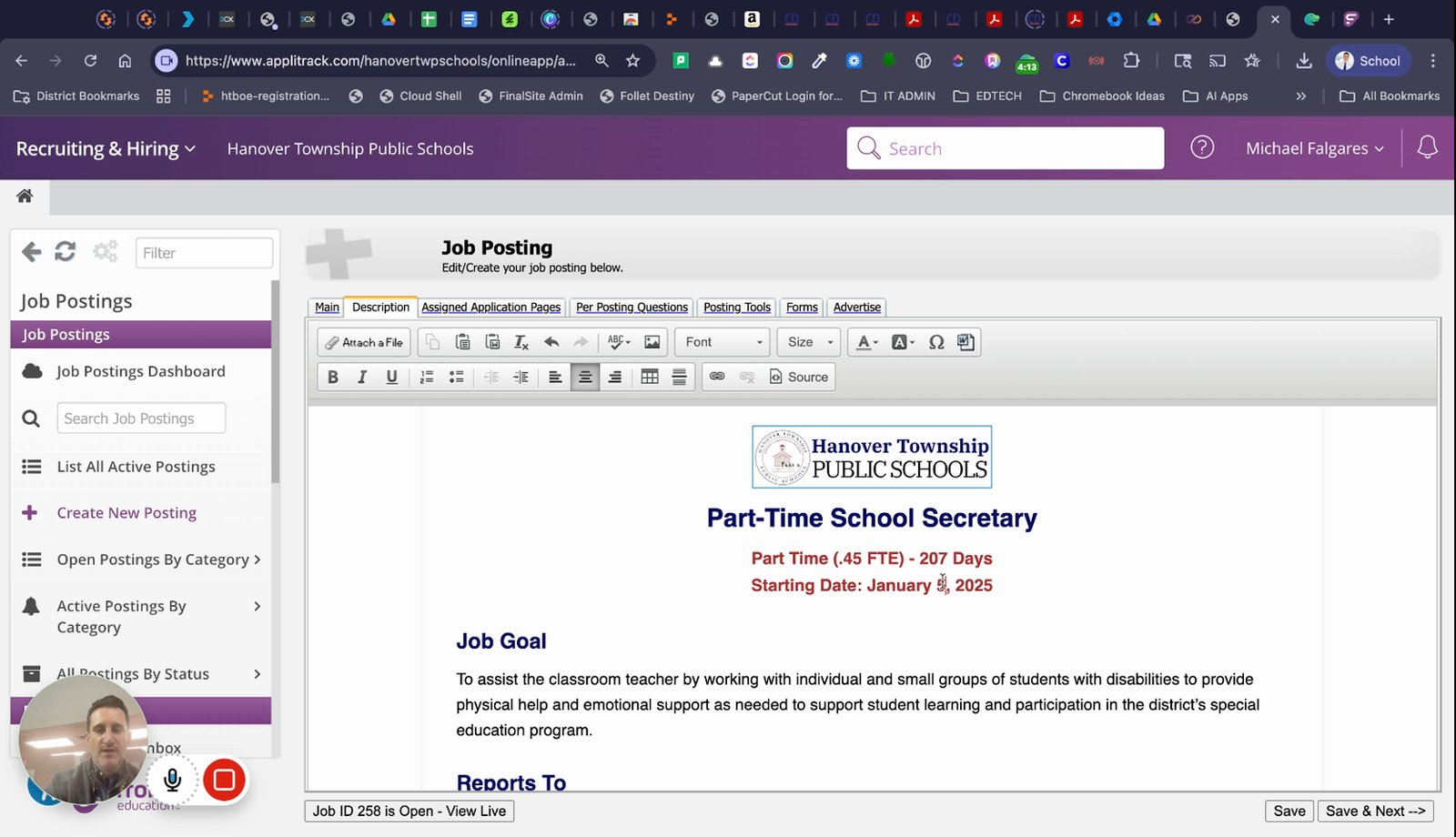
Edit the job title and description fields as needed
Update the job title and description to match the new posting.
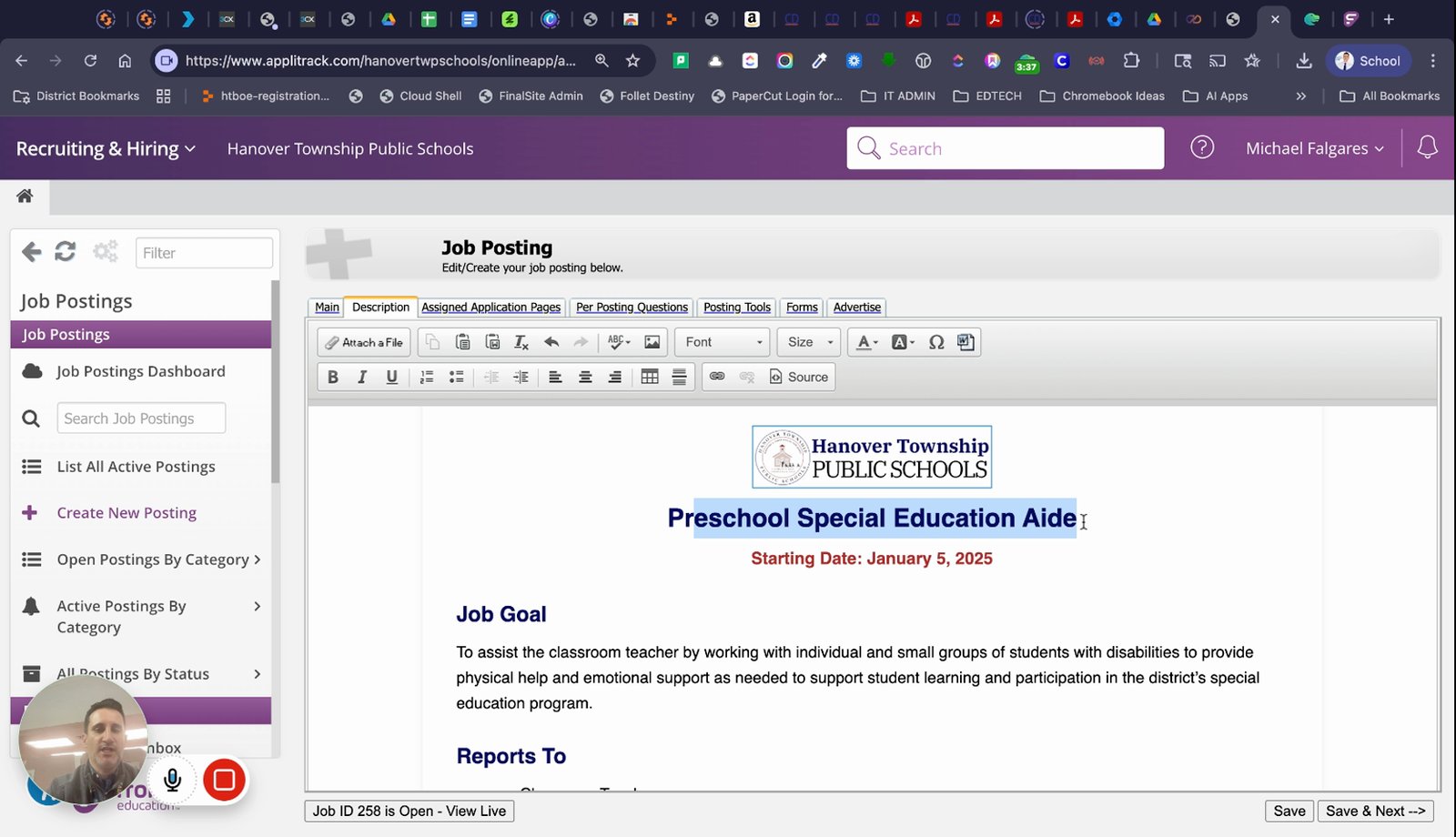
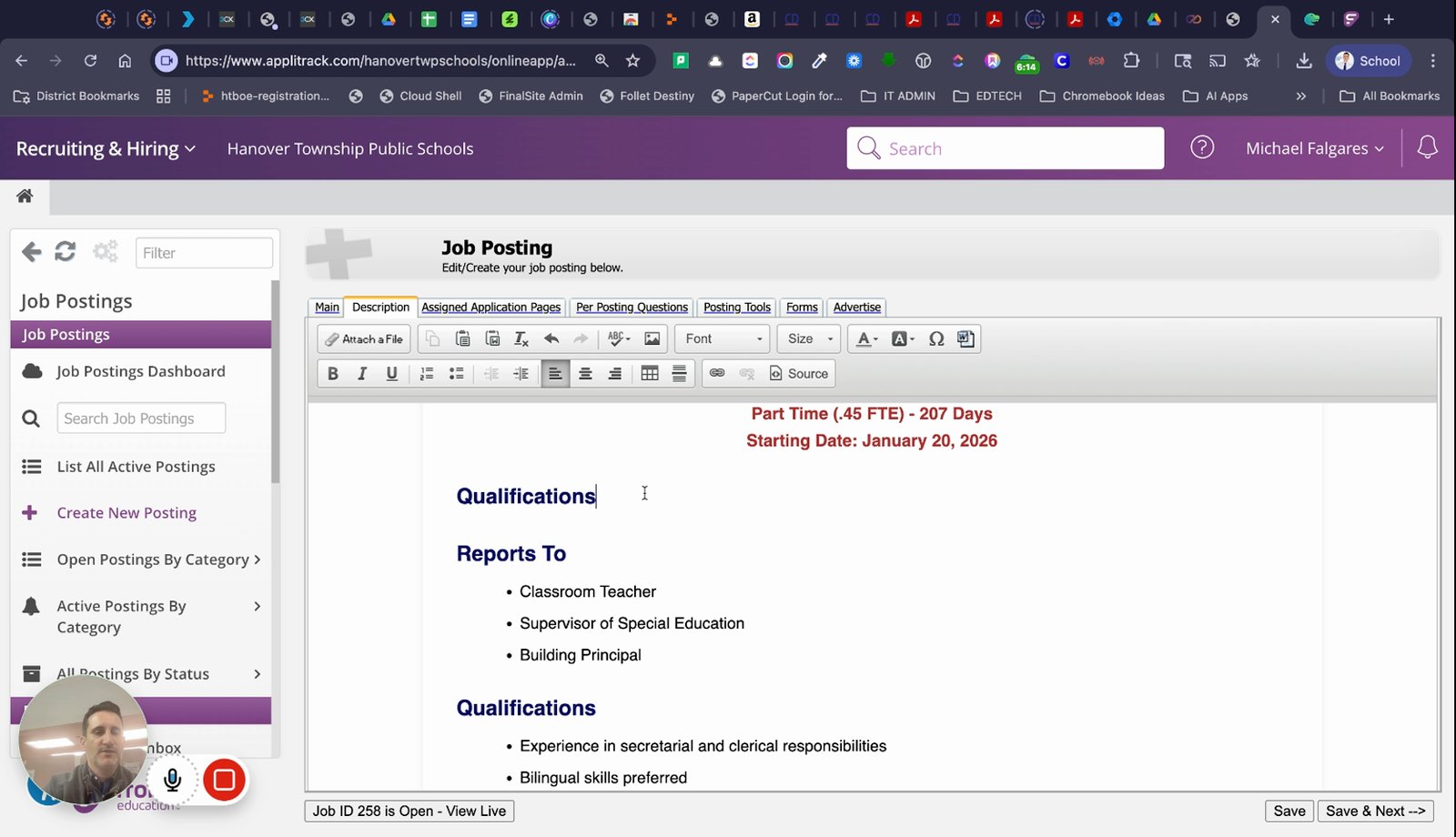
Fill in qualifications, job responsibilities, and salary information
Complete the required fields for qualifications, responsibilities, and salary.
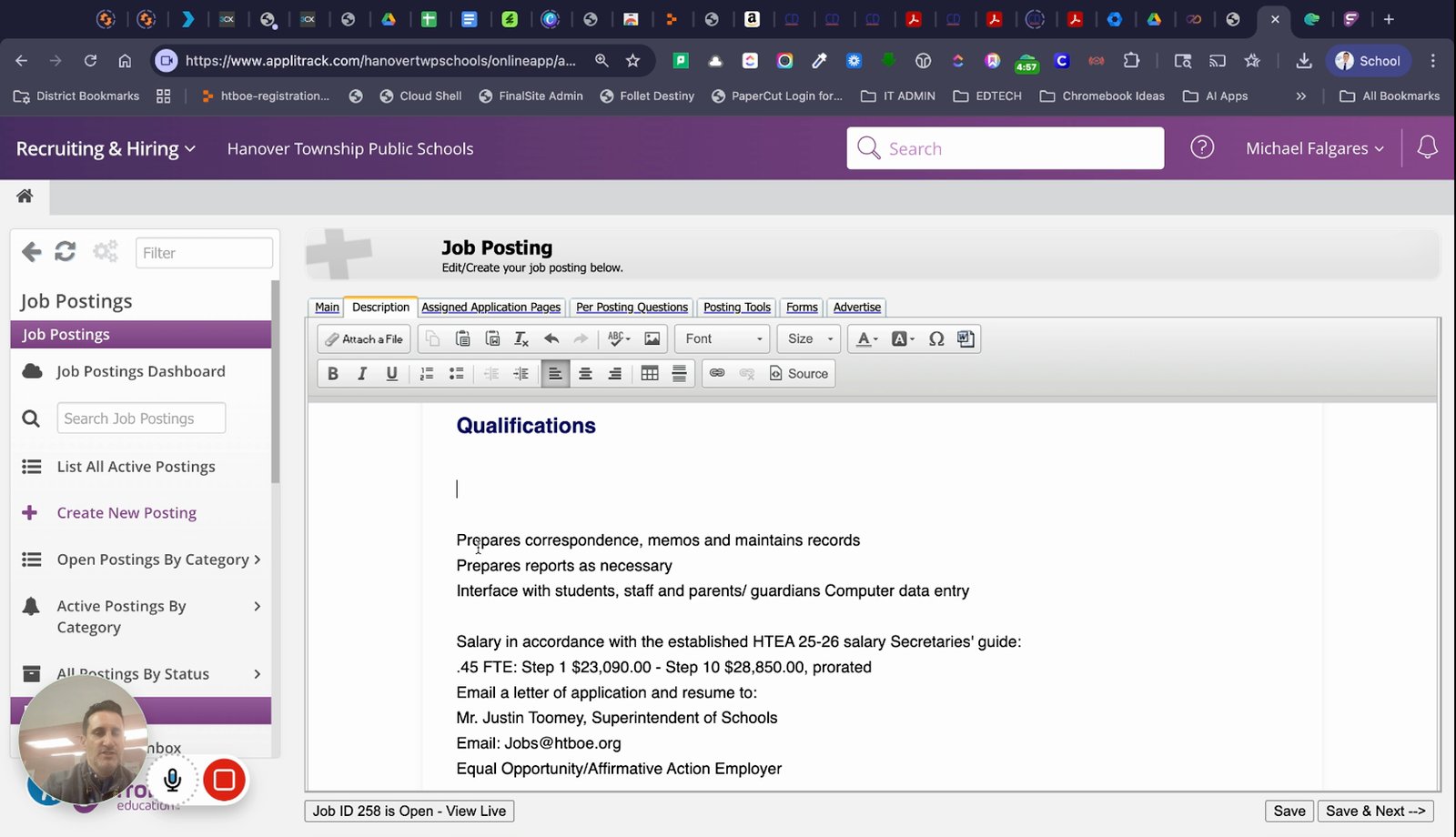
Delete any irrelevant information from the template
Remove template sections that do not apply to this job.
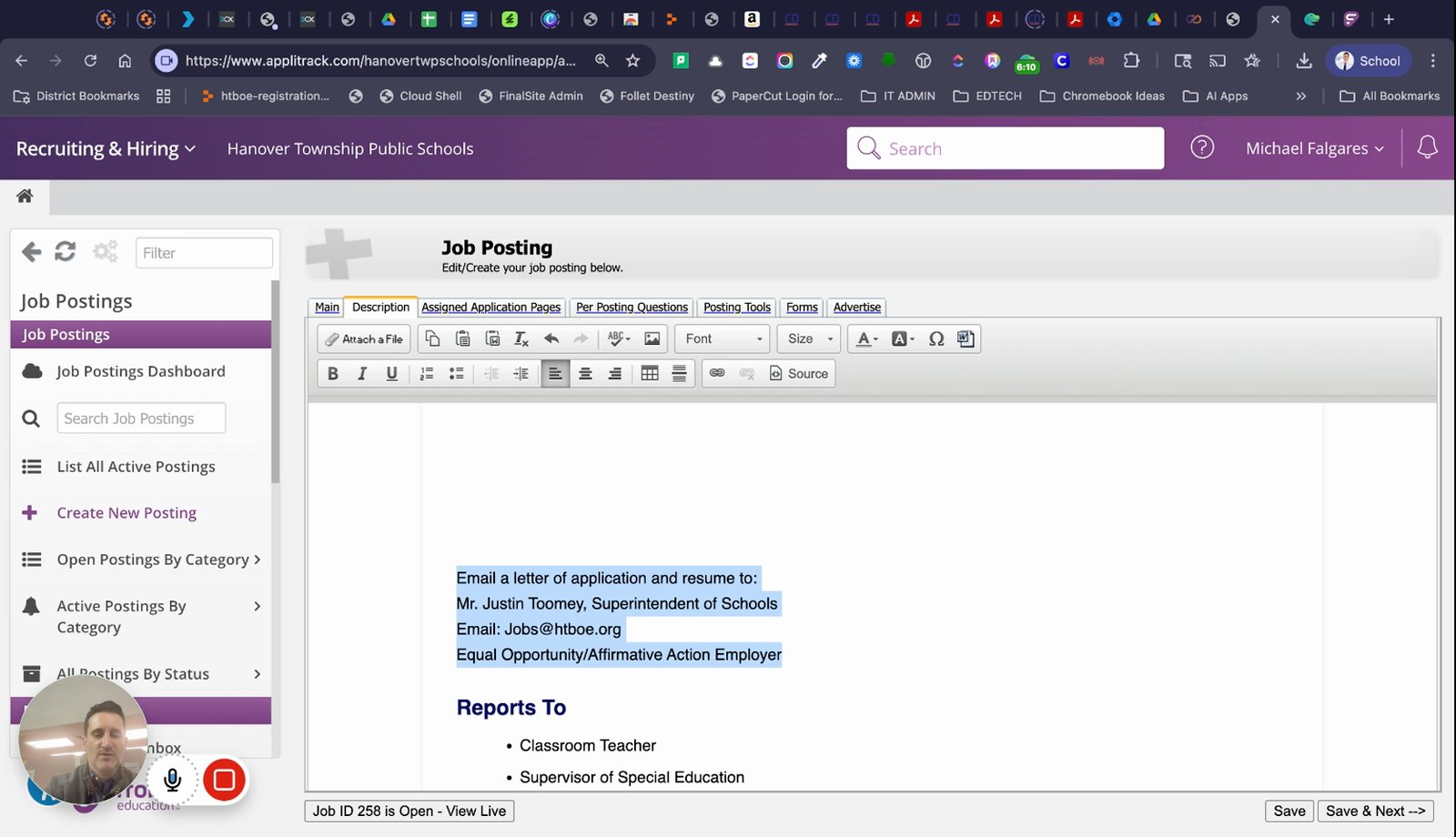
Review and update reporting structure if needed
Ensure the correct reporting line (e.g., to principal) is set.
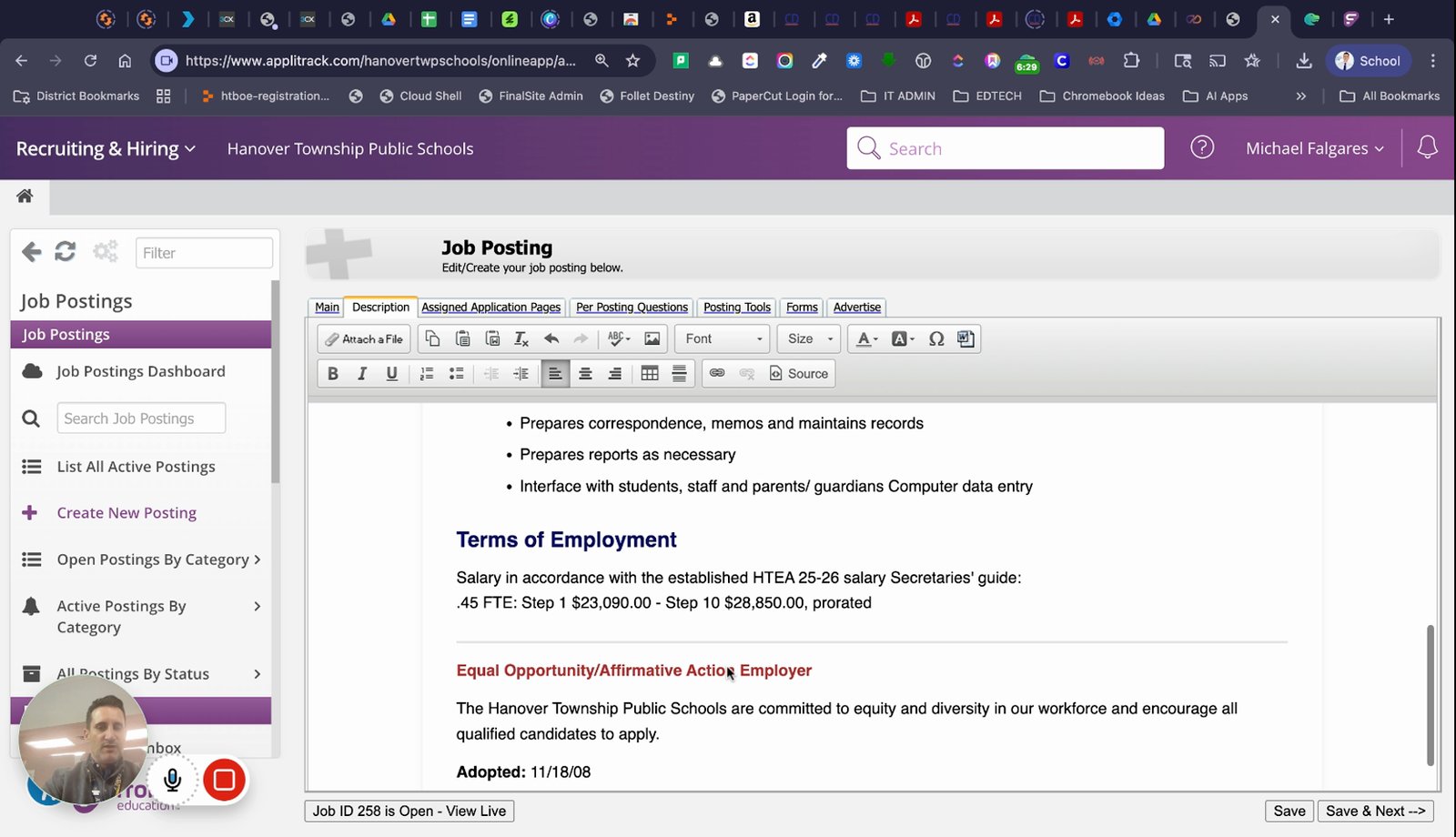
Review equal opportunity and legal information
Check that EEO and legal statements are present.
Save your progress
Click save to ensure your changes are not lost.
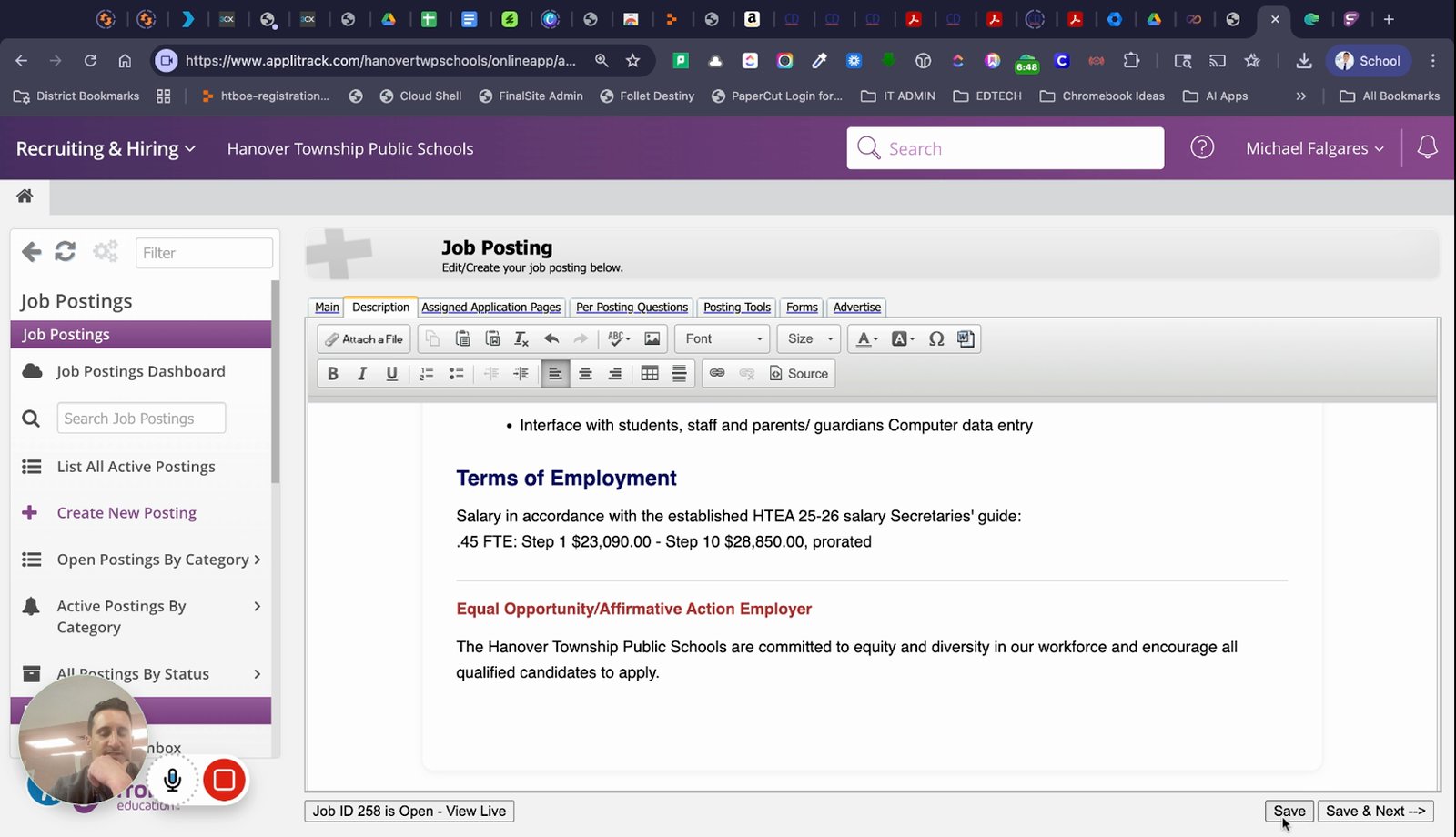
Click save and next to proceed
Move to the next section of the job posting process.
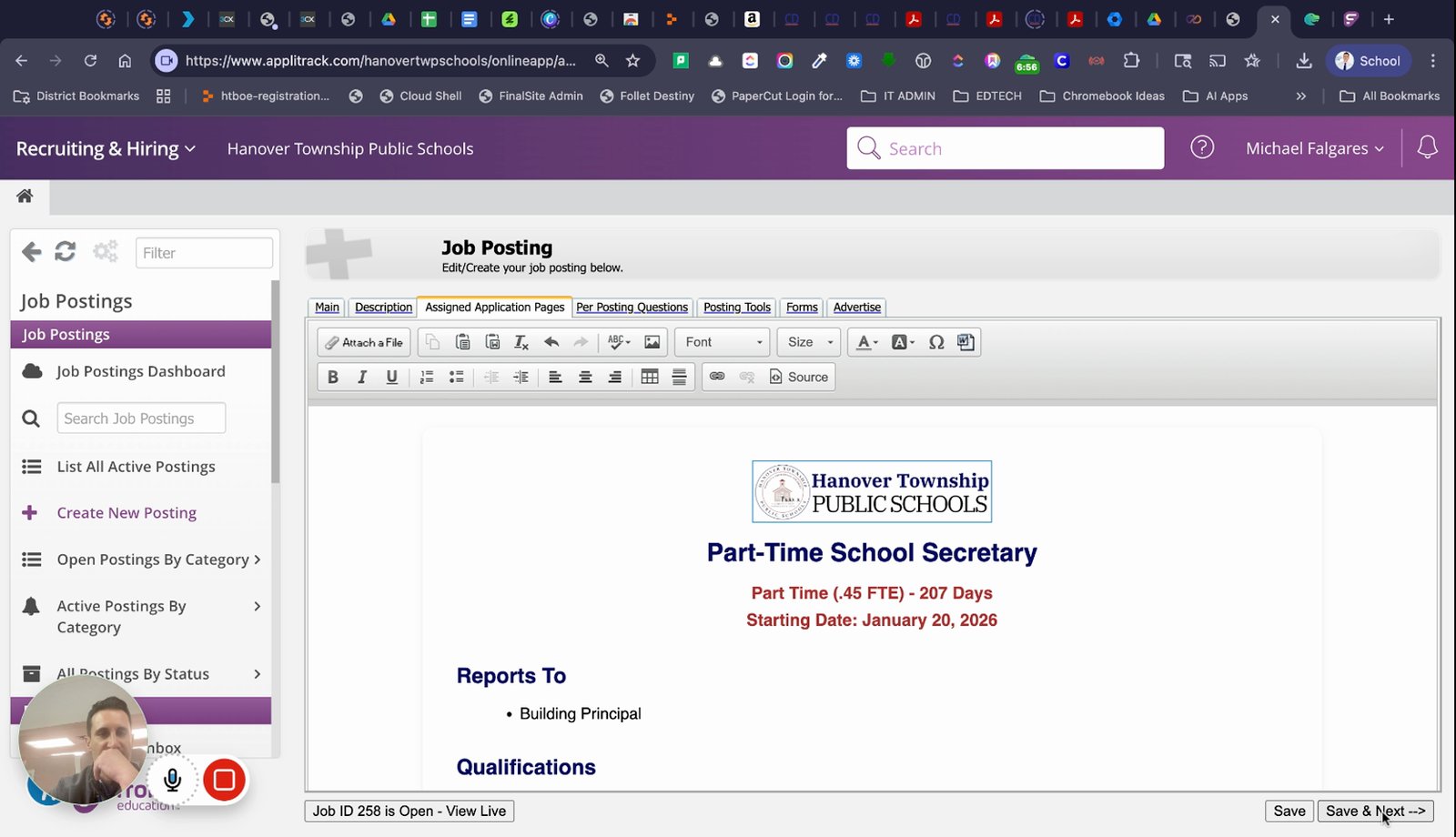
Review the assigned application pages and requirements
See which application pages applicants will need to complete.
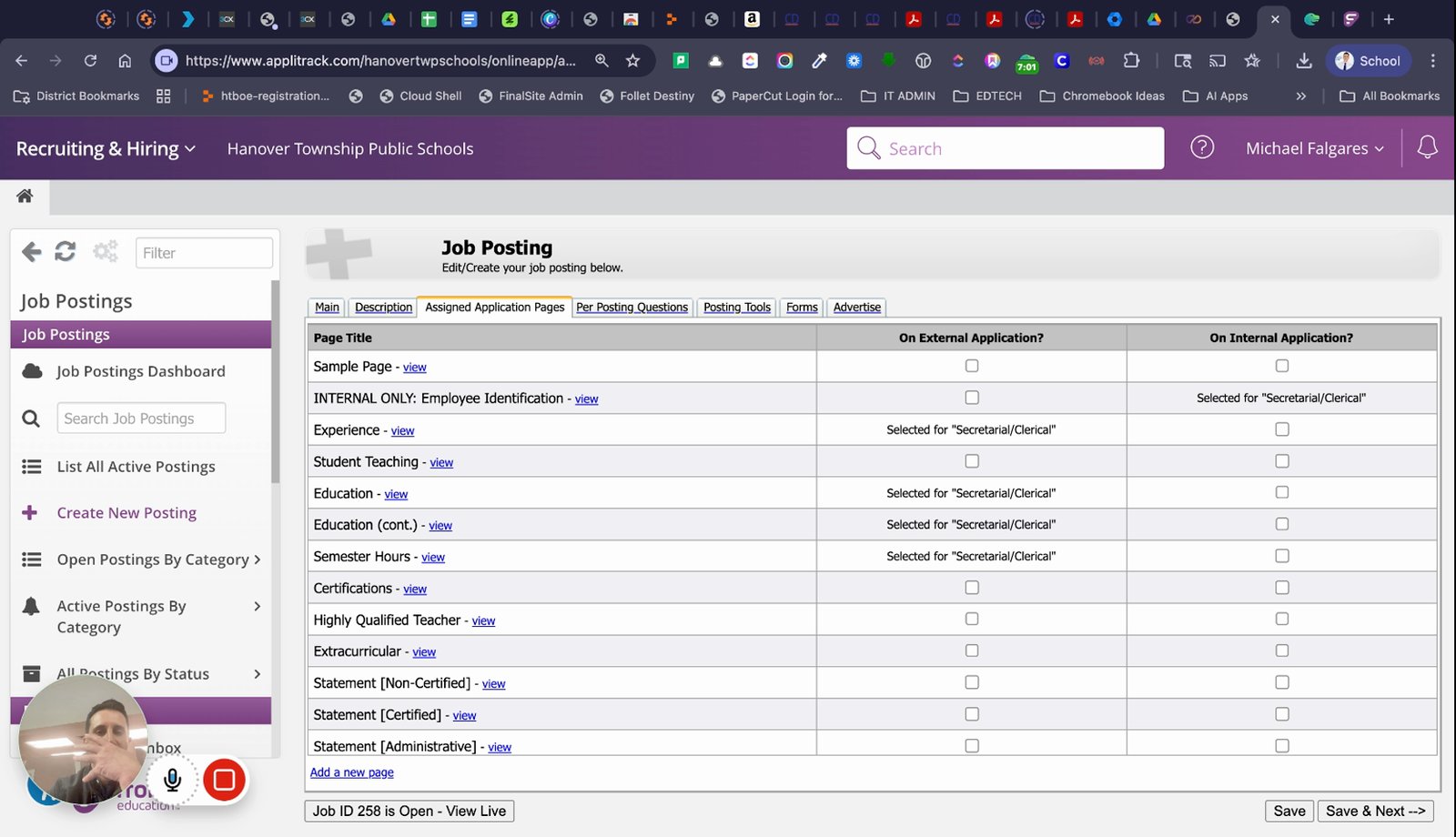
Add or review per posting questions as needed
Include any custom questions for applicants.
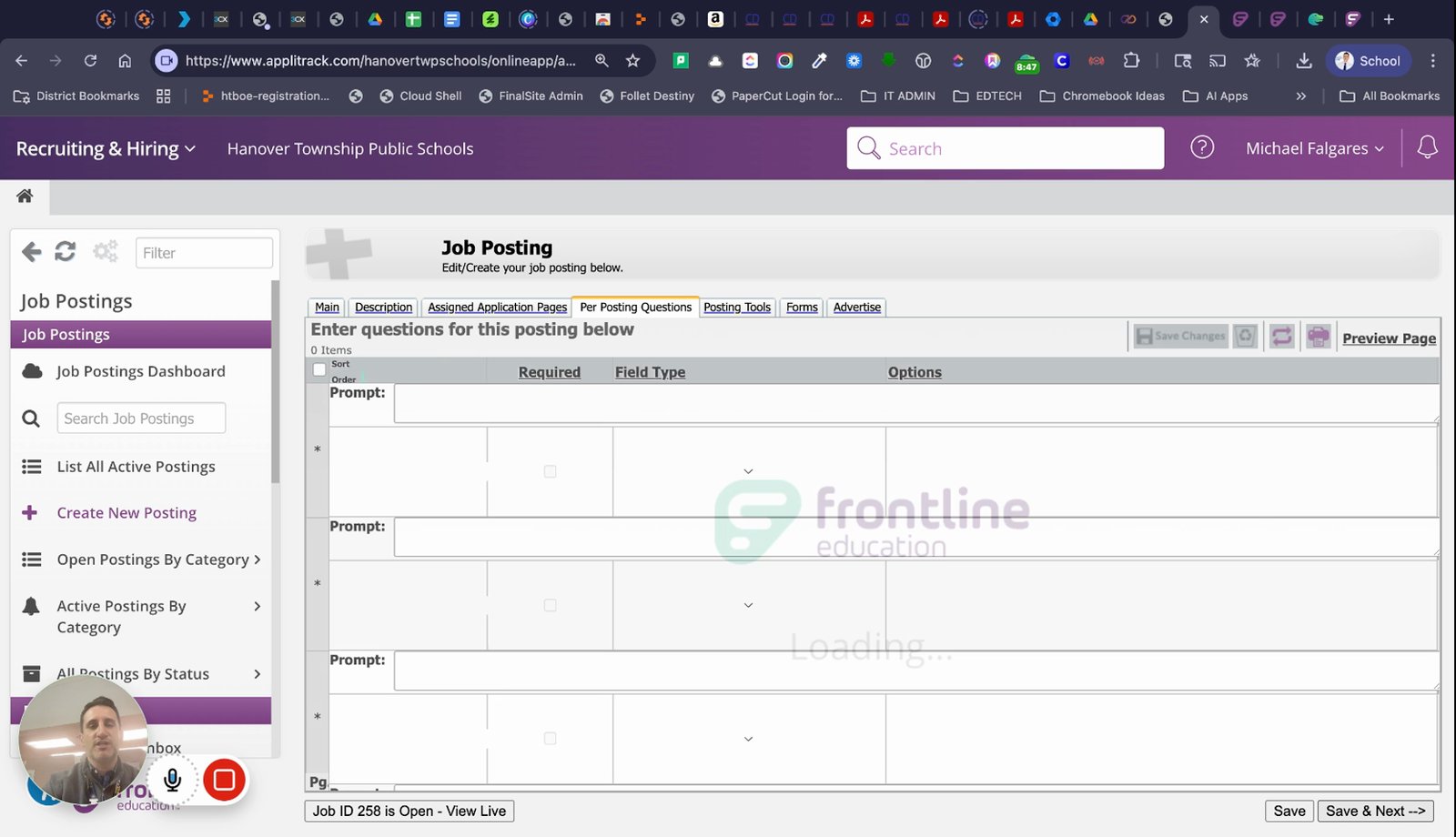
Go to posting tools and assign routing if necessary
Set up routing for approvals or notifications.
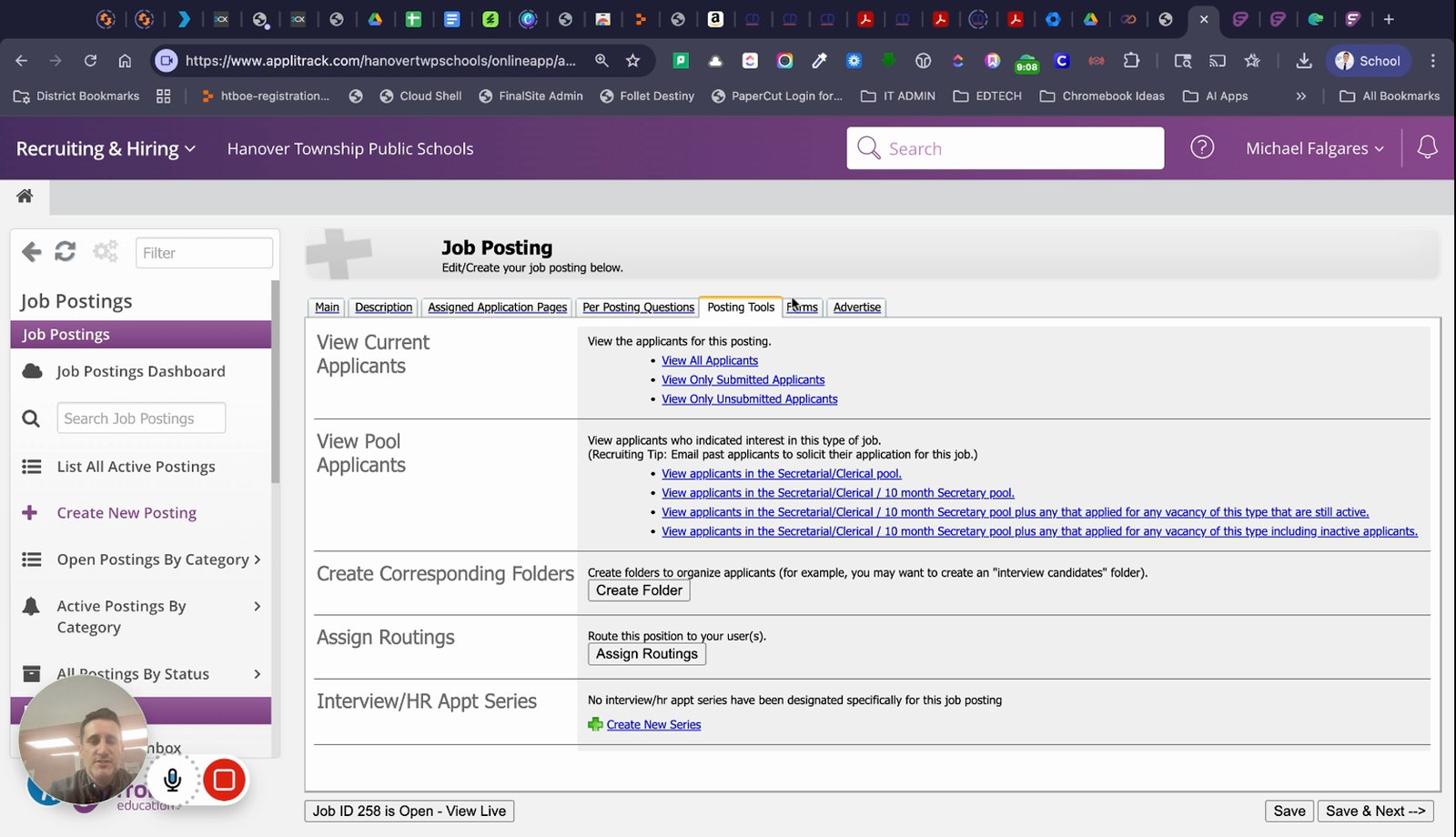
Scroll down and click save and close to finish
Finalize and save the job posting.
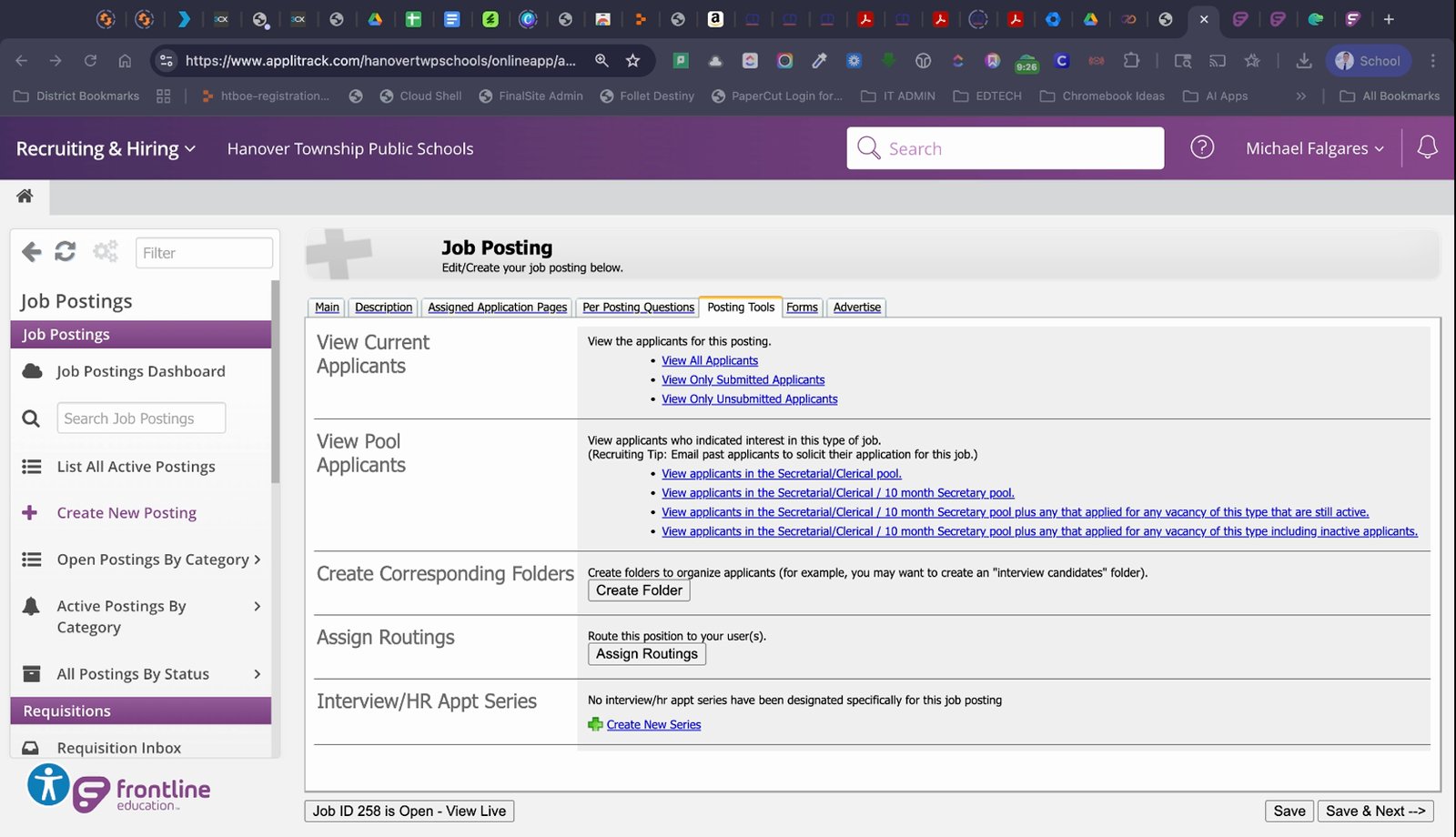
Set the expiration date for the posting
Enter an expiration date as required.
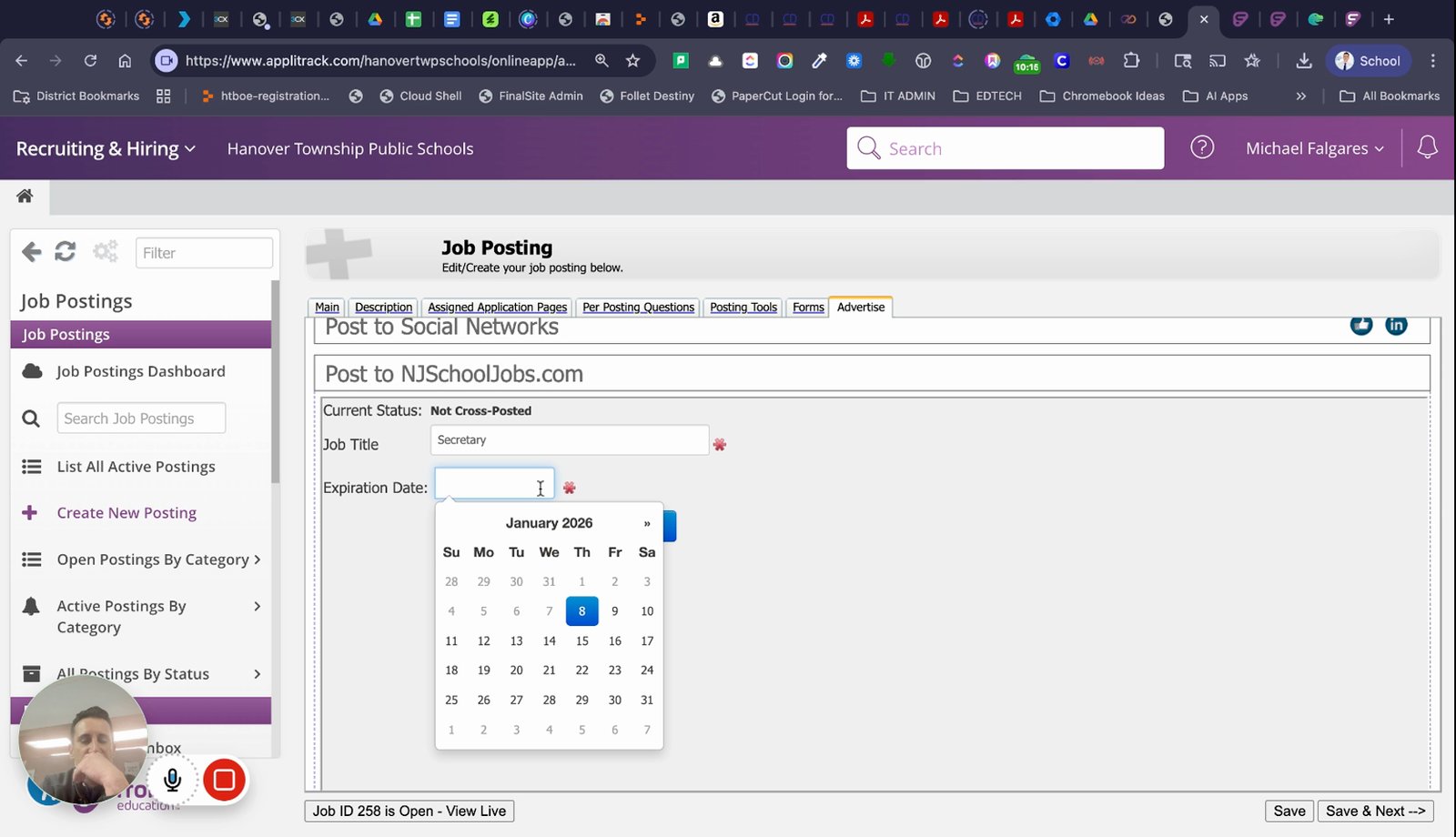
Click the button to post the job
Publish the job posting to make it live.
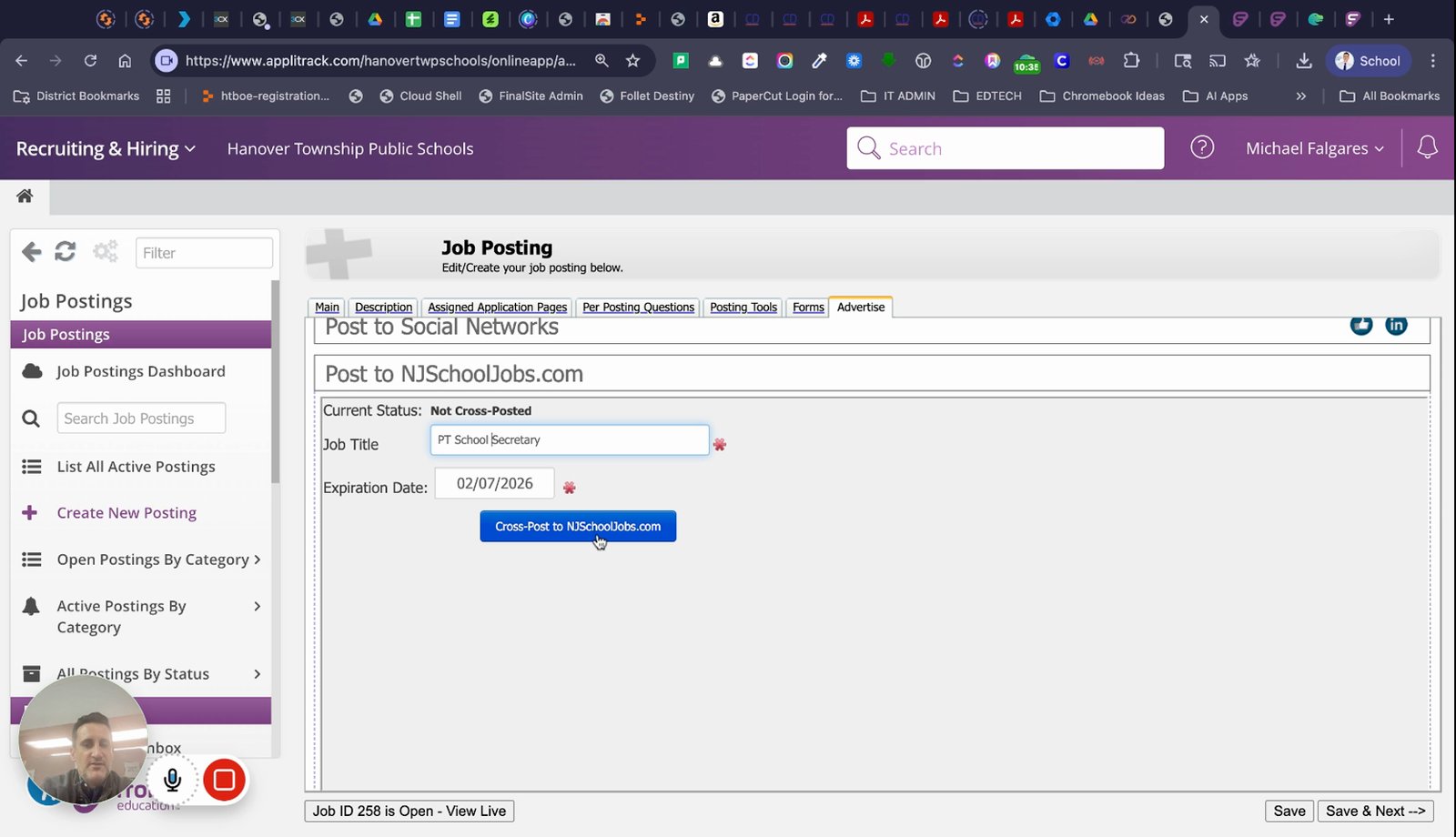
Verify the posting has been sent successfully
Check for confirmation that the posting is live.
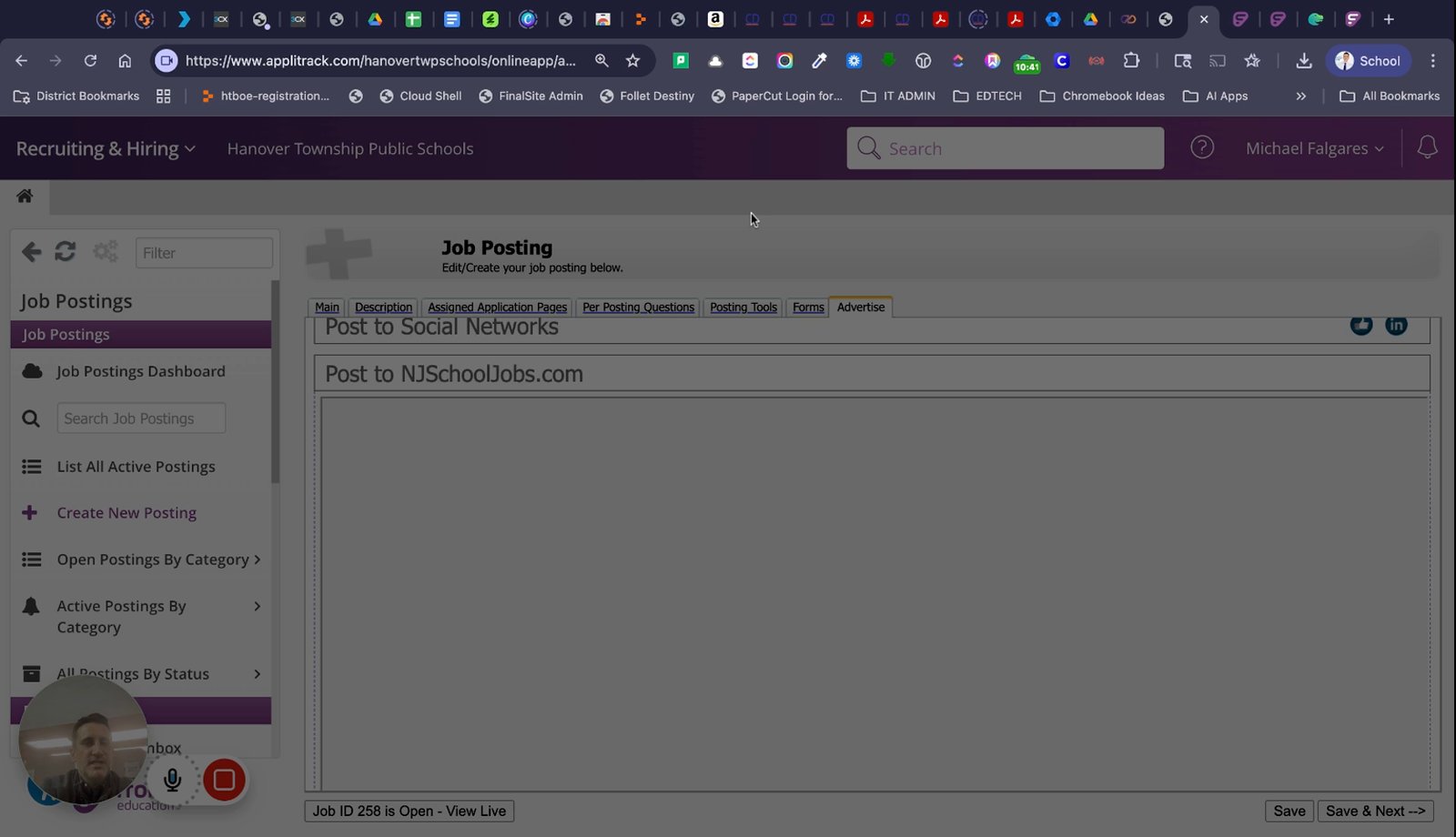
Click okay to return to the list of jobs
Return to the main job list after posting.
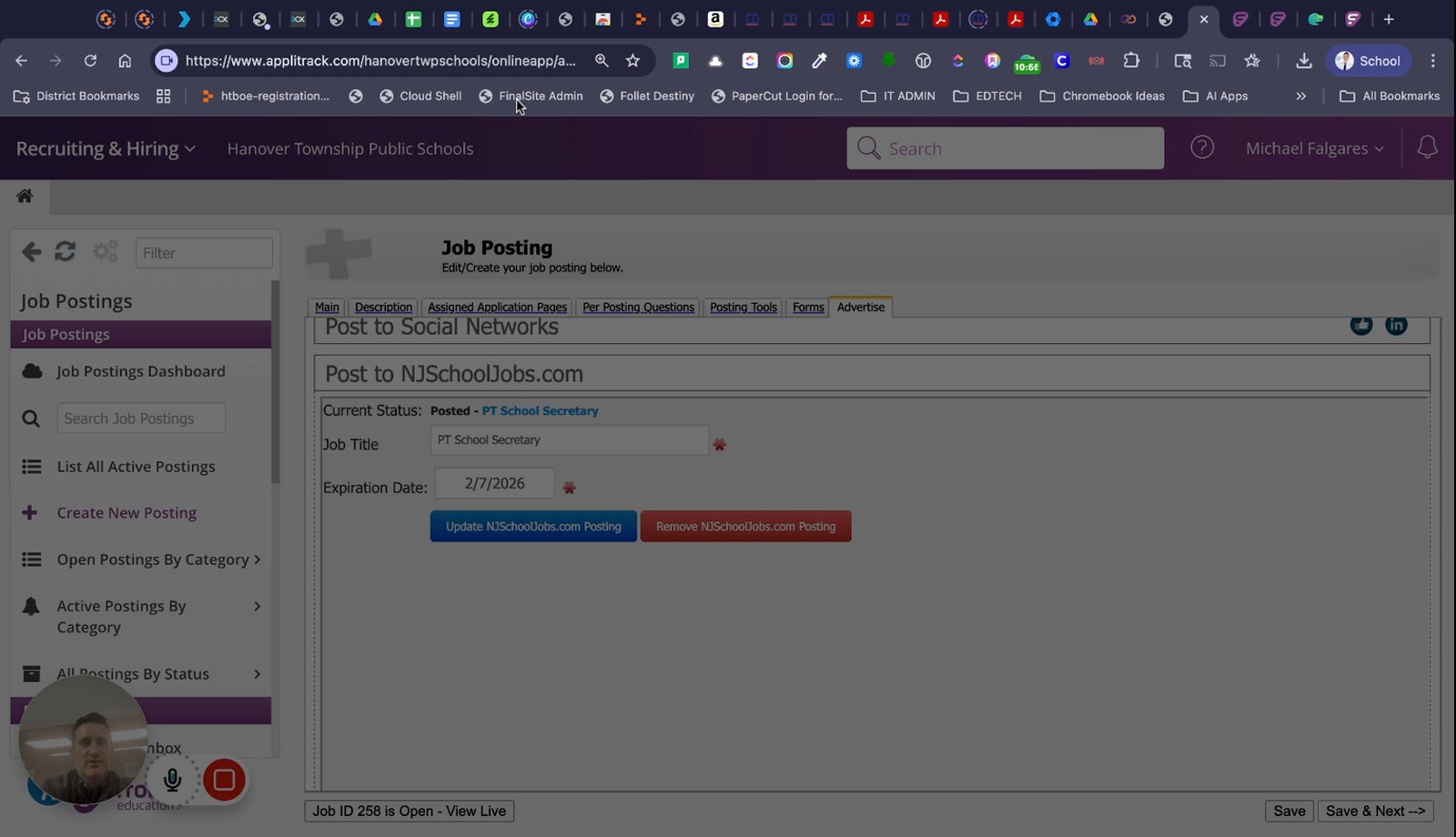
Click the 'view live' button to see the posted job
Open the live posting in a new tab to review.
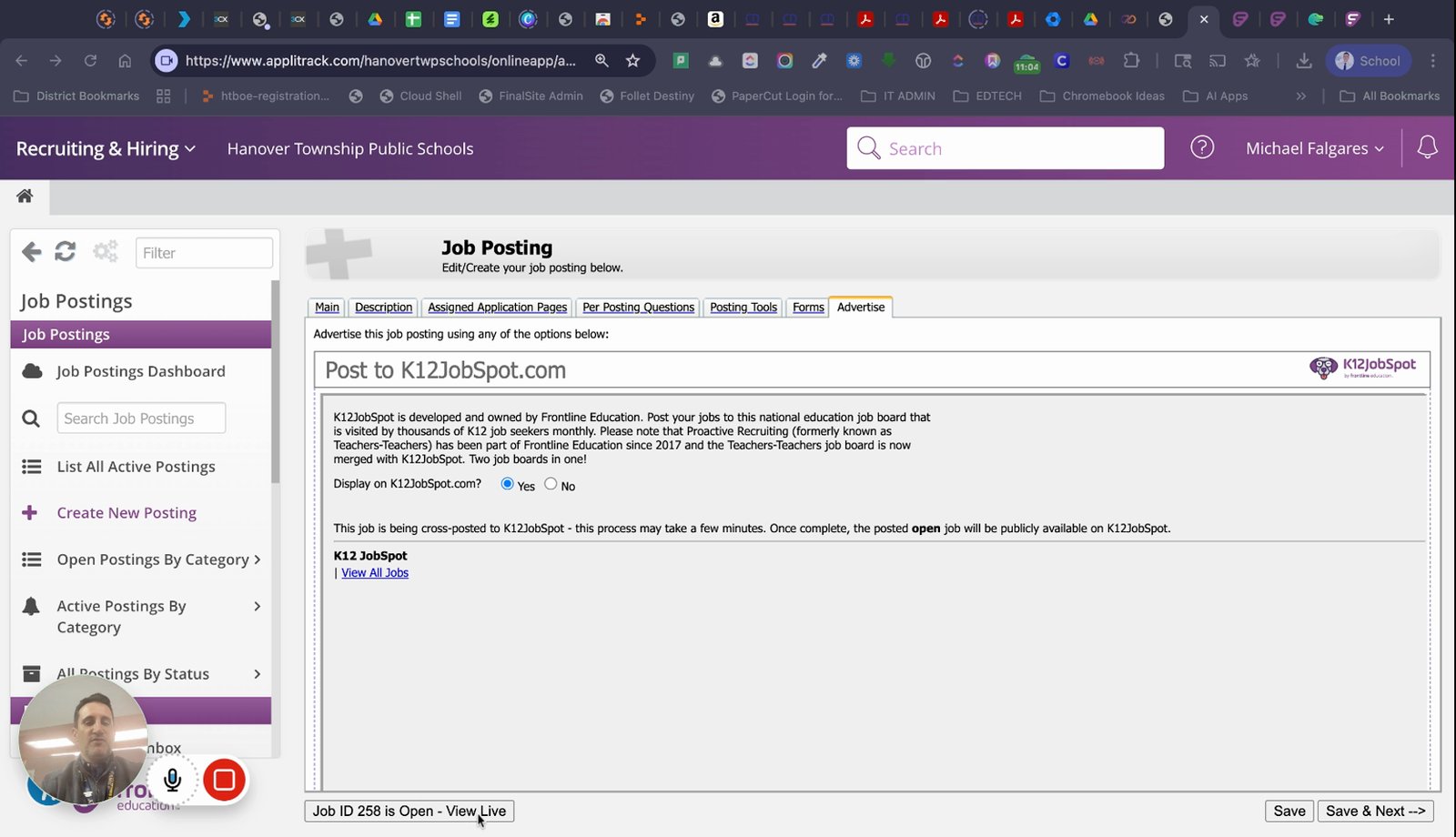
Review the live job posting for accuracy
Ensure all information is correct on the public posting.
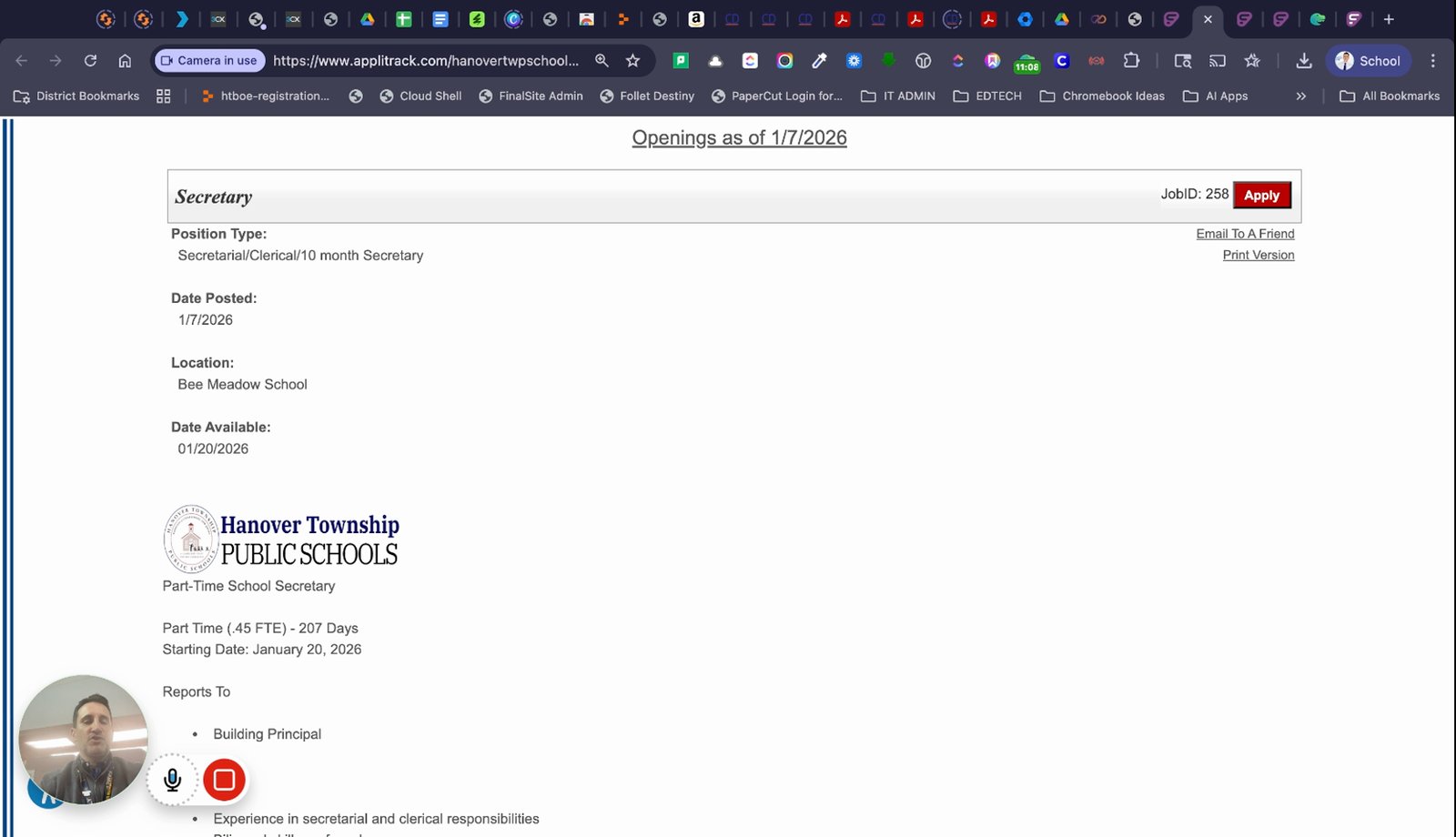
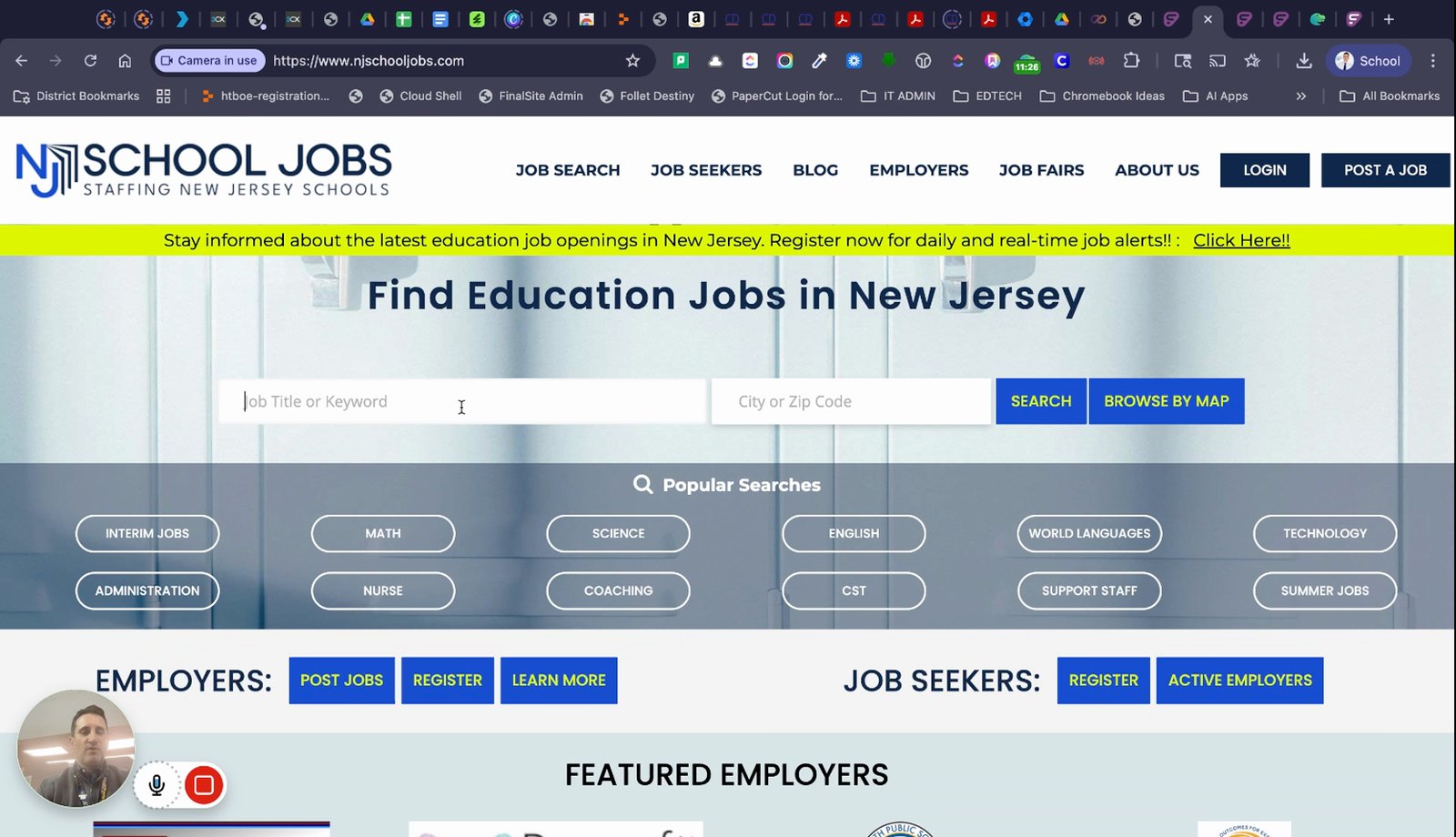
Go to NJ school jobs to verify the posting appears there
Double-check the posting on external job boards.
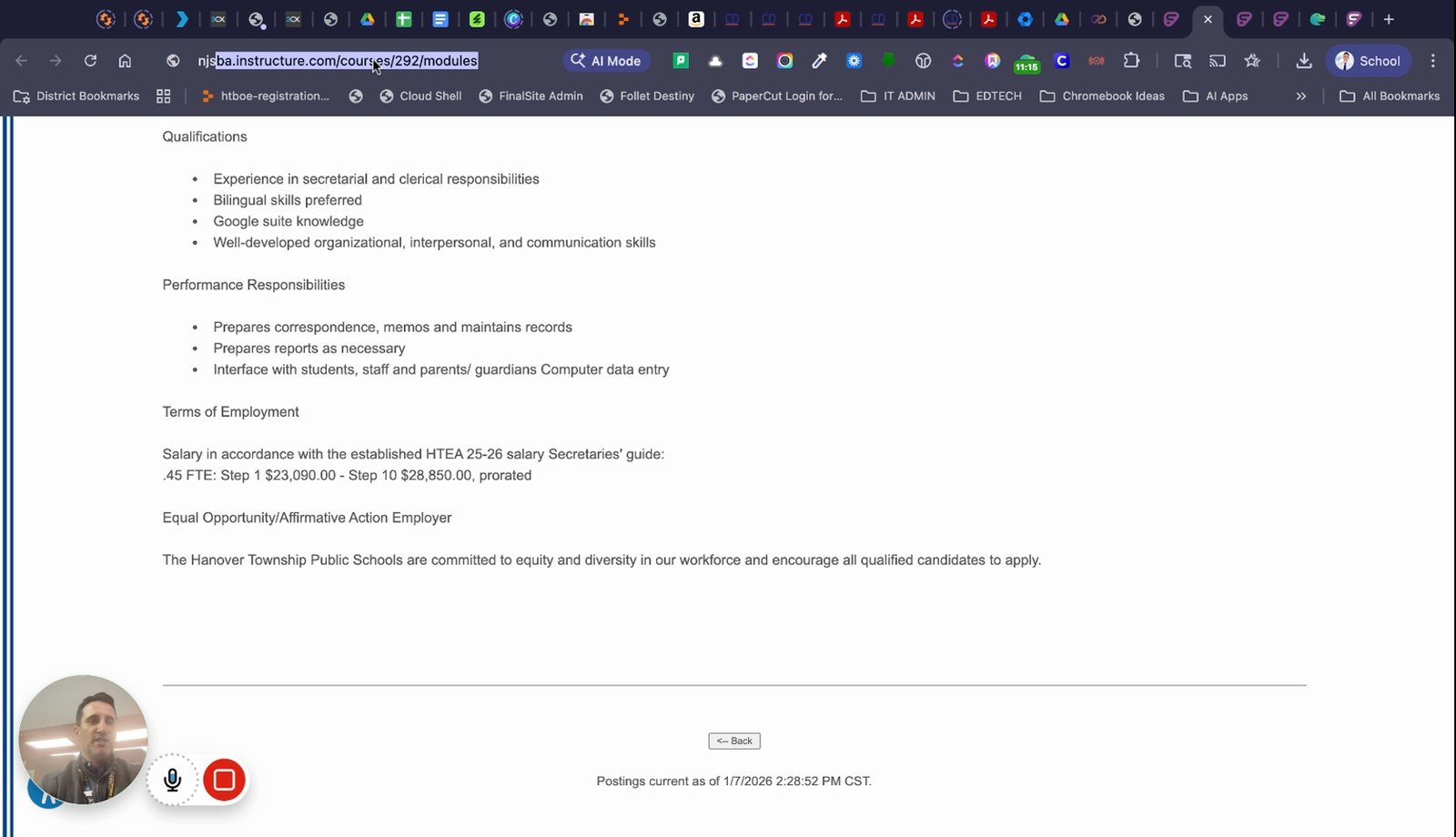
Search for the job title to confirm it is listed
Use the search function to find your posting.
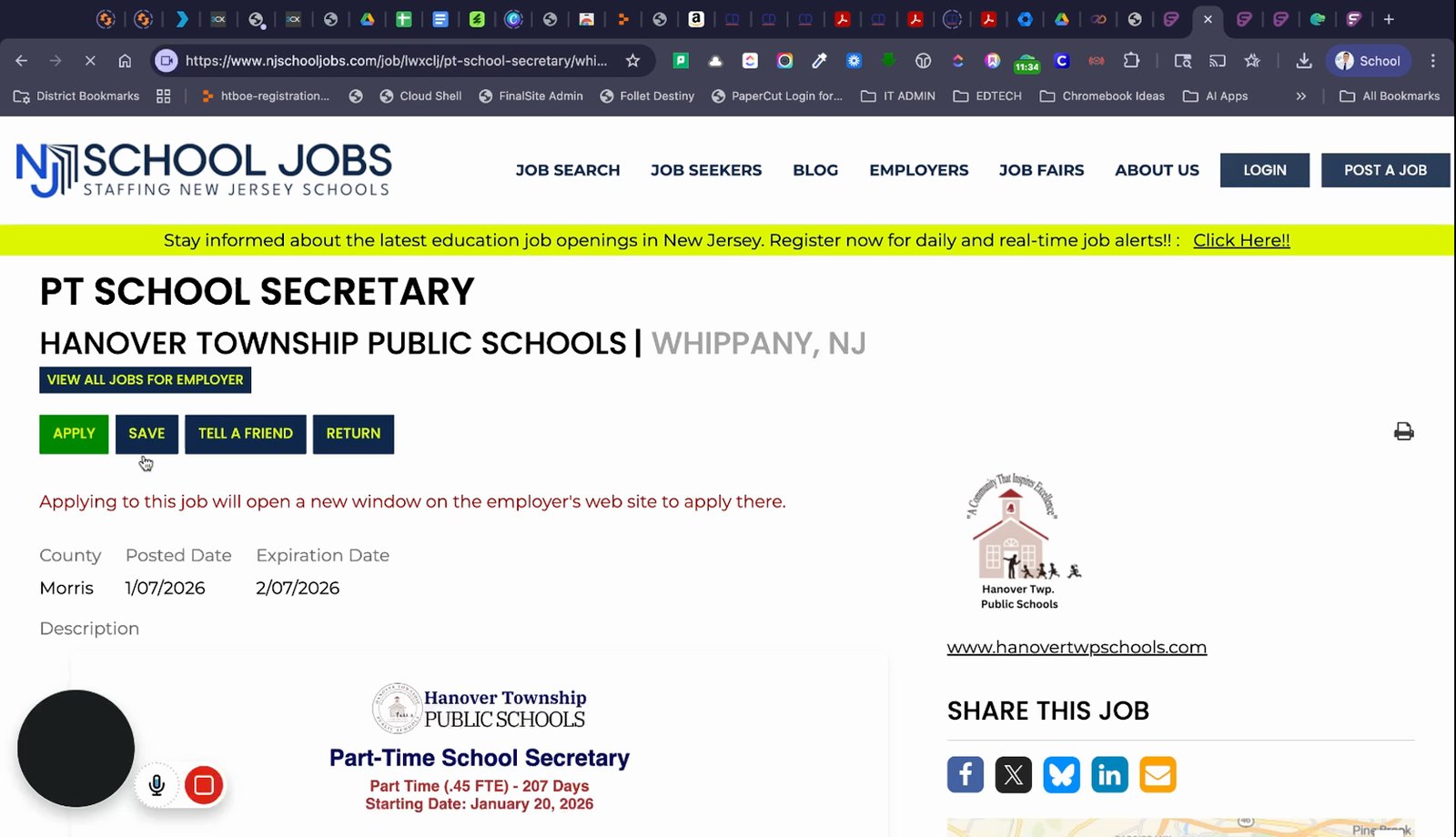
Click on the job posting to view details
Open the job posting to see the full description.
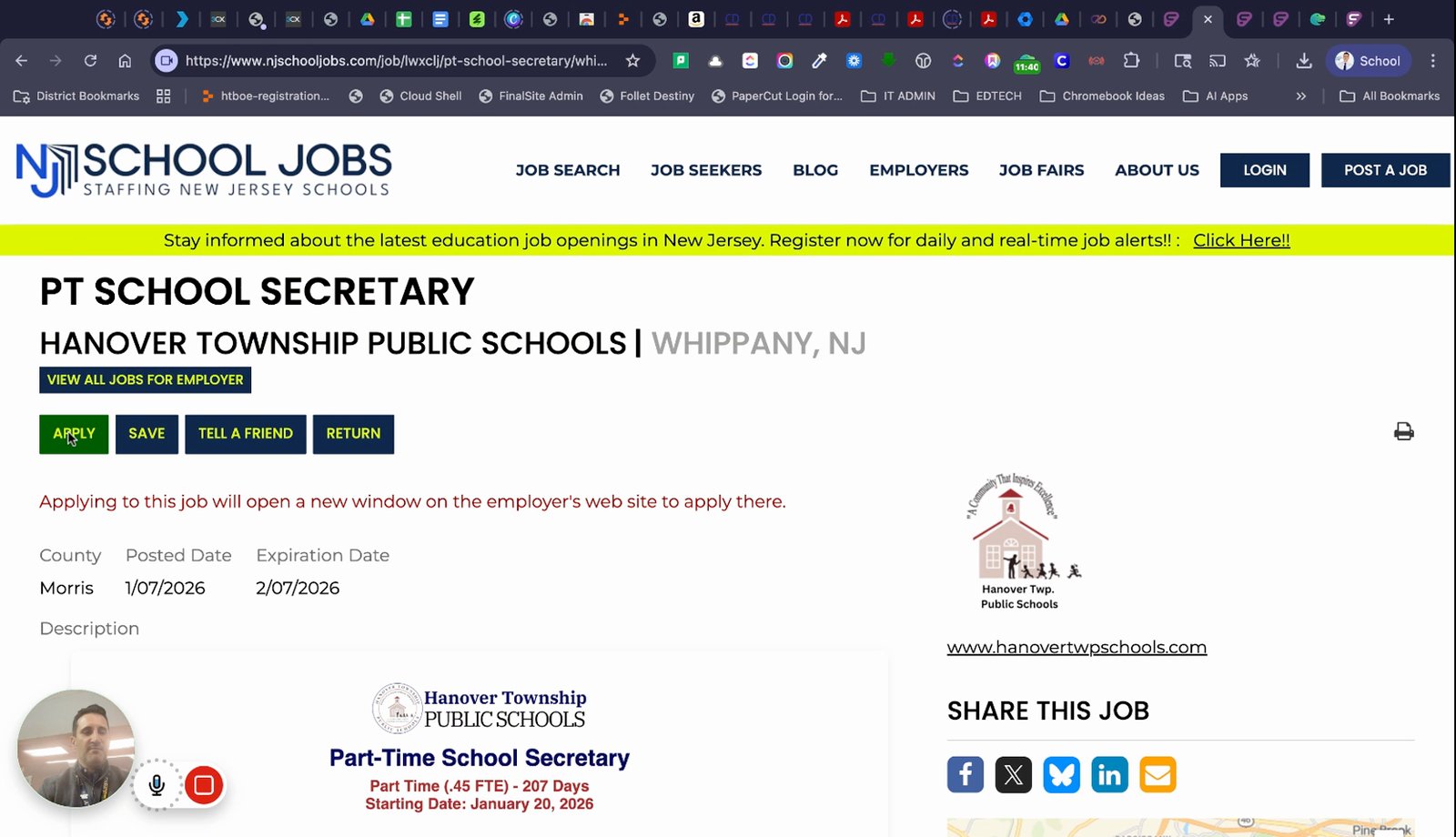
Test the apply button to ensure it directs to AppleTrack
Verify that applicants can start their application.
Go to absence management to manage user permissions
Navigate to absence management to set permissions.
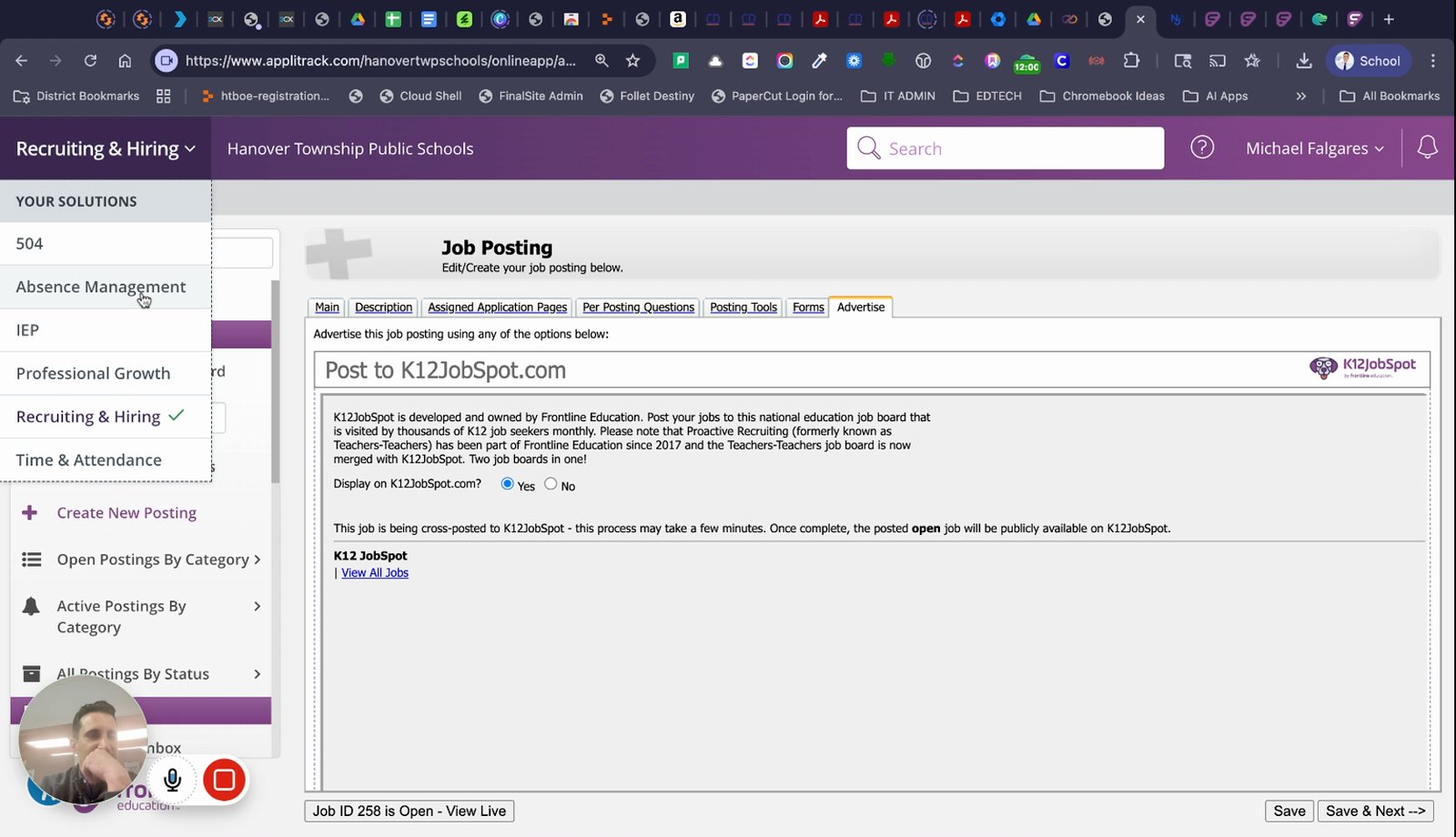
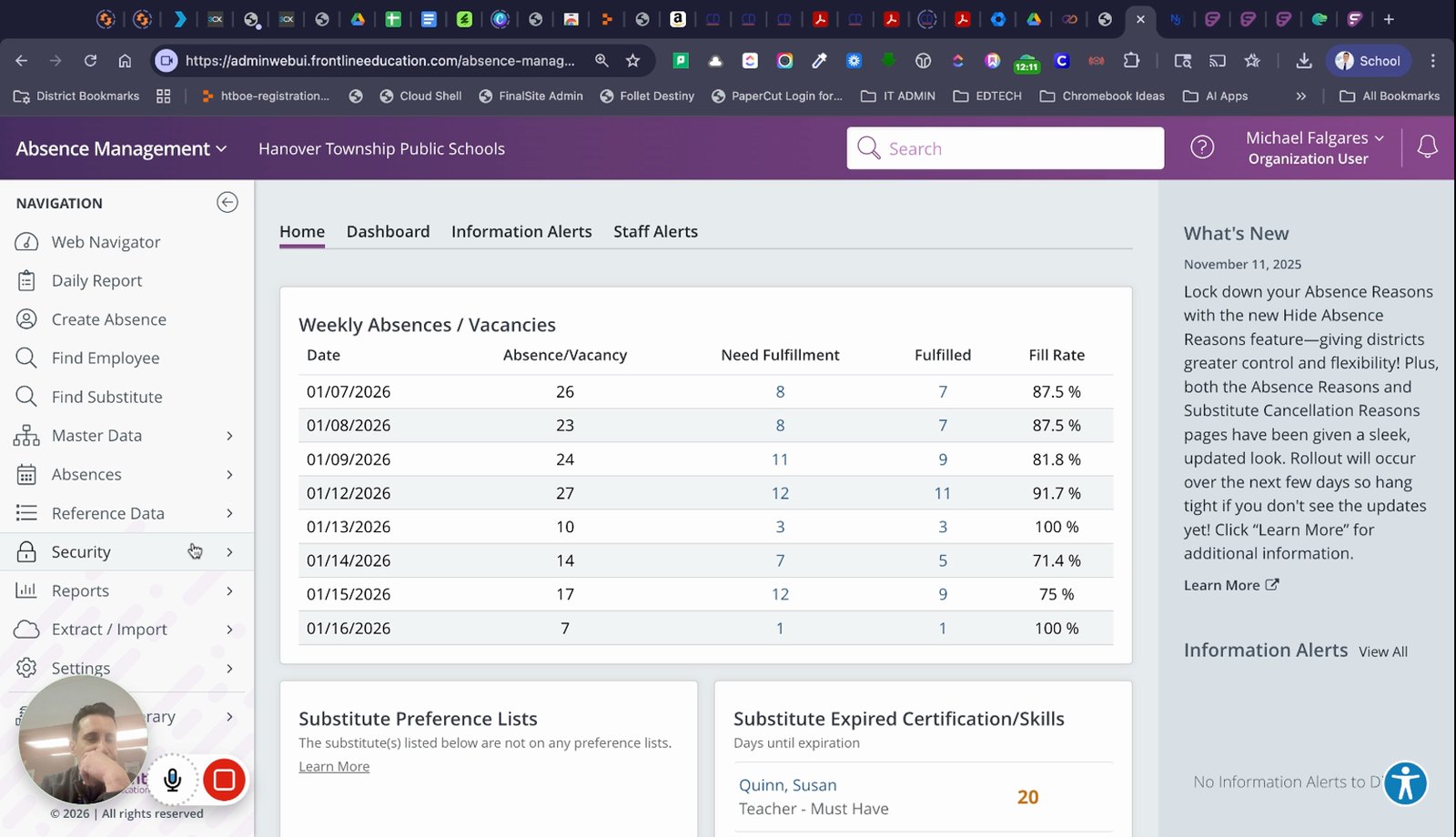
Go to security, then campus users
Access the security section to manage campus users.
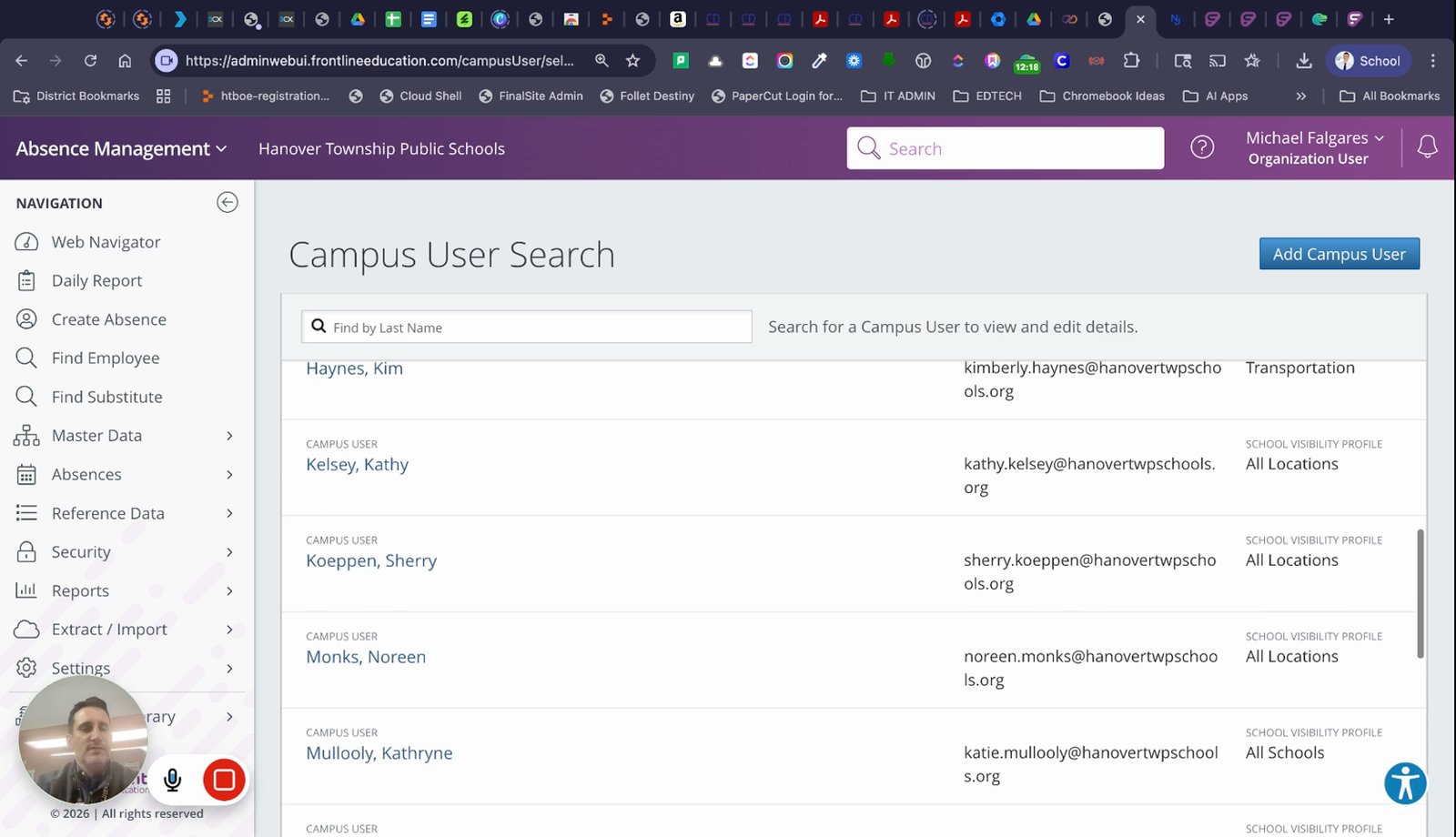
Search for the user's name
Find the user who needs access to the posting.
Click manage access on the side
Open the access management panel for the user.
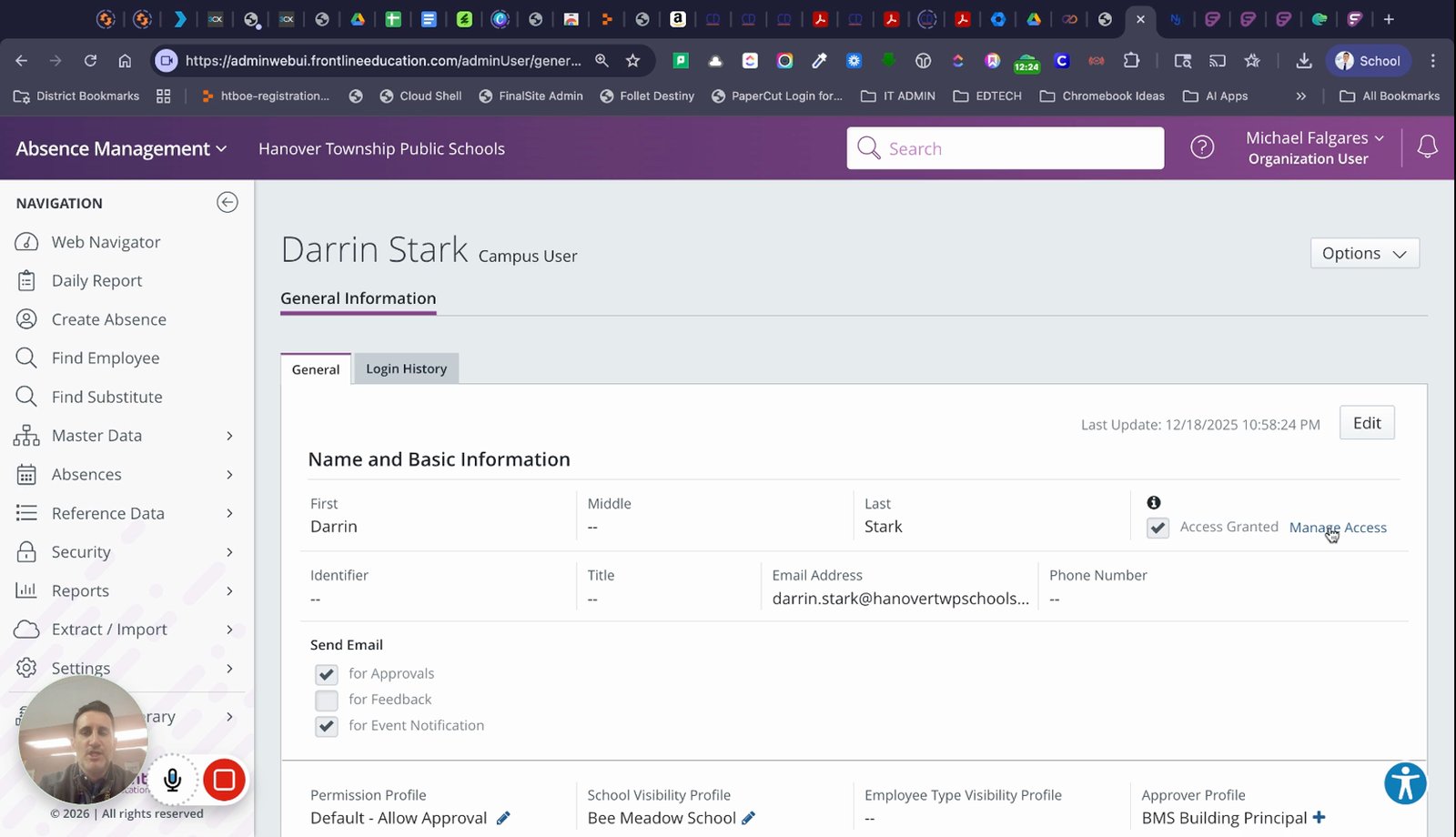
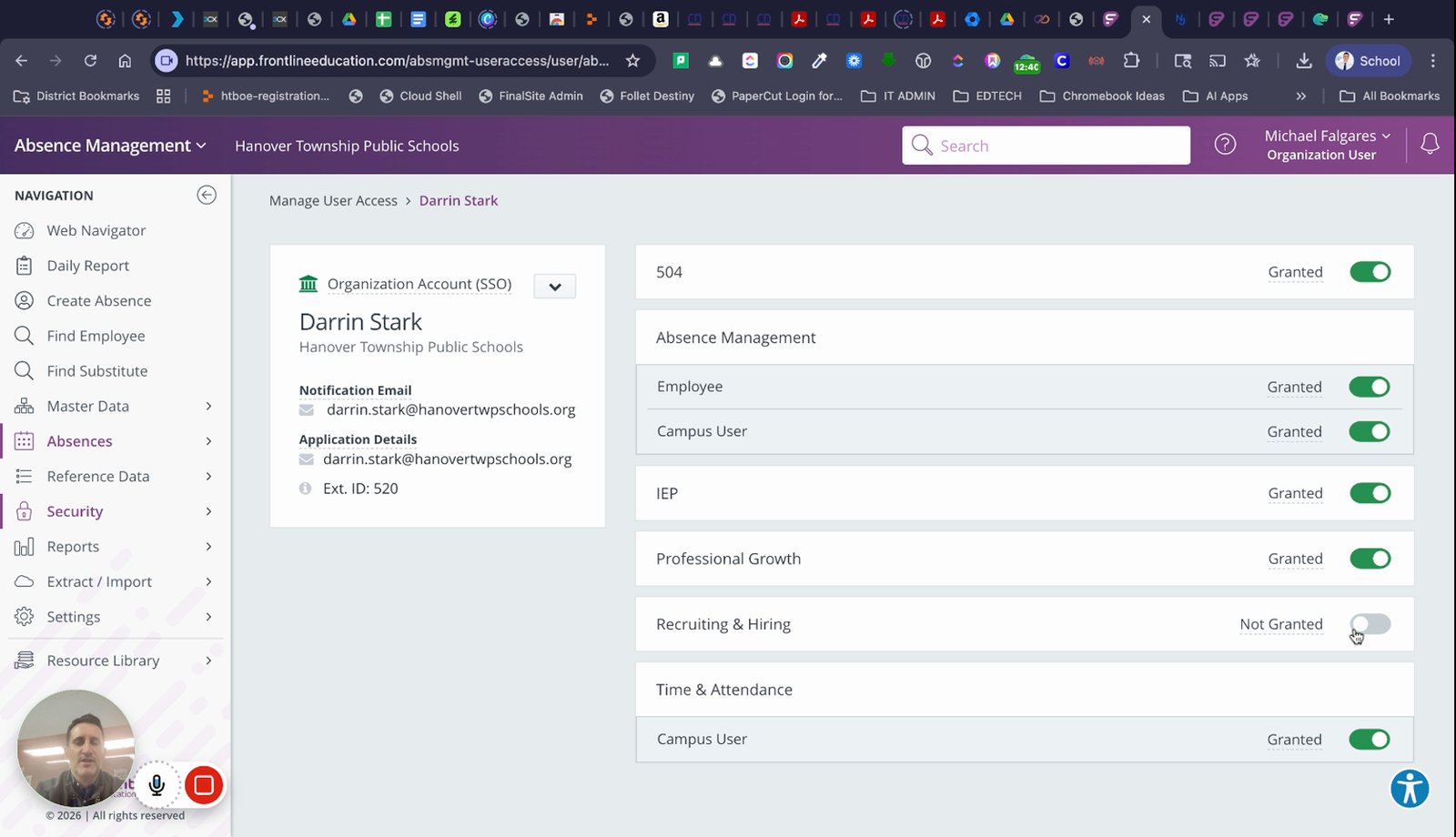
Ensure recruiting and hiring is enabled for the user
Turn on recruiting and hiring permissions as needed.
You made it to the end!
40 steps complete