Converting a Canva Website to a Shopify Landing Page Using Canfy App
Steps to publish a Canva website and convert it into a Shopify landing page with Canfy

Sakinur Rahman
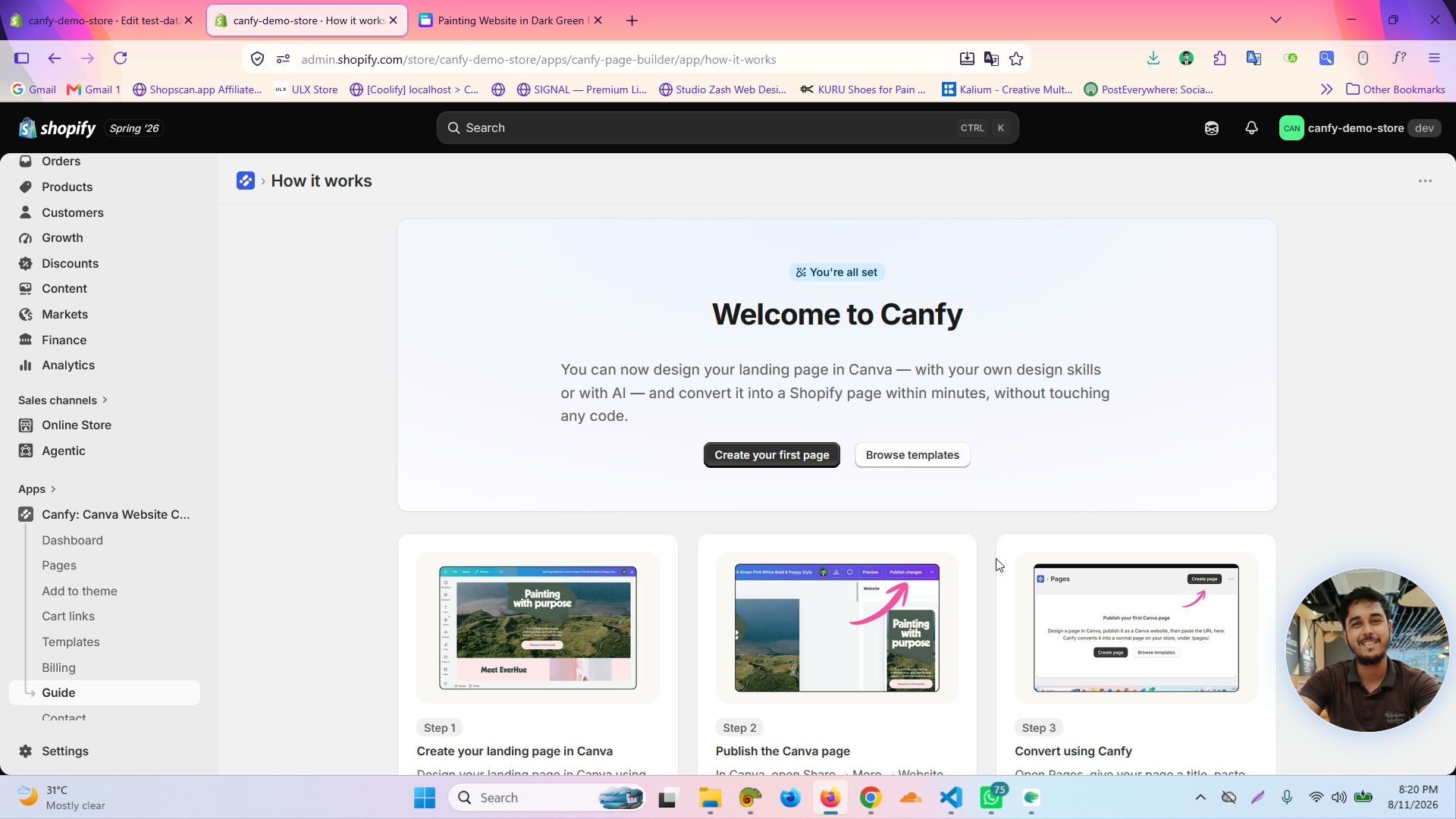
Publish your Canva website from the Canva editor

Click Settings in the Canva editor's publish panel

Disable Navigation menu and enable Resize on mobile toggles

Click Publish to finalize your Canva website publication
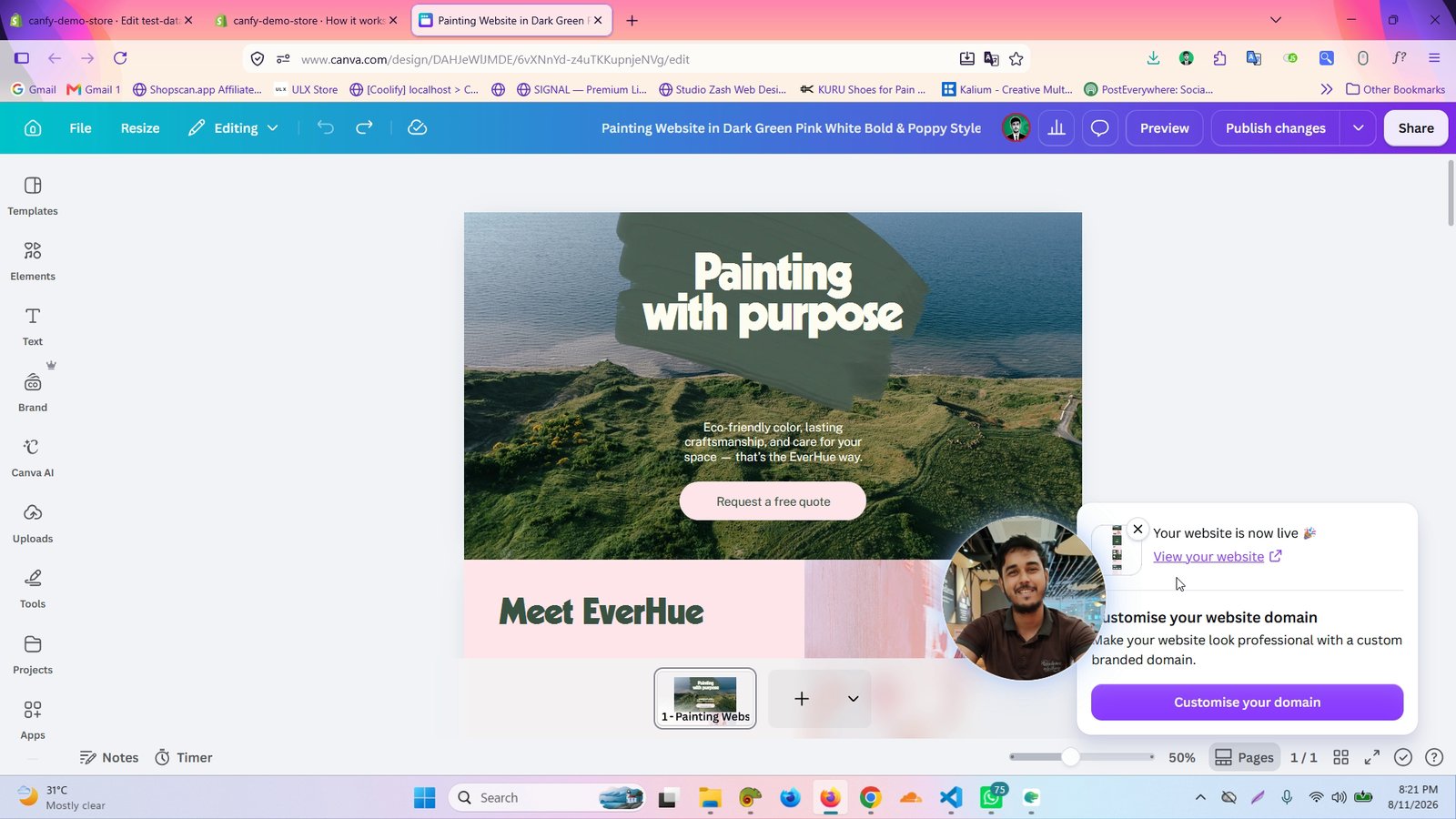
Copy the public URL of your published Canva website

Click Create your first page in the Canfy Shopify app
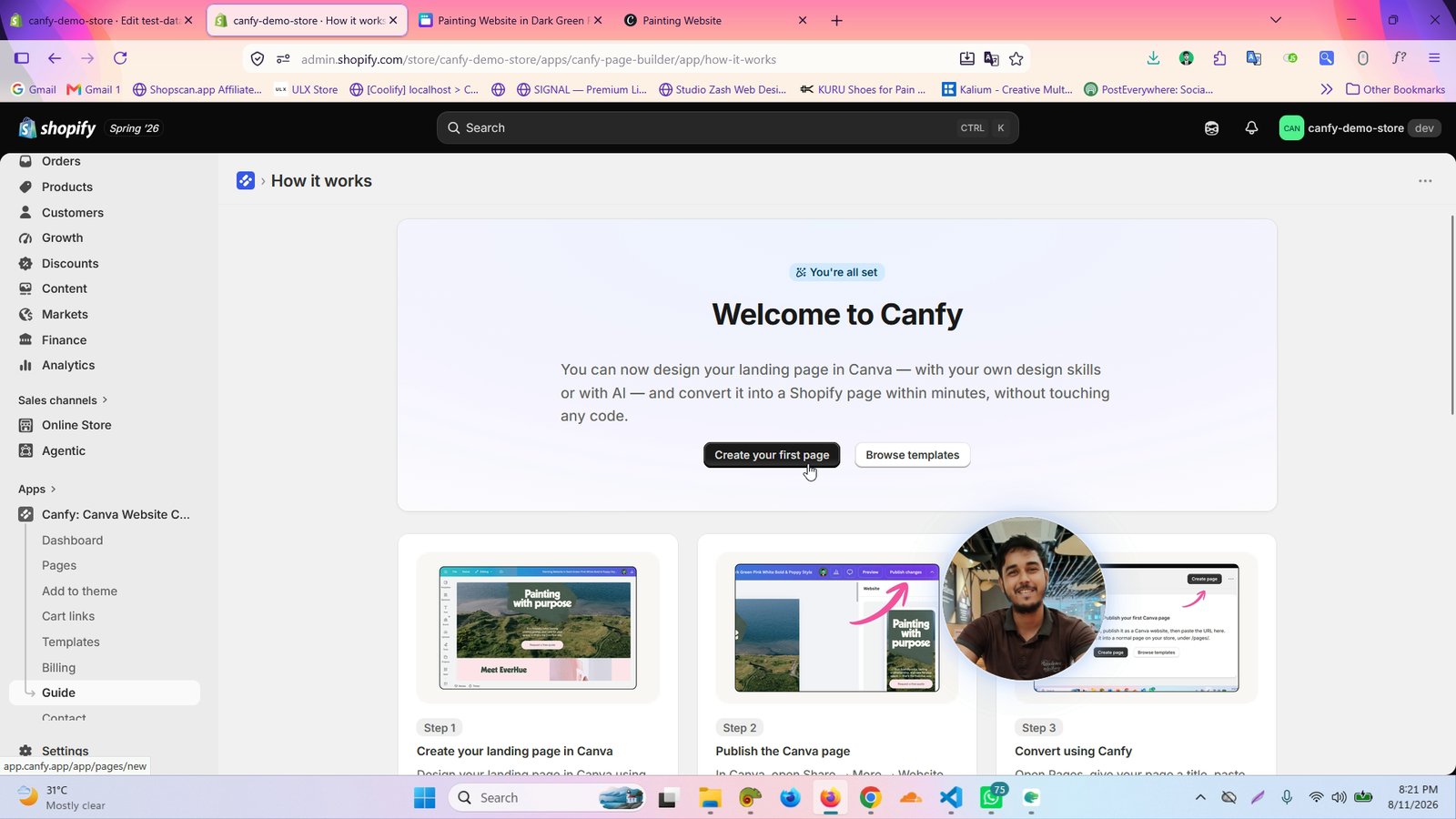
Click Pages in the Canfy Shopify app sidebar

Paste your Canva website URL and enter a page title
Use a descriptive name like 'Painting Website'

Change the Slug field if desired
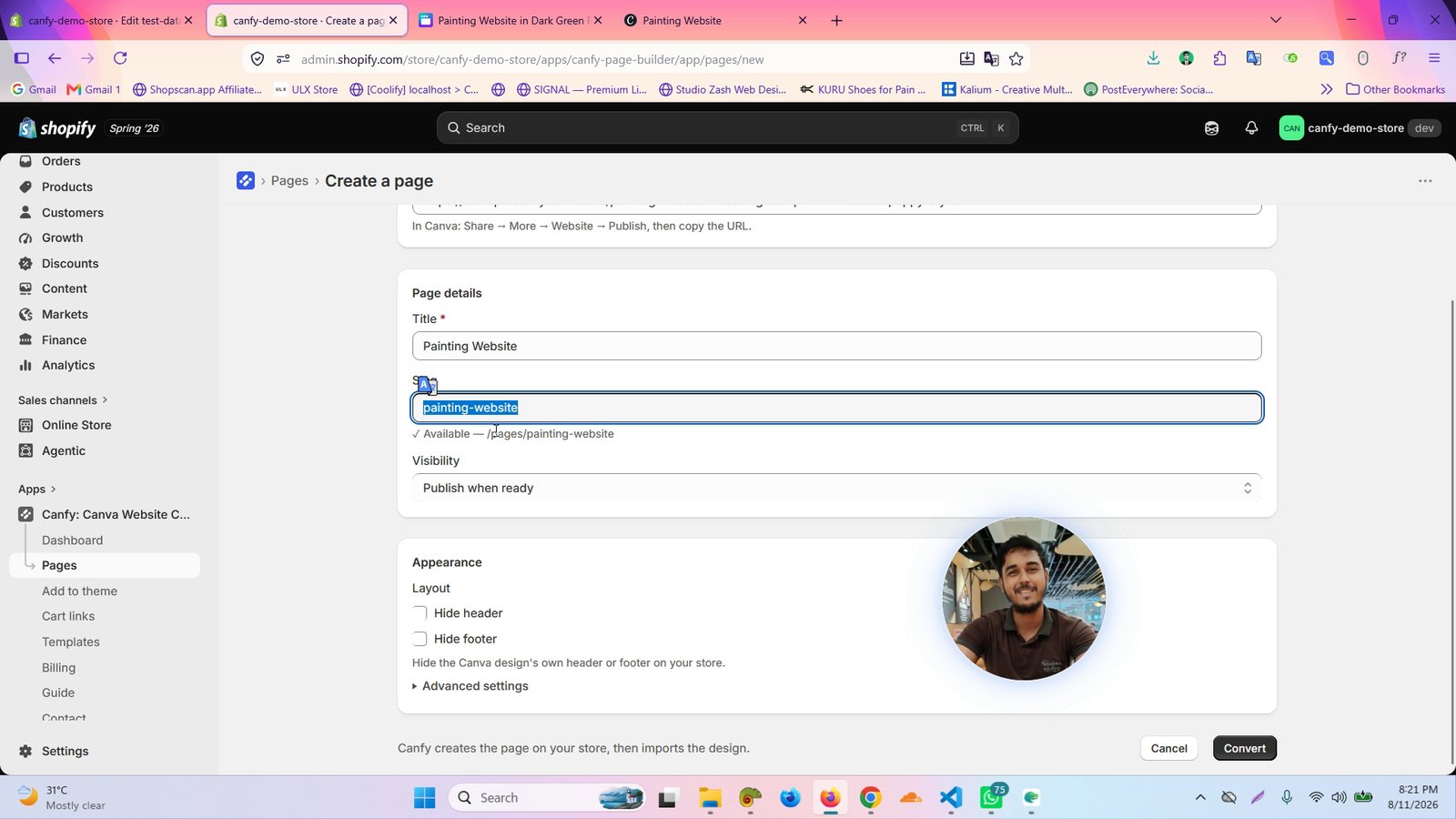
Set Visibility to Publish when ready

Review Appearance settings including Hide header, Hide footer, and Advanced settings

Click Convert to convert your Canva page to a Shopify page

Wait a few seconds for the page to convert and become live
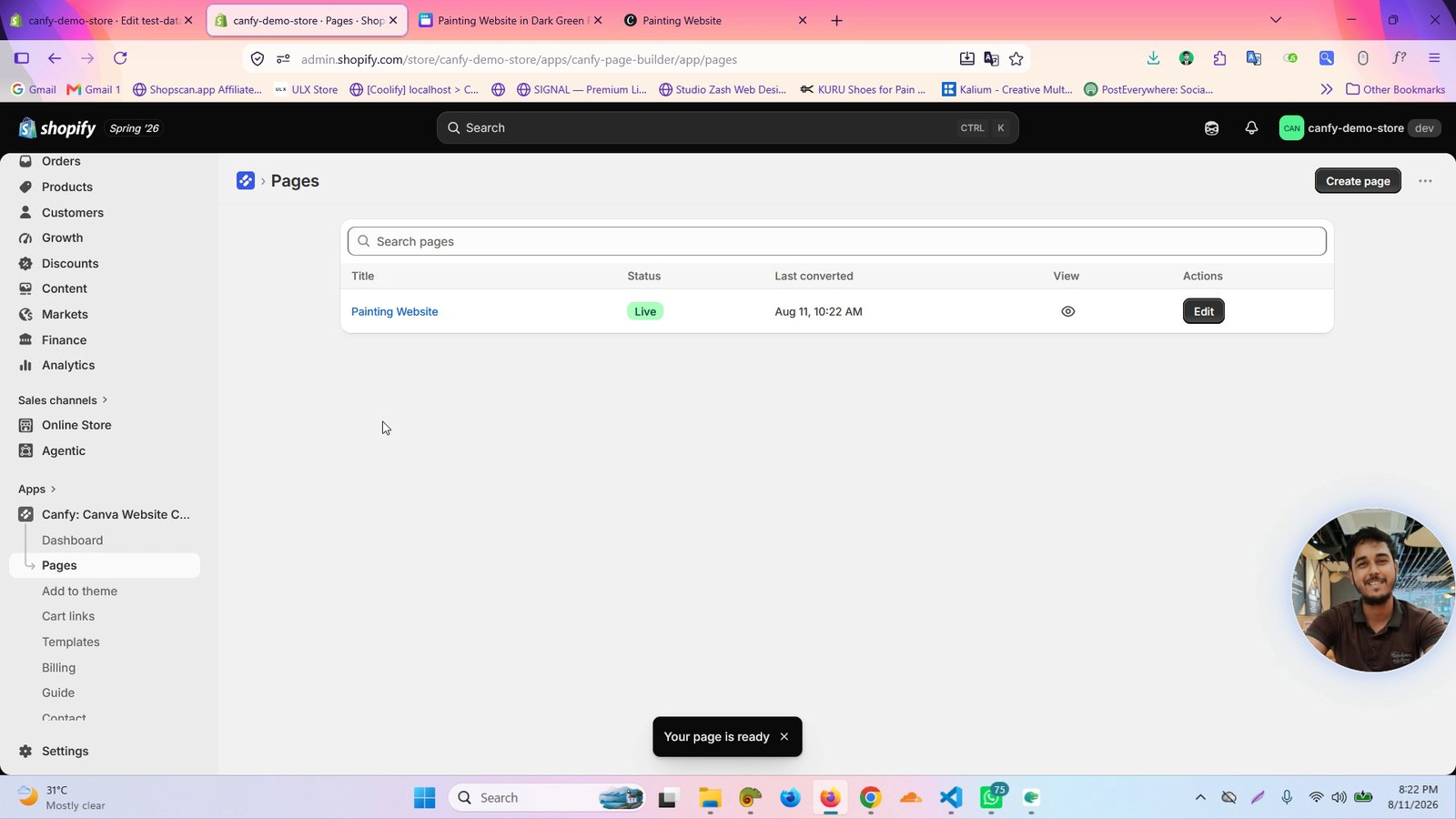
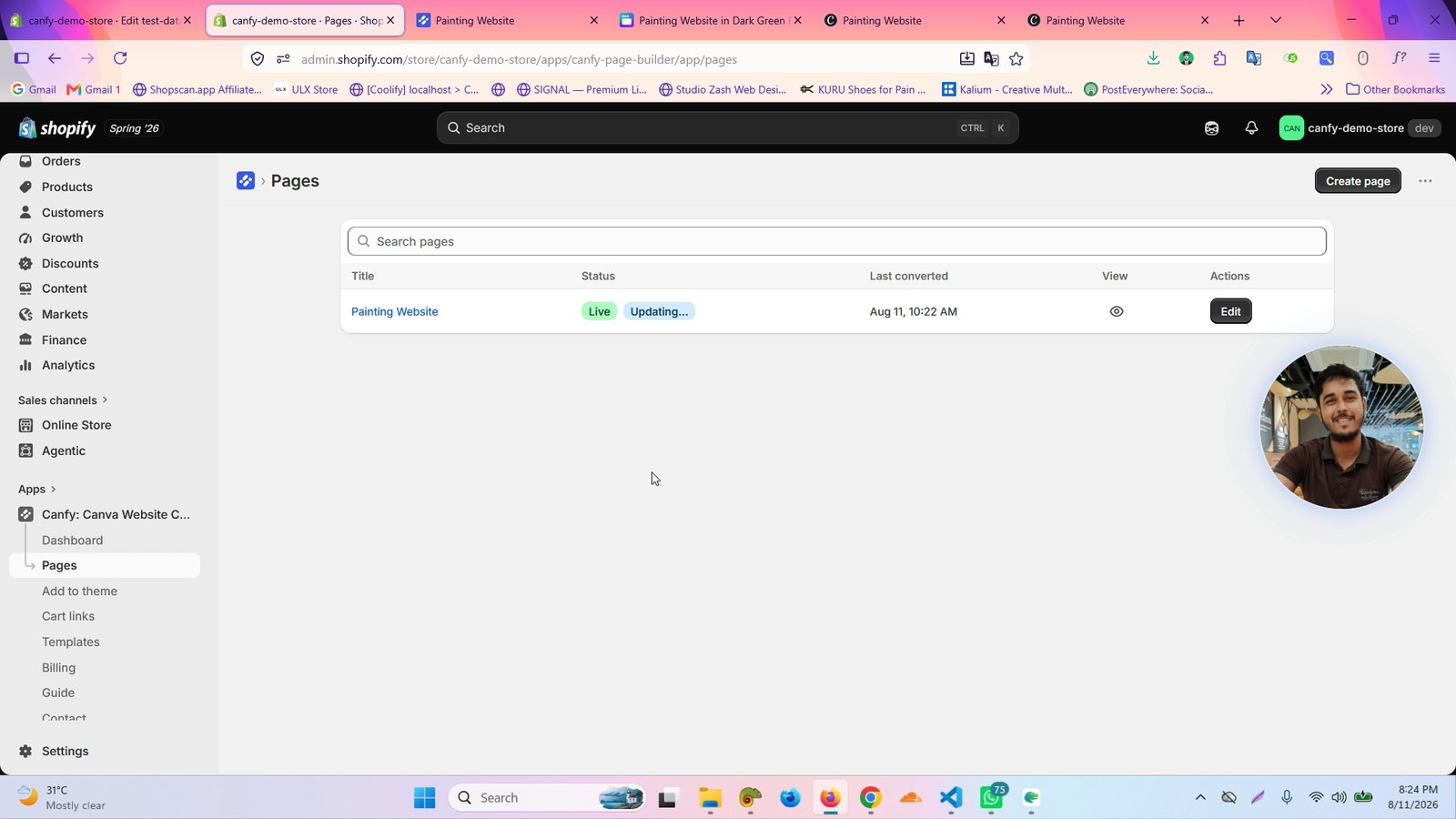
View the converted page in the Shopify Pages list
The page status shows as Live
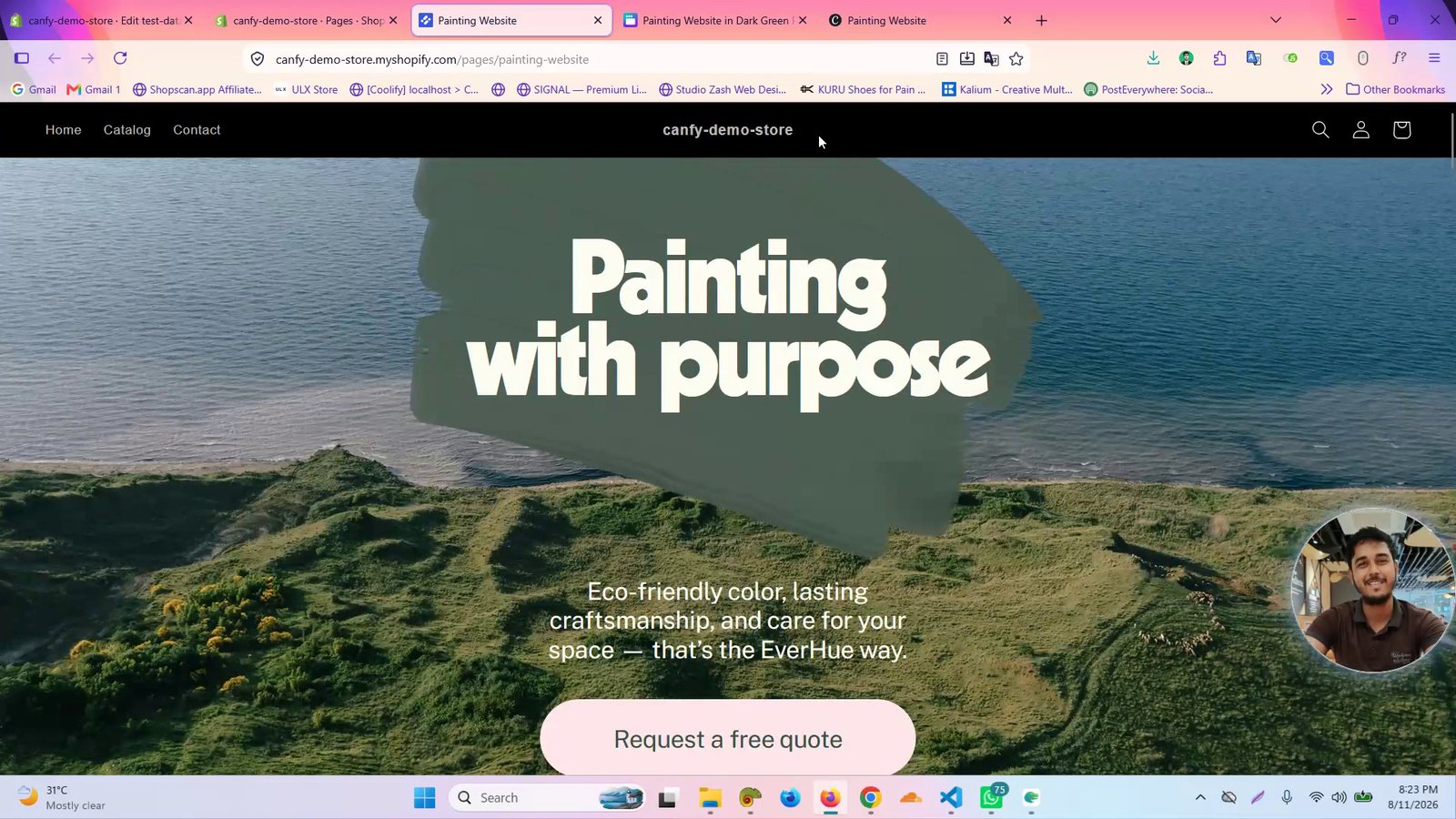
Confirm the Shopify page matches your Canva website design

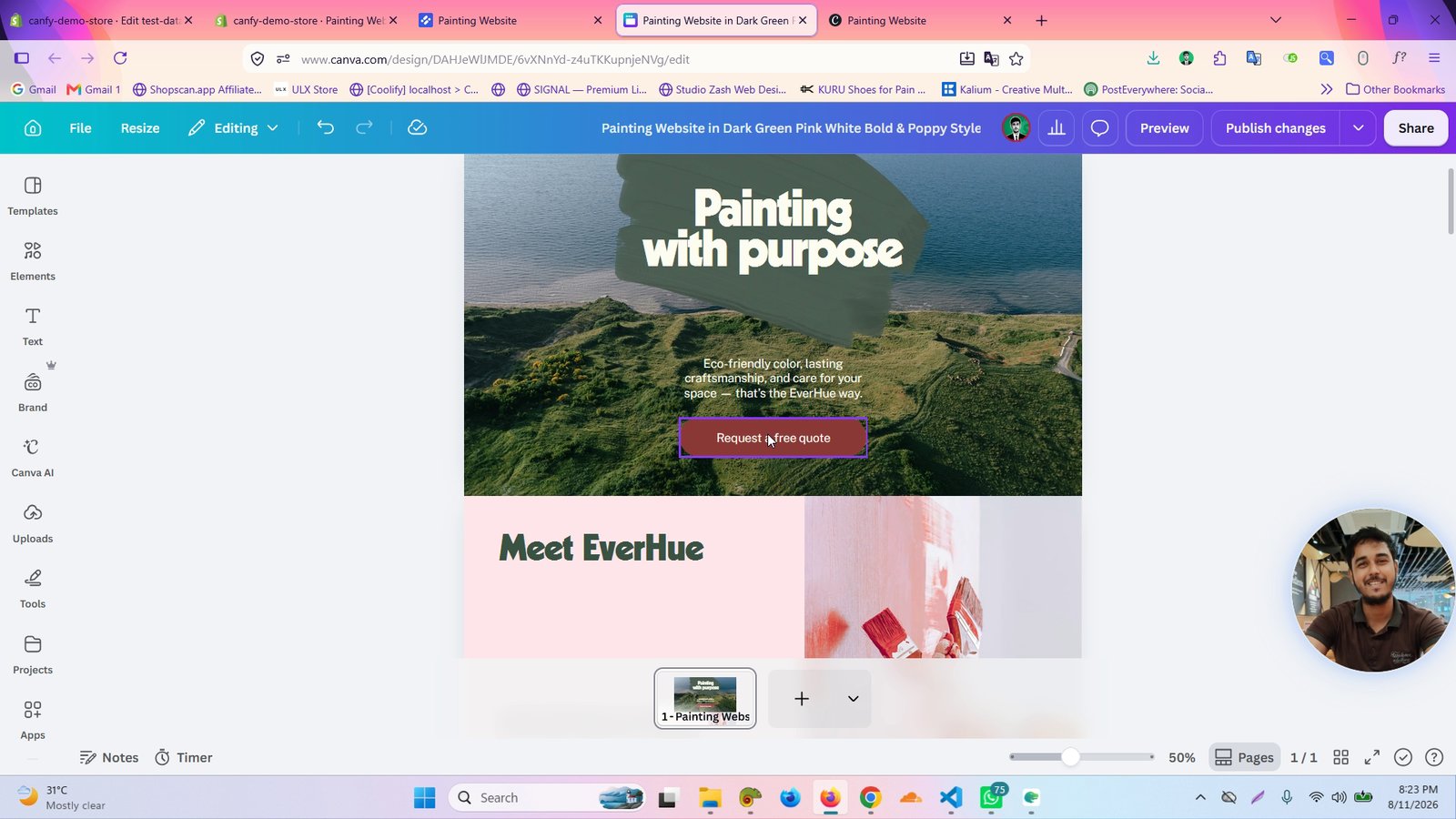
Edit your Canva website to make changes if needed

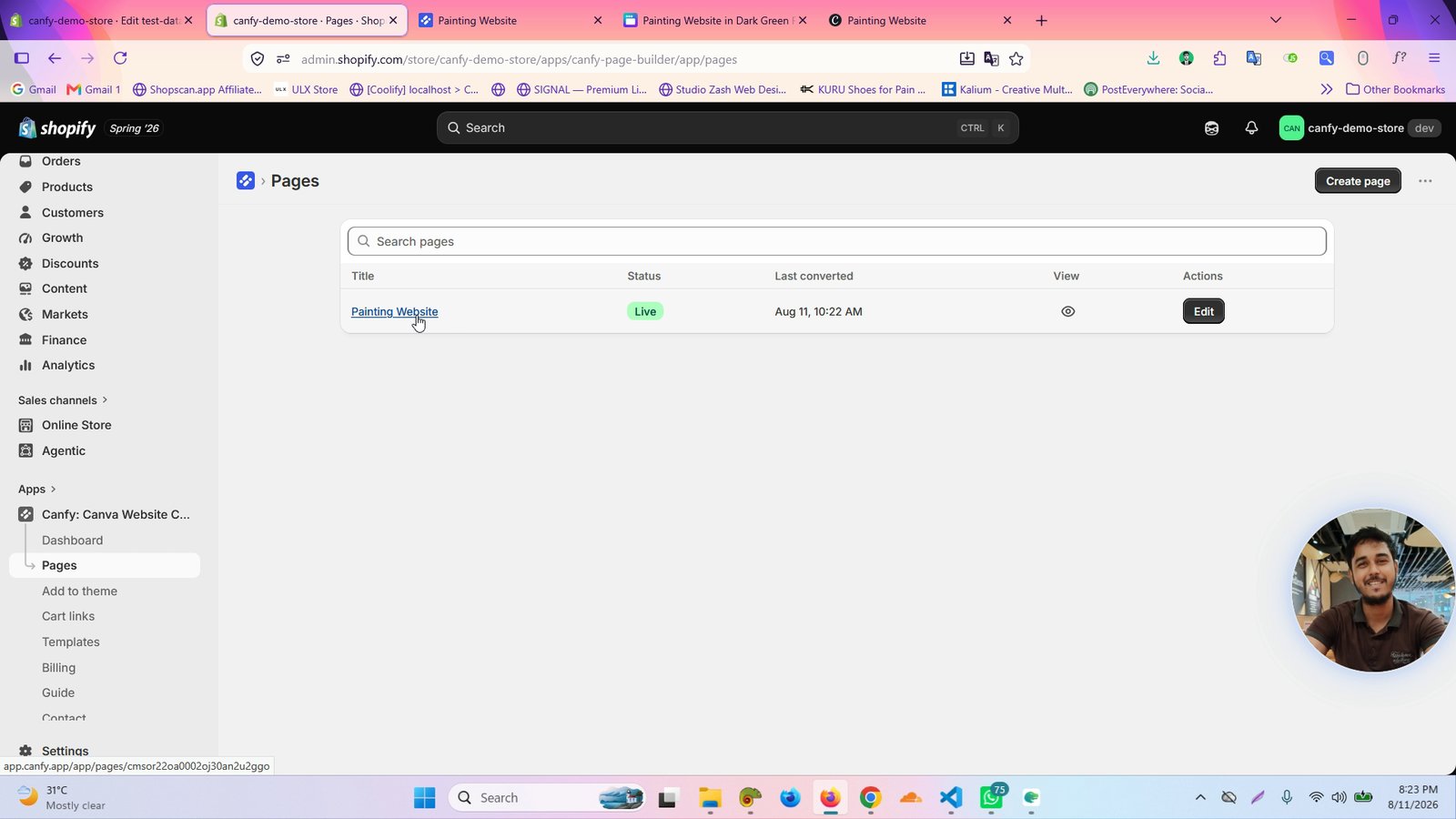
Click the page link in Shopify to edit the converted page
Publish changes in the Canva editor after editing
Click the toggle switch next to Update in Shopify to refresh the page
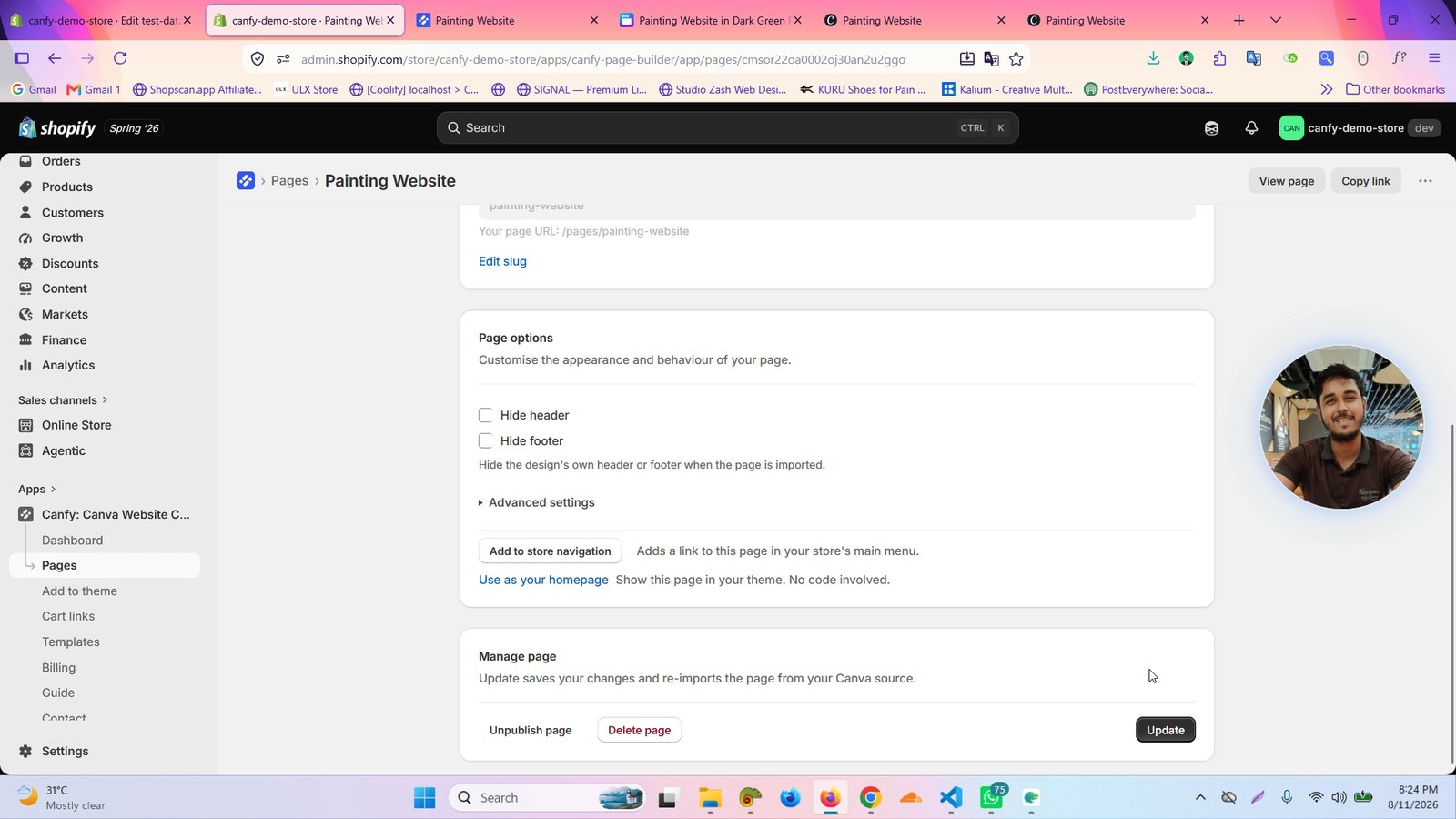
Click Edit for the page in Shopify to confirm update progress
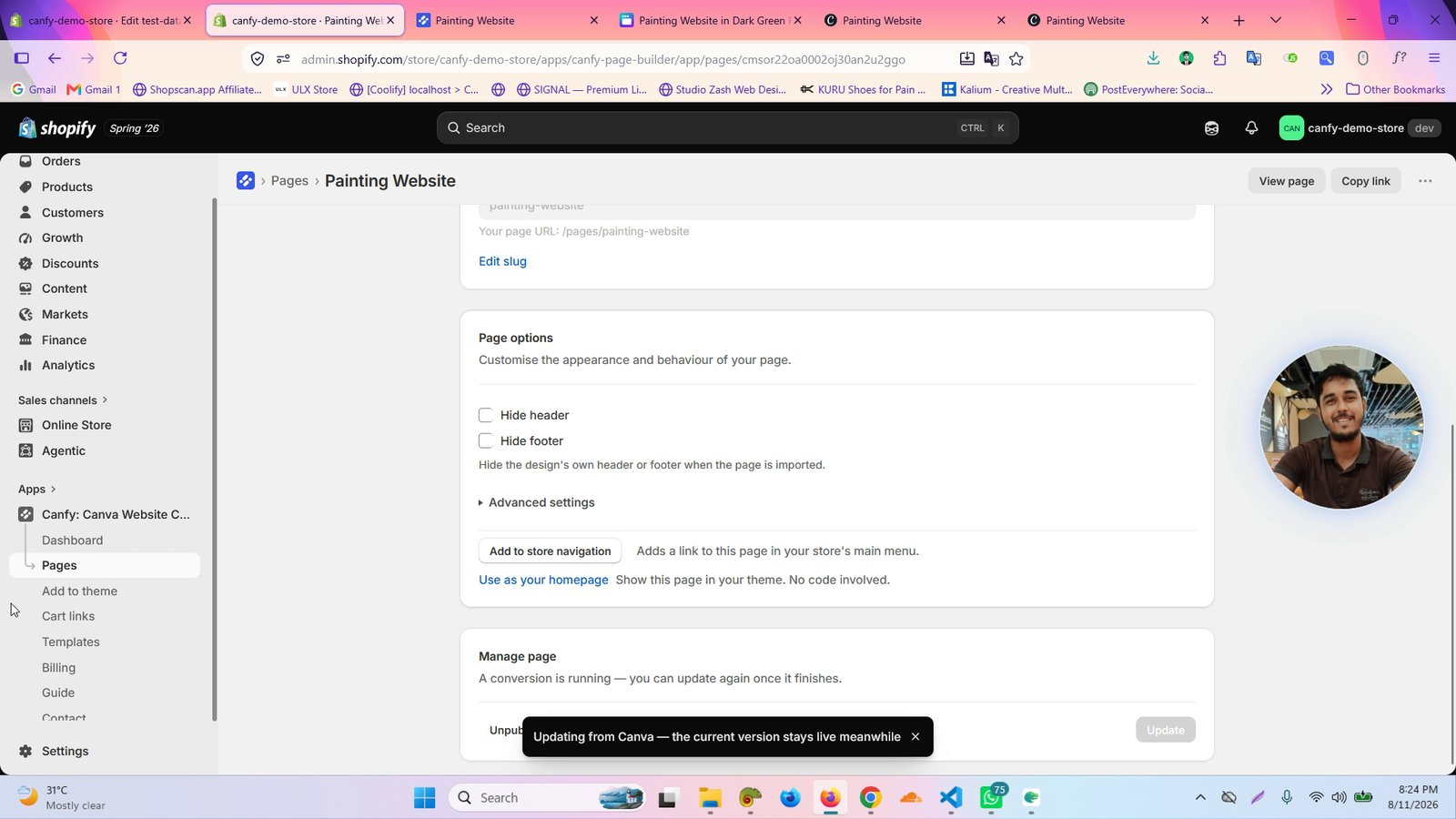
Wait for the page to update automatically without coding
You made it to the end!
21 steps complete