
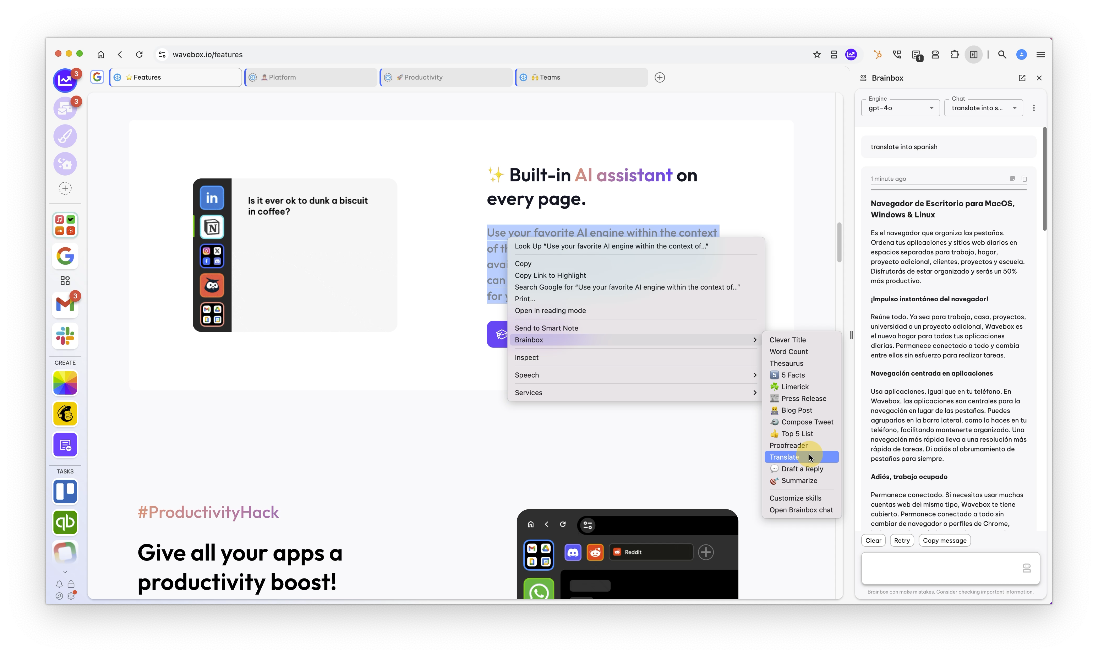
Translate a full page: In the Brainbox chat panel, click the 'Include page' radio button above the chat box.
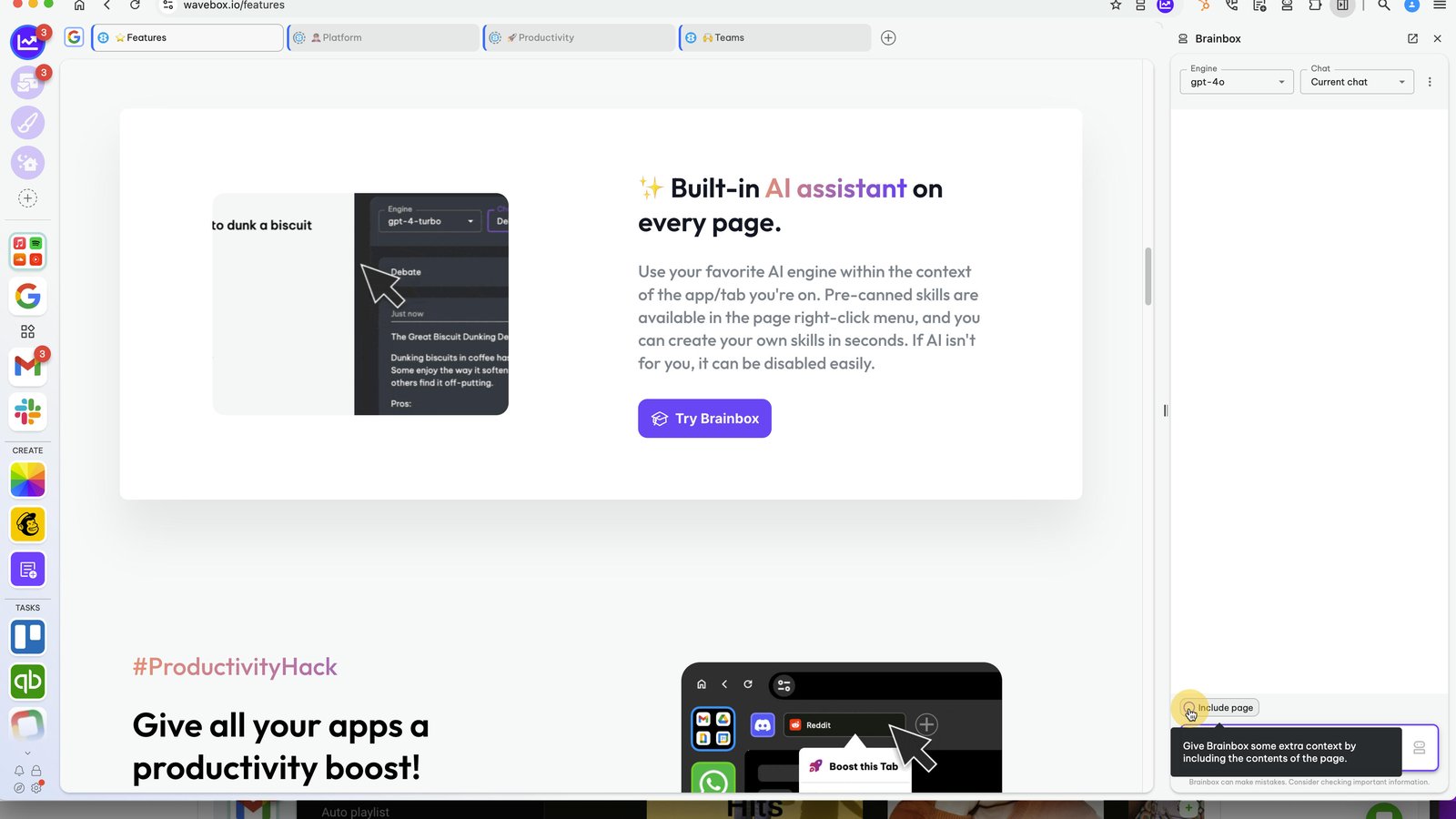
Type 'Translate into Spanish' into the chatbox.

In the top-right, click on the icons to copy the text or save it as a Smart Note.
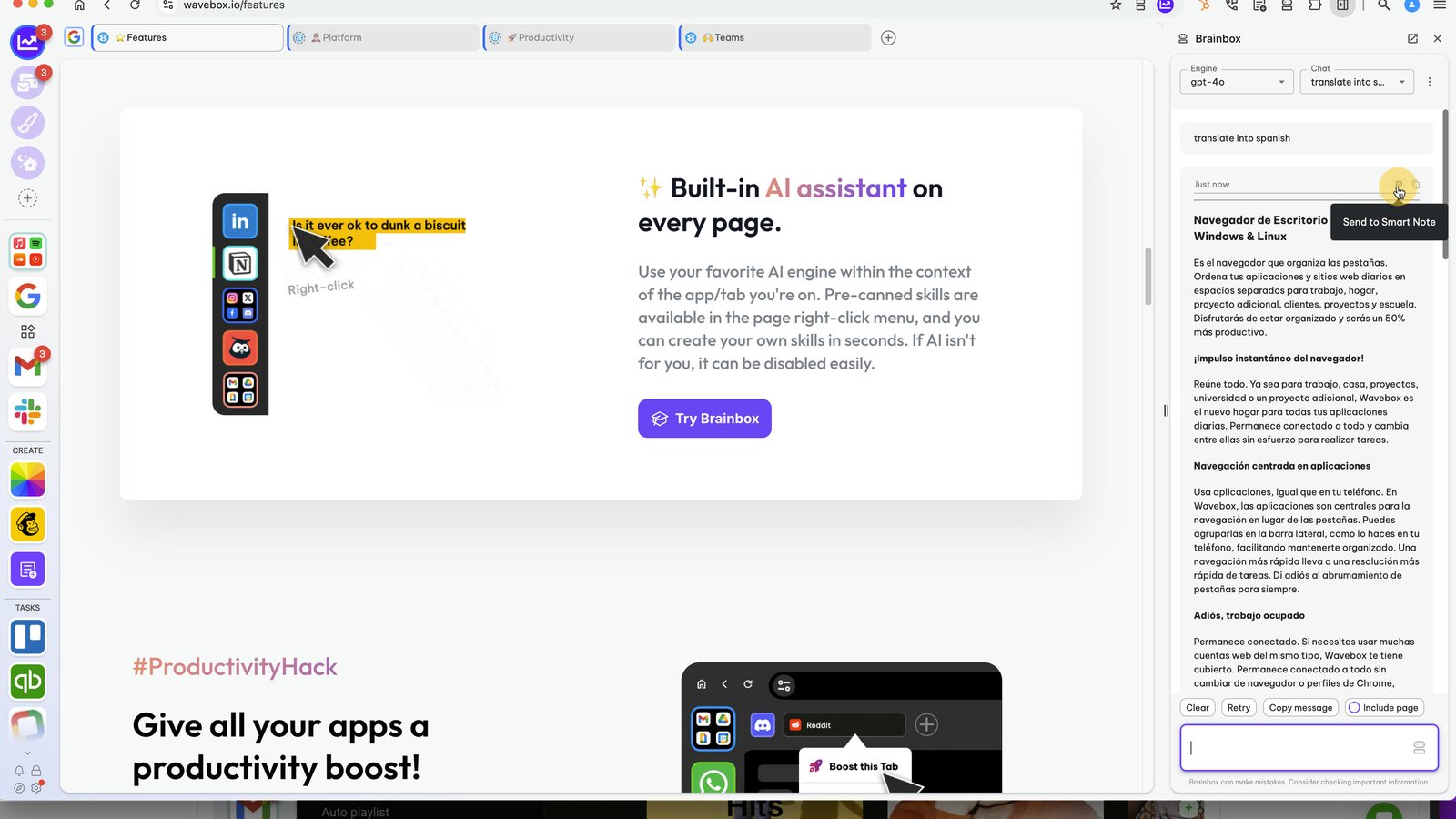
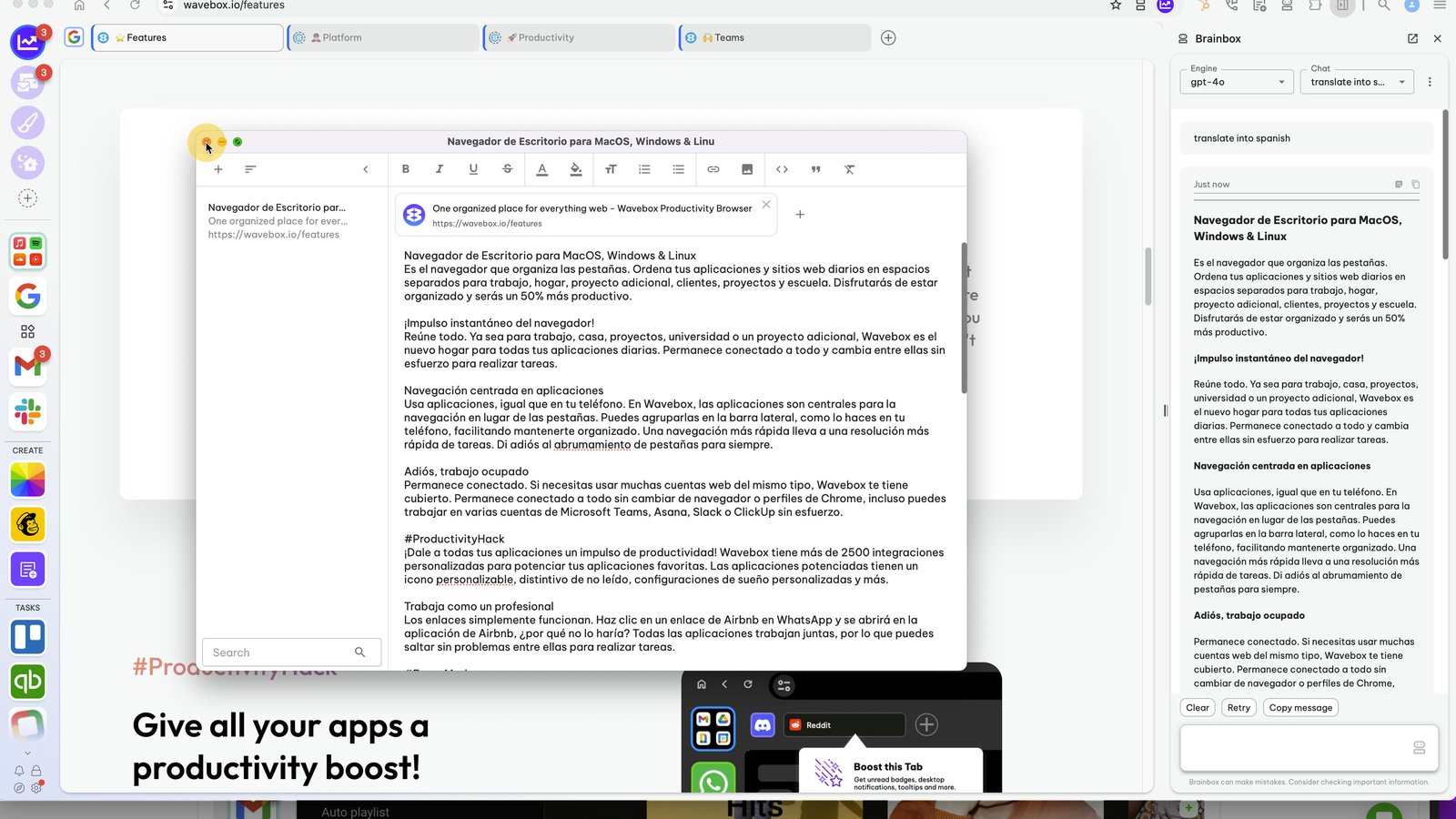
Saving it as a Smart Note will open the Smart Notepad.
Translate a paragraph: right-click on the text and select Brainbox > Translate.
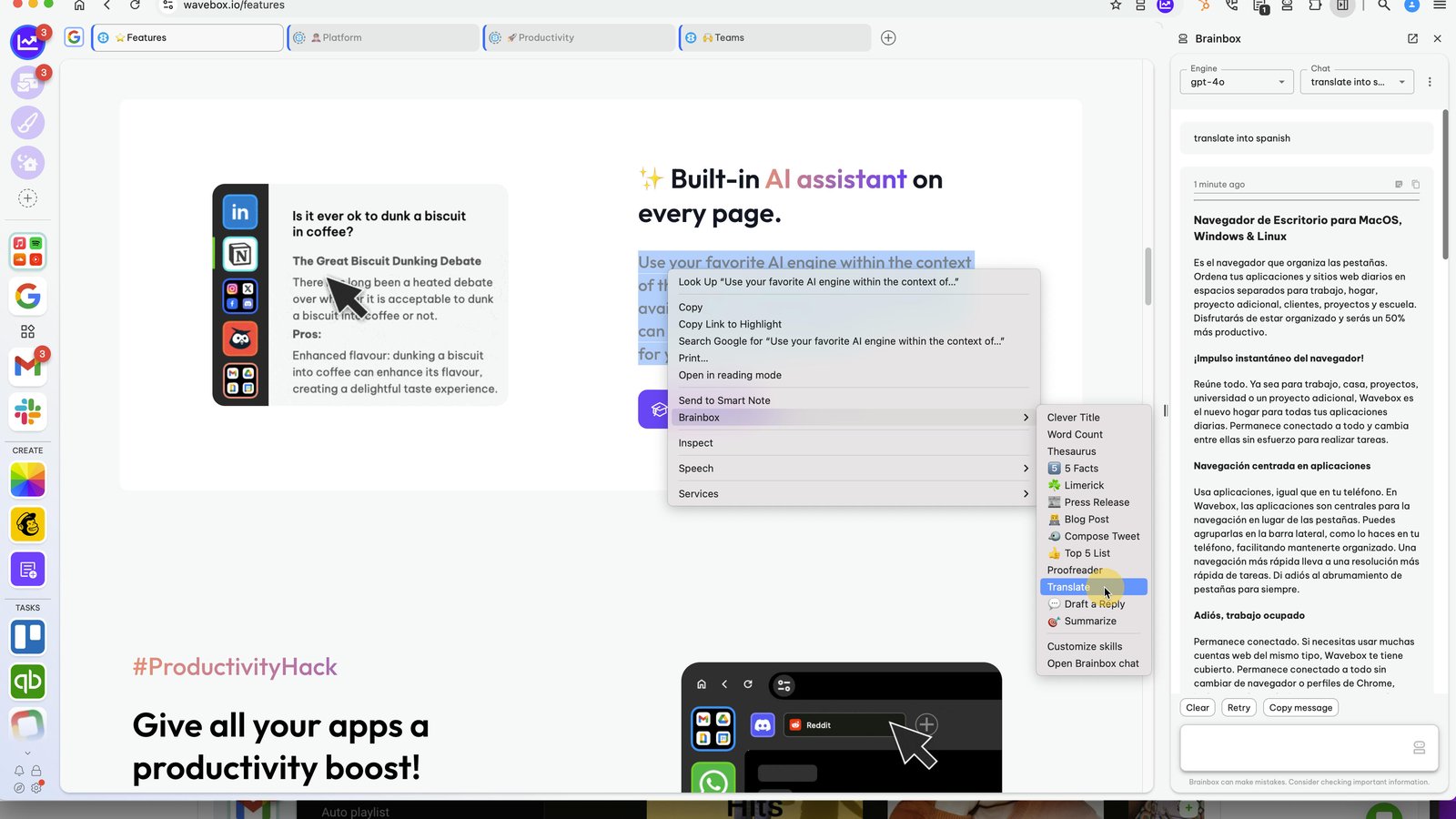
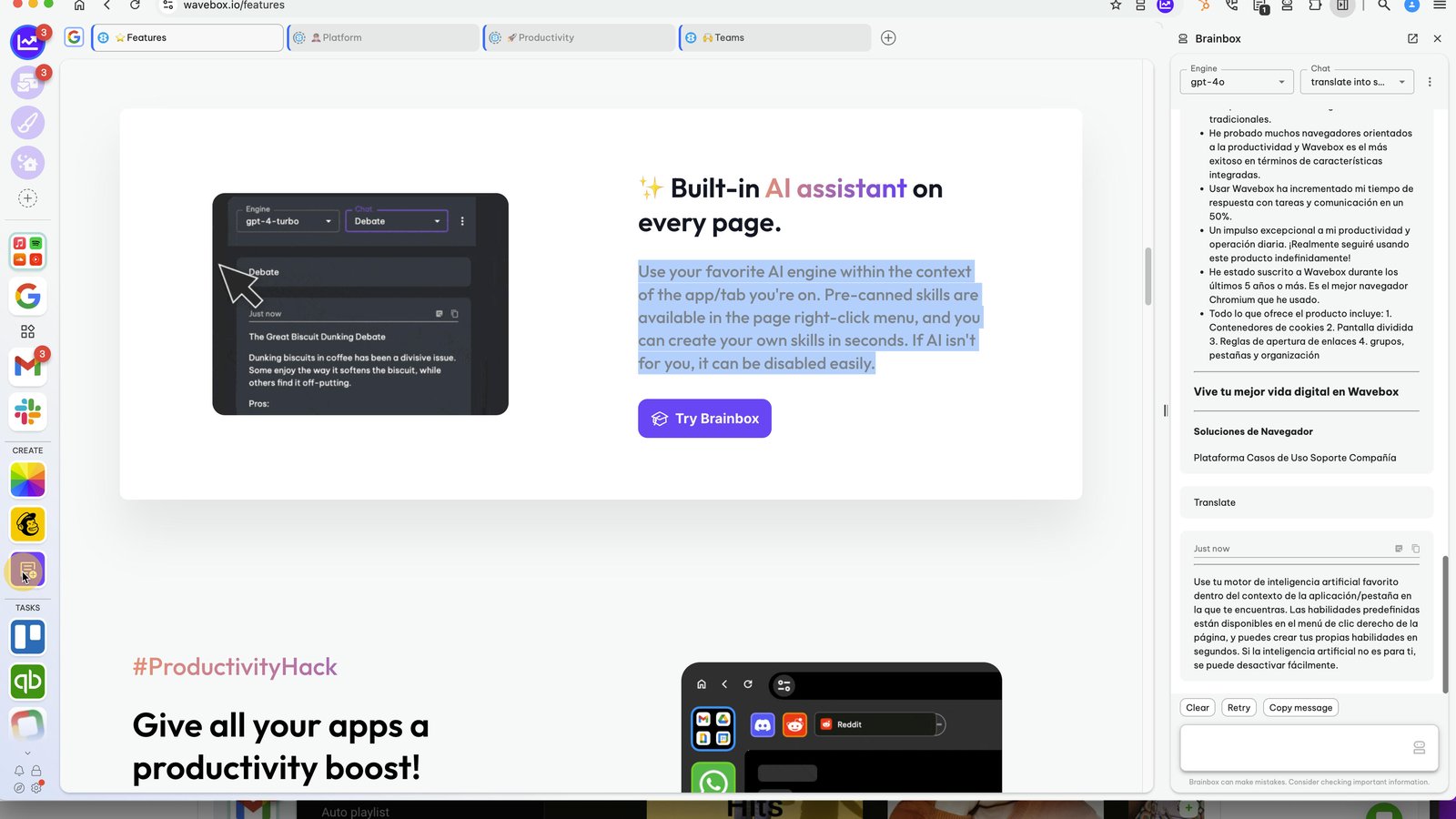
The translation appears in the chat panel for you to copy or send to a Smart Note.
This uses a built-in Skill (Prompt). By default, it will translate into the language of your operating system - mine is 'English'. However, Brainbox knows that because the text is already in English, I probably want it in Spanish.
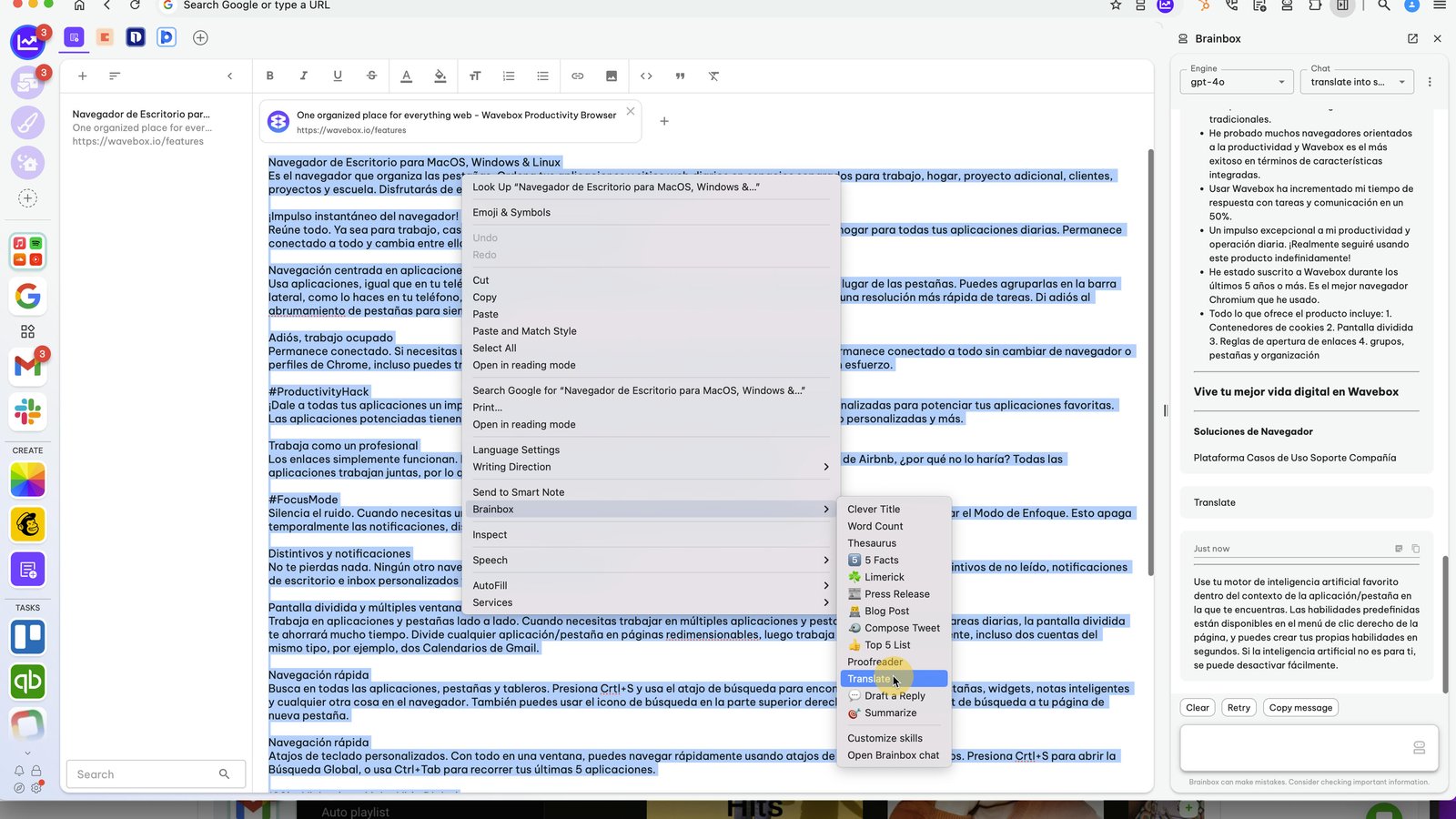
If we use the same Skill on a Spanish paragraph, it will translate into my OS language which is English.
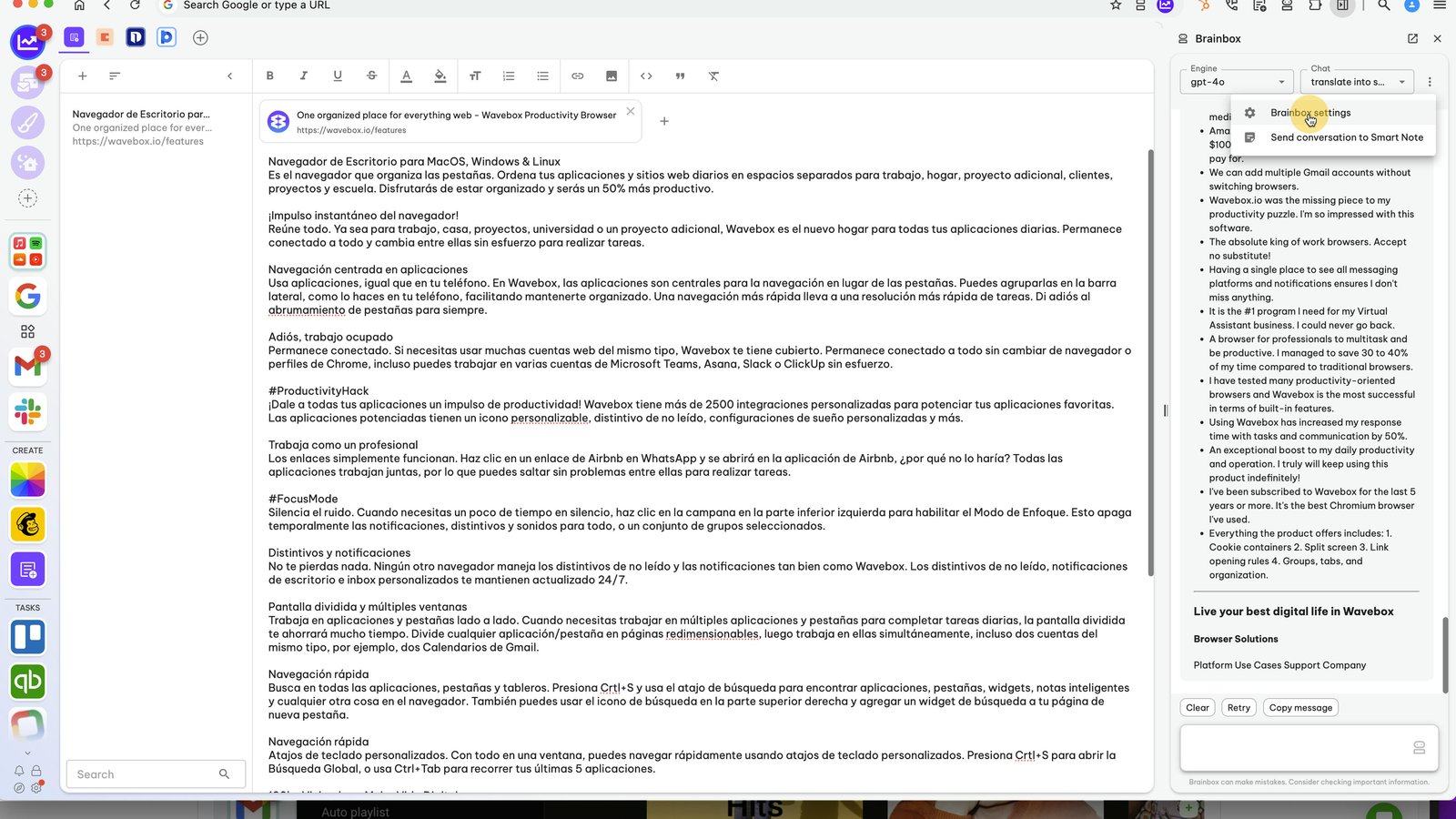
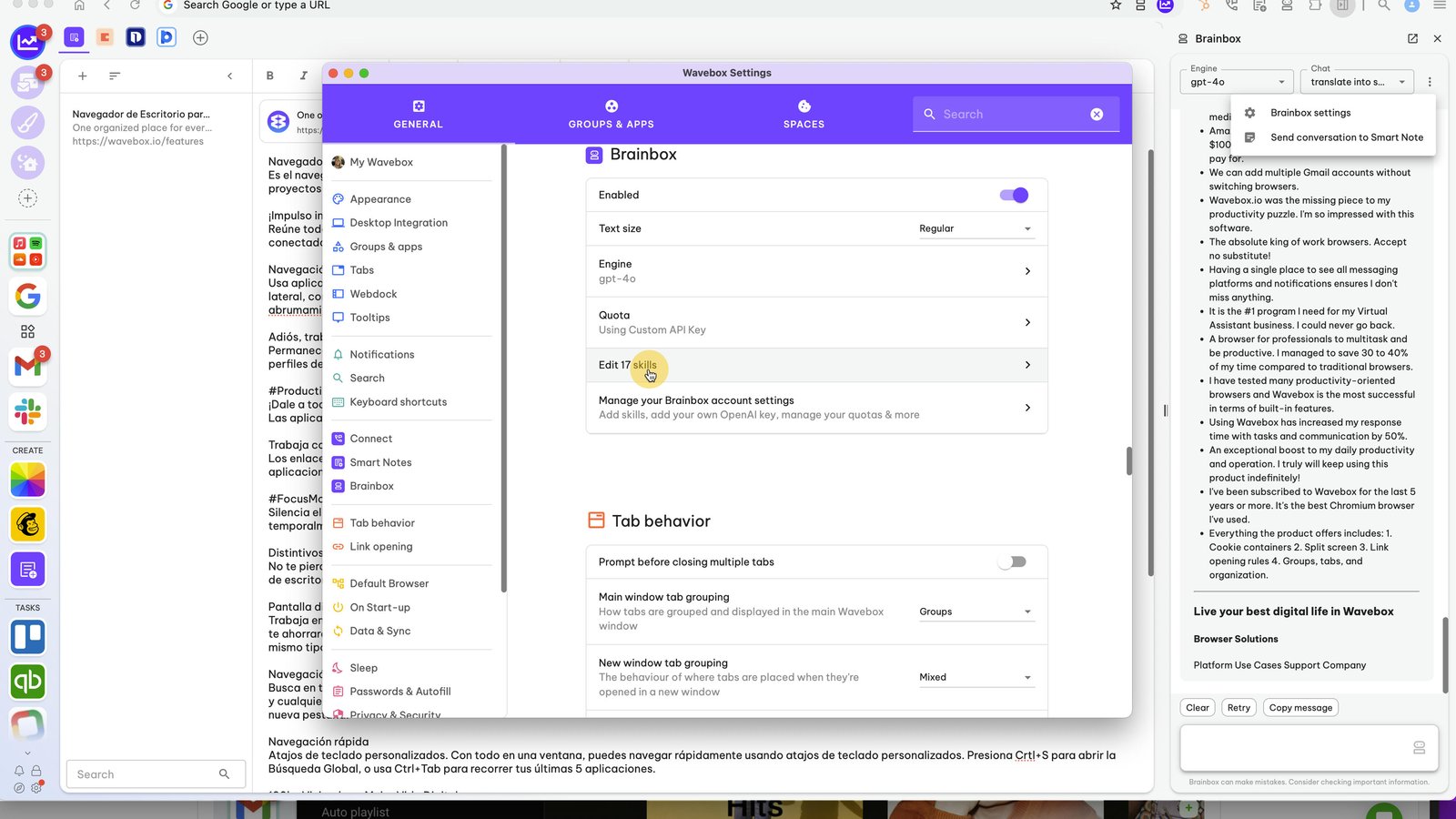
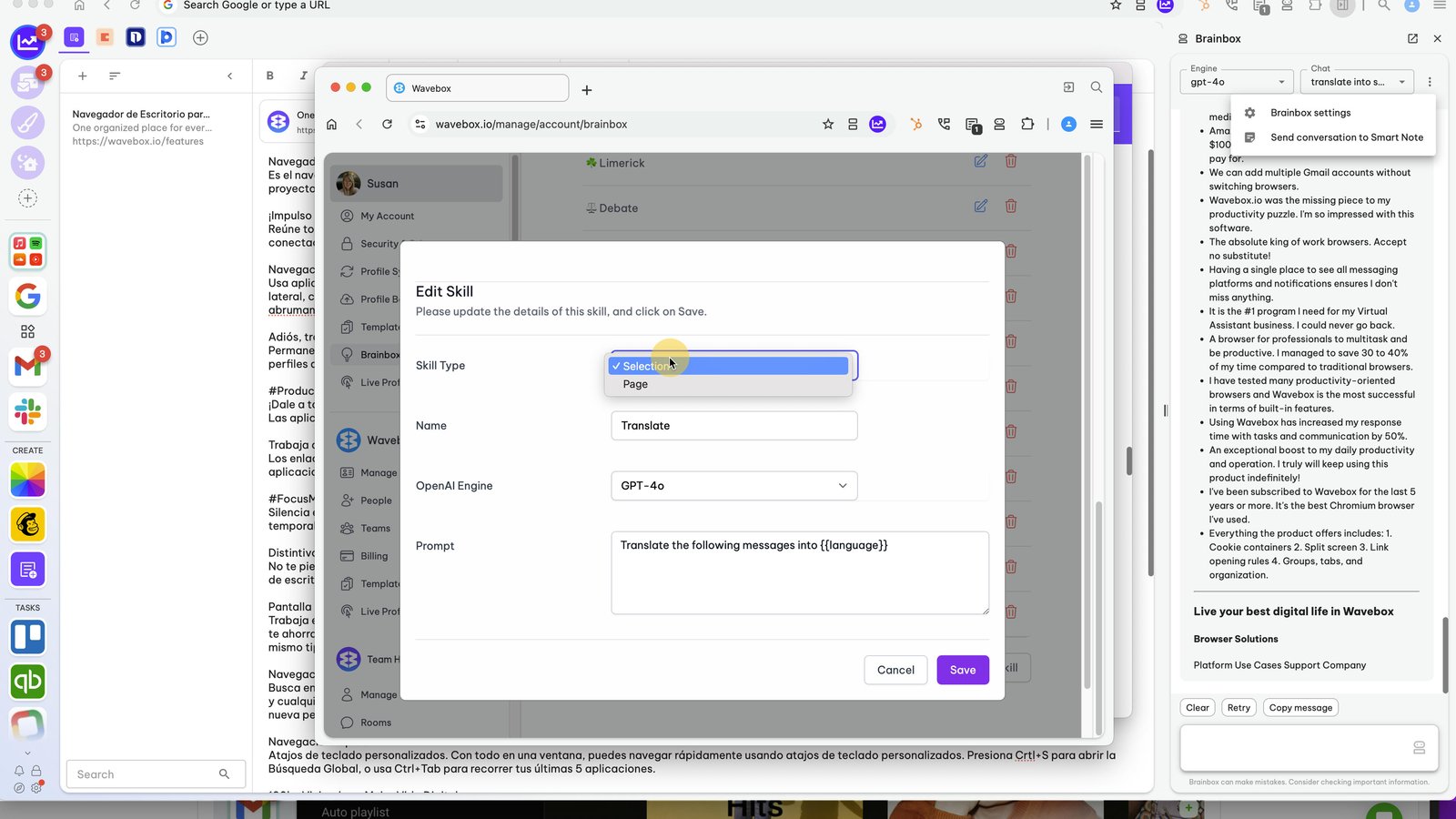
Editing Skills - click on the Brainbox kebab menu (three dots) and select 'Brainbox Settings'.
In the Brainbox section of Settings, click on 'Edit Skills'
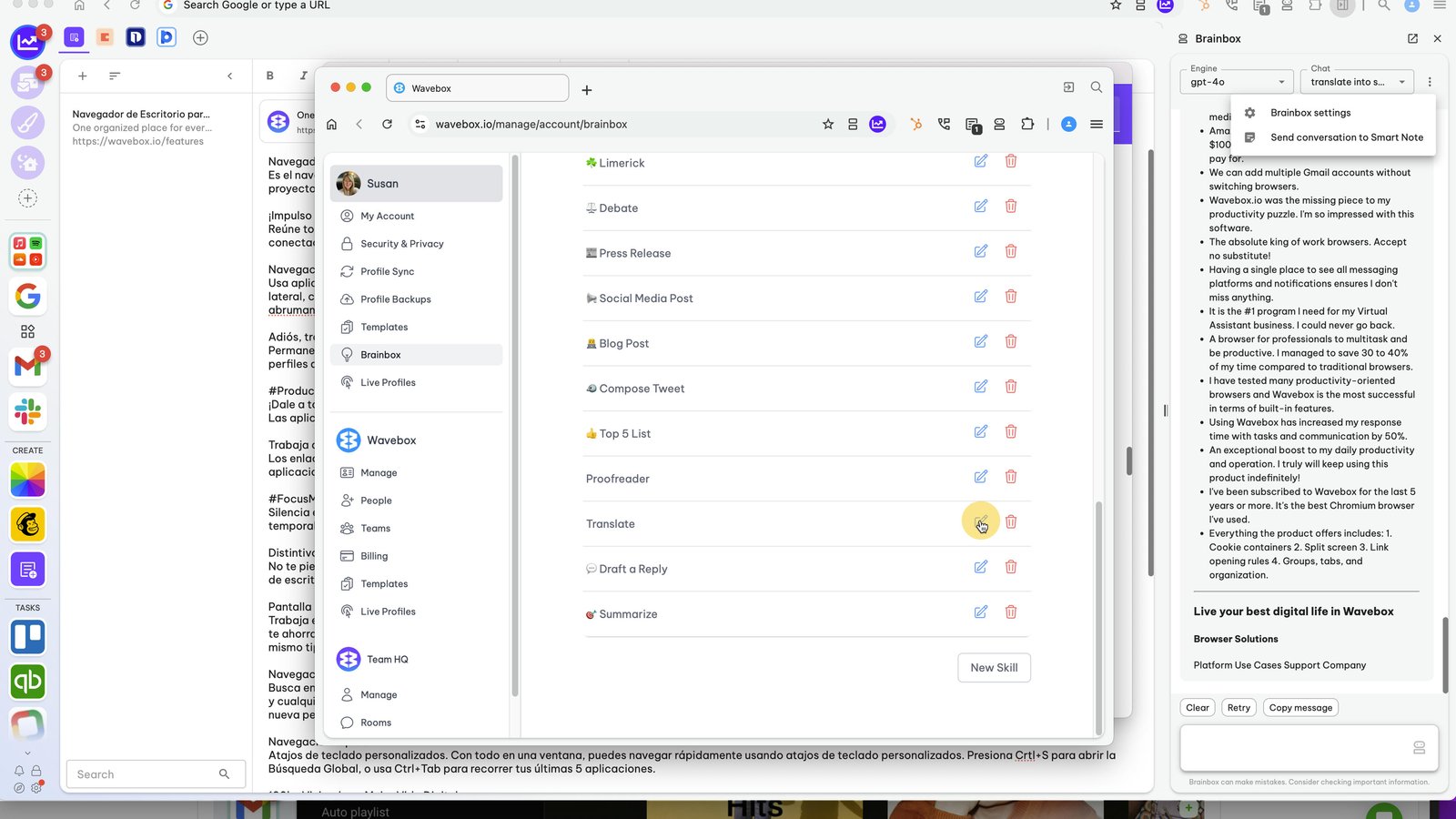
Find the Translate skill and click on the Edit icon.
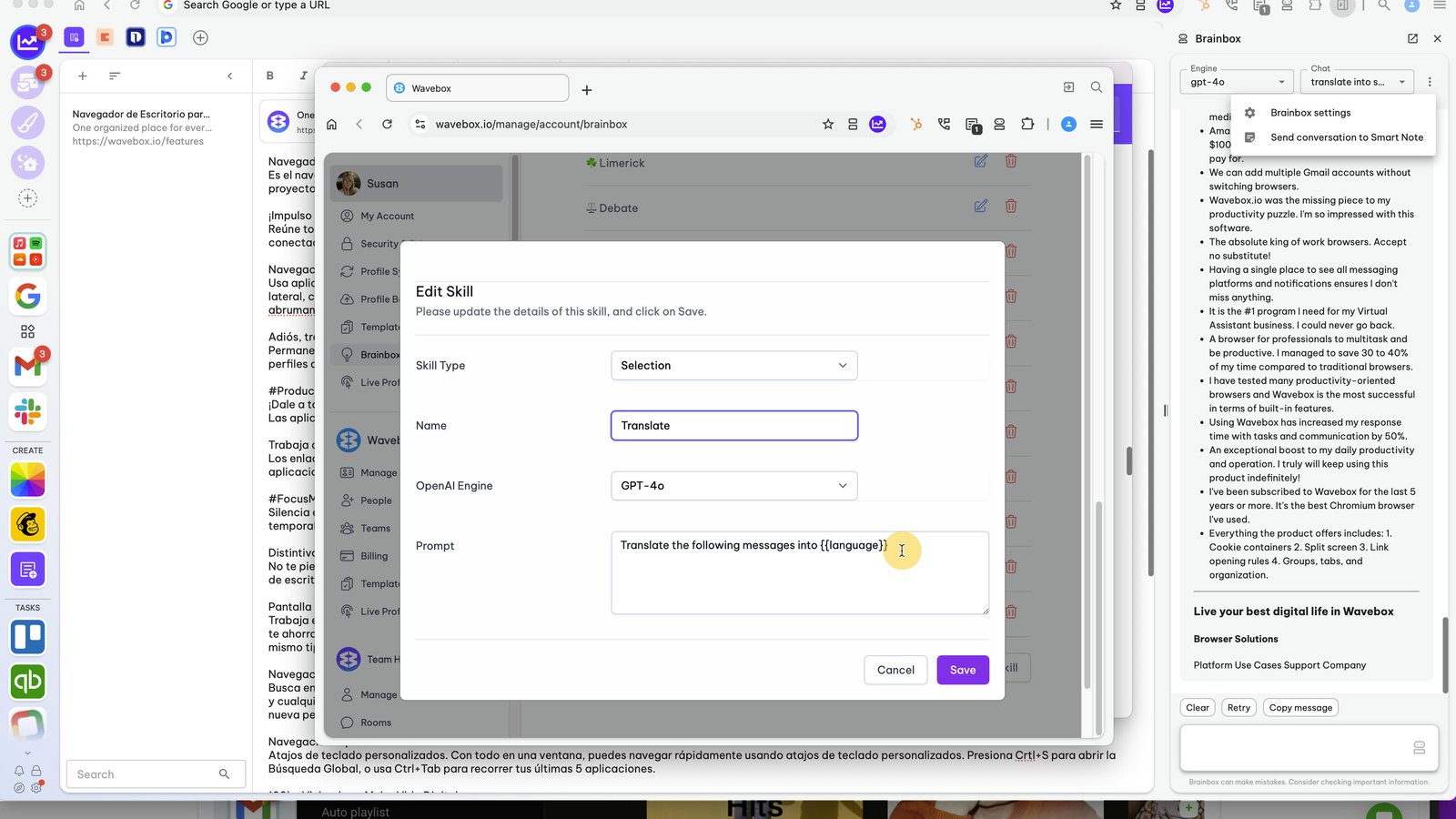
You can change the prompt to any language you like. {{lanugage}} selects your computer's default language.
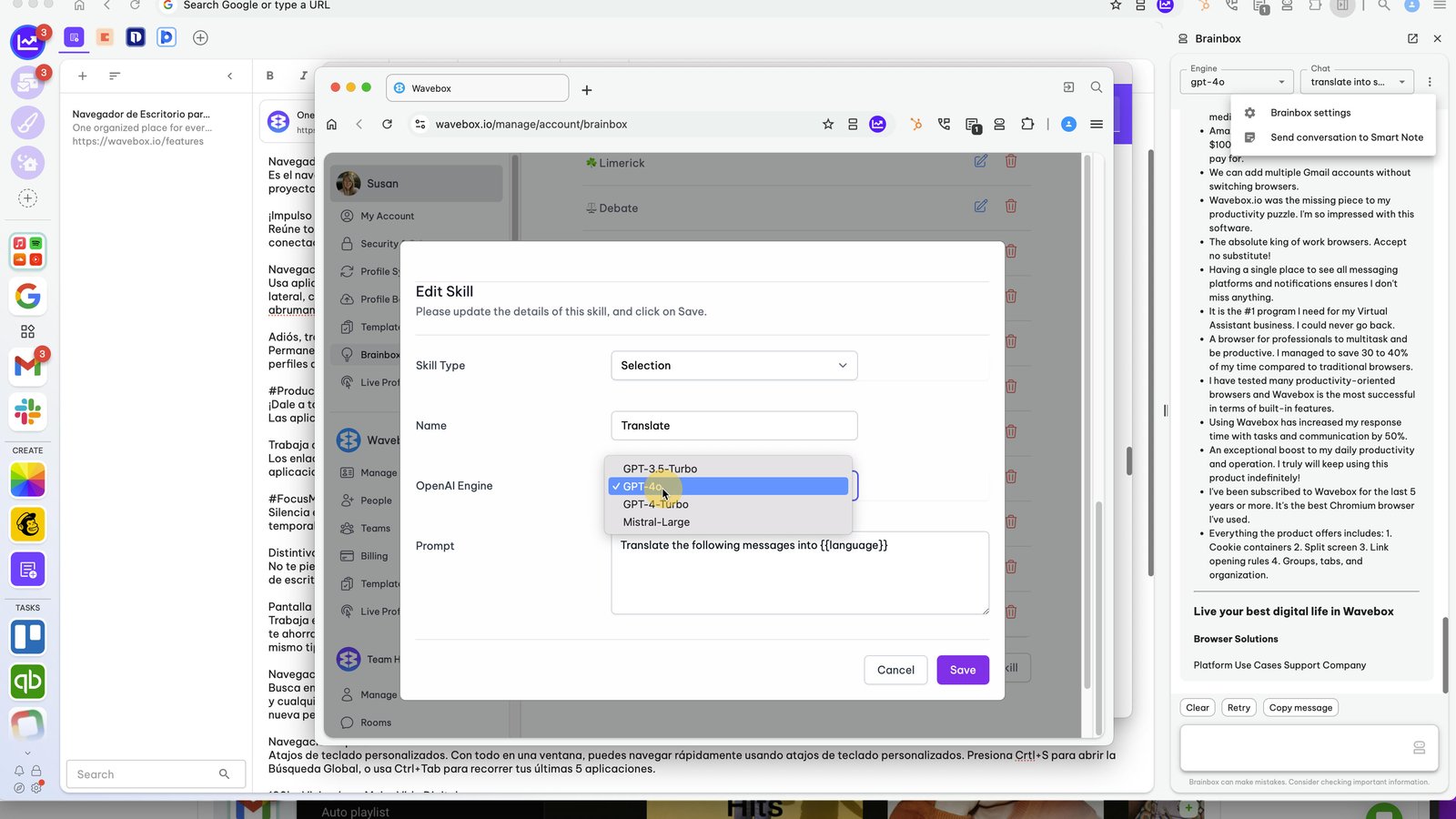
Click on 'OpenAI Engine' to select an Engine to use.
Click on 'Skill Type' to change make the skill us the full page, or just a highlighted section.
You made it to the end!
13 steps complete