How to Communicate with Leads Using the Flippin' Pro App
Learn how to skip trace properties, obtain phone numbers, and contact leads directly or via the Flippin' Pro CRM.
Flipping Pro Support
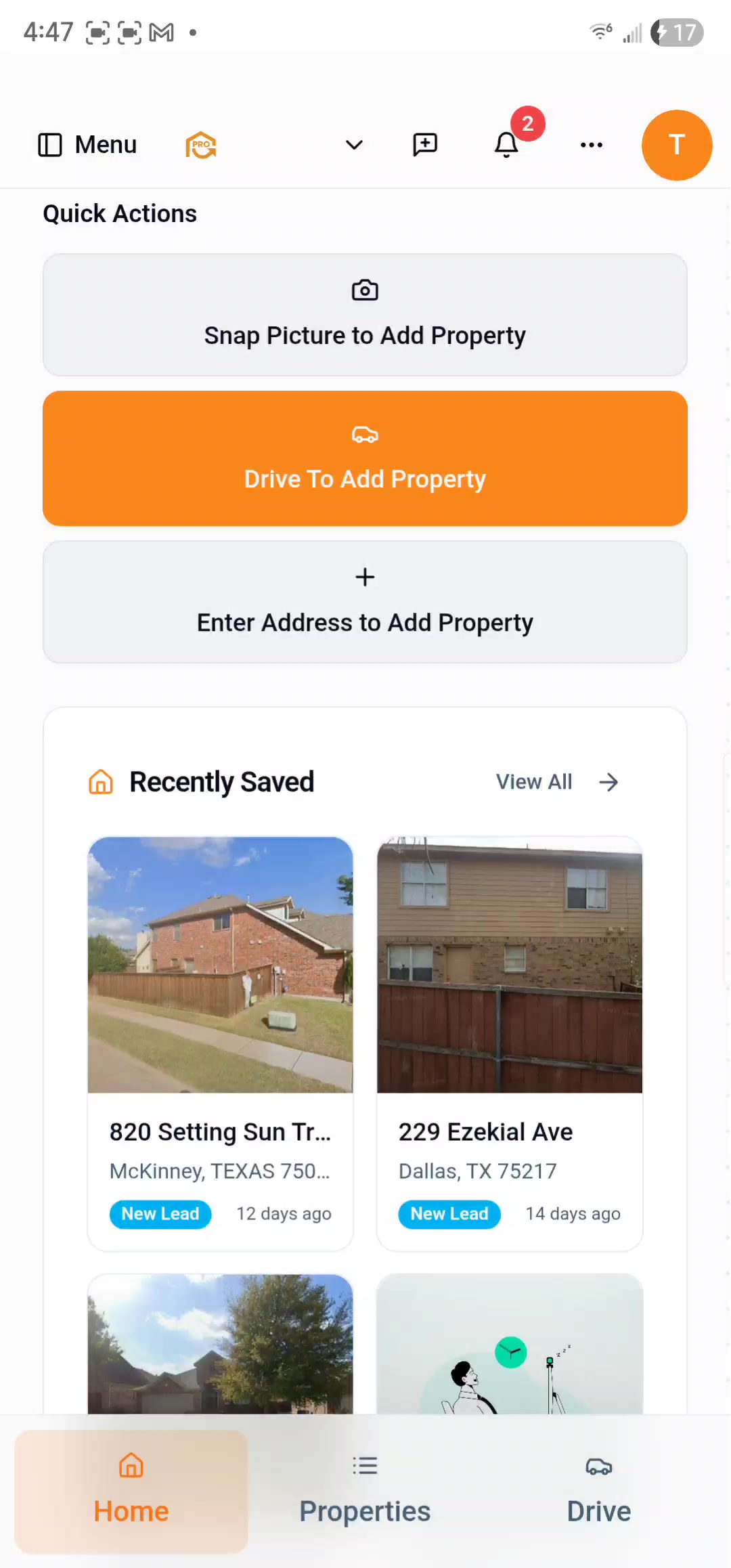
Open the Flippin' Pro app
Start by launching the app on your device.
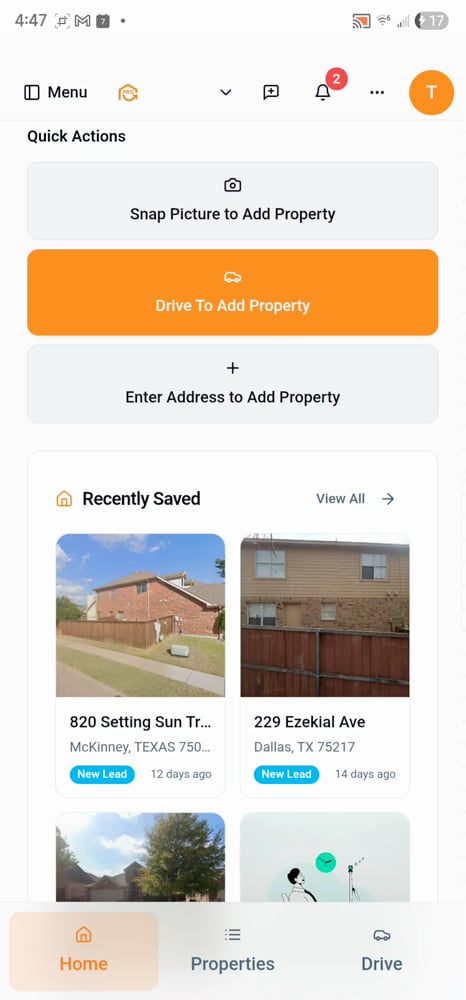
Navigate to the properties section
Access the list of available properties.
Locate and select a property you want to reach out to
Choose the property you are interested in contacting.
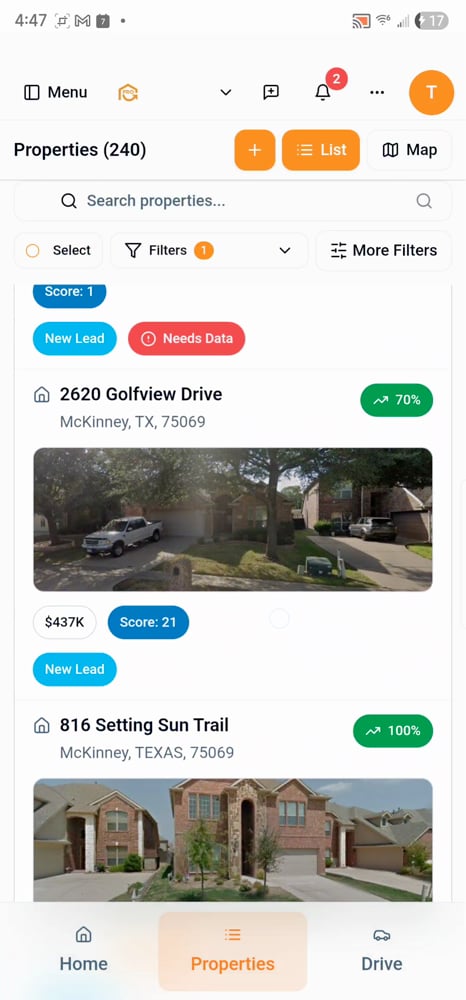
Select the property 2620 Gulfview Drive
This is the example property used in the video.
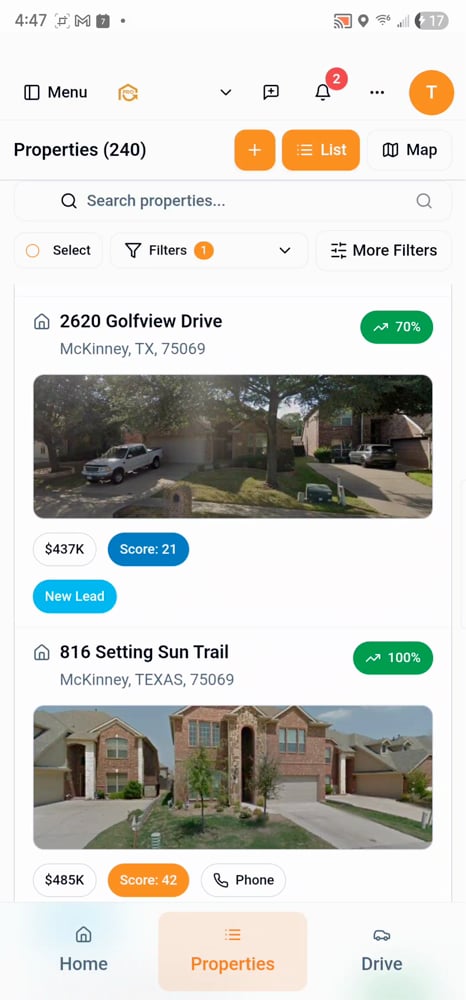
View the property details including the photo and owner's contact information
You should see the property photo and contact info.
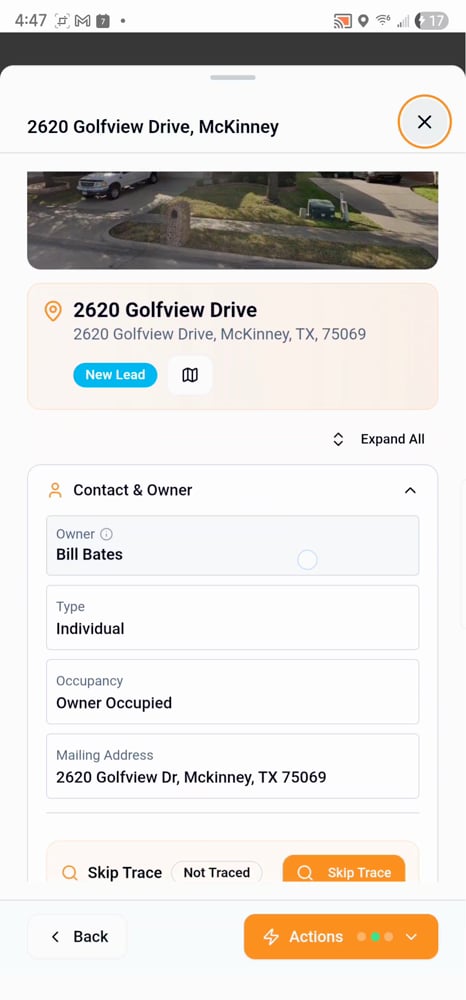
Check if phone numbers are available for the property
If no phone numbers are listed, you need to skip trace.
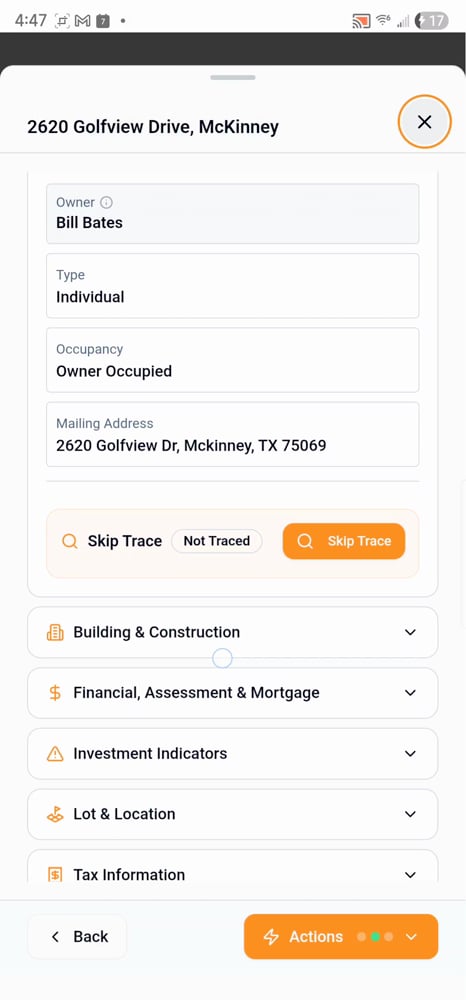
Notice if the property has not yet been skip traced
This explains why phone numbers may not be available.
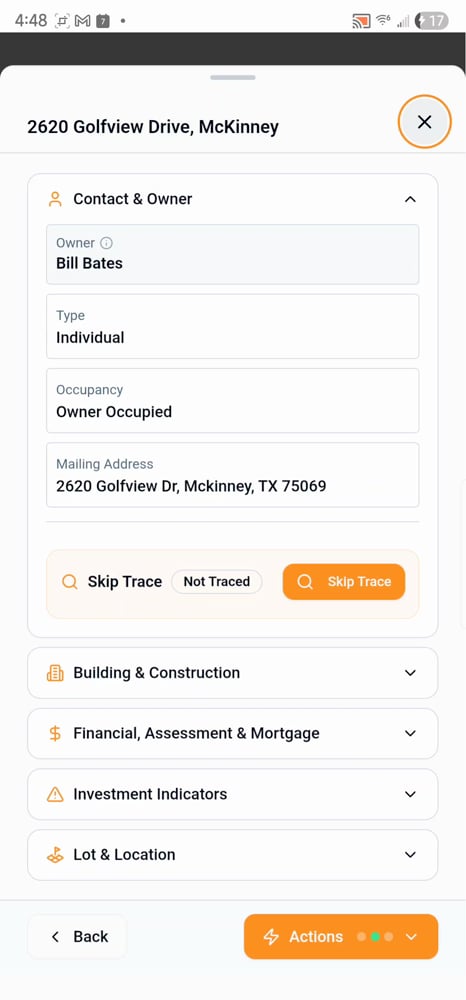
Click the button that says 'skip trace' to obtain phone numbers
This action will start the skip tracing process.
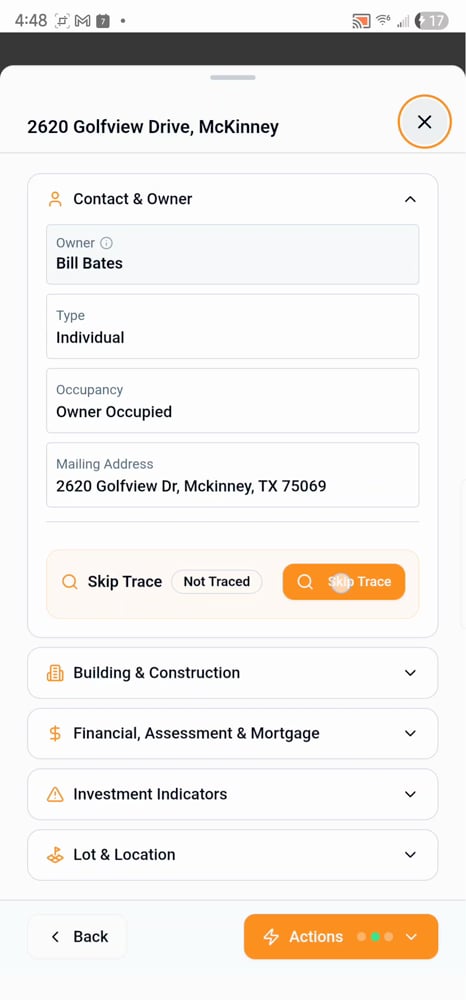
Wait for the skip trace to complete
The system will process and return phone numbers.
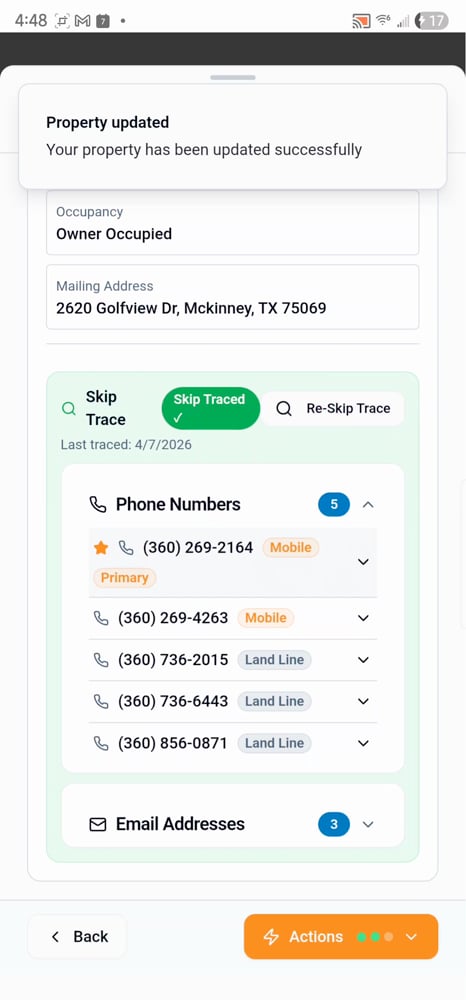
View the available phone numbers for the property
You should now see a list of phone numbers.
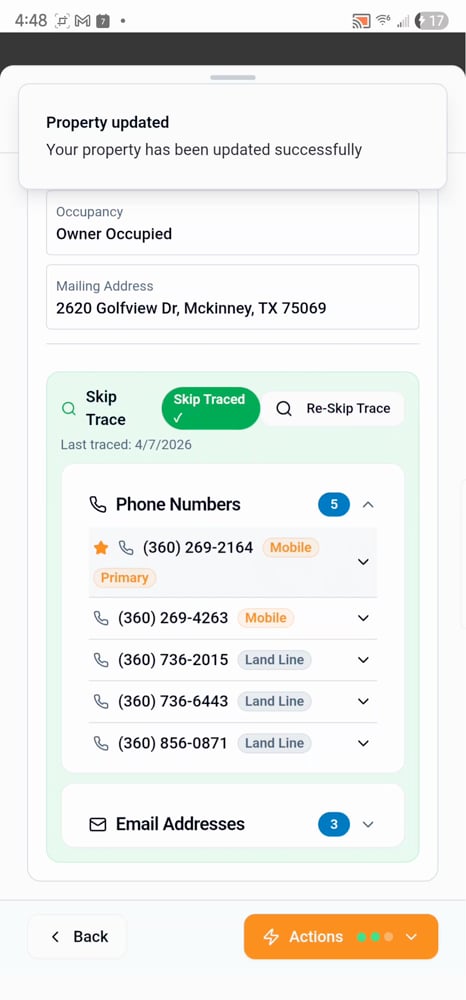
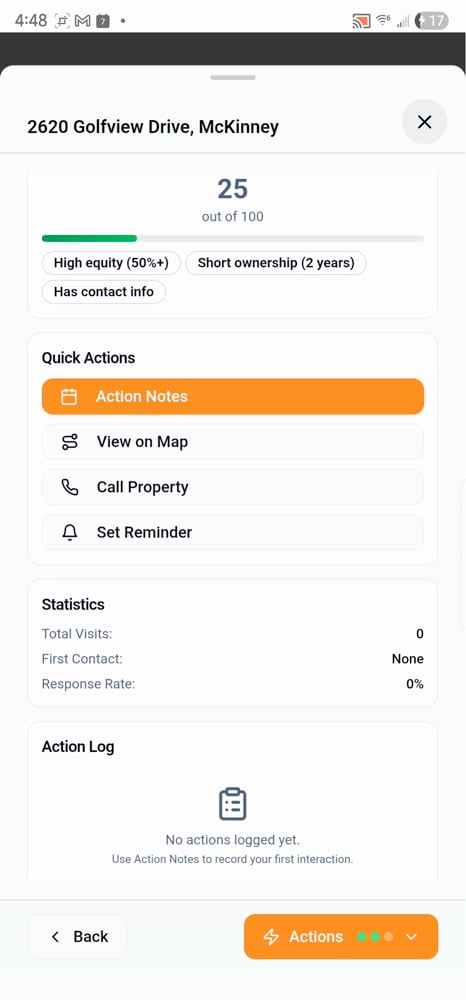
Scroll down to the bottom of the screen
Prepare to take action on the property.
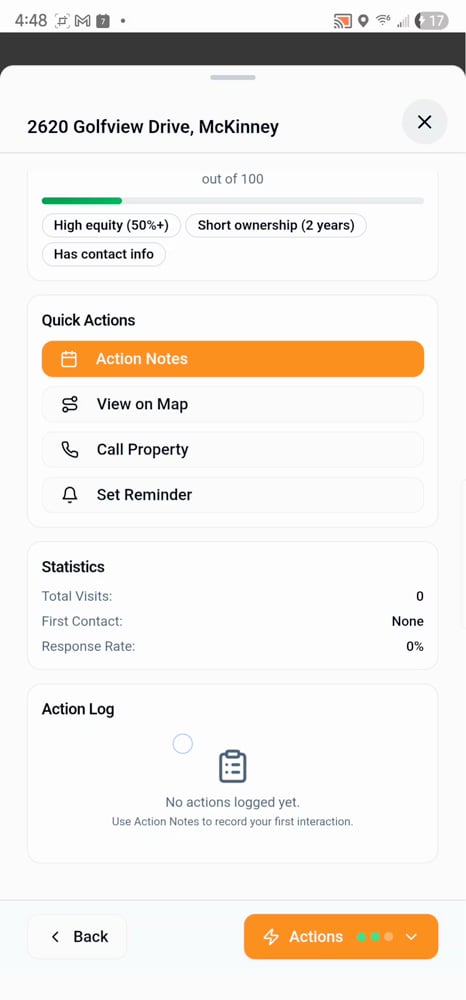
Click the button that says 'call property'
This will initiate a call to the property owner.
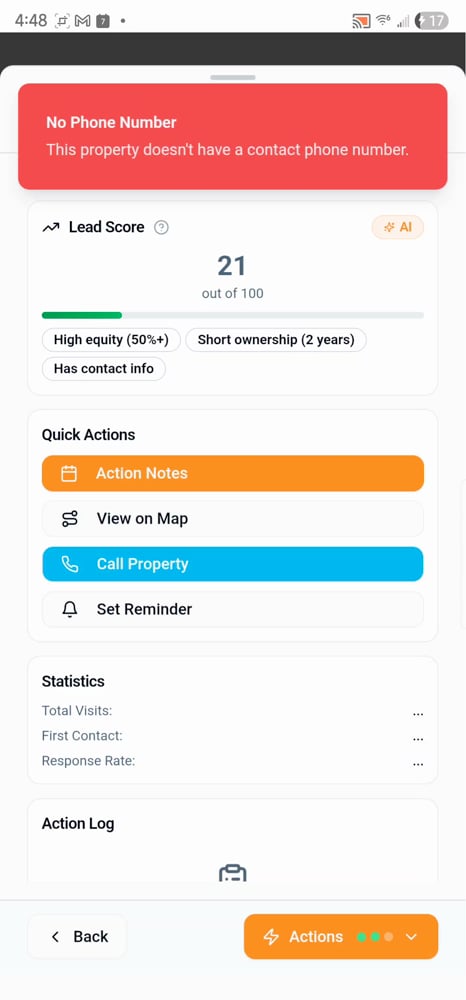
Initiate a call by selecting a phone number
Choose which number to call from the available options.
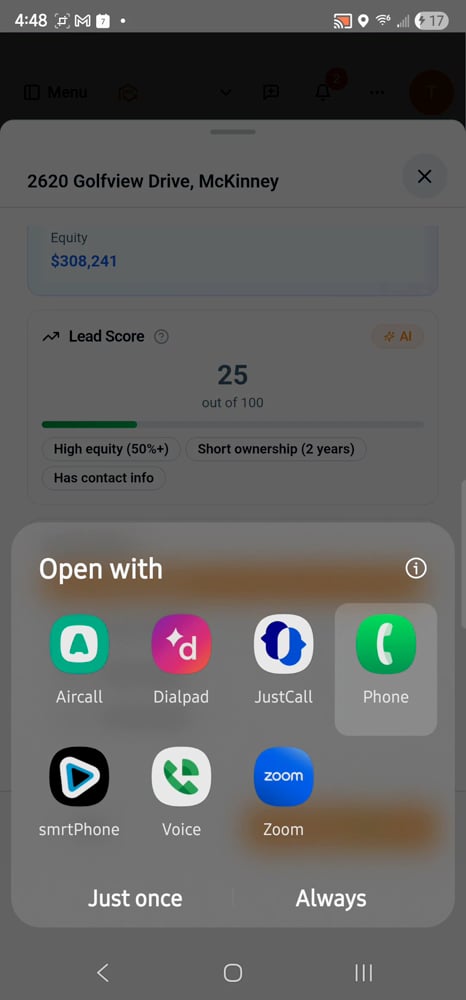
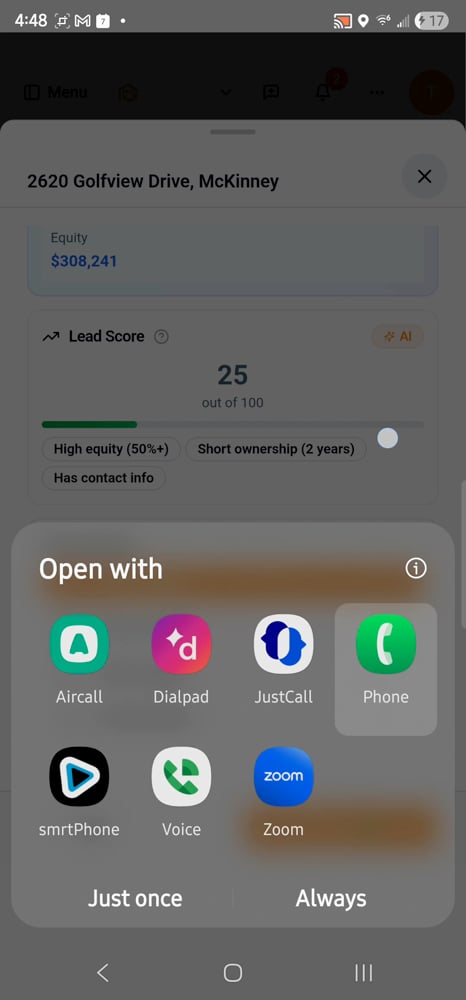
View all available phone options on your phone
Your device will display calling options.
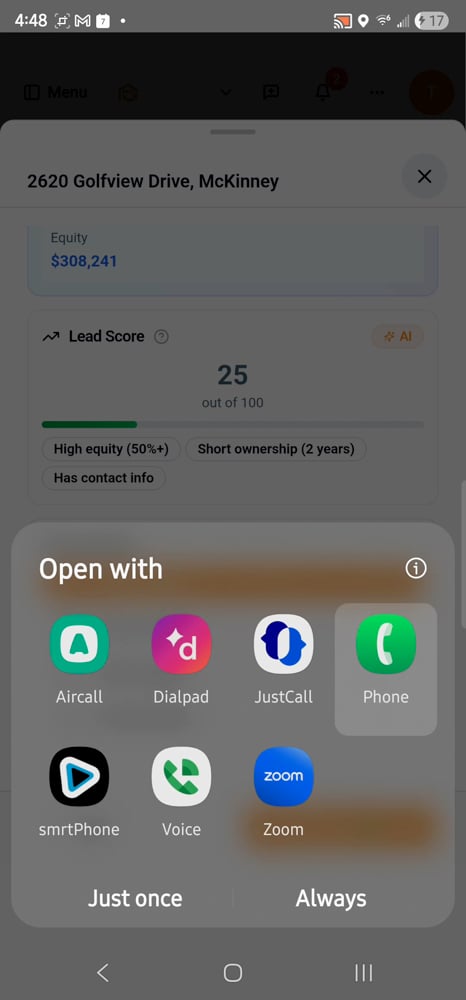
Select how you want to trigger the call
Choose your preferred calling method.
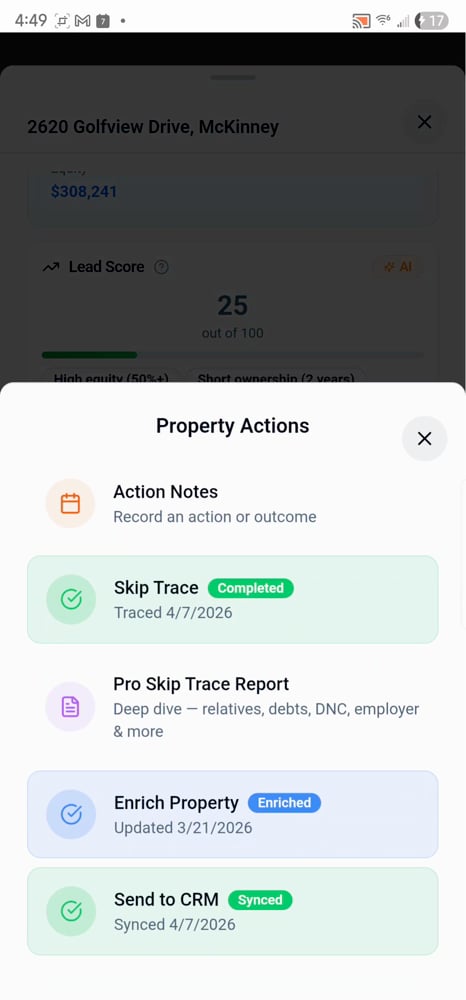
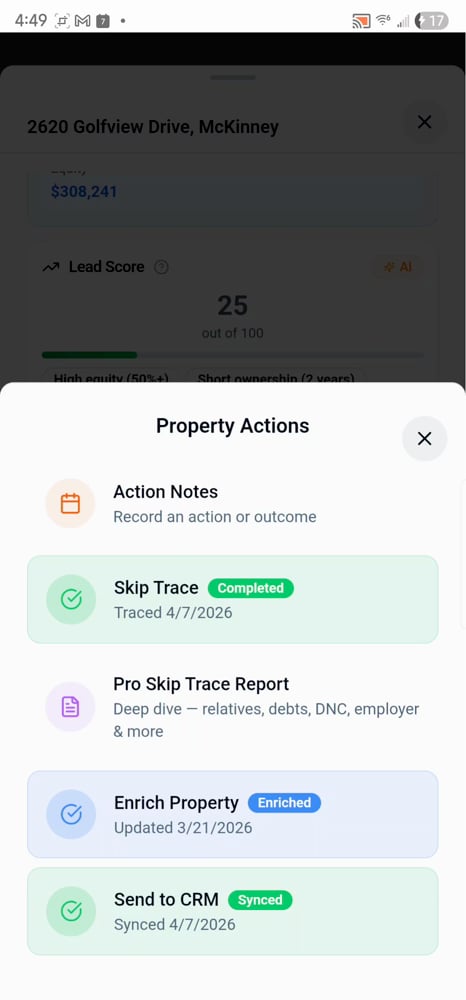
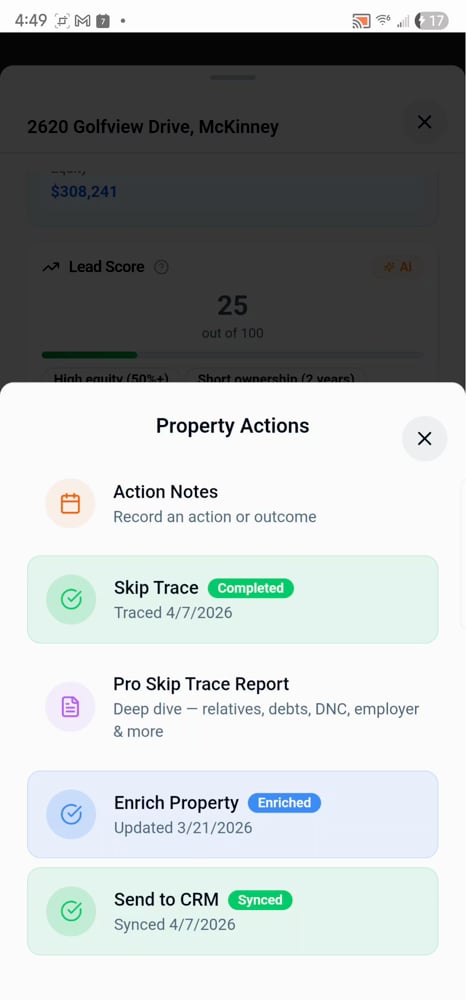
If you are a Flippin' Pro CRM user, go to the bottom right-hand corner to see actions
This is for users who want to use the CRM for calls.
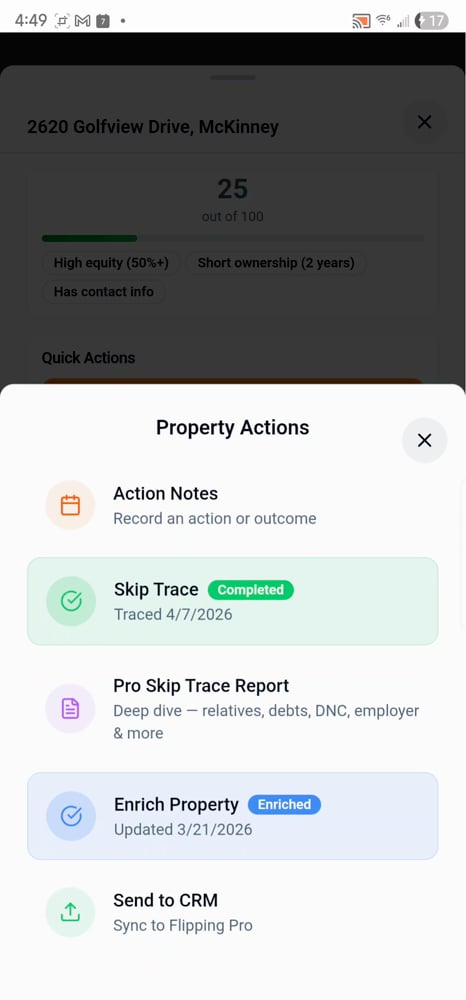
Select 'send to CRM' from the actions menu
This will send the contact information to your CRM.
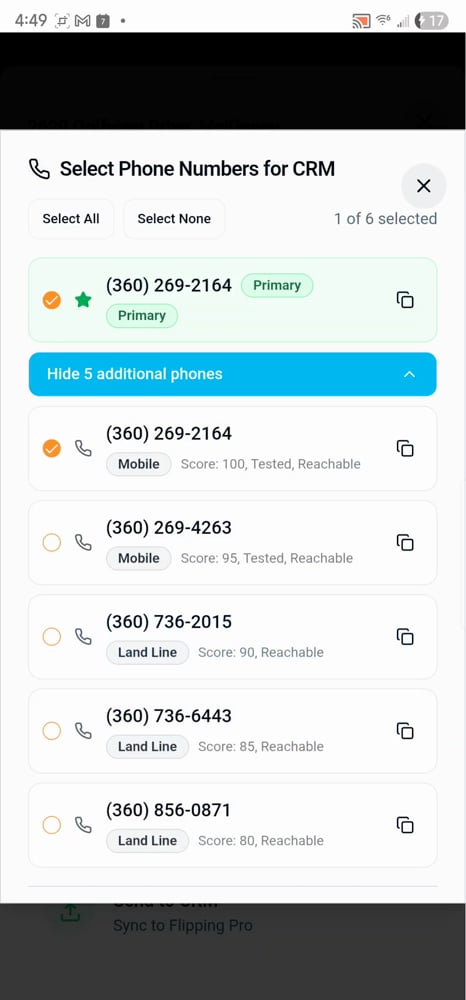
Send the phone numbers to your Flippin' Pro CRM
This allows you to manage and track calls in the CRM.
Log into your Flippin' Pro CRM
Access your CRM to make calls and manage leads.
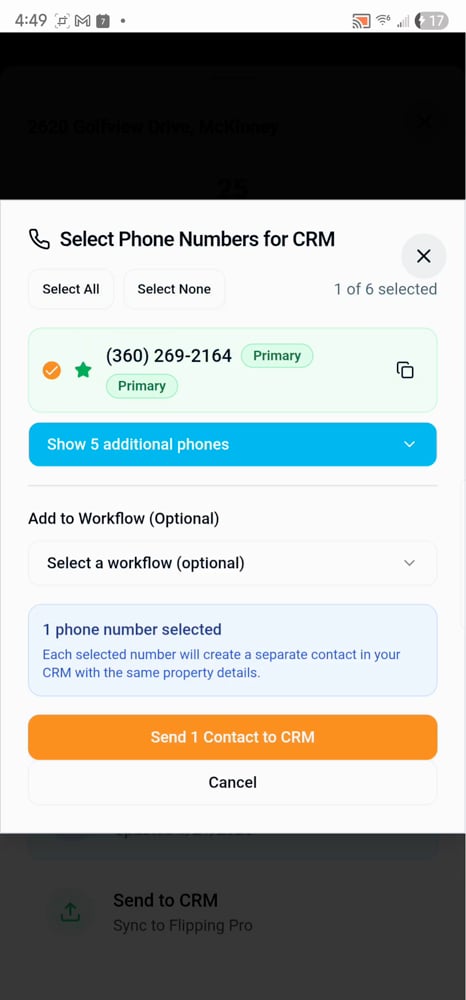
Make a call directly from the CRM system
You can now call leads from within the CRM.
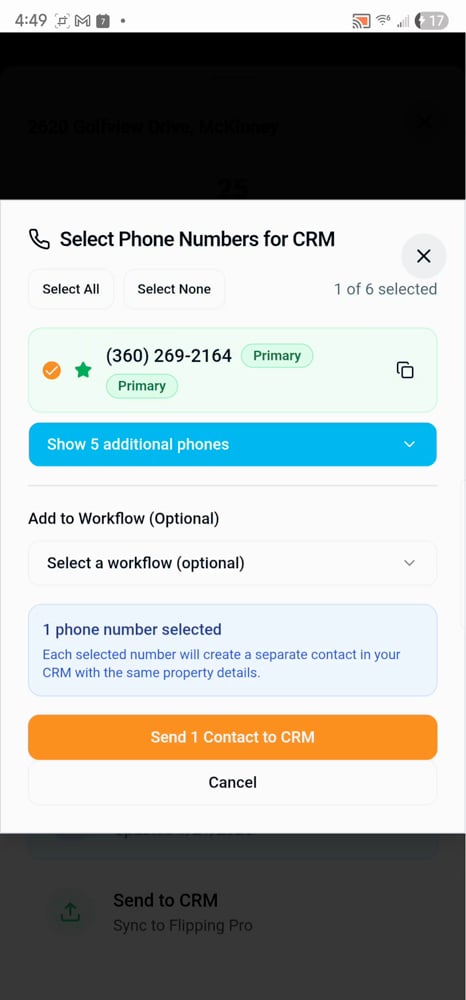
Choose whether to call directly or send contact to CRM
Decide which communication method fits your workflow.
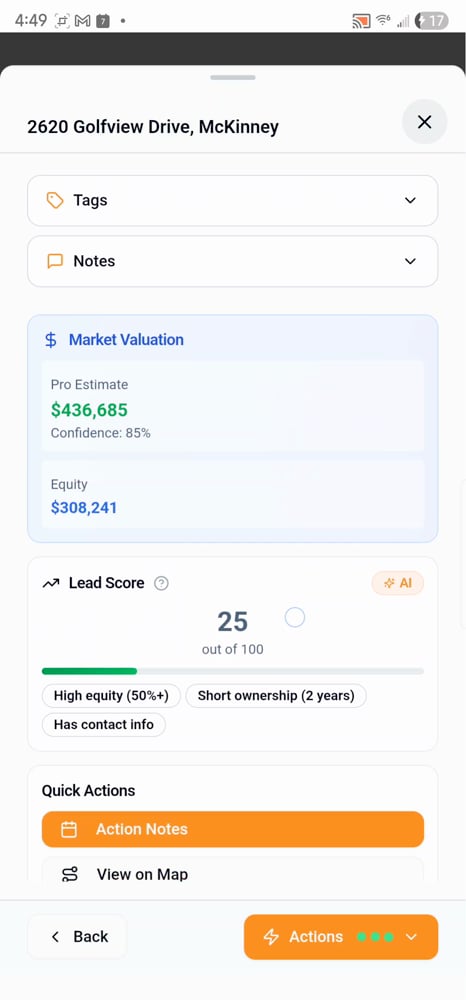
Call by selecting 'call property' or send contact to CRM from the bottom right corner
Both options are available for contacting leads.
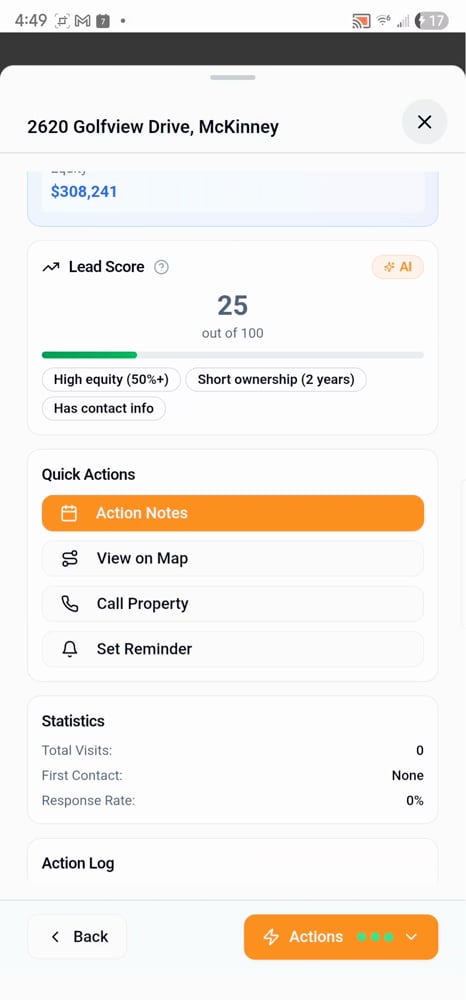
Call from inside the CRM for tracked and monitored calls
CRM calls are tracked for follow-up.
Follow up with leads from the CRM at any time
You can manage ongoing communication through the CRM.
Contact support if you have any questions or concerns
Reach out for help as needed.
You made it to the end!
25 steps complete