
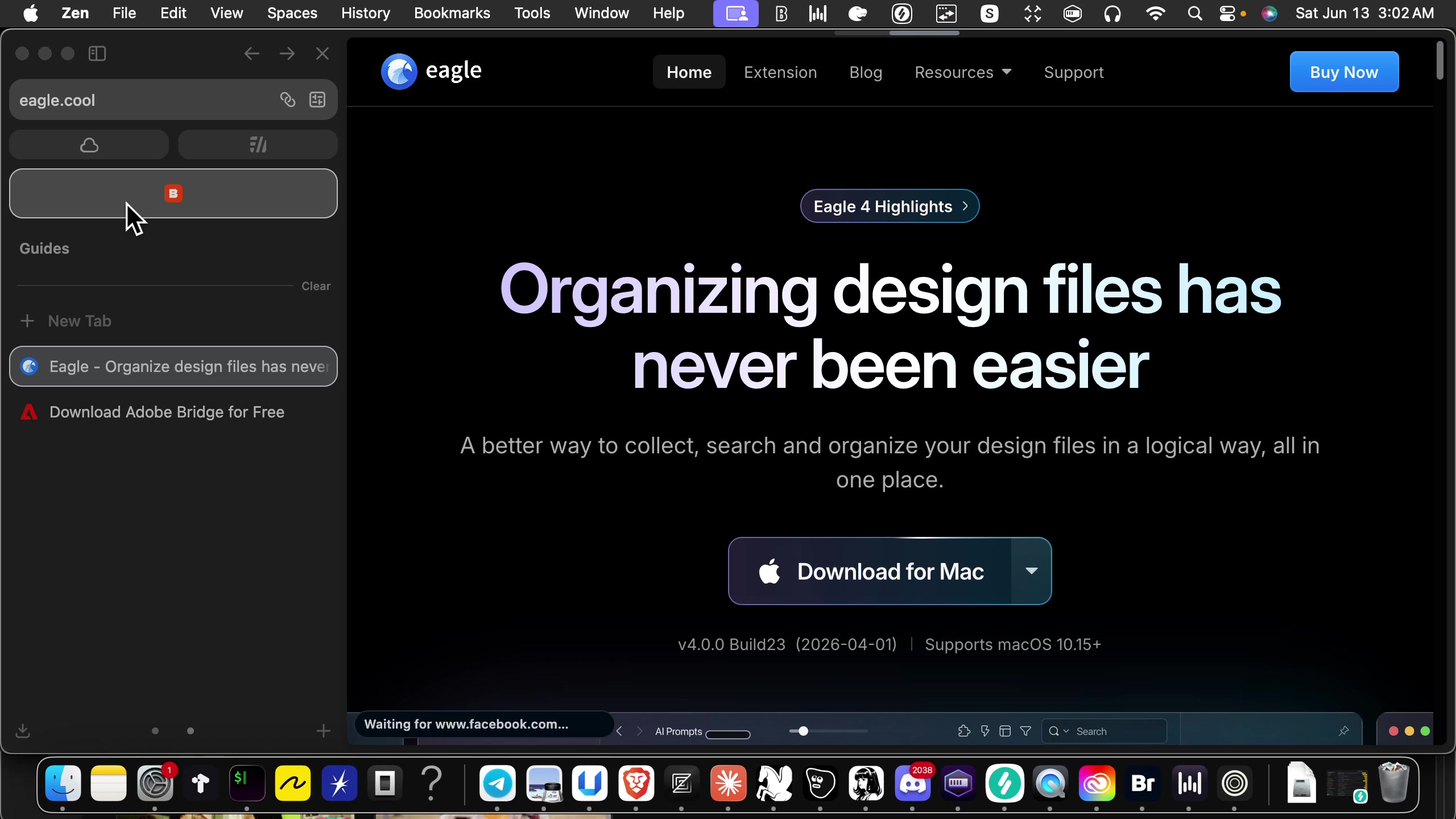
Click the group Eagle - Organize design files has never been easier
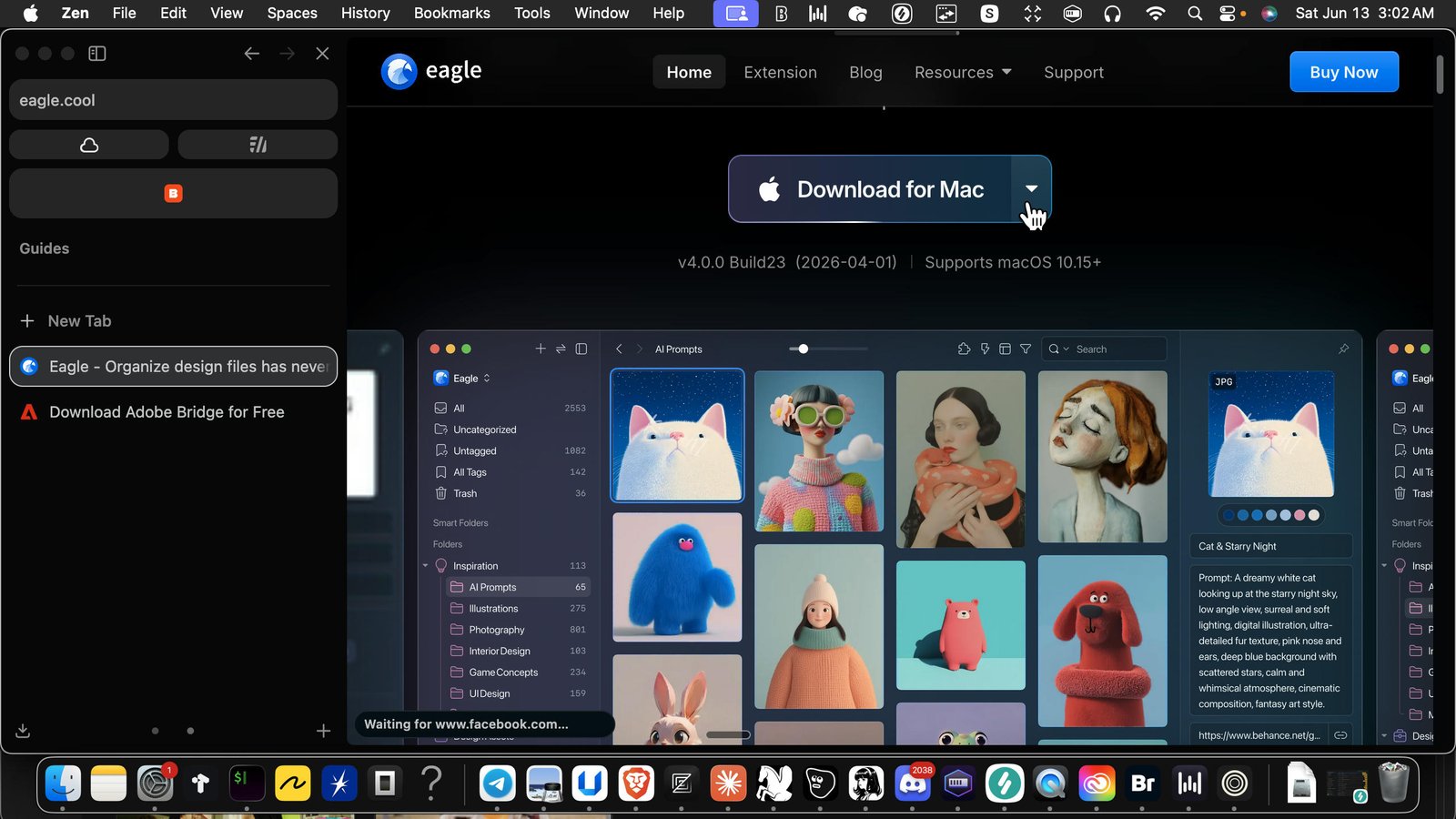
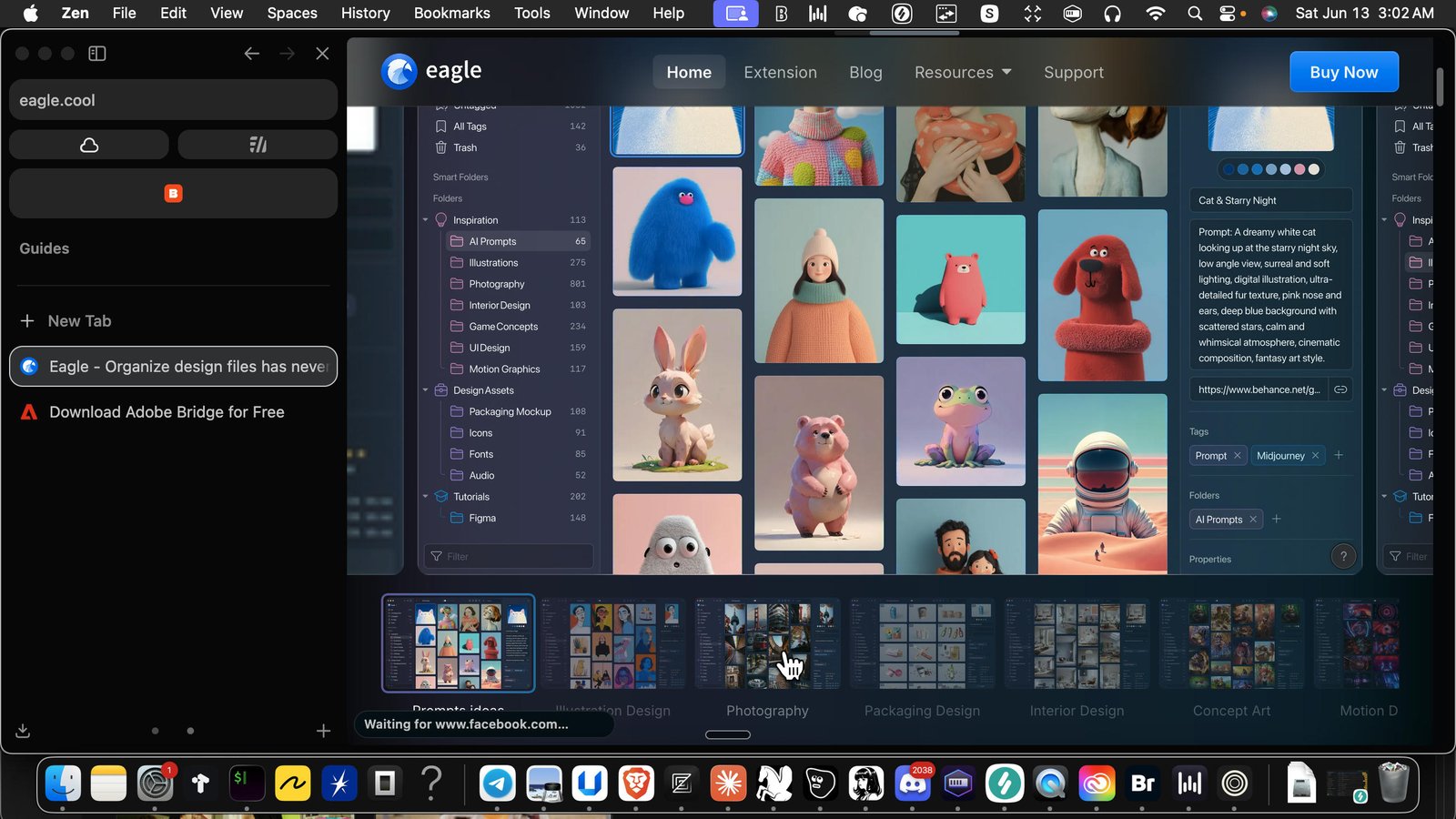
While the file is downloading, Go to the homepage and select the third thumbnail to get an understanding of what this will do for you.
To understand what you're doing, in the drop-down select section, pick the third thumbnail that says Photography. This will show you what it will look like when you drag and drop your photos into the app after the download is complete
You do not need to buy this
There is a 30 day free trial - more than enough time to utilize the app for your needs.
Alternatively, download adobe bridge (FREE)
https://www.adobe.com/products/bridge.html
This should download creative cloud, if not you can find it on their website.
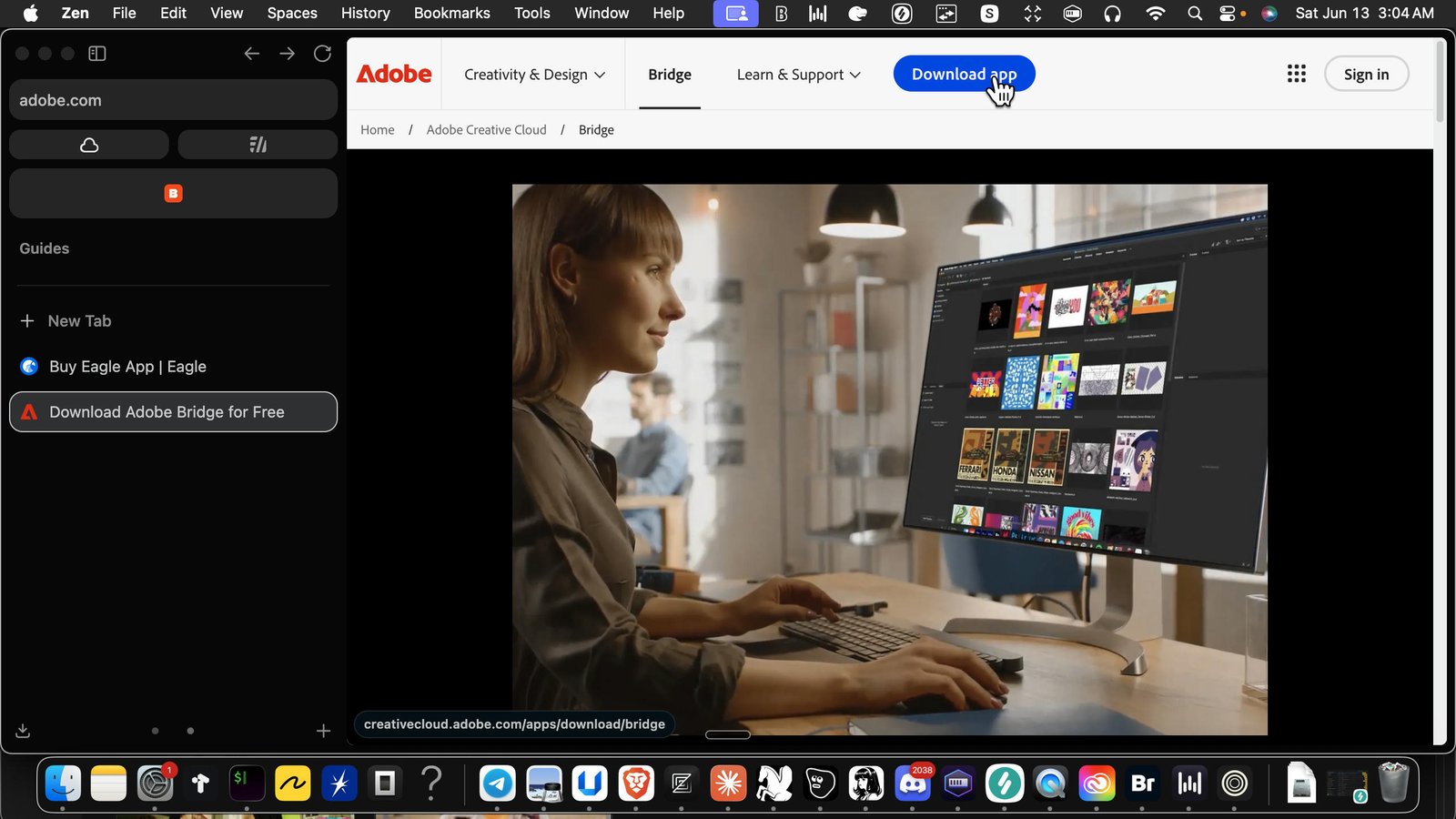
Download creative cloud to access adobe bridge
You may need to install Creative Cloud first to access adobe bridge. If it doesnt download automatically, you can find creative cloud for free on the adobe website.
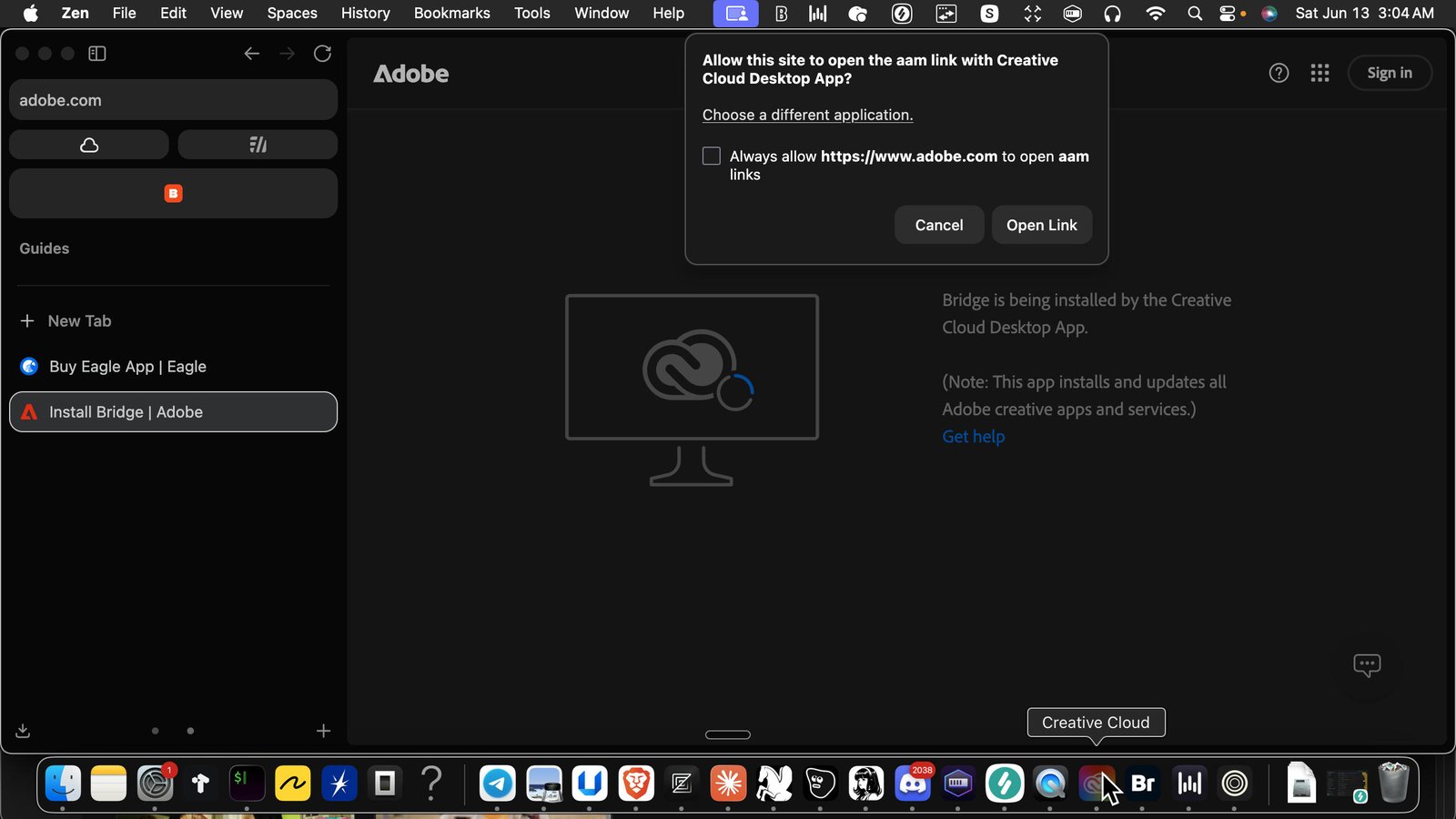
Open Creative Cloud - Creative Cloud Desktop
Click apps
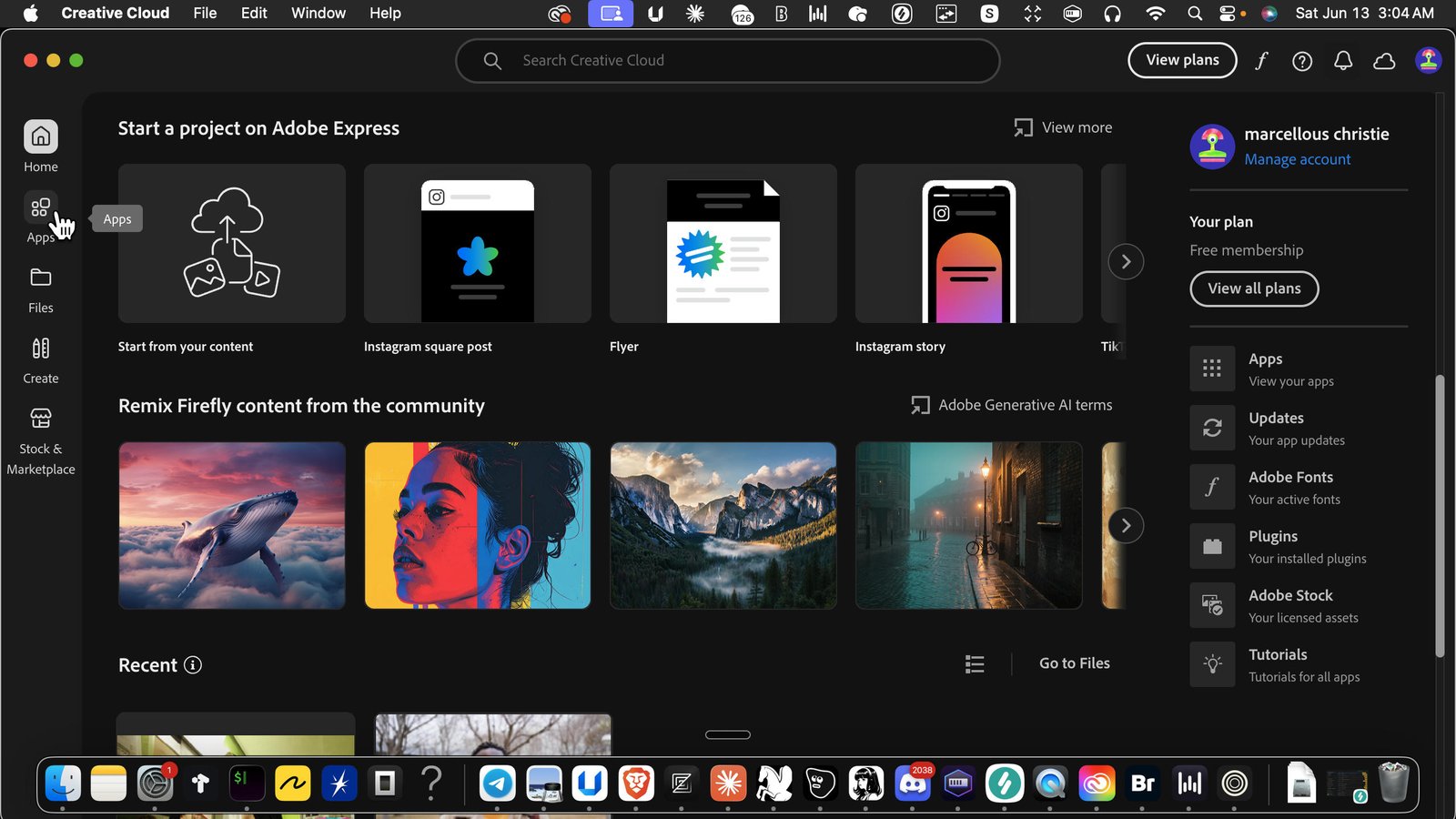
Click the navigation Main
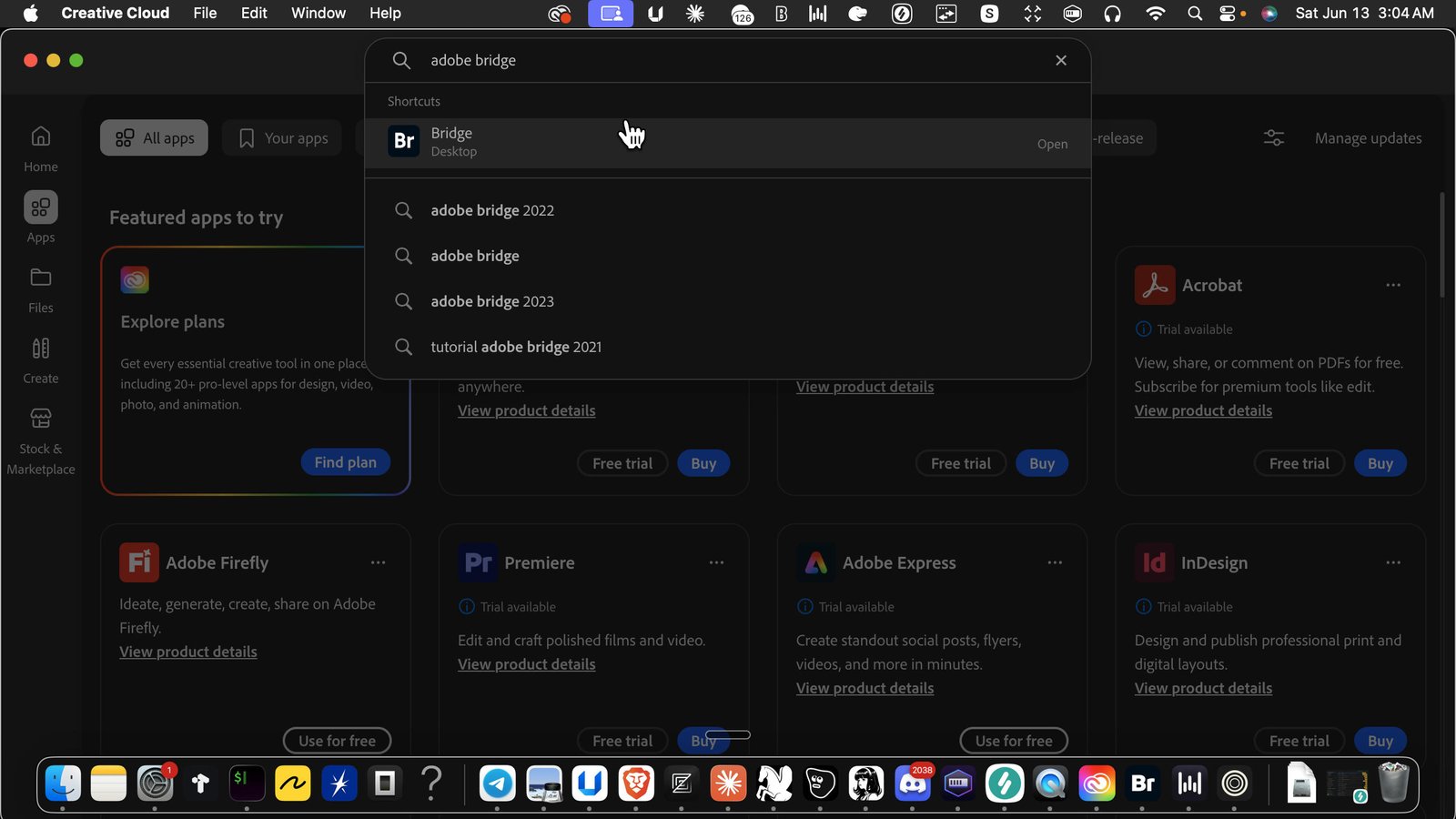
Click the searchbar here at the top of the navigation. Type Adobe Bridge
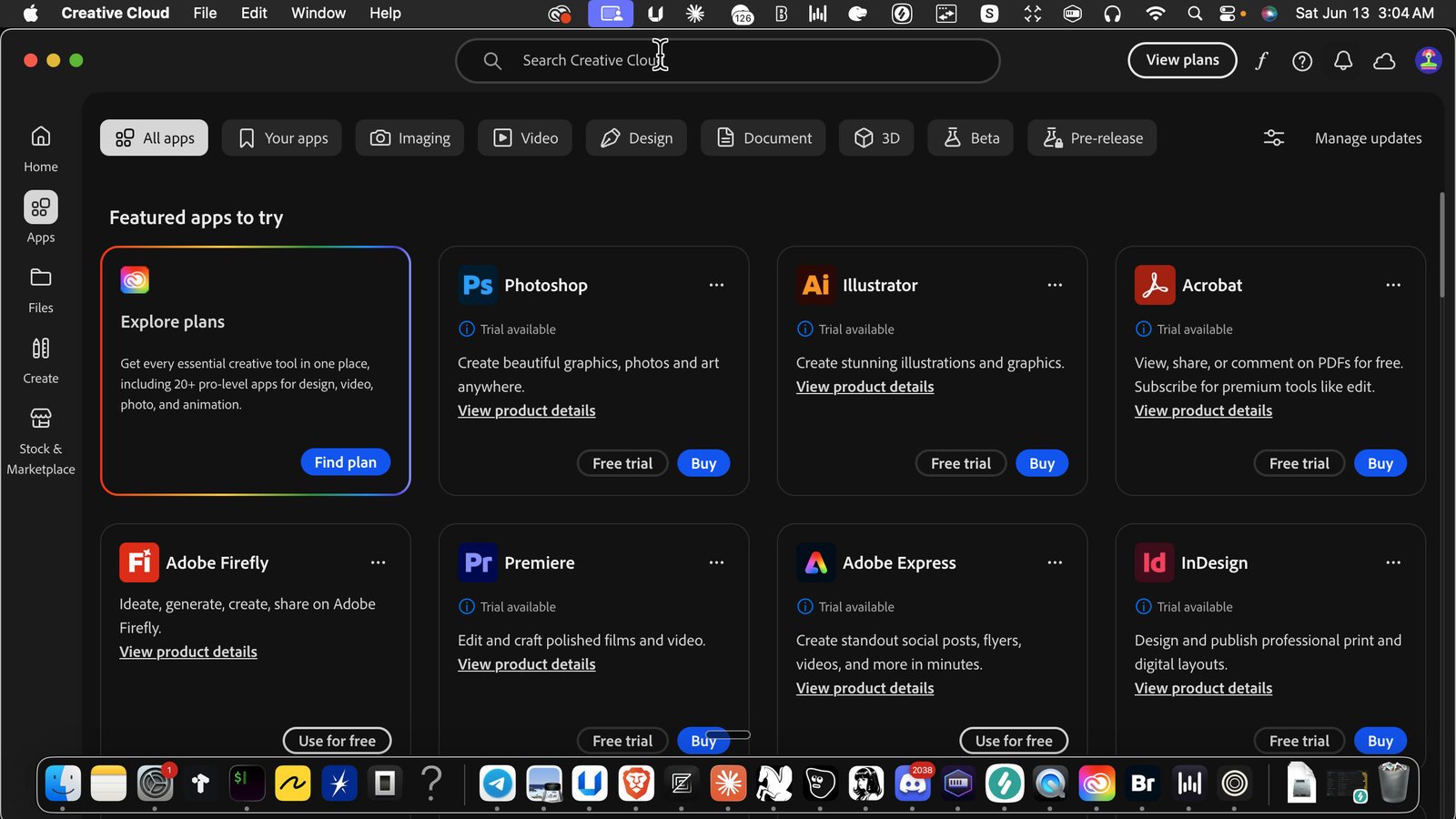
Click Bridge to install
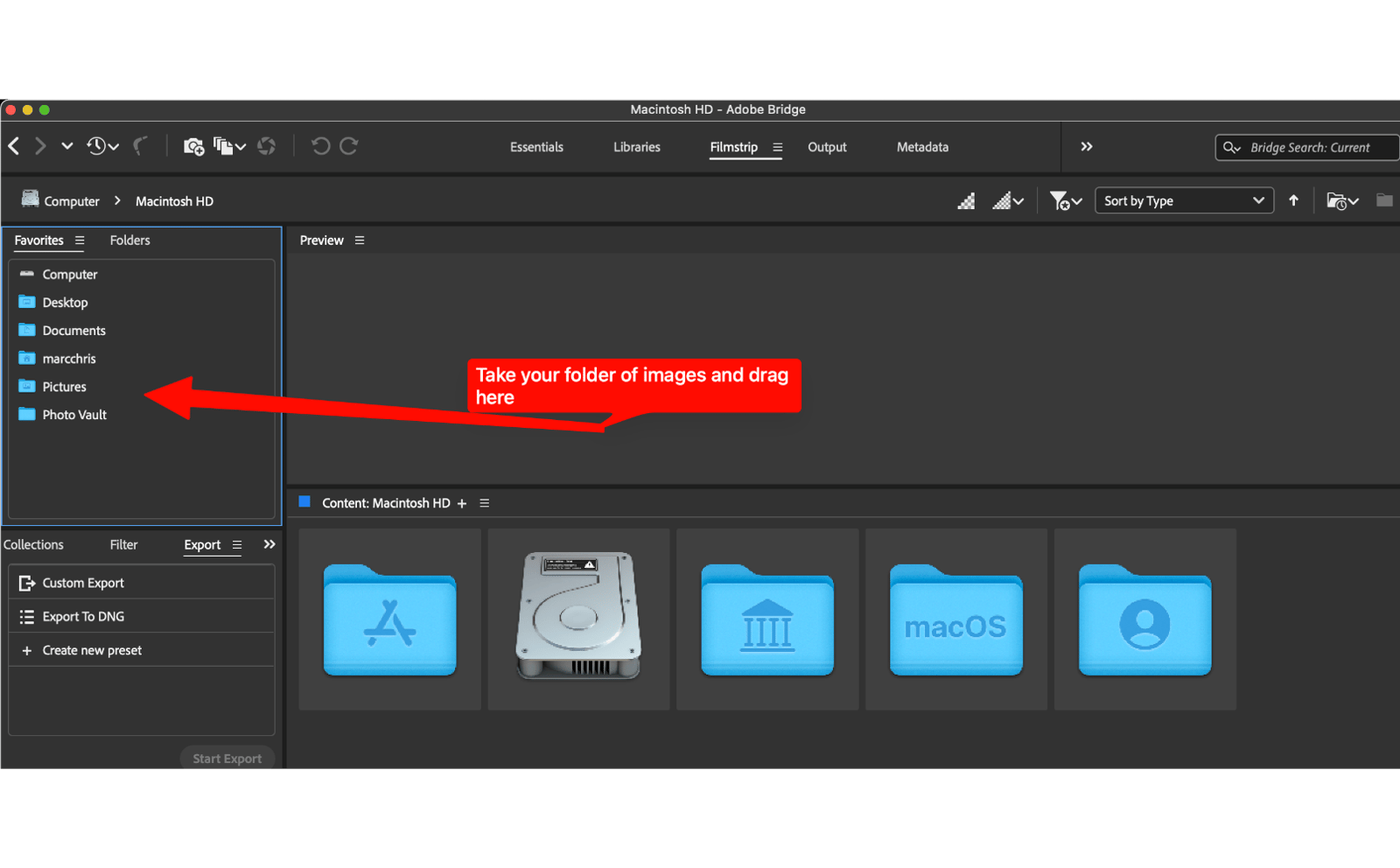
Drag your folder of downloaded images here
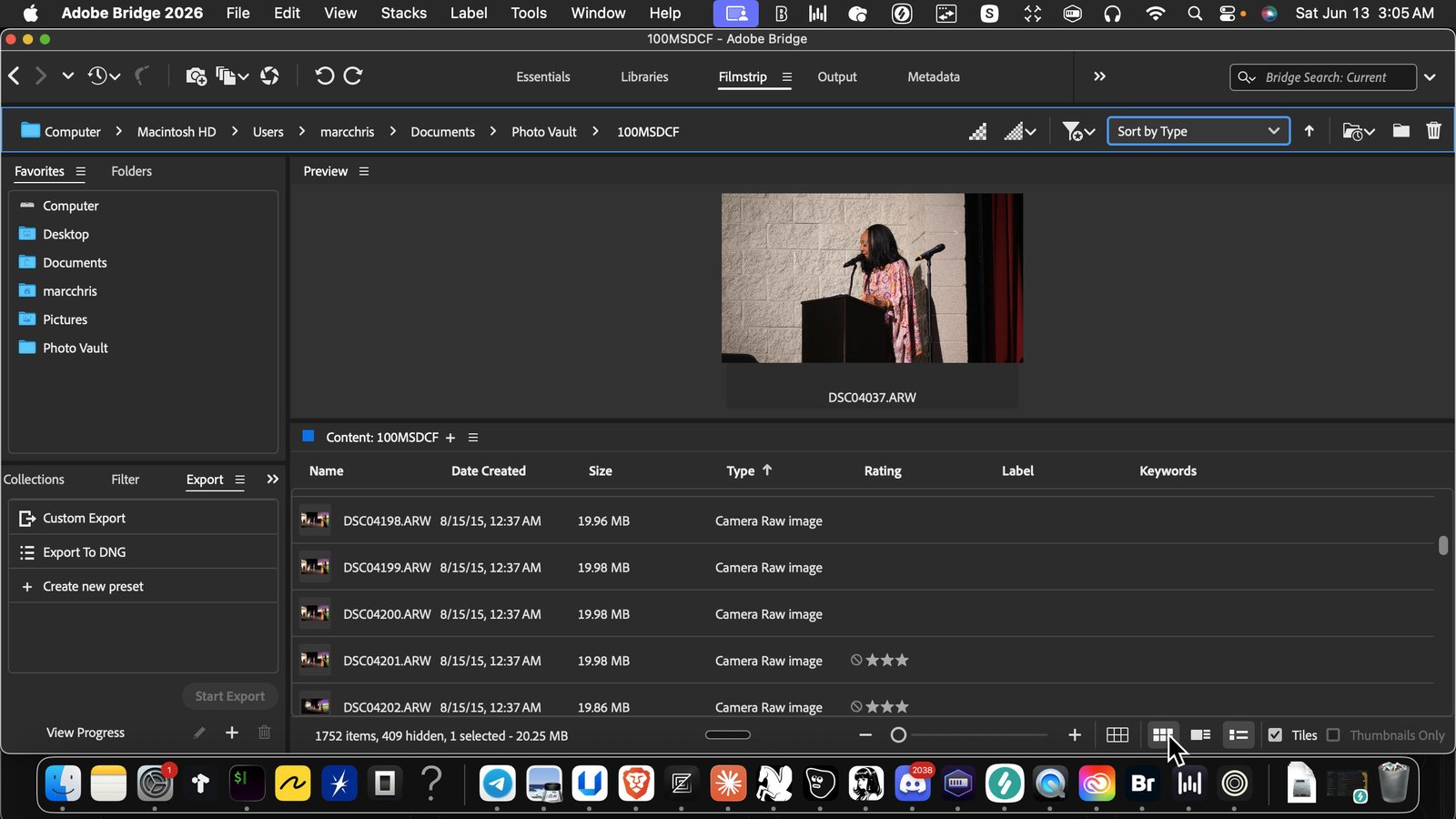
Drag your images into the app. You can just highlight your folder then drag it into this section and it will import all of the images
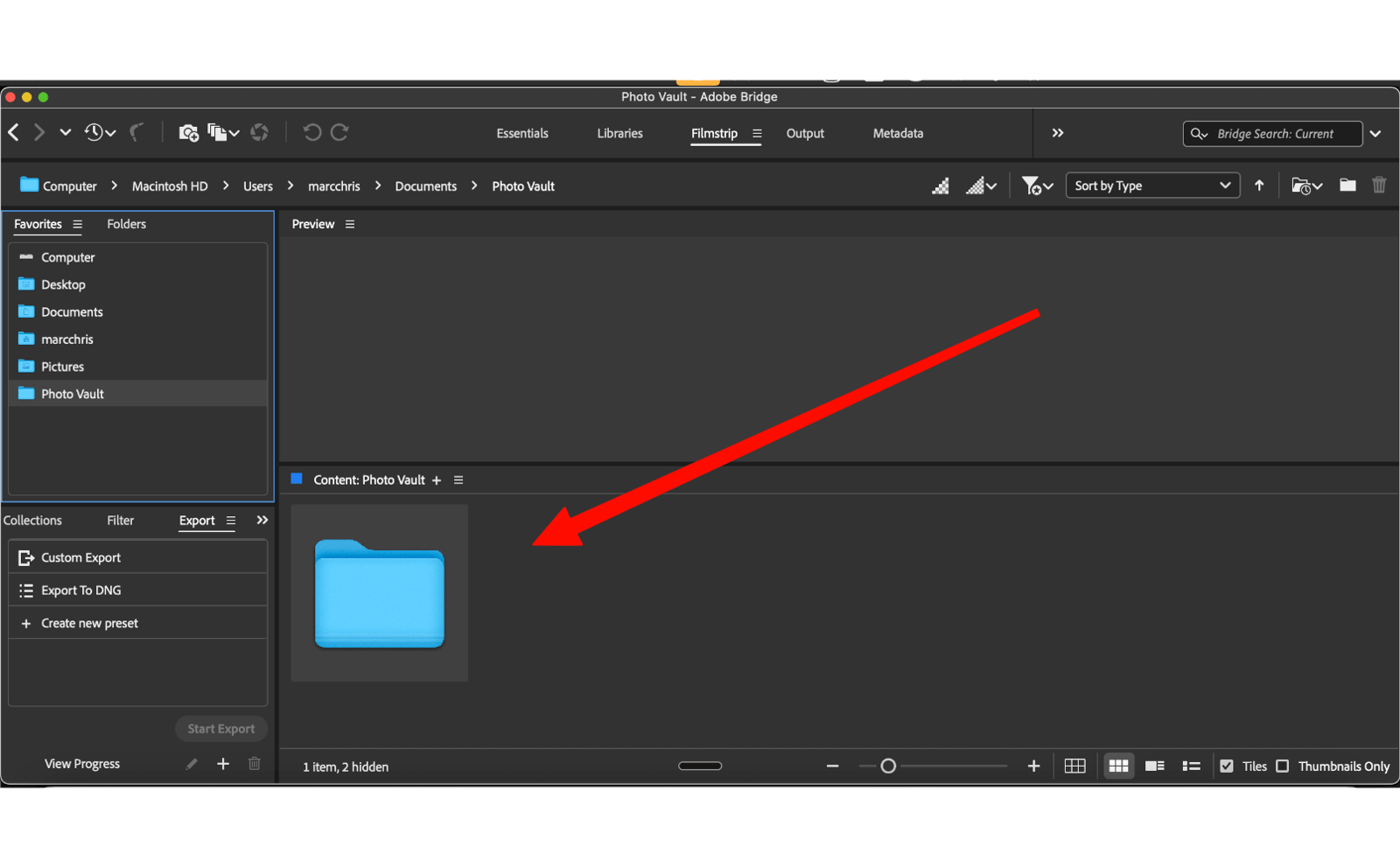
Double click the imported folder
Now you can see all of your photos
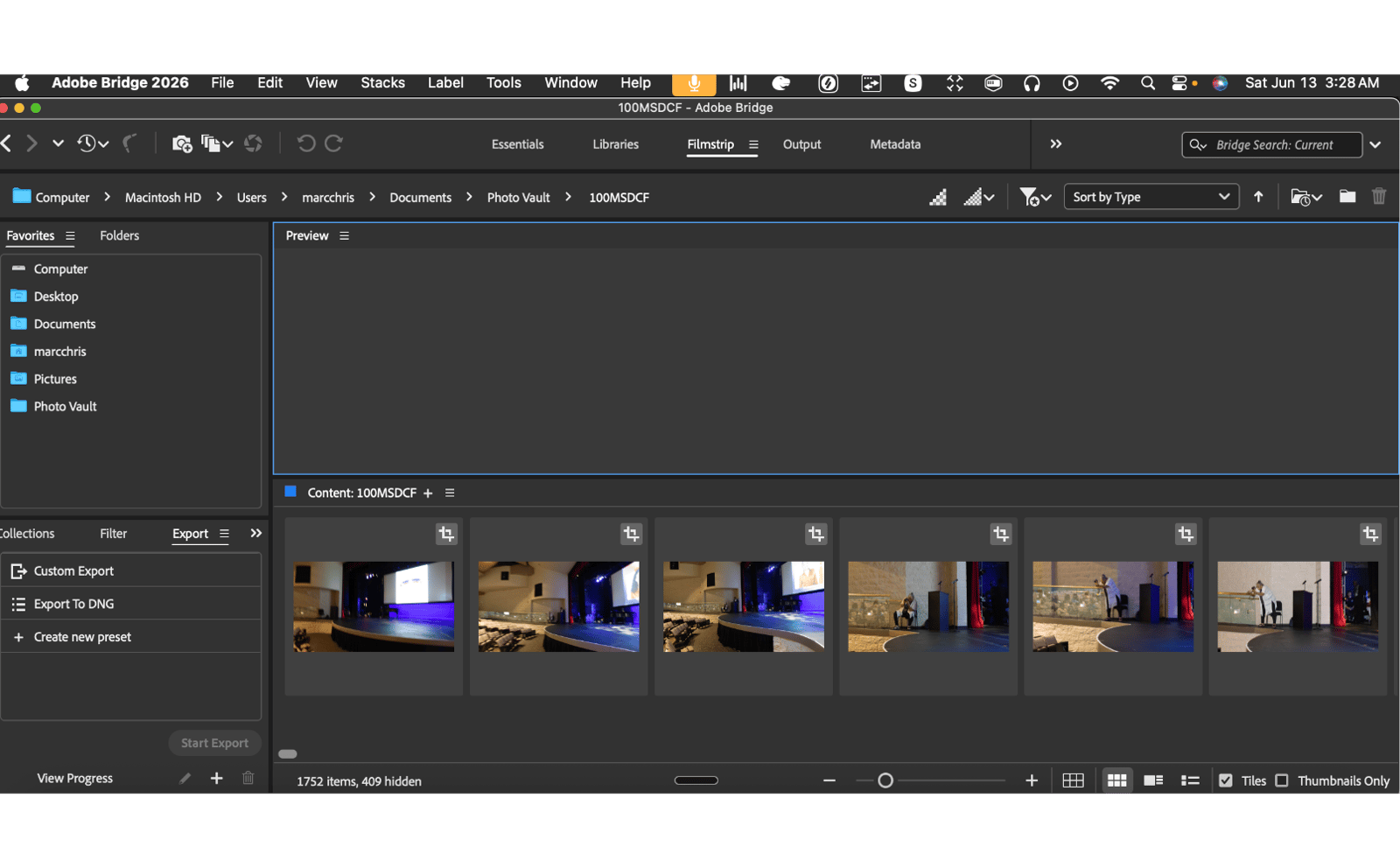
If you want to change display to see all of your images in different ways do that here
Drag the folder into the app. At the bottom you will see viewing options.
You made it to the end!
12 steps complete