
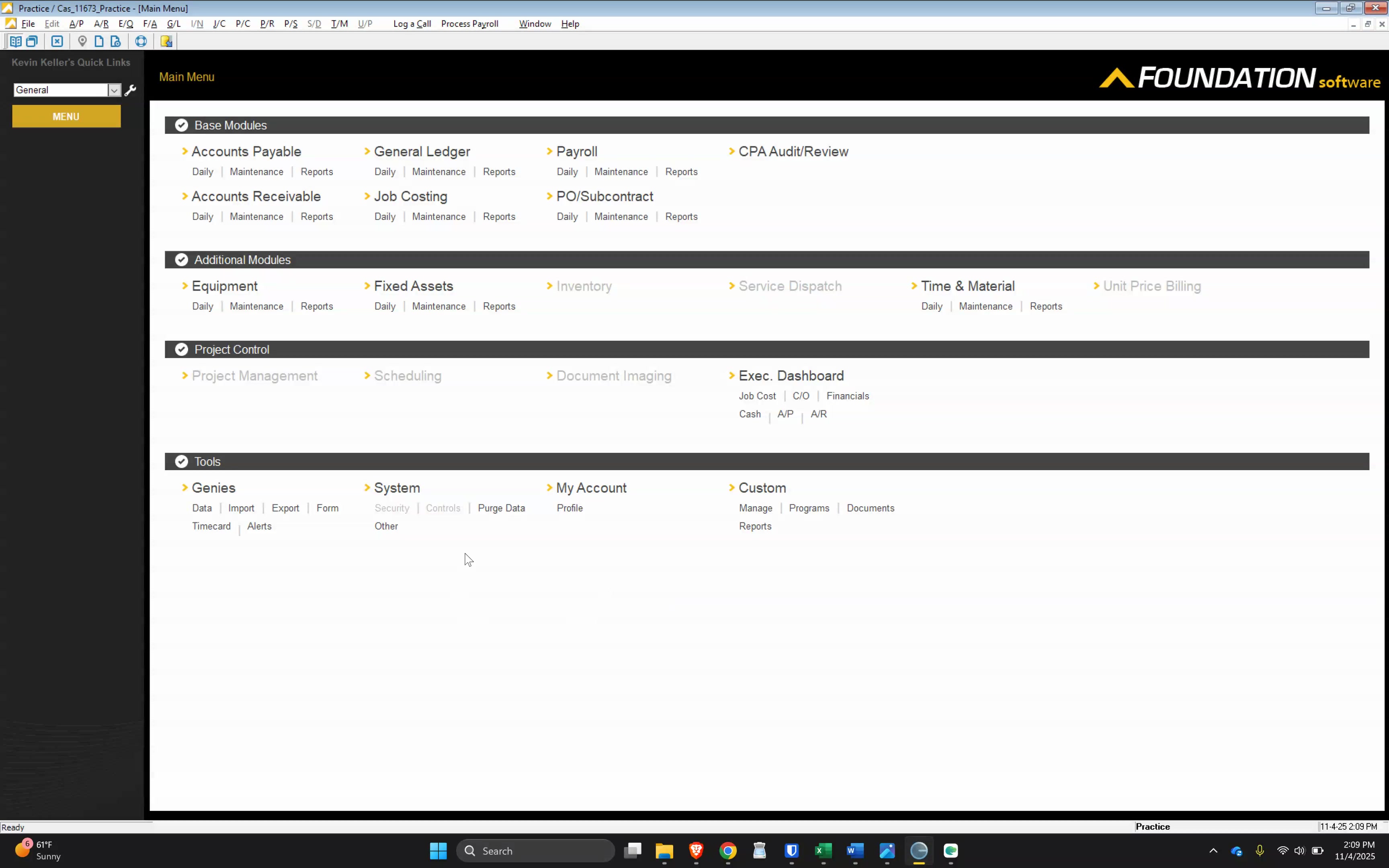
Start of Process
Open Job Costing Module in Foundation

Click here
Under Maintenance Tab

Click here
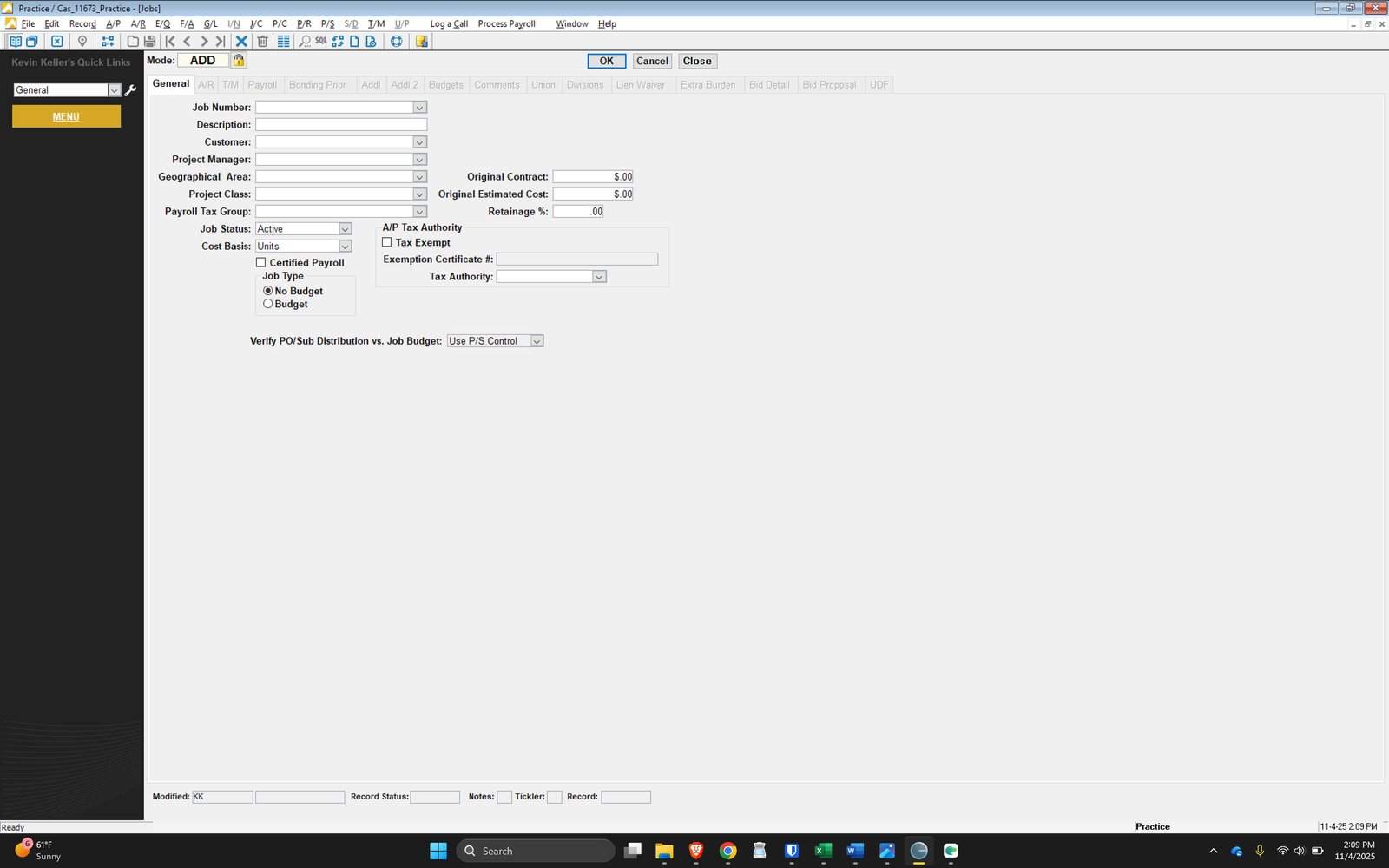
If a NEW CUSTOMER
Customer Setup may be required
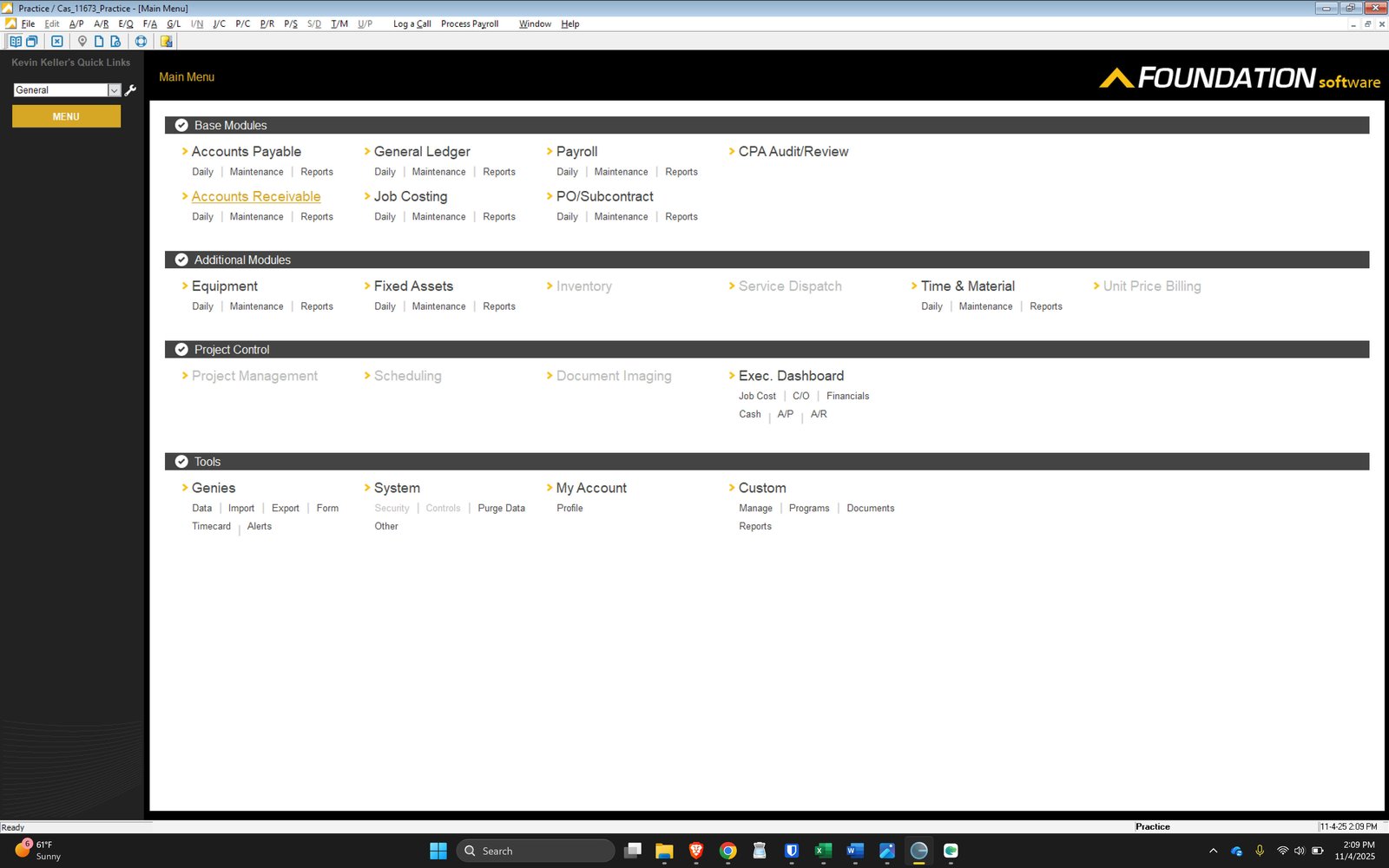
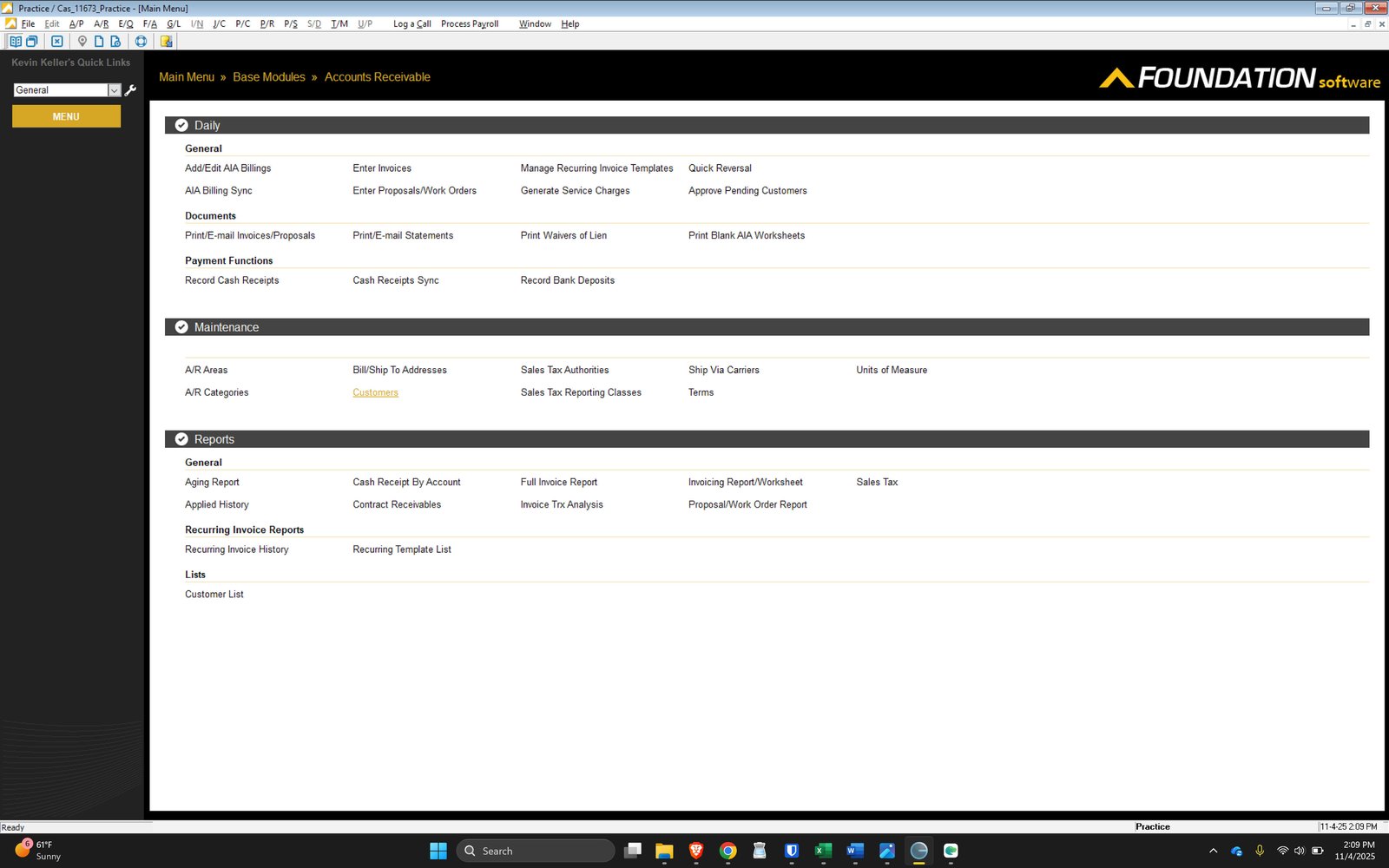
Follow New Customer SETUP if required
You will find Customers here
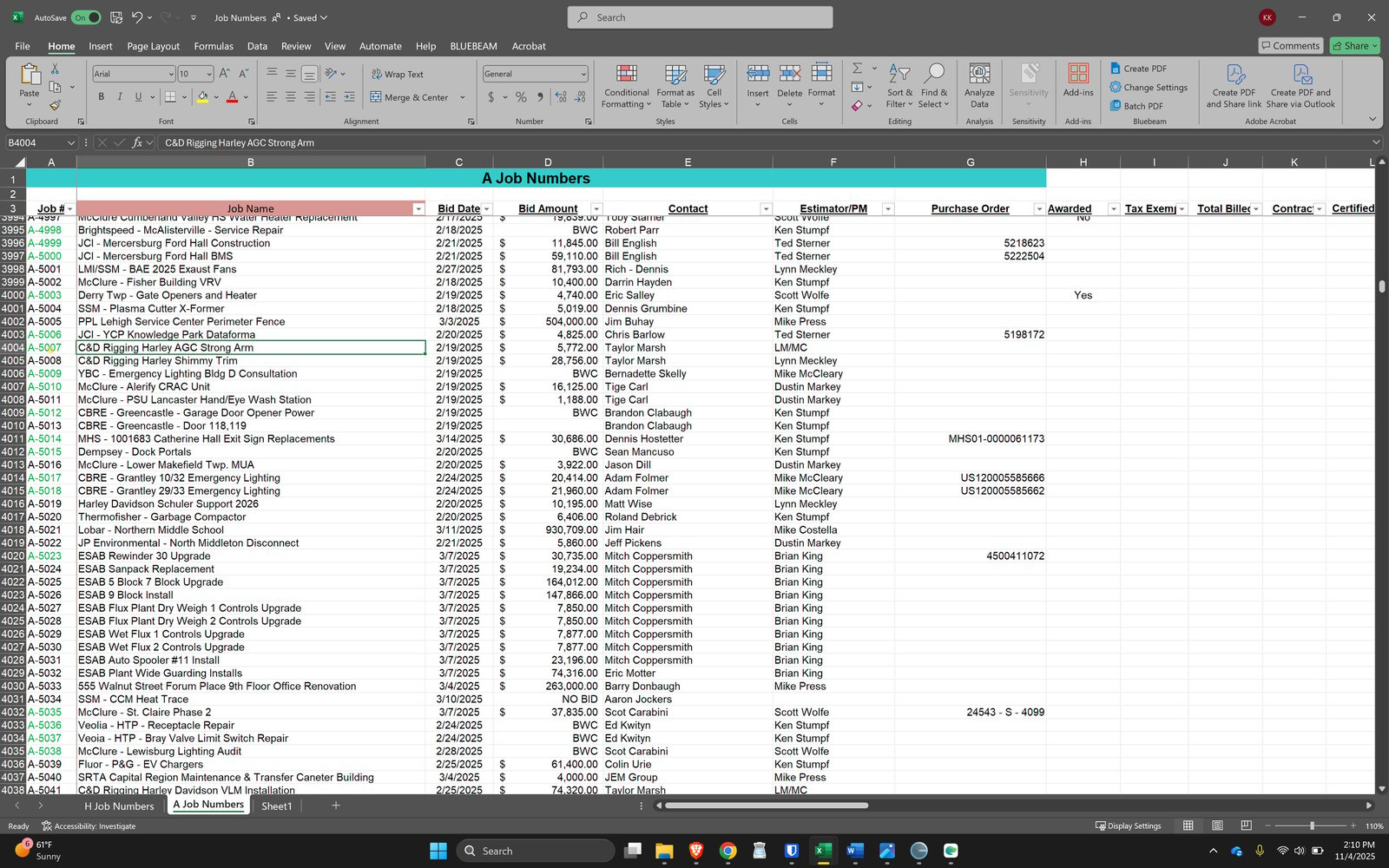
Open Job Numbers - Excel in Manada Documents
Find your Job Information on Job Numbers Sheet and COPY Description
Start of Foundation Job Information Entry
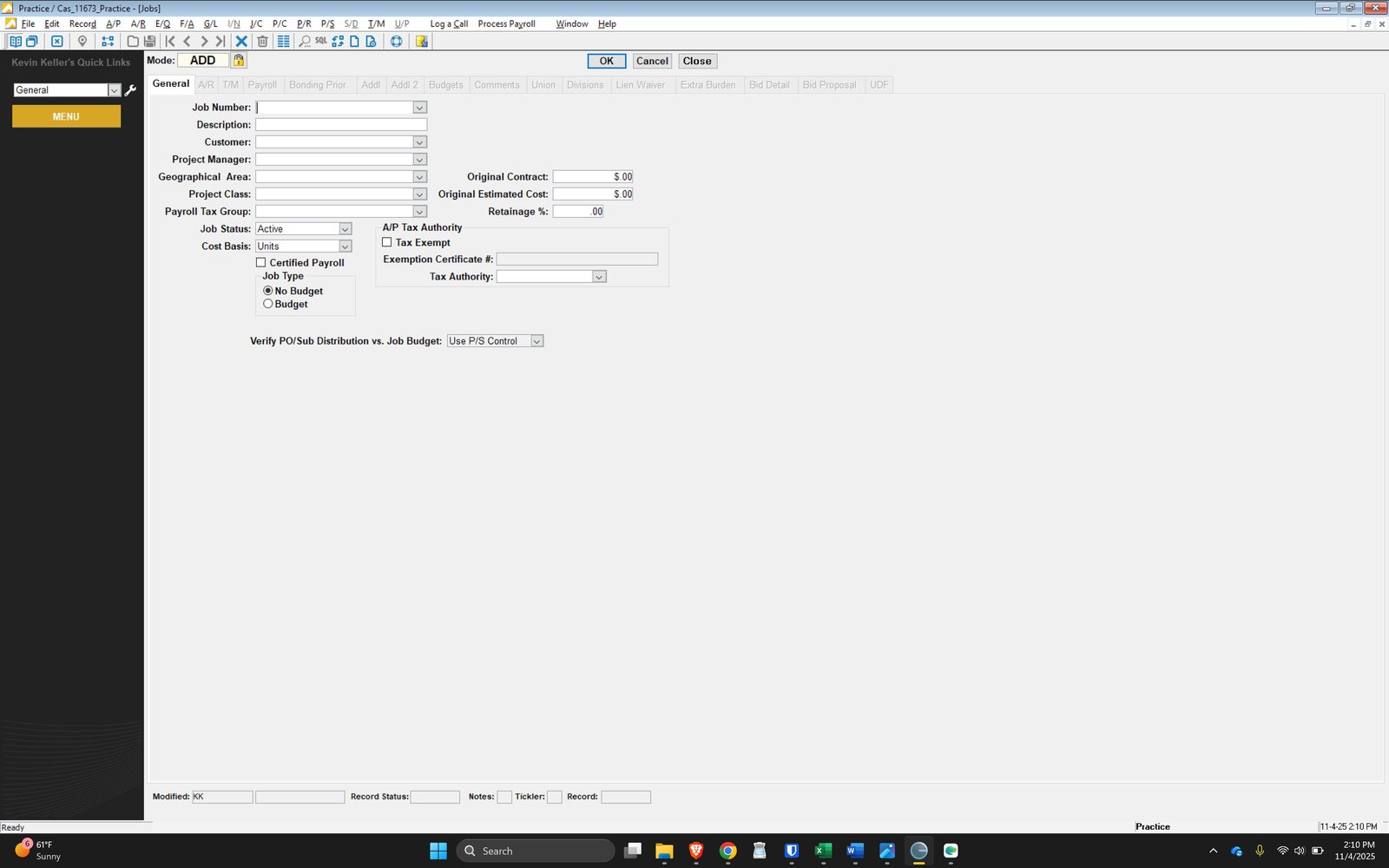
Input Description
Be sure to put the customer and job description. At the end of this you will need to put the integer value of the job number.
A description should be "Customer - Description Job Number Integer"
If you find it will not all fit in this field, truncate the customer or description
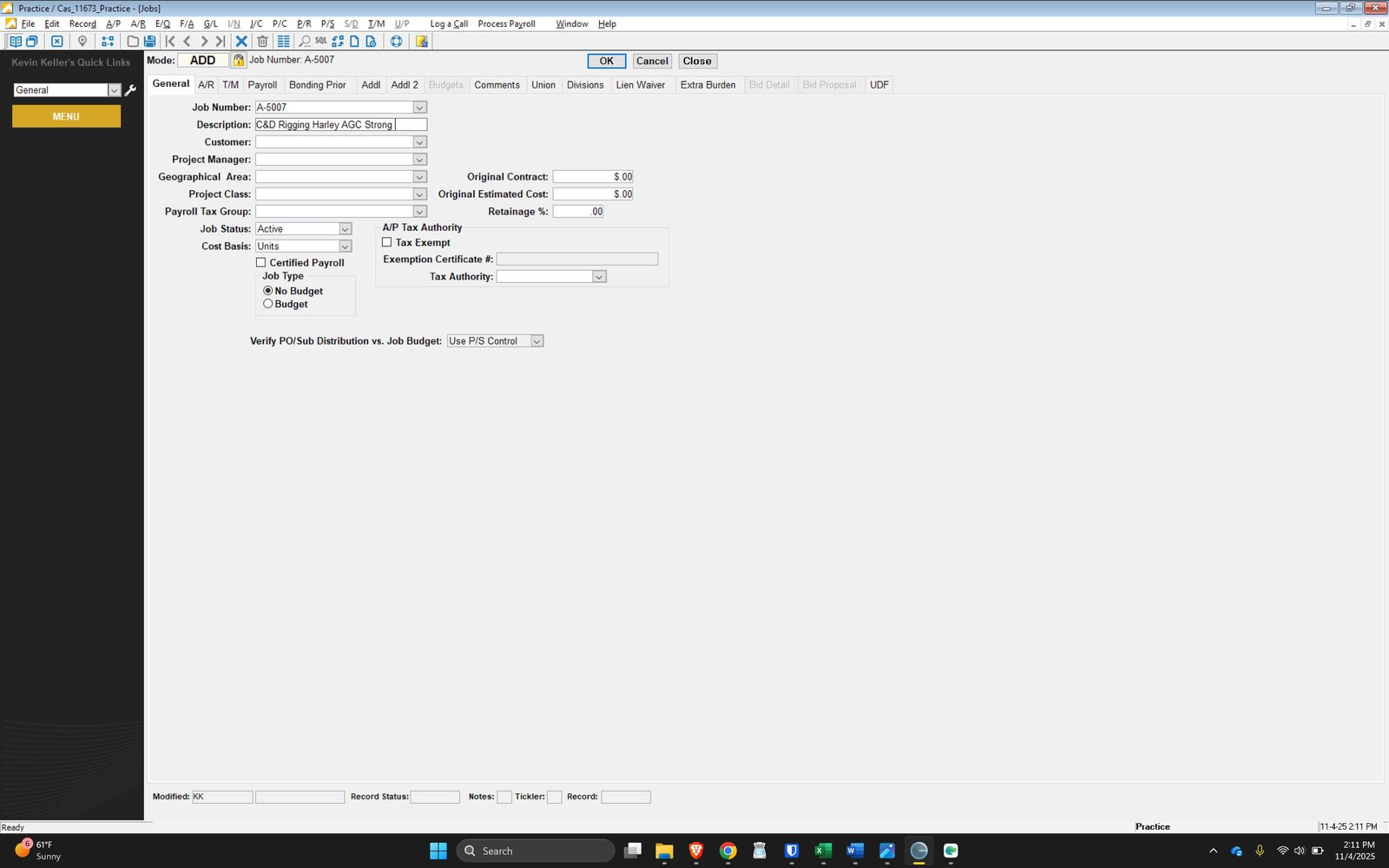
Truncated with Job Number
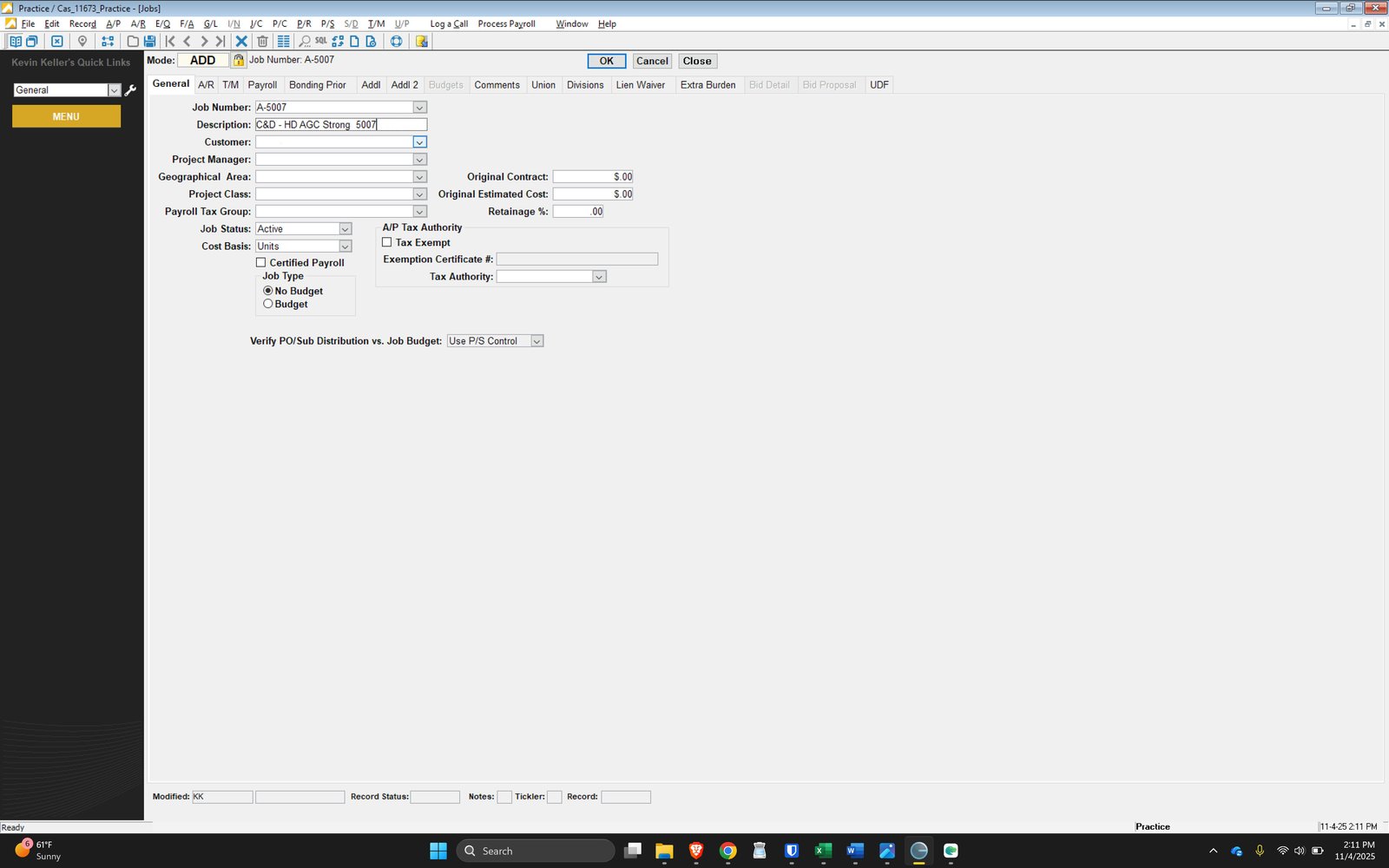
Select Existing Customers from this list
IF a NEW Customer, you must start with the customer setup process FIRST
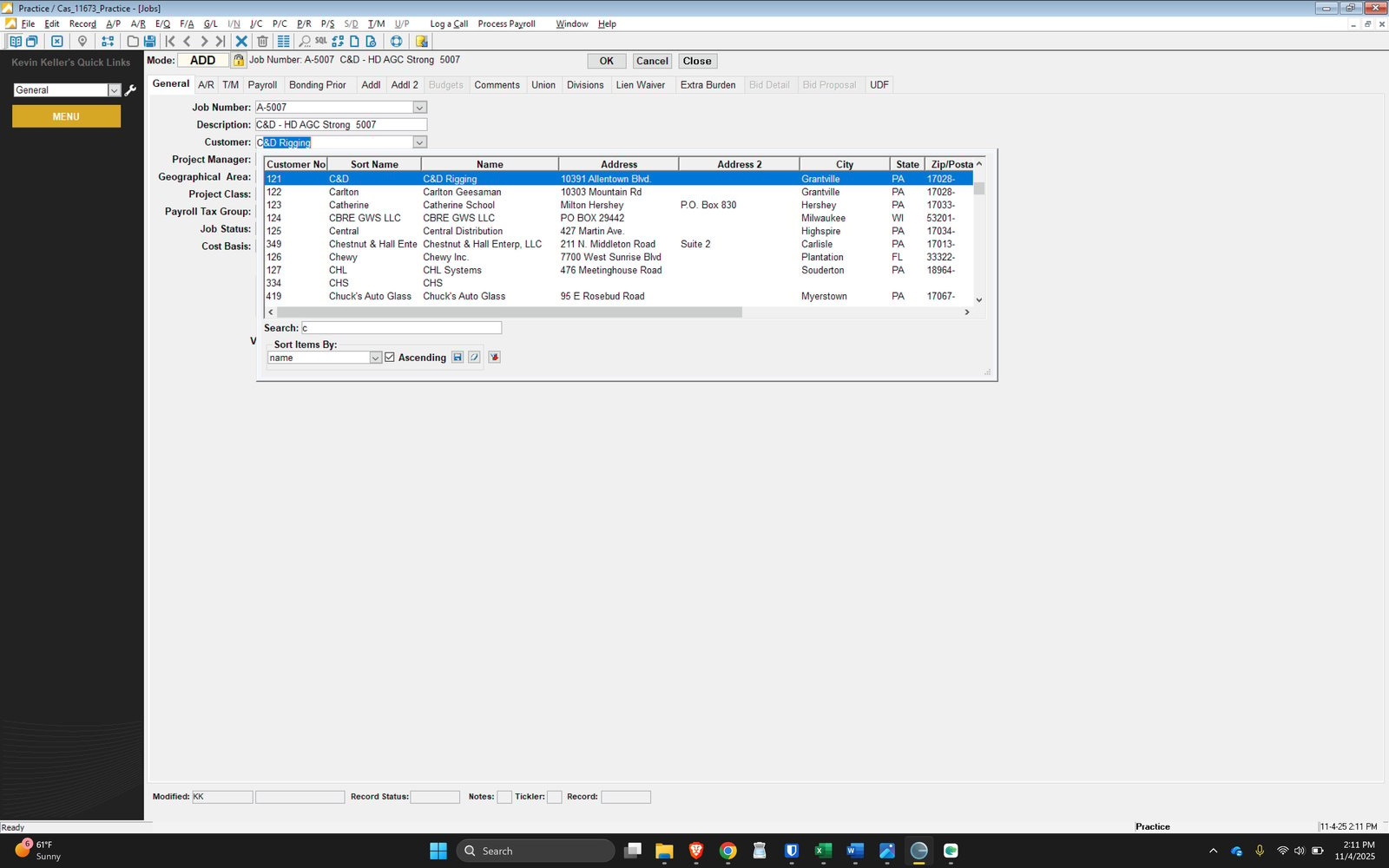
Input Project Manager
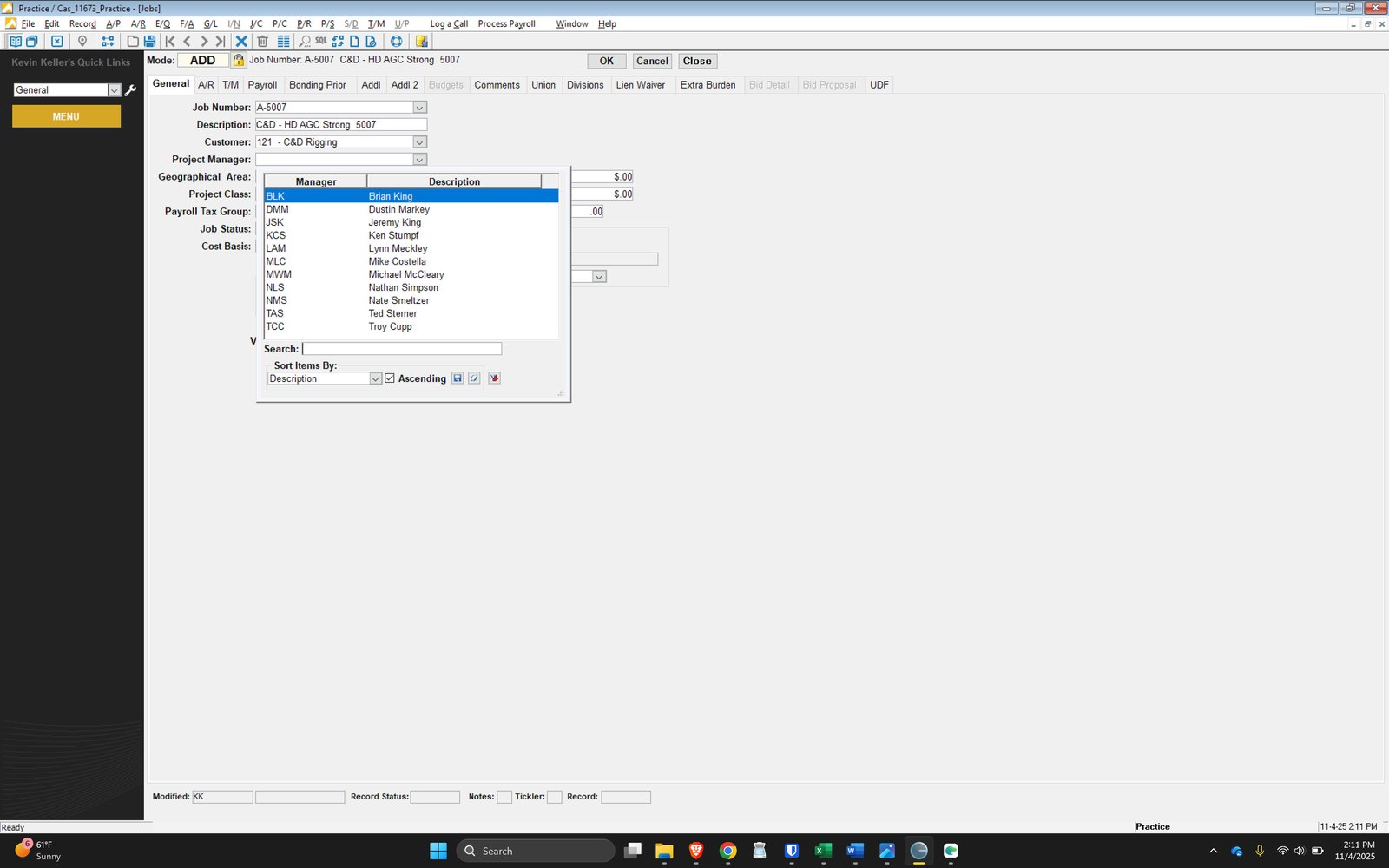
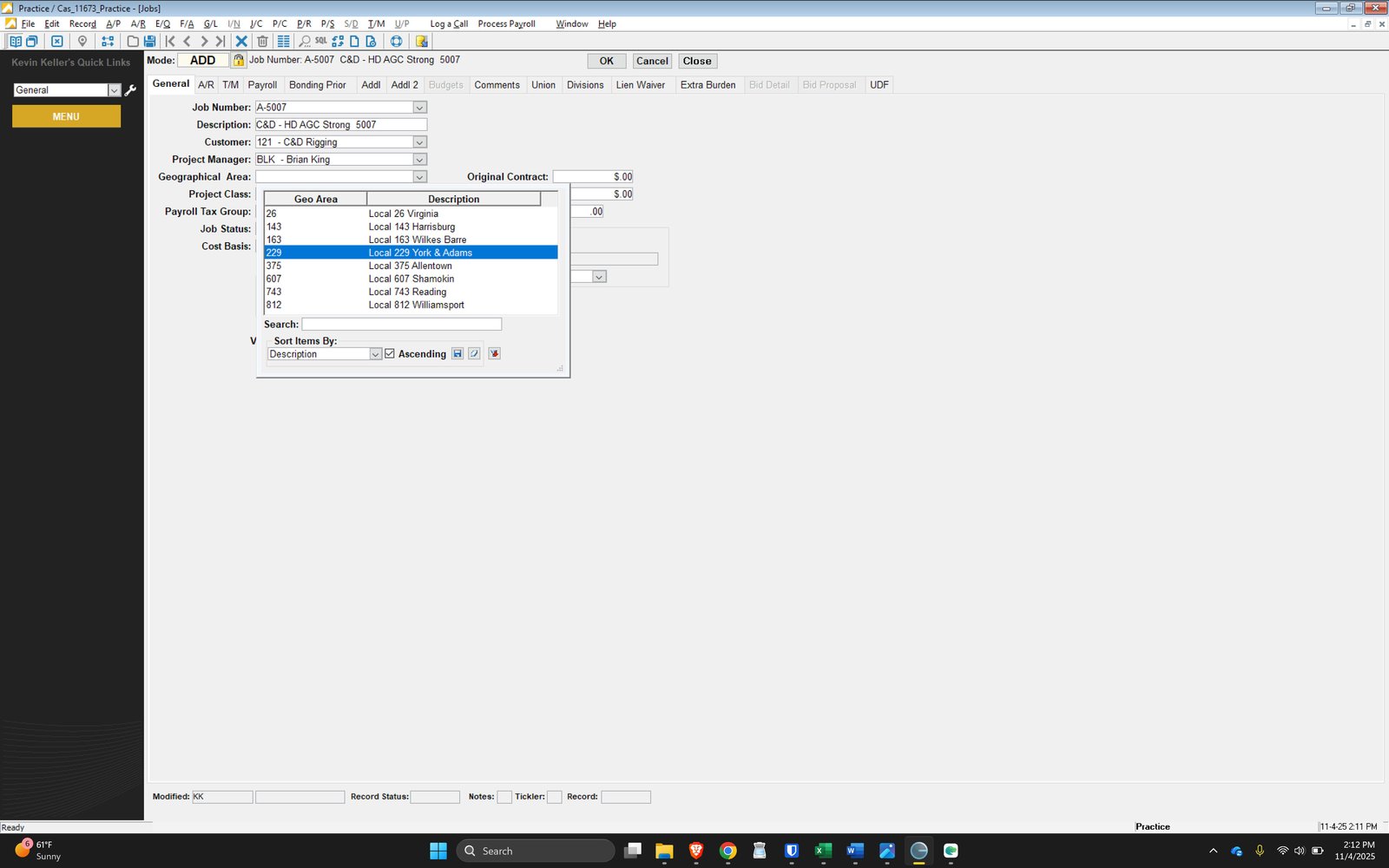
Select Job Location Local
This will be given by project manager in Job setup Form.
Consult with Superintendent if unsure of Local and one not provided by PM
Select Job Project Class
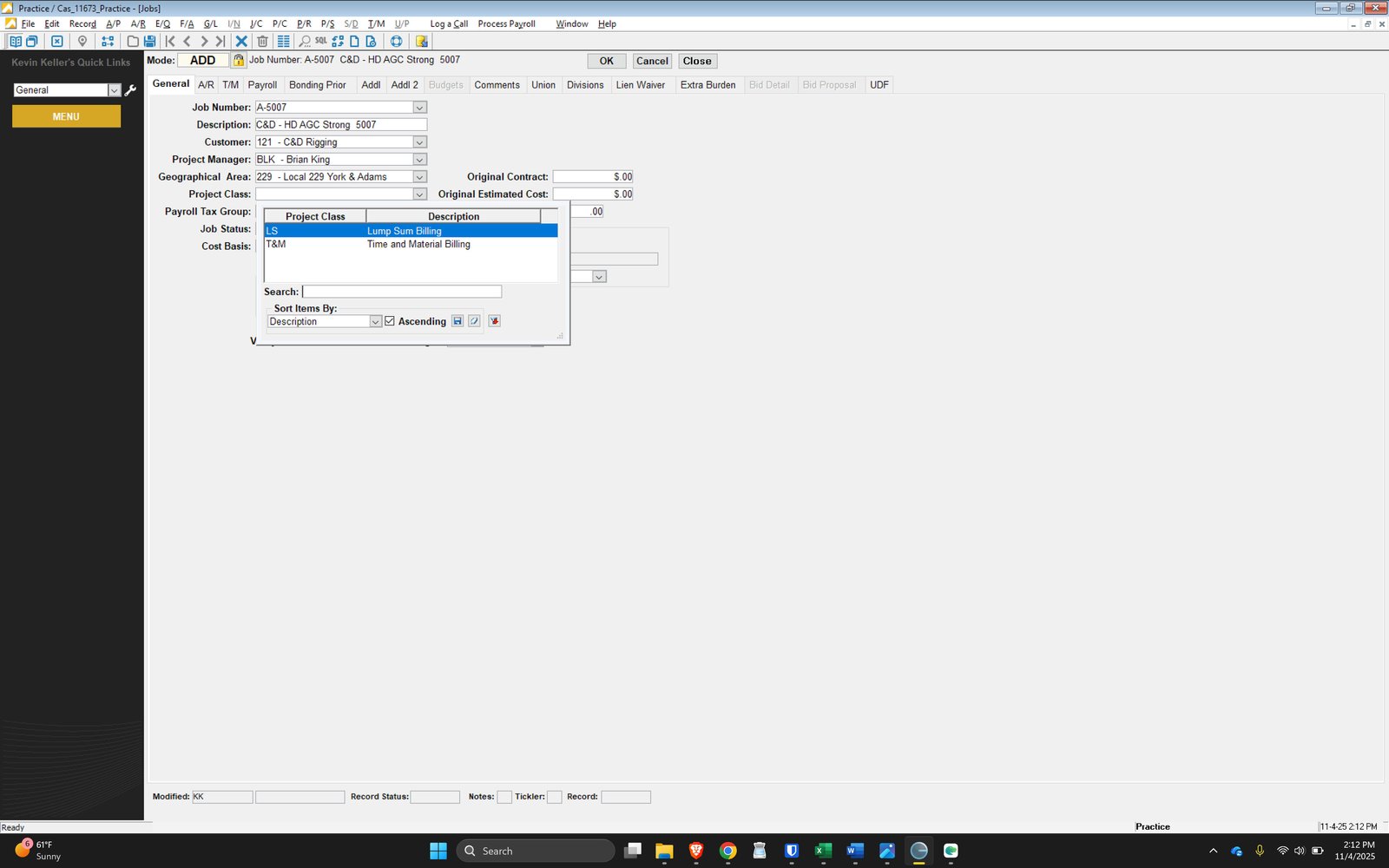
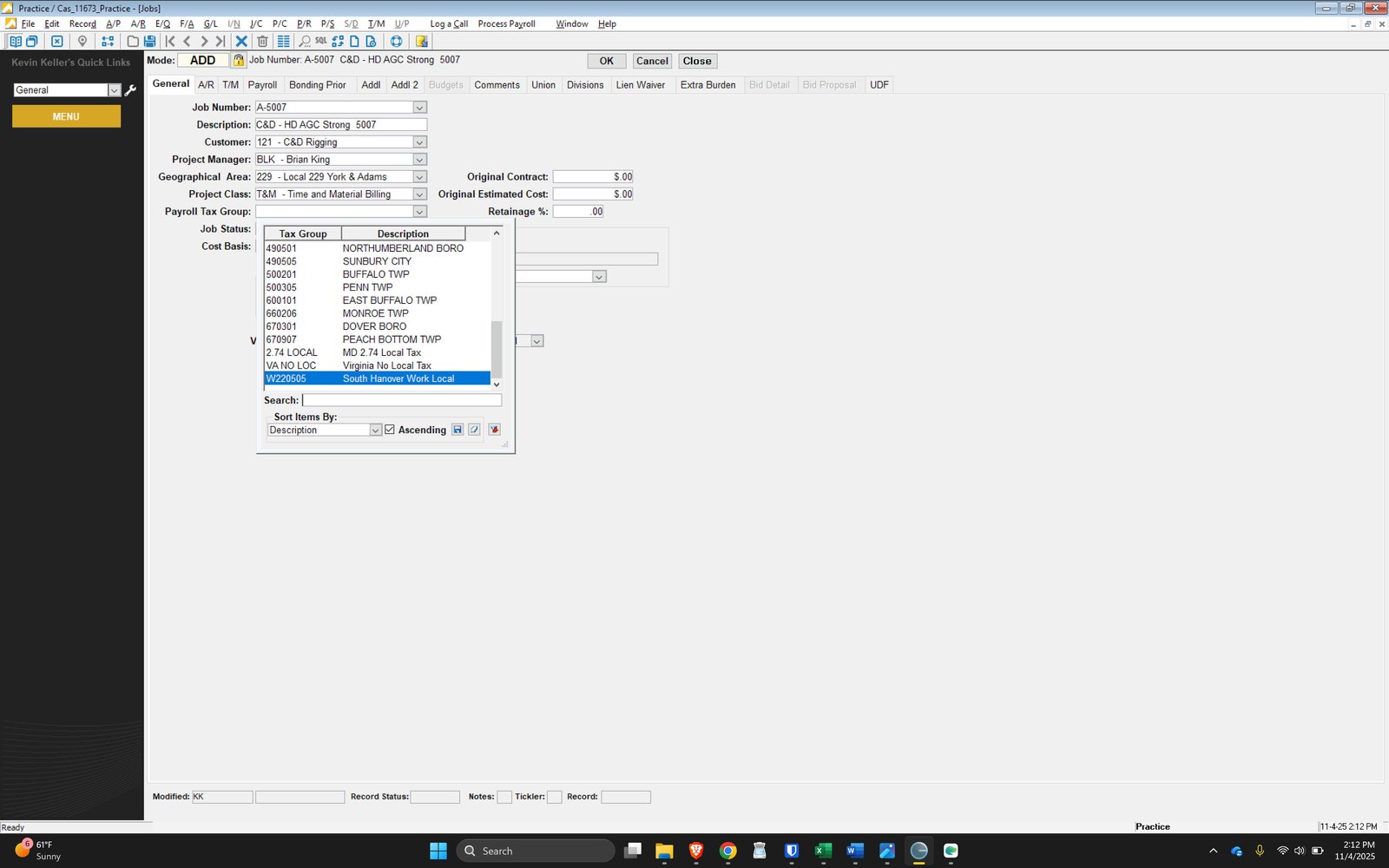
Select South Hanover for all Work > UNLESS > work is being performed in Virginia
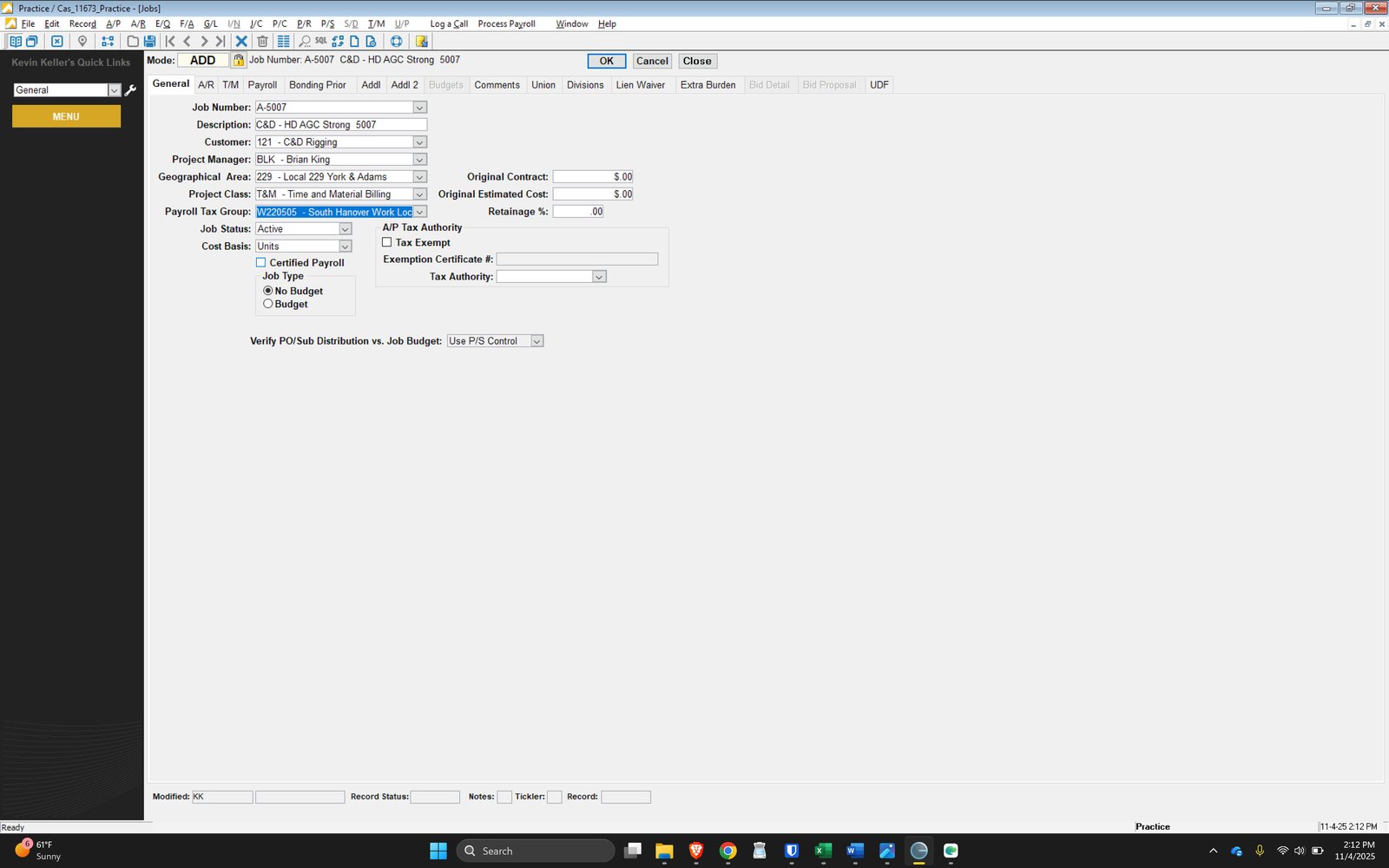
IF: Certified payroll check this box
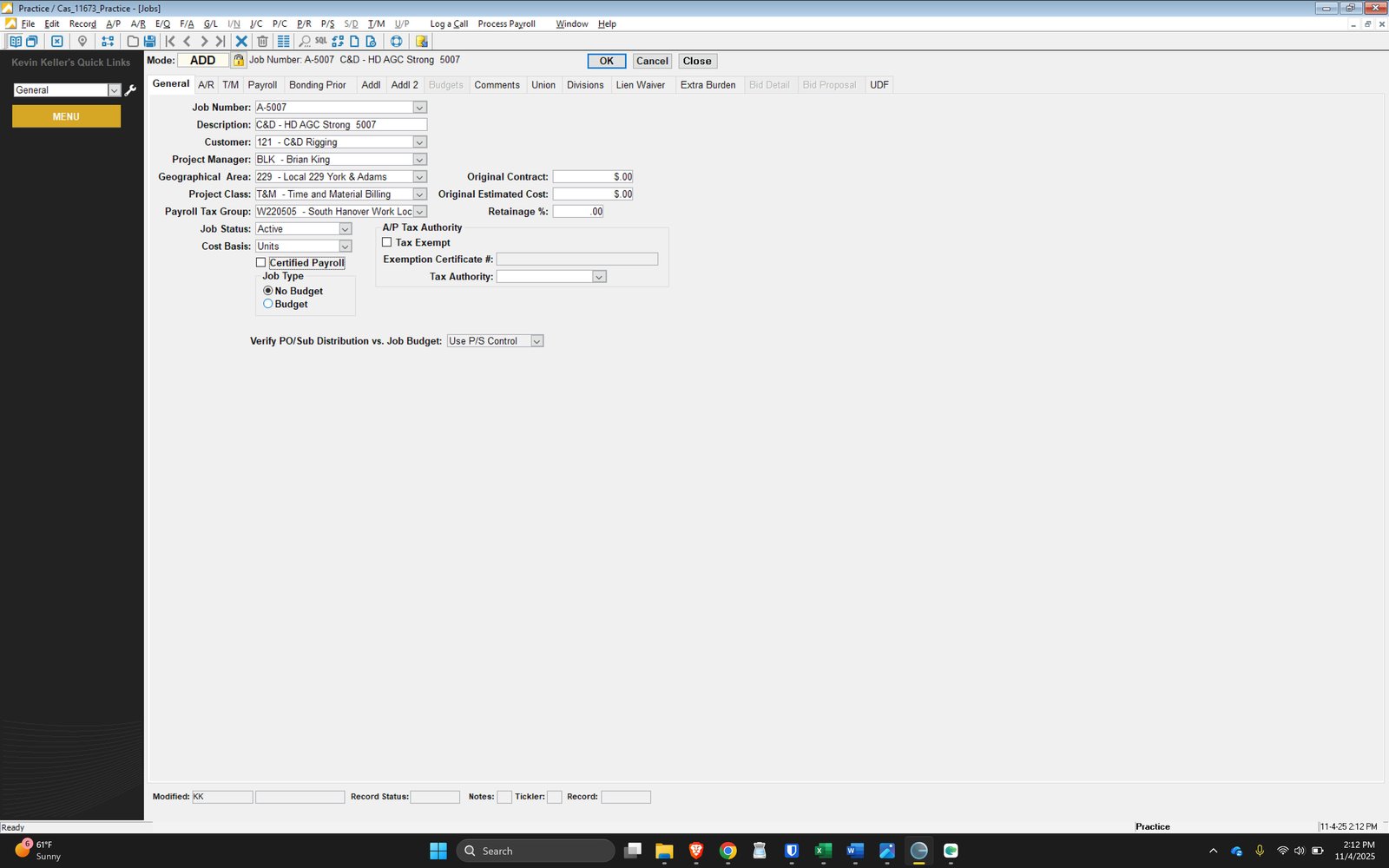
Change Job Type to BUDGET > do this for all jobs
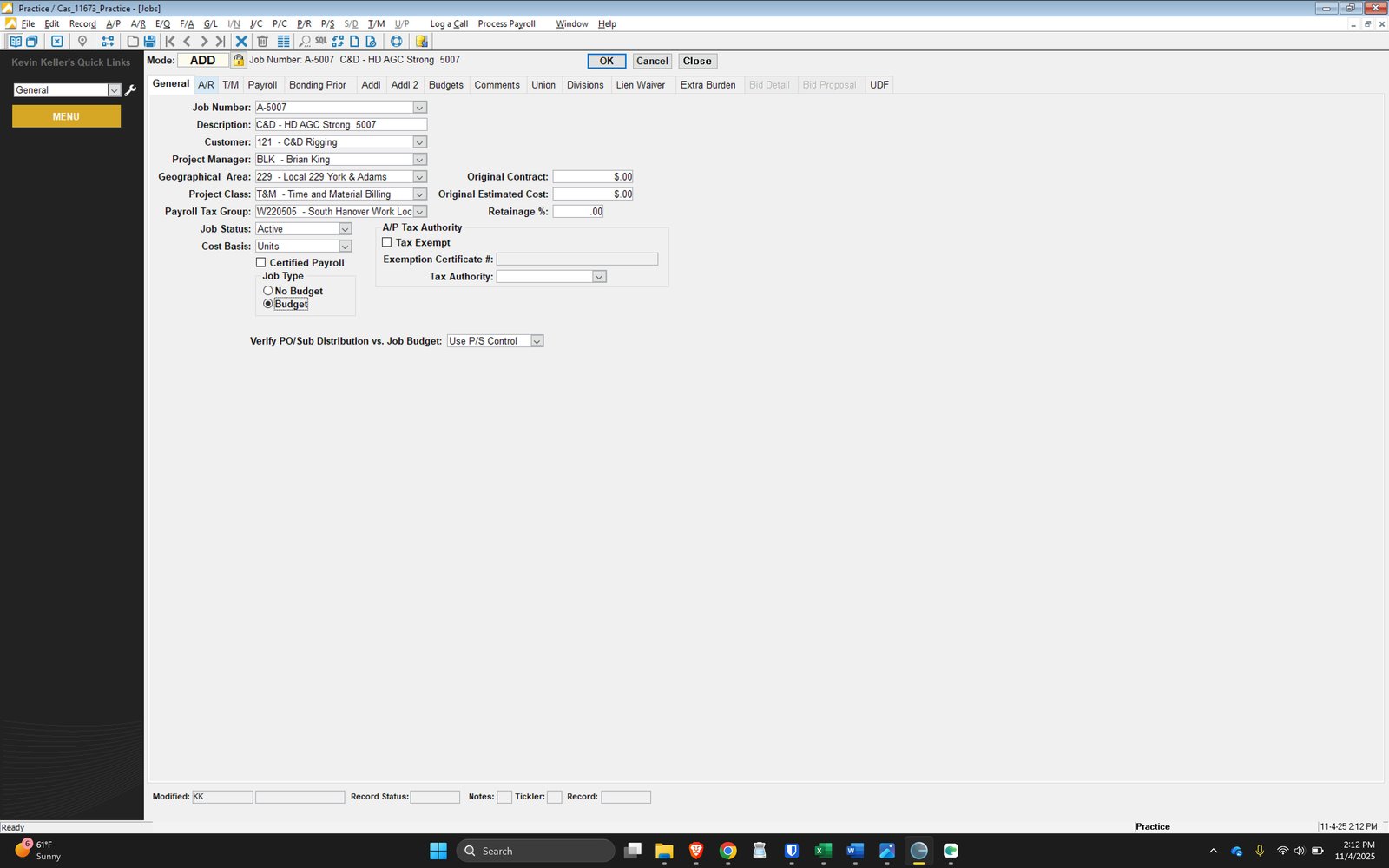
Move to AR Tab
INPUT: Job location
This will be provided by Project Manager in Job Setup Form
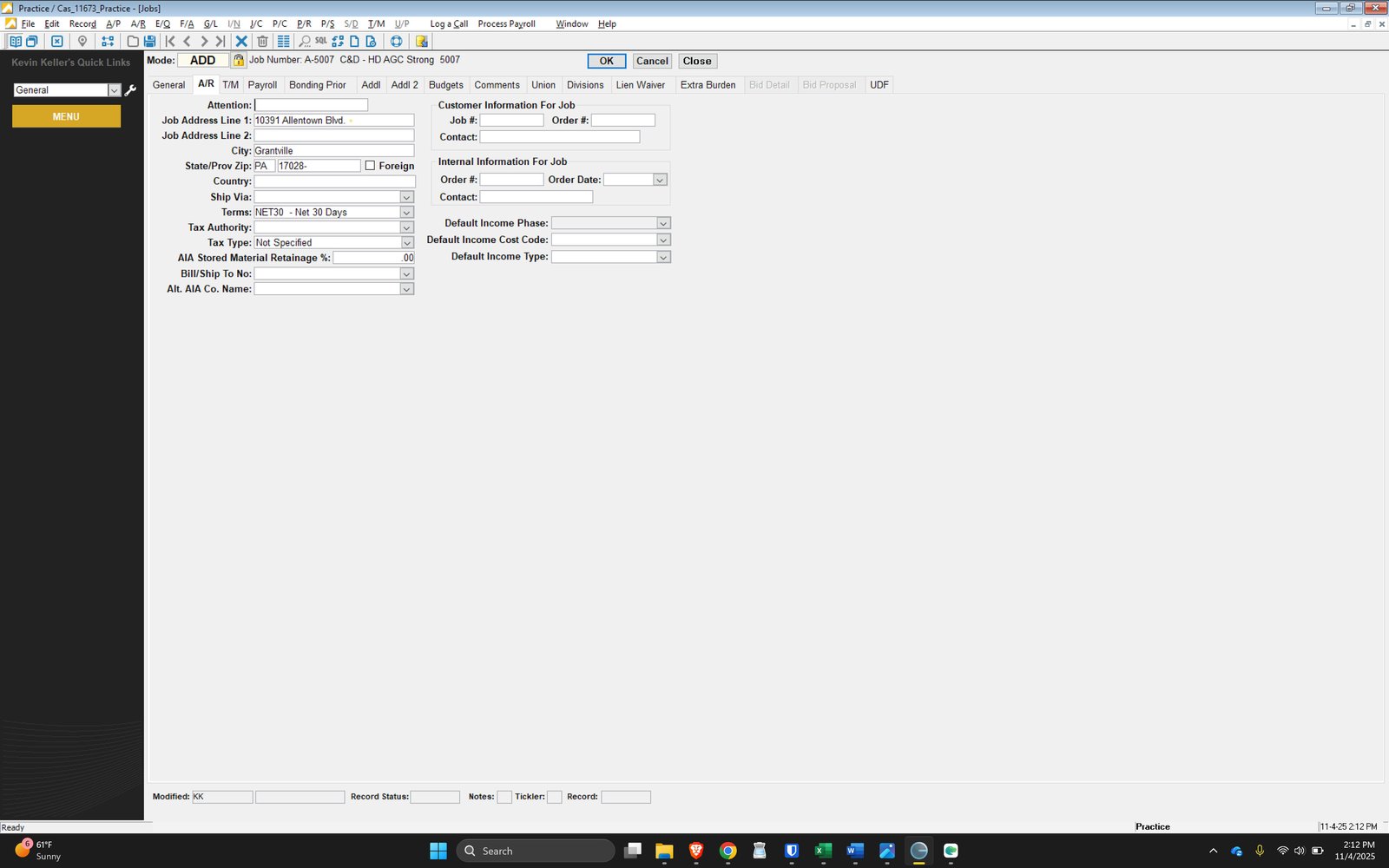
Adjust Terms if Not Customer Standard Terms
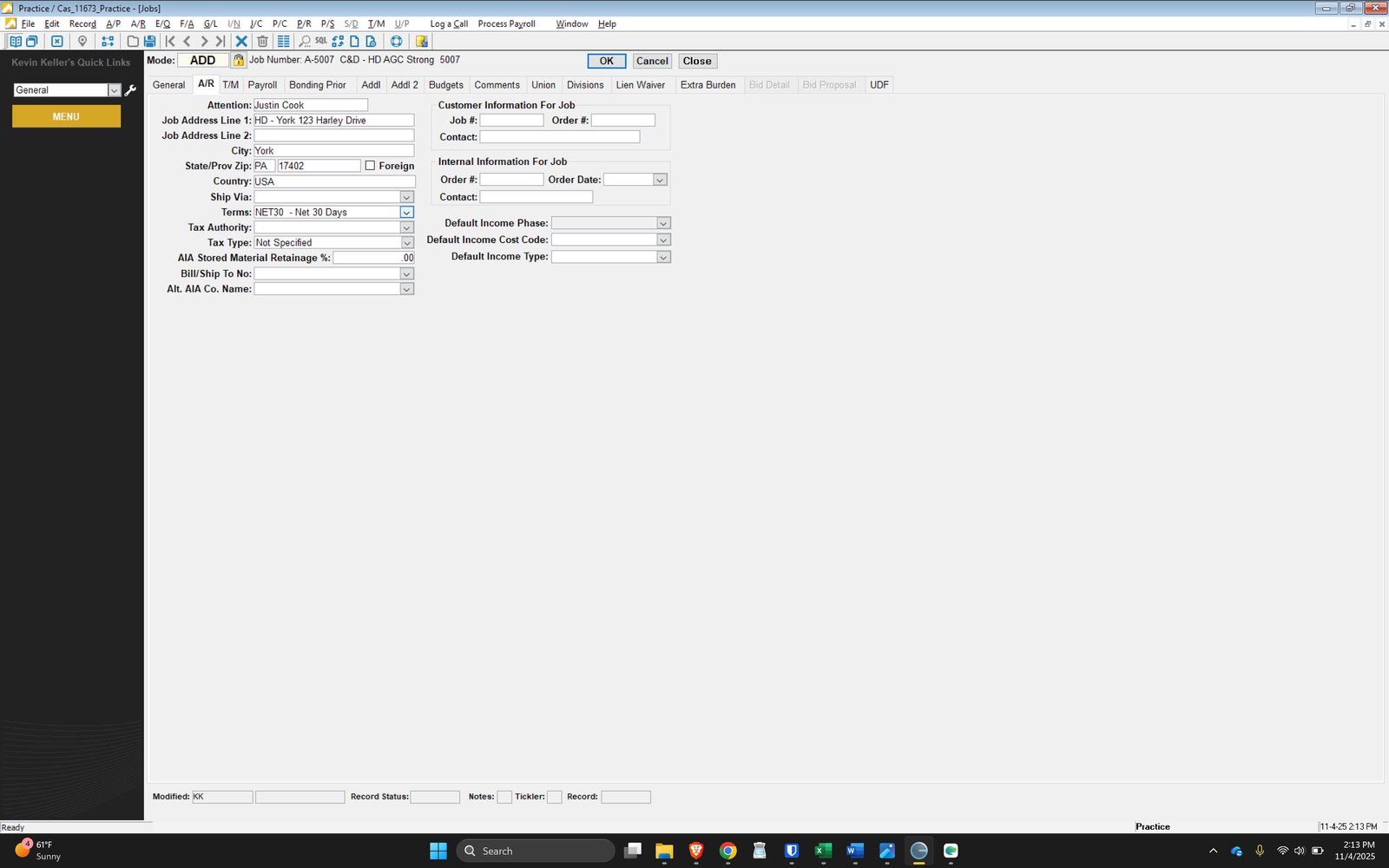
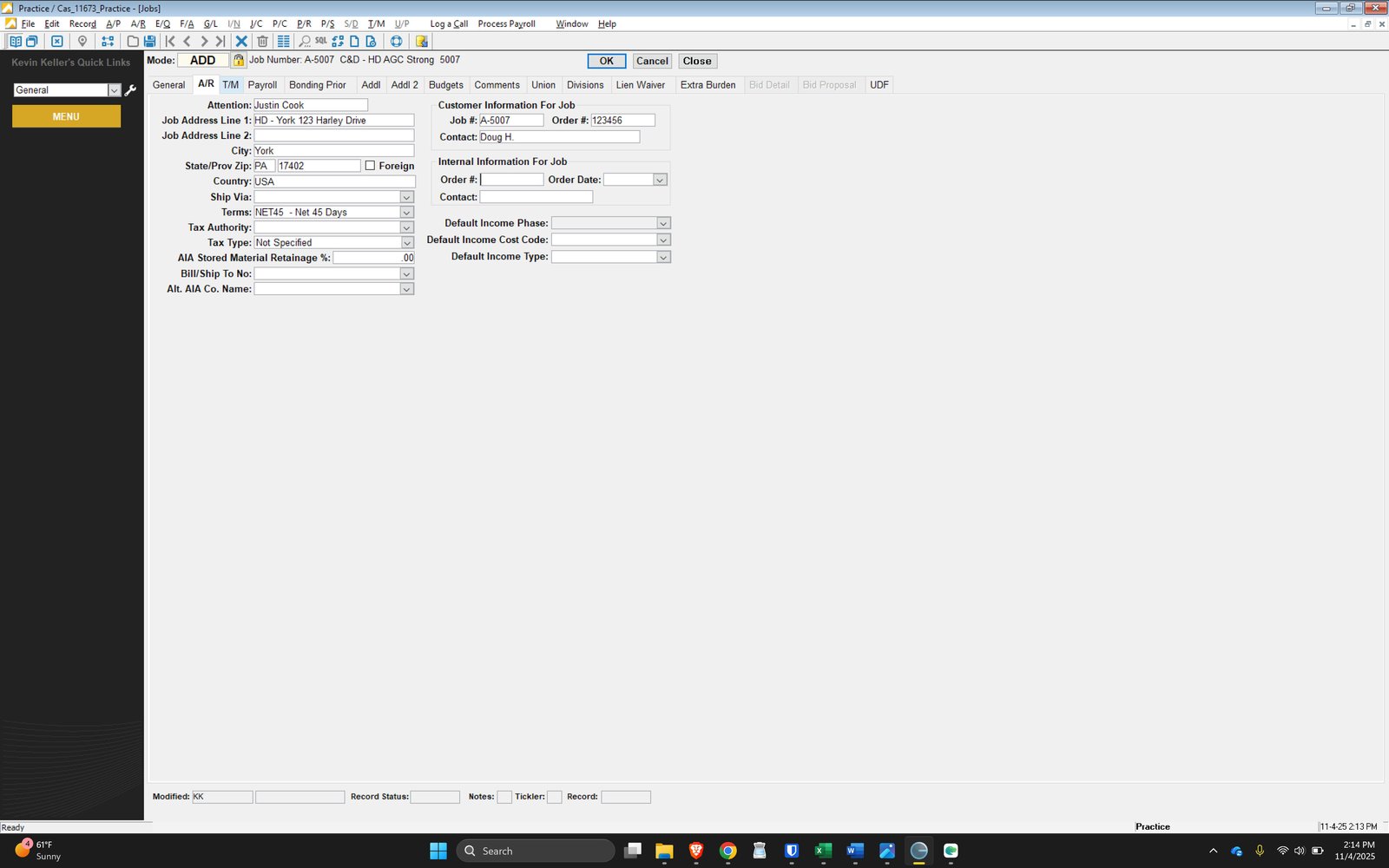
Input Customer Job Details
This will include the Purchase Order given, customer contact, etc

Proceed to T/M Tab
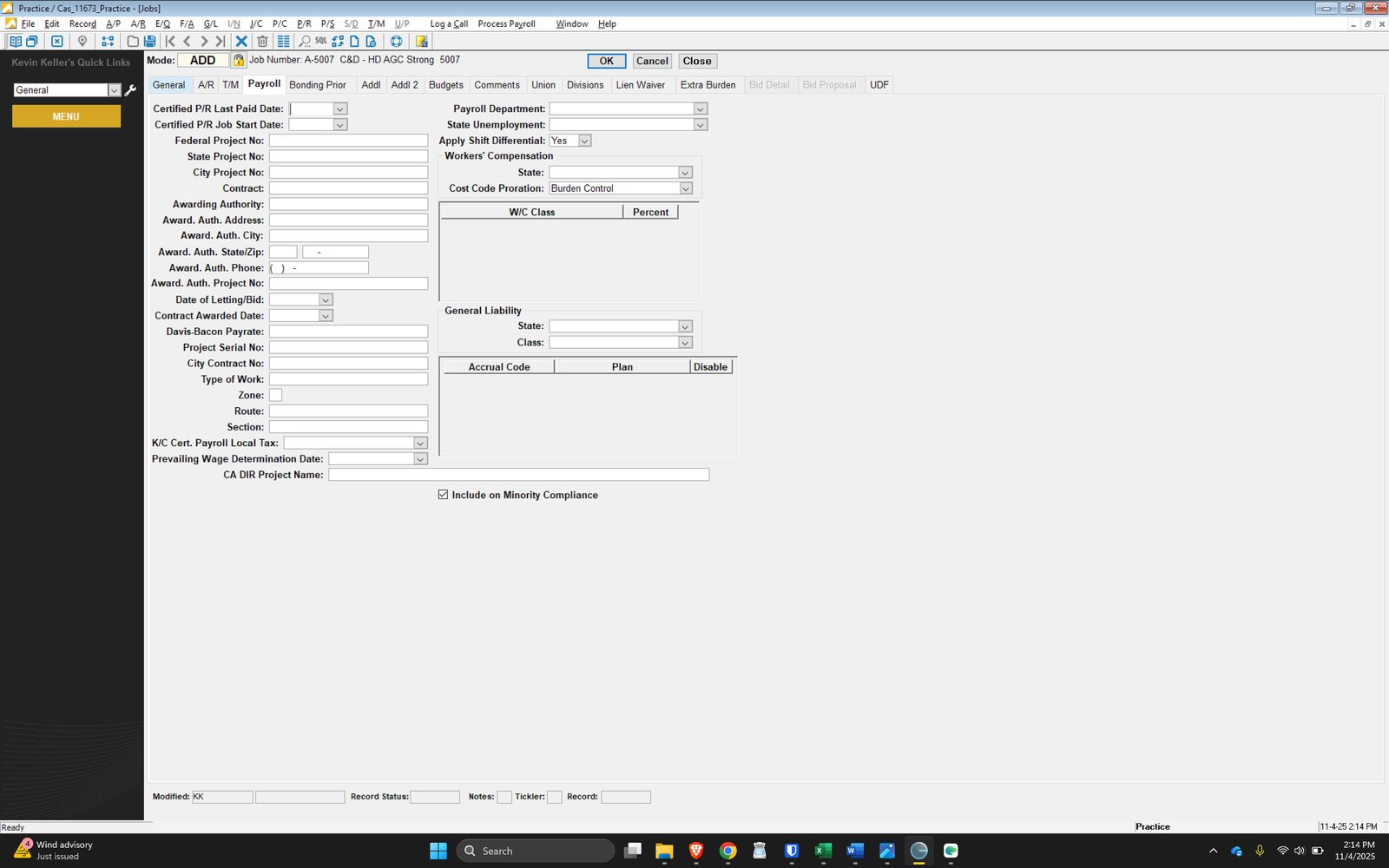
Proceed to Payroll Tab
Information is needed for AIA > specifically State Project Number and Project Serial Number
Proceed to Bonding Tab
Nothing Required at this time.
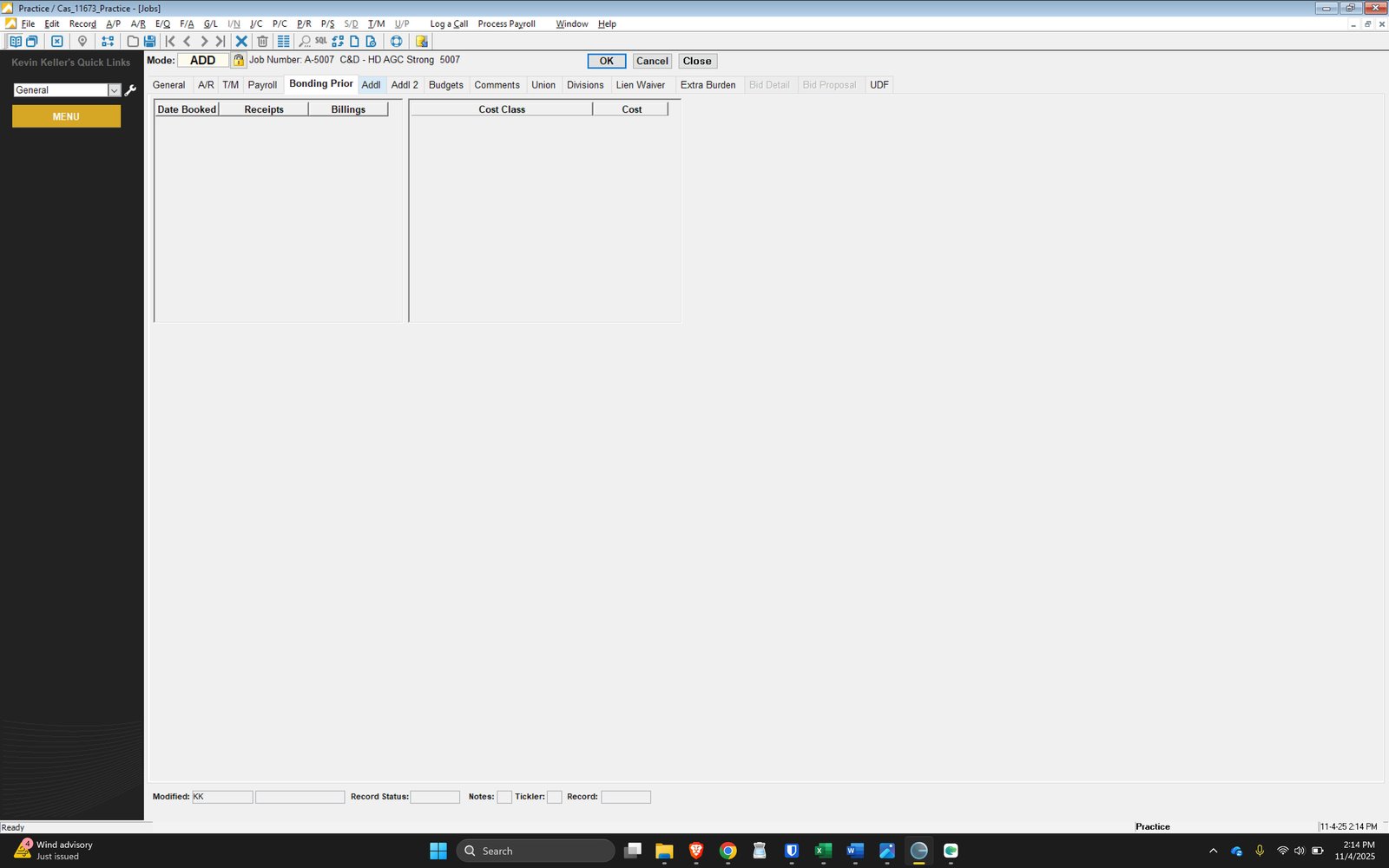
Proceed to ADDL Tabs
Nothing Required at this time.
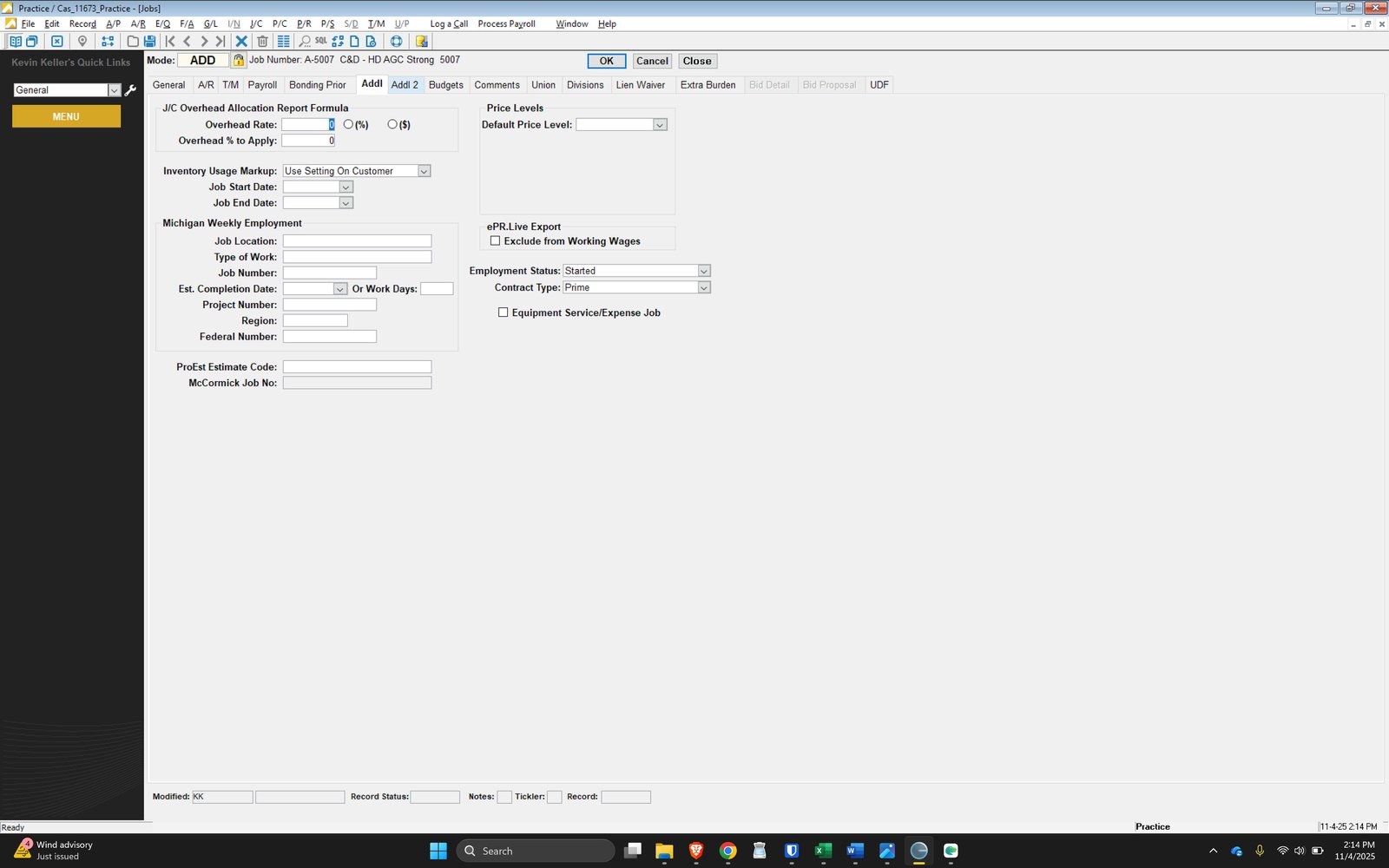
Proceed to BUDGET Tab

Start with Entering Cost Codes
We will use General 1 for all jobs

Open Job Cost Code Selection

Click here

Begin Inputting Cost Classes
Right Click and ADD
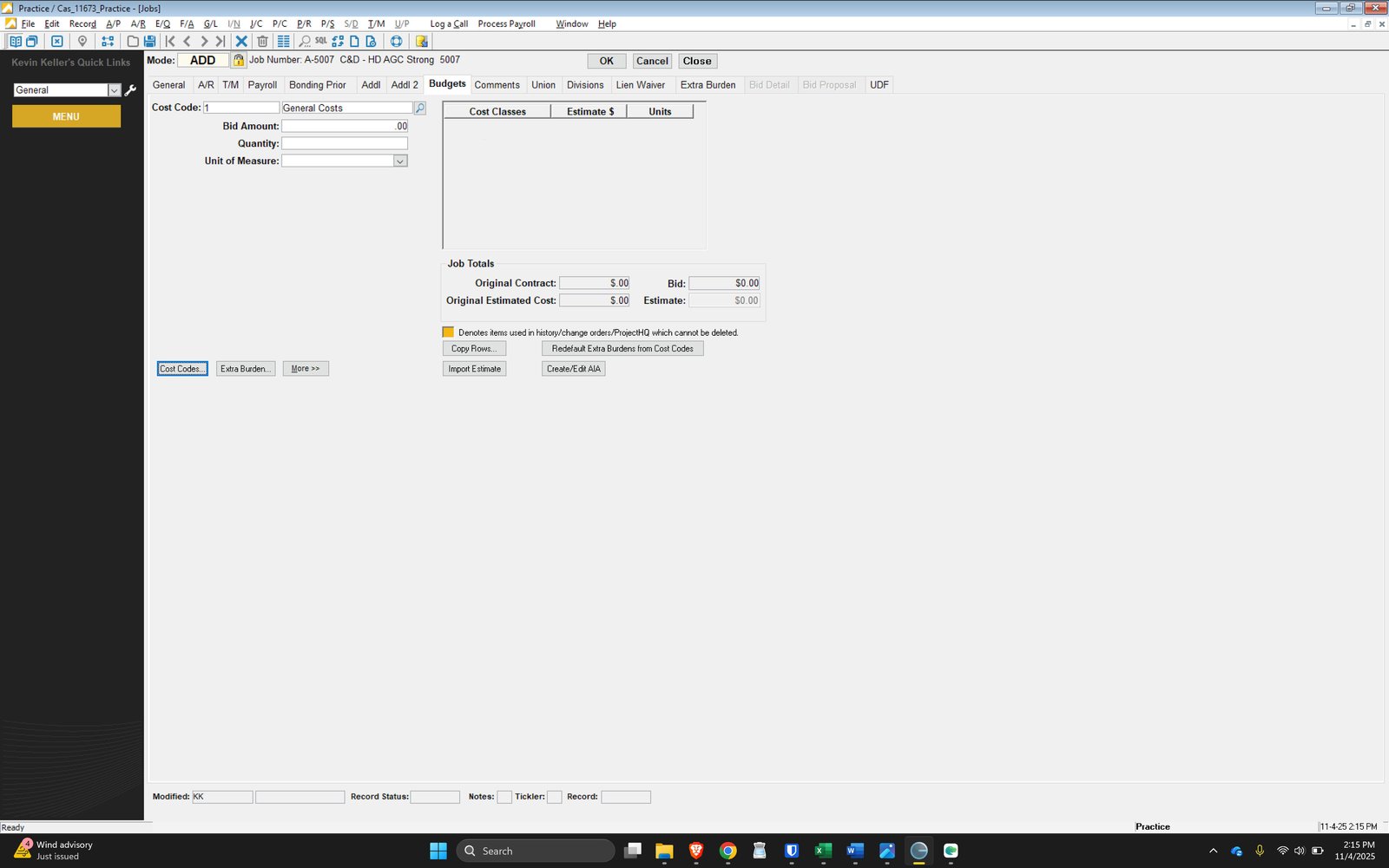
Click here

Click here

Add Cost Classes 1 through 7
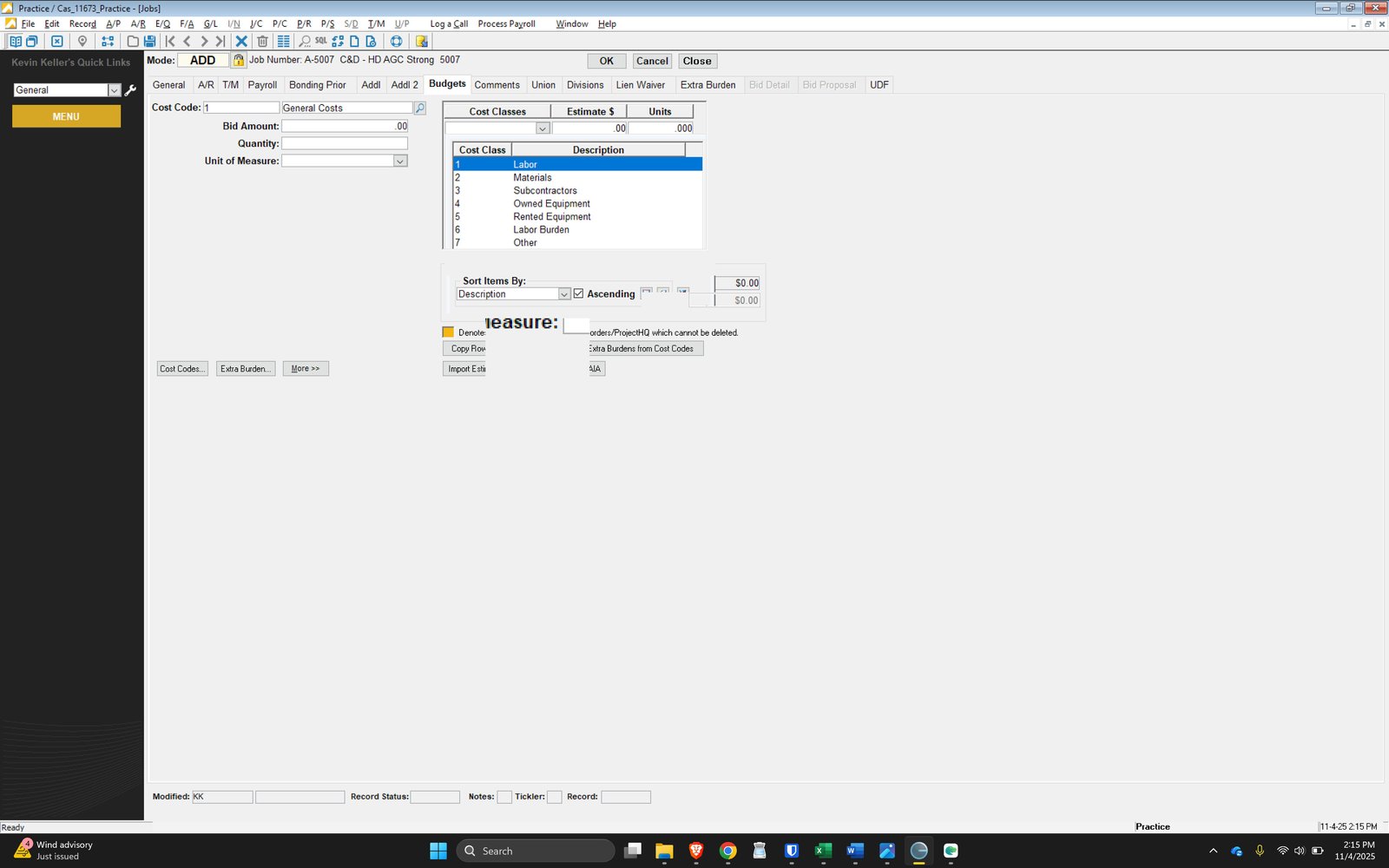
Click here

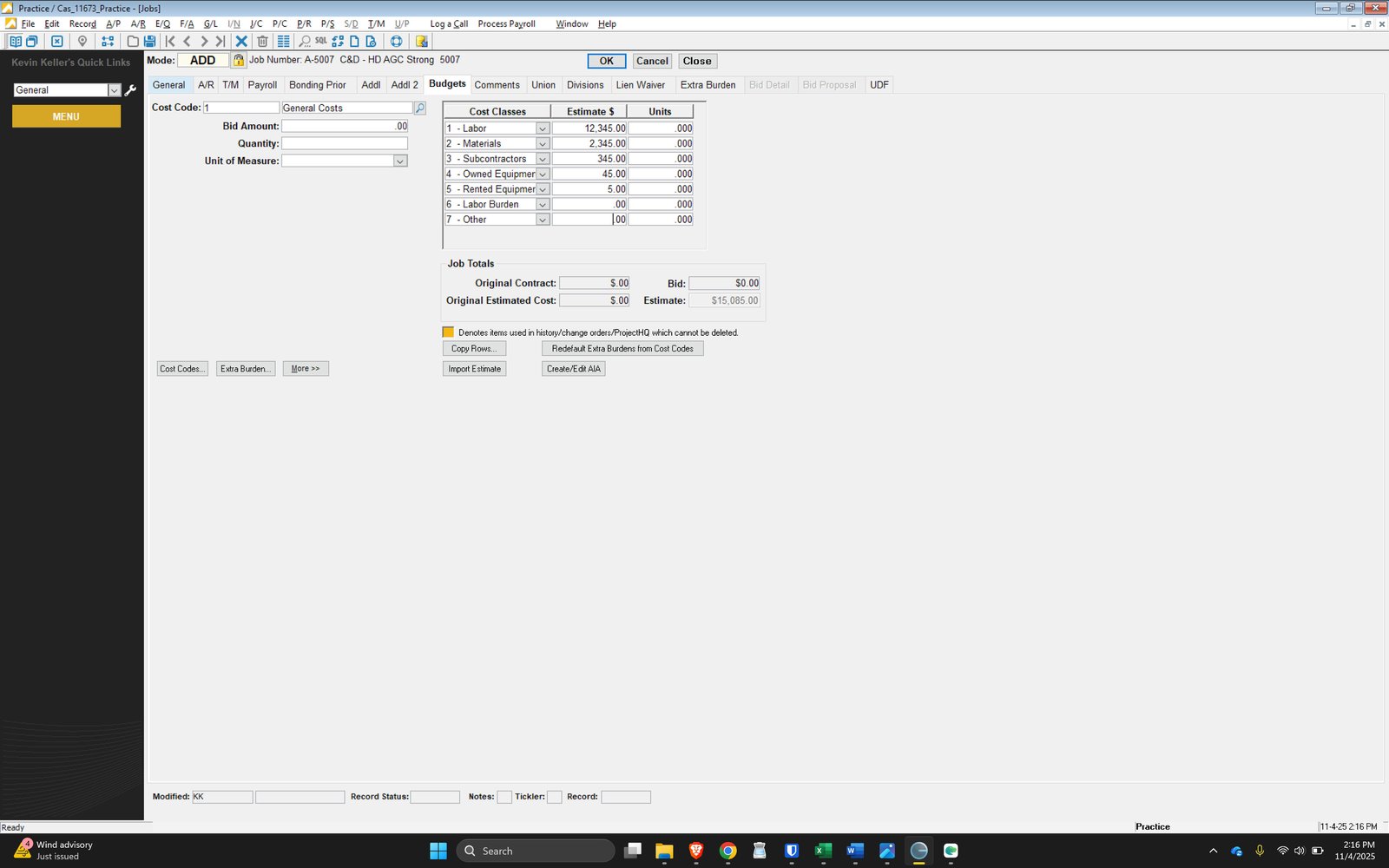
Begin Inputting Budgets From PM Worksheet
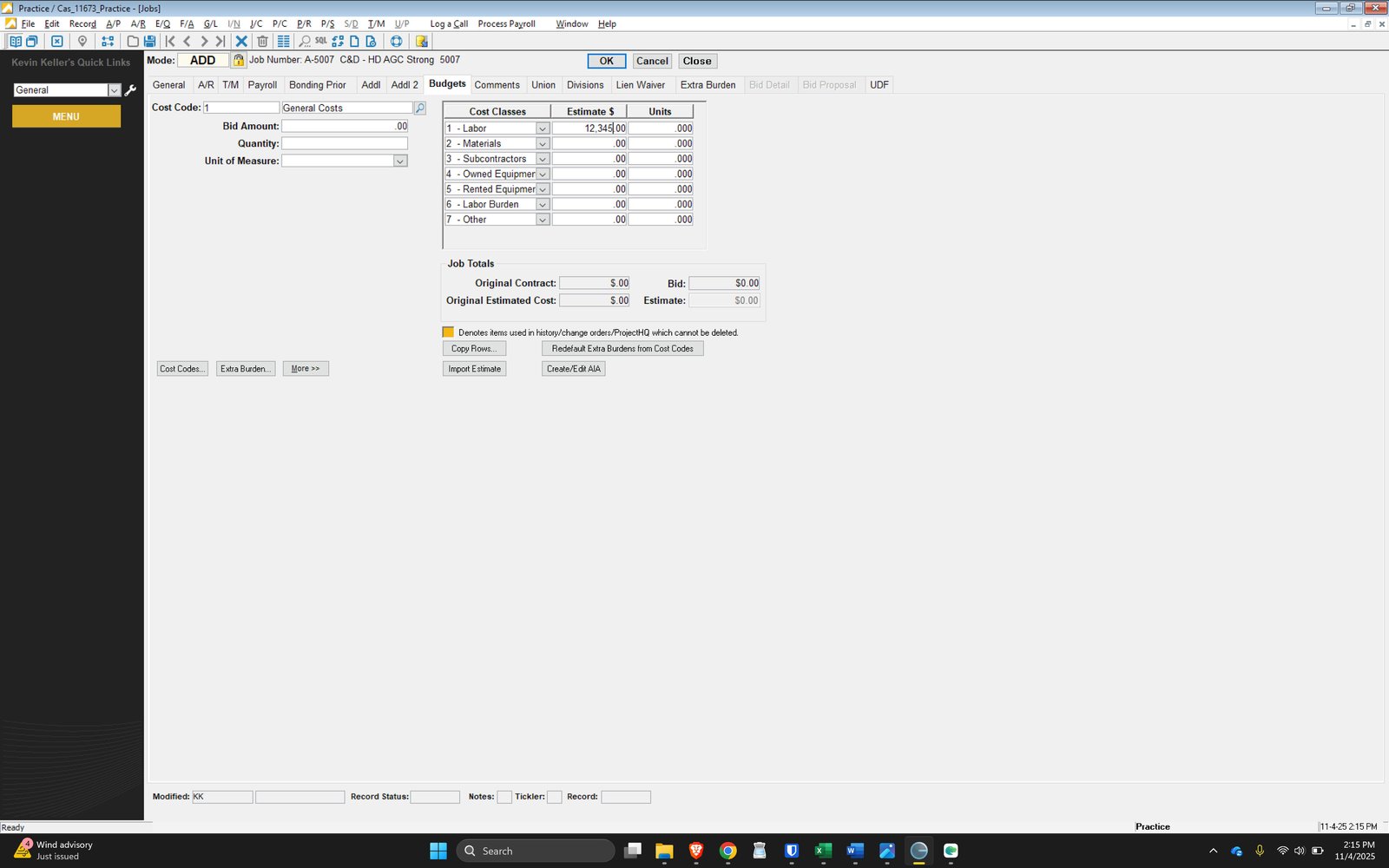
Click here
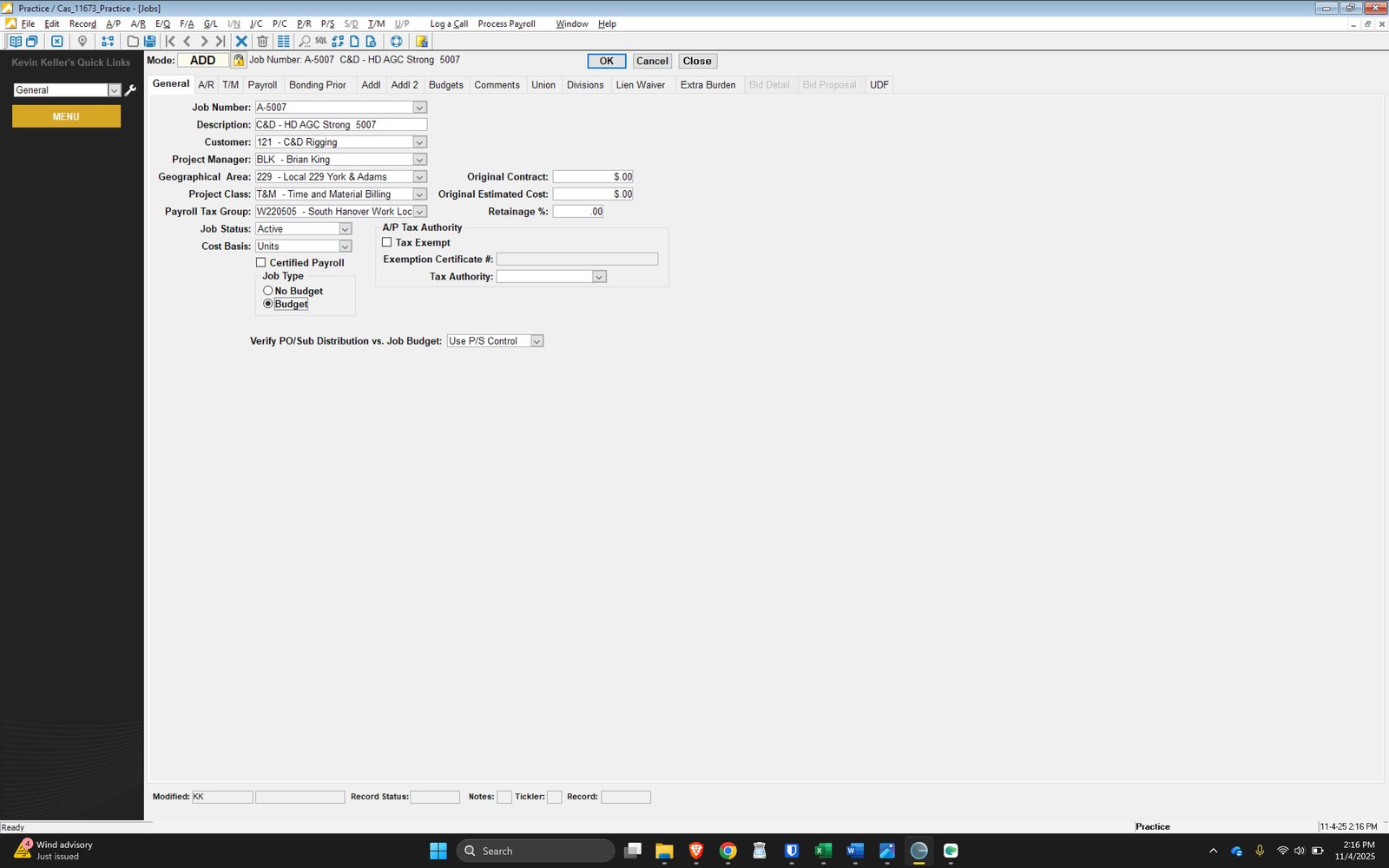
Input Original Contract Amount
This should be found at the bottom of PM Costing Worksheet
Enter Estimated Amount That was calculated on the BUDGET Tab

Click here
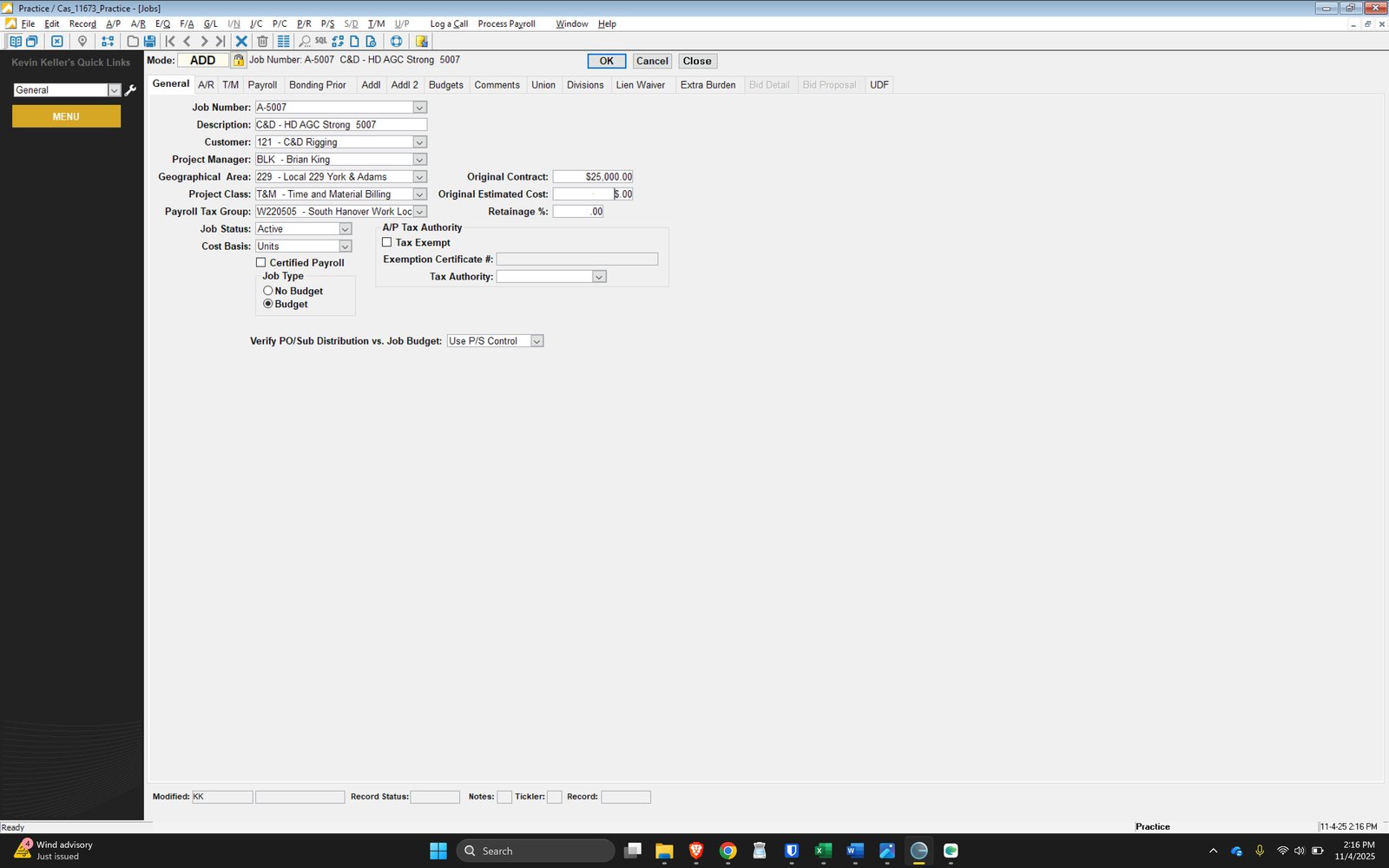
Click here

Add Any Specific Project Comments

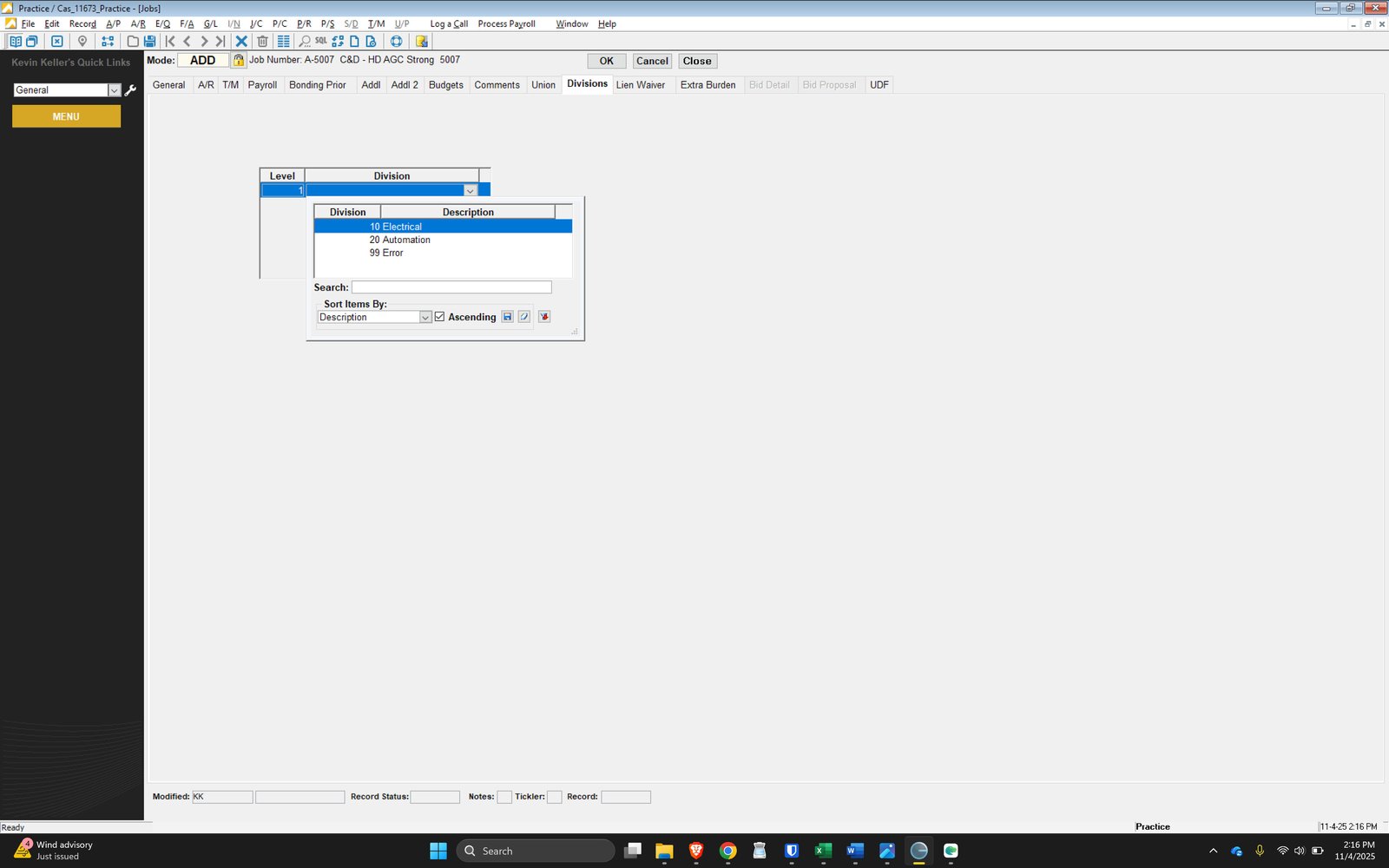
Select Your Division
ME - will be Division 10
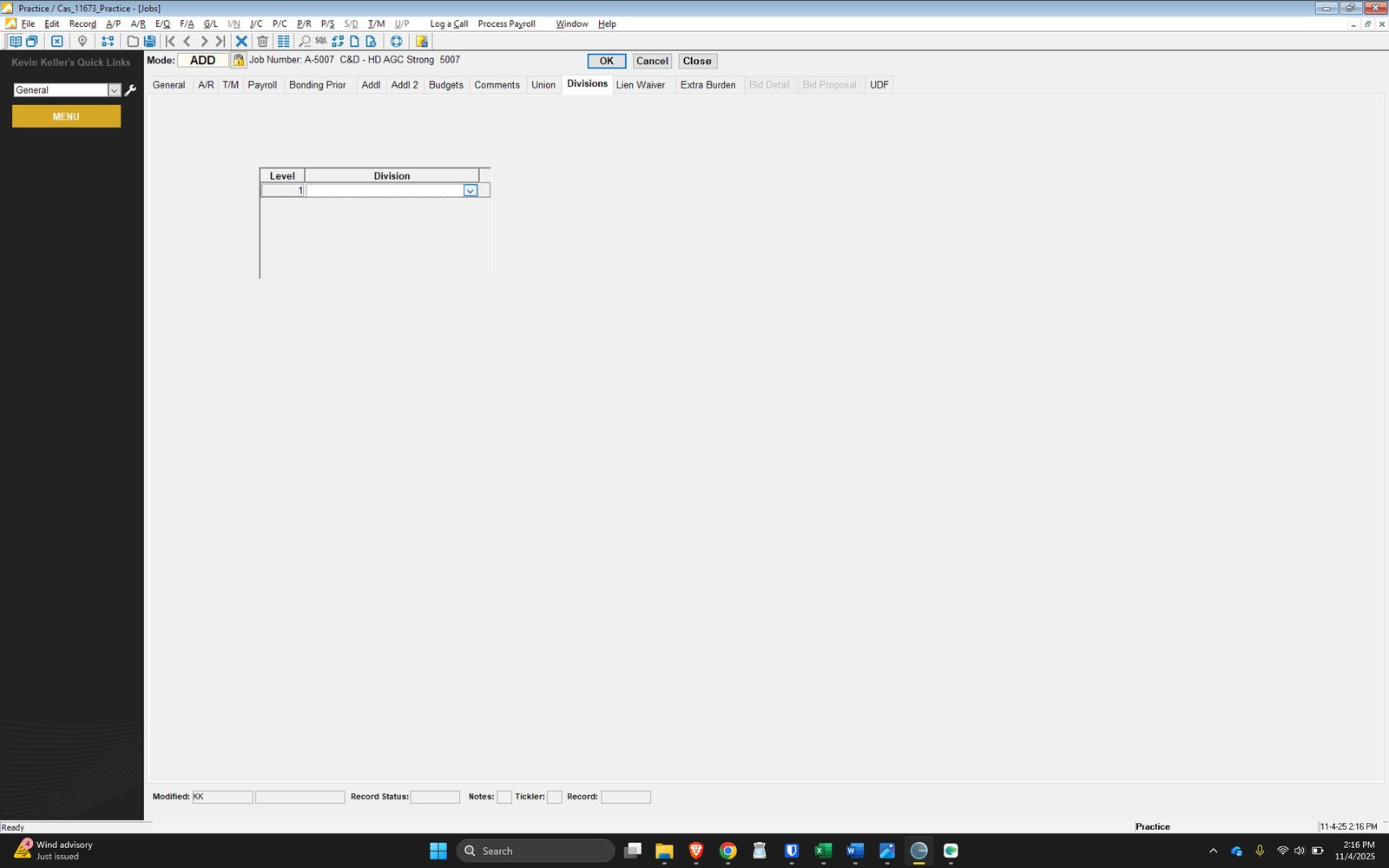
Click here
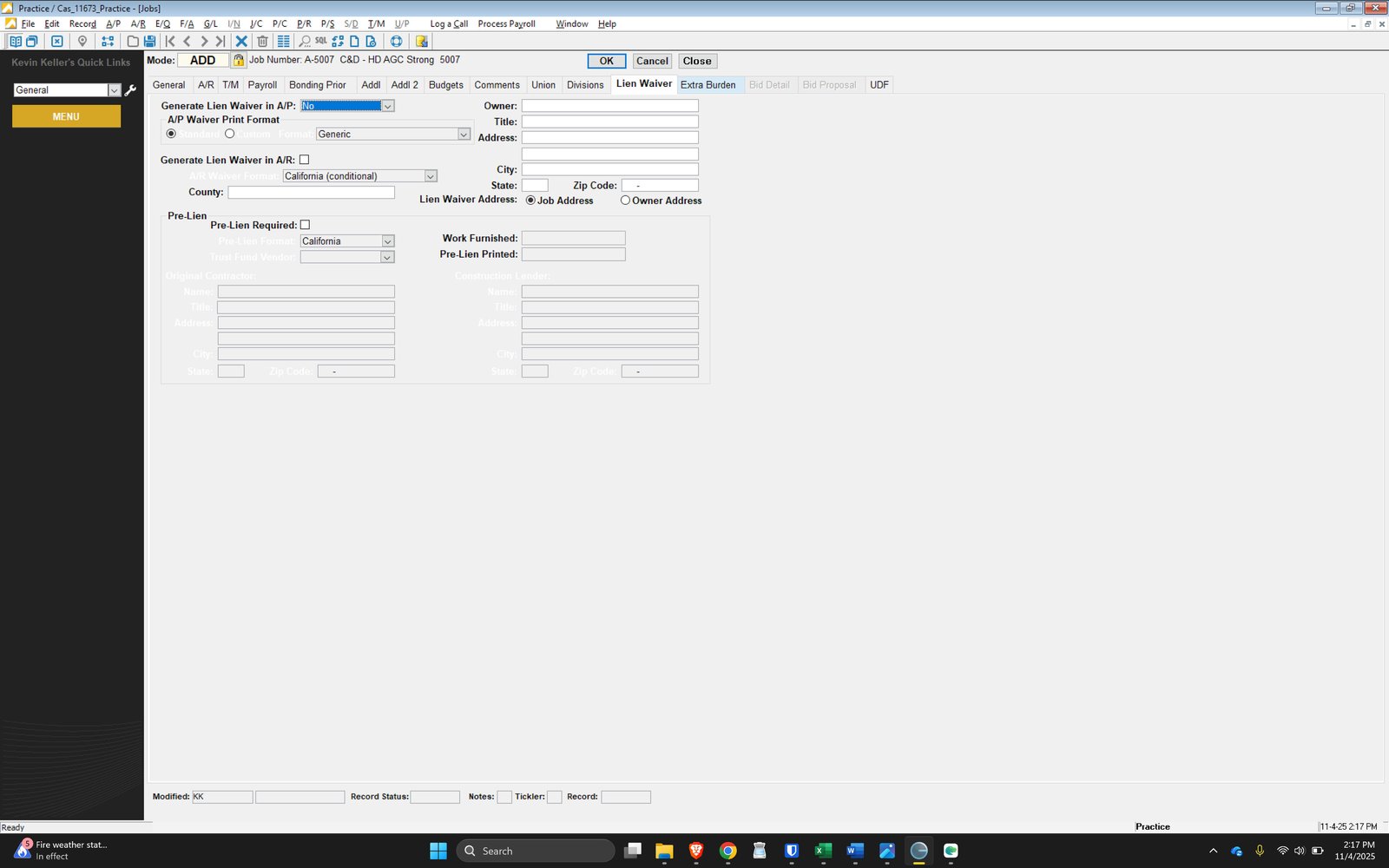
Lien Waiver Not Required at This Time
FINSH SETUP
Select OK
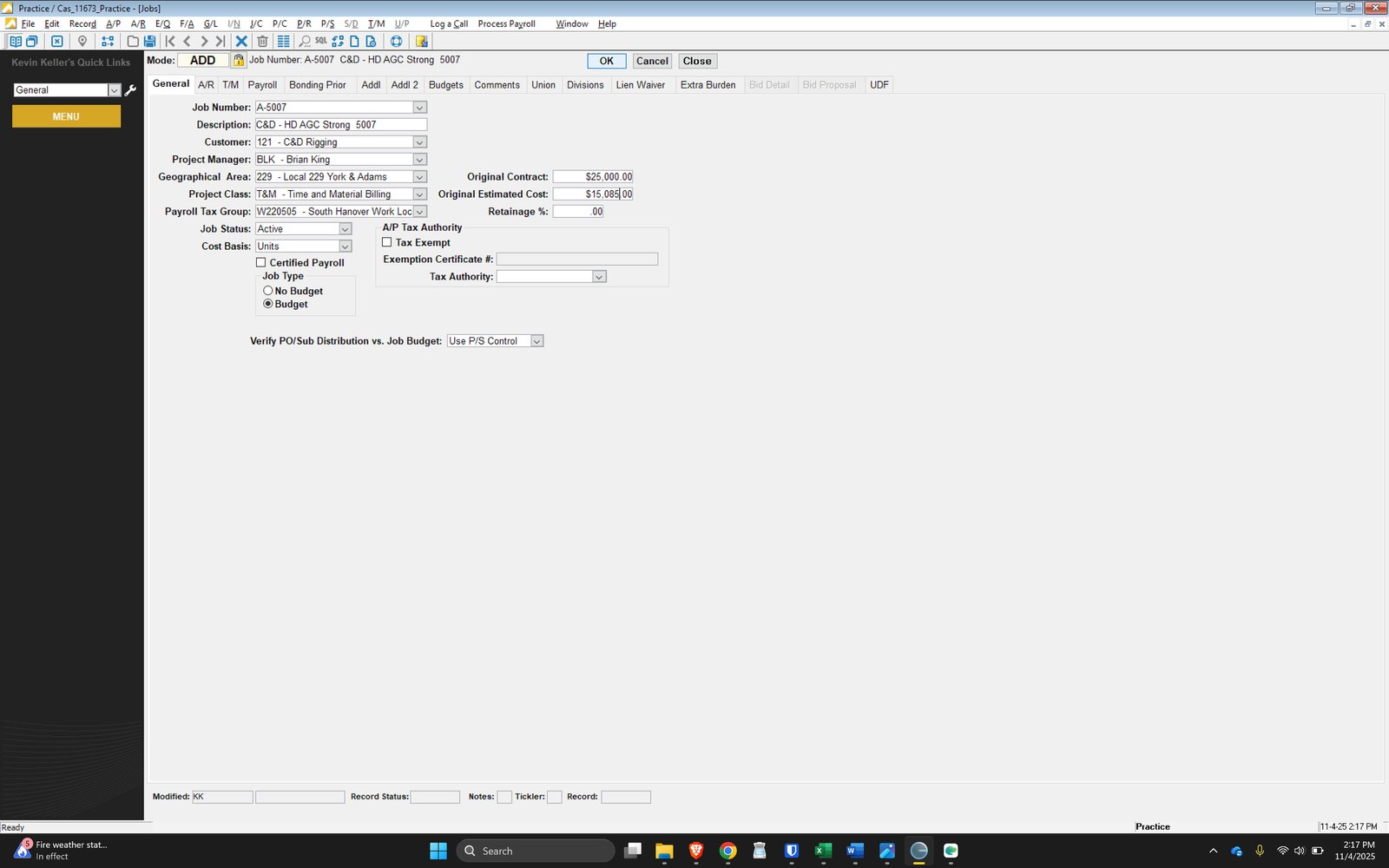
You made it to the end!
44 steps complete