How to Add an Email Signature in Outlook on the Web

Create an email signature in Outlook on the web and insert it automatically in new messages.

Khanan Grauer

Khanan Grauer

No date
12 steps
2

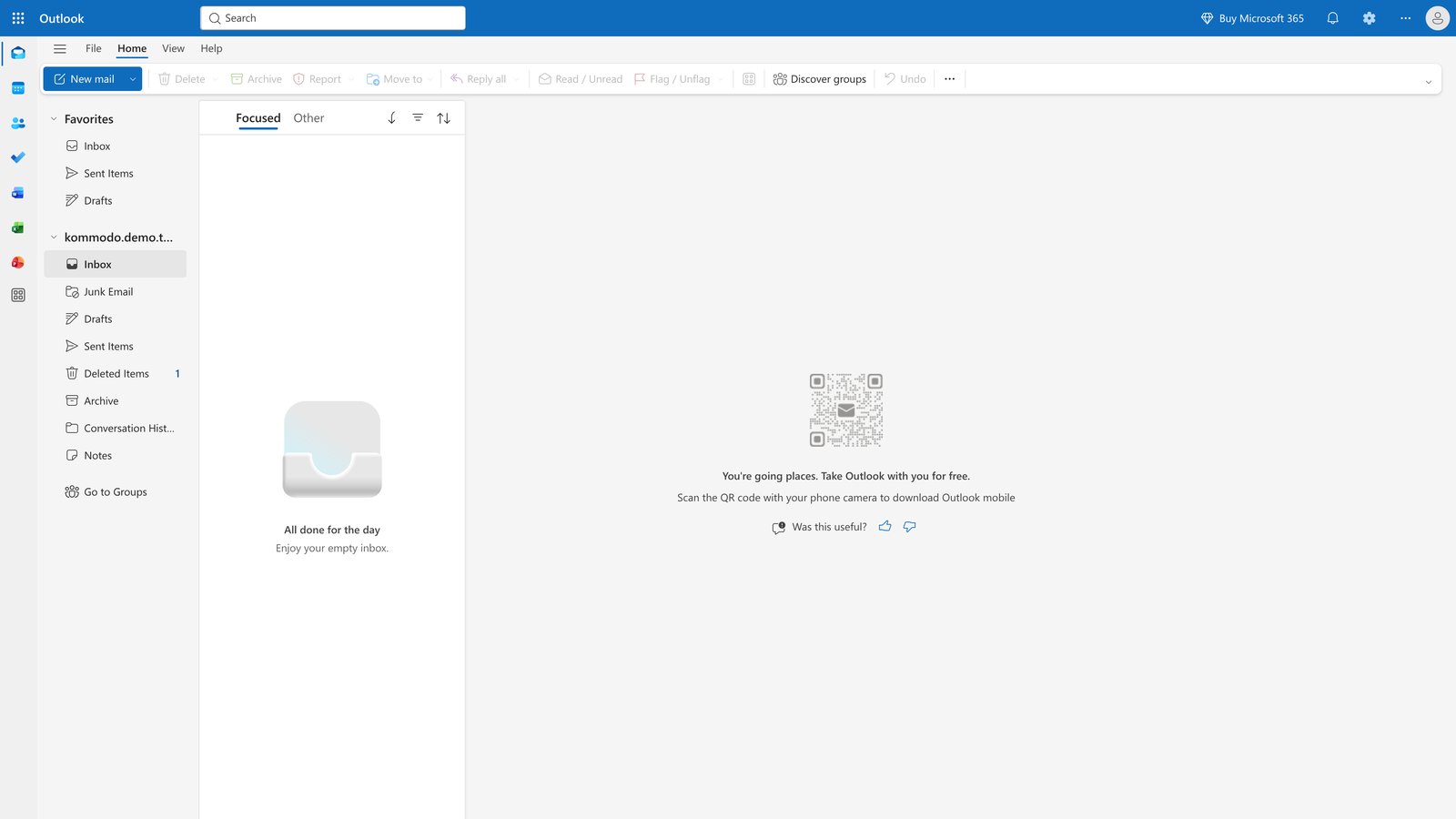
Click on the 'Settings' button in the top-right corner of the Outlook interface.

step
3

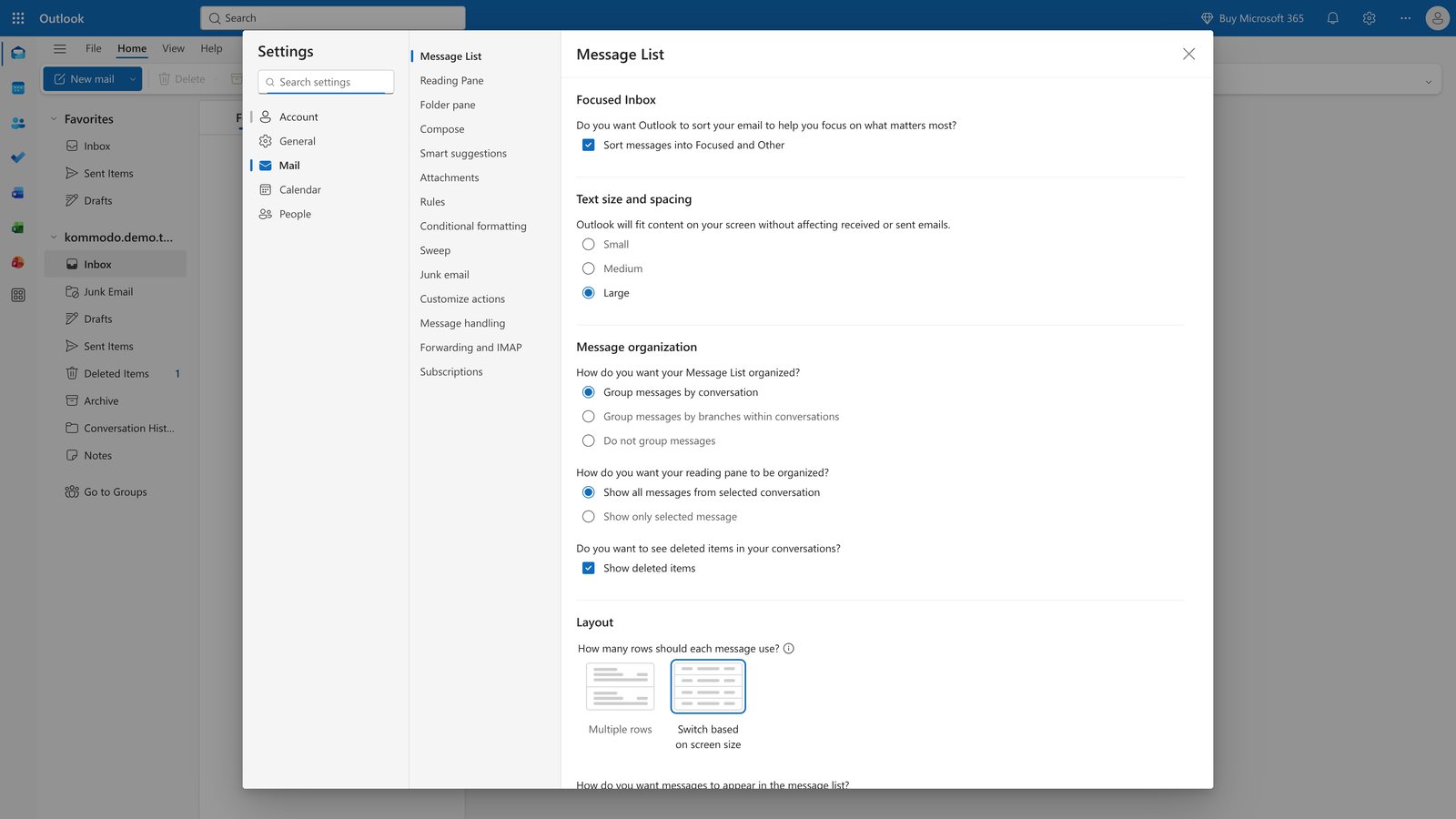
Click on the 'Account' tab in the settings menu.

step
4

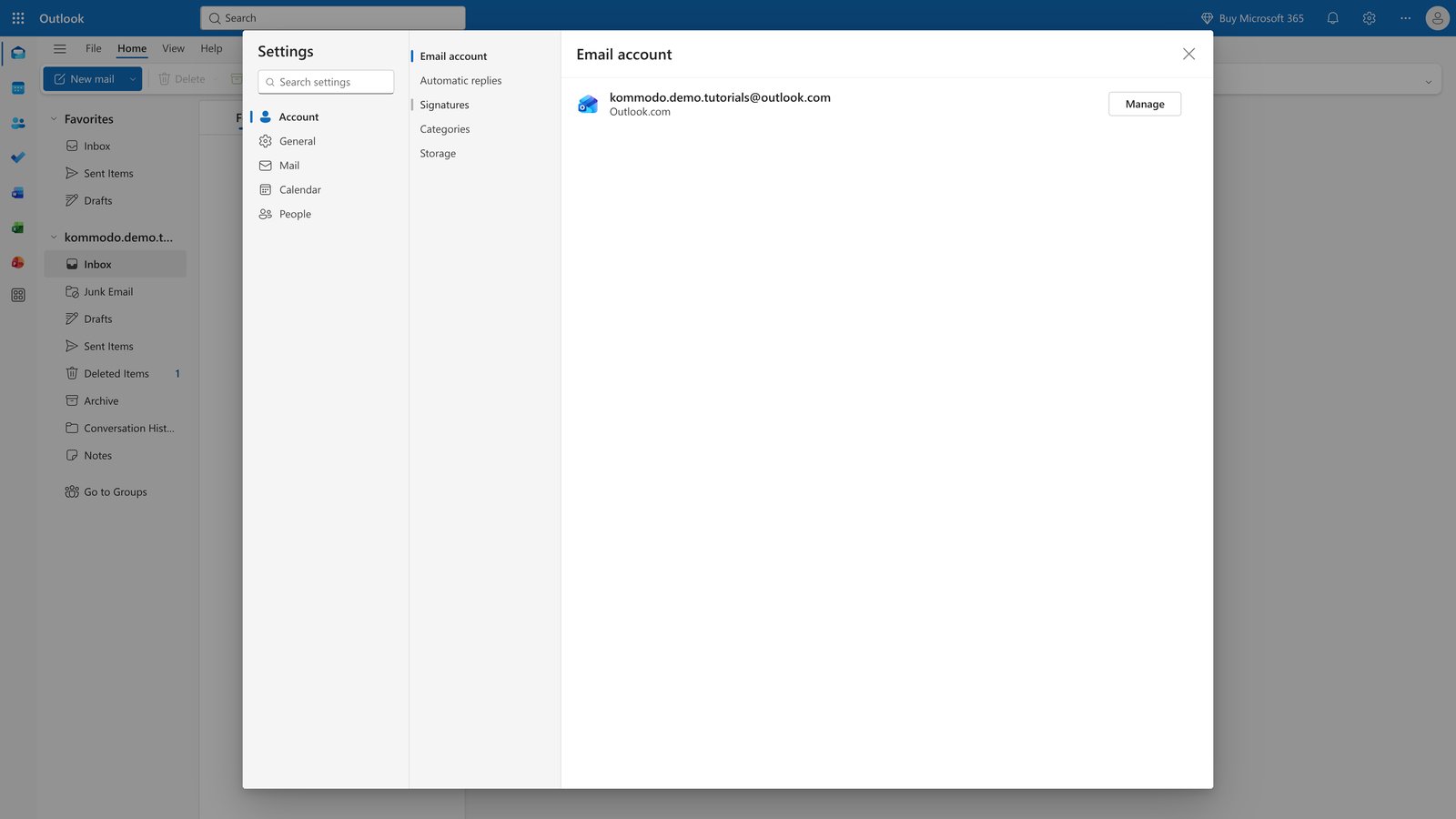
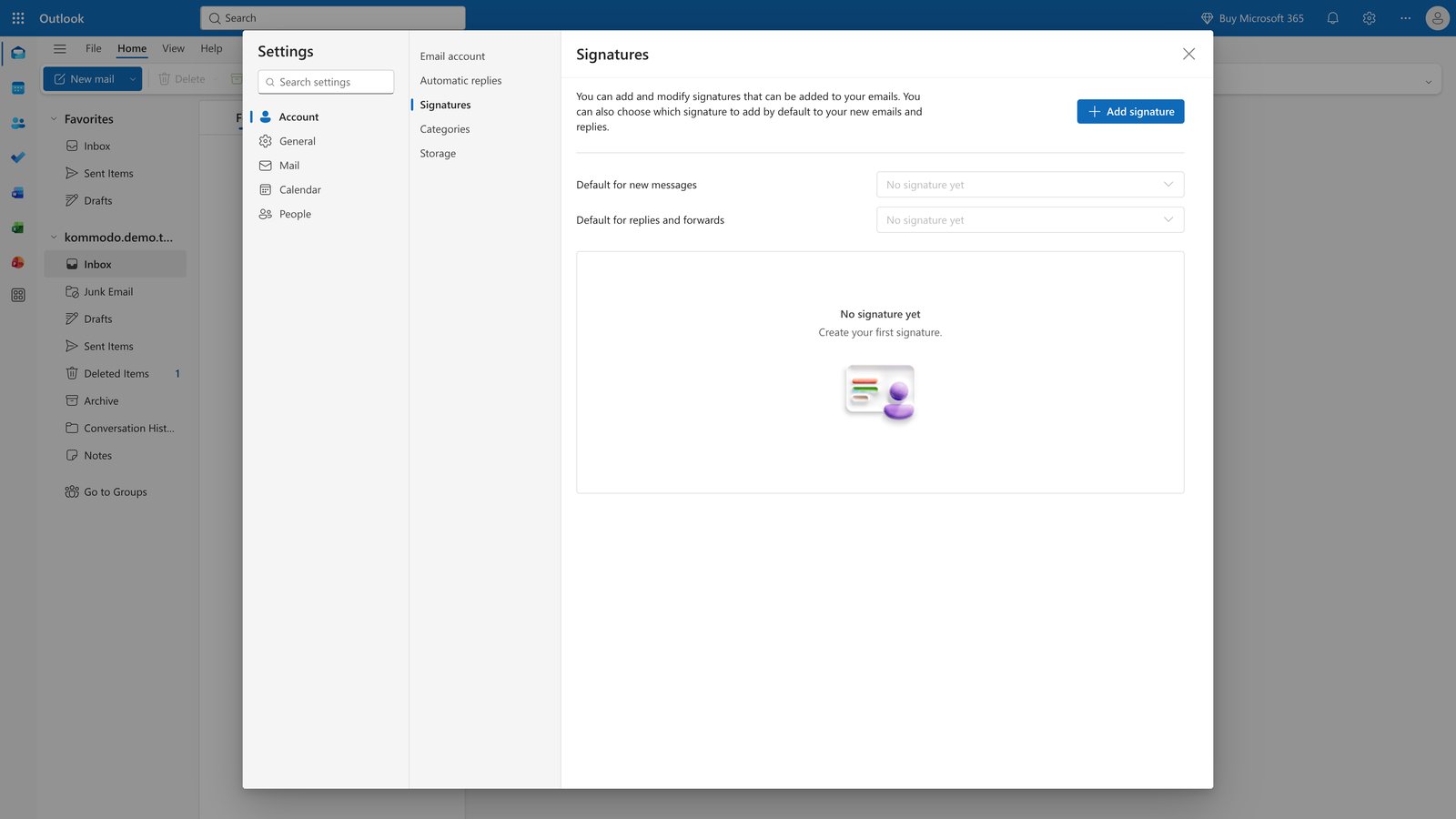
Click on the 'Signatures' tab in the settings menu.

step
5

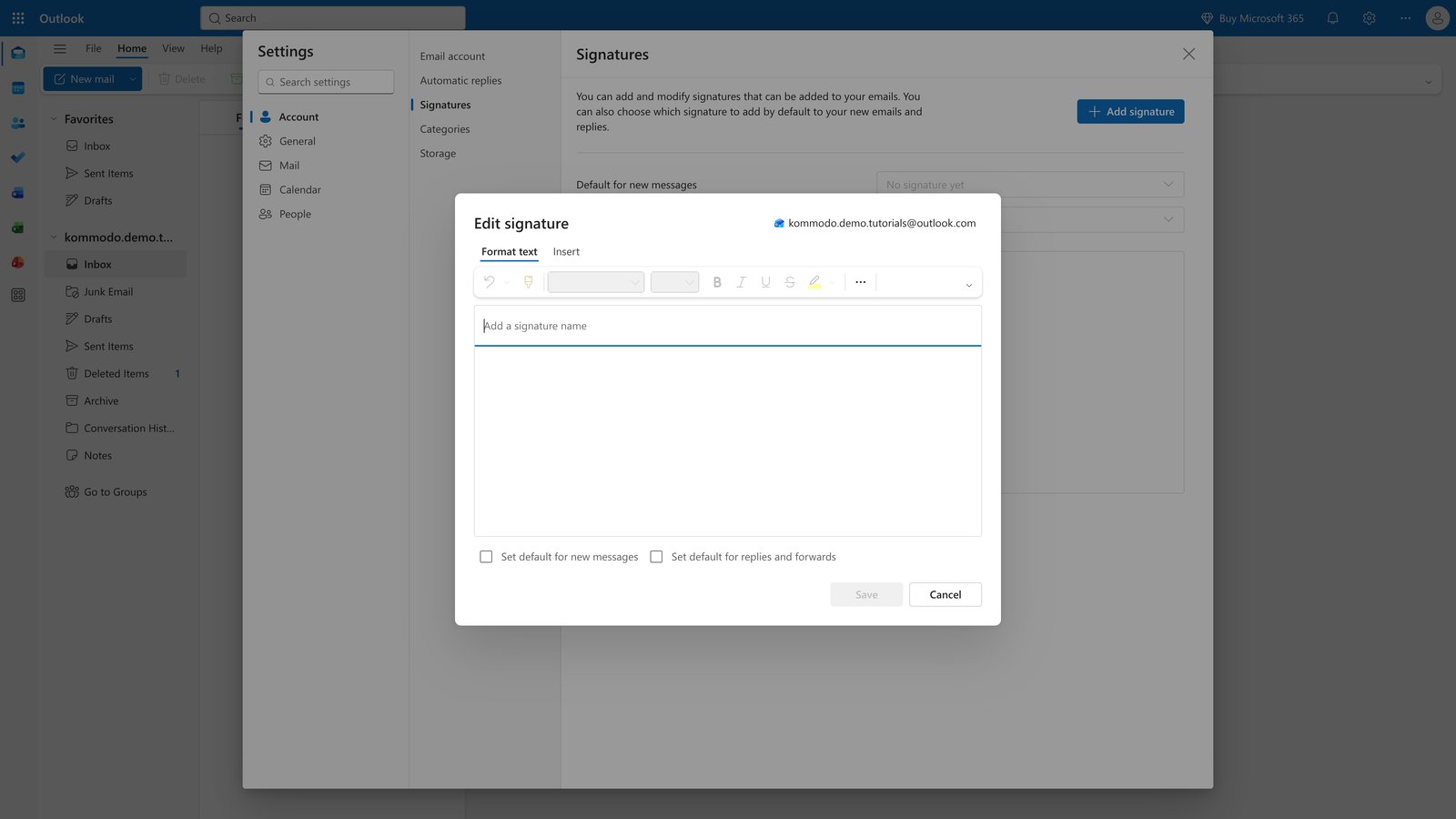
Click the 'Add signature' button in the Signatures section.

step
6

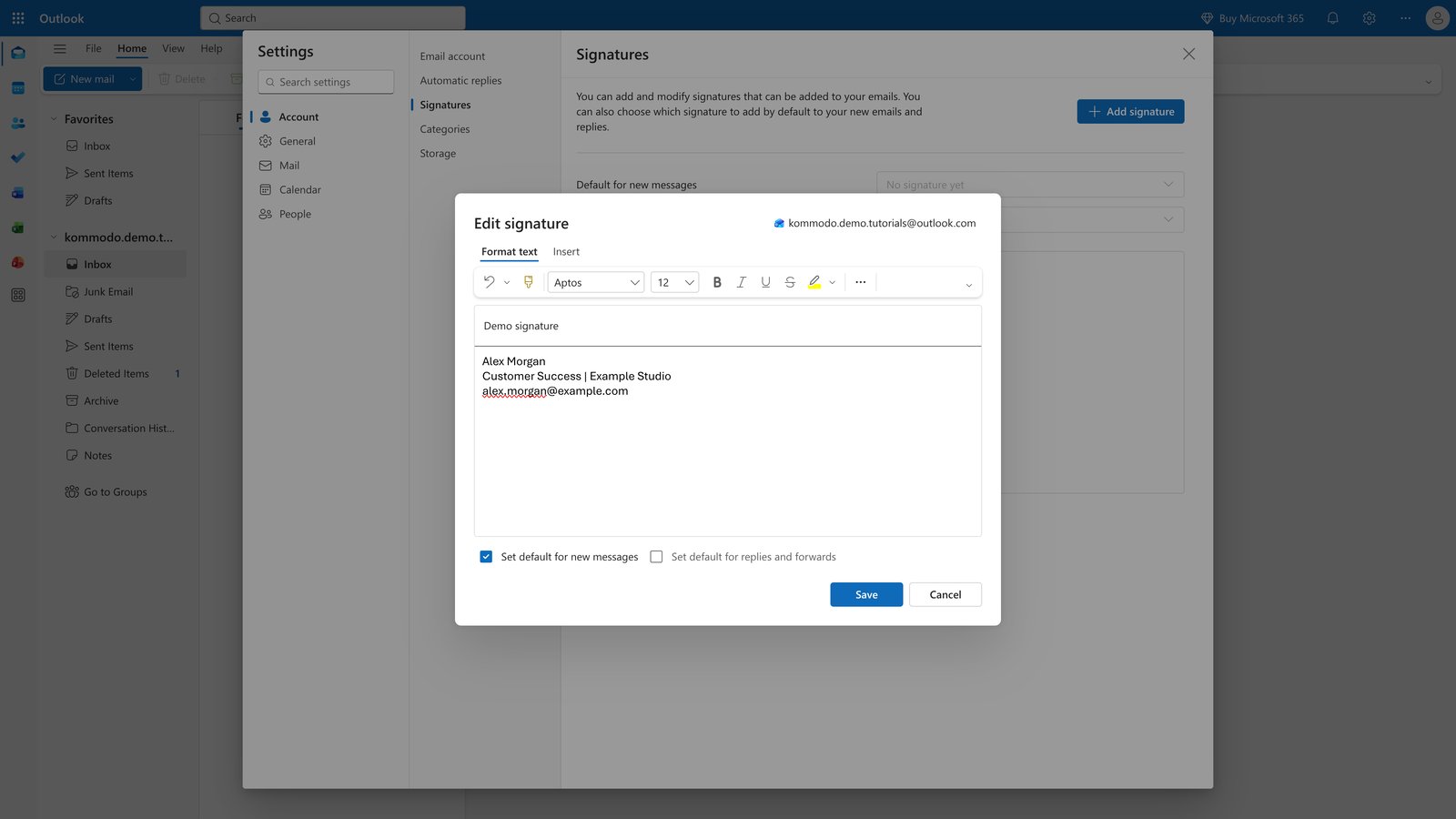
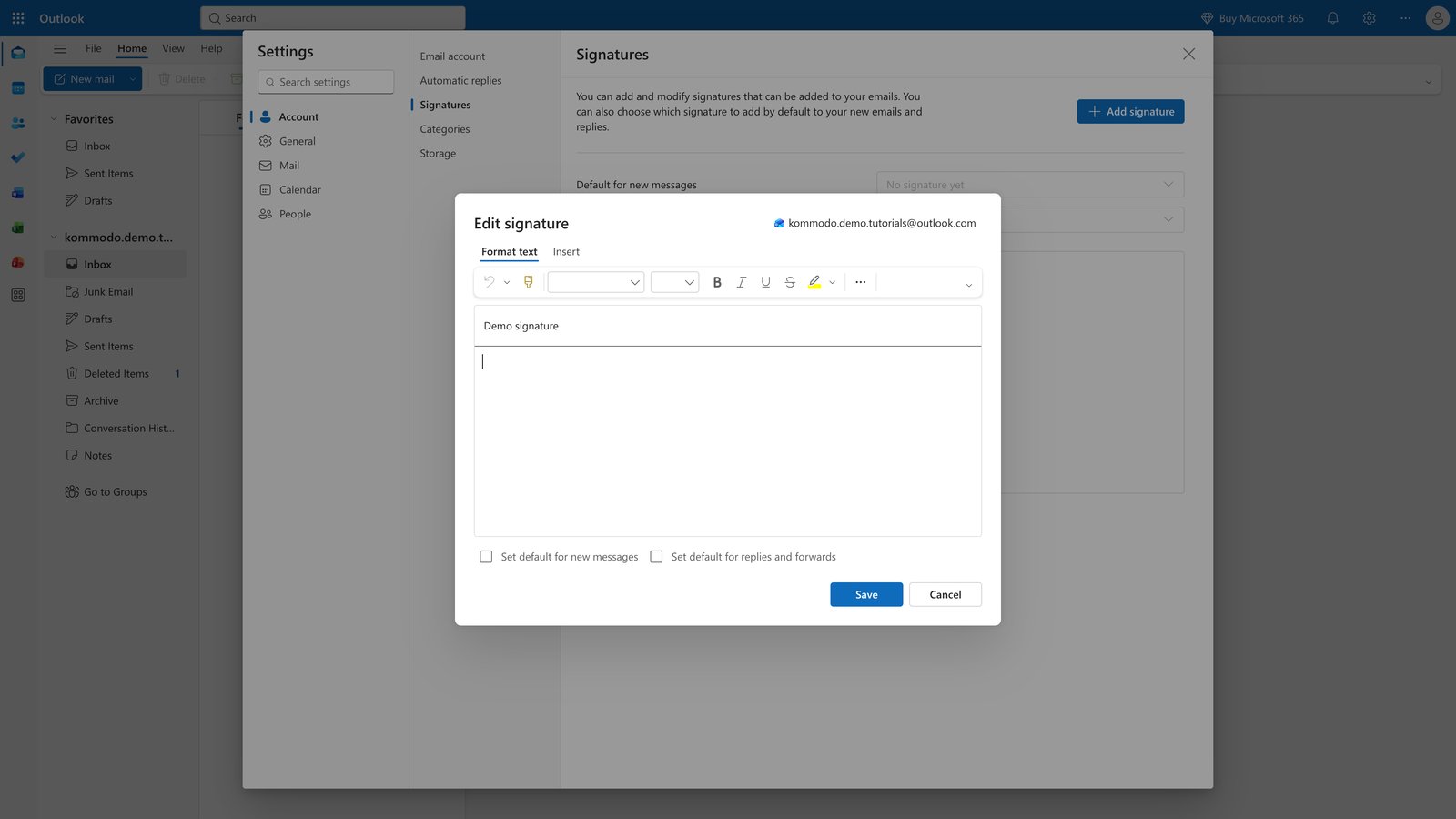
Type 'Demo signature' into the 'Add a signature name' field.

step
7

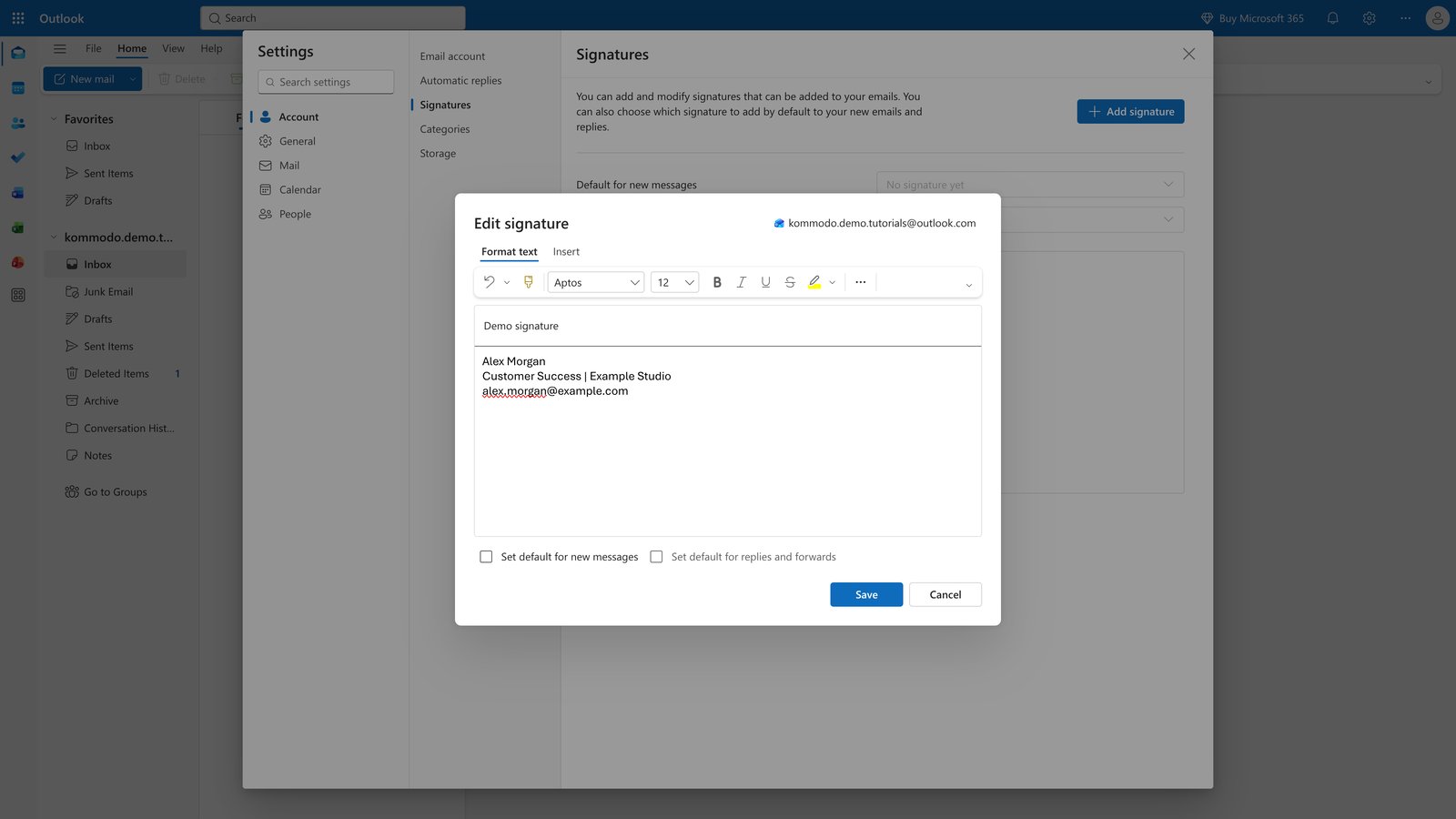
Type "Alex Morgan", "Customer Success | Example Studio", and "alex.morgan@example.com" on separate lines in the "Signature" field
step
8

Check the checkbox labeled 'Set default for new messages'.

step
9

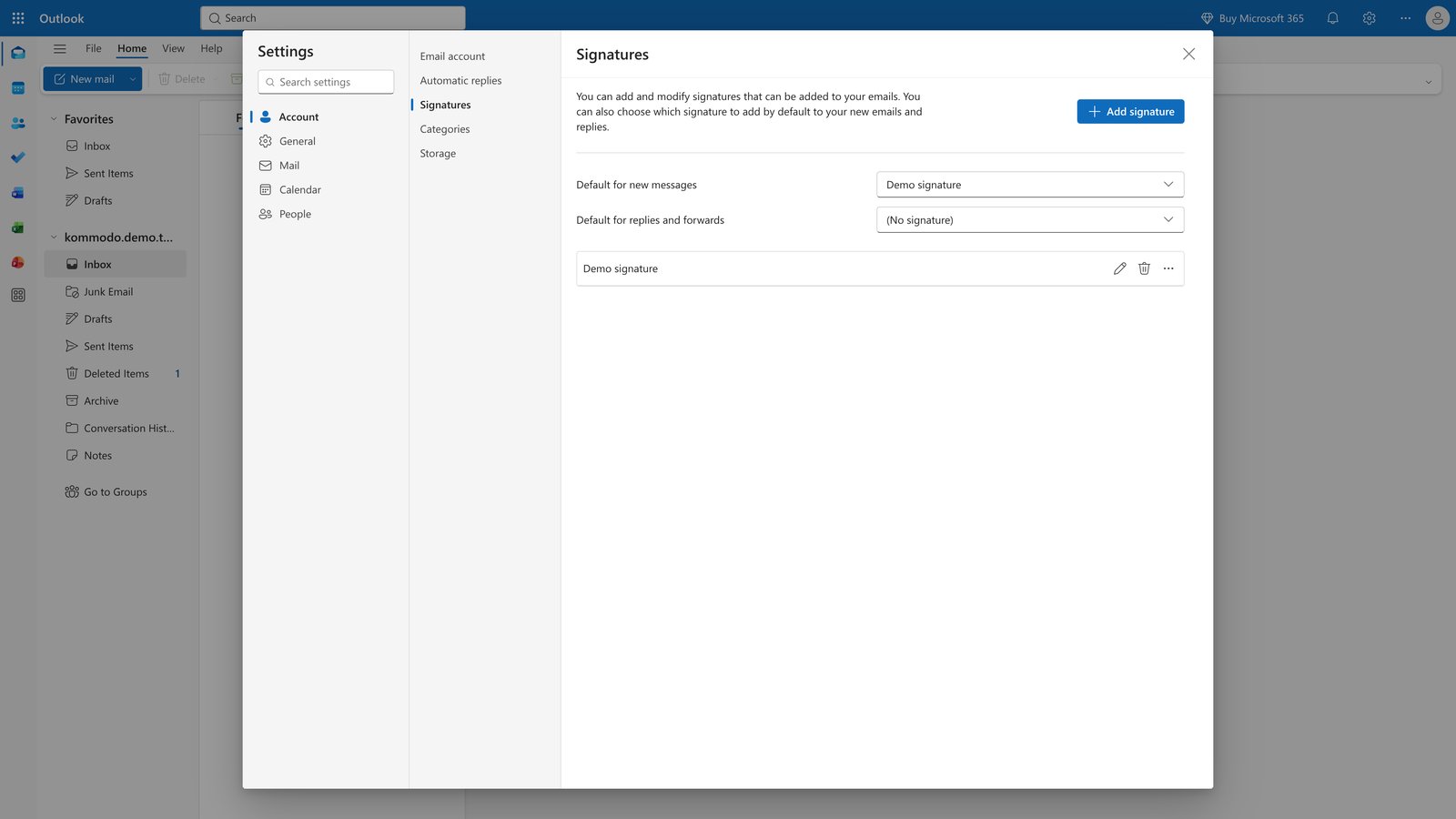
Click the Save button.

step
10

Click the 'Close settings' button in the Settings panel.

step
11

Click the 'New mail' button in the Home tab.

step
12

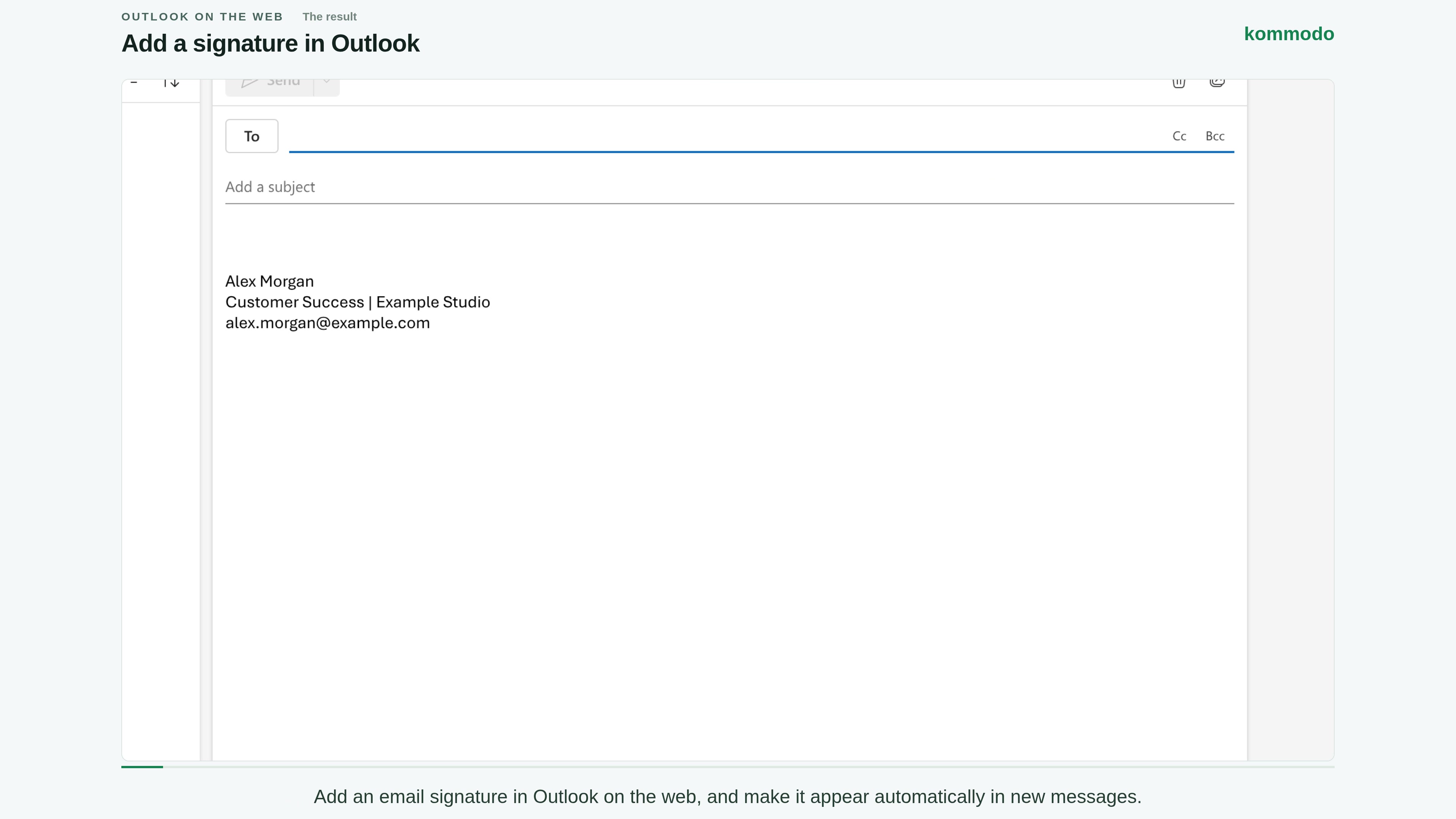
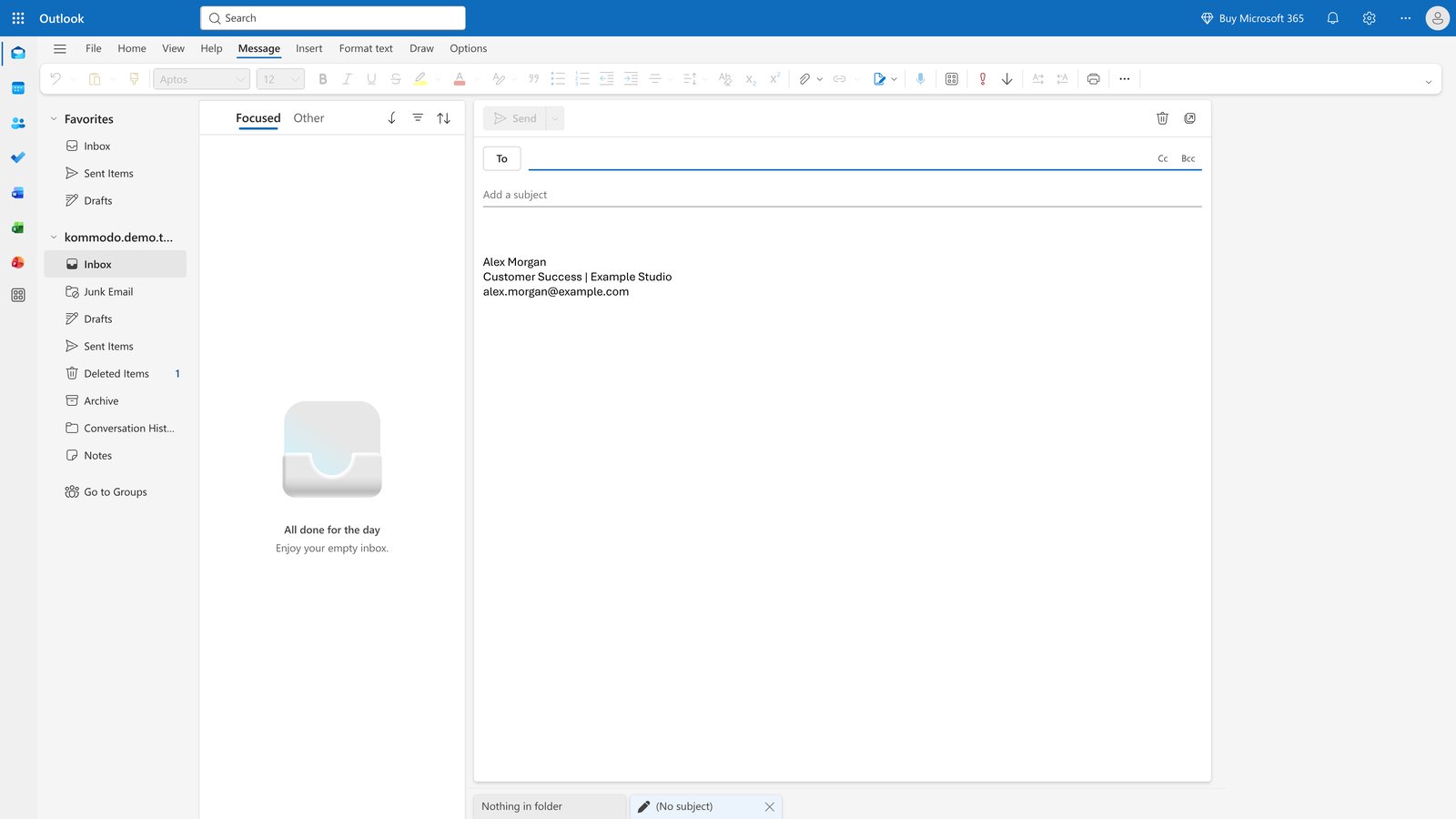
Done! This is the result.

step

You made it to the end!

12 steps complete