How to Record and Create Interactive Guides in Komodo
Learn to record your screen using Komodo's desktop app or Chrome extension, and create interactive guides from your recordings.
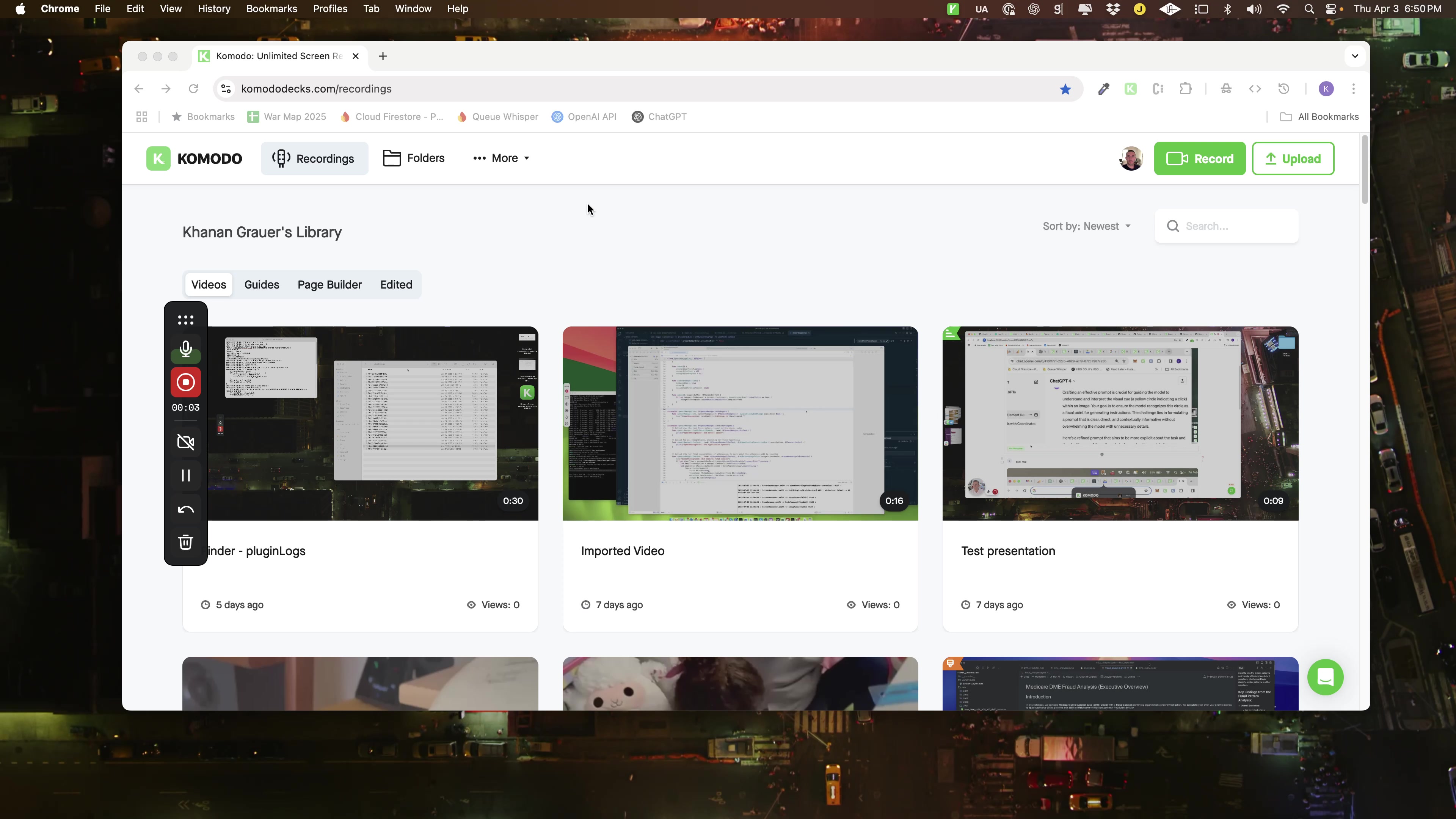
Open the Komodo desktop application
This is the native application for recording.
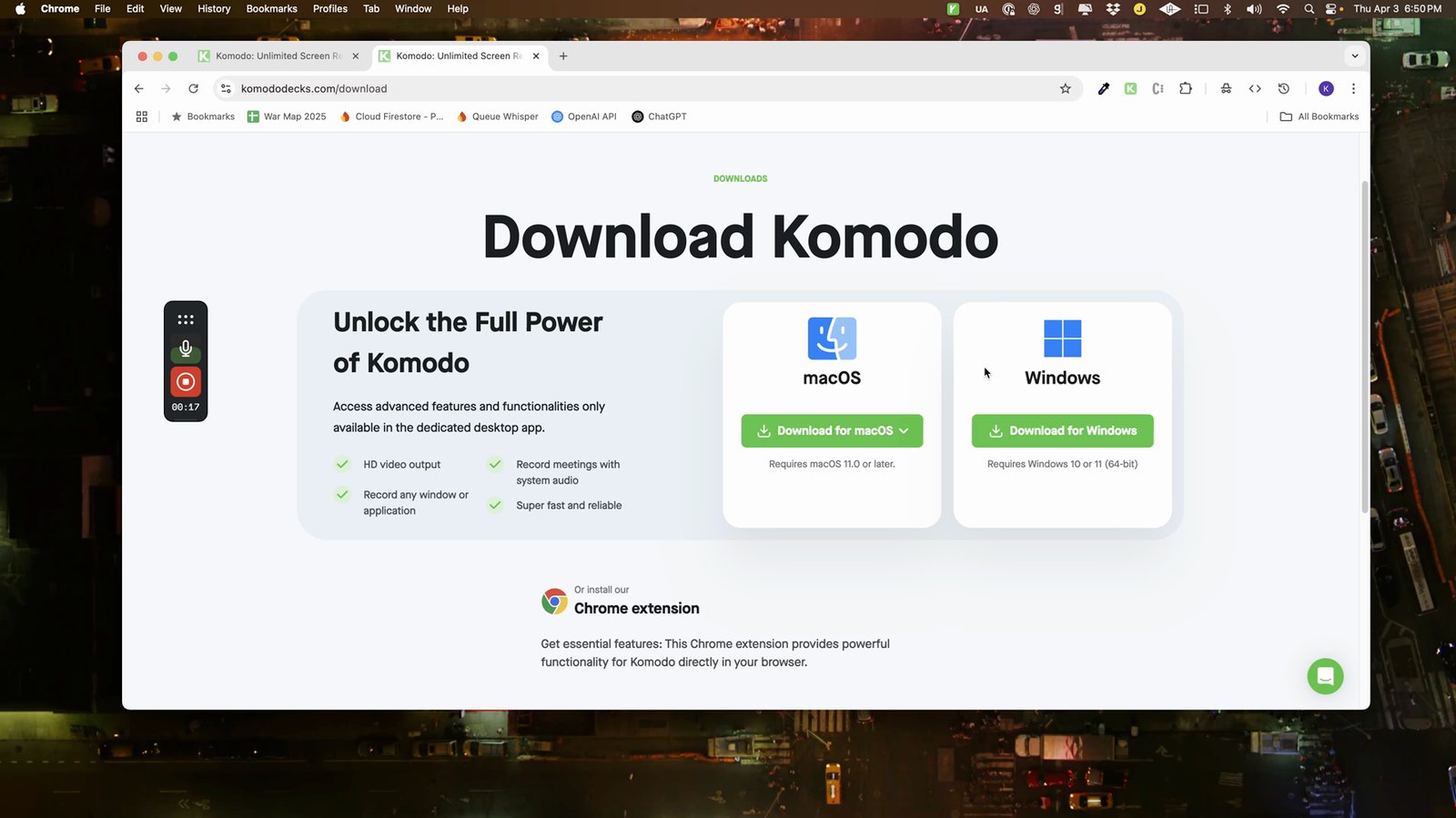
Install the Komodo Chrome extension
The Chrome extension provides another way to record.
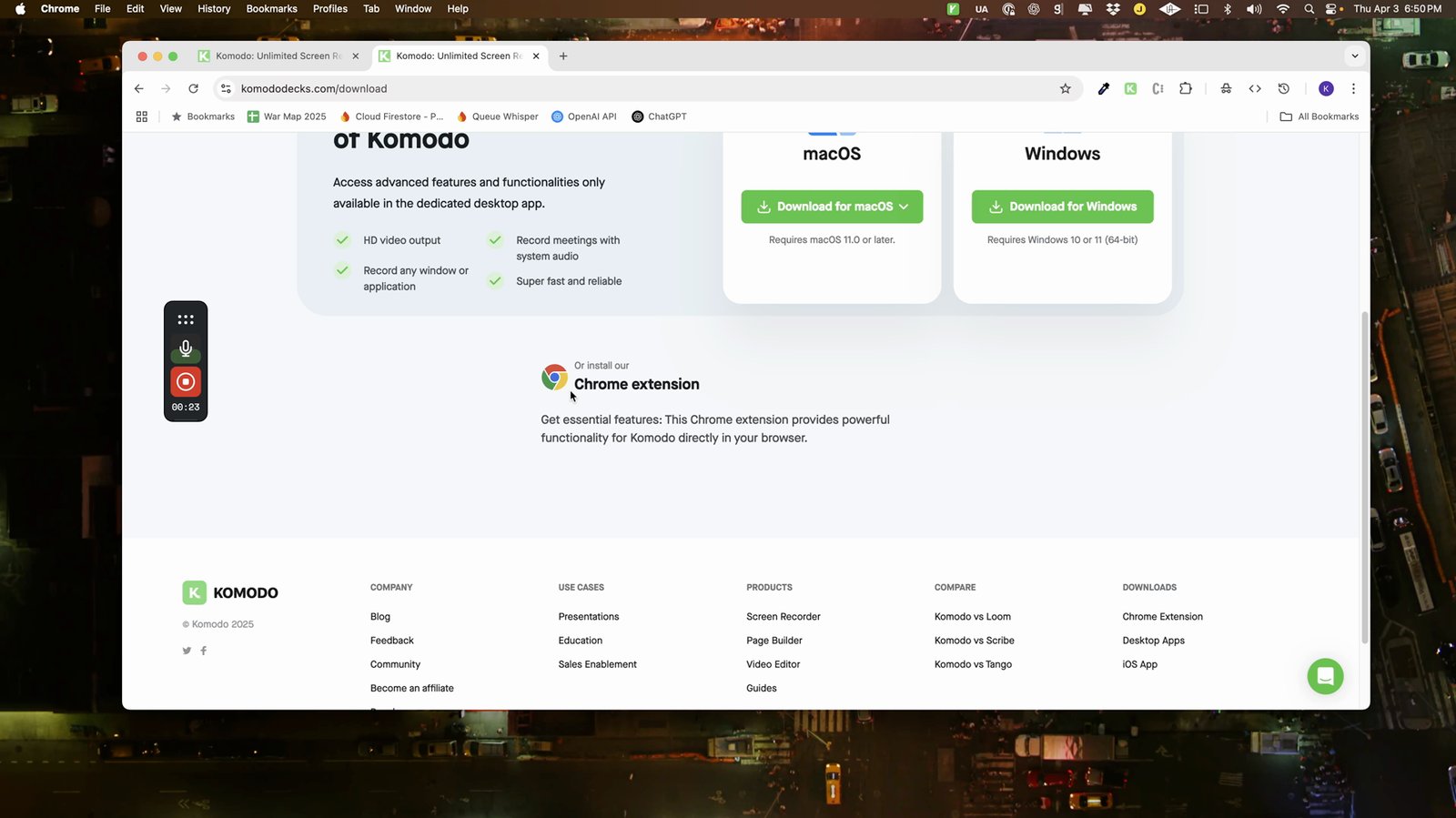
Click the Komodo Chrome extension icon in your browser toolbar
This opens the extension interface.
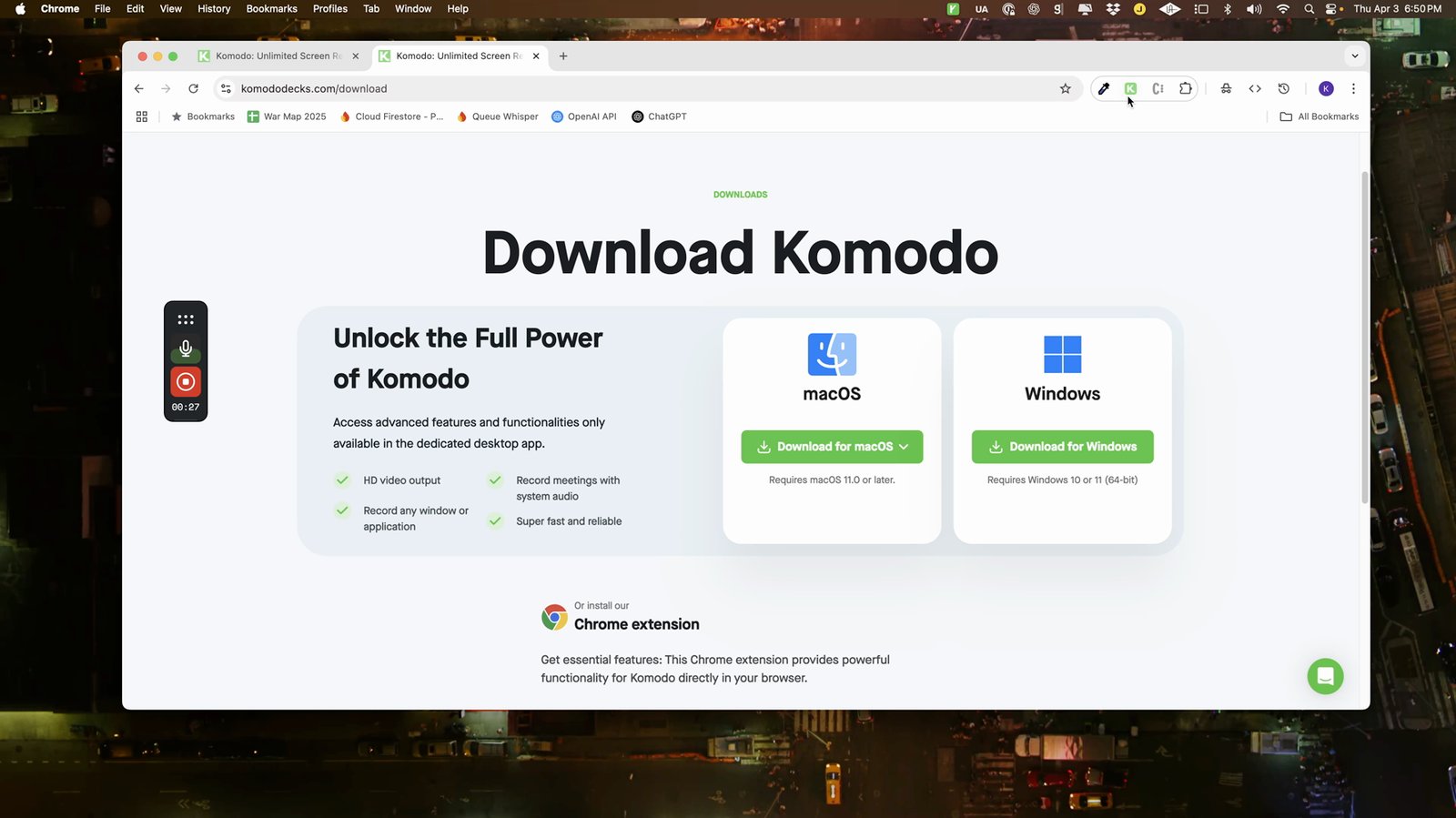
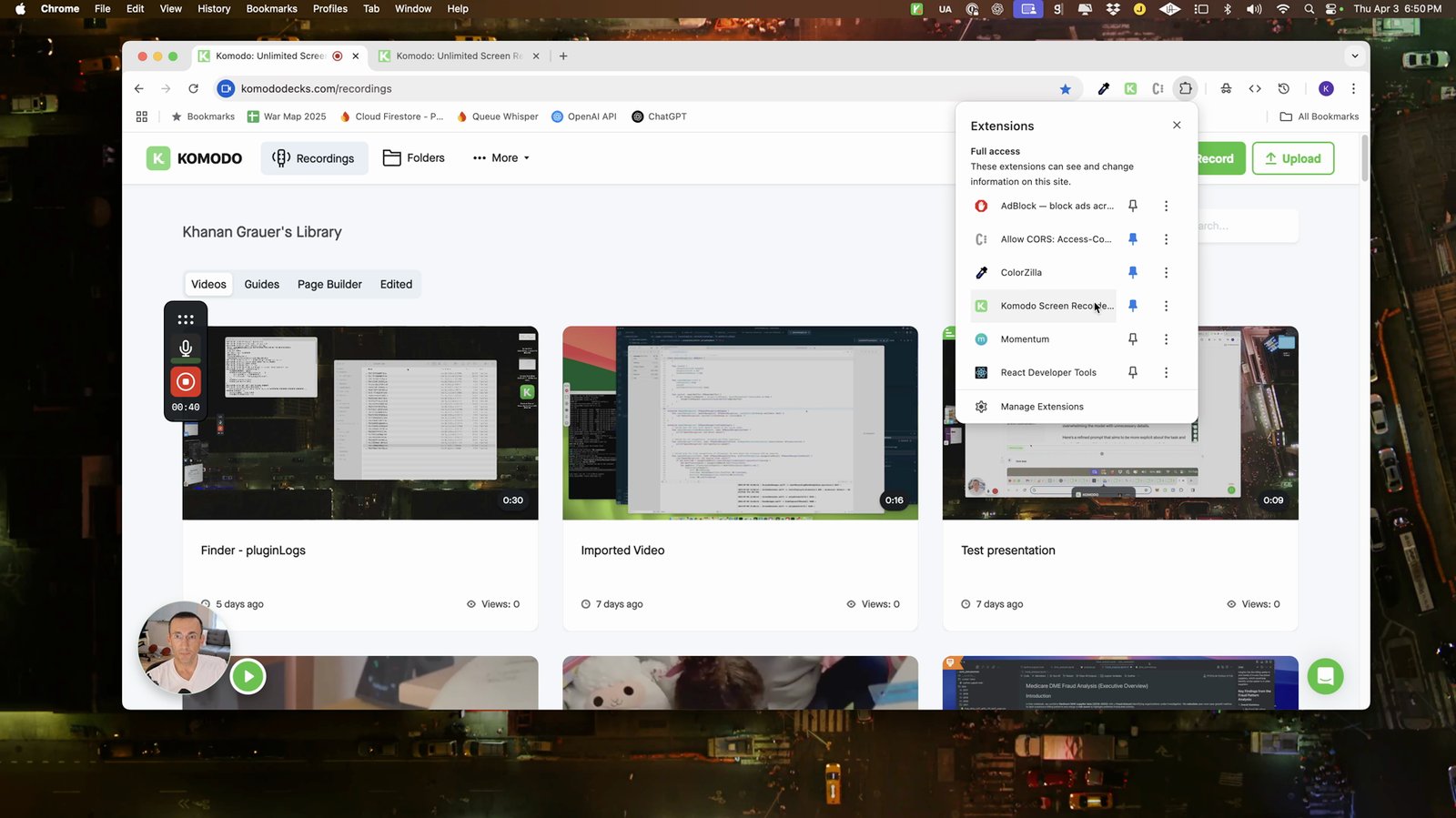
Pin the Komodo Chrome extension for easy access
Pinning keeps the extension visible in your toolbar.
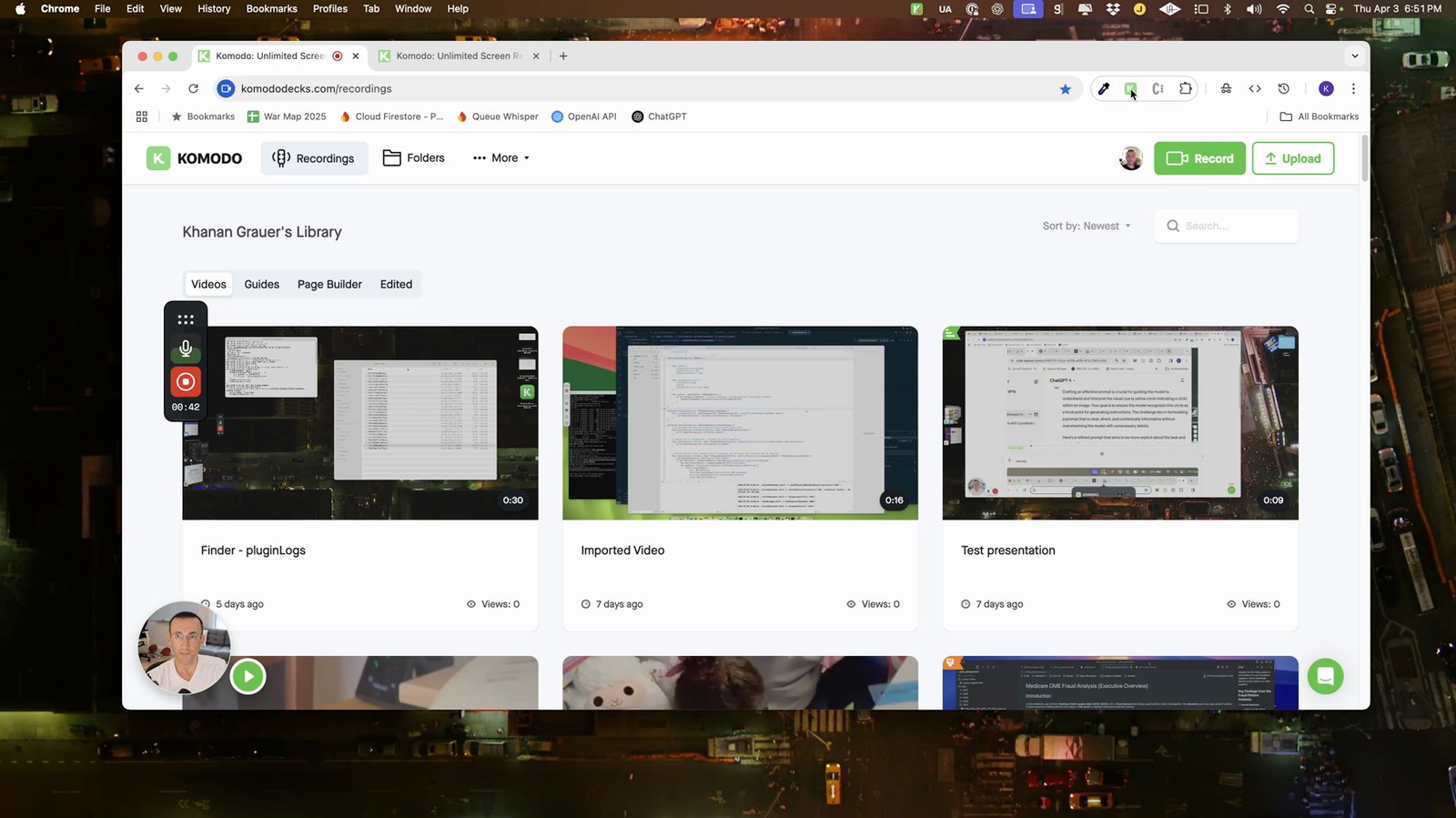
Verify the extension icon is visible after pinning
You should see the Komodo icon in your browser.
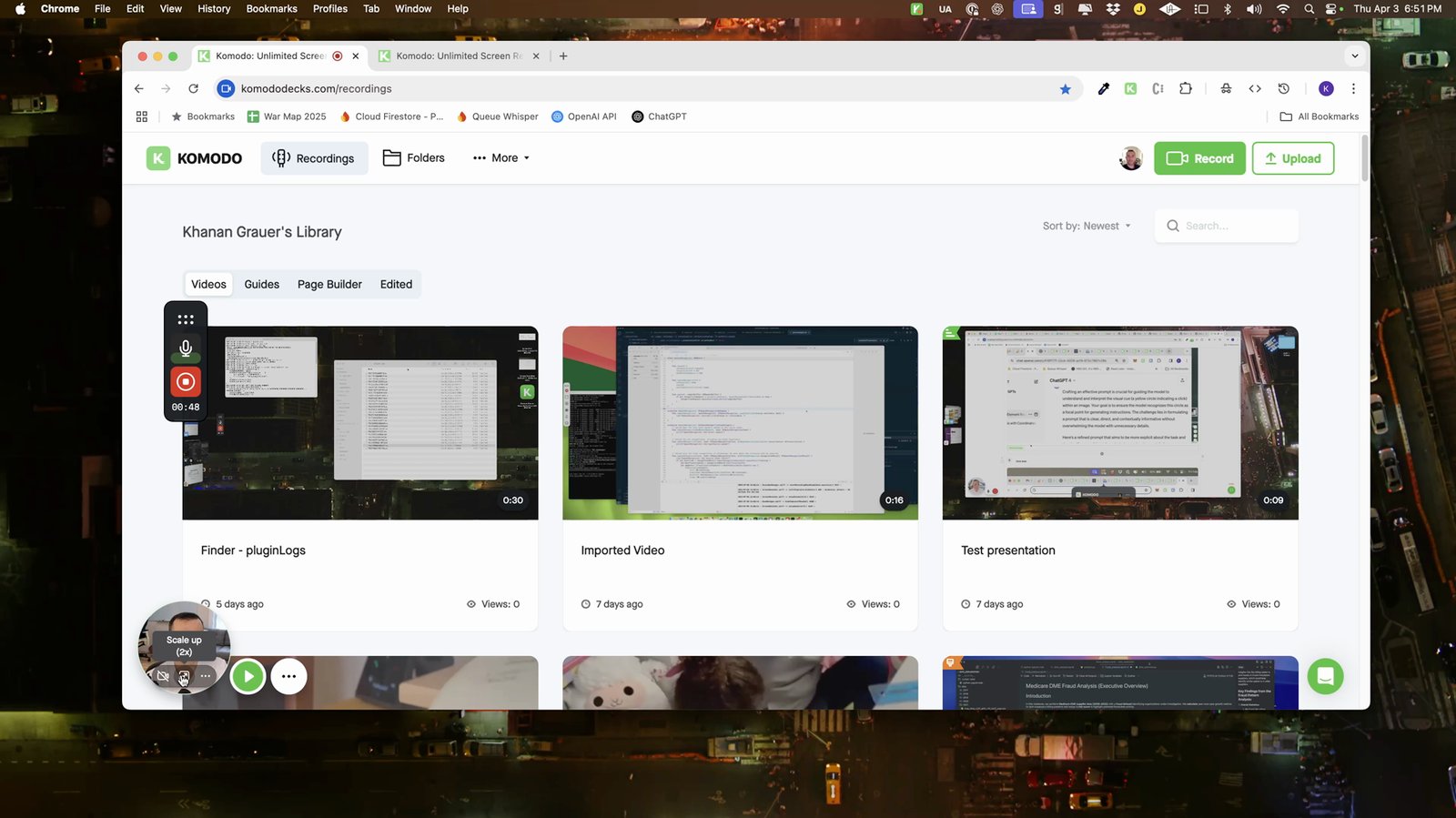
Resize the camera window if needed
Adjust the camera overlay to your preference.
Switch to avatar mode for a static image
Use this if you prefer not to show live video.
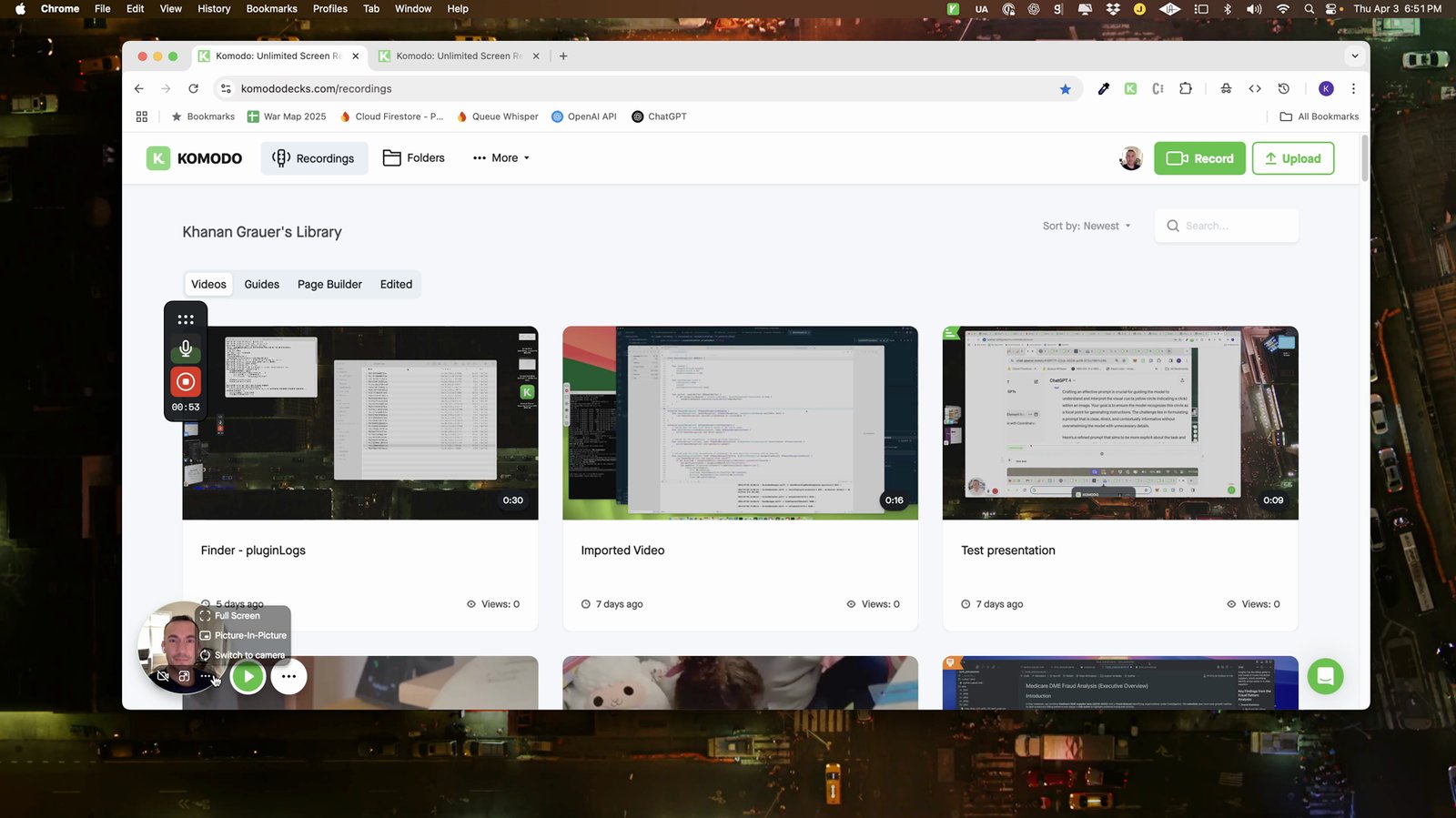
Enable picture-in-picture mode
This allows the camera to float over your screen.
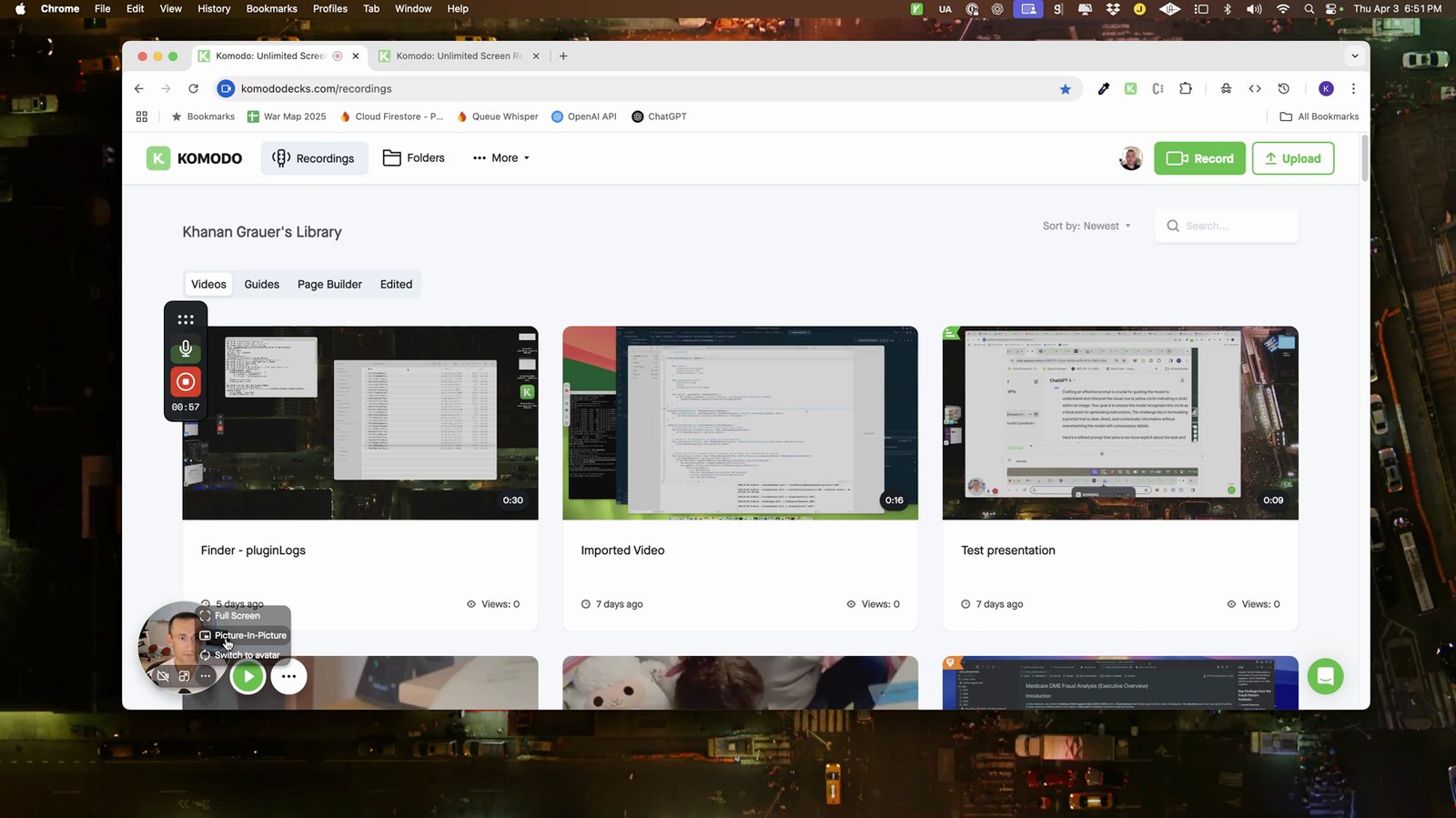
Launch full screen video mode
Expand the video overlay to cover the entire screen.
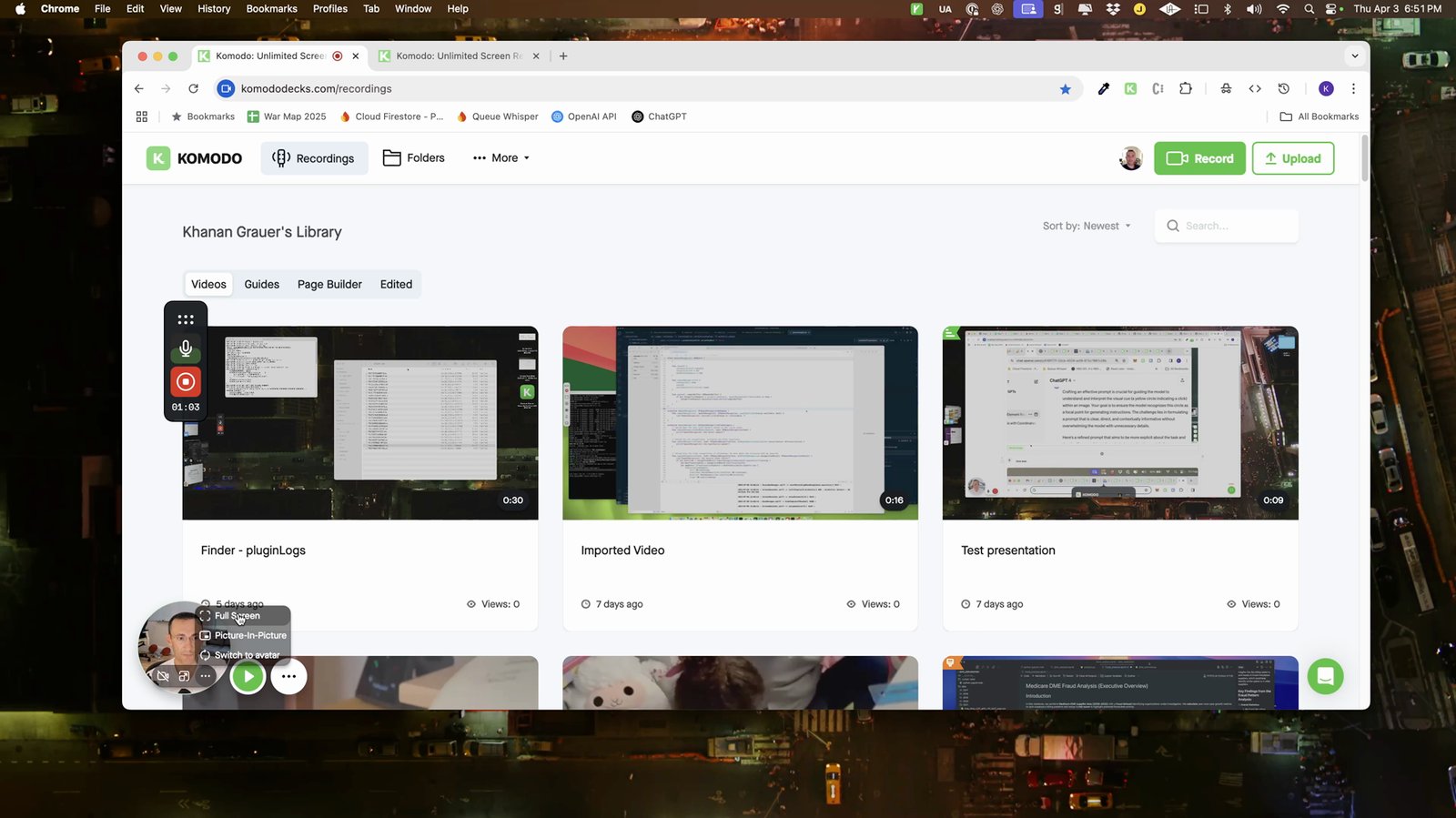
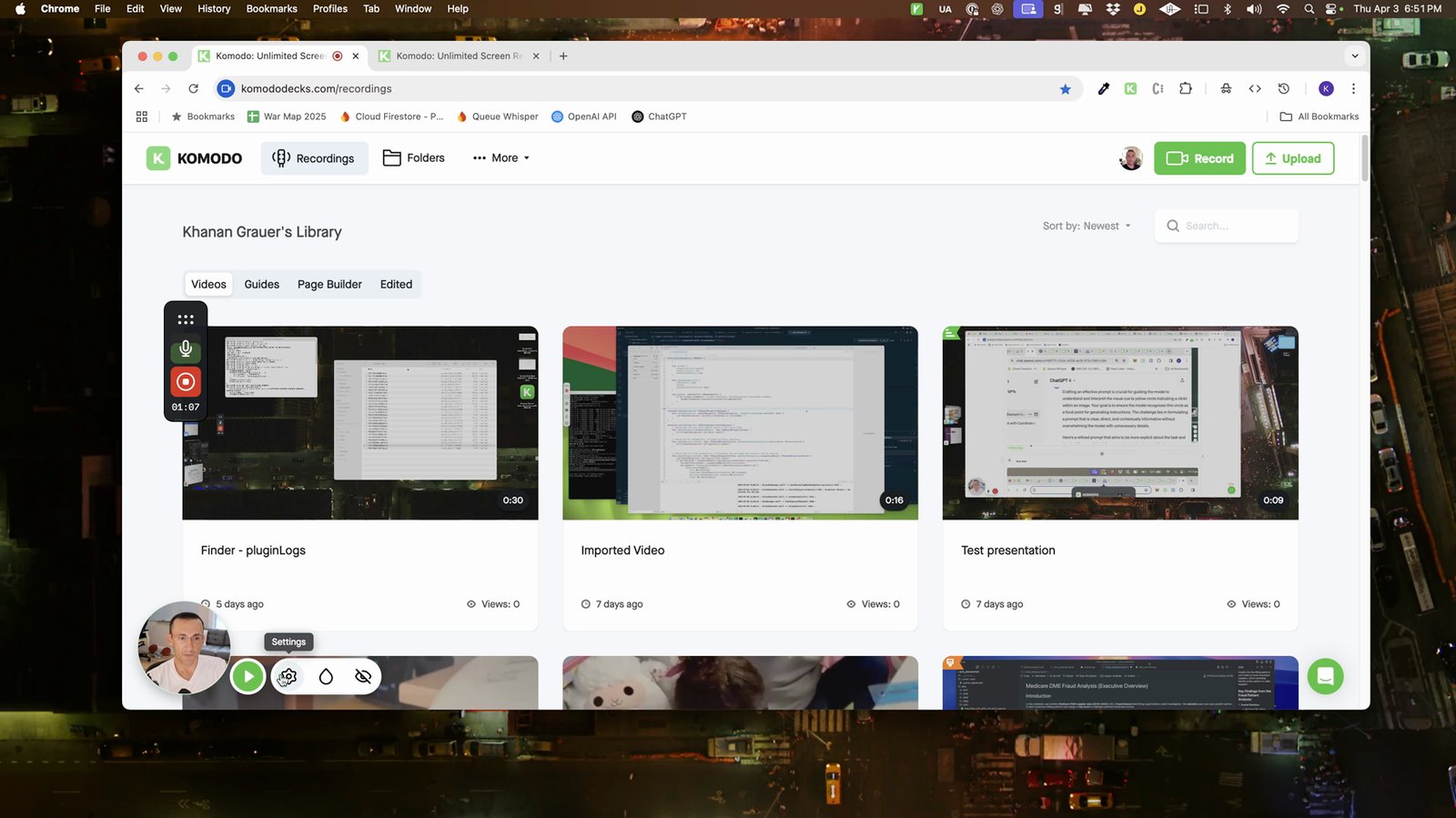
Access the recording controls
Controls include record, pause, and stop.
10 of 26 steps shown
The guide's author needs to upgrade to share the remaining 16 steps.