Add a Question to a Published Google Form Without Losing Responses

Add one optional Short answer question to a published form, keep the same responder link, and compare the original and new responses. This example does not cover deleting questions or changing existing question types.

Khanan Grauer

Khanan Grauer

No date
20 steps
1

Open the existing Google Form in its editor.
2

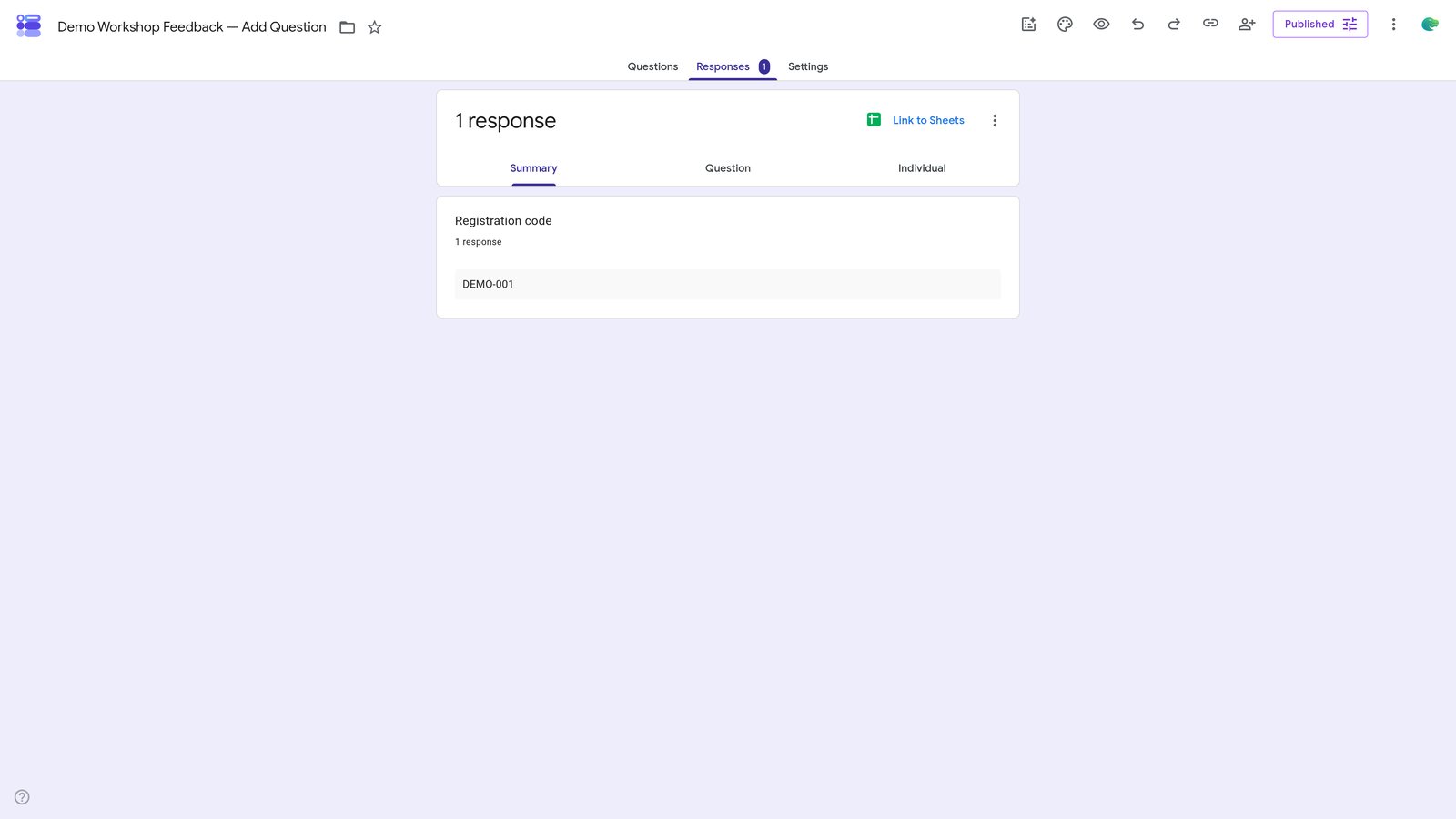
Click on the 'Responses' tab.

step
3

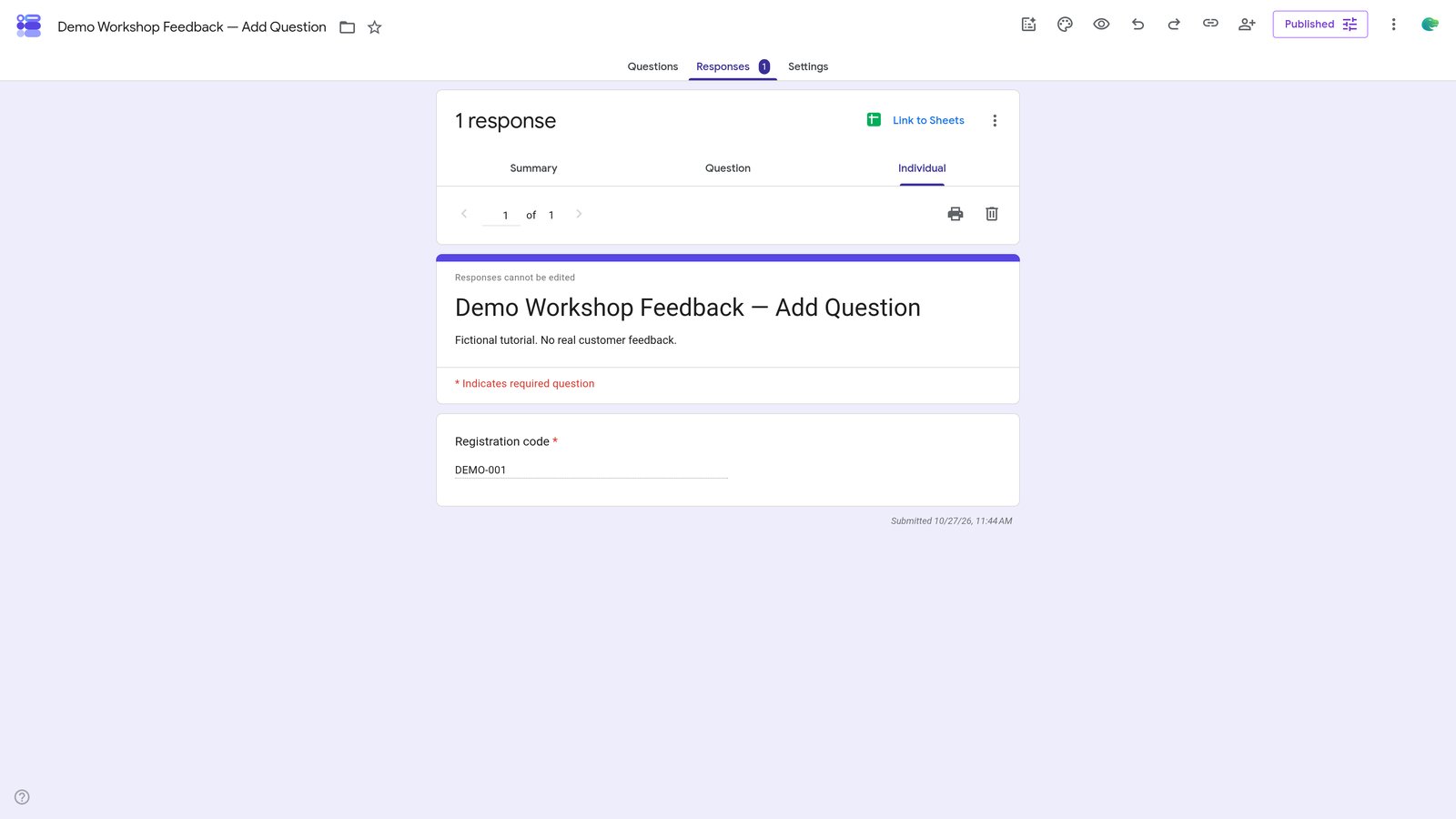
Click on the 'Individual' tab.

step
4

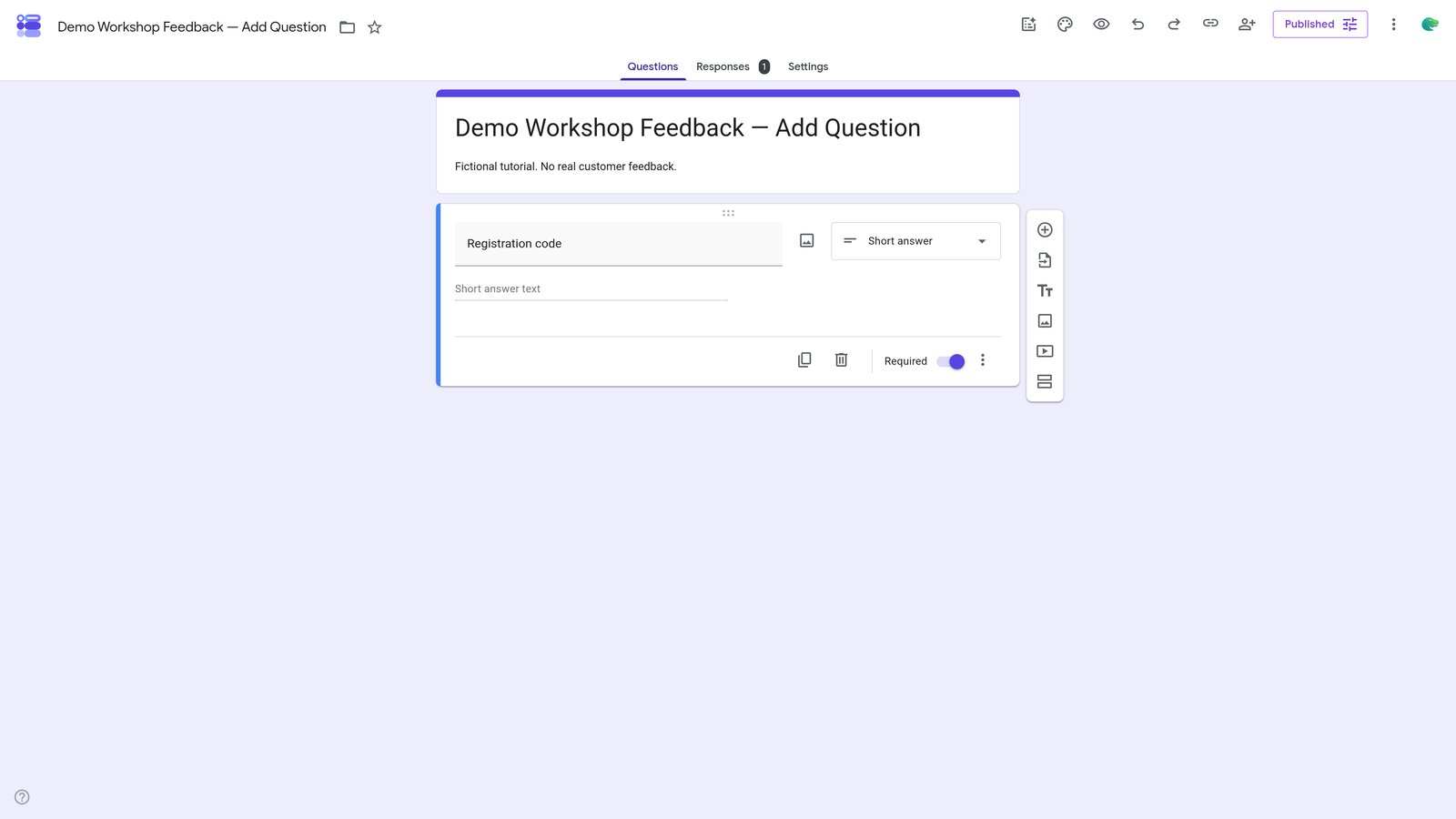
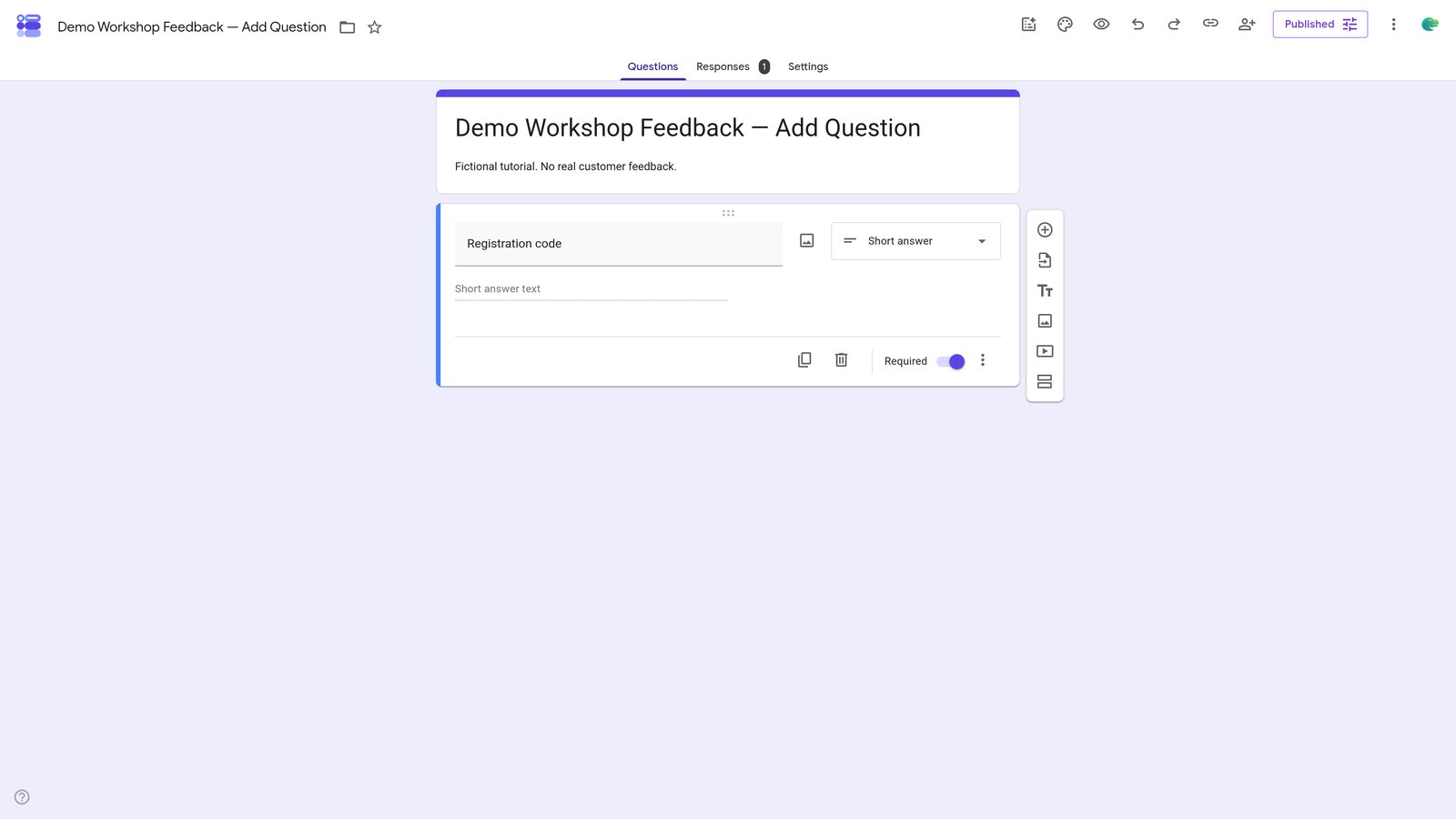
Click on the 'Questions' tab.

step
5

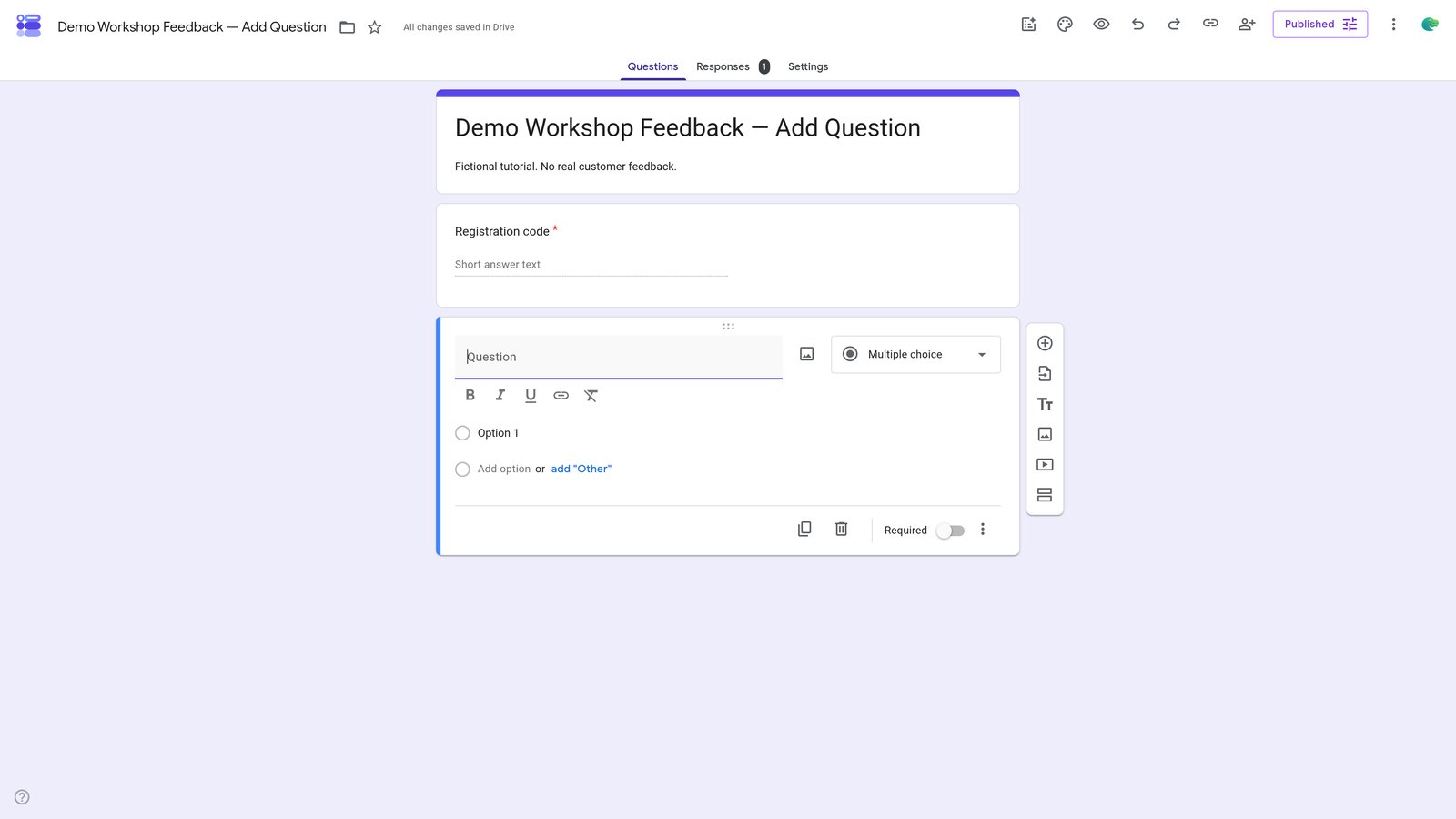
Click on the 'Add question' button.

step
6

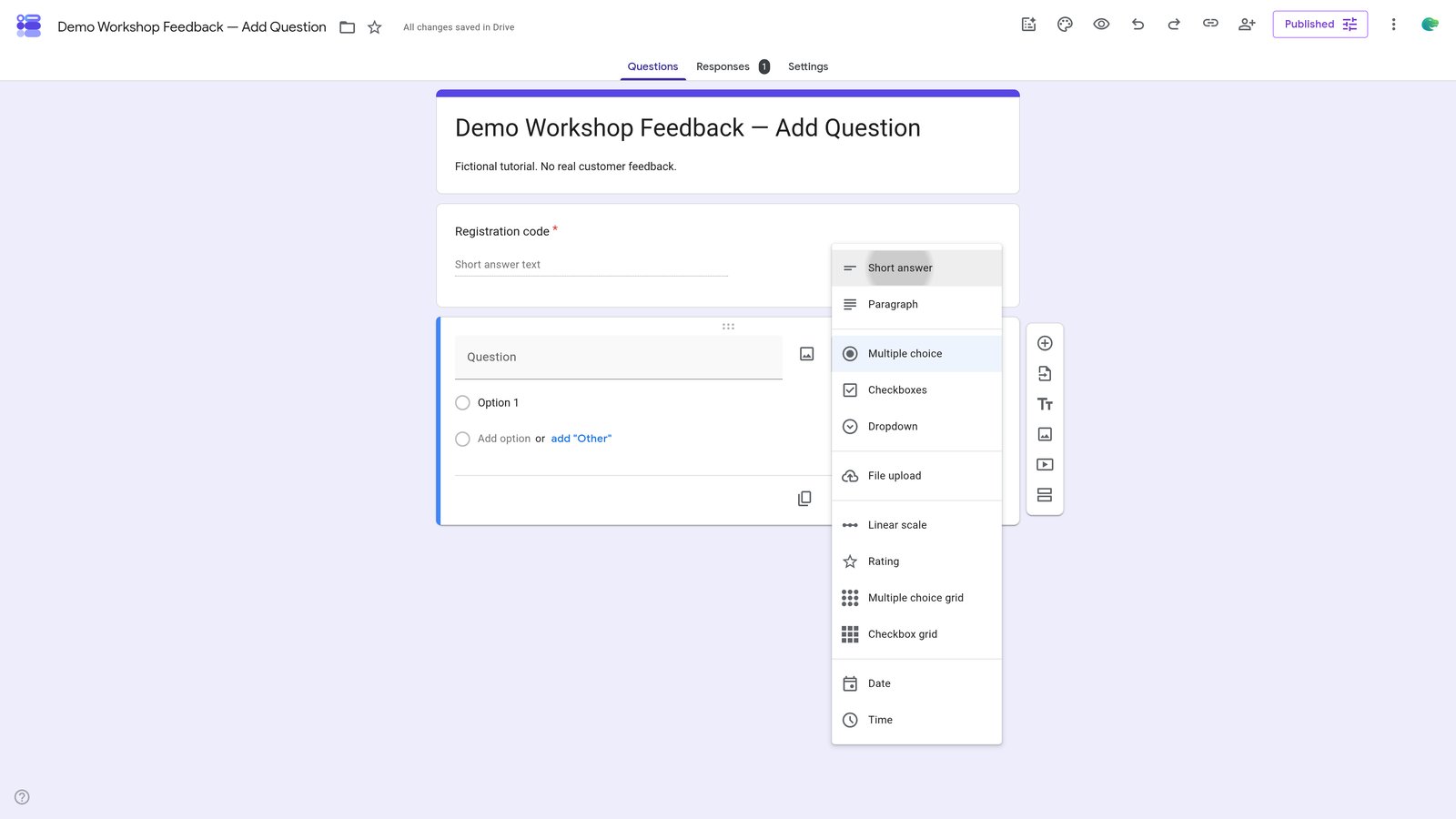
Open the question-type menu, currently labeled Multiple choice.

step
7

Click on the 'Short answer' option in the dropdown menu.

step
8

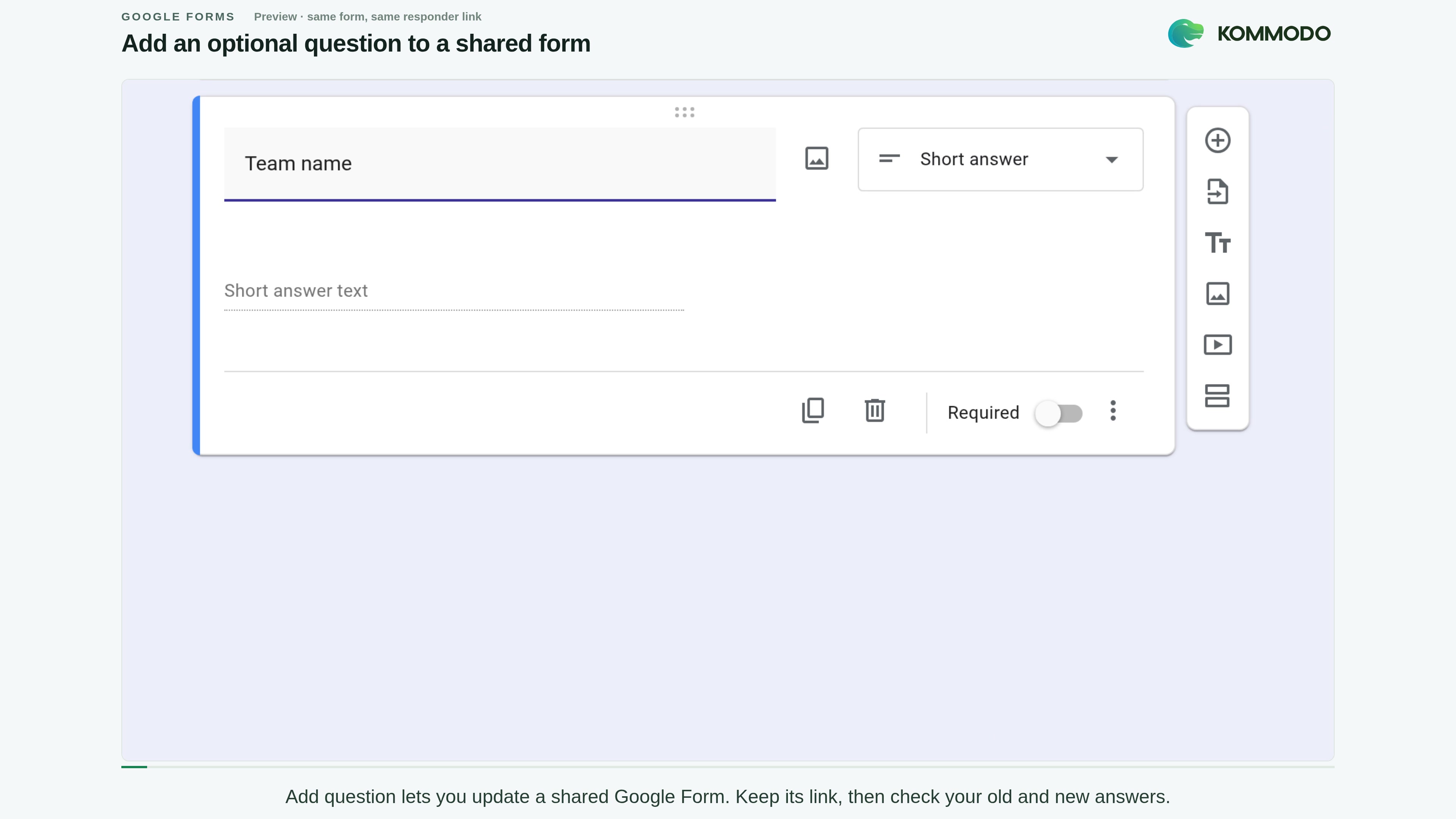
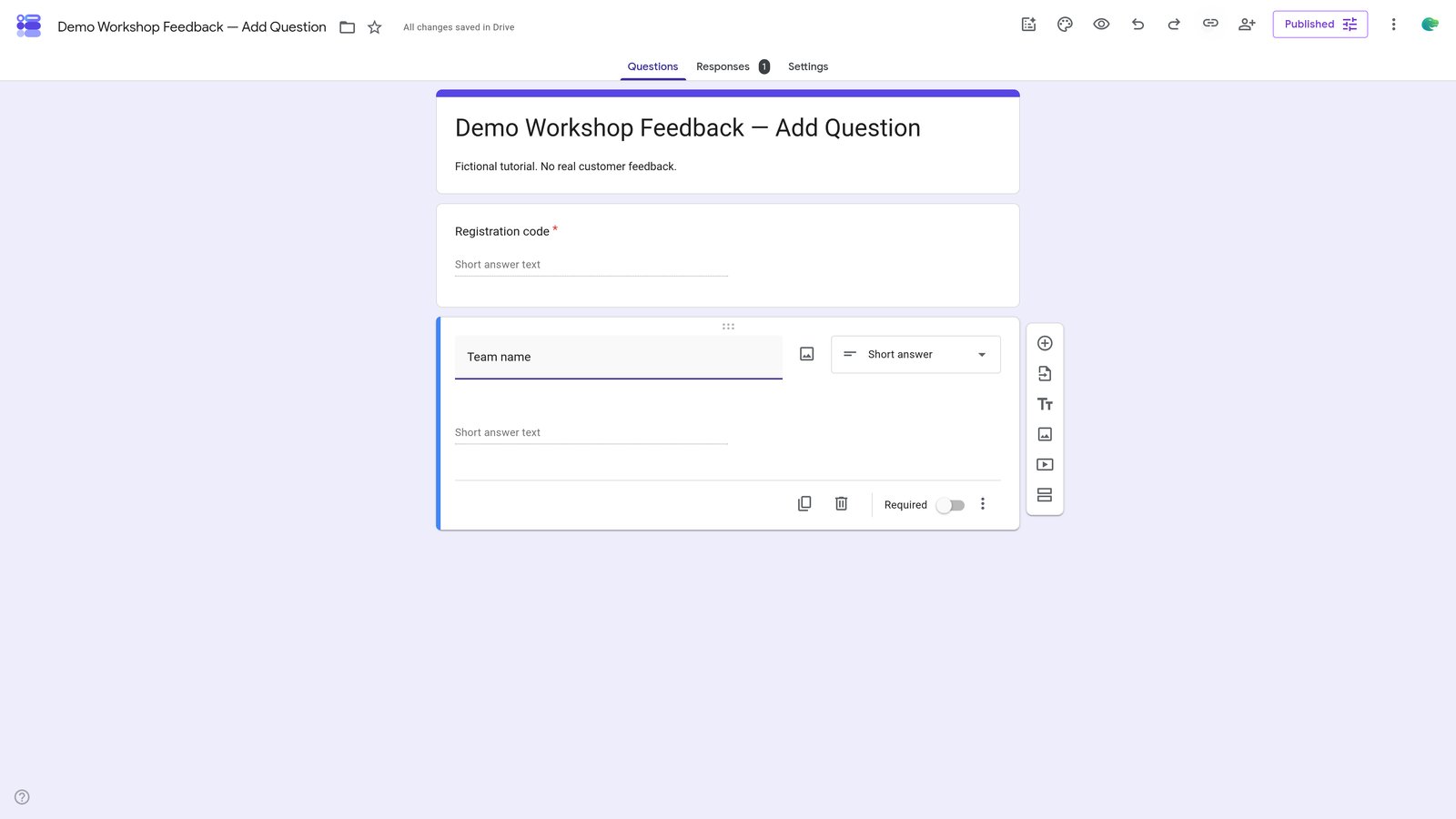
Type 'Team name' into the 'Question' field.

step
9

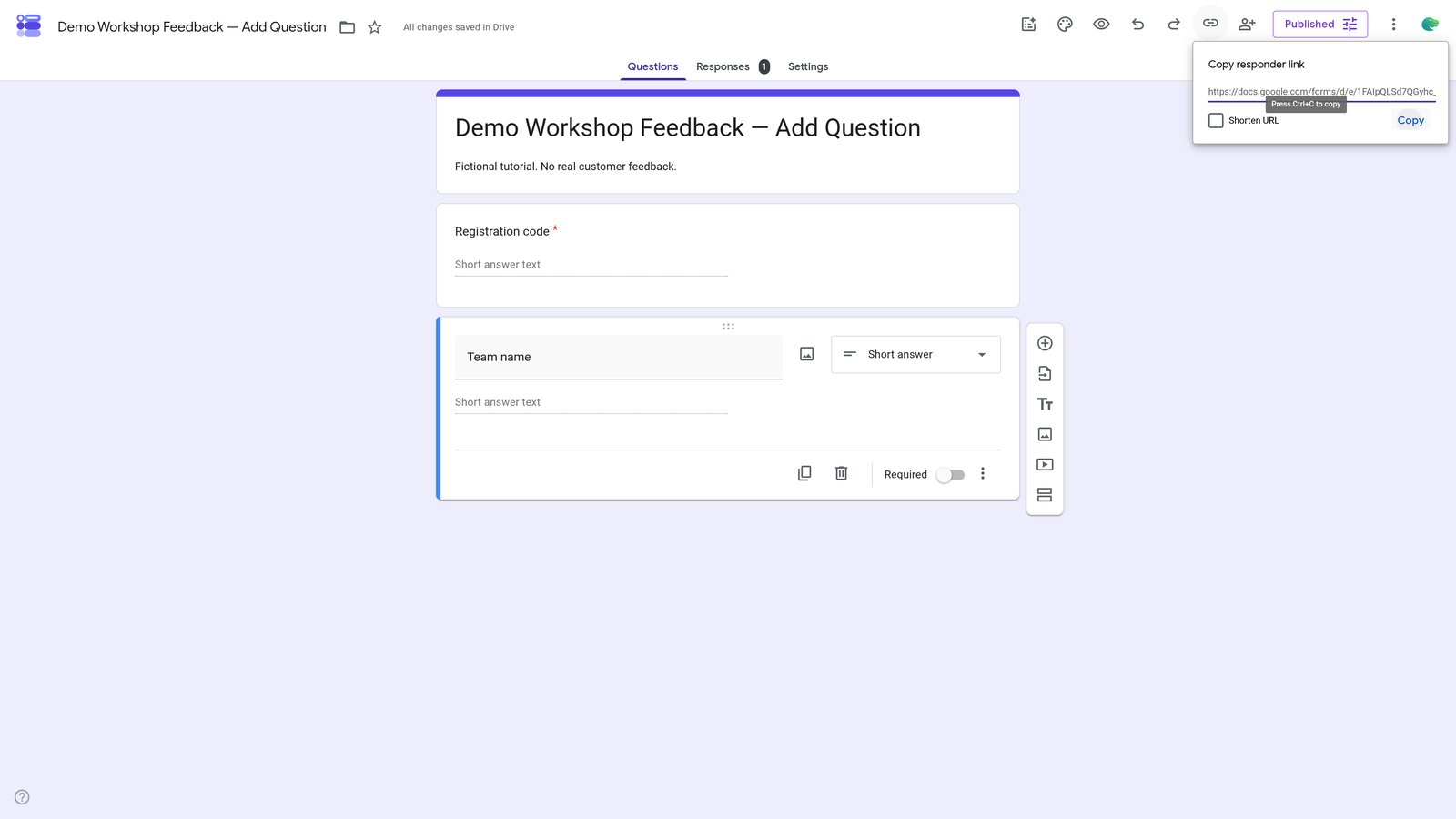
Click on the 'Copy responder link' button.

step
10

Click the 'Copy' button to copy the URL.

step
11

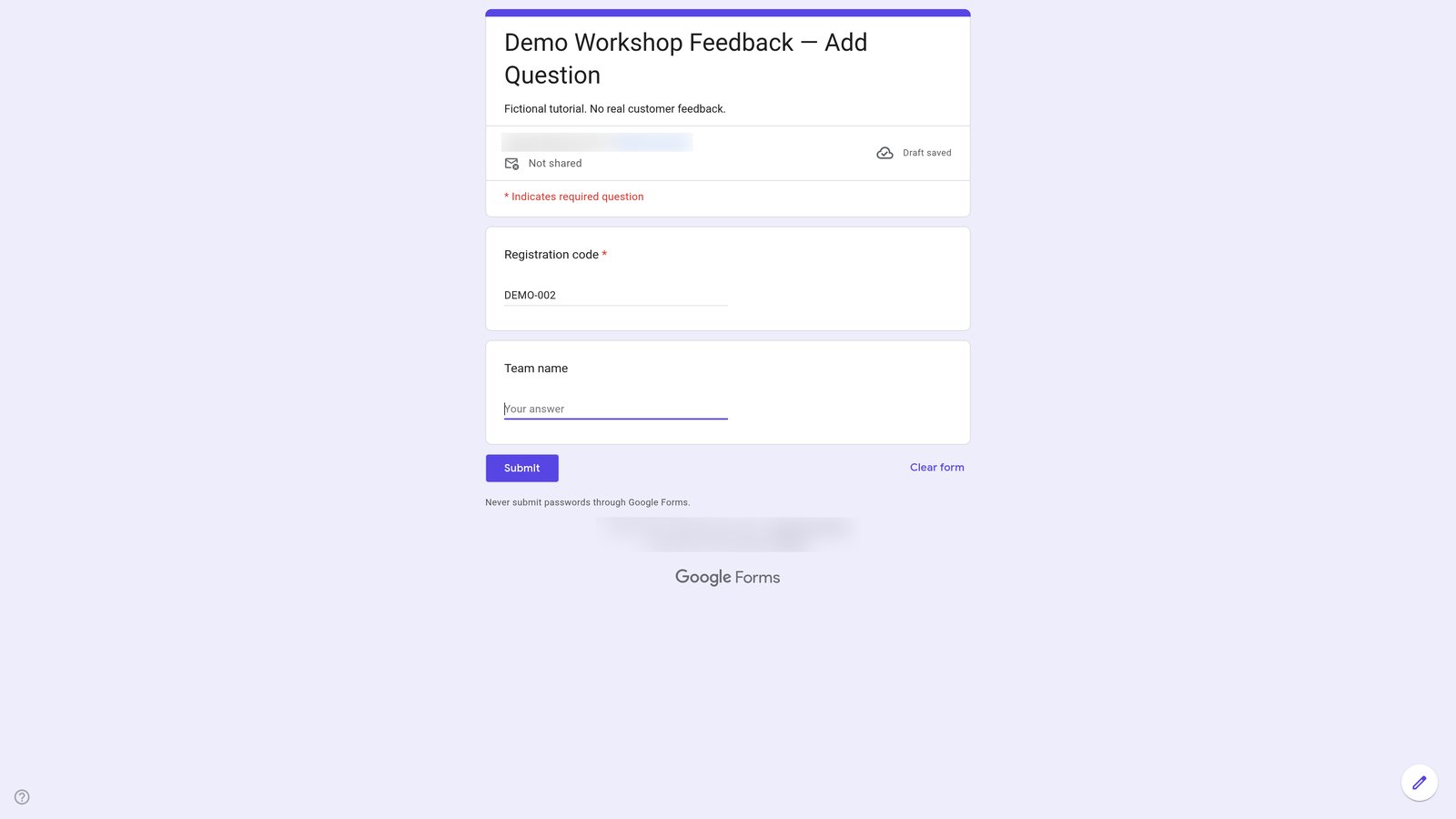
Go to "Demo Workshop Feedback — Add Question" (docs.google.com)
12

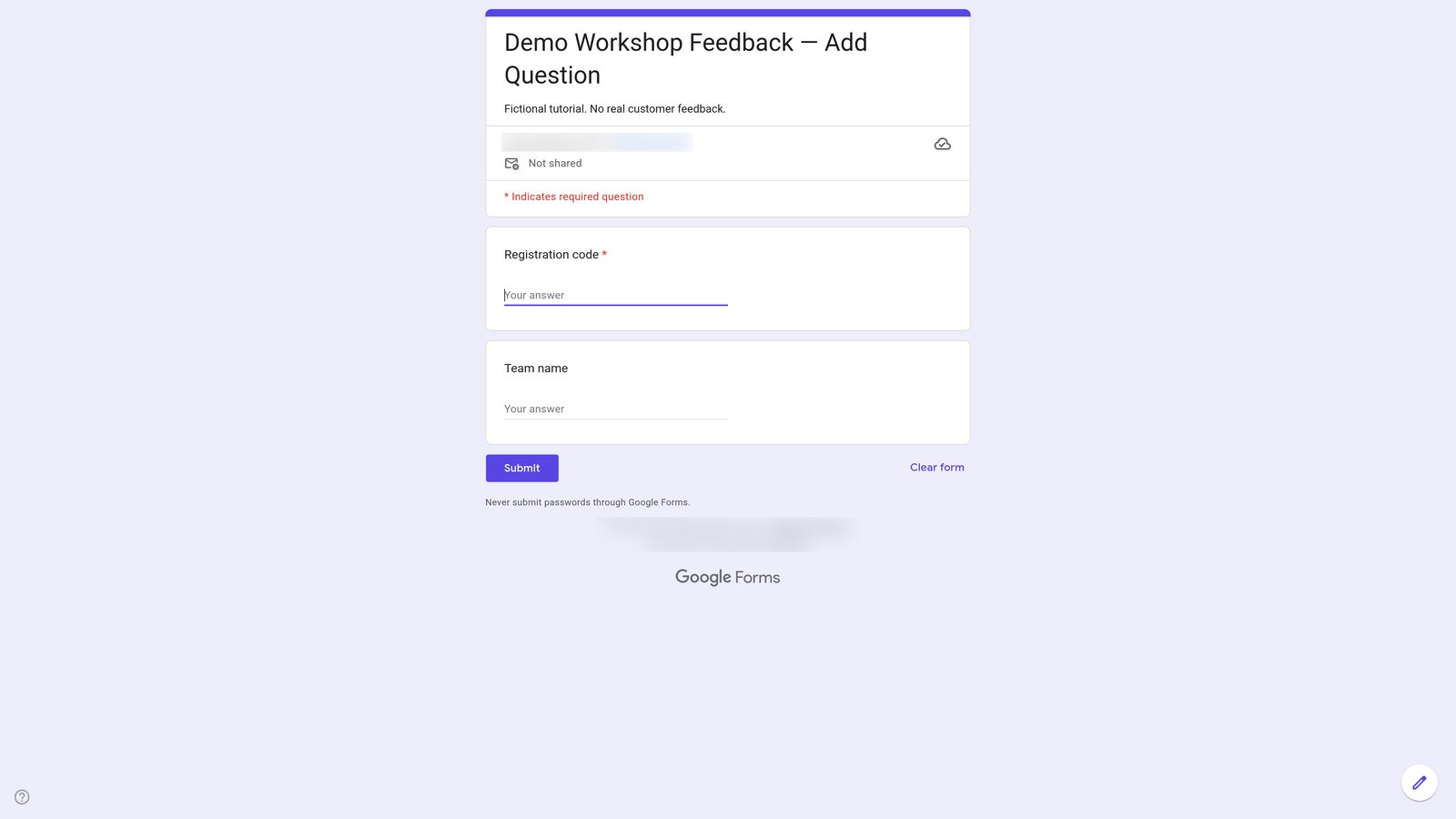
Type "DEMO-002" into the "Registration code *" input field.

step
13

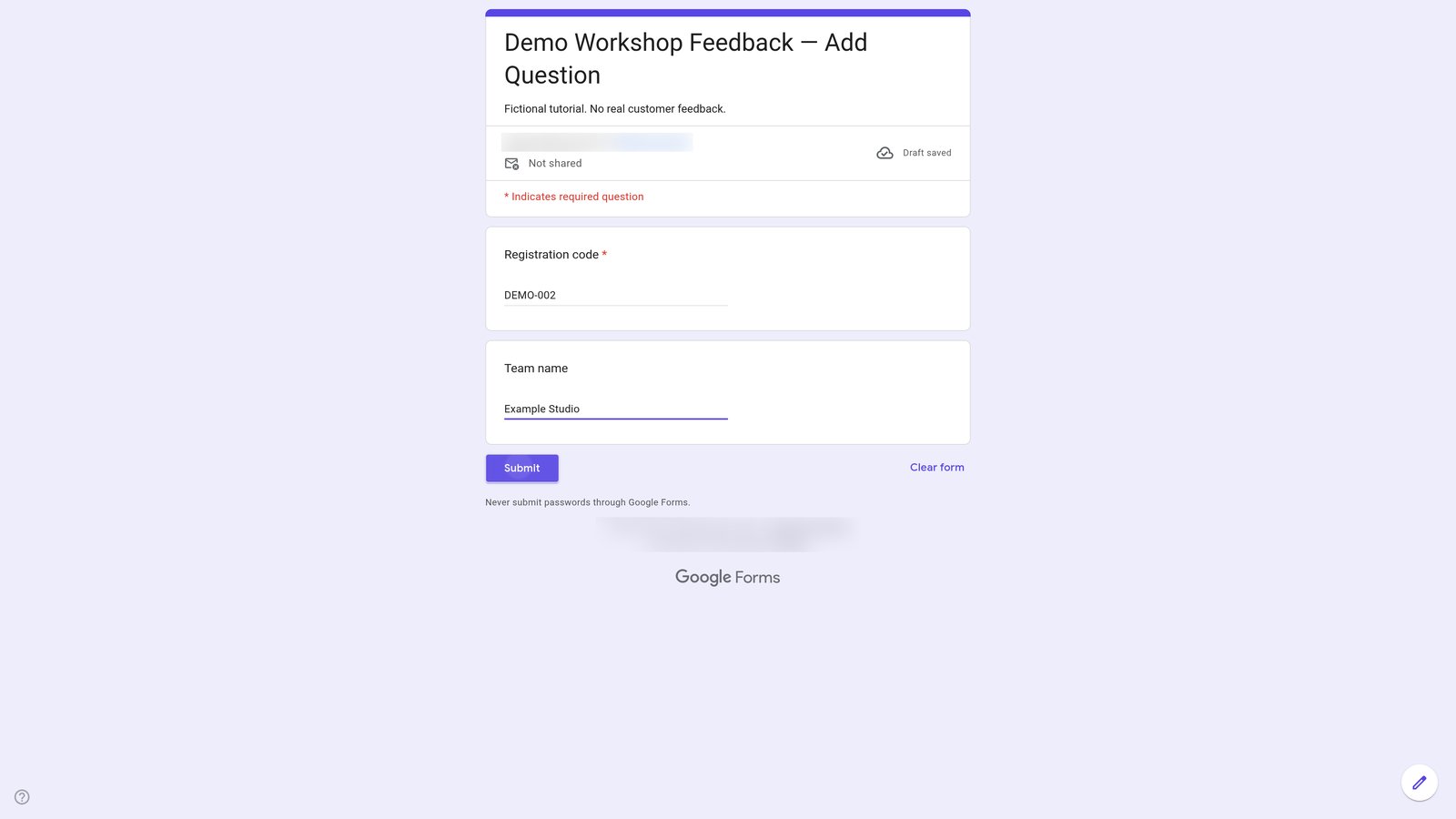
Type 'Example Studio' into the 'Team name' input field.

step
14

Click the Submit button.

step
15

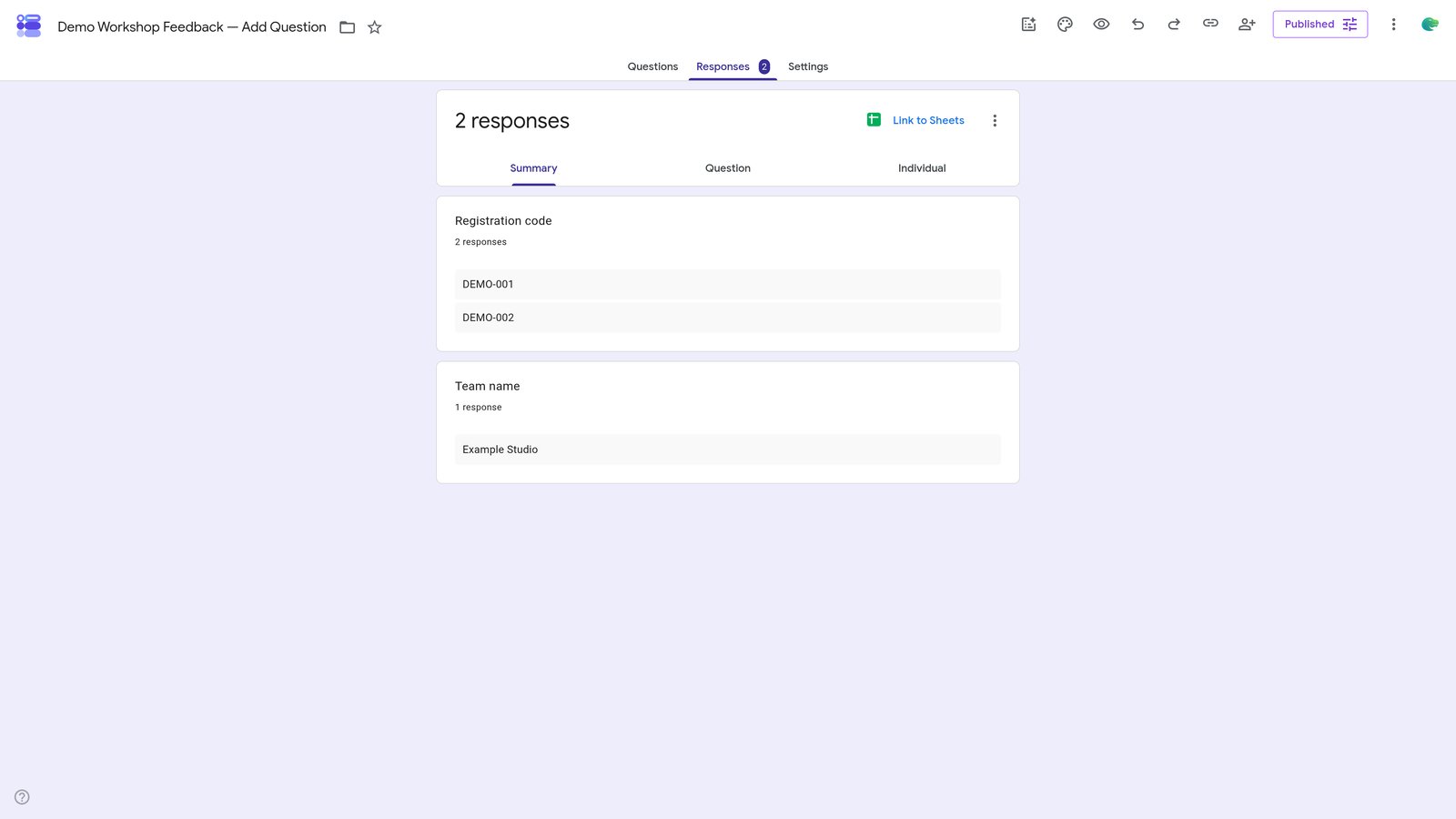
Go to "Demo Workshop Feedback — Add Question - Google Forms" (docs.google.com)
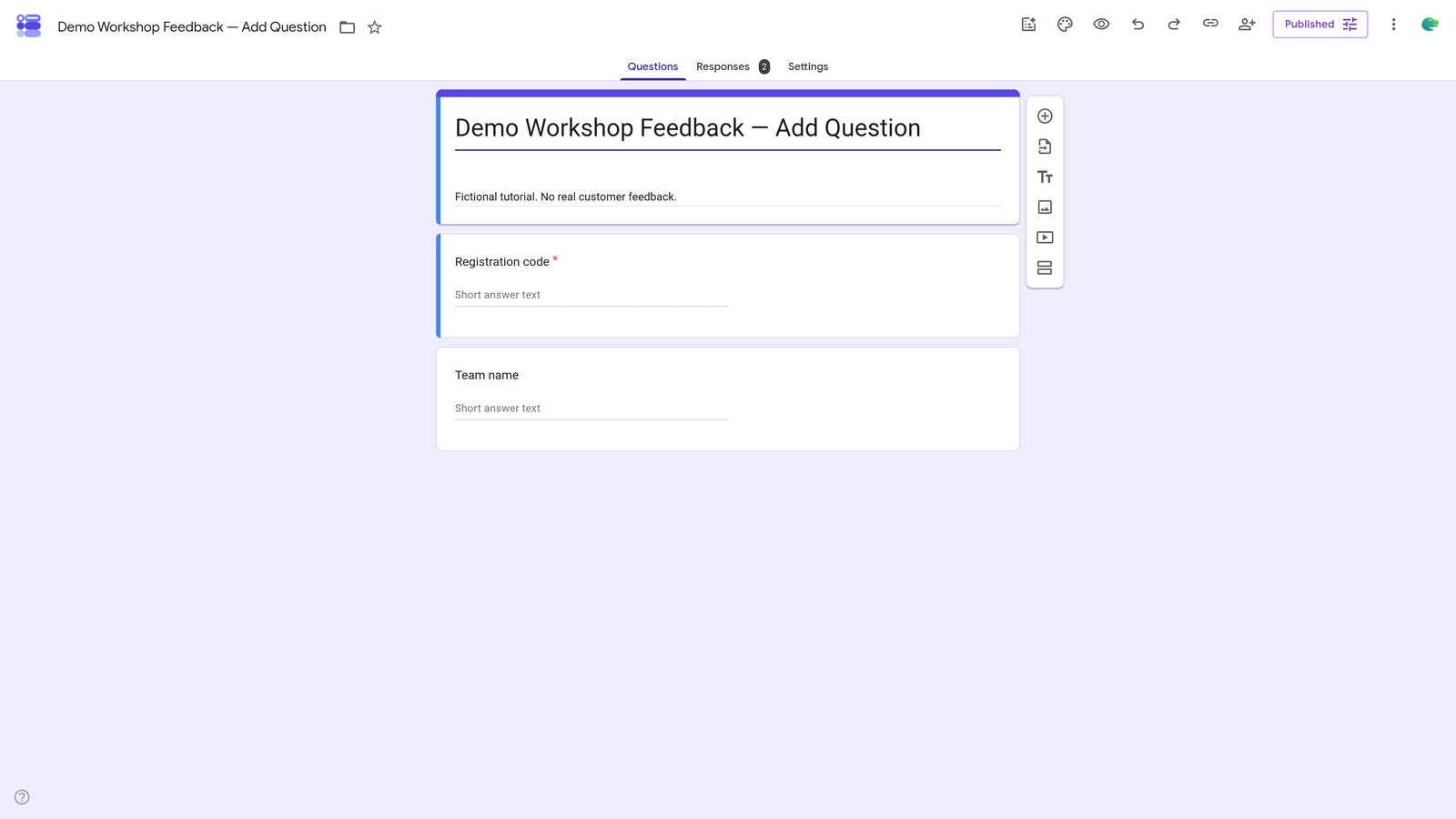
16

Click on the 'Responses' tab.

step
17

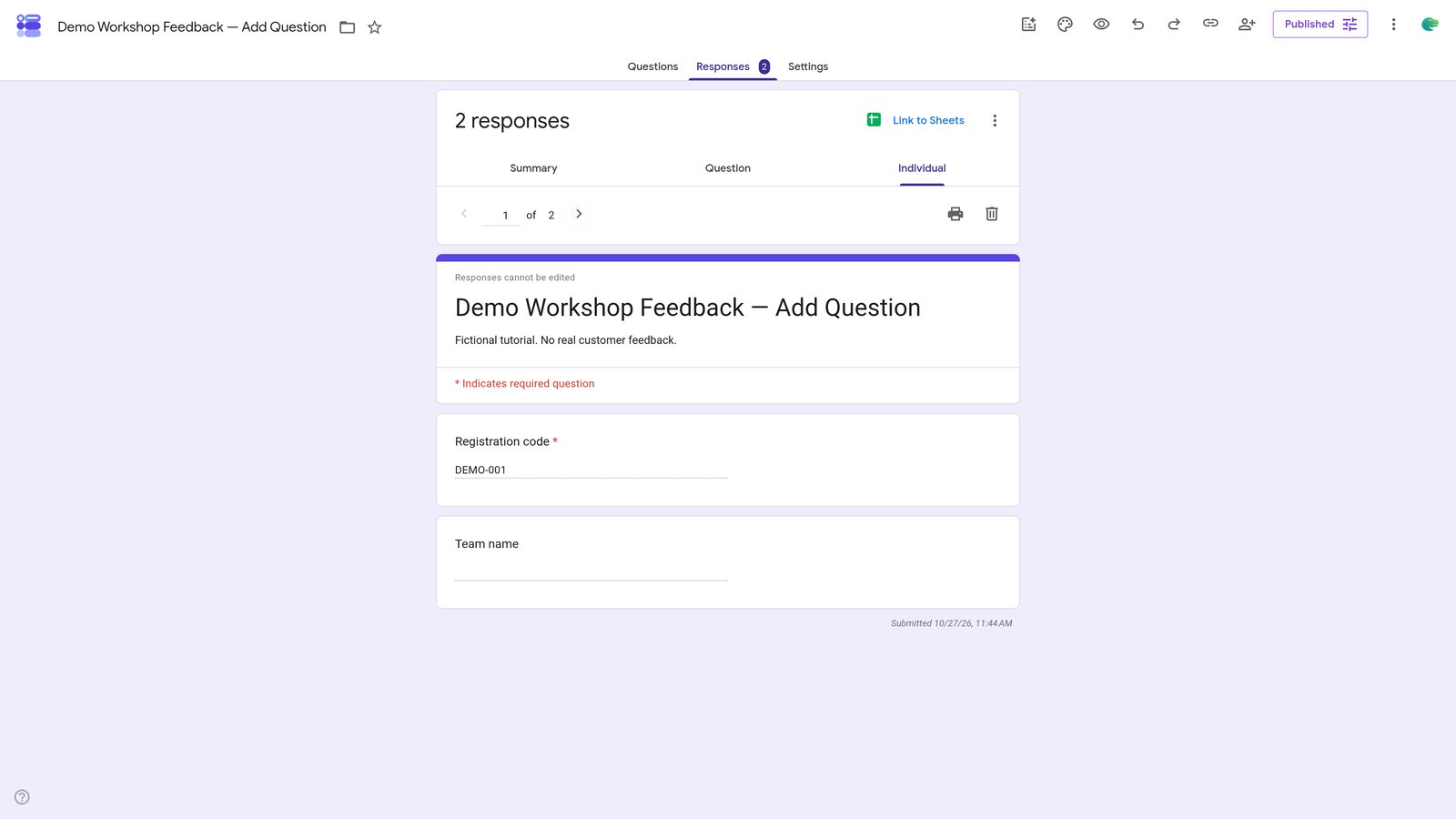
Click on the 'Individual' tab.

step
18

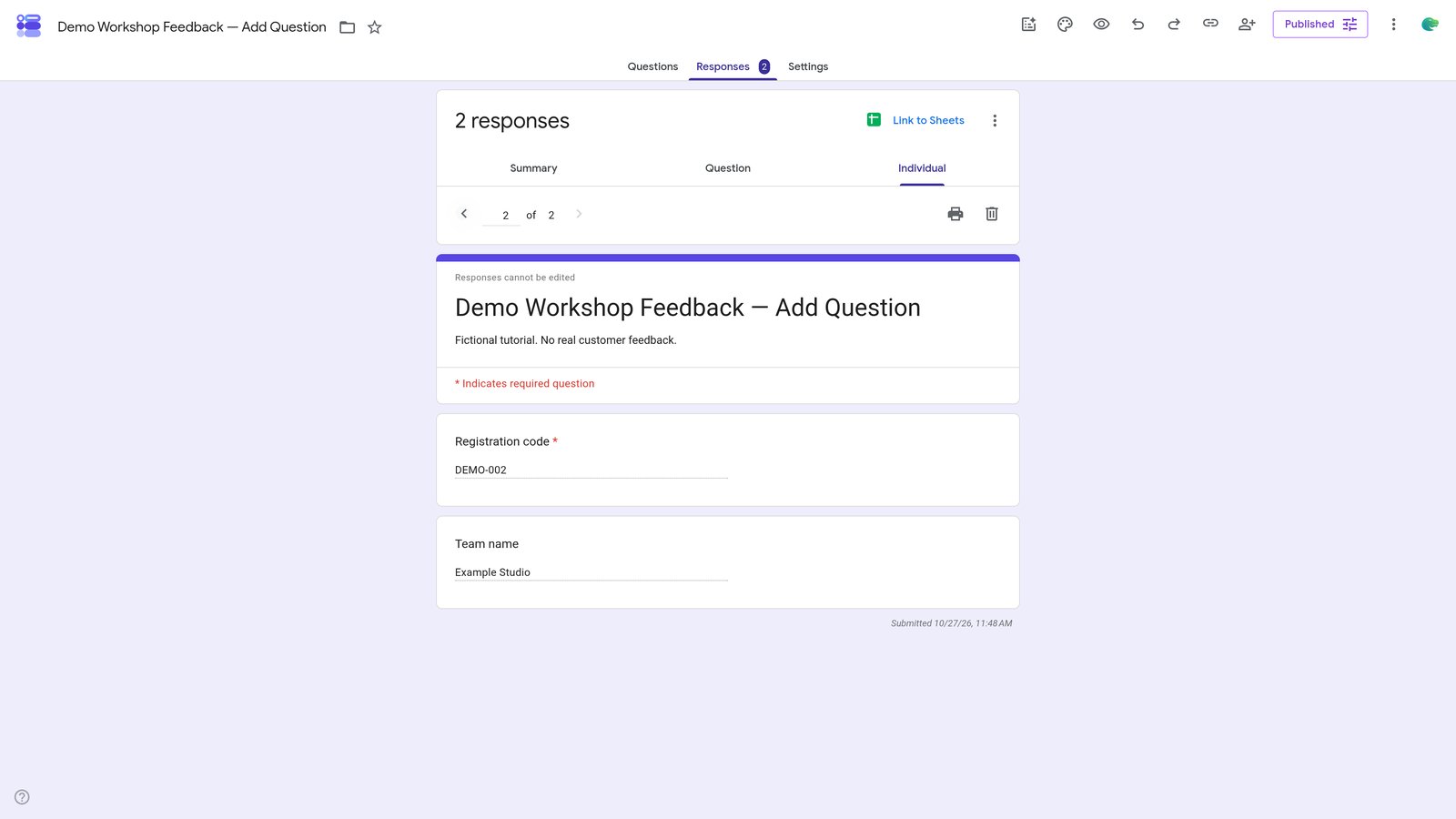
Click Next response to inspect response 2 of 2.

step
19

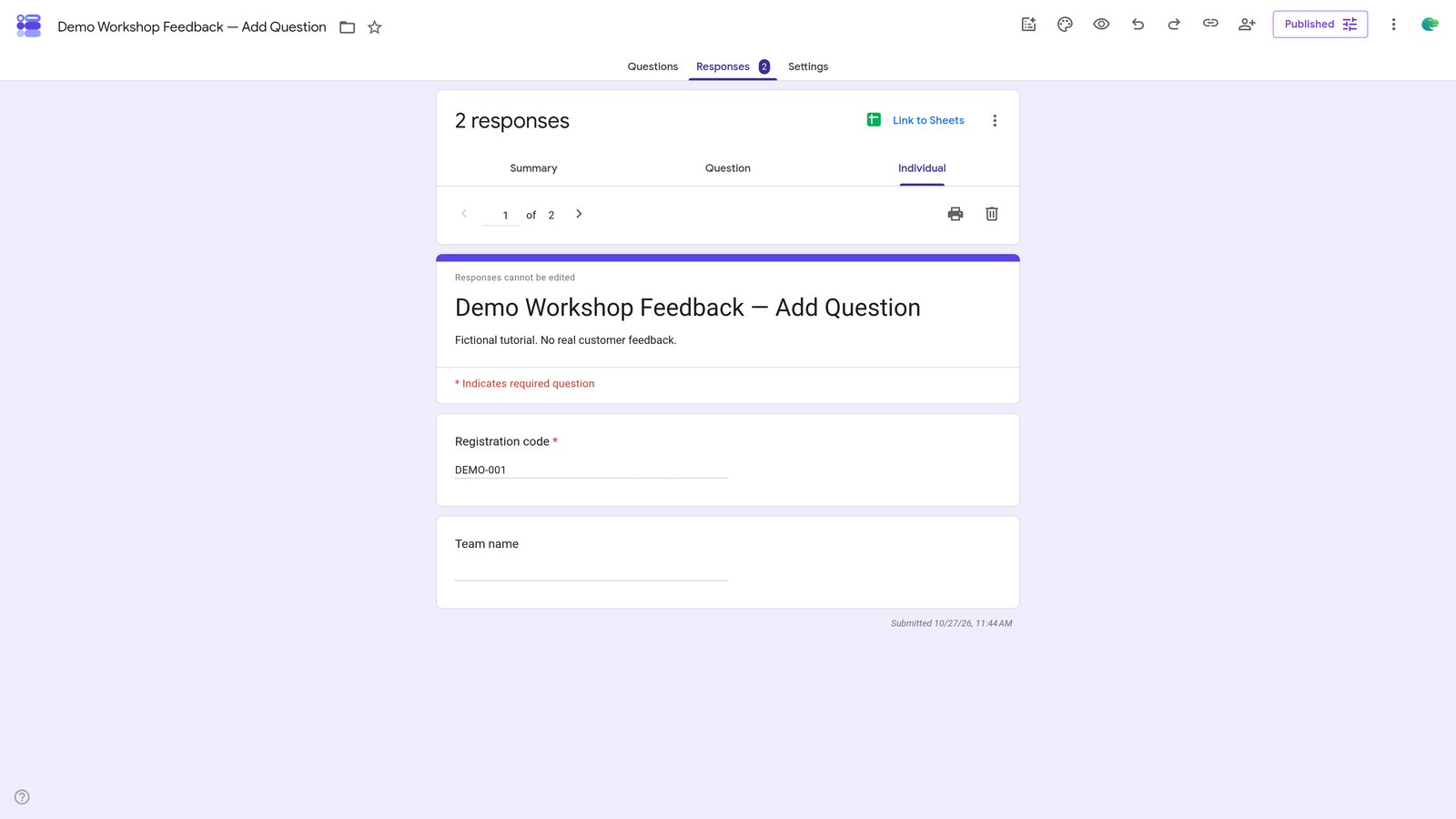
Click on the 'Previous response' button.

step
20

Done! This is the result.

step

You made it to the end!

20 steps complete