How to Onboard a Dealership and Agents in Vini AI
Follow these steps to configure your dealership, onboard agents, and complete the setup in Winni AI.

Subhav Malhotra
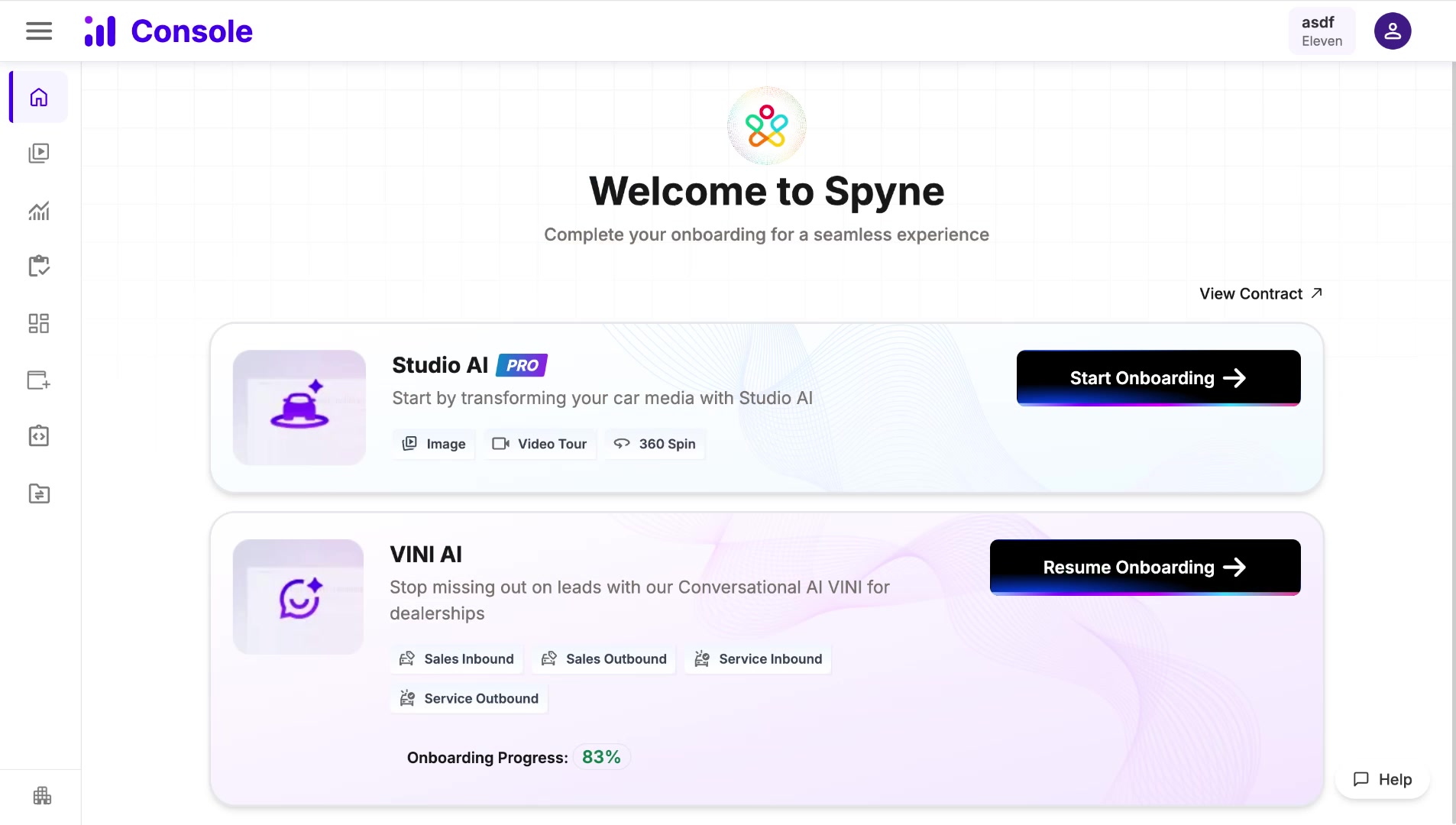
Connect with Rohit or the CSM of your dealership to get the contract.
You need to obtain the contract before proceeding with onboarding.
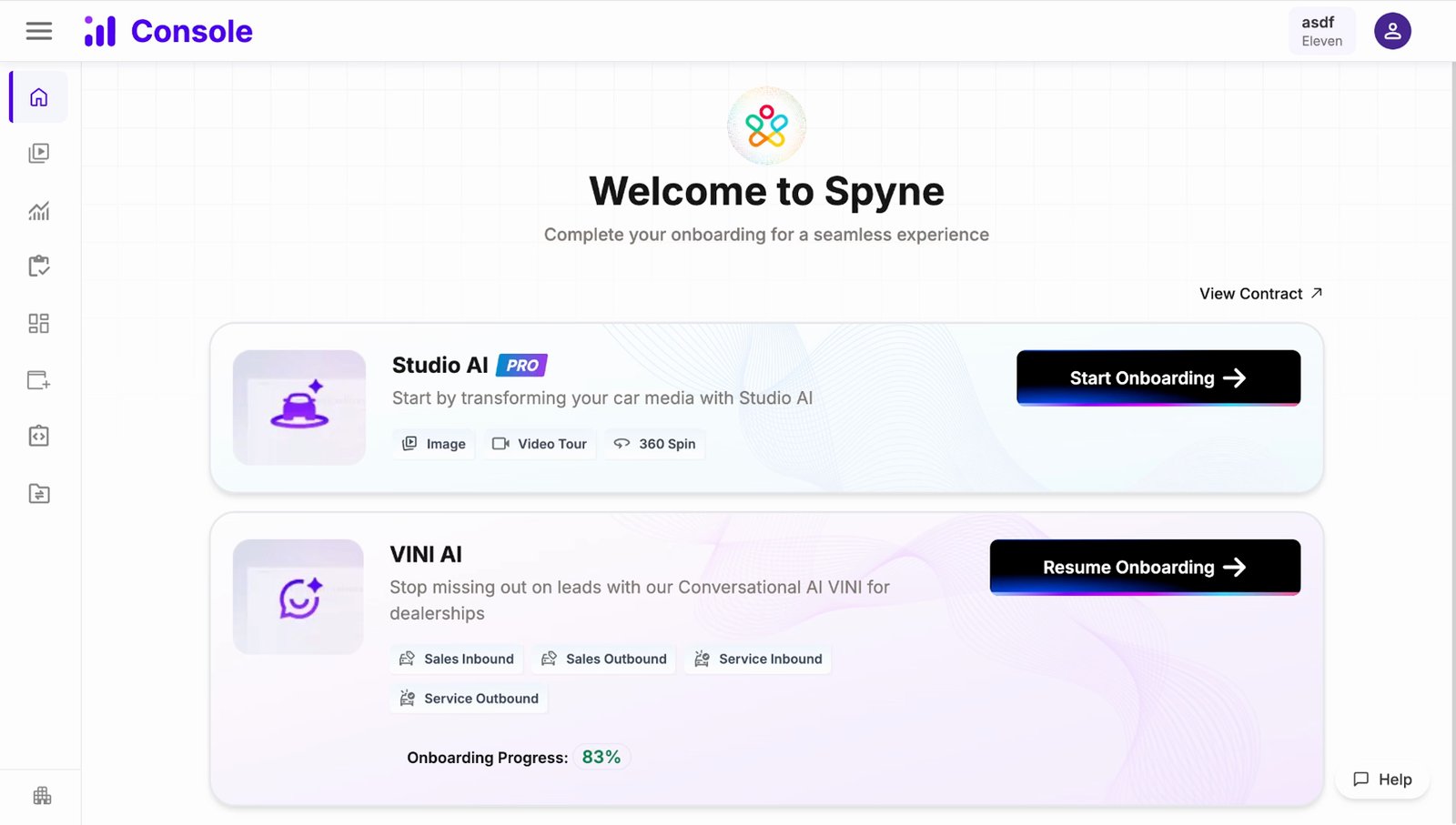
Ensure the contract is completed and the rooftop is added for your dealership account.
Once these are done, you can proceed to see the list of agents.

View the list of agents who are on your contract that are added here.
You will see all agents associated with your contract.

Move the rooftop from contracted states to onboarding.
Rohit or CSM can help you with this step.
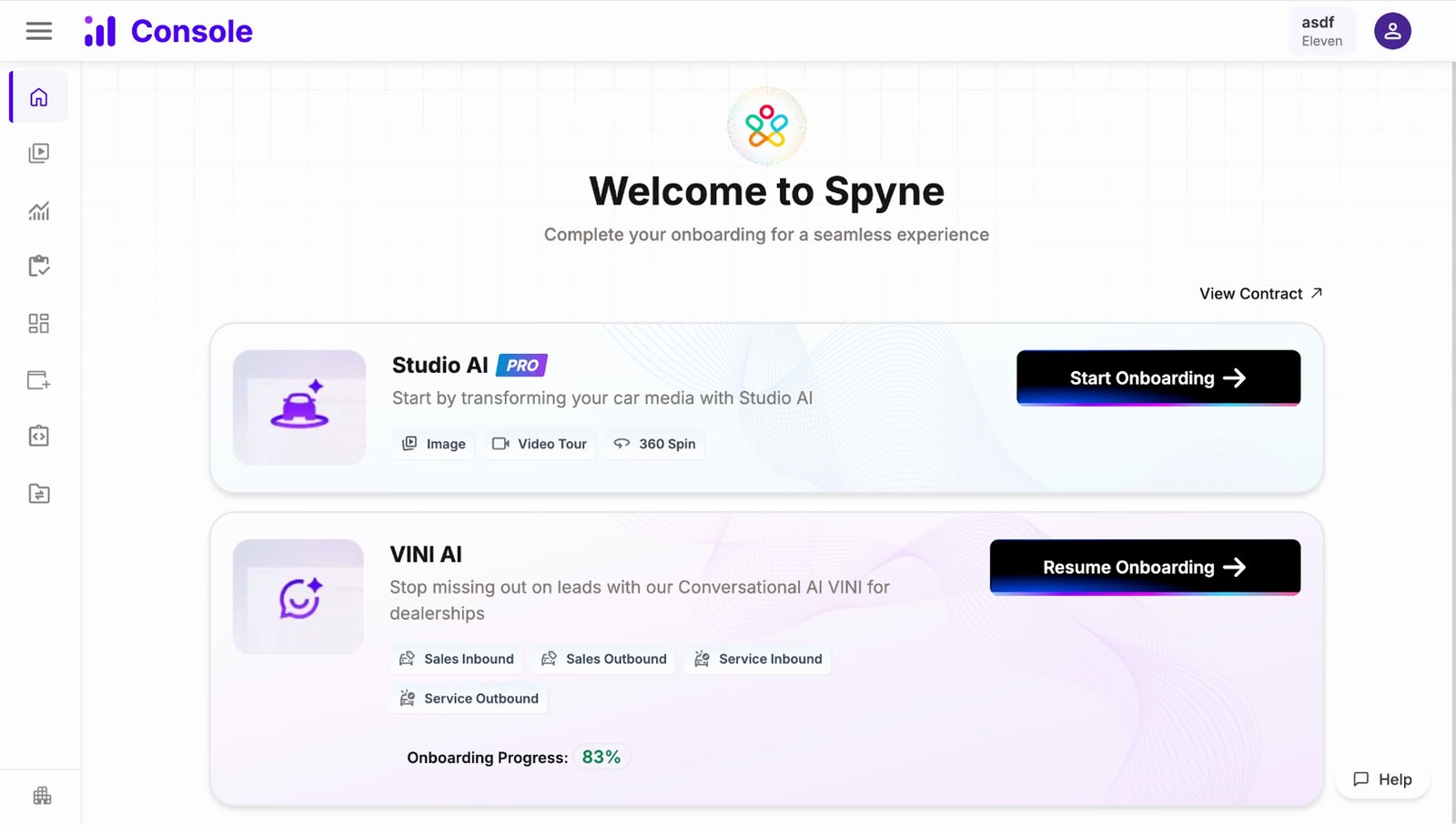
Once all steps are done, you would land on the screen similar to Studio AI where you see a start onboarding CTA.
This is the main onboarding screen.

Click on the start onboarding CTA.
This begins the onboarding process.
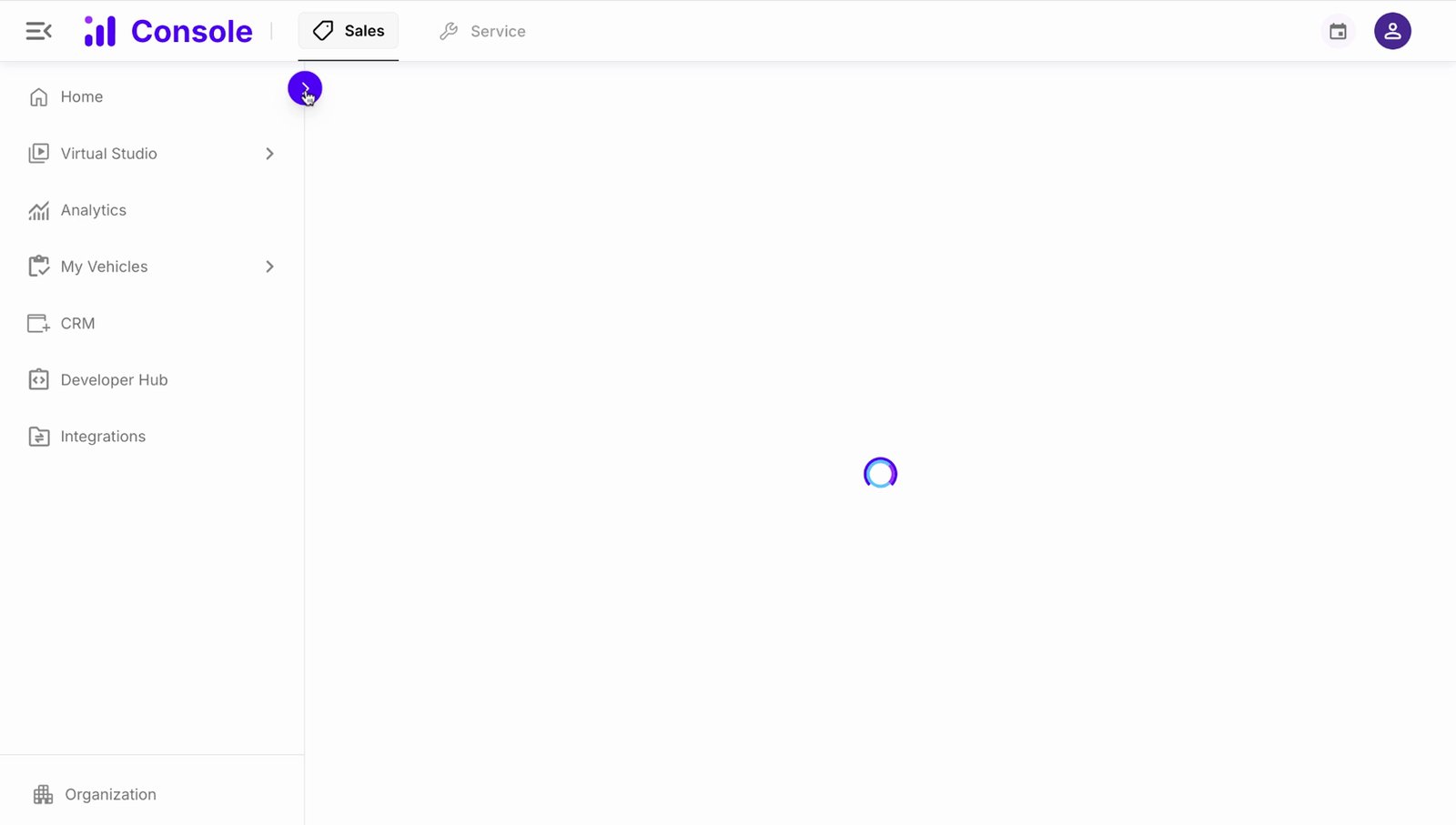
You will be landed on the home overview screen for Winni where all the agents you have opted for would be listed.
This screen shows all your agents.

Click on the start onboarding for your agent.
This starts the onboarding for a specific agent.
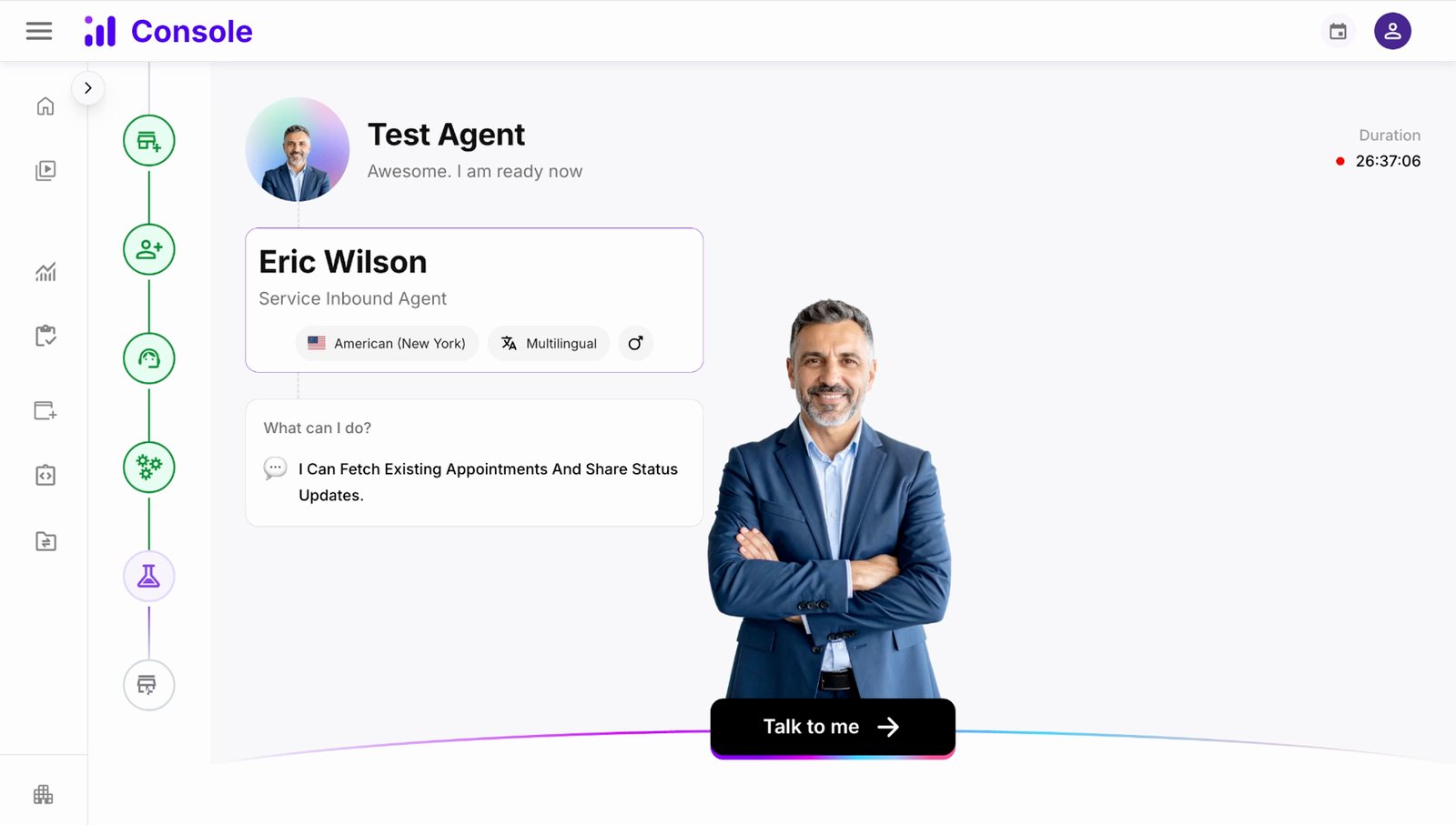
Add all the rooftop details including address and correct time zone.
This helps in agent recognizing the current time zone.

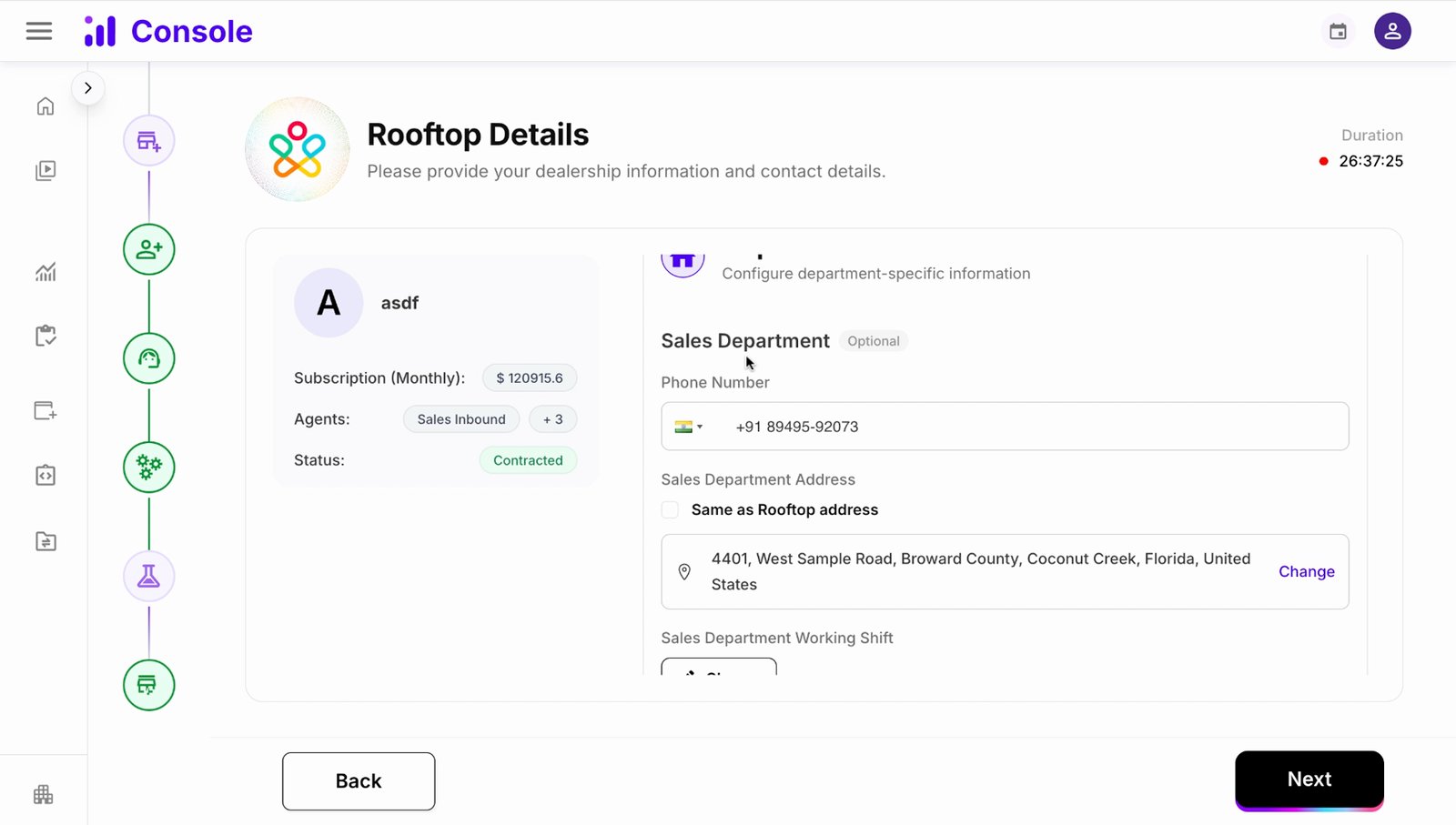
Configure department-wise card transfer contacts for the dealership.
Set up which numbers should receive which department calls.
10 of 31 steps shown
The guide's author needs to upgrade to share the remaining 21 steps.