
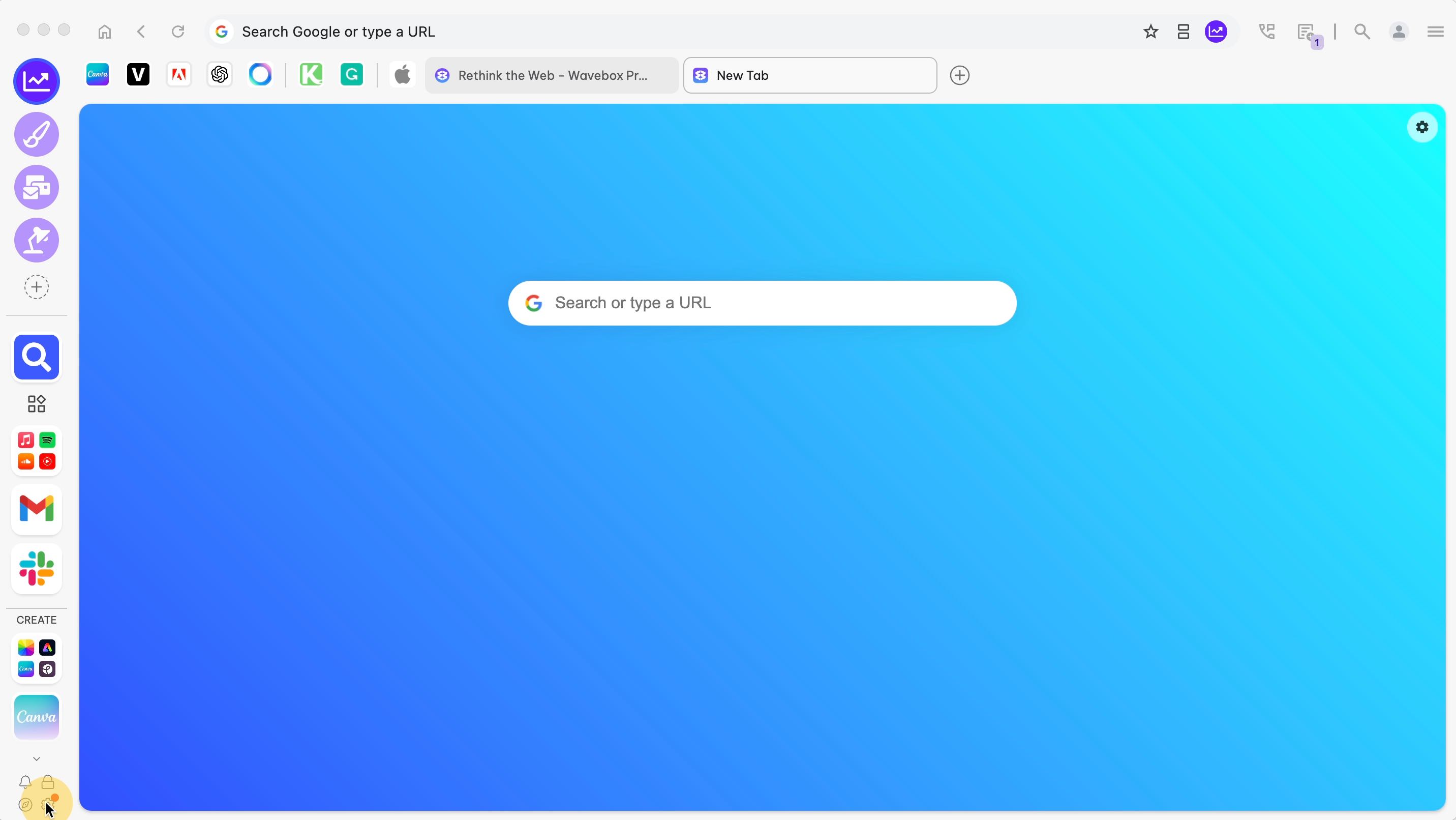
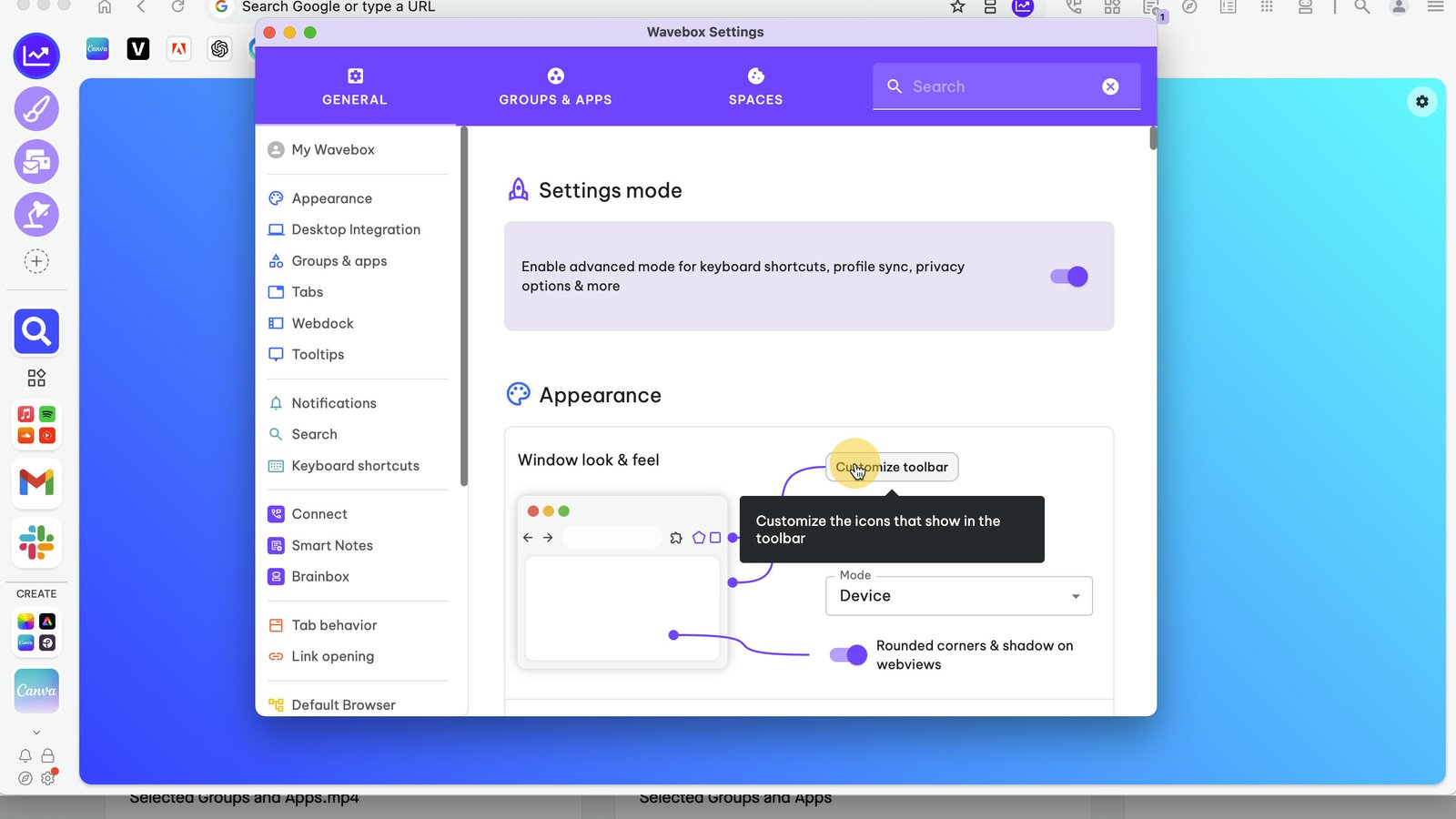
Click on the Settings Cog bottom-left.
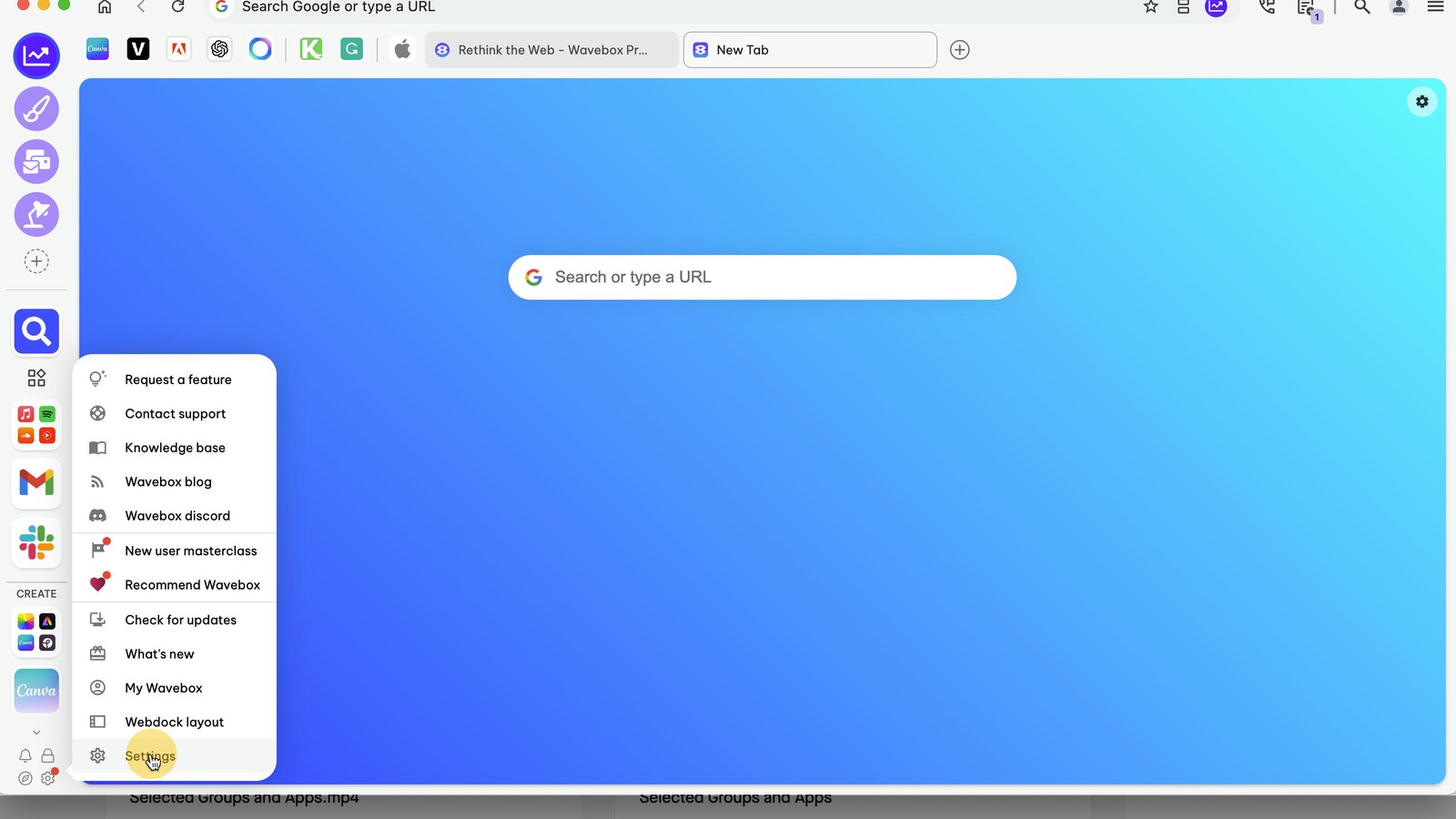
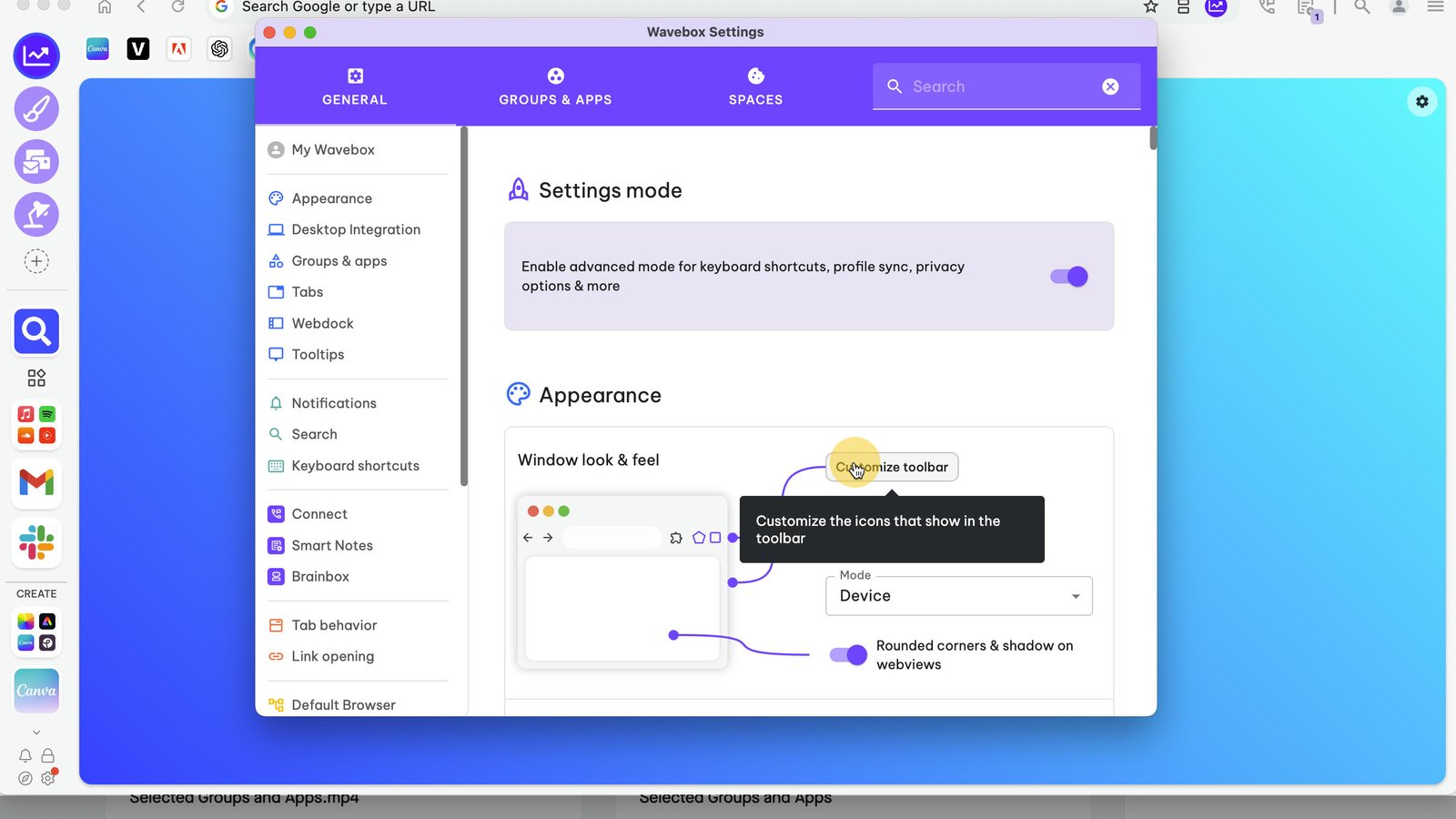
In Settings, click on the Customize Toolbar button under Appearance, right at the top.
Toggle ON any icons you want to appear in the Toolbar—Wavebox Mini for example.
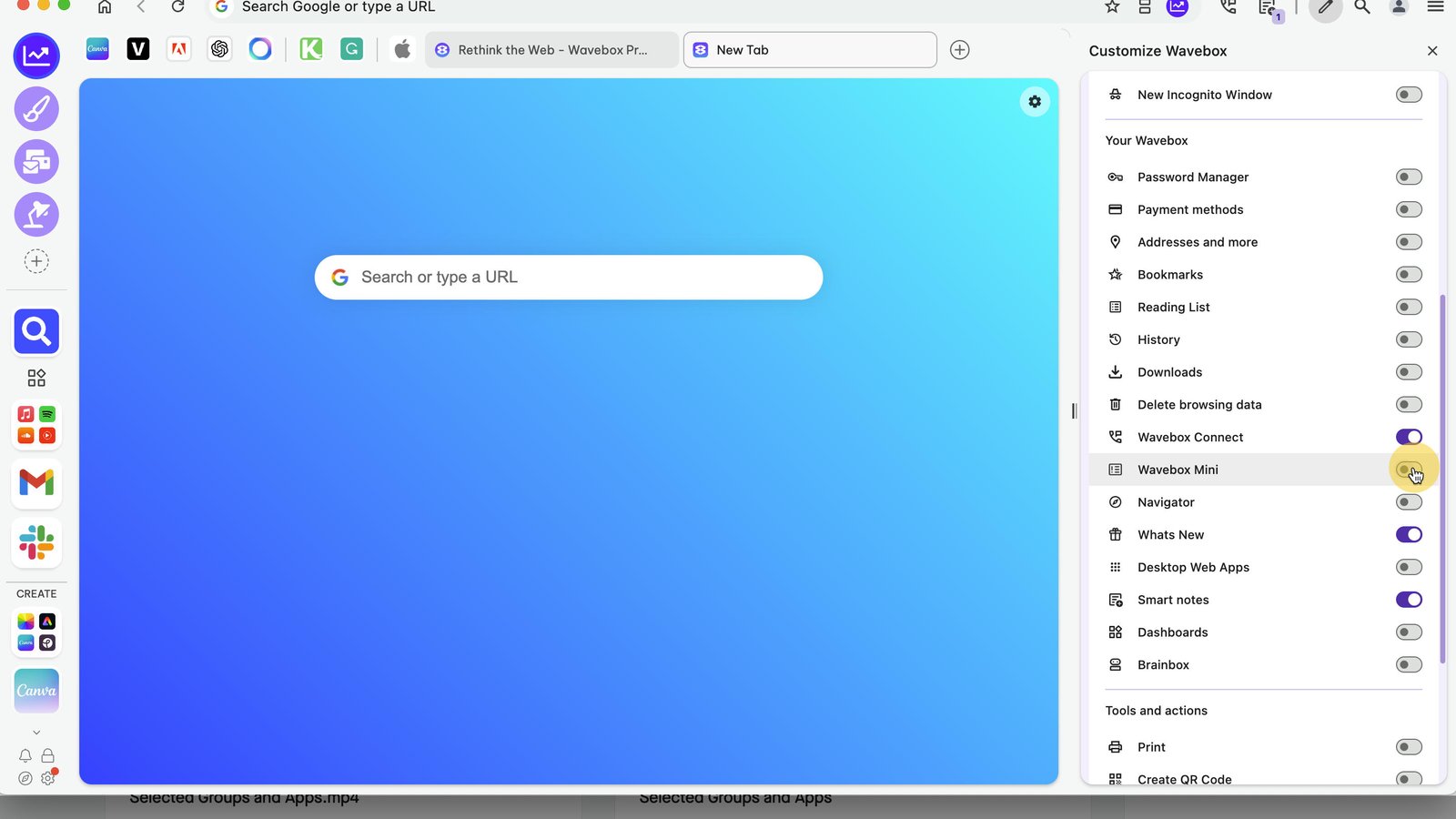
When you're done, click on the X in the top-right of the customize panel to close it.
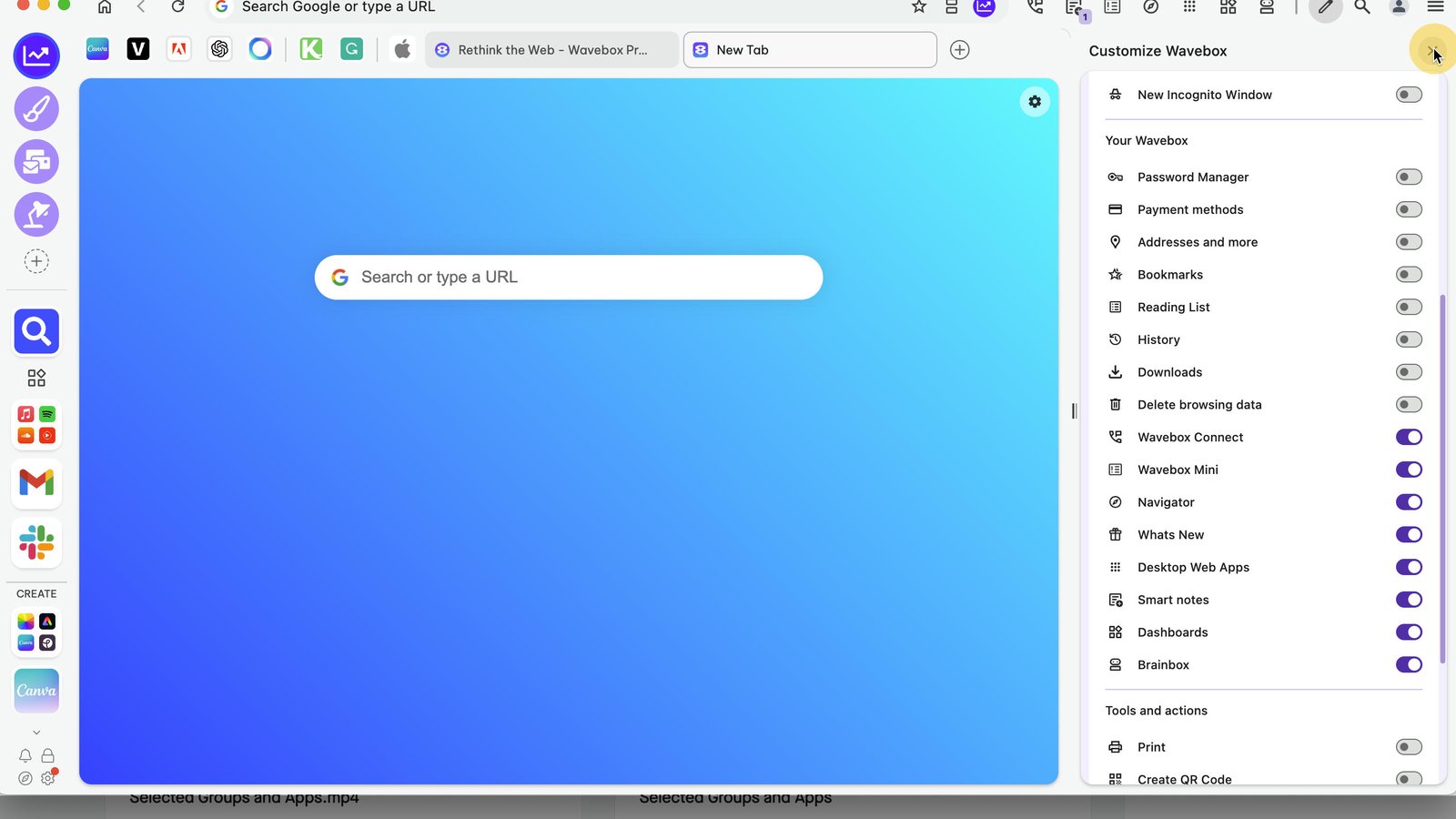
Your chosen icons appear in the Toolbar instantly, so you can jump to them quickly. Click the Connect icon to open the Connect panel.
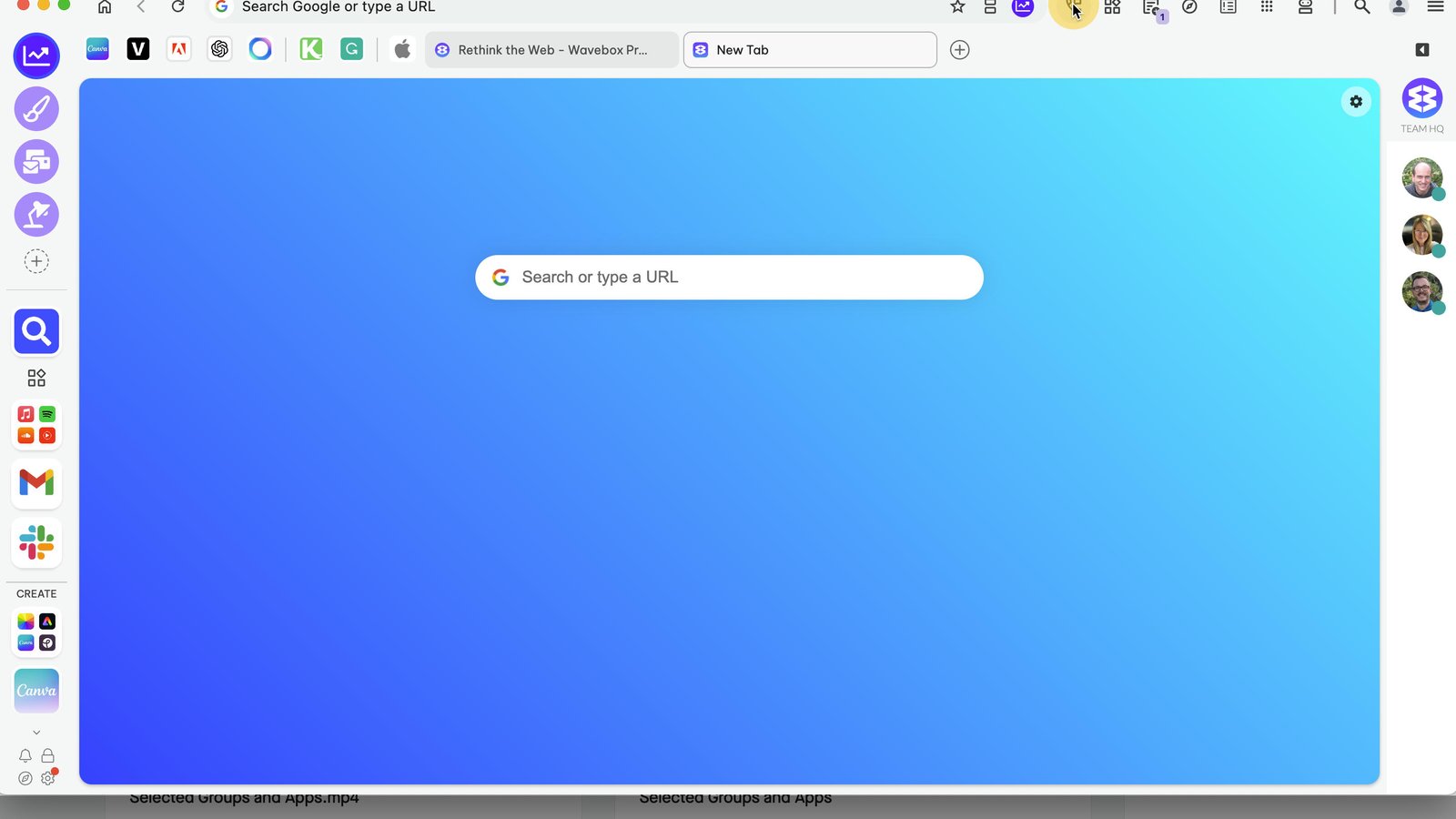
Click the Dashboard icon to open a Dashboard in a new tab (in the group/app you are in).

Click the Smart Notes icon to pop-out the Smart Notepad panel.
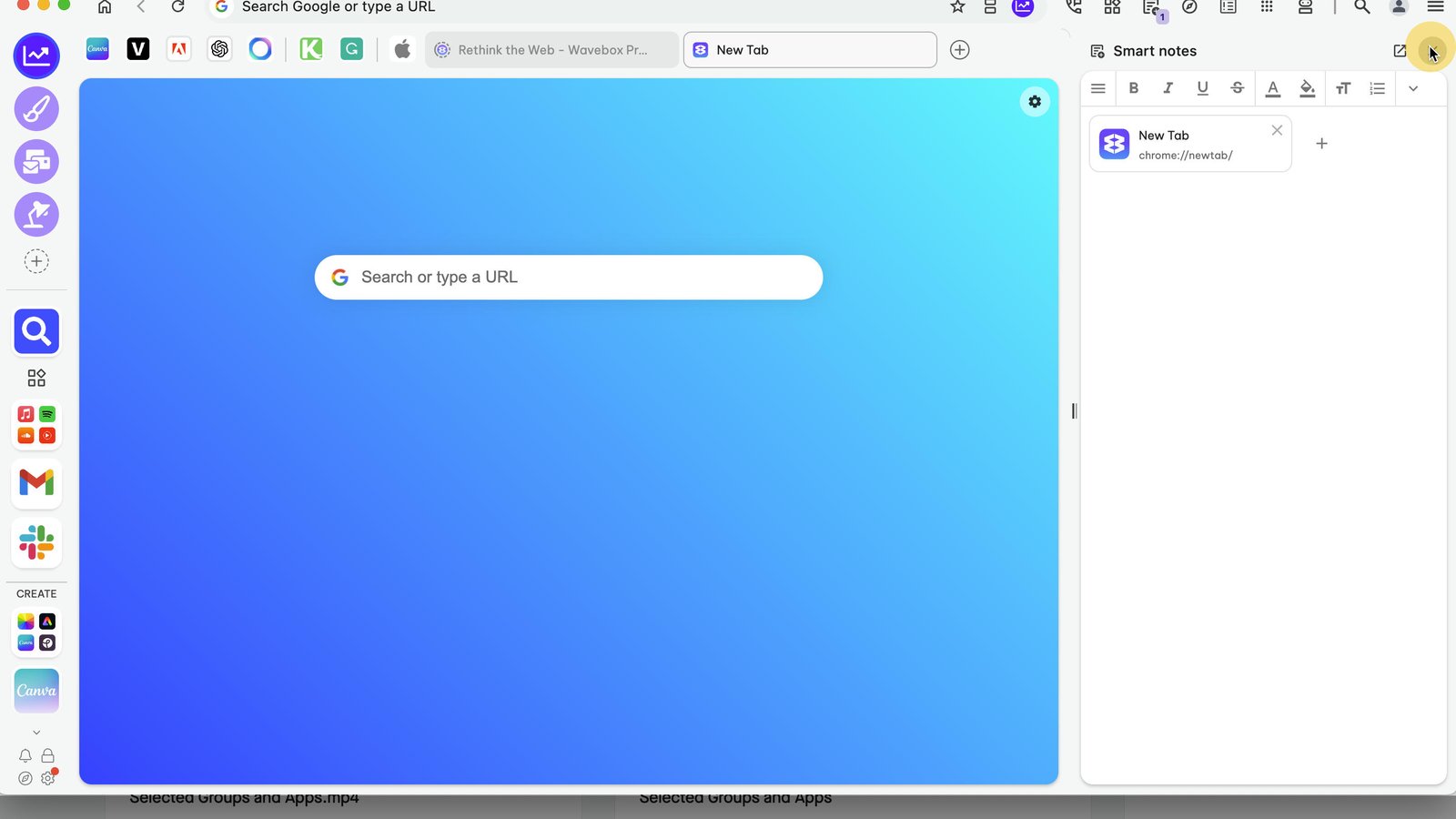
Click the Navigator (compass) icon to launch the Navigator window.
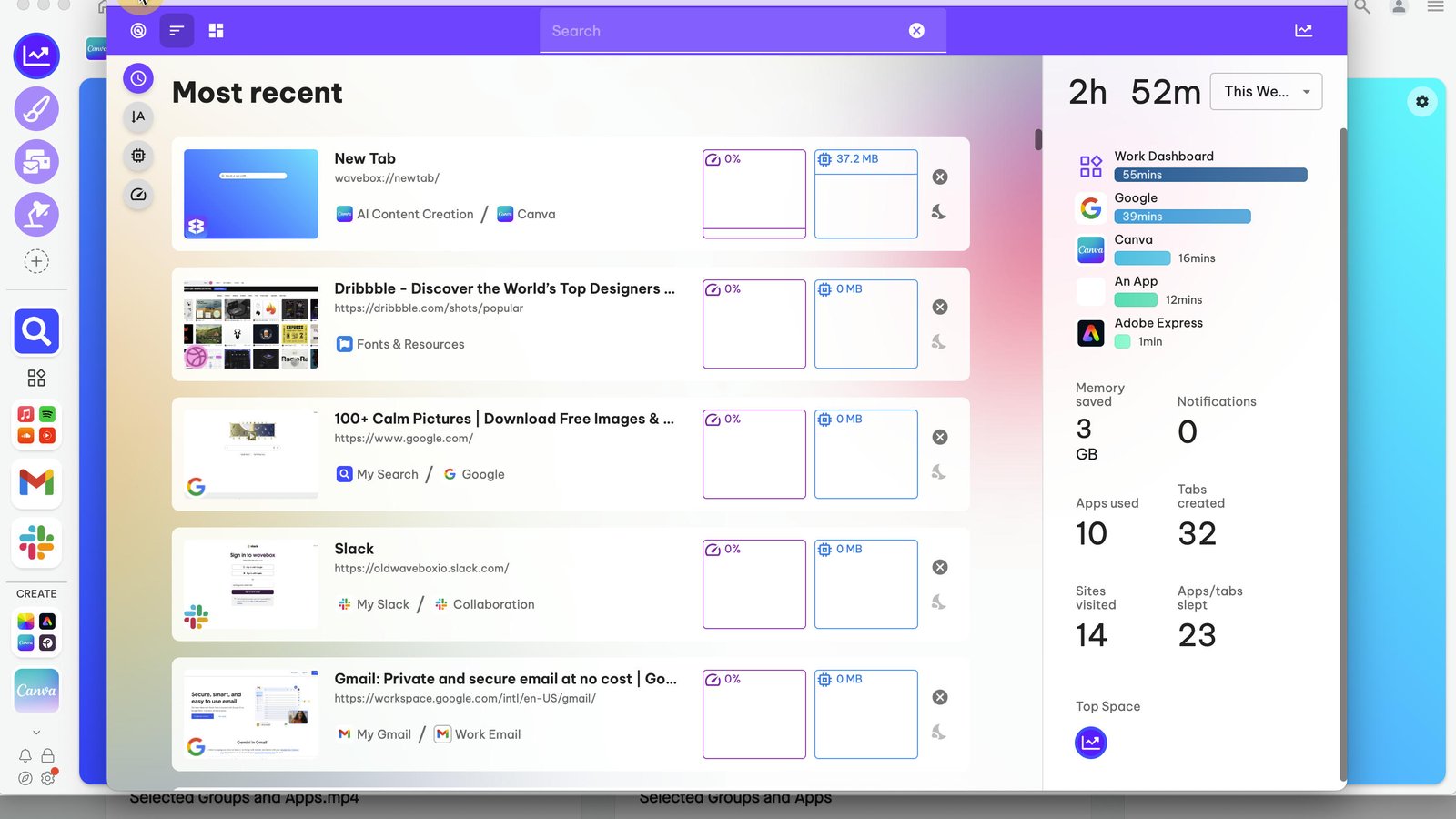
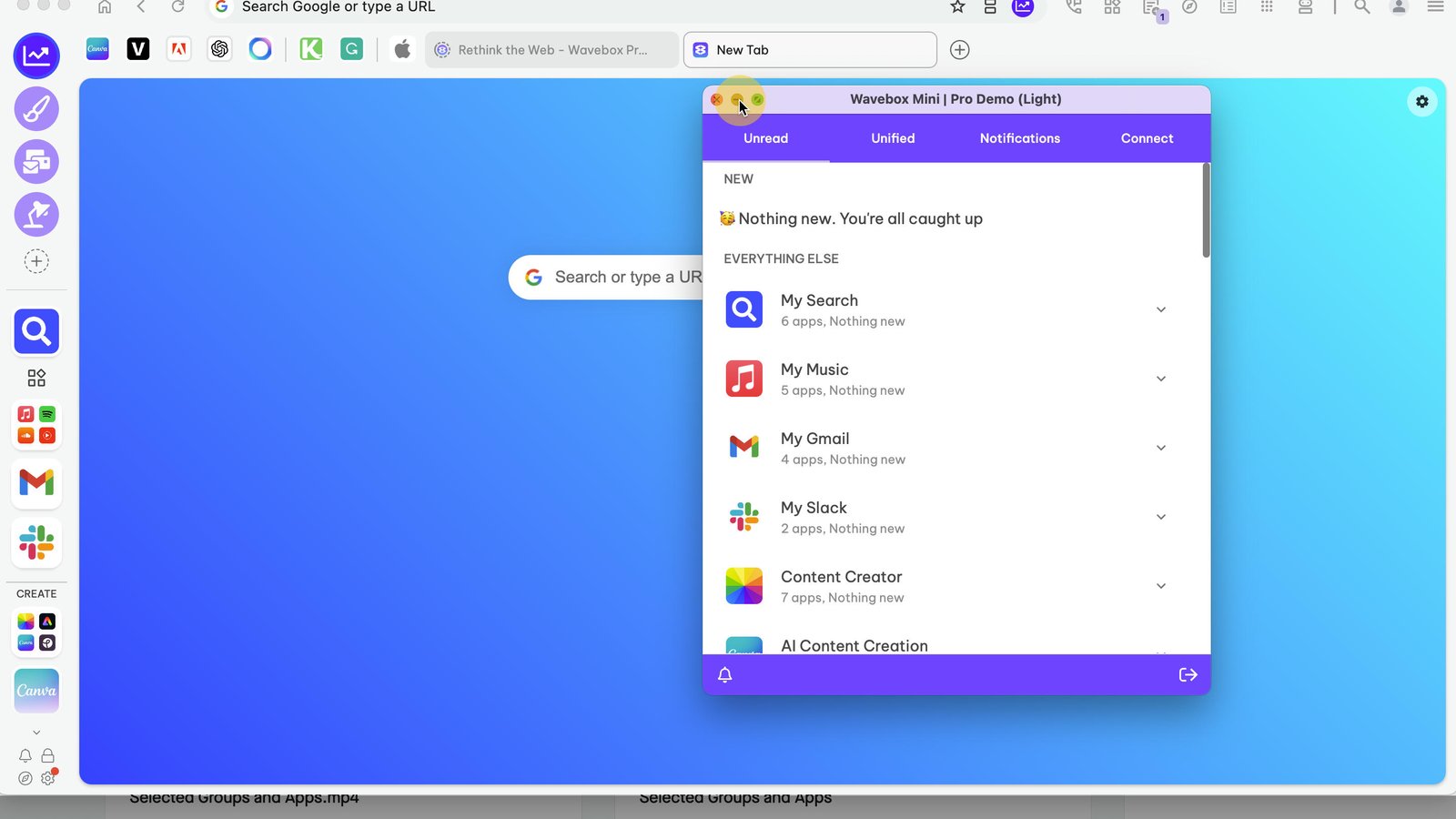
Click the Wavebox Mini (list) icon to pop-out the Mini Menu.
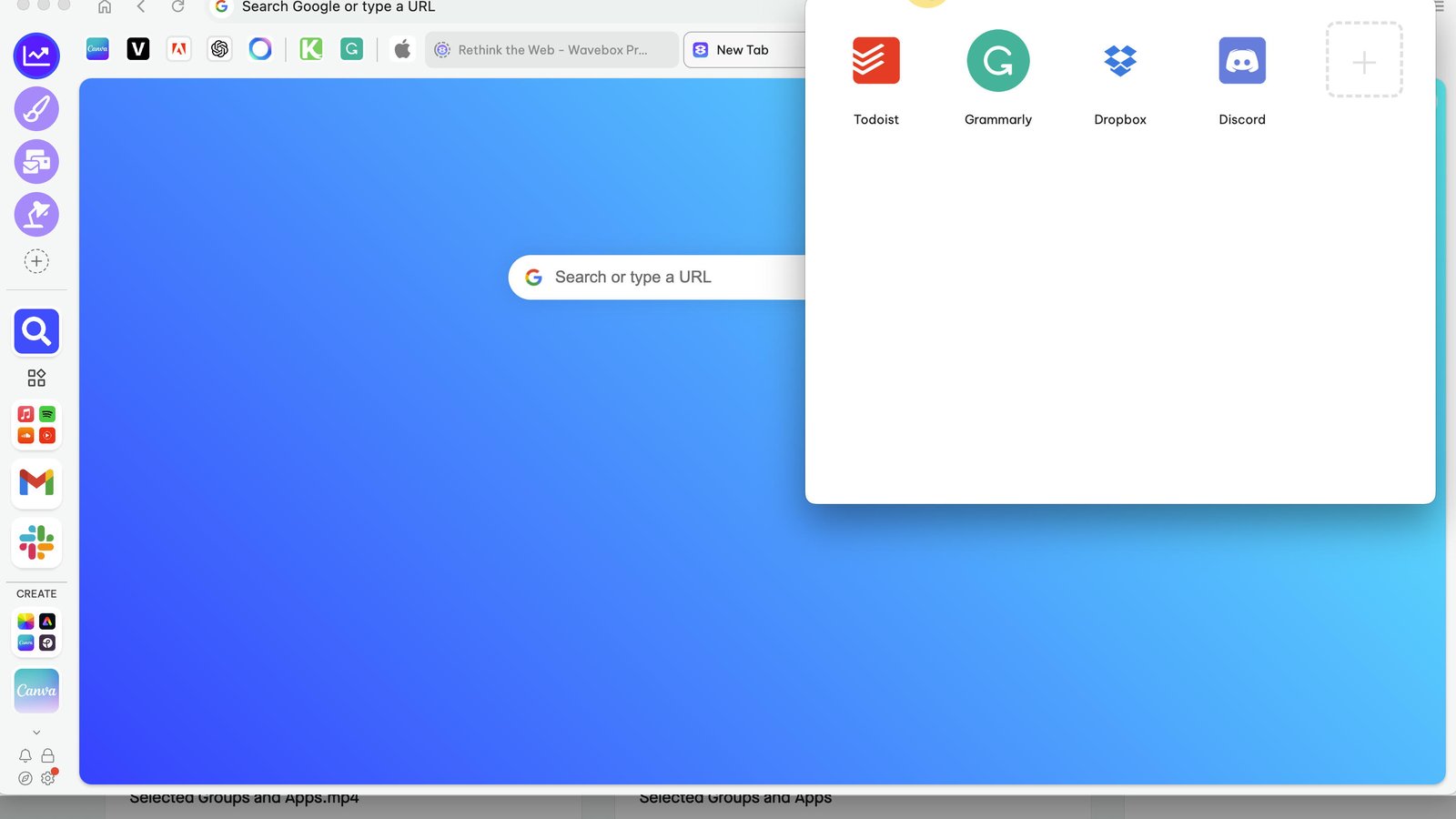
Click on the Desktop Web Apps (9 dots) icon to open the DWA launch panel.
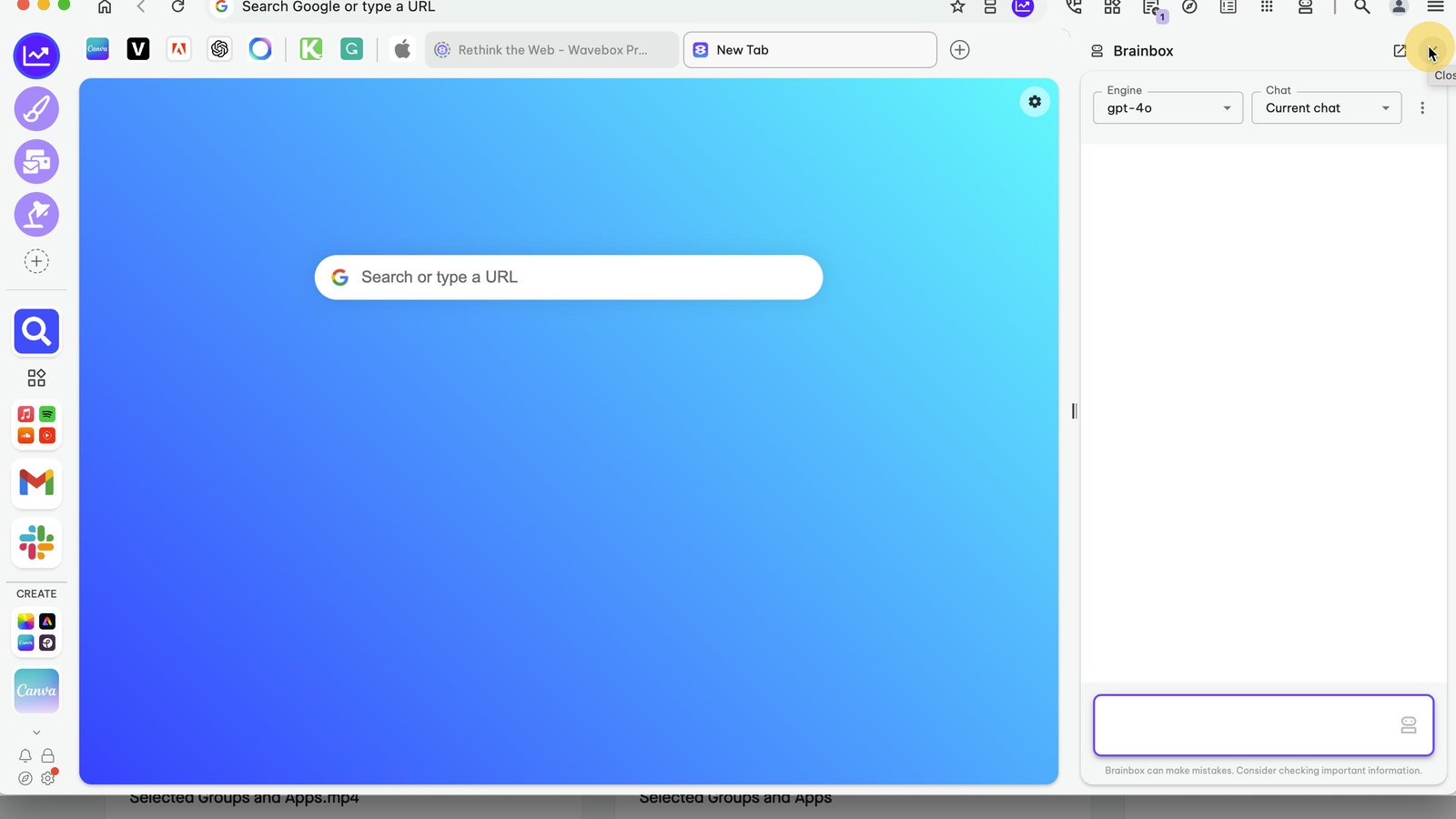
Click on the Brainbox (robot) icon to pop-out the Brainbox AI panel.
Make changes to the Toolbar at anytime by going to Settings > Customize Toolbar.
You made it to the end!
12 steps complete