How to Self-Onboard and Configure the Clover Online Ordering App
Set up, configure, and optimize your Clover online ordering app for smooth order management and printing.

Saul 4 Leaf Labs
Gather your Clover device (Mini, Flex, Station, or Duo) and a computer or tablet with a good screen.
You will need these devices to complete the setup.
Ensure your device has a screen; Clover Go is not supported.
Only devices with screens are compatible.
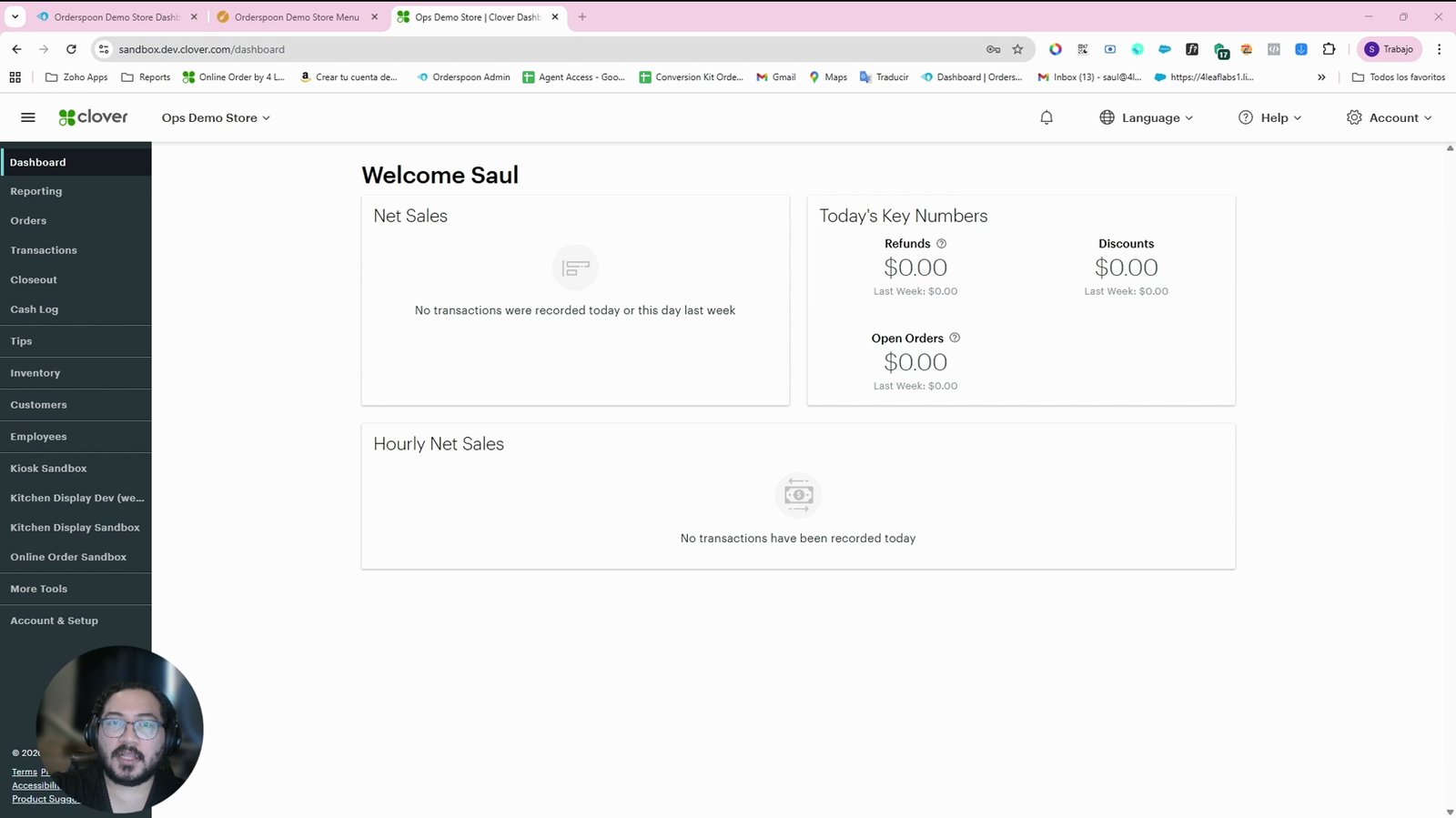
Open your Clover device and navigate to the Clover App Market.
You need to access the App Market to install the app.
Install the online ordering app on your Clover point of sale.
This is the first step for new users.
After installation, look for the app icon with a blue background and white spoon outline.
This is the app you just installed.
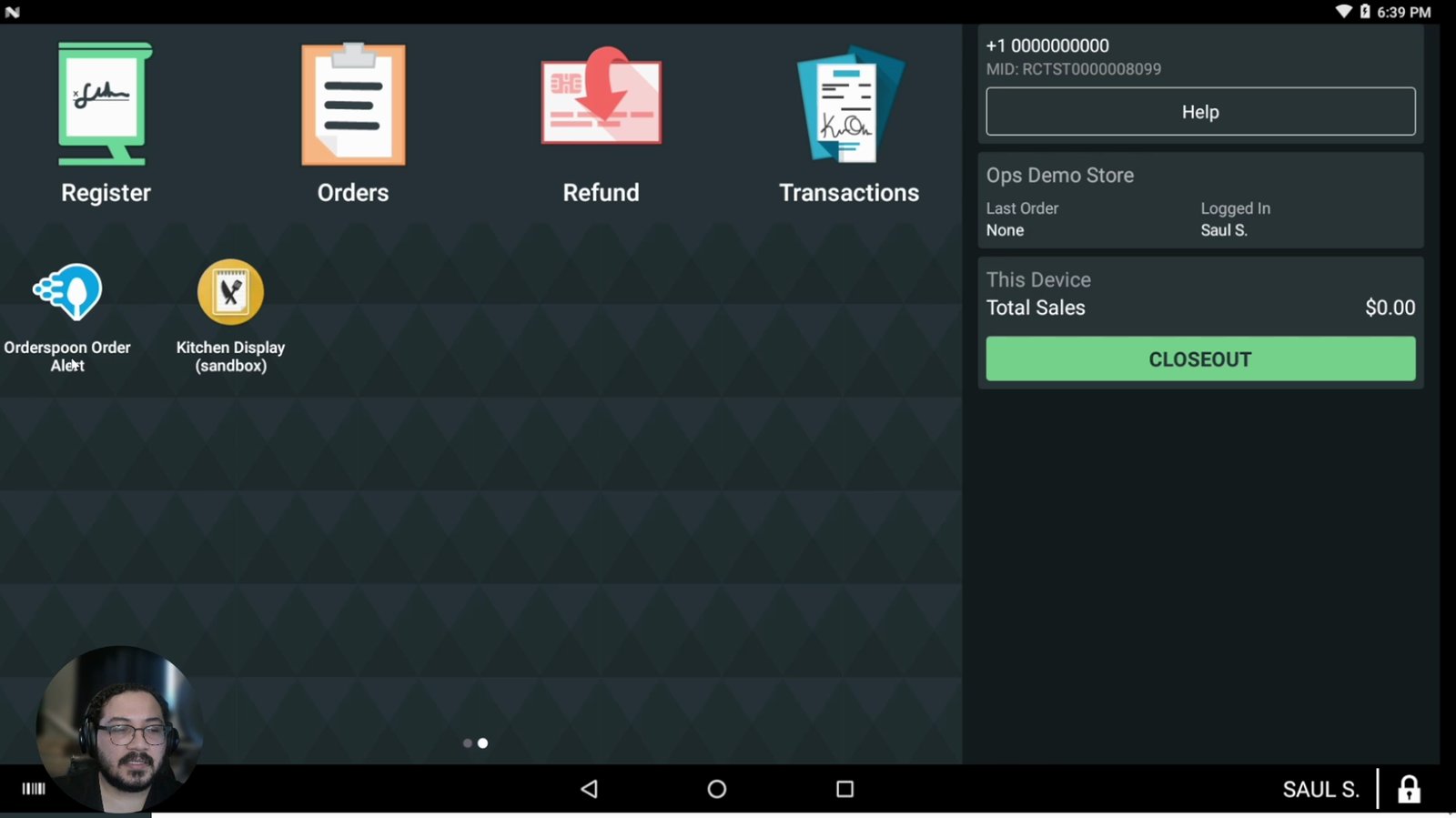
Tap the app icon to open the online ordering app.
You can open it from the install screen or the home screen.
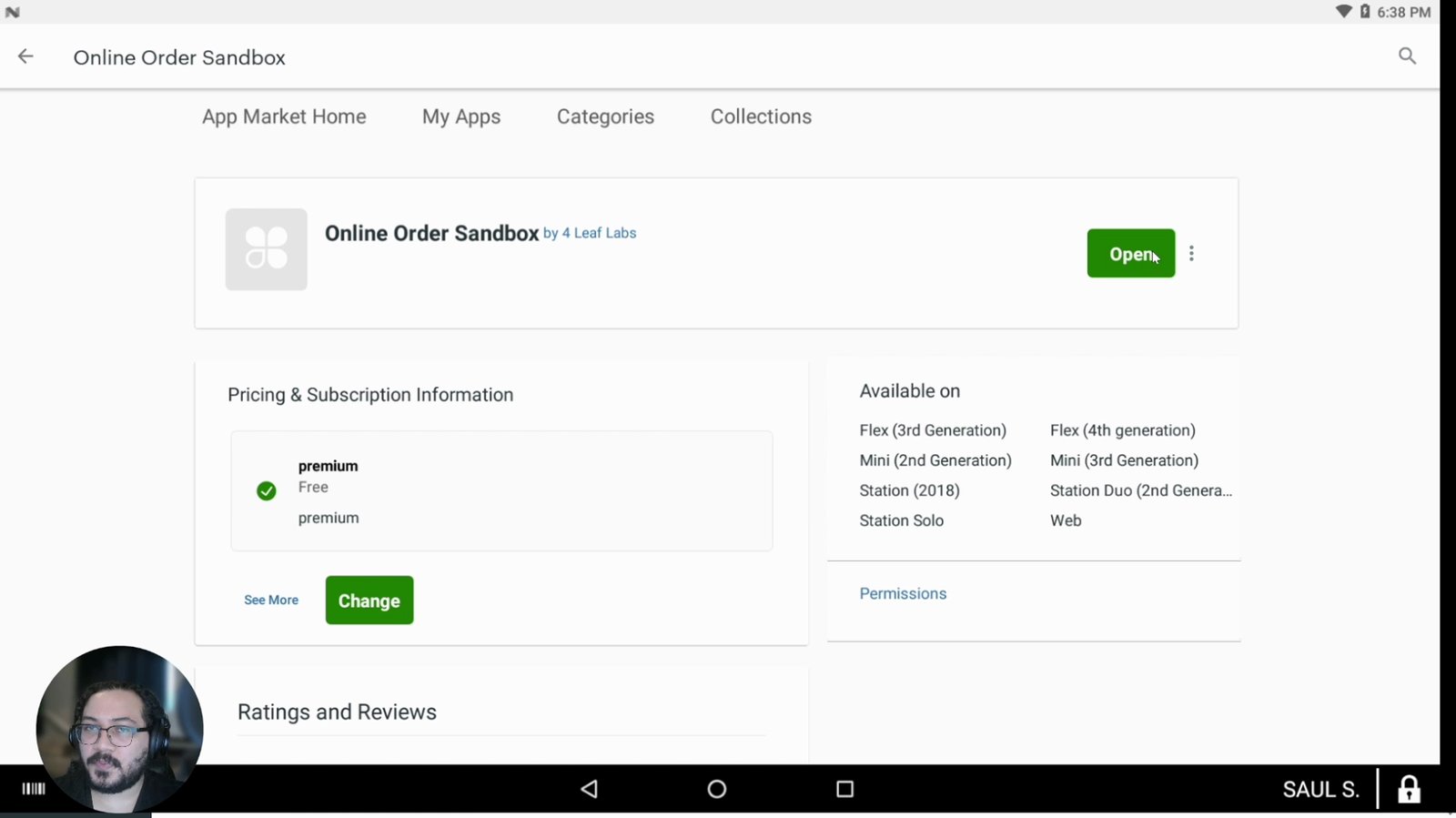
If you are on the home screen, find the app by looking for the blue spoon icon.
This helps you locate the app if you are busy or exited the install screen.
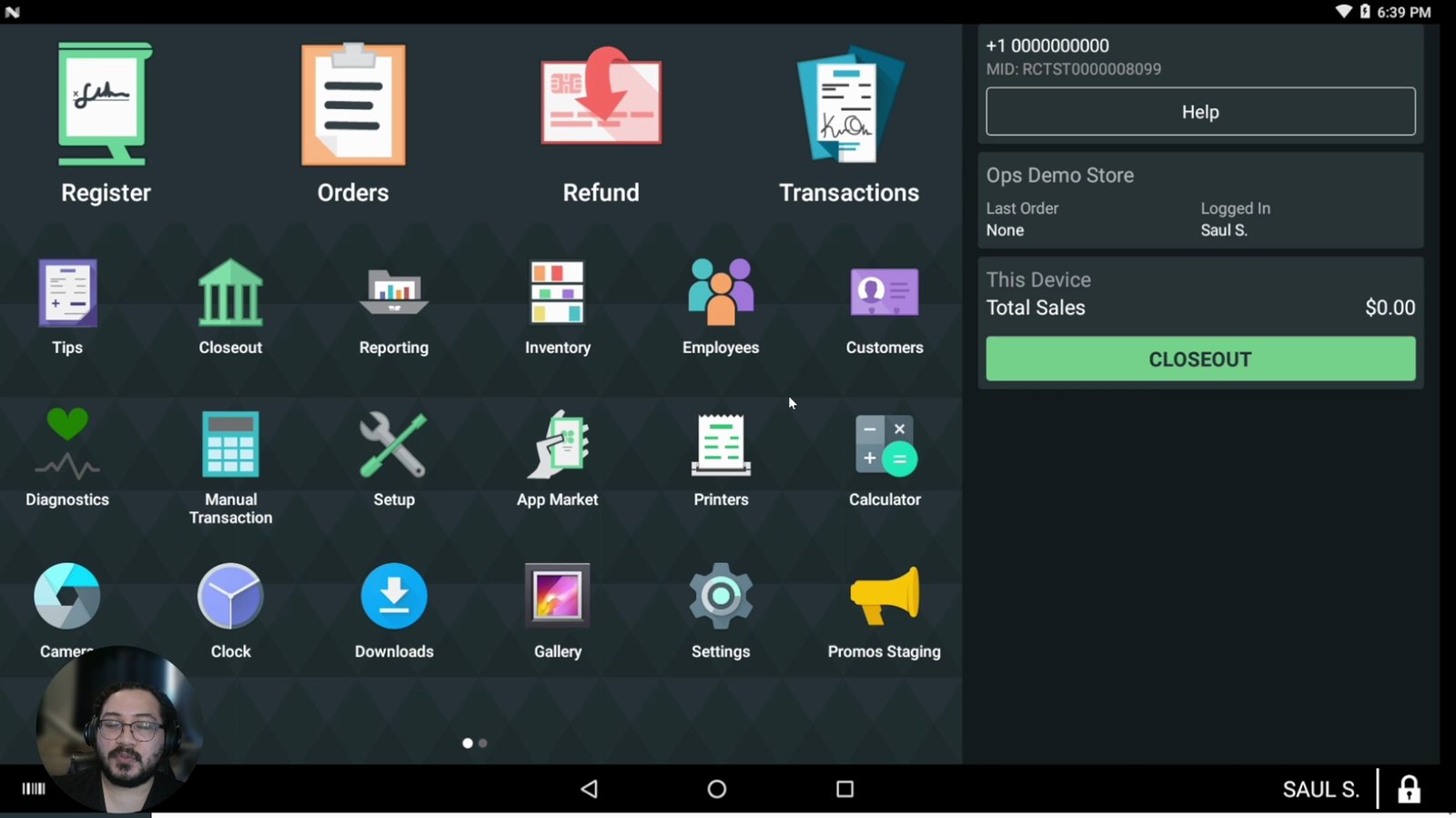
Open the app for the first time.
This will launch the Quick Start Wizard.
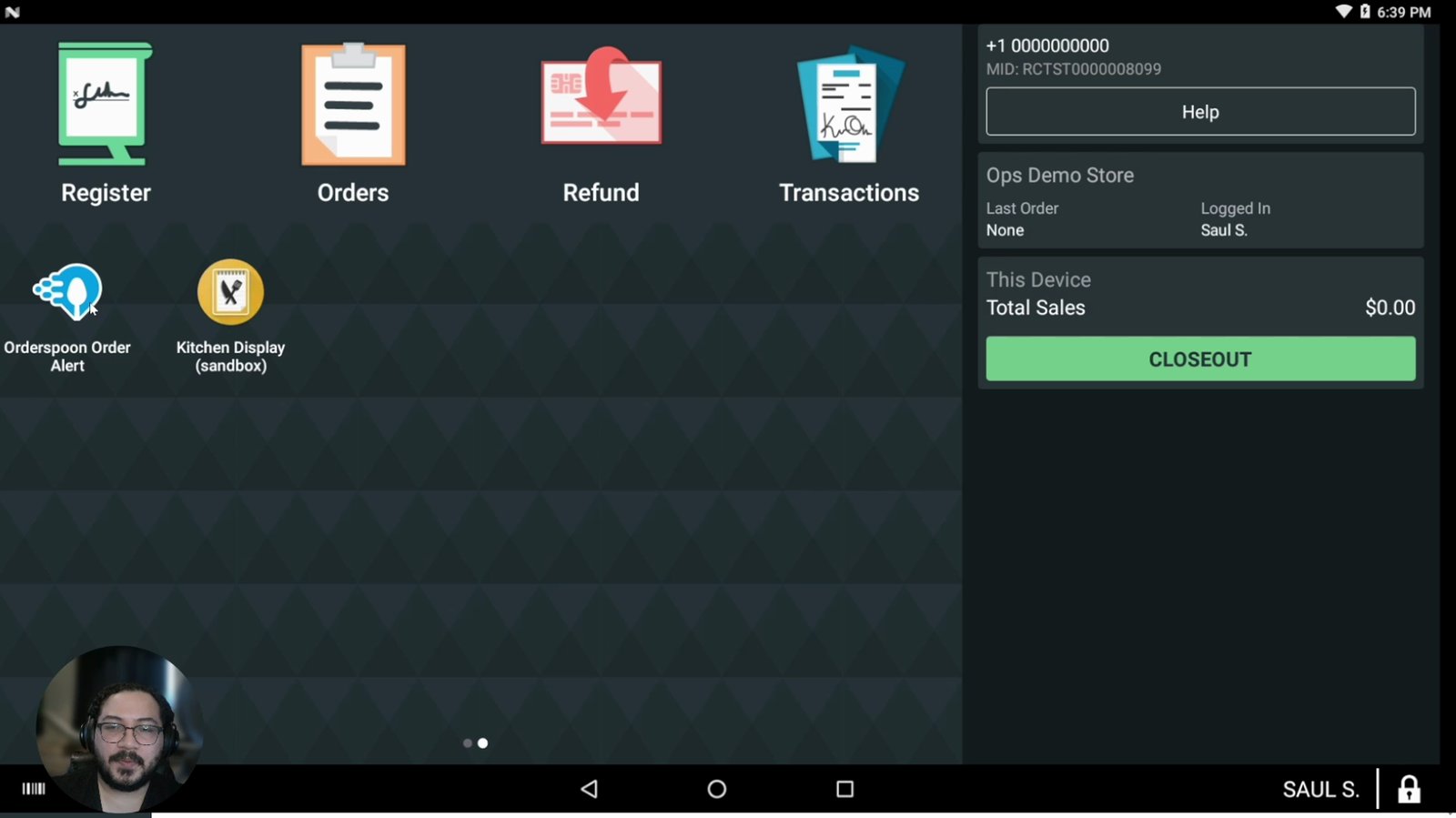
Proceed through the Quick Start Wizard that appears.
The wizard gathers basic information for setup.
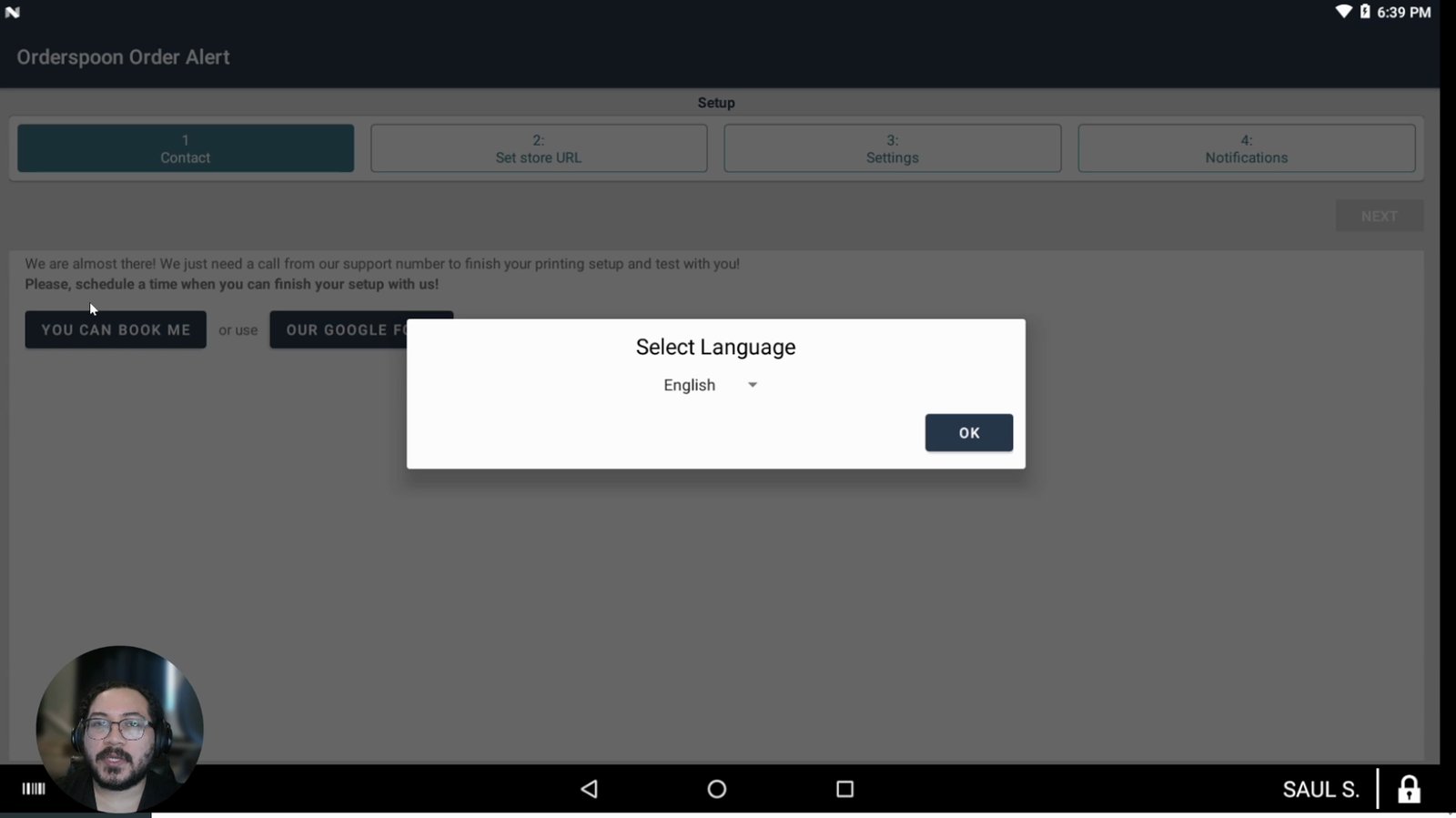
Select your preferred language (e.g., English) in the wizard.
This sets the app language.
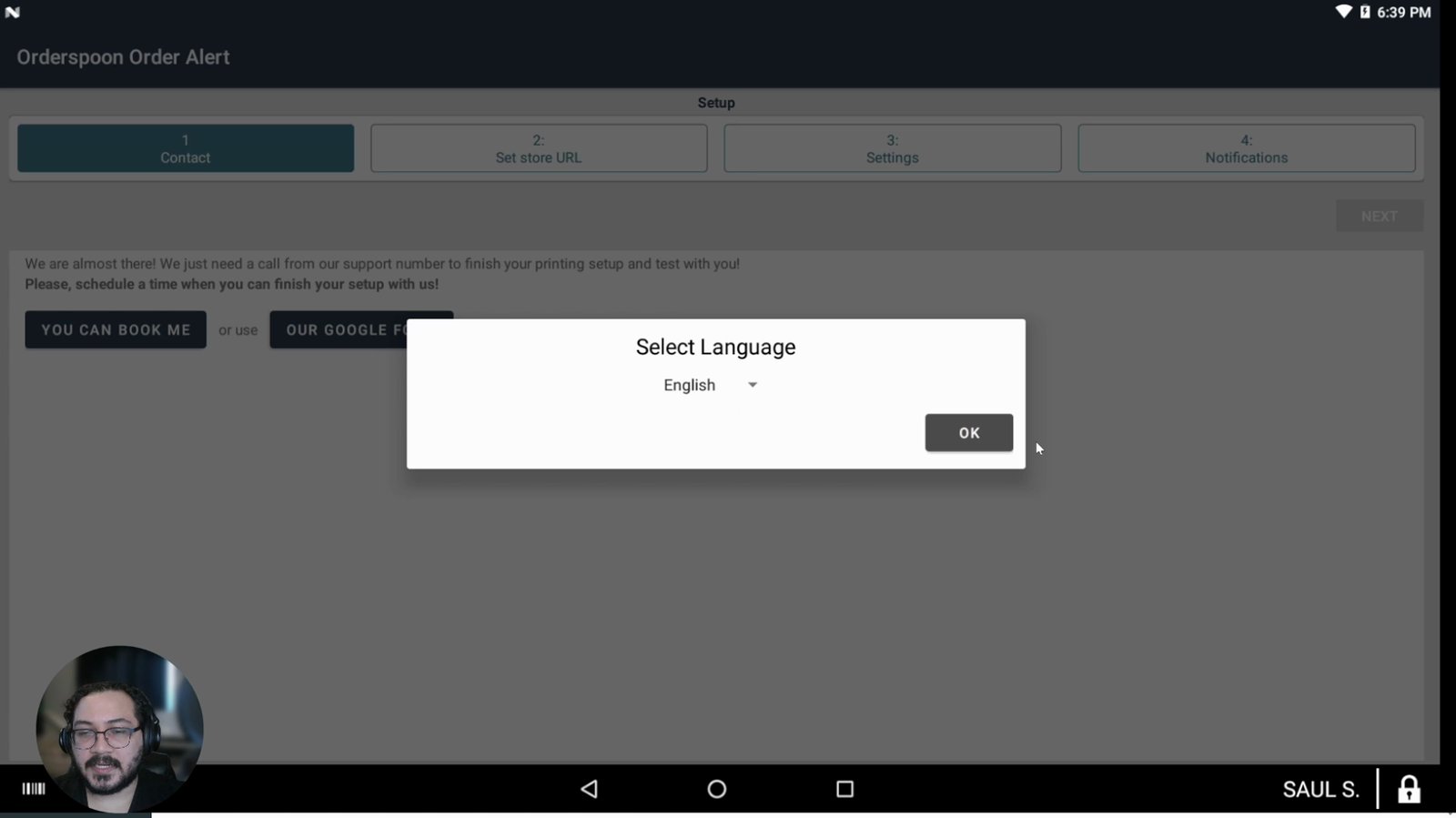
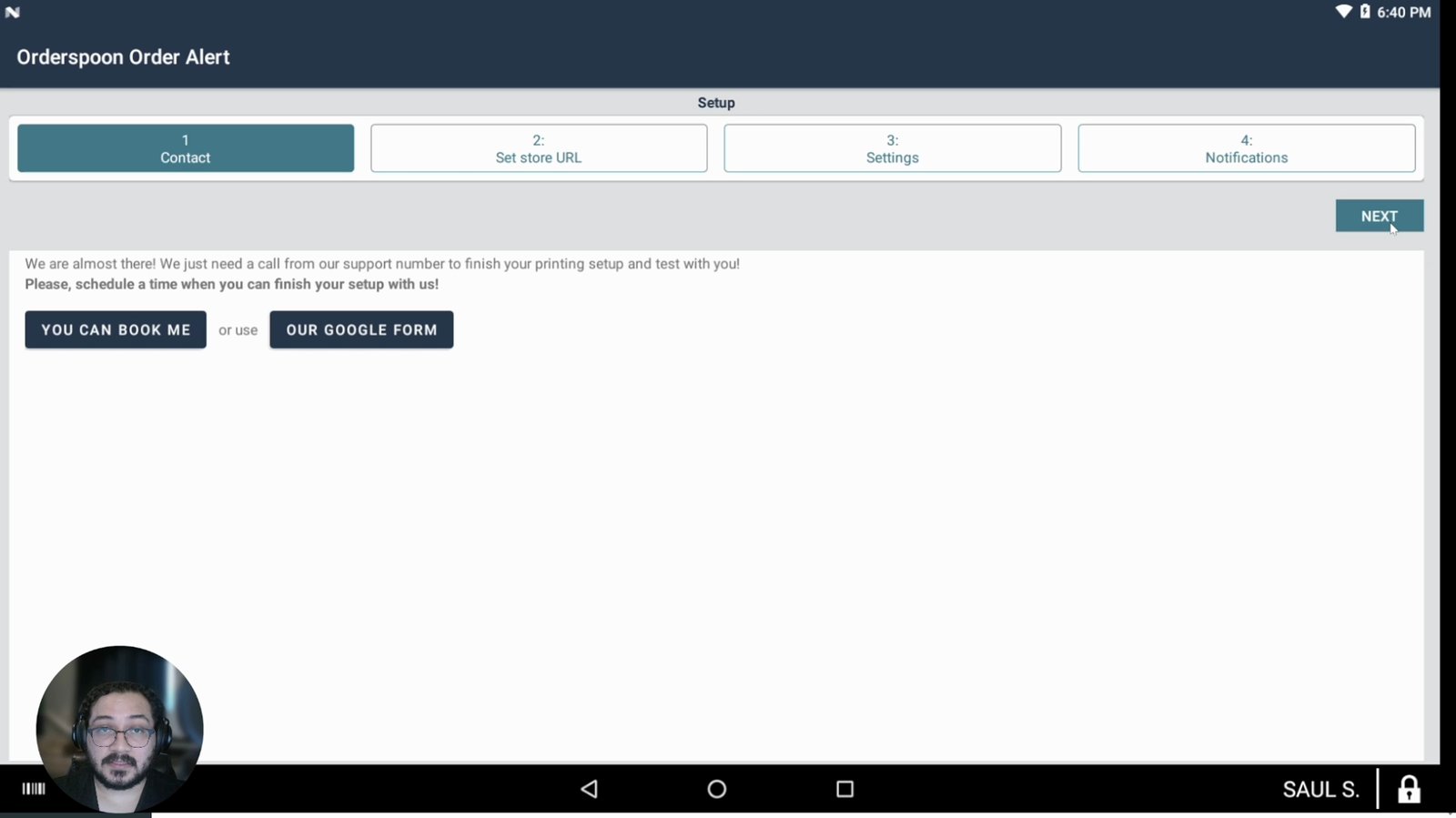
Choose your preferred support option (Book Me or Google Form) or skip by clicking the X in the top right corner.
You can provide info for support or skip this step.
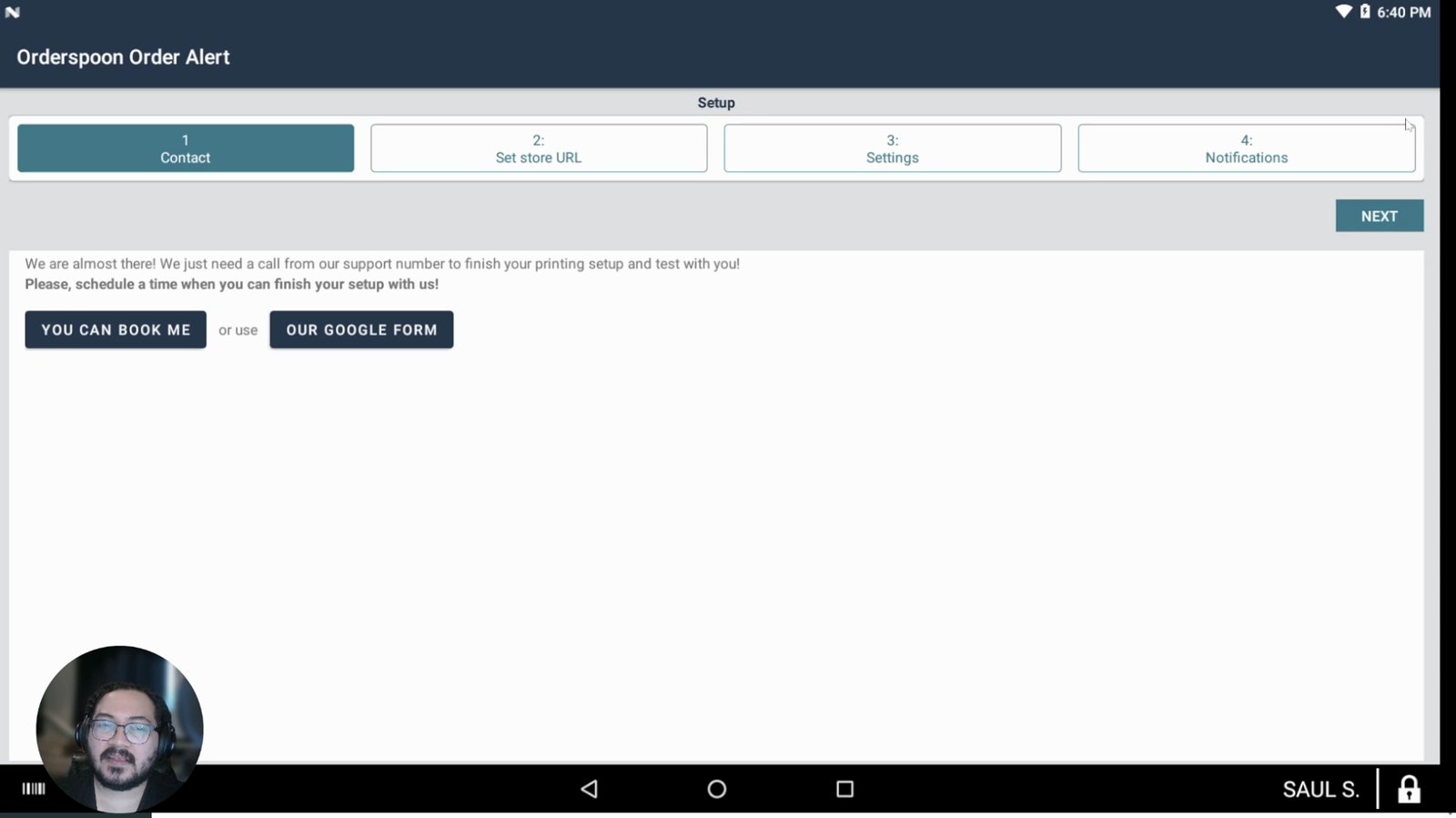
Click the Next button to proceed.
Move to the next step in the wizard.
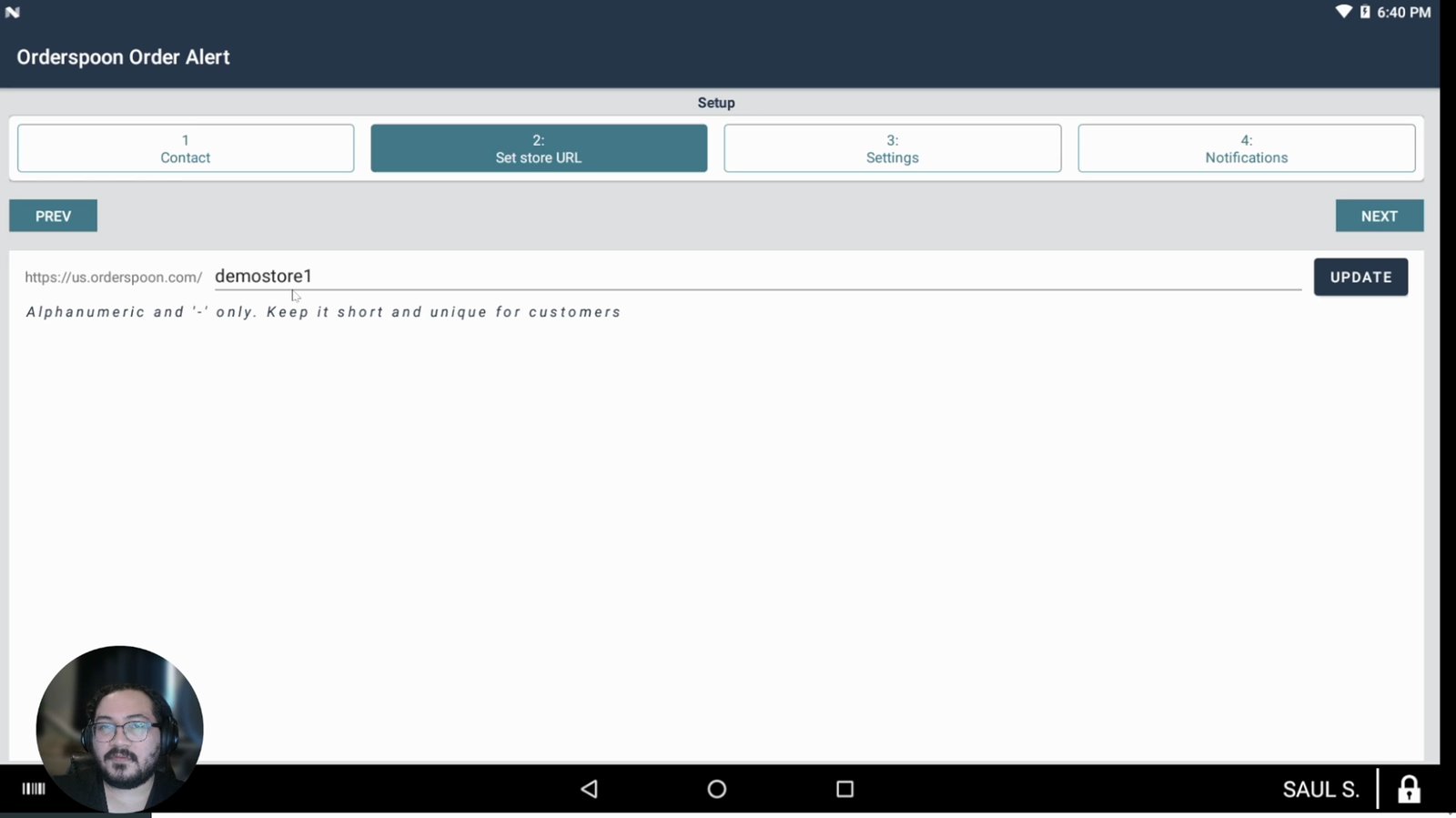
Customize the last part of your unique online ordering URL if desired.
This is the link customers will use to order.
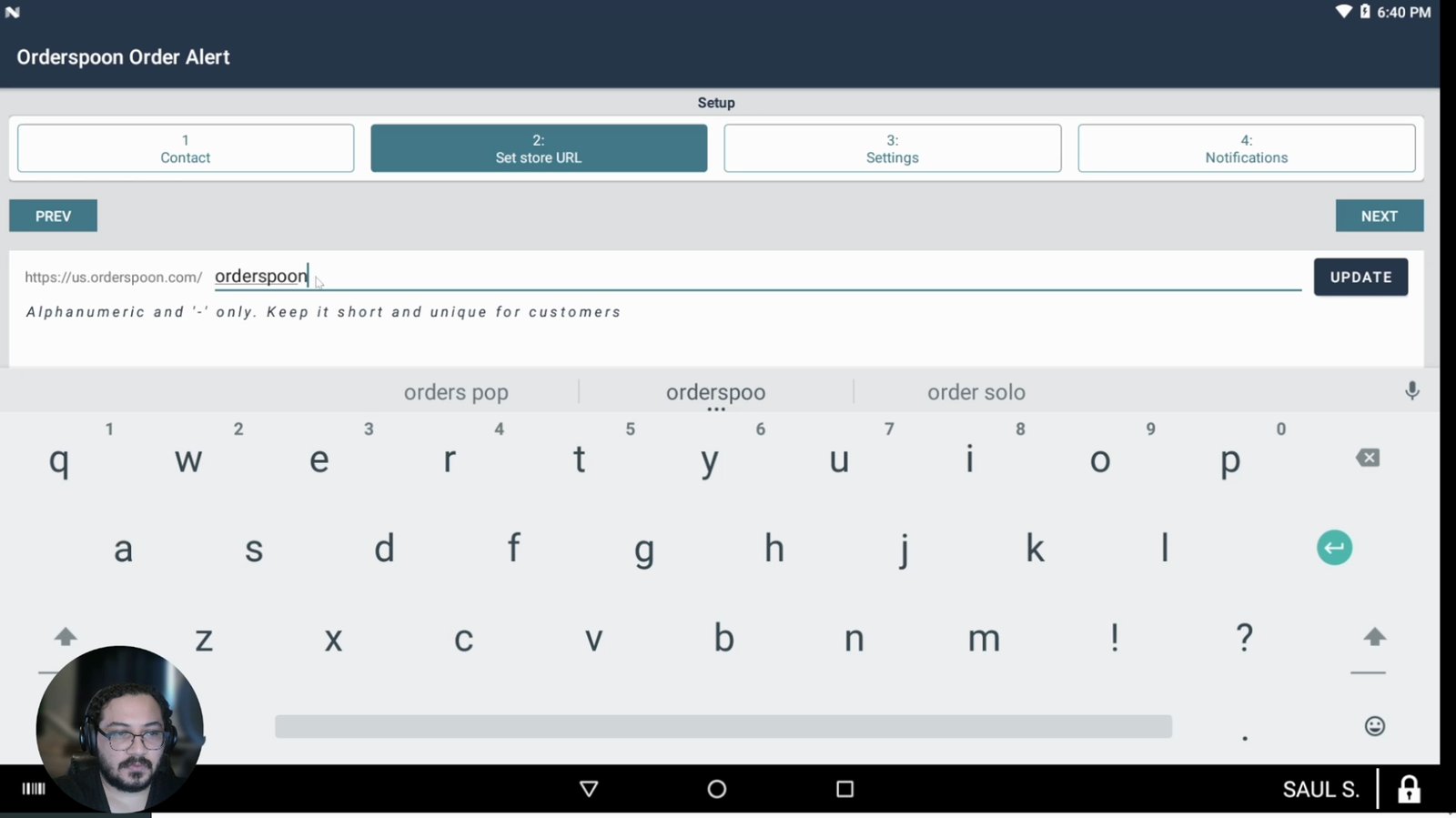
Enter your desired URL ending (e.g., Orderspoon Sandbox) and update it.
Your URL will be updated accordingly.
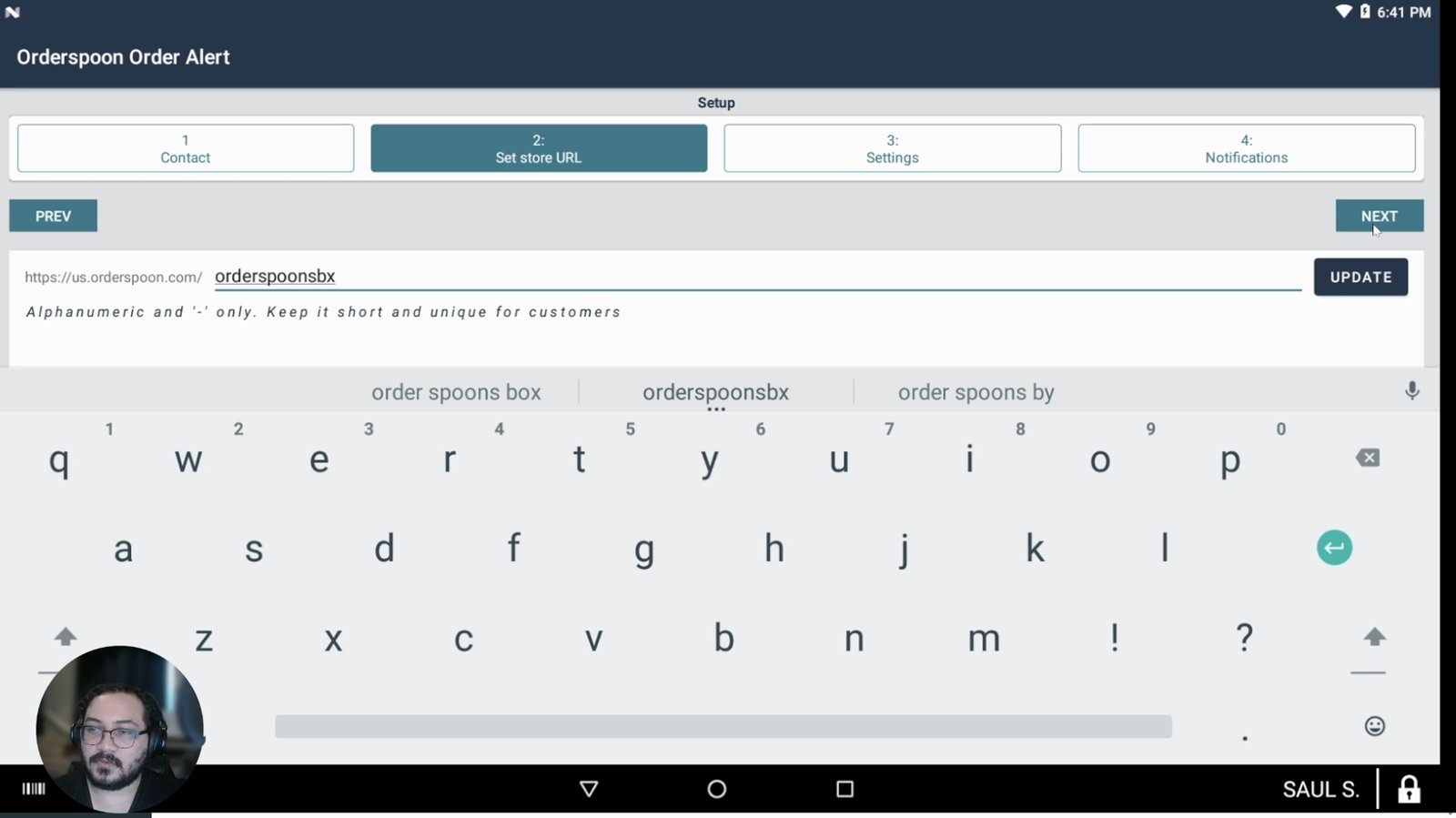
Click Next to continue.
Proceed to order configuration.
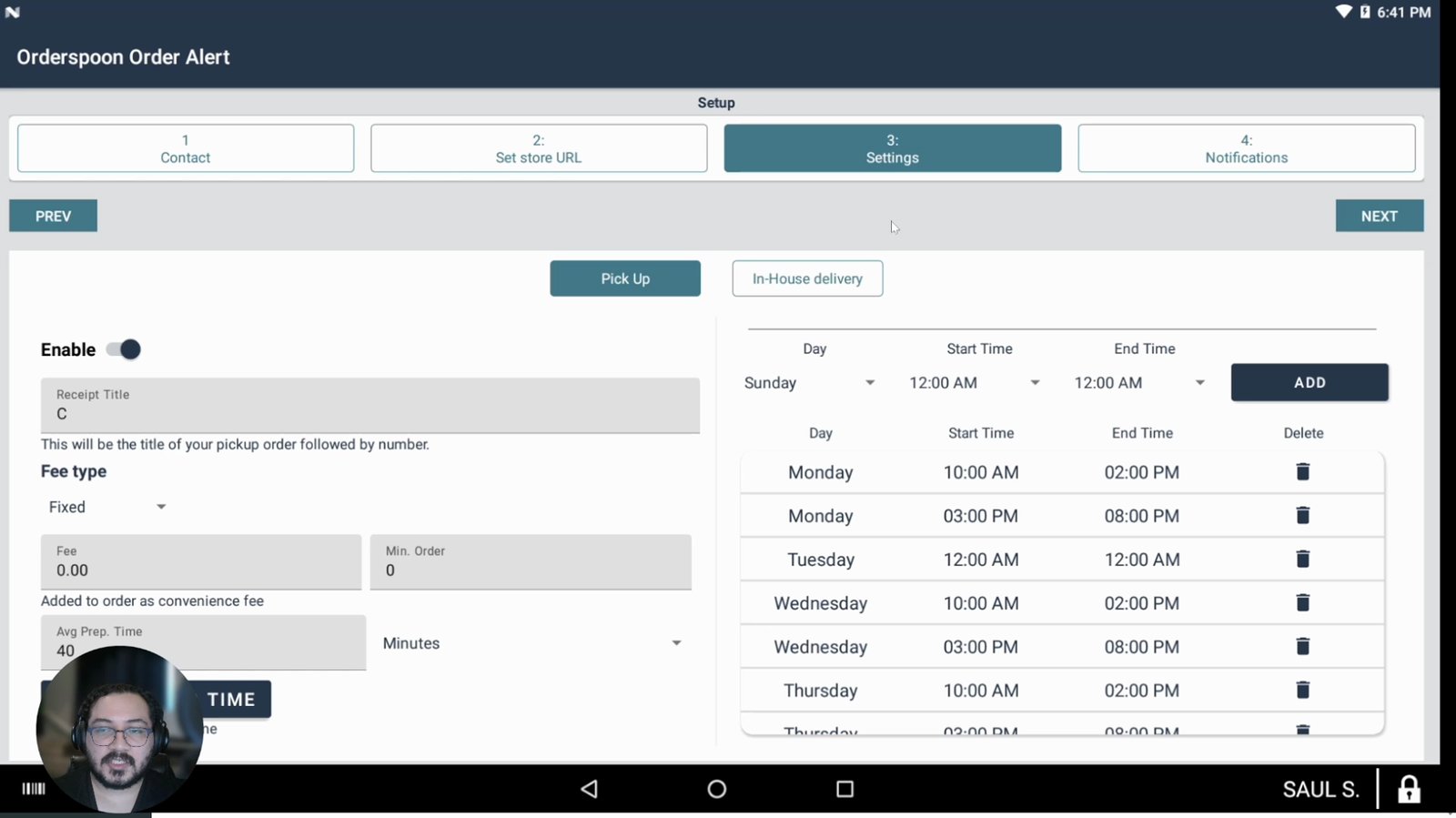
Configure basic online order settings: choose between pickup and in-house delivery.
Set your available order types.
Enable or skip DoorDash integration as needed.
DoorDash is optional and customer-paid.
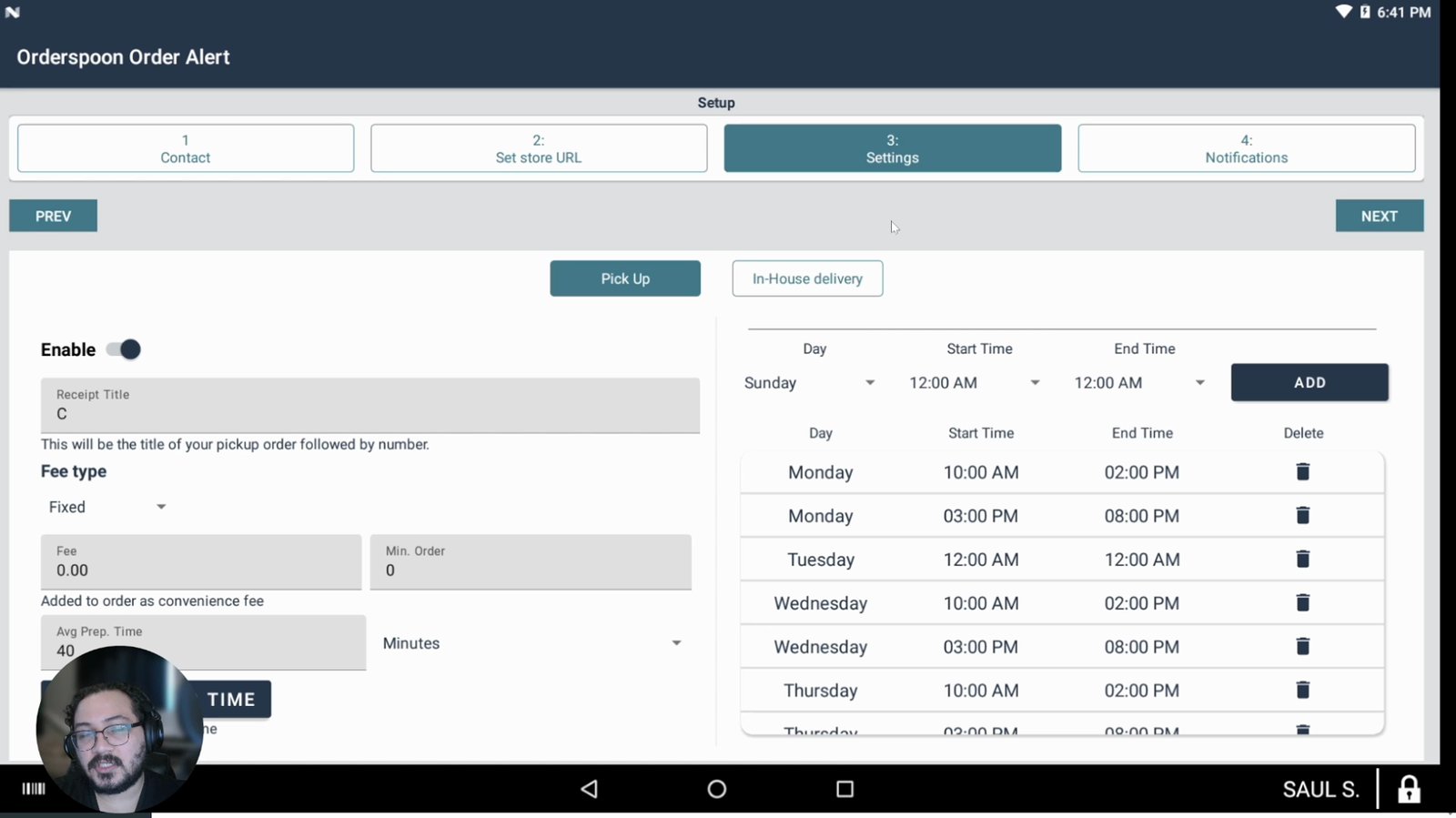
Enable pickup orders by toggling the pickup option.
Pickup must be enabled for online orders.
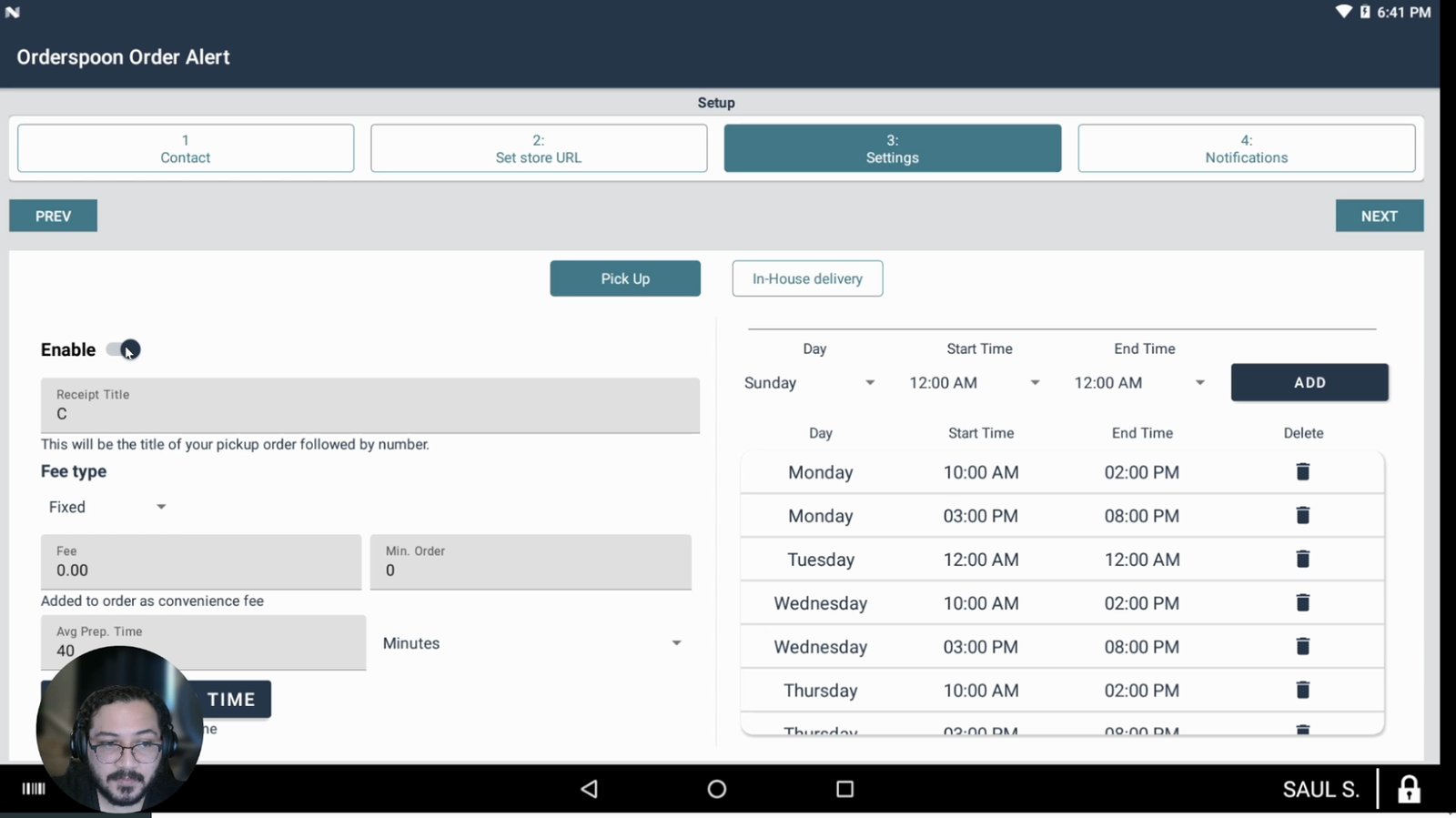
Set the receipt title prefix (e.g., ONL) for printed orders.
This prefix appears on printed receipts.
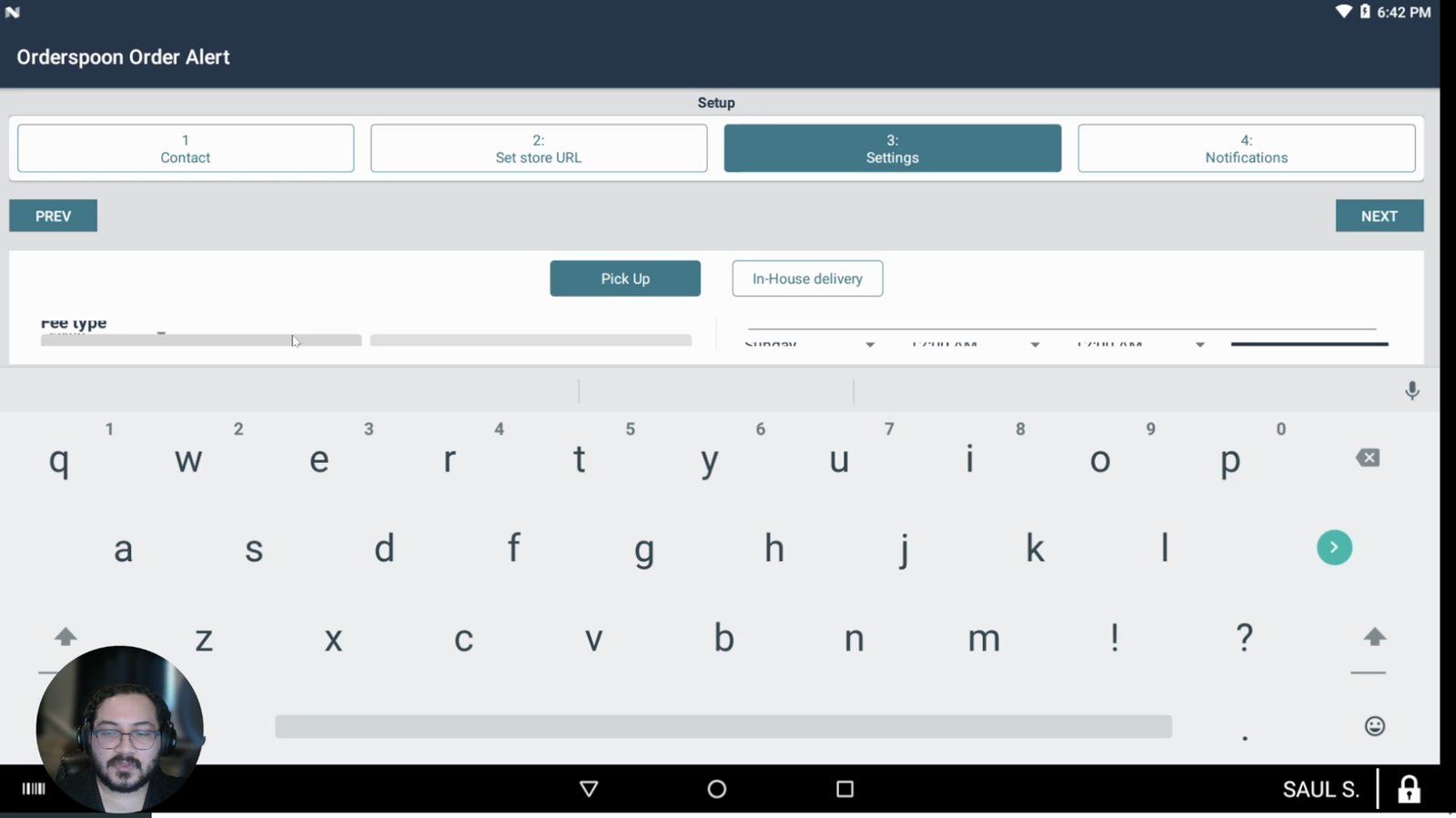
Add a service fee if desired to cover transaction or app costs.
Optional fee for each order.
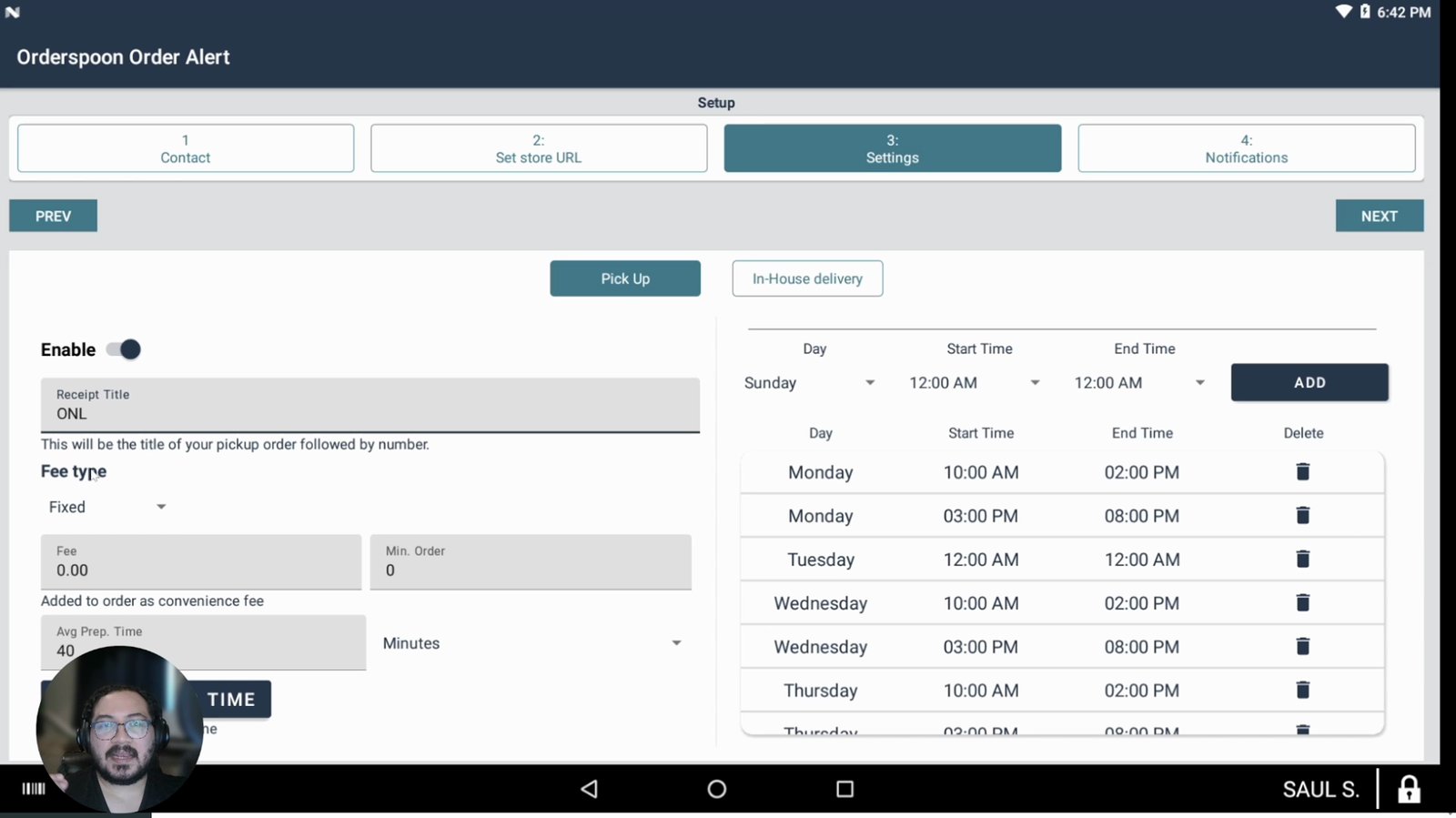
Set a minimum order amount if you want to require a minimum for online orders.
Prevents small, unprofitable orders.
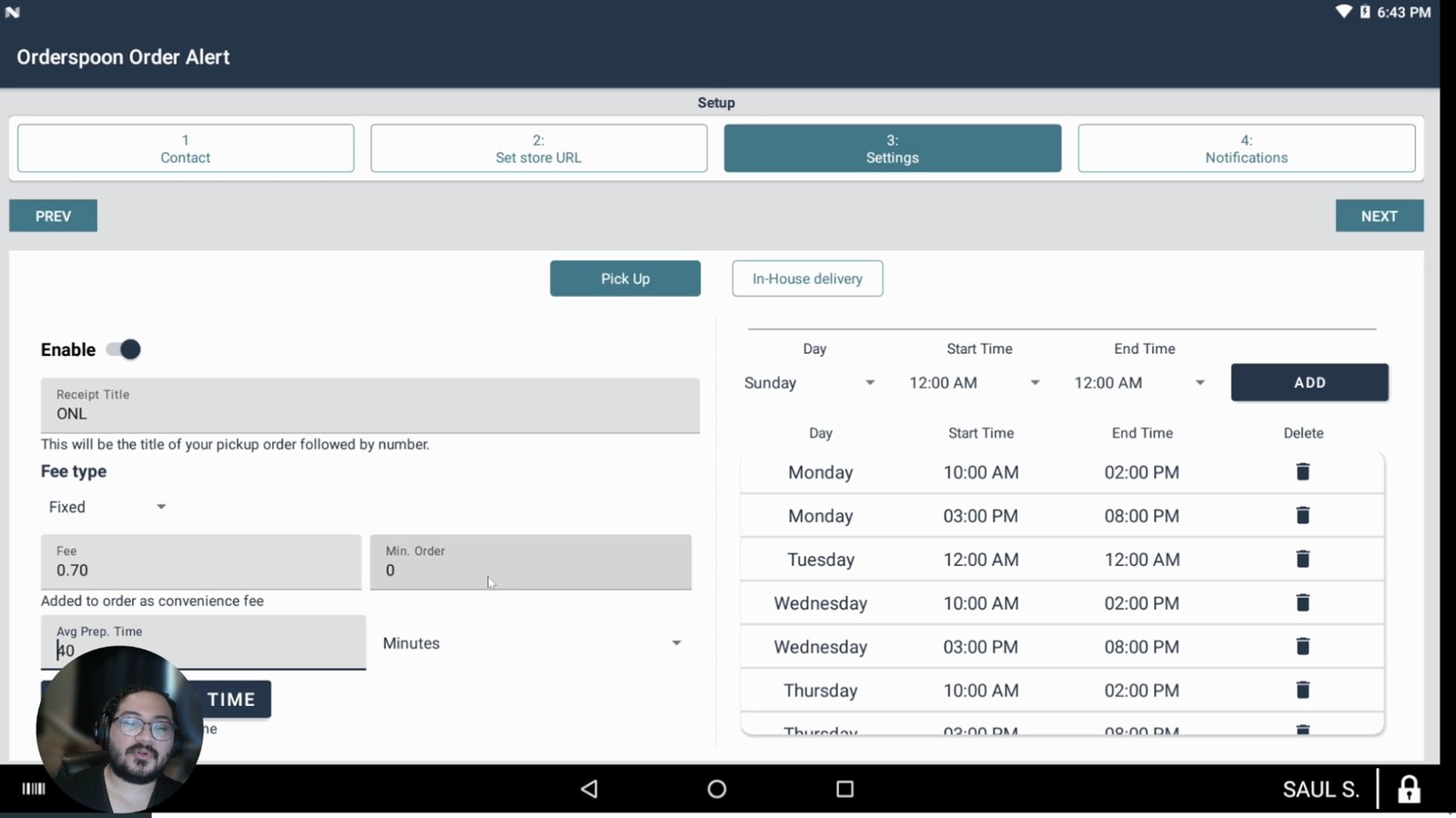
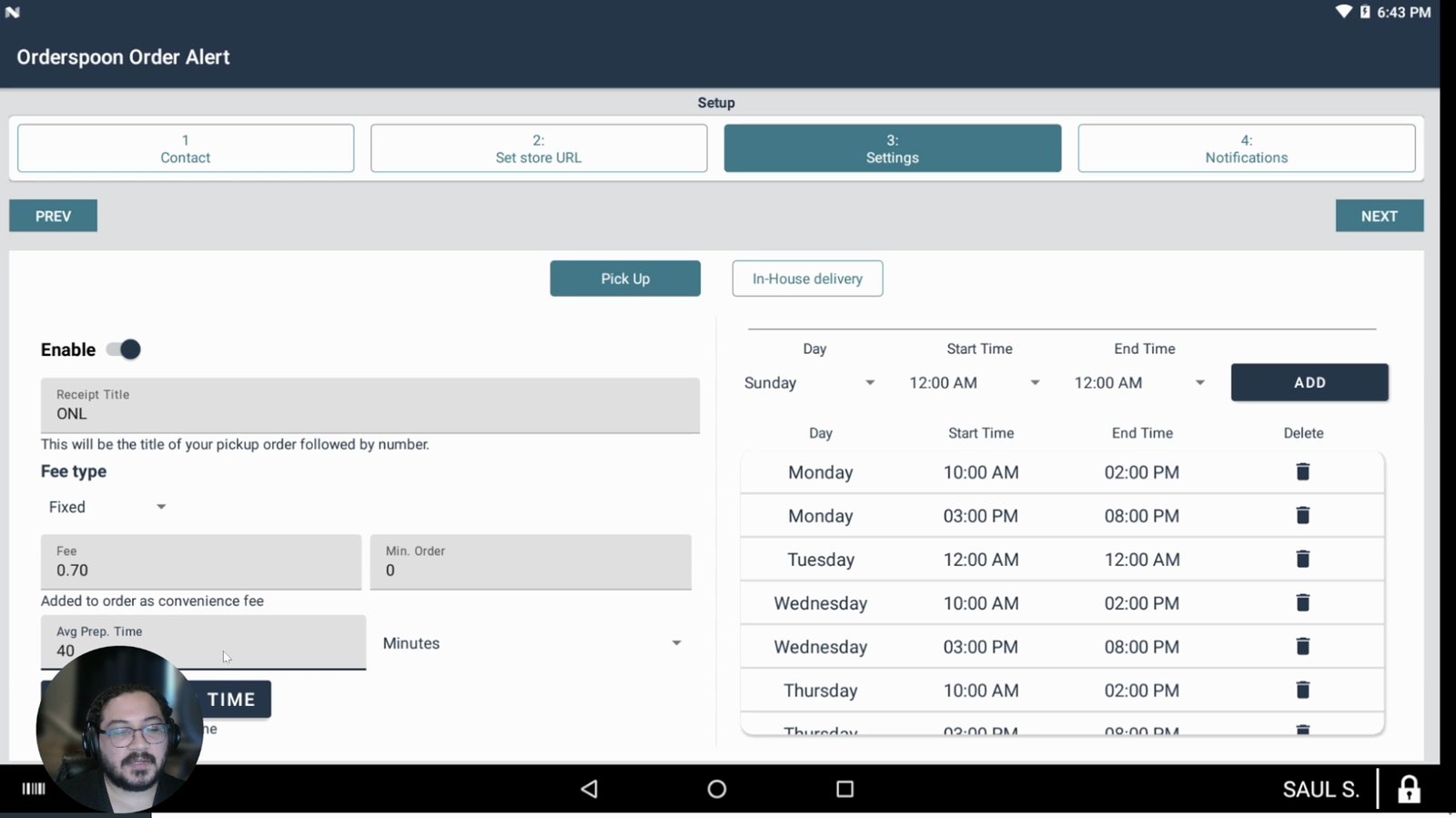
Set the average prep time for orders.
Lets customers know how long orders take.
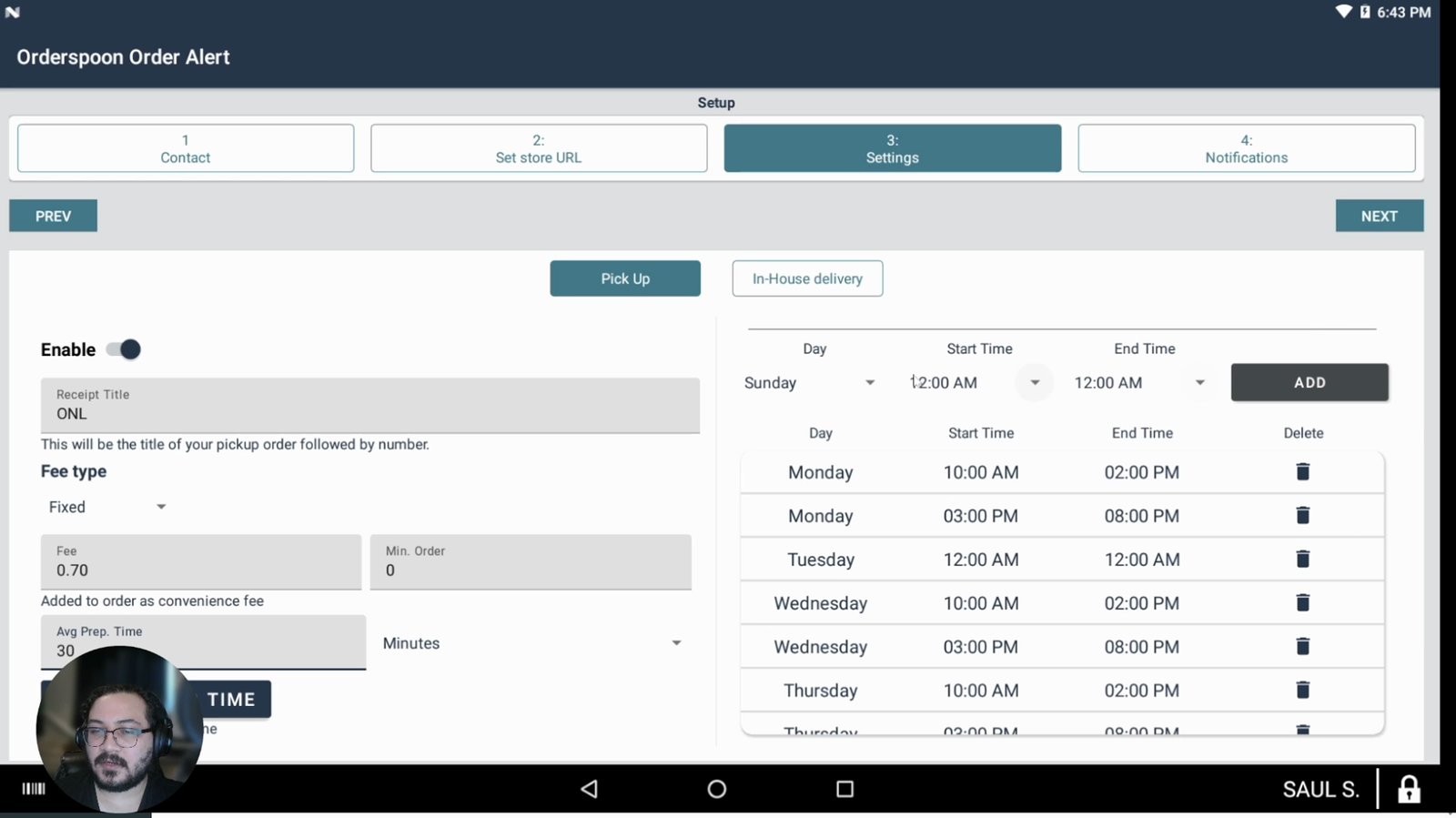
Review and adjust your business hours as needed.
Hours are pulled from your Clover account but can be changed.
Go to the notification settings section.
This is where you manage order alerts.
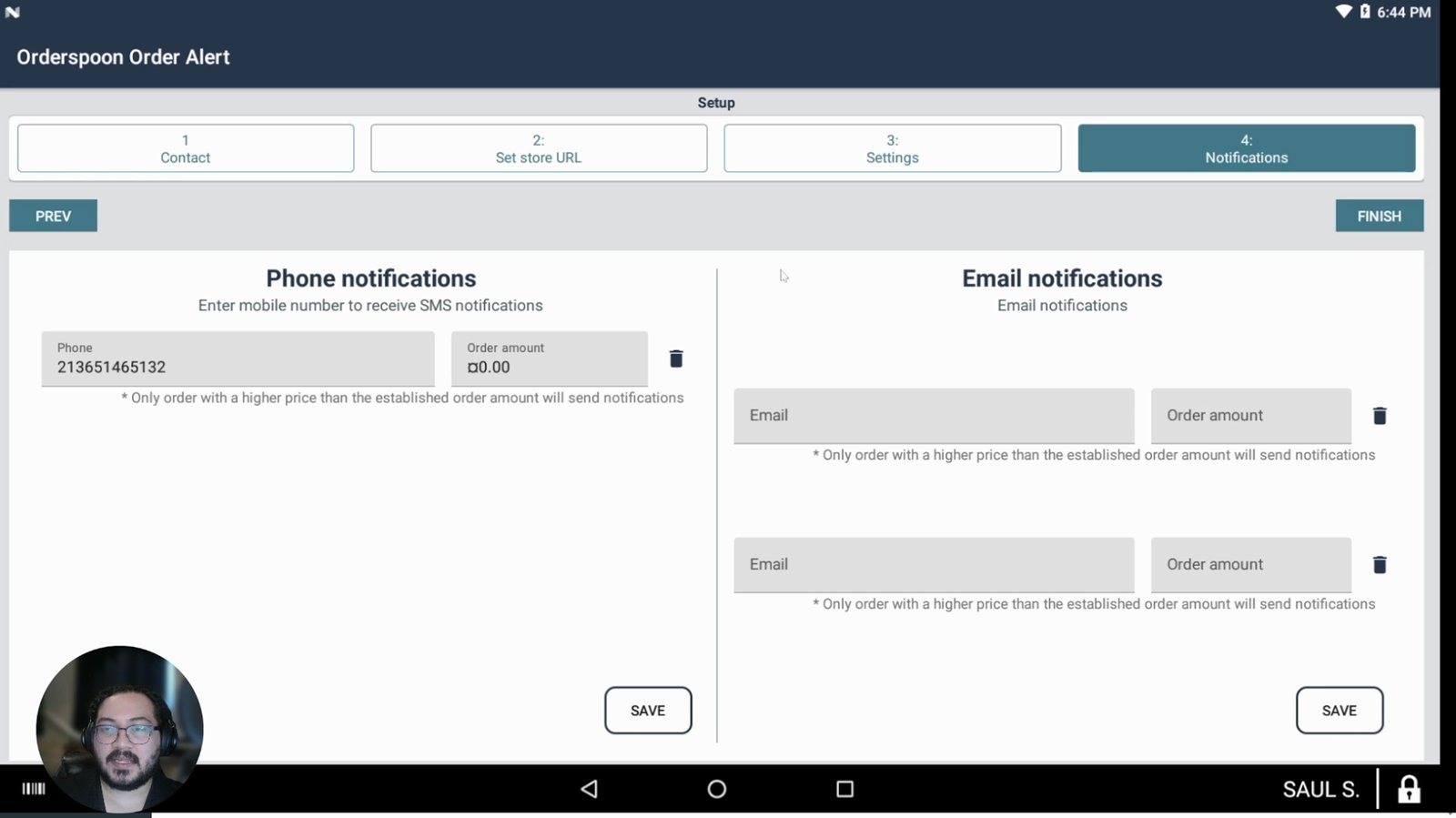
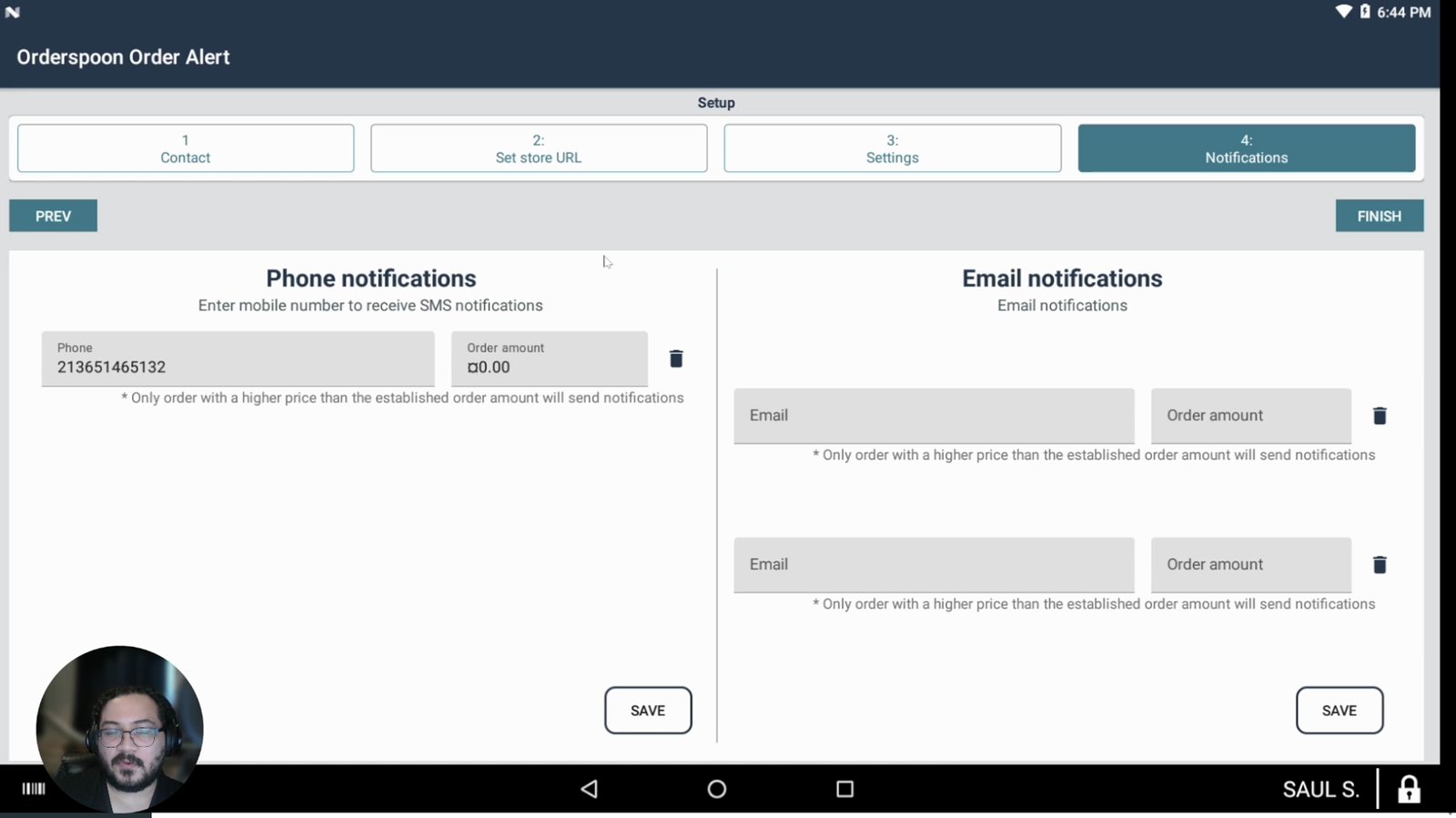
Set up a phone number for SMS or an email for notification alerts.
Receive order notifications outside the POS.
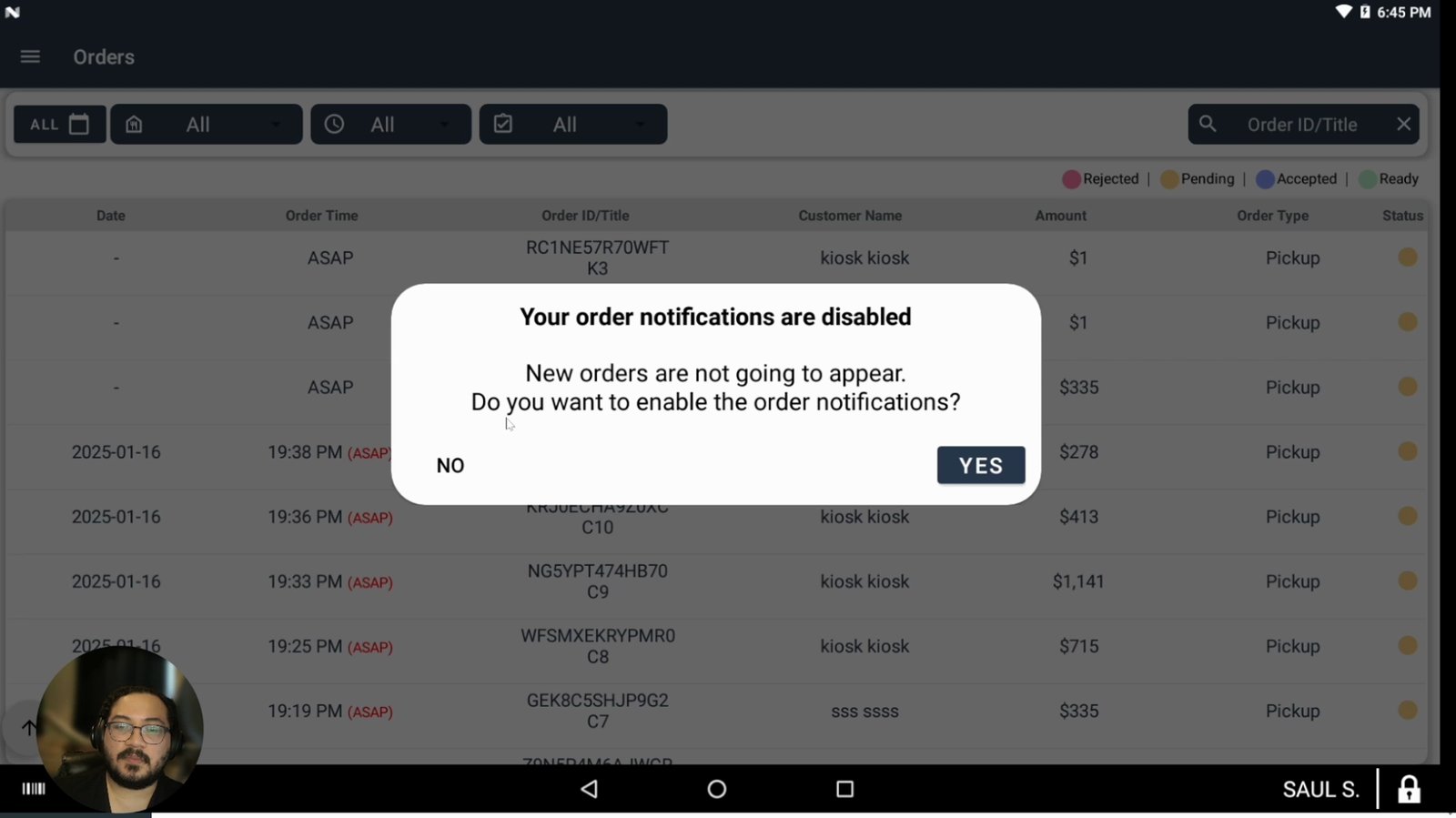
Enable order notifications when prompted.
Allows you to receive new order alerts.
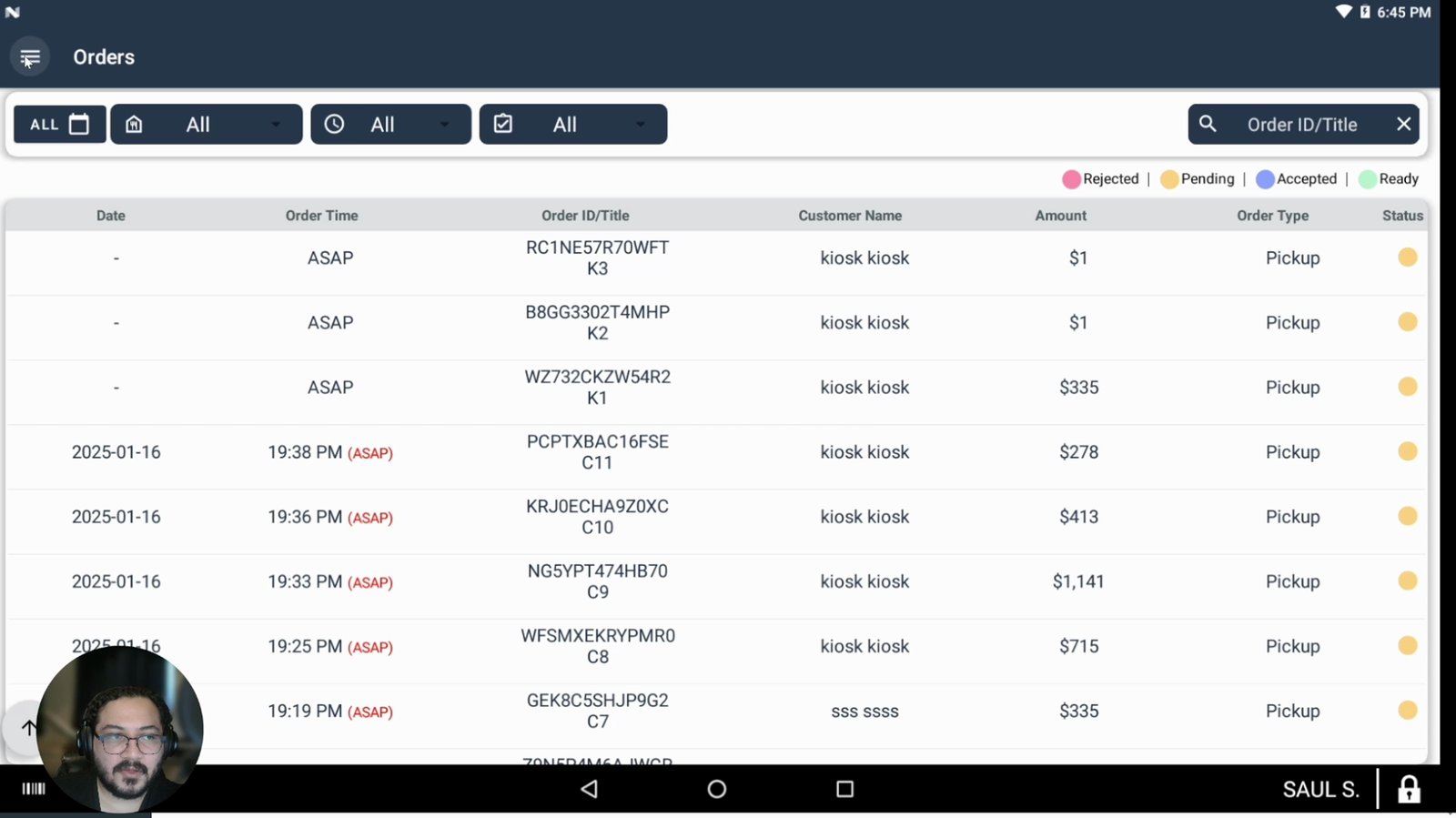
Go to the top left corner and click the three-bar menu (hamburger button).
This opens the main app menu.
Select Settings from the menu.
Access app configuration options.
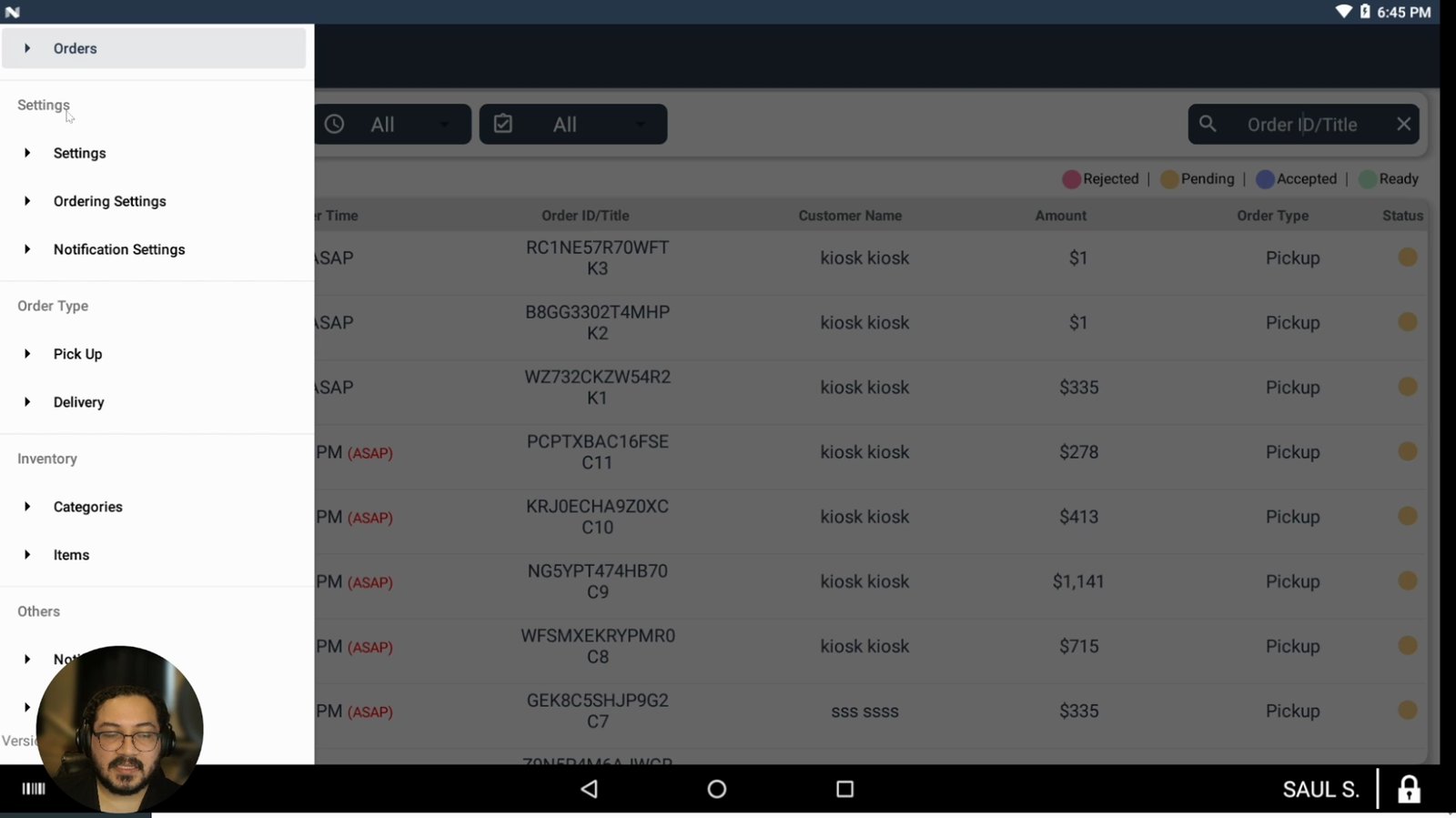
Enable order alerts in the general settings section.
This ensures you get notified of new orders.
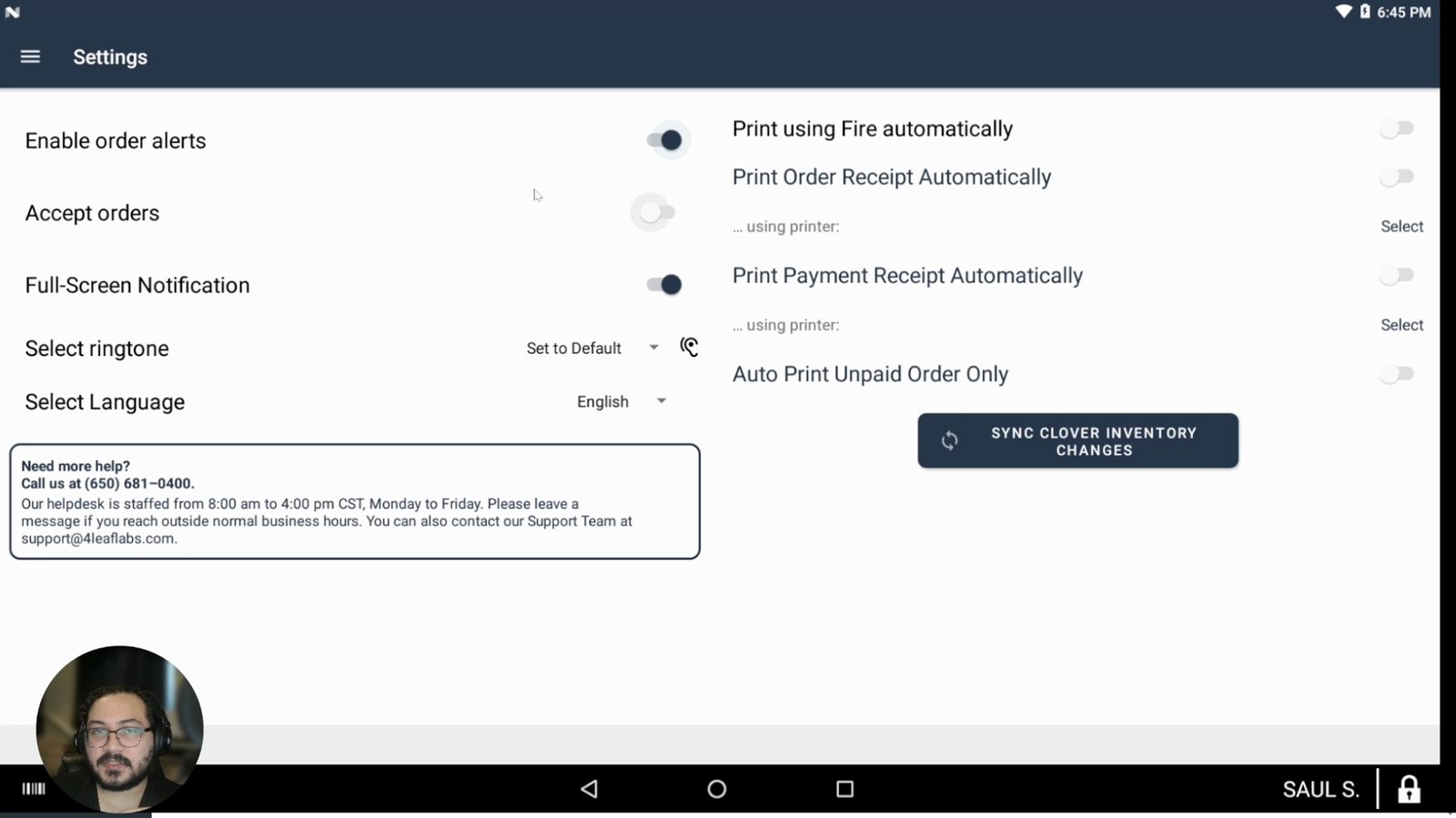
Turn on 'Accept Orders' to open your store for online orders.
Your store must be open to receive orders.
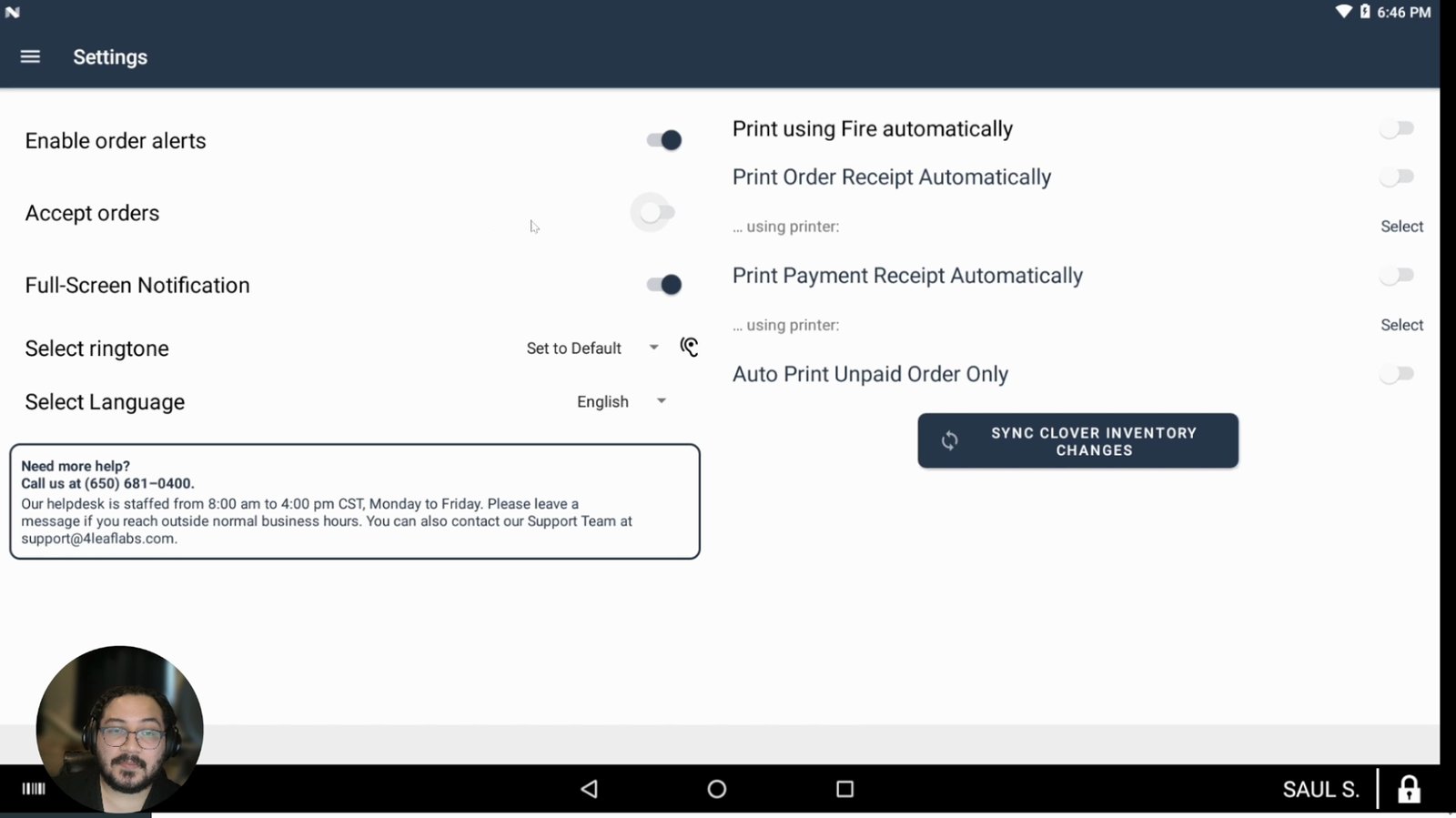
Decide whether to enable full screen notifications for new orders.
A large window will pop up with each order if enabled.
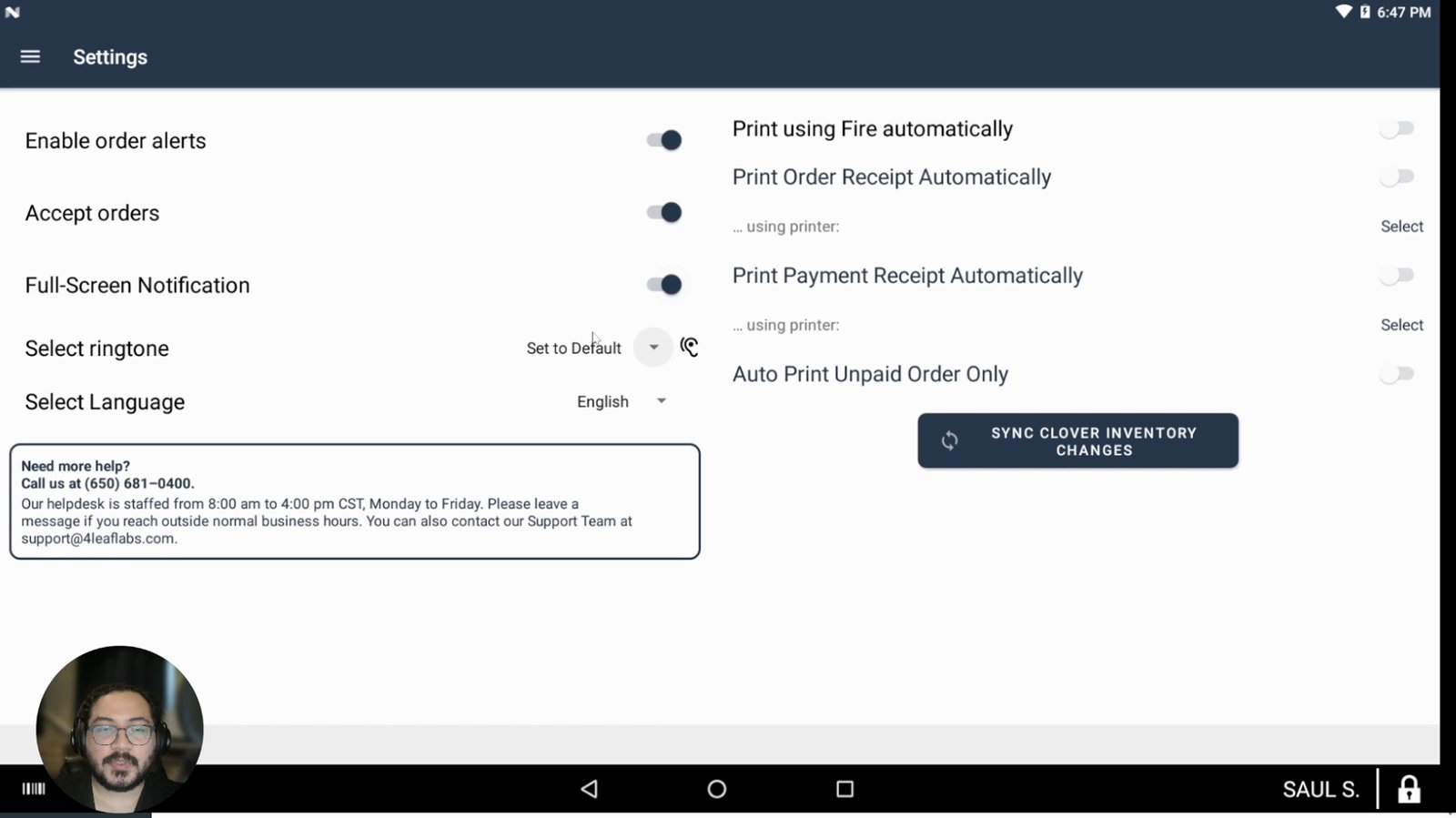
Select your preferred ringtone for order notifications.
Choose a sound for alerts.
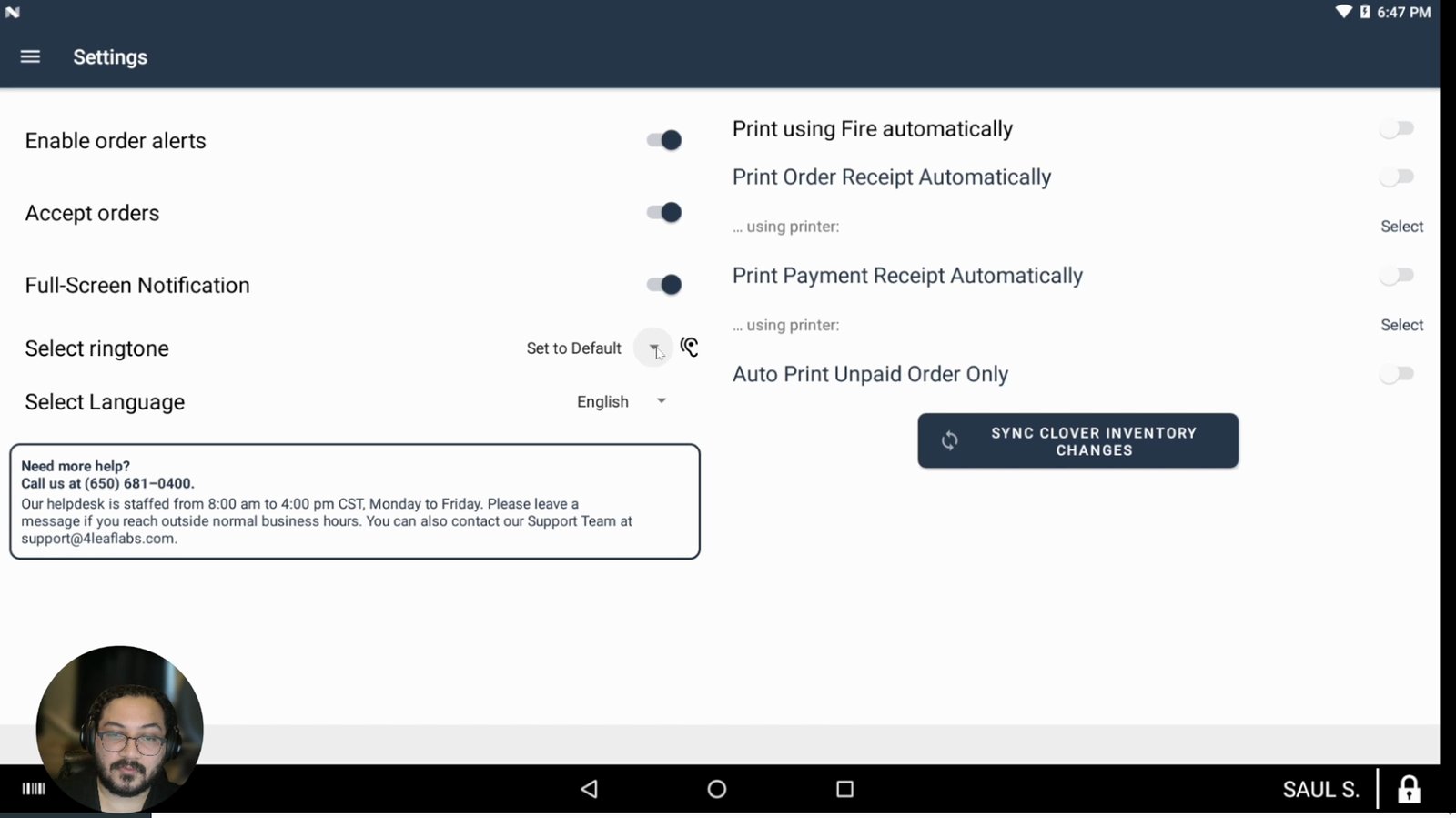
Go to the printing options in the right column.
Configure how orders are printed.
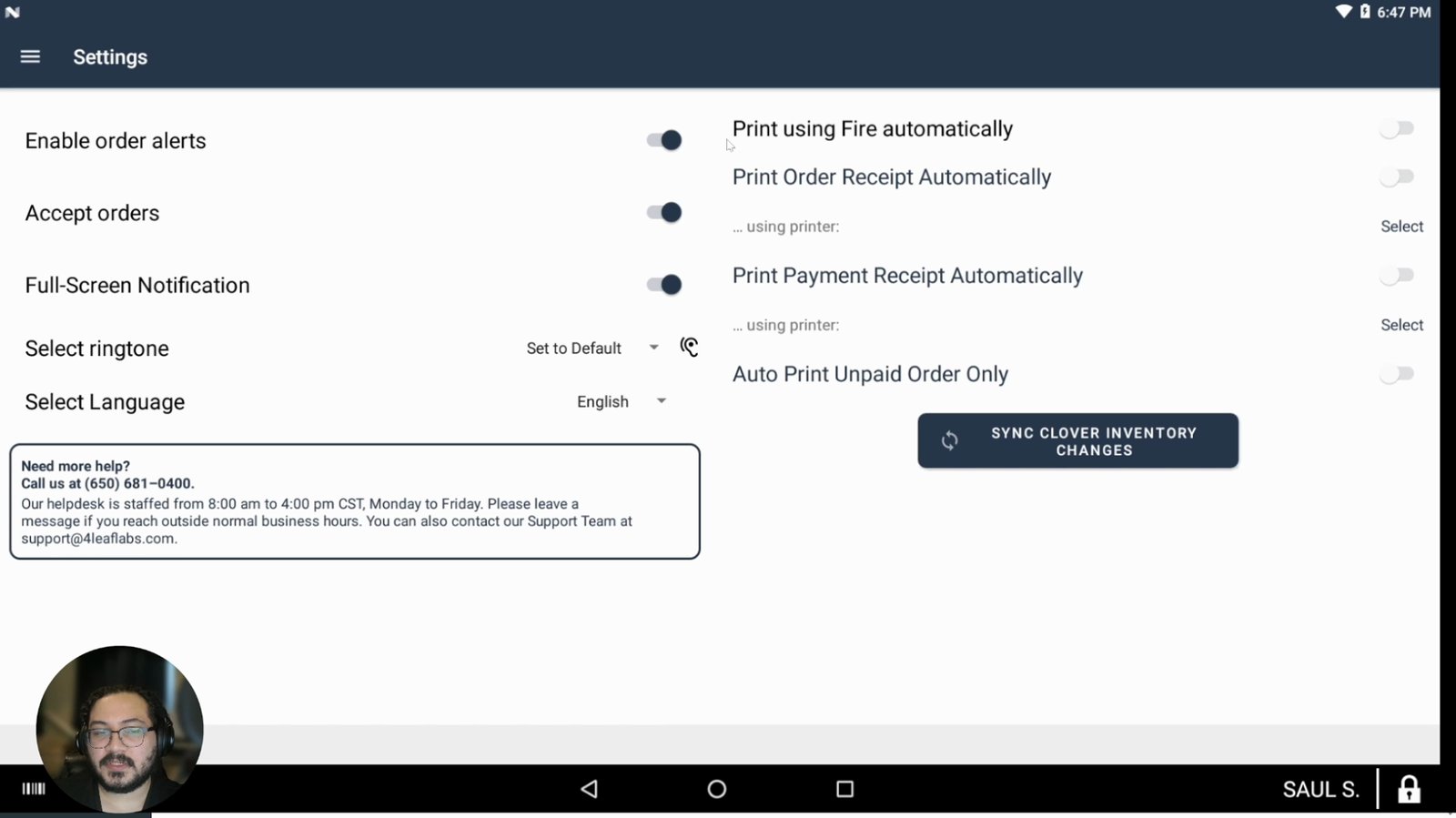
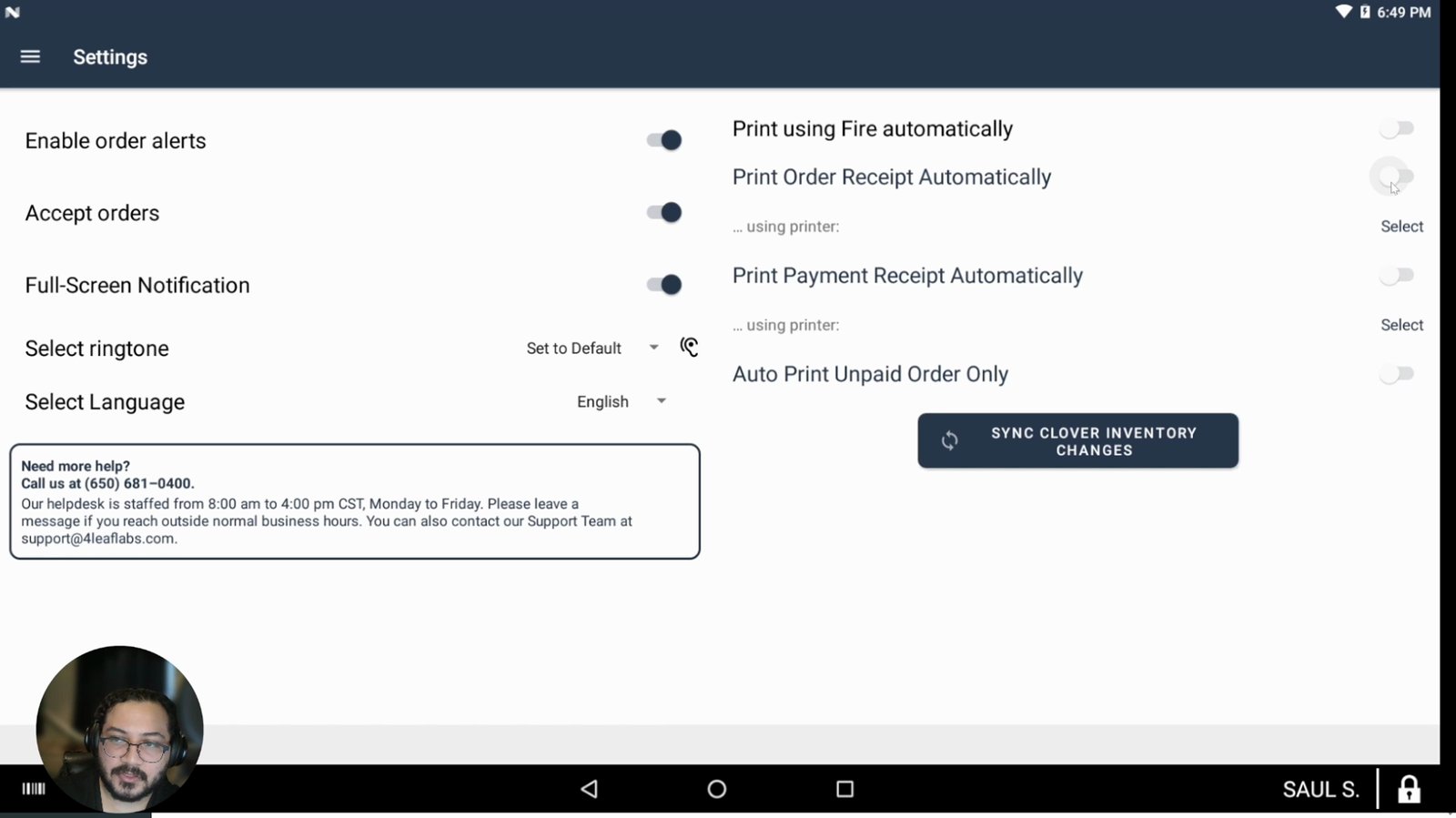
Enable 'Print order receipt automatically' and turn it on.
Receipts will print automatically for each order.
Click the 'Select' text to choose which printer to use.
Assign a printer for order receipts.
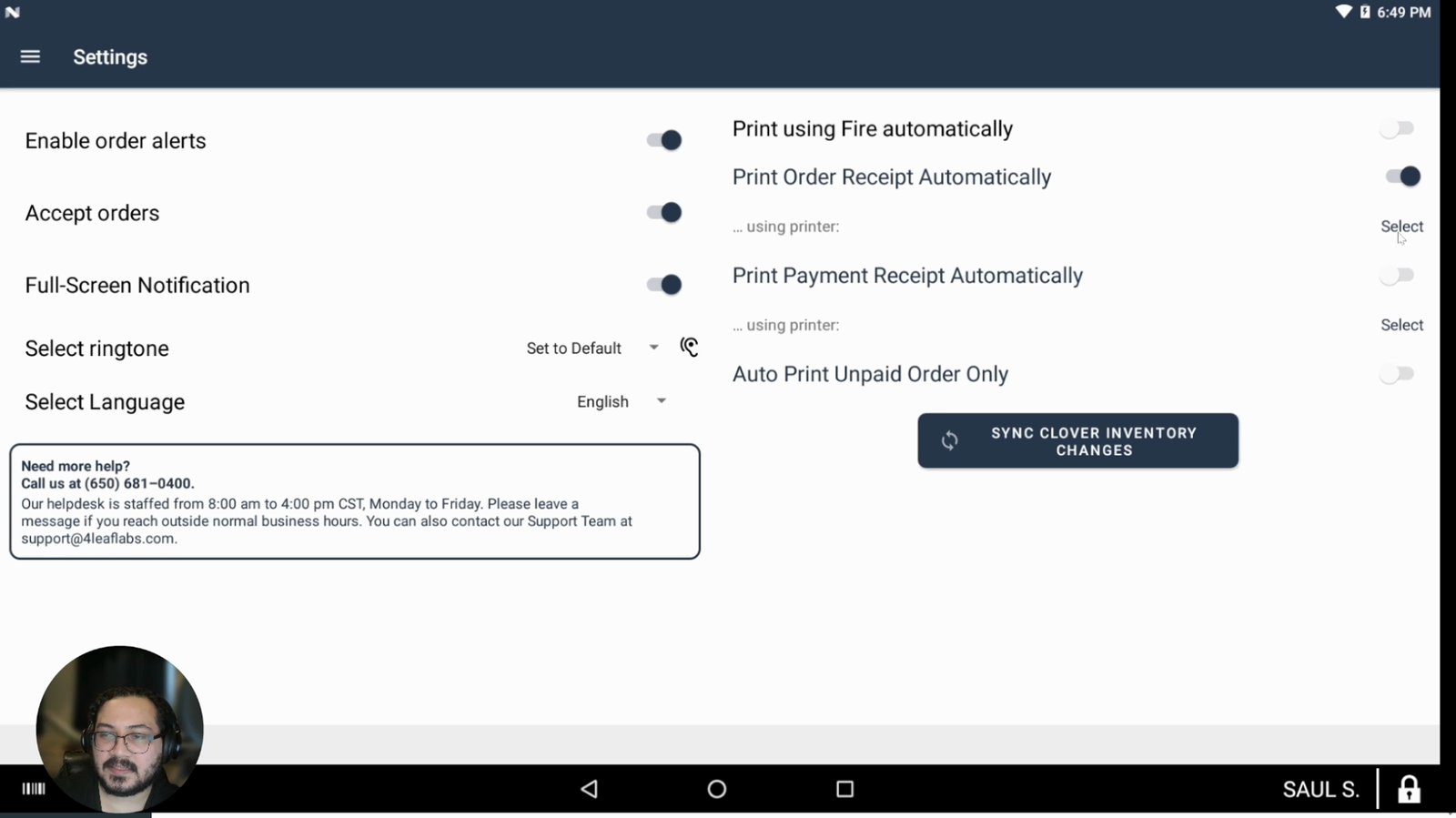
Select the appropriate printer or email from the list (e.g., C500).
Choose the device that will print receipts.
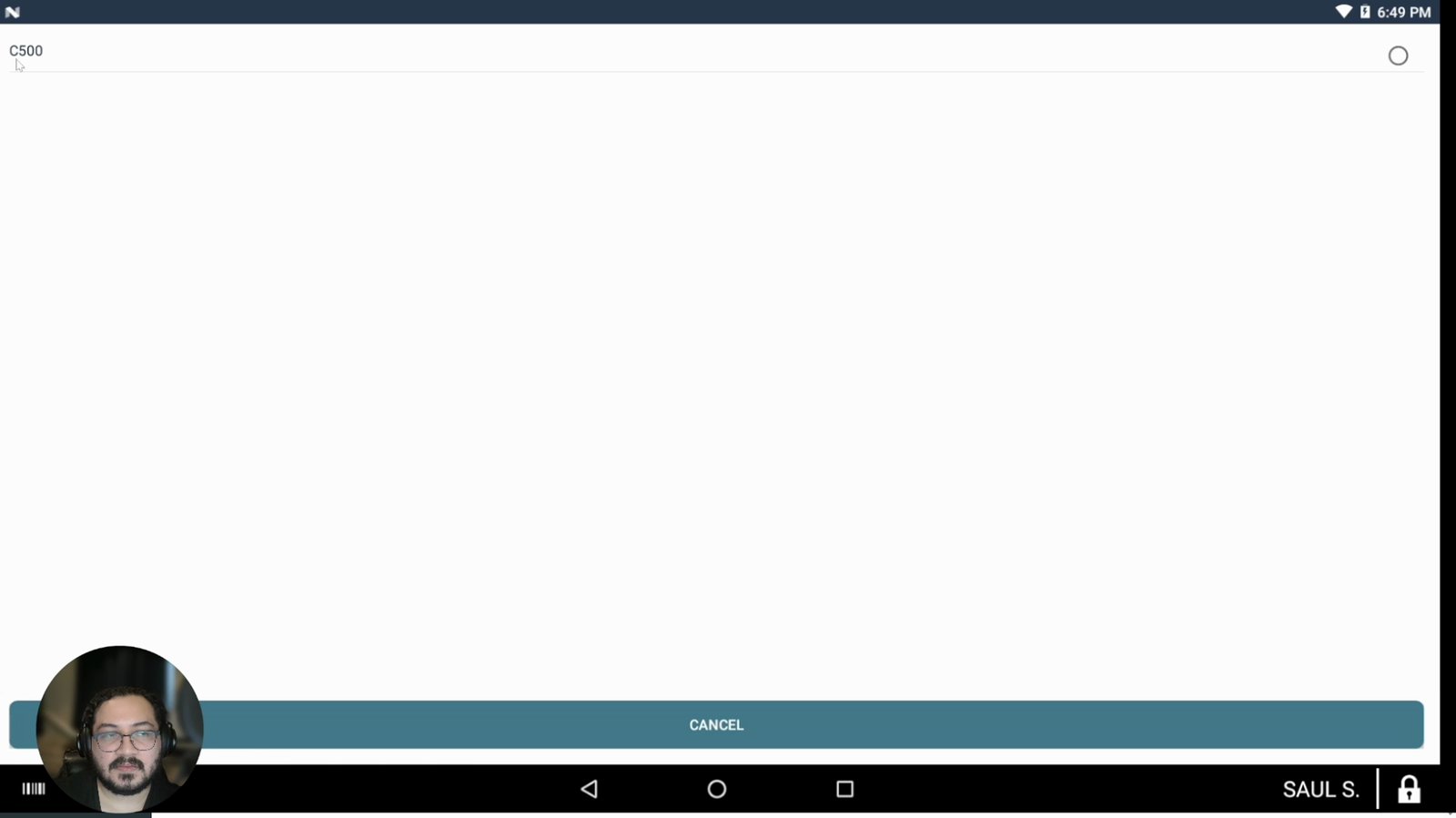
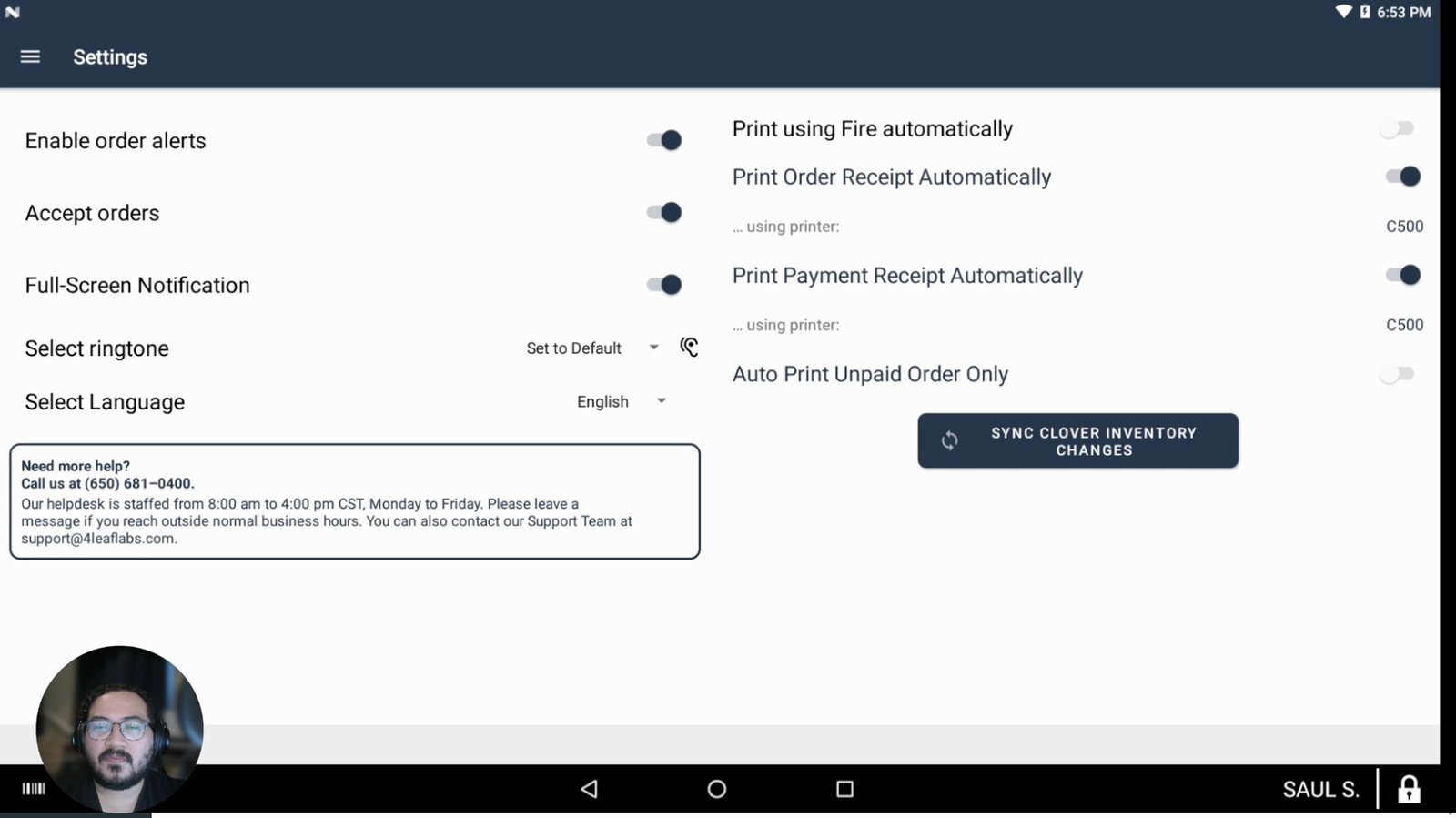
Enable 'Print payment receipt automatically' if you want payment copies printed.
This prints payment receipts for orders.
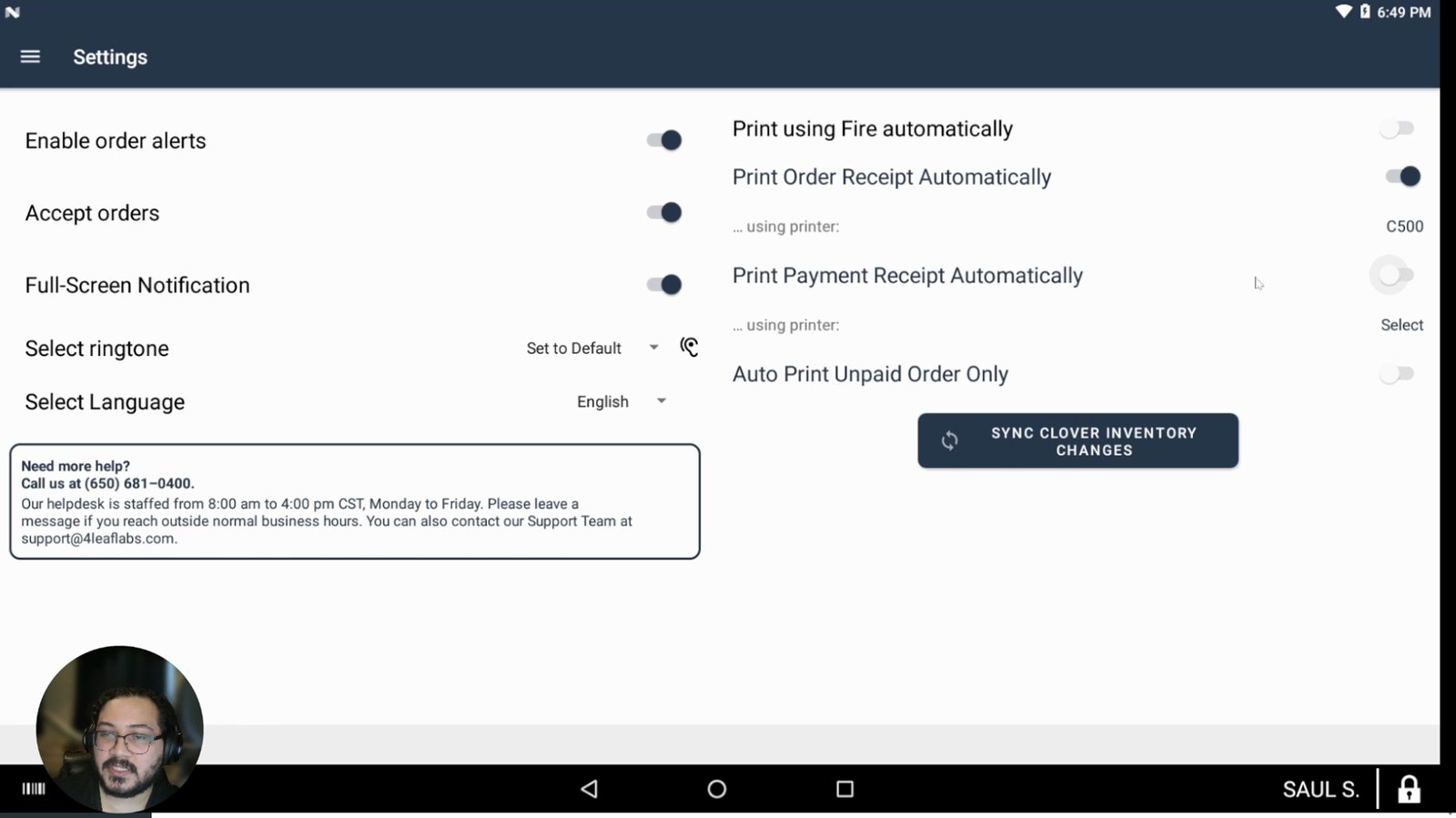
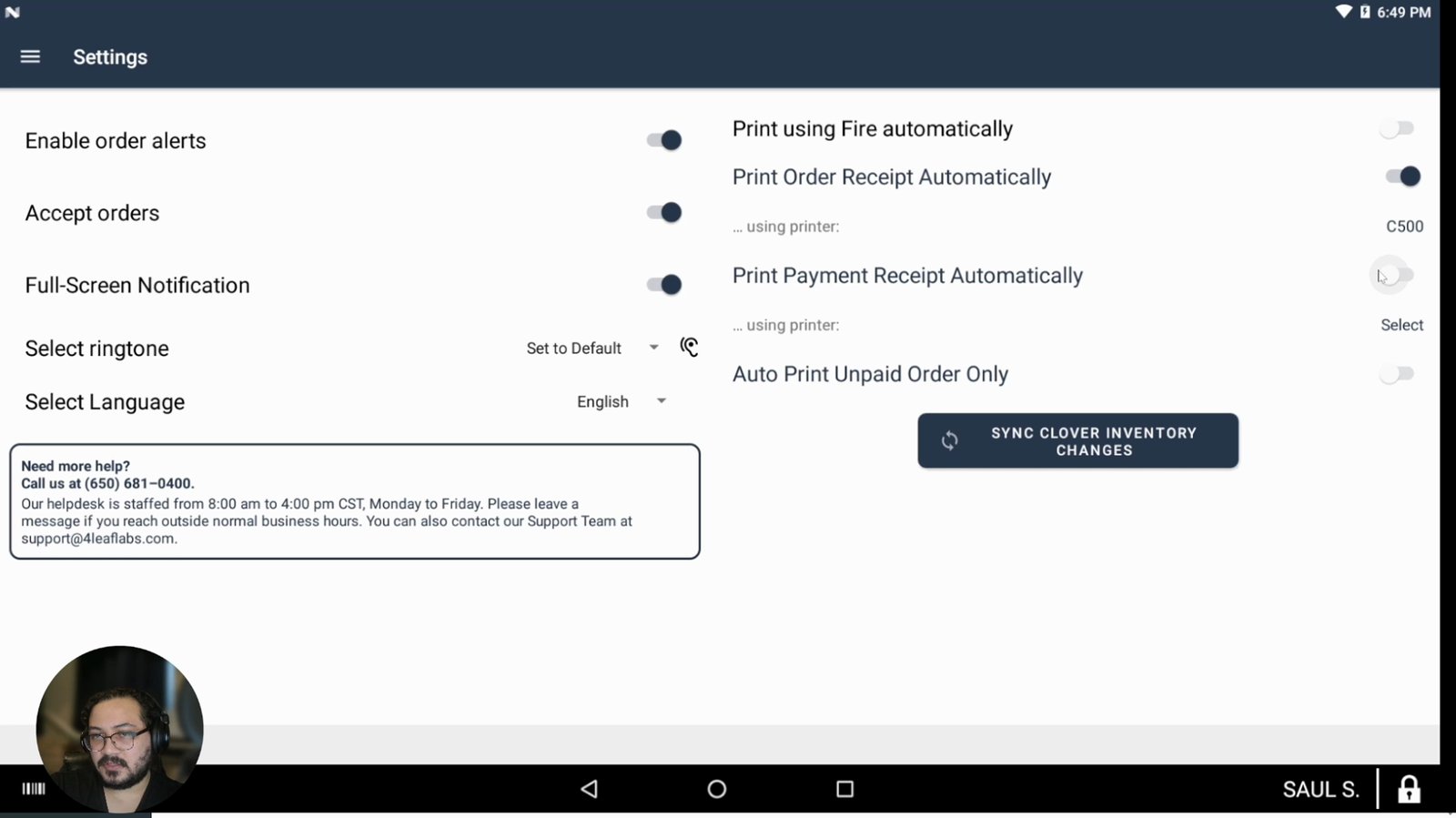
Review the order receipt and payment receipt settings to ensure they match your operational needs.
Order receipts are for the kitchen, payment receipts for customer records.
If you need more advanced configuration, transition to the Clover web dashboard using a browser.
The web dashboard offers more detailed settings.
You made it to the end!
39 steps complete