How to Manage and Resolve Login Support Tickets
Learn how to investigate, reset, and resolve client and provider login issues using the agency management dashboard.
Aneesha Smith

Click the Slack channel to view incoming support tickets
The Slack channel provides information about which database the ticket originated from.
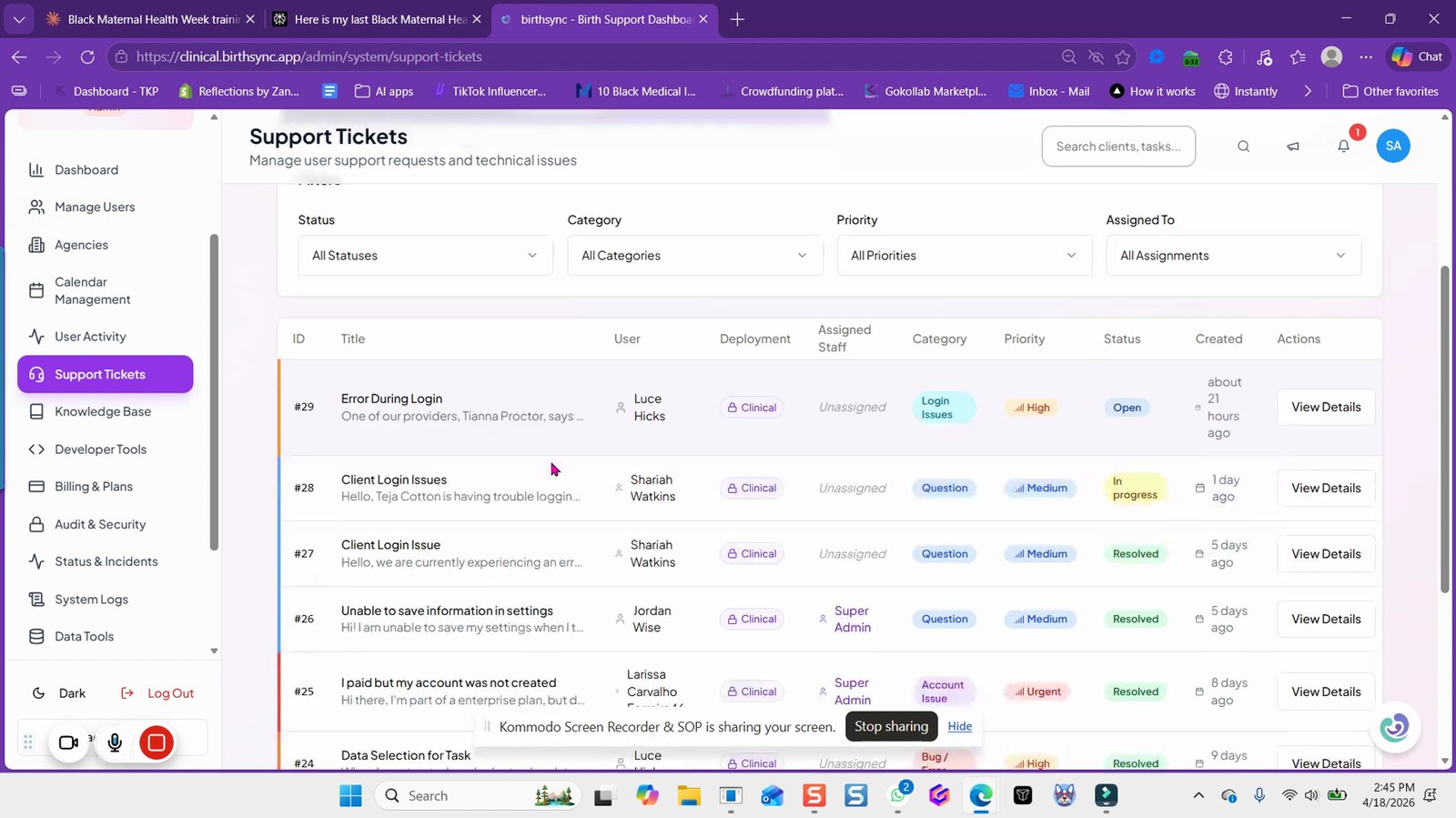
View the ticket details to see the error message during login
You will see the error message stating invalid credentials.

Check the error message stating invalid credentials
This indicates the user may have forgotten their password.

Navigate to the manage users section to reset a password
This is where you can manage user accounts and reset passwords.

Look up the name of the person needing a password reset
Search for the user by name to locate their account.

Click apply to search for the user
This will filter the user list to show the searched user.

View the user's last login date
This helps determine if the user has logged in recently.

Click send password reset to initiate a password reset email
This sends a password reset link to the user's email.
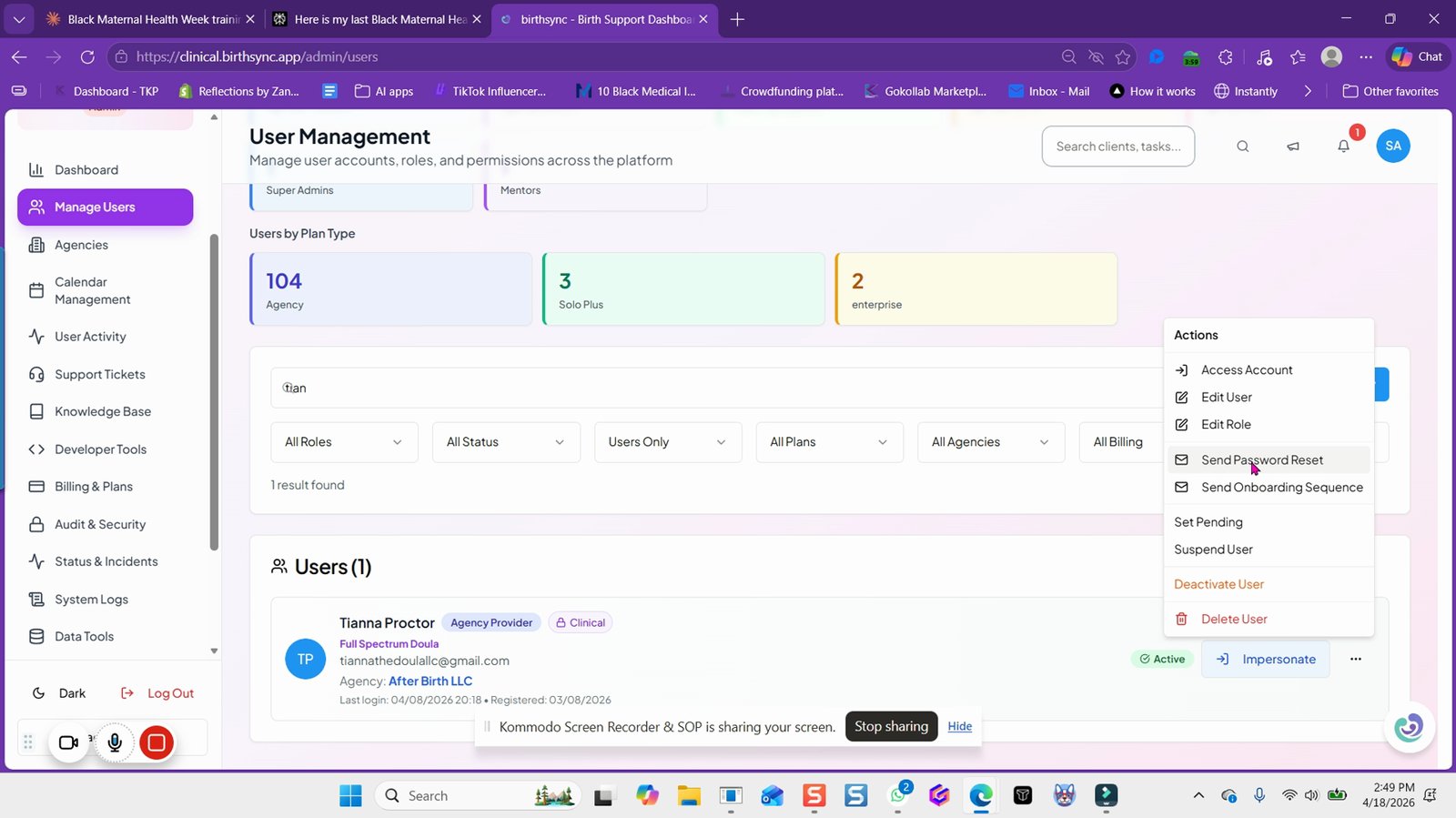
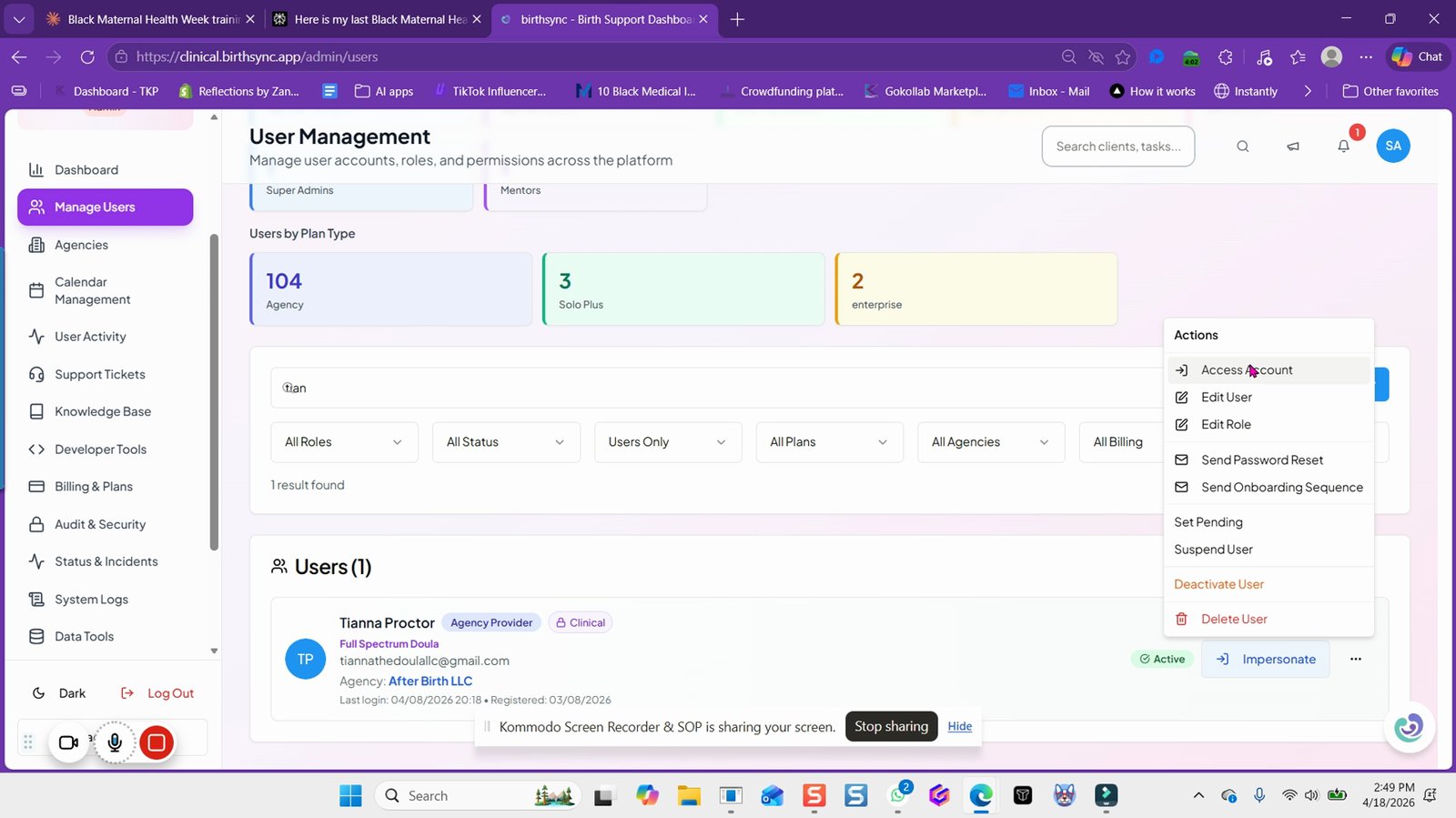
Impersonate the user if needed to troubleshoot further
This allows you to see the system as the user would.
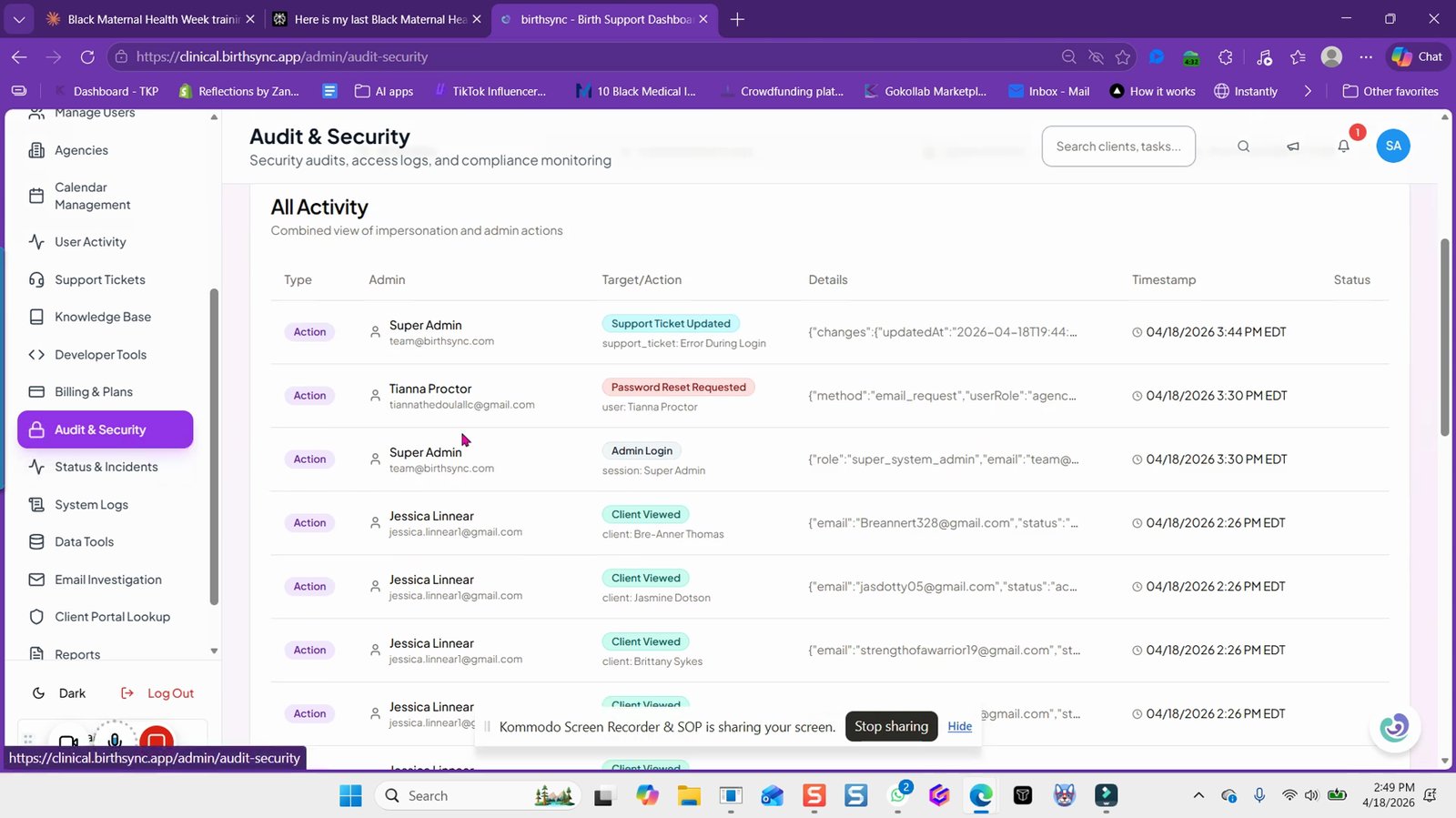
Go to the audit and security section to view password reset activity
This section logs password reset requests and related actions.
Check the email log to confirm a password reset was requested
You can verify if a reset email was sent to the user.

Advise the user to try logging in with the correct domain
Users sometimes attempt to log in to the wrong subdomain.
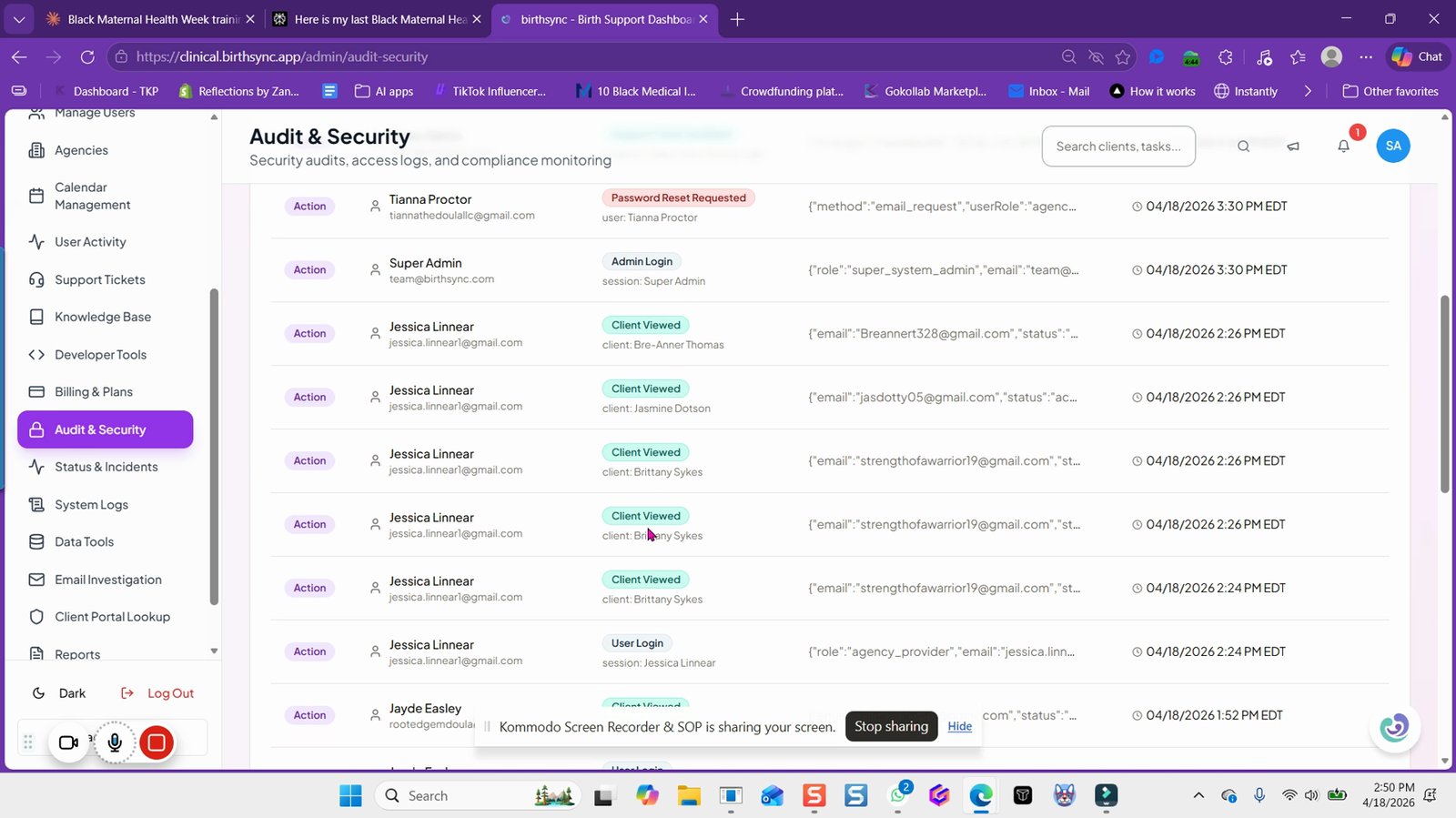
Update the support ticket after sending the password reset
Document your actions for future reference.

Click client portal lookup to find clients with portal access
This helps you identify which clients have portal accounts.

Select the agency to view all their clients
All clients for the selected agency will be displayed.

Click load profile to view a specific client's portal details
This opens the client's profile for further actions.
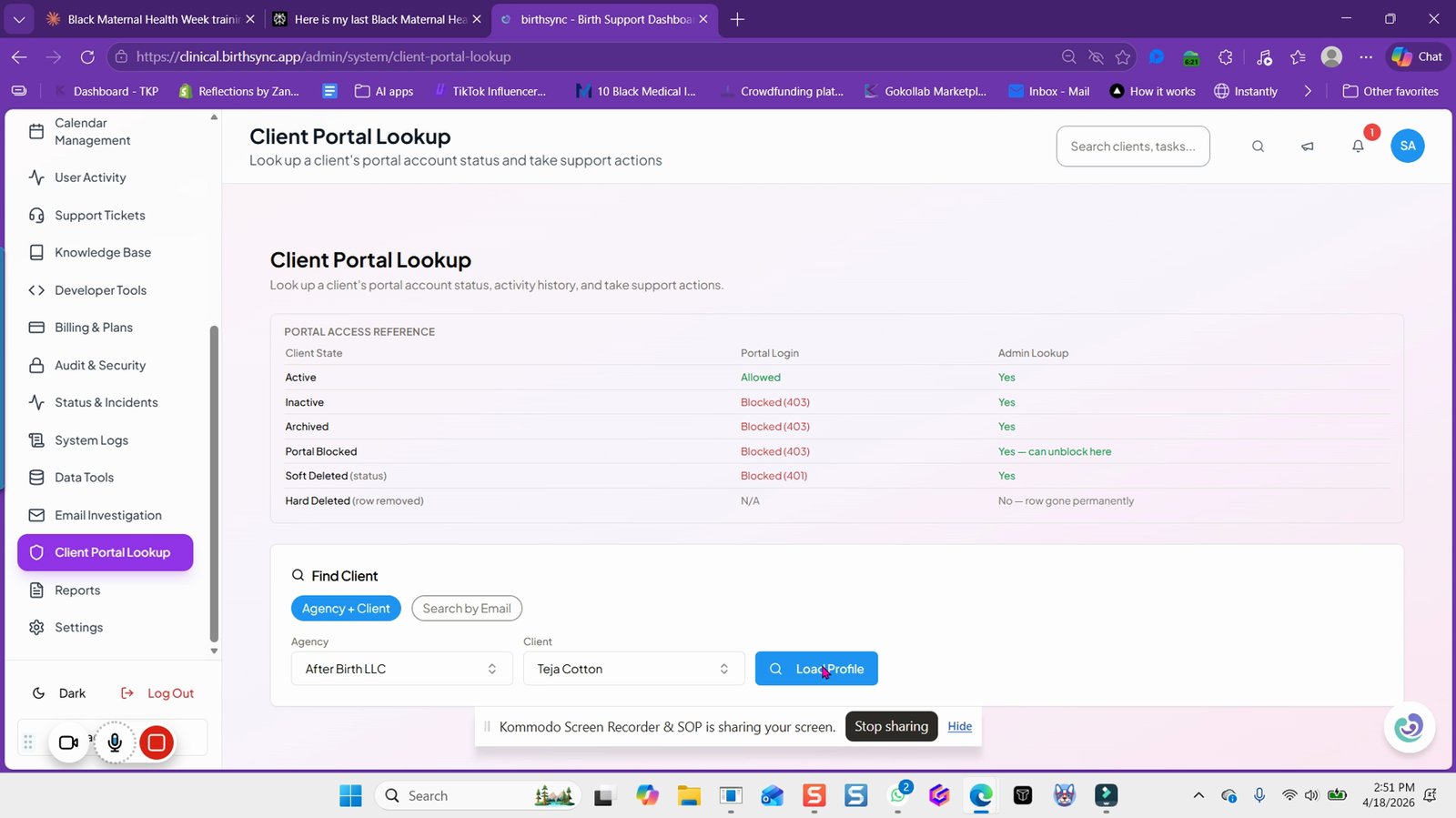
Check if the password was set for the client
This confirms whether the client has completed their portal setup.

Send a password reset request for the client portal
This sends a reset link to the client's email.

If the password reset does not work, perform a hard reset on the portal
A hard reset clears all portal data and starts the setup over.

Click the agency name in the agency dashboard to view a snapshot
This provides an overview of the agency's status, members, and clients.

View the agency snapshot to see status, member count, and client count
This helps you understand the agency's activity at a glance.
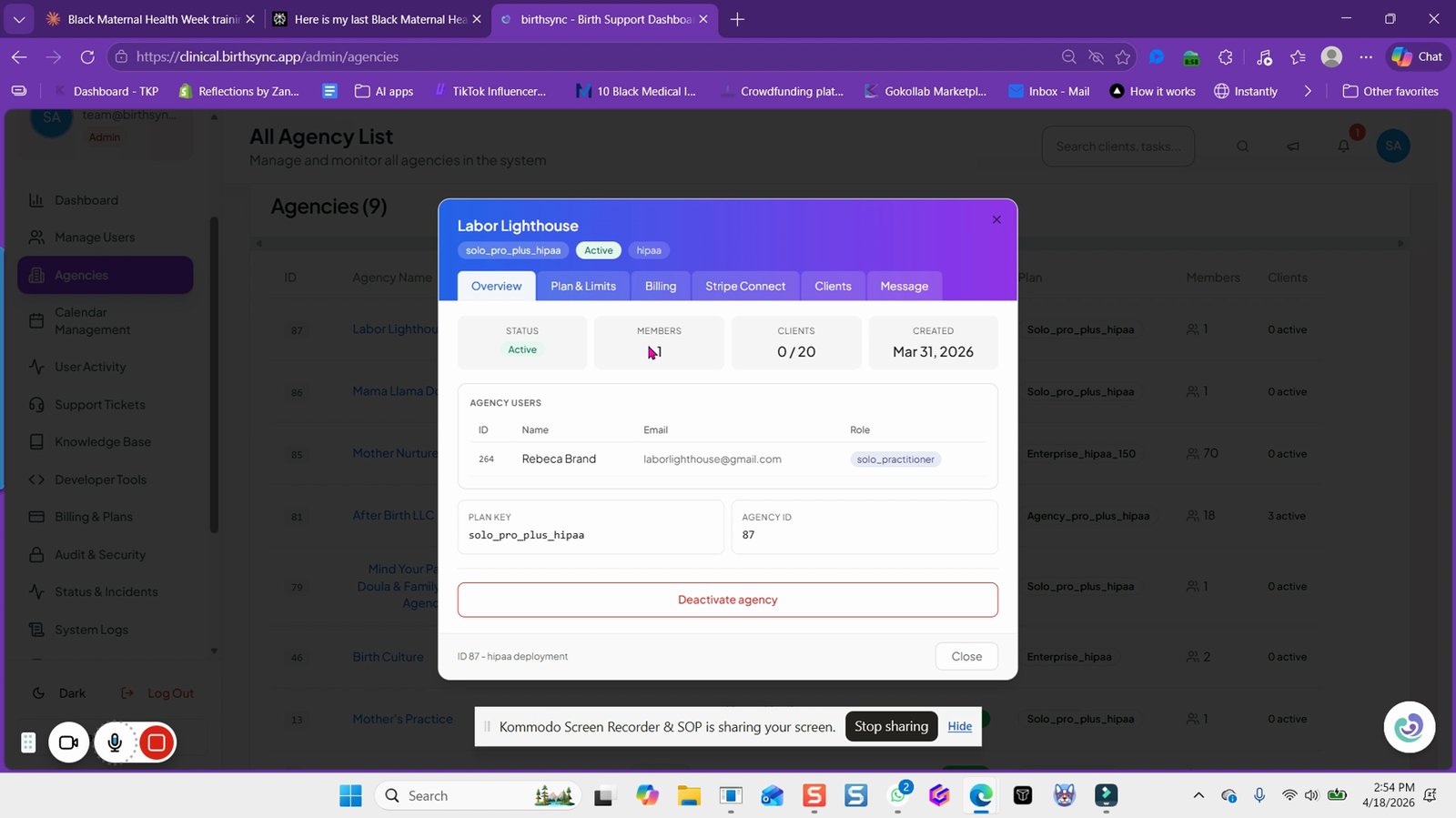
Send a message to admins from the agency dashboard if needed
You can communicate directly with agency admins from here.

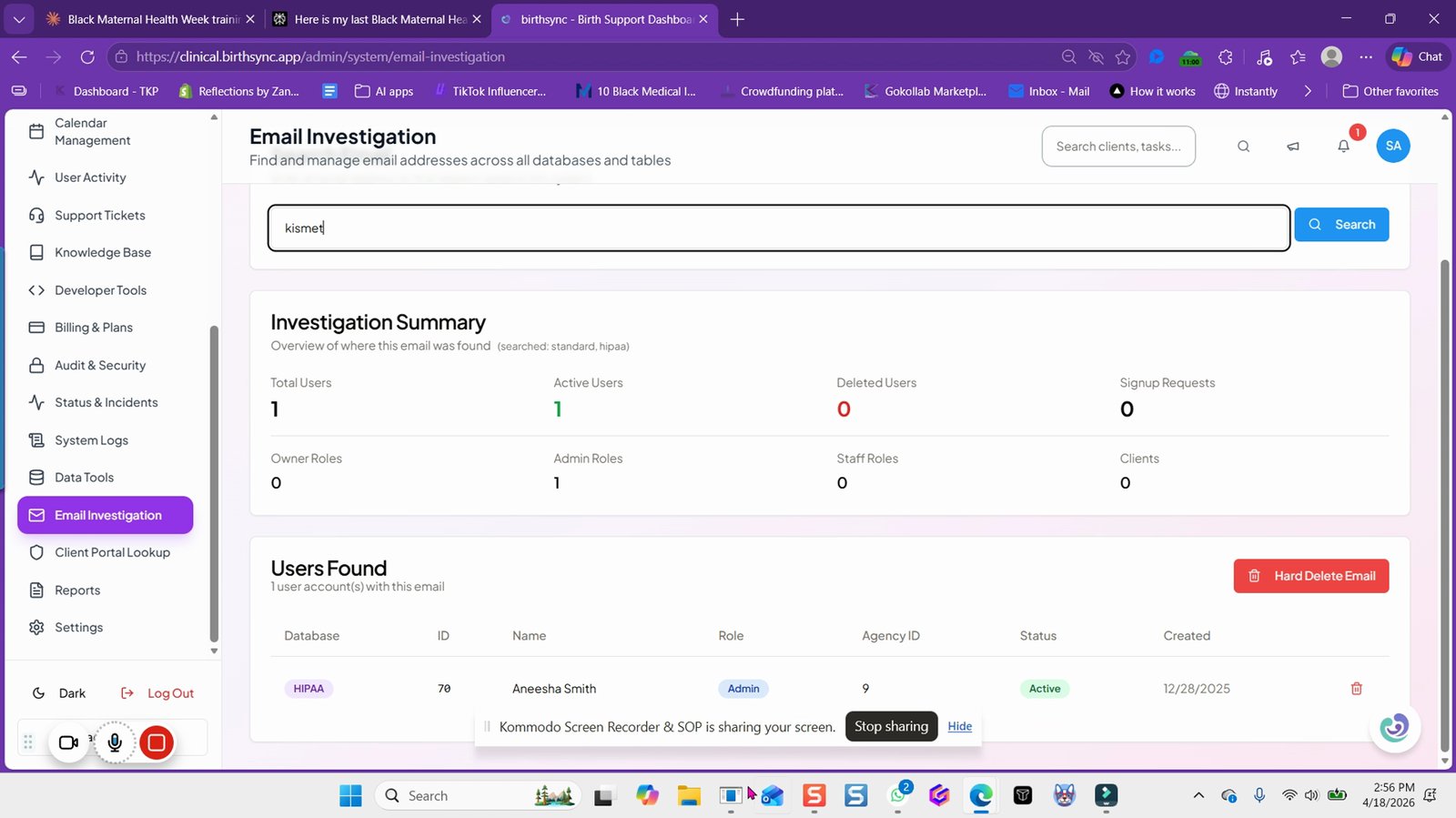
Use the email investigation tool to search for an email across databases
This shows which accounts are associated with a given email.
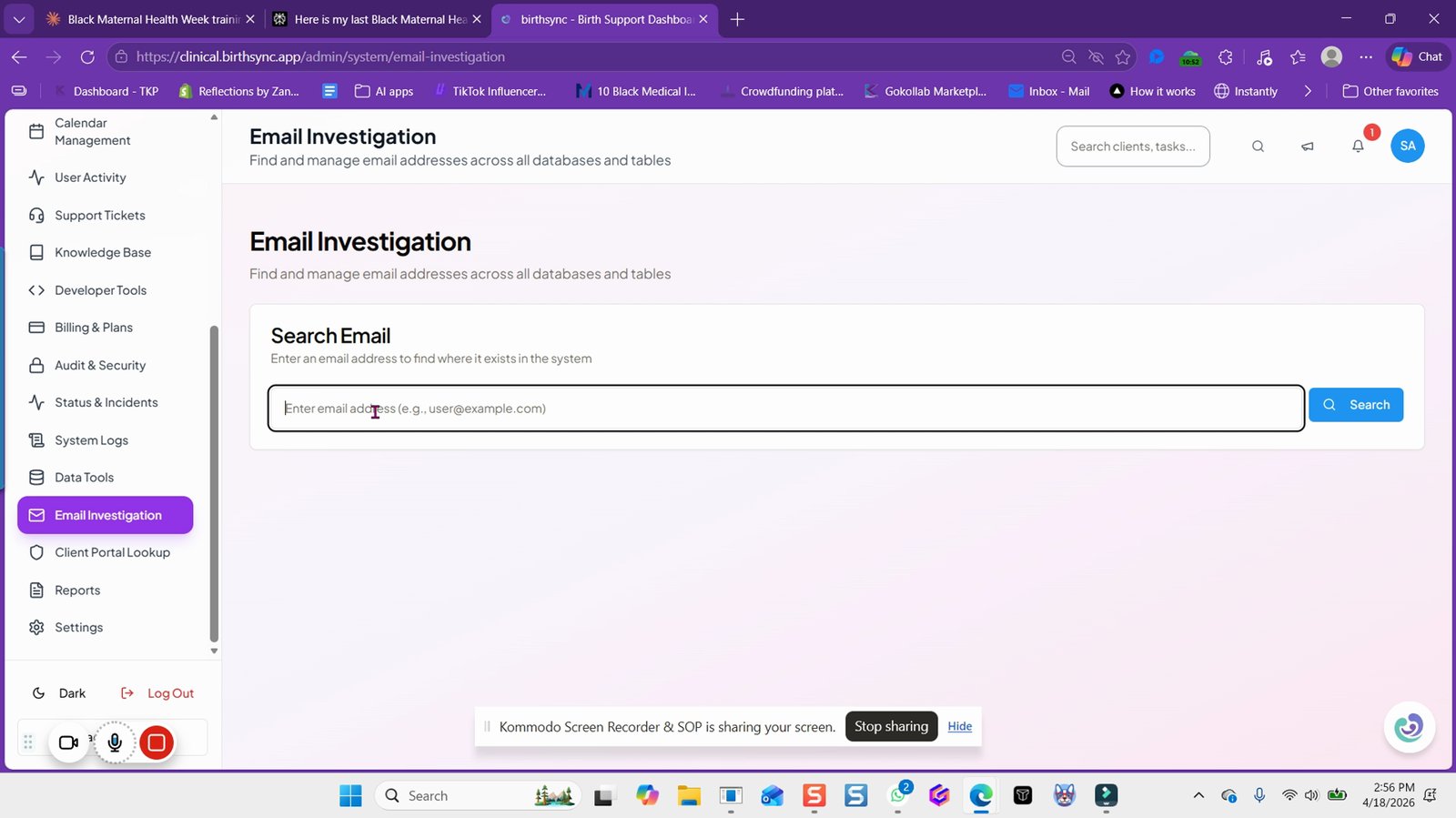
Review the results to see which database the email is attached to
You will see the user and database associated with the email.
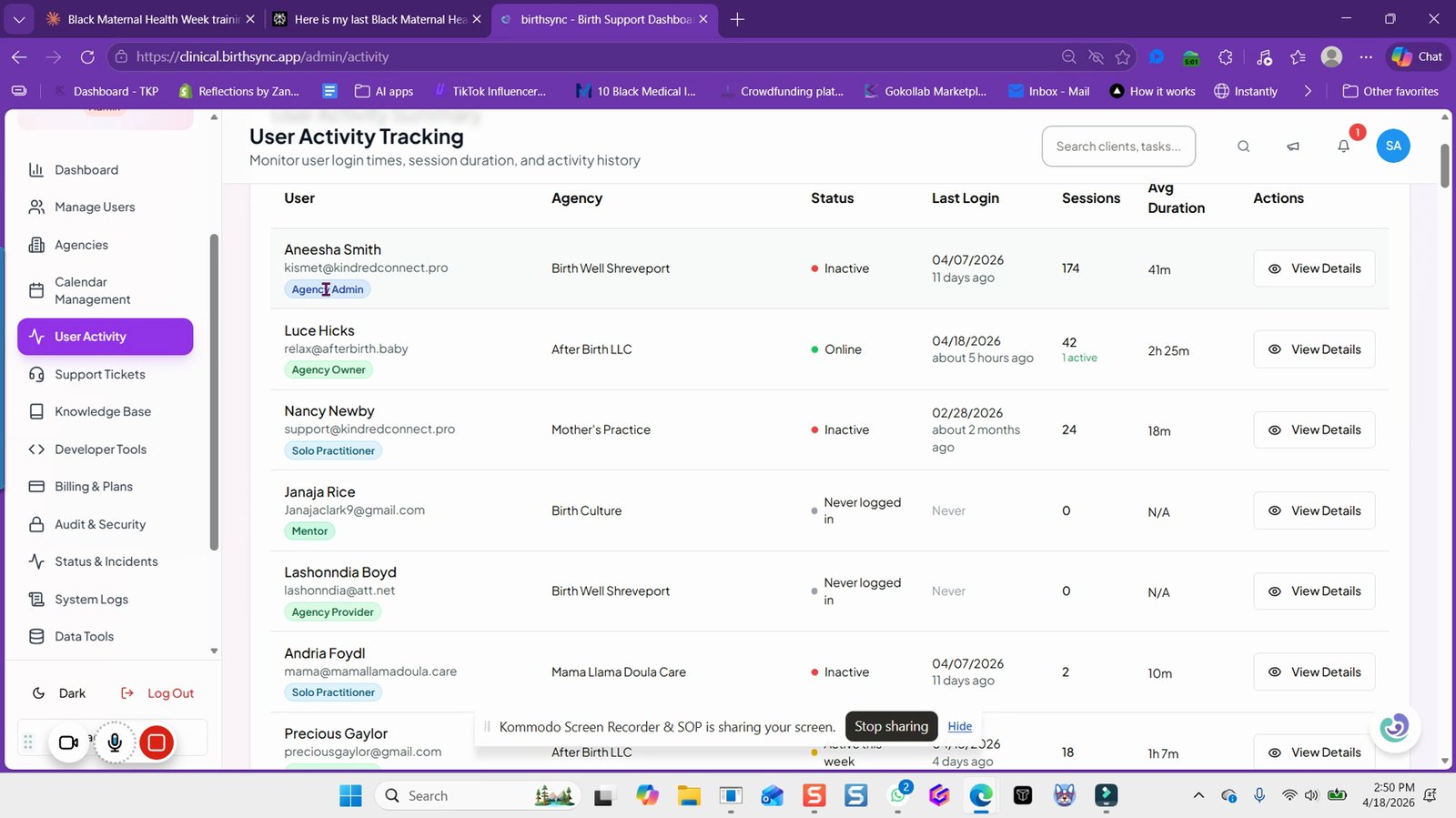
Check the user activity and session tracking for additional troubleshooting
This provides an overview of user sessions and online duration.
You made it to the end!
25 steps complete