Best Free Online Screen Recorder (No Download Required) 2026
Need to record your screen right now without installing anything? You're not alone. Whether you're on a work computer with restricted software, using a borrowed device, or just want to record something quickly, online screen recorders solve the problem instantly.
The challenge: most "free" online screen recorders come with catches. Time limits that cut off your recording mid-sentence. Watermarks plastered across your video. Mandatory signups just to download your own recording.
We tested every major online screen recorder to find the ones that are actually free—no hidden limits, no surprise watermarks, no bait-and-switch tactics.
Why Use an Online Screen Recorder?
Before we dive into the comparison, here's why browser-based recording makes sense:
No installation required - Works on any computer, even ones where you can't install software
Cross-platform - Same tool works on Windows, Mac, Linux, and Chromebook
Always up-to-date - No manual updates or compatibility issues
Privacy-friendly - Nothing installed means nothing running in the background
Perfect for quick recordings - Open a tab, record, share, done
The trade-off? Online recorders typically can't capture system audio (sounds from other apps) as easily as desktop software. They also depend on internet connectivity and browser capabilities.
Online Screen Recorder Comparison Table
| Tool | Time Limit | Watermark | Signup Required | Share Link |
|---|---|---|---|---|
| Kommodo | 60 min | None | No | Yes |
| Panopto Express | Unlimited | None | No | No |
| ScreenPal | Varies* | None | No | No |
| Veed | 60 min | Yes | Yes* | Requires signup |
| FlexClip | 60 min | None | No | No |
| RecordCast | 5 min | None | No | No |
| Movavi | 5 min | Yes | No | No |
| Clipchamp | 30 min | Branding on free | Yes | Requires signup |
| Apowersoft | Unlimited | None | Launcher required | No |
| ScreenApp | 15 min | None | Yes | Yes |
*ScreenPal's time limit depends on your browser's memory and storage capacity.
*Veed lets you record without signup but requires an account to download or share.
The 10 Best Free Online Screen Recorders (Tested & Ranked)
1. Kommodo — Best Overall
Kommodo stands out as the most complete free online screen recorder. Unlike other browser-based tools that only offer video downloads, Kommodo generates an instant shareable link the moment you stop recording—no uploading to Google Drive, no emailing attachments.
Key features:
- 60-minute recording limit per video
- No watermarks on any recording
- Instant shareable link (no download/upload cycle)
- Screen + webcam recording
- Tab audio capture (record sounds from the tab you're sharing)
- No signup required to record and share
- Works in Chrome, Firefox, Edge, and Safari
How to use Kommodo:
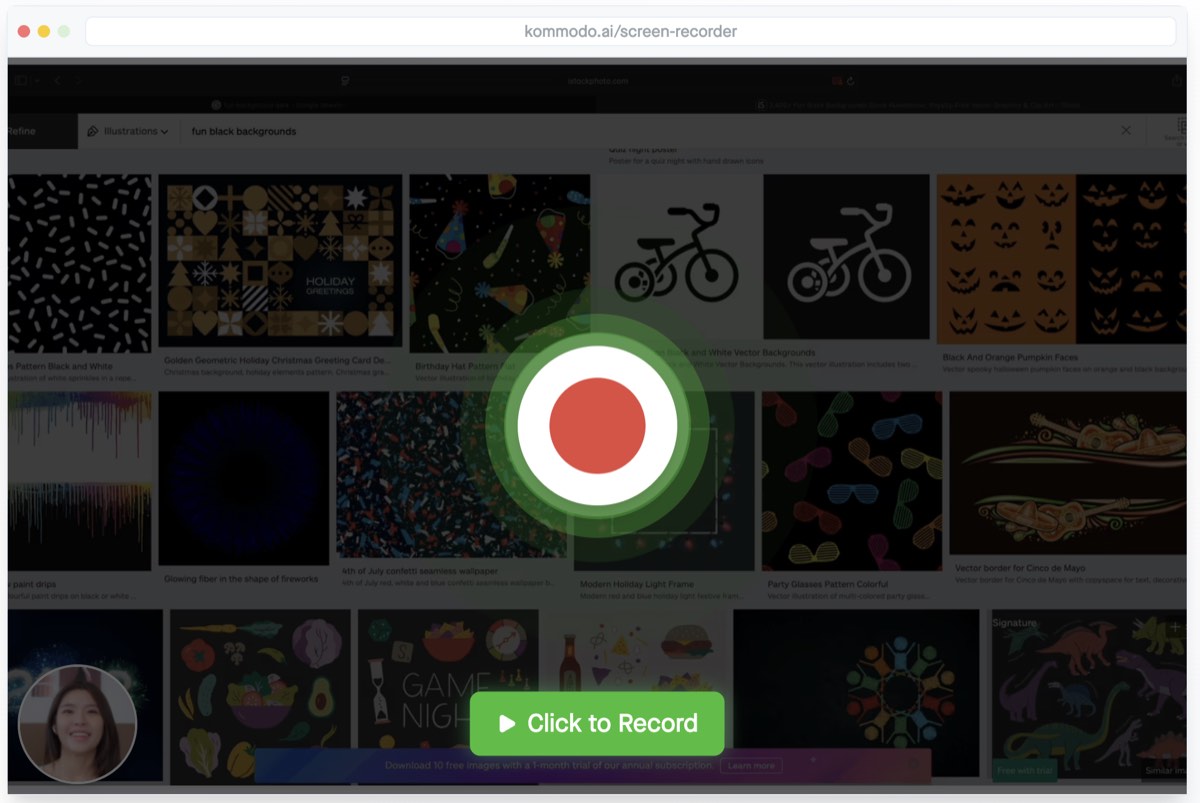
- Go to kommodo.ai/screen-recorder
- Click Record
- Choose to record your entire screen, a window, or a browser tab
- Enable/disable webcam and microphone as needed
- Click Share to start recording
- Click Stop when finished
- Copy your shareable link and send it to anyone
Best for: Quick professional recordings you need to share immediately—bug reports, tutorials, feedback videos, and team communication.
Limitations: 60-minute max recording time. Full editing features require a free account.
2. Panopto Express — Best for Long Recordings
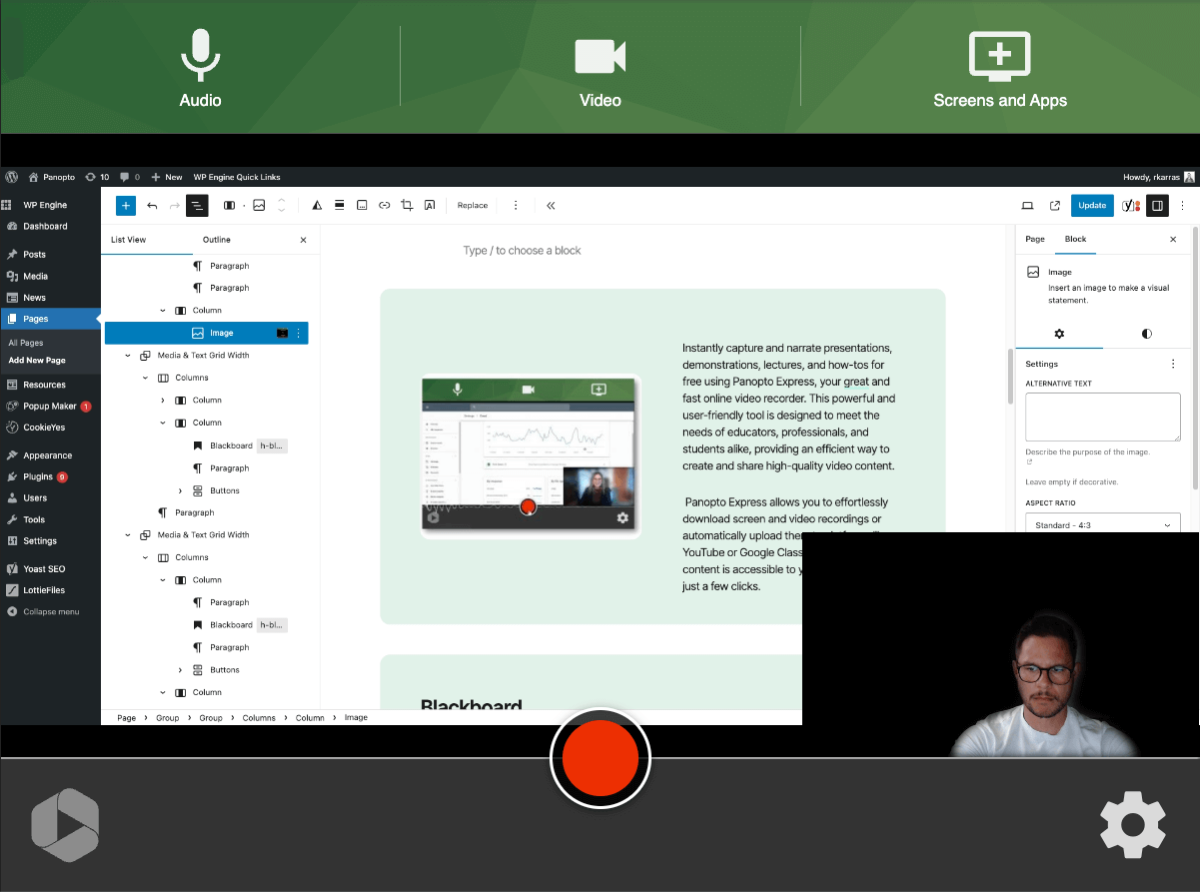
Panopto Express is the only truly unlimited free online screen recorder. If you need to record hour-long meetings, lengthy tutorials, or extended presentations, Panopto handles it without cutting you off.
Key features:
- Unlimited recording time
- No watermarks
- No account required
- SD, HD, and Ultra HD quality options
- Multi-source recording (screen + webcam)
Limitations: The interface feels dated compared to modern tools. No instant sharing—you can only download your video or upload it to YouTube/Panopto (which requires an account). The recording experience is functional but not polished.
Best for: Long recordings where time limits are a dealbreaker, and you don't mind downloading and sharing manually.
3. ScreenPal — Best for Annotations
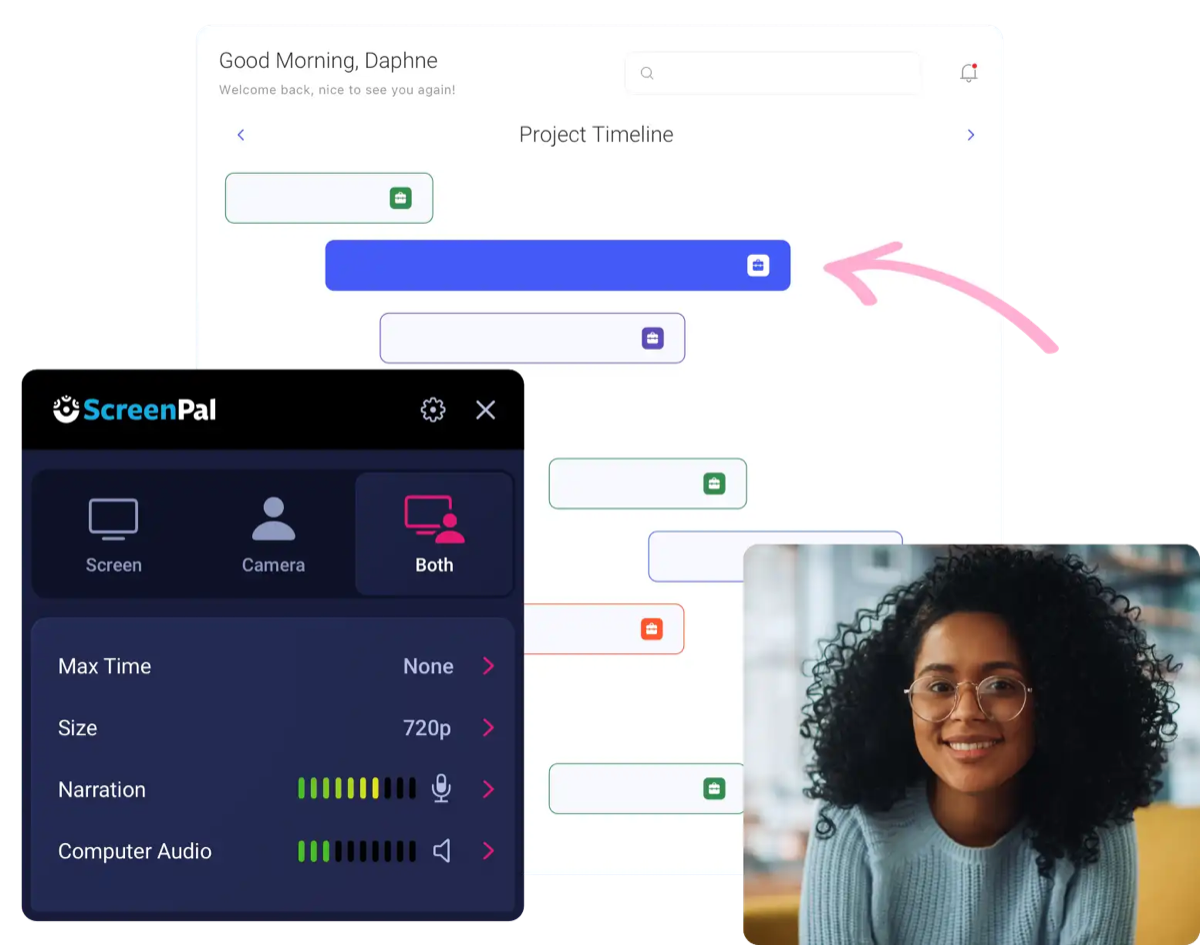
ScreenPal (formerly Screencast-O-Matic) is the only free online screen recorder with built-in annotation tools. You can draw on your screen while recording—helpful for tutorials, walkthroughs, and explanations.
Key features:
- On-screen drawing and highlighting during recording
- No watermarks on free recordings
- No strict time limit (browser memory dependent)
- Webcam overlay support
Limitations: No instant sharing. You must download the video file and share it manually. The recording time isn't technically limited, but browser memory constraints may cut off very long recordings. Advanced features require a paid account.
Best for: Educational content, software tutorials, and any recording where you need to highlight or annotate while explaining.
4. Veed — Best for Creative Features
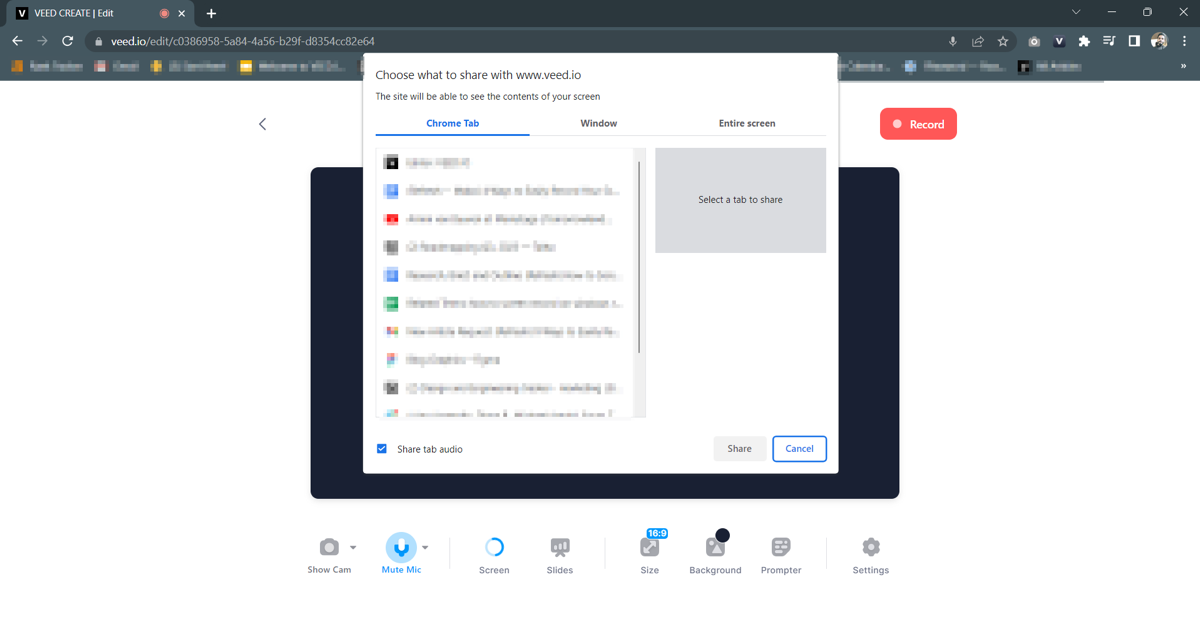
Veed offers a 60-minute recording limit and some unique creative features like recording multiple clips and stitching them together. The interface is modern and polished.
Key features:
- 60-minute recording limit
- Record multiple clips in one session
- Modern, clean interface
- Built-in video editor
Limitations: The biggest catch—you cannot download or share your video without creating an account. All free recordings also include a Veed watermark. This makes Veed less suitable for professional use unless you're willing to pay or sign up.
Best for: Users who don't mind creating an account and want built-in editing features.
5. FlexClip — Best Simple Interface
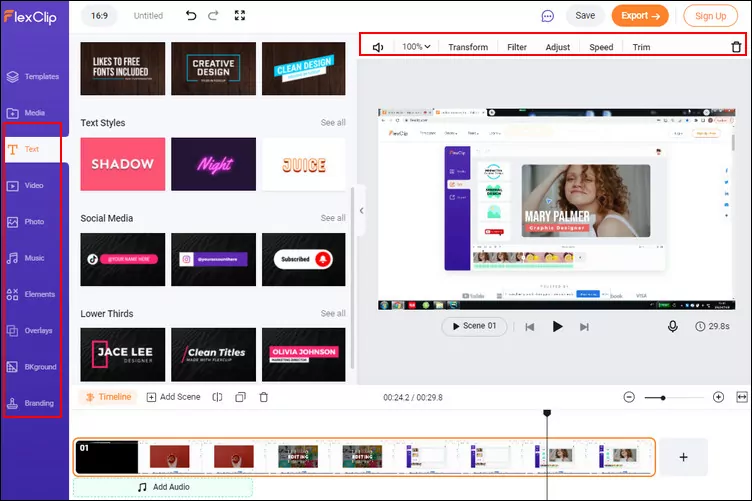
FlexClip provides a straightforward 60-minute recording with no watermarks or signup required. It's simple and works.
Key features:
- 60-minute recording limit
- No watermarks
- No signup required
- Clean, simple interface
Limitations: Cannot record system audio (only microphone). The interface is clunky compared to newer tools—you can only view your webcam OR your screen preview during recording, not both. Downloads only, no shareable links.
Best for: Users who want a simple, no-frills recording experience and don't need audio from browser tabs or instant sharing.
6. RecordCast — Functional but Limited
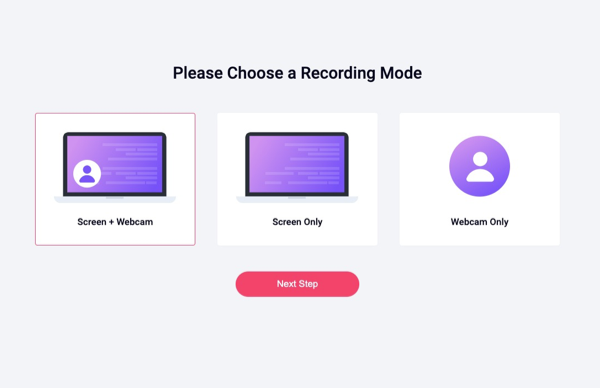
RecordCast uses the same interface as FlexClip but with a more restrictive 5-minute limit. It's functional for very short clips.
Key features:
- No watermarks
- No signup required
- Built-in video editor
Limitations: The 5-minute limit makes this impractical for most use cases. Like FlexClip, it can't record system audio and only offers video downloads (no sharing links).
Best for: Very short clips only—think quick GIFs or bug reproductions under 5 minutes.
7. Movavi Screen Capture — Watch for Watermarks
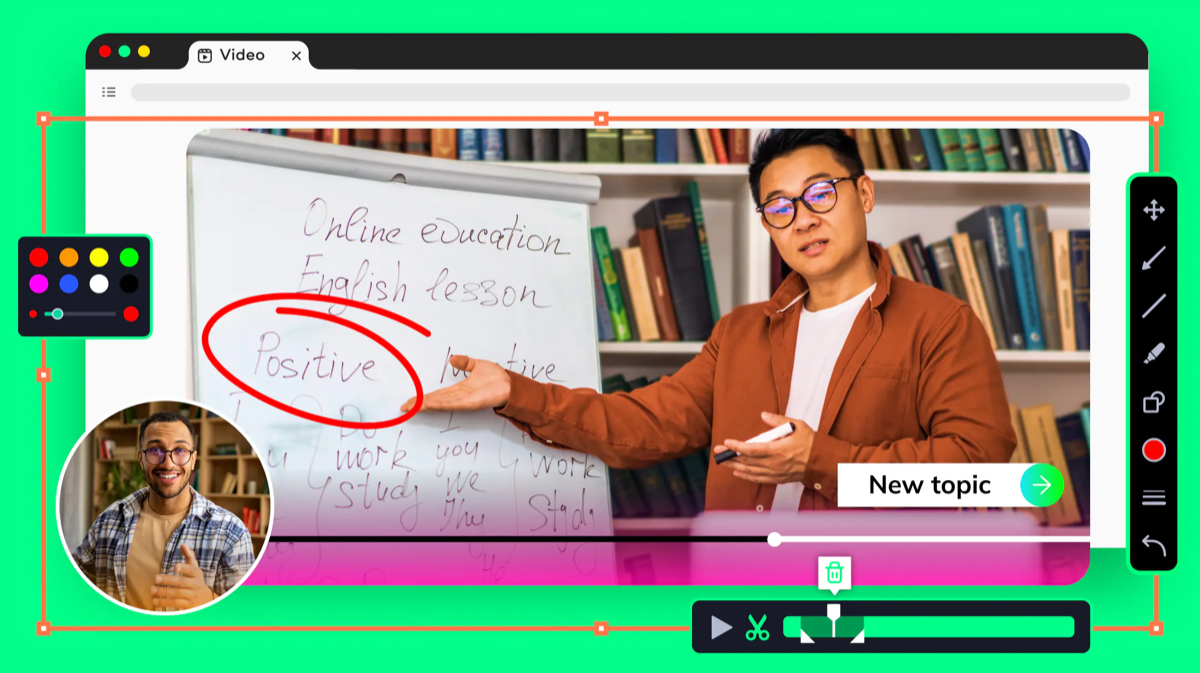
Movavi offers a 5-minute recording limit with a significant catch: all free recordings include a watermark.
Key features:
- No signup required
- Webcam + screen recording
- Quick to get started
Limitations: The 5-minute limit AND watermark combination makes Movavi's free tier difficult to recommend. The webcam recording interface doesn't show your webcam view while recording, so you're flying blind. Recordings appear distorted without webcam enabled.
Best for: Testing only—the watermark and time limit make this unsuitable for any serious use without paying.
8. Clipchamp — Microsoft's Option
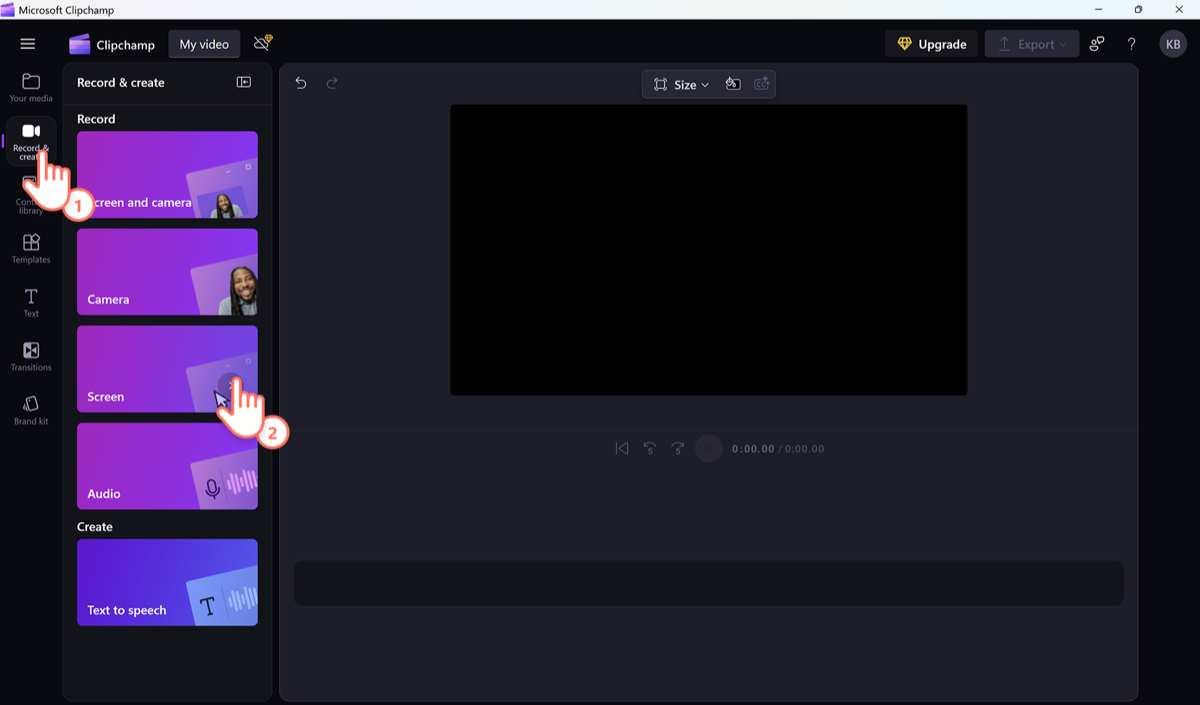
Clipchamp is Microsoft's browser-based video editor with screen recording built in. It's integrated with Microsoft 365 and Windows 11.
Key features:
- 30-minute recording on free tier
- Integration with Microsoft 365
- Full video editor included
- Stock media library
Limitations: Requires Microsoft account to use. Free tier includes Clipchamp branding on exports. The tool is primarily a video editor, so the recording interface is buried within the larger app. Best if you're already in the Microsoft ecosystem.
Best for: Microsoft 365 users who want a familiar interface and don't mind the branding on free exports.
9. Apowersoft — Requires Launcher
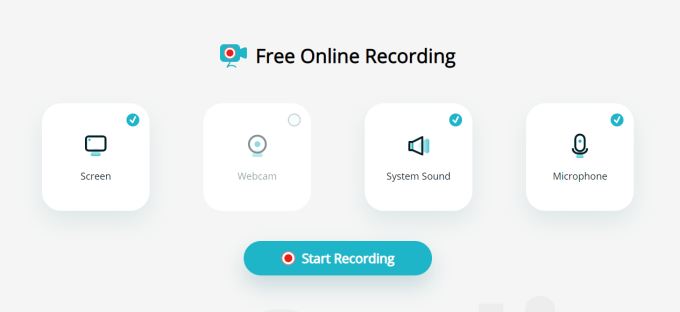
Apowersoft's online screen recorder technically offers unlimited recording without watermarks, but it requires installing a small launcher application.
Key features:
- Unlimited recording time
- No watermarks
- Good audio recording options
- Multiple export formats
Limitations: The launcher requirement means it's not truly "no download." Some users report issues with the launcher on newer operating systems. The interface feels dated.
Best for: Users who need unlimited recording and don't mind a small installation.
10. ScreenApp — Good but Requires Signup
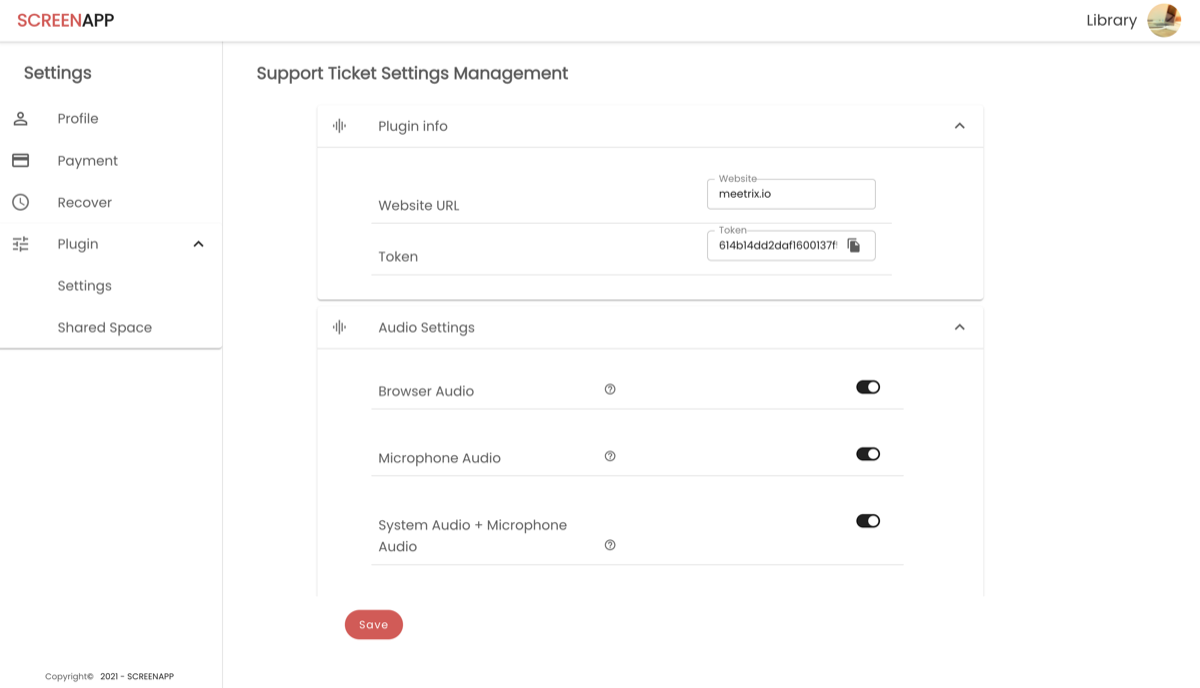
ScreenApp offers screen recording with AI transcription built in—useful for interviews or meeting notes.
Key features:
- 15-minute recording on free tier
- AI-powered transcription
- Shareable links
- Basic video editor
Limitations: Account required even for basic recording. The 15-minute free limit is restrictive for longer content. Full features require a paid subscription.
Best for: Users who need automatic transcription and don't mind creating an account.
What to Look for in a Free Online Screen Recorder
When evaluating online screen recorders, watch out for these gotchas:
Time Limits
The difference between 5 minutes and 60 minutes is the difference between a tool you can actually use and one you'll abandon mid-recording. Look for at least 30 minutes, ideally 60+.
Watermarks
A watermark screams "this is a free tool" and looks unprofessional in work contexts. Tools like Kommodo, Panopto, and ScreenPal offer watermark-free recording.
Signup Requirements
True "no download, no signup" recorders are rare. Many tools let you record but require an account to download or share. Check whether you can actually get your video without creating an account.
Sharing Options
Downloading a video file, uploading it to Google Drive, and sending a link is a lot of friction. Tools with instant shareable links save time and look more professional.
Audio Recording
Microphone audio is standard. Tab/system audio is less common in browser-based tools. If you need to record sound from videos or apps, check whether the tool supports it.
Browser Compatibility
Most online recorders work best in Chrome. Some have issues with Firefox or Safari. If you're not using Chrome, verify compatibility before relying on a tool.
Online Screen Recorder vs Desktop Software
Choose an online recorder when:
- You need to record quickly without installation
- You're on a computer where you can't install software
- You want instant cloud sharing
- Your recordings are under 60 minutes
- You only need microphone audio (or tab audio)
Choose desktop software when:
- You need unlimited recording time
- You need to record system audio from any app
- You want advanced editing features
- You're recording regularly and want maximum performance
- You need offline recording capability
For a detailed comparison of desktop options, see our guide to the best screen recording software or our roundup of free screen recorders with no time limit.
How to Record Your Screen Online (Step-by-Step)
Here's the general process that works with most online screen recorders:
Step 1: Open the Tool
Navigate to the screen recorder's website. For Kommodo, go to kommodo.ai/screen-recorder.
Step 2: Click Record
Look for a prominent "Record" or "Start Recording" button.
Step 3: Choose What to Share
Your browser will ask what you want to record:
- Entire Screen - Captures everything on your display
- Window - Captures a specific application window
- Browser Tab - Captures just one tab (best for tab audio)
Step 4: Configure Audio
Enable or disable your microphone. If recording a browser tab, you may have the option to include tab audio.
Step 5: Start Recording
Click "Share" or "Start Recording" to begin capture.
Step 6: Stop and Save
When finished, click "Stop Recording." Depending on the tool, you'll either get a download link, a shareable URL, or both.
Tips for Better Online Screen Recordings
Close unnecessary tabs and apps - They can appear when sharing your entire screen and distract viewers.
Use a browser tab for tab audio - If you need to capture sound from a video or app, record a browser tab with "Share tab audio" enabled.
Test before important recordings - Make a quick test recording to verify audio and video quality.
Check your internet connection - Online recorders need stable internet. A slow connection can cause quality issues.
Position your webcam - If using webcam overlay, ensure you're centered and well-lit before starting.
Frequently Asked Questions
What is the best free online screen recorder?
Based on our testing, Kommodo is the best free online screen recorder for most users. It offers 60-minute recordings, no watermarks, instant shareable links, and webcam recording—all without signup or download. Panopto Express is best for unlimited recording time, while ScreenPal offers the best annotation tools.
Can I screen record online without downloading anything?
Yes! Browser-based screen recorders like Kommodo, Panopto Express, and ScreenPal work directly in your browser using WebRTC technology. You just visit the website, grant screen sharing permission, and start recording. No software installation, no Chrome extension, no signup required.
Is there a free online screen recorder without watermark?
Yes. Kommodo, Panopto Express, and ScreenPal offer watermark-free recordings on their free tiers. Most other online screen recorders like Movavi, Veed, and Clipchamp add watermarks to free recordings or require a paid subscription to remove them.
What's the maximum recording time for free online screen recorders?
Recording time varies significantly:
- Unlimited: Panopto Express, Apowersoft (requires launcher)
- 60 minutes: Kommodo, Veed, FlexClip
- 30 minutes: Clipchamp
- 15 minutes: ScreenApp
- 5 minutes: RecordCast, Movavi
Can online screen recorders record audio?
Yes. Most can capture microphone audio for voiceovers. Some, like Kommodo, can also record tab audio (sounds from the browser tab you're recording). System-wide audio (sounds from other apps) typically requires a desktop application.
Do I need to create an account?
Many work without an account. Kommodo, Panopto Express, ScreenPal, and FlexClip let you record and download without signing up. However, Veed requires signup to download any recording, and tools like Clipchamp and ScreenApp require accounts from the start.
Conclusion: Which Online Screen Recorder Should You Use?
For most people, Kommodo is the best choice. It balances generous limits (60 minutes), professional output (no watermarks), and the killer feature that others lack: instant shareable links. You can go from "I need to record this" to "here's the link" in under a minute.
If you specifically need:
- Unlimited recording time: Panopto Express
- Annotation tools: ScreenPal
- Microsoft integration: Clipchamp
- Quick, simple recordings: FlexClip
For desktop alternatives with more power, check our guides to free screen recorders and best screen recording software.
Ready to record? Open Kommodo in your browser and capture your first video in seconds.
About the author

Topics
Related Articles
Best Free Screen Recorder 2026 - No Download, No Signup
Record your screen free with no download or signup. We tested 7 browser-based recorders and only 3 are truly free with no hidden limits.

12 Best Screen Recorders in 2026 (Free & Paid, Tested)
We tested the 12 best screen recorders head-to-head for teams and solo creators. Compare features, pricing, and honest pros/cons — including free options with AI.
How to Screen Record on Mac: 4 Free Methods (2026 Guide)
Learn how to screen record on Mac in under 60 seconds. 4 free methods: QuickTime, Screenshot Toolbar, Kommodo, and OBS with step-by-step instructions.
 © Kommodo 2026