How to Make Training Videos People Can Actually Follow
A good training video lets someone complete a task without asking for help. That goal should shape every choice you make, from what you record to how you share it.
Most training videos don't need a studio. If you're teaching software or an internal process, you can make one with a screen recorder and a microphone. These seven steps work for both training videos and tutorial videos.
1. Define what the viewer should be able to do
Write one sentence that starts with "After this video, you can." For example: "After this video, you can issue a refund in the billing system."
If the sentence needs an "and," you probably have two videos. One task per video also makes updates easier later.
2. Outline the steps and the decisions
List each step in order. Then add what the expert does without thinking: where a judgment call happens, what can go wrong, and what to do when it does.
Those decisions are often the most valuable part of training. If you need a structure, our process documentation template has a place for steps, exceptions and ownership.
3. Choose the right format
| Your training | Best format | Example tools |
|---|---|---|
| Software or an internal process | Screen recording with voice | Kommodo, a built-in recorder |
| A process that also needs written steps | Screen recording plus a guide | Kommodo |
| A polished course with heavy editing | Video editor | Camtasia |
| Presenter-led content without filming | AI avatar video | Synthesia |
4. Prepare and record
Use real or realistic data, but hide anything sensitive. Close notifications, and open every tab you'll need. Test your microphone with a short clip.
You don't need a full script unless the wording matters, such as for compliance training. Speaking from your outline usually sounds more natural. If you do read a script, a free teleprompter keeps your eyes near the camera.
As you record, explain why as well as what. "Choose Partial, because full refunds need a manager's approval" teaches more than "click Partial."
If you make a mistake, pause and repeat the sentence. You can trim it afterward.
5. Edit only what helps
Cut mistakes, long waits and repeated explanations. Past that point, more editing rarely helps someone complete a task. It also makes the video harder to update when the process changes.
6. Add captions and written steps
Captions help people who are in a noisy place, who can't turn on sound, or who are deaf or hard of hearing. They're also useful for names and technical terms. You can add them with a free auto caption tool.
Written steps matter too. People watch a training video once, but they come back to find a single step. Kommodo can turn a recording into a step-by-step guide, so viewers can scan for that step instead of scrubbing through the video. Review the draft before you share it.
7. Publish it where people work, and keep it current
Put the link in the place people will look: your onboarding checklist, help center or team wiki. Give each video an owner and note the date it was made. When the process changes, re-record the part that changed.
Worked example: a screen recording with a written guide
Here's what the process looks like in practice. In this Kommodo walkthrough, the creator records a short visit to the AWS documentation, then opens the recording and its step-by-step guide. The viewer gets a video to watch and screenshots to follow.
This is an earlier Kommodo walkthrough, so the interface differs from today's app. It demonstrates the recording and guide workflow. Open the tutorial separately if the player doesn't load.
Start with a short script
For a lesson like the browser task in the walkthrough, the outcome could be: "After this video, you can find the Amazon S3 user guide and its explanation of buckets." That's one result a learner can check, rather than a tour of every feature.
Use this sample script as an outline for your own recording. It isn't a transcript of the video above.
| Show on screen | What to say |
|---|---|
| The AWS documentation home page | "We're going to find the S3 user guide and the explanation of buckets. You don't need to sign in or create a cloud resource." |
| Open the Amazon S3 user guide | "Choose the documentation for the service you need. Here, we're using Amazon S3." |
| Open the explanation of how S3 works and find Buckets | "This section explains where S3 stores objects. Pause here if you need to read the definition." |
| Leave the relevant page visible | "You've reached the reference page. Bookmark it so you can return without repeating the search." |
The same outline works for an internal task: name the outcome, show the actions, explain a decision and confirm the result. Replace the example with the software your team uses.
Record the task, then check the output
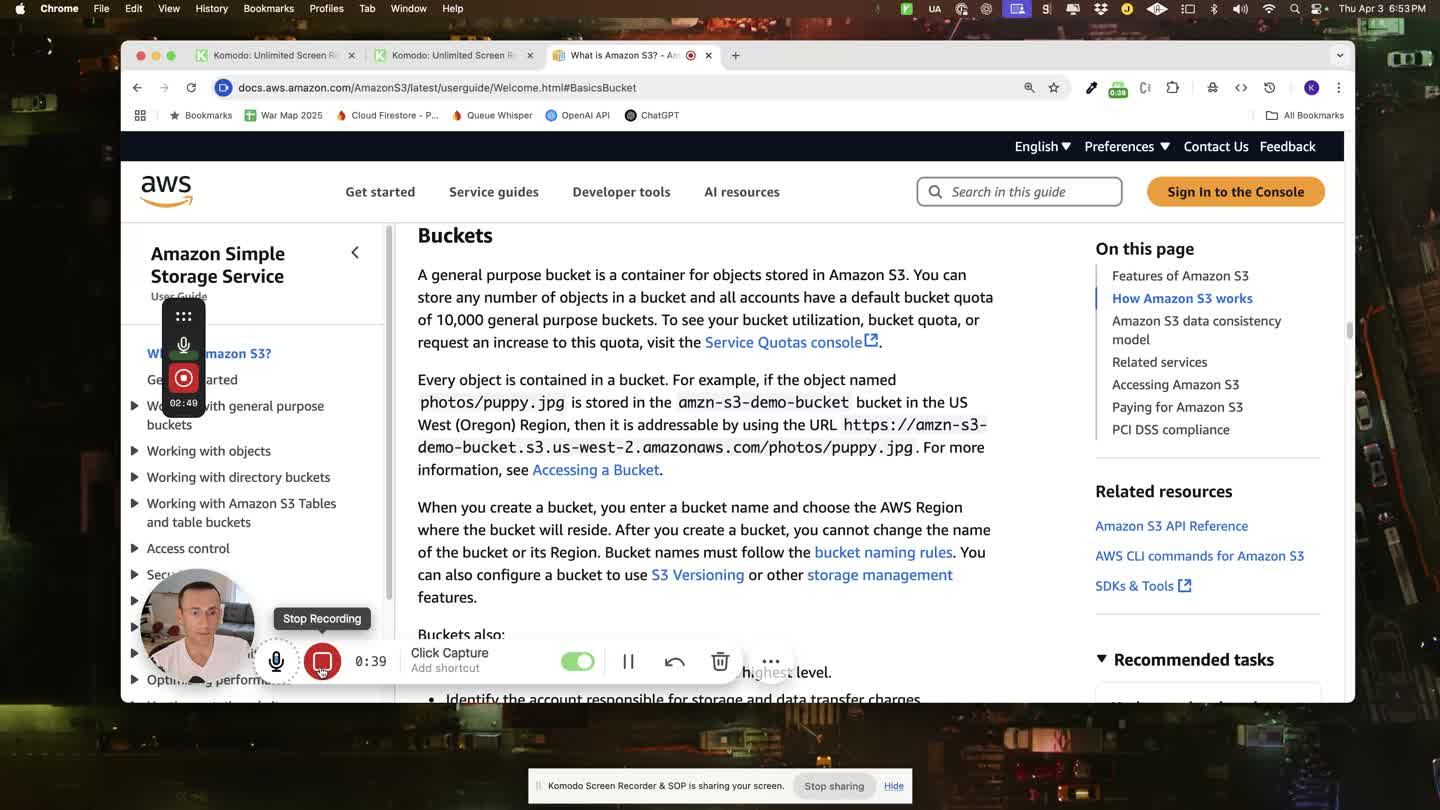
Frame from the tutorial: capture the task itself, with the relevant page visible. Stop when you've shown the result.
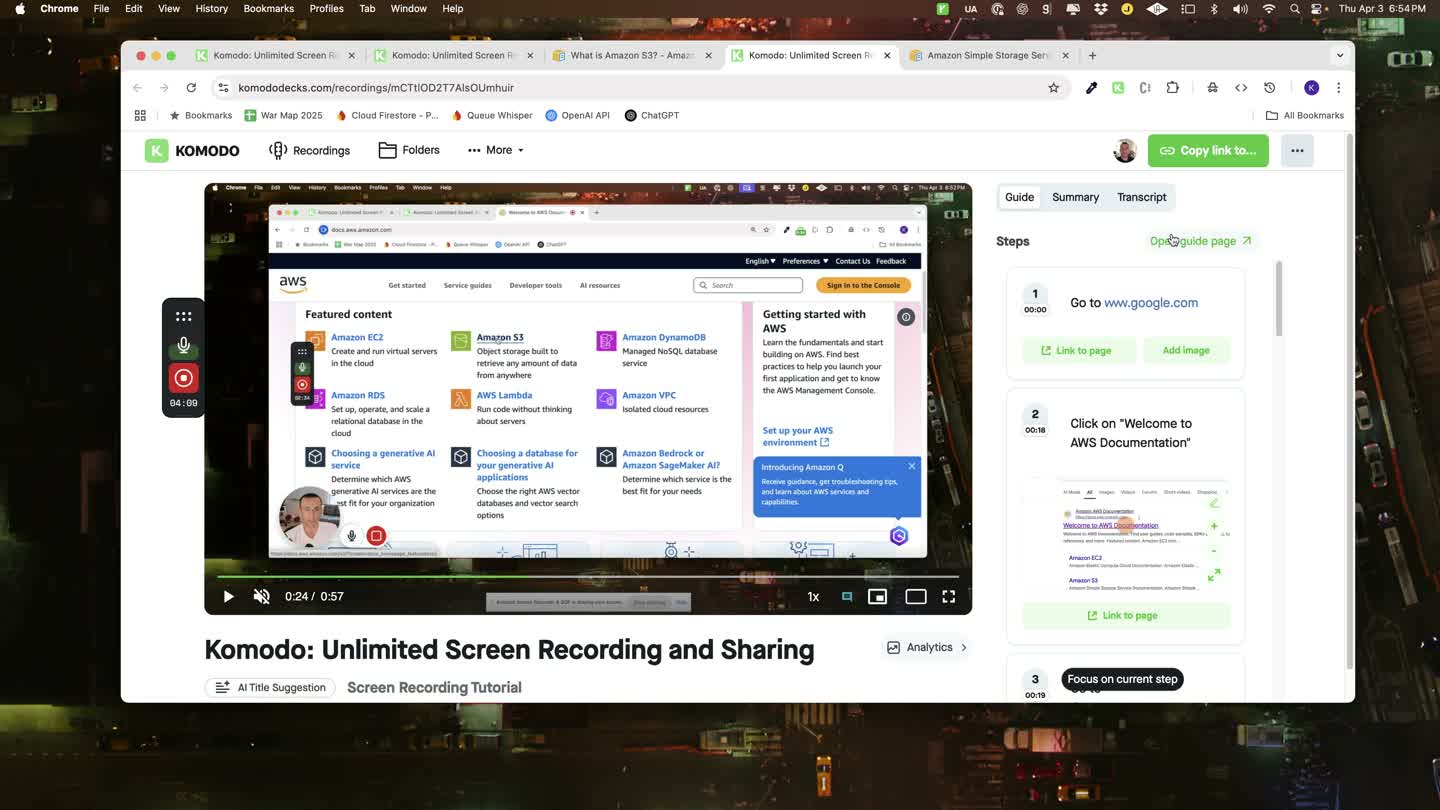
Frame from the same tutorial: the video and written steps sit together. Review the generated titles and screenshots before sharing.
Give the learner written steps and a way to check success
The reference guide for this sample lesson can be short:
- Open the AWS documentation site.
- Open the Amazon S3 user guide.
- Find the explanation of how Amazon S3 works, then the Buckets section.
- Bookmark the reference page for next time.
Use meaningful step titles instead of leaving a generated instruction such as "click here." Include the relevant screenshot and link where it helps the learner find the same page.
To check the lesson, give someone the video and guide without explaining the task yourself. Can they reach the right page? If they get stuck, fix that step or screenshot. A video view tells you someone opened the lesson; completing the task tells you whether the instructions worked.
How to choose training video software
Start with who'll make the videos. If it's subject experts rather than a video team, choose the tool they'll use without help. Then check these points:
- Output: do you need a video only, or a video and a written guide?
- Editing: do you need quick trims, or a full timeline?
- Sharing: can people watch from a link without installing anything?
- Reporting: do you need to see who watched, or to prove who completed training? The second usually calls for a training platform.
As a price guide, Camtasia Essentials is $179.88 a year for an individual subscription and includes the editor without a watermark. Synthesia Starter is advertised at $9 for the first month, then $19 a month on monthly billing. Kommodo has a free plan with unlimited recordings available for 60 days, and Premium is $15 a month or $108 a year per user. Compare the output and allowances as well as the price: these plans serve different jobs. Published USD prices checked November 7, 2026; taxes and promotions may vary. Kommodo publishes this article.
If you're comparing tools for process documentation as well, see our guide to the best SOP software.
Training video FAQ
How do you make a training video?
Define what the viewer should be able to do, outline the steps, record the real task, trim mistakes, add captions, and publish the video with written steps. Update it when the process changes.
What software do you need to make a training video?
For software training, a screen recorder is usually enough. A full editor such as Camtasia suits highly produced courses, and an AI avatar tool such as Synthesia suits presenter-led content without filming.
How long should a training video be?
Cover one task per video and stop when the viewer can complete it. If a process has separate stages, split it into a short series so people can return to the part they need.
About the team

Related Articles

Best SOP Software: 6 Tools Compared by Use Case
Compare 6 SOP software tools, including Kommodo, Scribe and Trainual. See prices, minimum seats, key limits and which tool fits your team’s work.
Loom Pricing: Plans, Team Costs and Kommodo Savings
Compare Loom’s free and paid plans with Kommodo. Calculate monthly or annual team costs and savings, with published prices, limits and plan differences.
Process Documentation Template: A Guide Your Teammate Can Use
Download an editable process documentation template and completed example. Capture the steps, decisions, exceptions, and ownership a teammate needs to do the work.
 © Kommodo 2026