How to Record Your Screen on Android: 7 Methods (2026 Guide)
Need to record your Android screen for a tutorial, gameplay video, bug report, or demo? In 2026, you have more options than ever—including a powerful built-in recorder on Android 11+ that requires no downloads.
This comprehensive guide covers 7 methods to record your Android screen, from the instant built-in option to third-party apps with advanced features like facecam, internal audio, and video editing. We'll help you choose the right tool for your specific needs.
Quick Start: Fastest Way to Record (Android 11+)
If you're running Android 11, 12, 13, 14, or 15, here's the 30-second method:
- Swipe down twice from the top of your screen
- Tap Screen Record (or the record icon)
- Choose audio source and tap Start
- Tap Stop in the notification bar when done
Your video saves to your Gallery automatically. That's it—no app needed.
Don't see the Screen Record tile? Swipe left on your Quick Settings or tap the edit (pencil) icon to add it.
Android Screen Recorder Comparison Table
| App | Price | Internal Audio | Facecam | Max Resolution | Ads |
|---|---|---|---|---|---|
| Built-in (Android 11+) | Free | Yes | Yes | Device max | None |
| Kommodo | Free | Yes | Yes | 1080p | None |
| AZ Screen Recorder | Free / $2.99 | Yes | Yes | 4K (WQHD) | Yes (removable) |
| ADV Screen Recorder | Free | Yes | Yes | 1080p | None |
| Google Play Games | Free | Yes | Yes | 720p/480p | None |
| Mobizen | Free / $3.99+ | Yes | Yes | 1440p (WQHD) | Yes (removable) |
| XRecorder | Free / $5.99 | Yes | Yes | 1080p | Yes (removable) |
Method 1: Built-in Android Screen Recorder (Android 11+)
The native Android screen recorder is the fastest, cleanest option for most users. No download, no ads, no watermarks—just tap and record.
Requirements
- Android 11 or later (released September 2020)
- Works on Pixel, Samsung, OnePlus, Xiaomi, and most other Android phones
How to Record with the Built-in Recorder
Step 1: Swipe down from the top of your screen twice to fully expand the Quick Settings panel.
Step 2: Look for Screen Record (or a video camera icon). If you don't see it:
- Swipe left to see more tiles
- Or tap the pencil/edit icon to add Screen Record to your Quick Settings
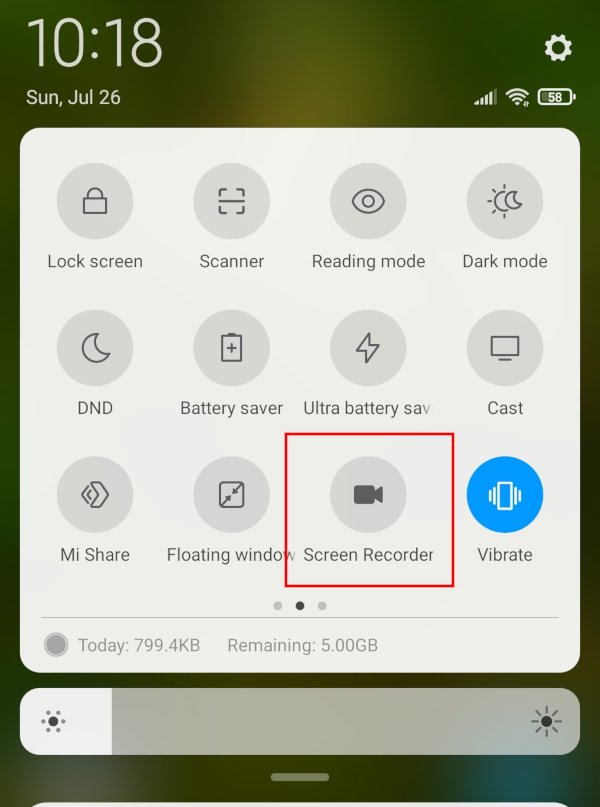
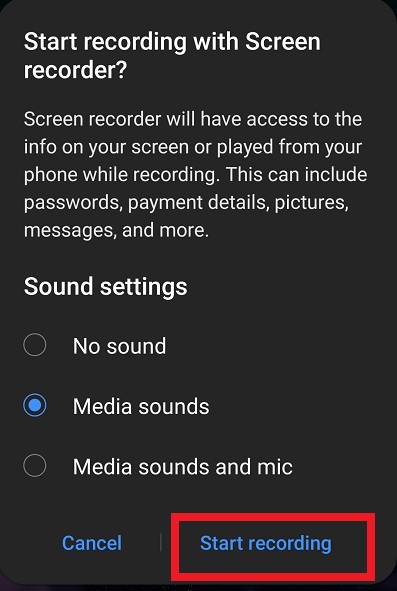
Step 3: Tap Screen Record. You'll see options for:
- Record audio: Choose Device audio (internal sounds), Microphone, or Device audio and microphone (both)
- Show touches on screen: Enable if you want viewers to see where you tap
Step 4: Tap Start. A 3-second countdown begins.
Step 5: You'll see a recording toolbar. Depending on your device, you can:
- Pause/resume recording
- Enable your front camera for facecam overlay
- Draw on screen during recording (Samsung and some others)

Step 6: When done, tap Stop in the notification bar or toolbar.
Your recording automatically saves to your Gallery, typically in a "Screen recordings" folder.
Built-in Recorder Pros and Cons
Pros:
- No download required
- No ads or watermarks
- Records internal audio natively
- Facecam overlay on most devices
- Clean, fast experience
Cons:
- Not available on Android 10 and earlier
- Limited editing features
- No instant sharing (manual upload required)
- Features vary by manufacturer
Method 2: Kommodo (Best for Sharing)
While the built-in recorder is great for capturing video, sharing it requires extra steps—downloading to computer, uploading to cloud storage, sending links. Kommodo eliminates this friction.
Kommodo is designed for business communication and team collaboration. Record a video, and Kommodo instantly generates a shareable link. No file transfers, no cloud storage juggling.
Key Features
- Instant sharing: Get a link the moment you stop recording
- Unlimited recordings: No video count or time limits on free plan
- Presentation recording: Import PDFs, PowerPoints, or Keynote files and record over them
- Step-by-step guides: Automatically create visual documentation from recordings
- Custom domains: Host videos at videos.yourcompany.com
- No watermarks: Professional output on every recording
How to Record with Kommodo
Step 1: Install Kommodo from Google Play.
Step 2: Open the app and tap Record.
Step 3: Choose what to record:
- Screen only
- Screen + front camera (facecam)
- Presentation (import a PDF or slide deck)
Step 4: Tap Start Recording and grant permissions when prompted.
Step 5: When finished, tap Stop. Kommodo processes your video and generates a shareable link.
Step 6: Copy the link and share via email, Slack, WhatsApp, or any other channel.
Best For
Teams that need to share recordings quickly—for feedback, training, presentations, or async communication.
Method 3: AZ Screen Recorder (Best for Gaming)
AZ Screen Recorder is one of the most popular third-party screen recorders, with over 100 million downloads. It's particularly strong for gameplay recording with features like 4K resolution, live streaming, and a floating control bubble.
Key Features
- Up to 4K resolution (on supported devices)
- 60-120 FPS for smooth gameplay
- Live streaming to YouTube, Facebook, Twitch
- Video editor with trim, merge, and effects
- GIF maker from recordings
- Floating bubble for easy control during recording
How to Record with AZ Screen Recorder
Step 1: Download and install AZ Screen Recorder.
Step 2: Open the app. You'll see a quick tour of features. Tap OK to continue.
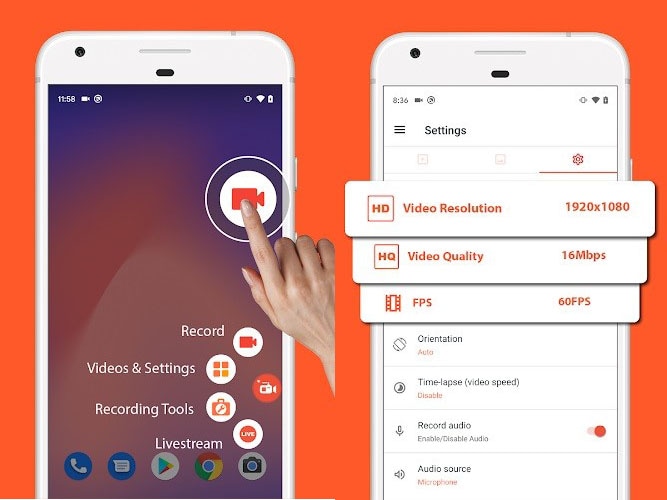
Step 3: A floating bubble appears on your screen. Tap it to reveal controls.
Step 4: Tap the Record button to start.
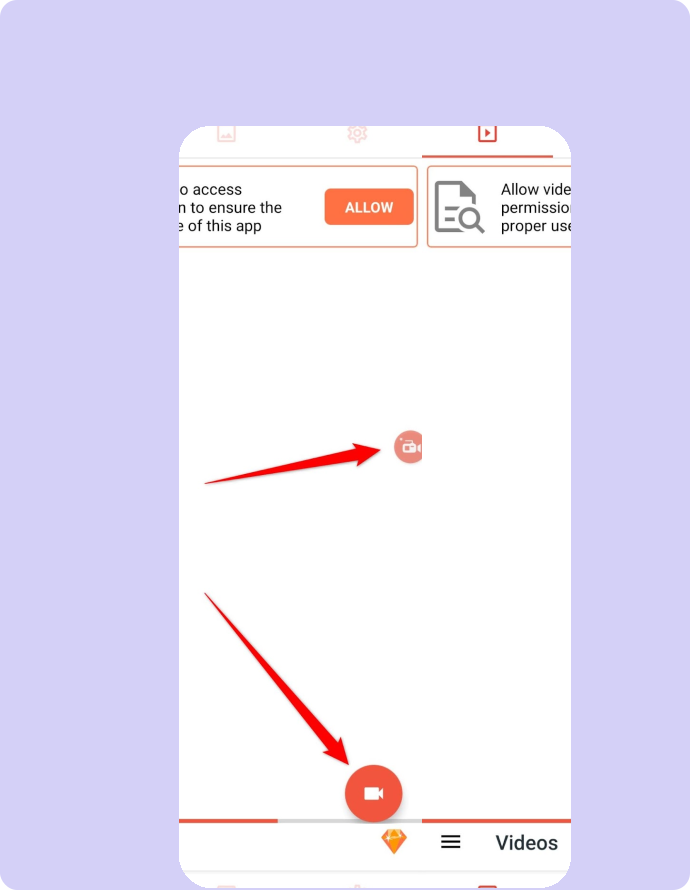
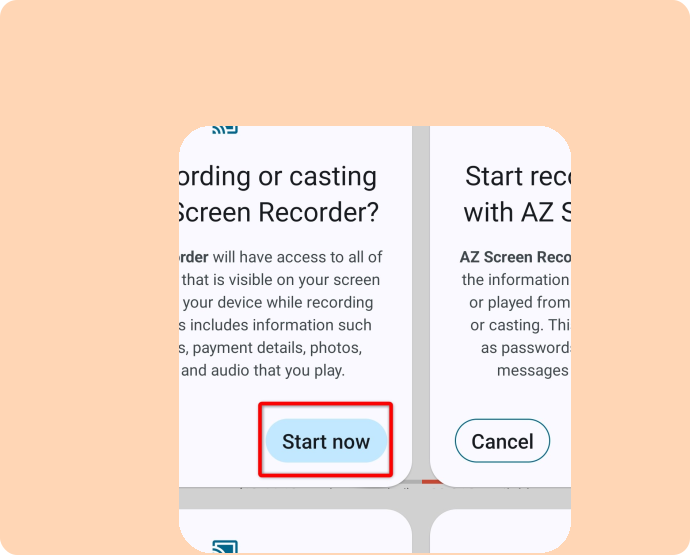
Step 5: Grant permissions when prompted and tap Start now.
Step 6: Tap the floating bubble, then Stop when finished.
AZ Screen Recorder Pros and Cons
Pros:
- High resolution and frame rate options
- Built-in video editor
- Live streaming capability
- Works on Android 5.0+
Cons:
- Contains ads (removable with $2.99 purchase)
- Can be resource-intensive on older phones
- Some features require premium
Best For
Gamers and content creators who need high-quality recordings with built-in editing.
Method 4: ADV Screen Recorder (Best Free Option)
ADV Screen Recorder stands out as a completely free option with no ads or watermarks. If you want third-party features without paying or watching ads, ADV is the answer.
Key Features
- Completely free with no ads
- Two recording engines: Default and Advanced (better compatibility)
- Draw on screen while recording
- Facecam with customizable size and position
- Custom text banners for branding
- Up to 1080p, 60fps, 15Mbps
How to Record with ADV Screen Recorder
Step 1: Install ADV Screen Recorder.
Step 2: Open the app and tap the + button at the bottom right.
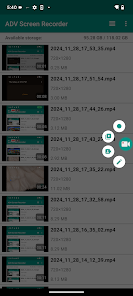
Step 3: Grant necessary permissions and tap Start now.
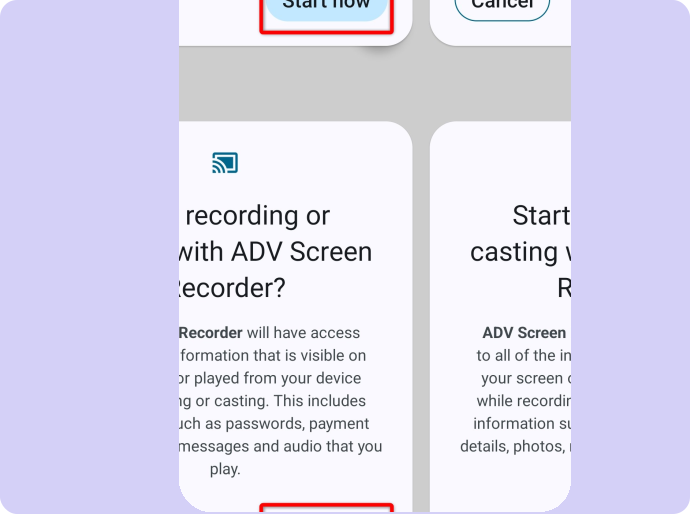
Step 4: A floating button appears. Tap it and select Record.
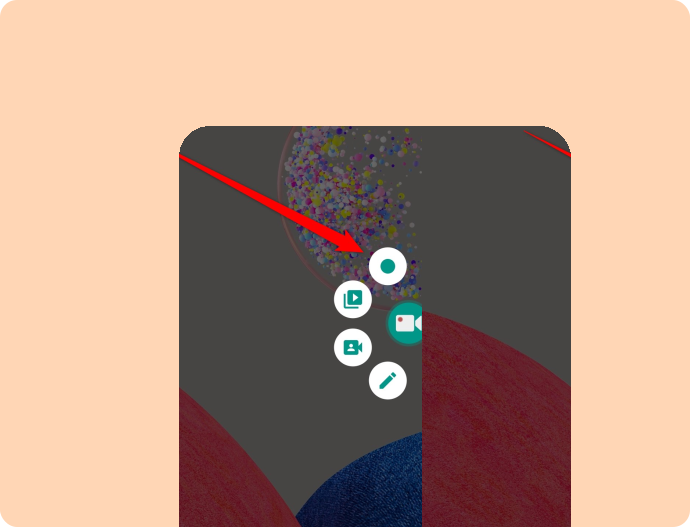
Step 5: Use the floating menu to pause, draw, enable facecam, or stop recording.
Step 6: To remove the floating button, long-press and drag it to the X at the bottom.
ADV Screen Recorder Pros and Cons
Pros:
- 100% free with no ads
- No watermarks
- Two recording engines for compatibility
- Excellent customization options
Cons:
- Max 1080p resolution (no 4K)
- No built-in video editor
- Interface less polished than competitors
Best For
Users who want a full-featured recorder without any cost or ads.
Method 5: Google Play Games (Best for Mobile Gaming)
Google Play Games includes a built-in game recorder—free, ad-free, and optimized for gameplay capture.
Key Features
- Built into Google Play Games app
- Facecam overlay while gaming
- 720p or 480p recording quality
- No ads or watermarks
- Automatic game detection
How to Record with Google Play Games
Step 1: Open Google Play Games (install if needed).
Step 2: Select a game from your library.
Step 3: Tap the Record button at the top.
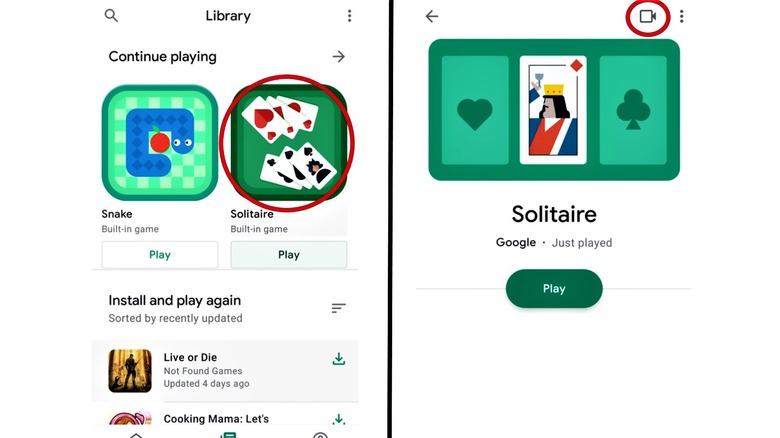
Step 4: Choose your quality: HD (720p) or SD (480p).
Step 5: Tap Launch.
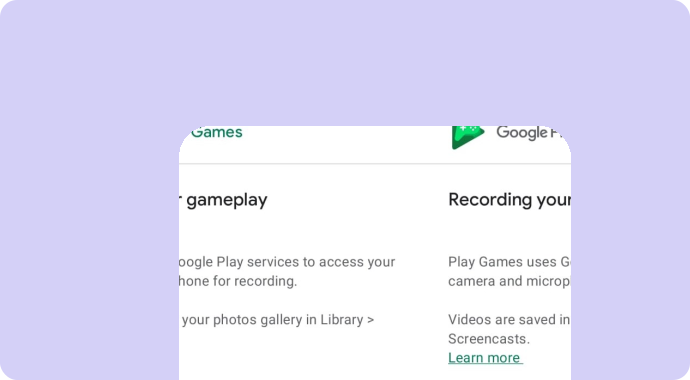
Step 6: A floating bubble appears with three buttons:
- Microphone on/off
- Front camera on/off
- Start/stop recording

Step 7: Tap the record button to start, then tap again to stop.
Google Play Games Pros and Cons
Pros:
- Pre-installed on most Android phones
- No ads or watermarks
- Simple interface
- Good for casual game recording
Cons:
- Only 720p/480p (no 1080p+)
- Only works with games (not other apps)
- Limited customization options
Best For
Casual gamers who want simple gameplay recording without installing additional apps.
Method 6: Mobizen (Good for Samsung Devices)
Mobizen is particularly popular on Samsung devices, where it's often pre-installed. It offers high-quality recording up to 1440p with a polished interface.
Key Features
- Up to 1440p (WQHD) resolution
- Facecam with reaction recording
- Clean recording mode to hide the floating button
- Video editor with trim, cut, and effects
- Intro/outro video creation
Mobizen Pros and Cons
Pros:
- High resolution options
- Good video editor
- Often pre-installed on Samsung
- Clean interface
Cons:
- Contains ads (premium removes them)
- Watermark on free tier (can be disabled in settings)
- Premium features require subscription
Best For
Samsung users who want a polished, feature-rich recorder and don't mind occasional ads.
Method 7: XRecorder (Balanced Option)
XRecorder by InShot offers a good balance of features and usability, with strong video editing capabilities.
Key Features
- 1080p recording at 60fps
- Facecam overlay with adjustable position
- Video editor with music, text, and filters
- Floating control ball for easy access
- Screenshot feature built-in
XRecorder Pros and Cons
Pros:
- Good video editing tools
- Clean interface
- Reliable performance
- Works on Android 5.0+
Cons:
- Contains ads
- Some features require premium ($5.99)
- 1080p max resolution
Best For
Users who want recording and editing in one app with a modern interface.
How to Choose the Best Android Screen Recorder
| If you need... | Use this |
|---|---|
| Quickest recording, no install | Built-in Android recorder |
| Instant sharing links | Kommodo |
| 4K gameplay recording | AZ Screen Recorder |
| Completely free, no ads | ADV Screen Recorder |
| Simple game capture | Google Play Games |
| Samsung device support | Mobizen |
| Recording + editing combo | XRecorder |
Tips for Better Android Screen Recordings
Before Recording
- Close background apps to free memory and improve performance
- Enable Do Not Disturb to prevent notifications from appearing
- Charge your phone or plug in—recording drains battery quickly
- Clear storage space if needed (check available space first)
- Plan your recording to minimize pauses and mistakes
Audio Settings
- Internal audio only: Best for app sounds, game audio, music demos
- Microphone only: Best for voiceover narration without app sounds
- Both: Best for tutorials where you explain while demonstrating
Quality Settings
- 1080p 30fps: Good balance of quality and file size for most uses
- 720p: Smaller files, works well for quick shares and older devices
- 1080p 60fps or higher: Best for gaming content where smoothness matters
- 4K: Only if you're editing professionally; files are very large
After Recording
- Trim the beginning and end to remove dead air
- Check audio levels before sharing
- Use Kommodo for instant sharing, or upload to Google Drive/YouTube for manual sharing
Troubleshooting Common Issues
"Screen recording not available"
- Ensure you're running Android 11 or later for built-in recording
- If on Android 10 or earlier, use a third-party app like AZ Screen Recorder or ADV Screen Recorder
Recording stops unexpectedly
- Check available storage space (recordings need free space)
- Disable battery optimization for the recording app
- Close other apps to free memory
- Try recording at a lower resolution
No audio in recording
- Verify you selected an audio source before recording
- Check app permissions for microphone access
- Some apps (banking, streaming) block audio capture
- Restart your phone and try again
Poor video quality or lag
- Lower the resolution and/or frame rate
- Close background apps
- Ensure your phone isn't overheating
- Try a different recording app
Can't find my recording
- Check your Gallery app in "Screen recordings" or "Movies" folder
- Use a file manager to browse: Internal Storage > Movies > Screen recordings
- Some apps save to their own folders—check the app's settings
Frequently Asked Questions
Does Android have a built-in screen recorder?
Yes! Android 11 and later (including Android 12, 13, 14, and 15) include a native screen recorder. Pull down your notification shade and tap the Screen Record tile. No app download required.
How do I screen record on Android without an app?
On Android 11+: Swipe down twice to open Quick Settings, tap Screen Record, choose your audio source, and tap Start. Tap Stop in the notification bar when done.
What is the best free screen recorder for Android?
The built-in Android recorder is best for most users—free, no watermarks, no ads. For sharing features, use Kommodo. For gaming with advanced settings, try AZ Screen Recorder or ADV Screen Recorder.
How do I record internal audio on Android?
On Android 10+, select "Device audio" or "Media sounds" as your audio source when starting a recording. Note that some apps block internal audio due to copyright protection.
Where are screen recordings saved?
Screen recordings save to your Gallery, typically in a folder called "Screen recordings" or "Movies." Use a file manager to find them in Internal Storage > Movies.
How long can I record on Android?
There's no fixed time limit—you can record as long as you have storage space and battery. A 10-minute 1080p recording uses roughly 200-400MB.
Start Recording Your Android Screen Now
You have plenty of options for recording your Android screen in 2026:
- Built-in recorder (Android 11+) for quick, no-install captures
- Kommodo for instant sharing and team collaboration
- AZ Screen Recorder for gaming and high-quality content
- ADV Screen Recorder for a completely free, ad-free experience
- Google Play Games for simple game capture
- Mobizen for Samsung users
- XRecorder for recording with built-in editing
For most users, we recommend starting with the built-in recorder for basic captures, and Kommodo when you need to share recordings with colleagues, clients, or your audience.
Ready to start? Try the built-in recorder now, or download Kommodo for instant sharing.
About the author

Related Articles
How to Screen Record on Mac: 4 Free Methods (2026 Guide)
Learn how to screen record on Mac in under 60 seconds. 4 free methods: QuickTime, Screenshot Toolbar, Kommodo, and OBS with step-by-step instructions.
How to Screen Record on Chromebook: 4 Methods (2026 Guide)
Record your Chromebook screen using the built-in Screen Capture tool (Ctrl+Shift+Show Windows) or browser-based recorders. 4 free methods with step-by-step instructions for students, teachers, and managed devices.
How to Screen Record: Complete Guide for Any Device (2026)
Learn how to screen record on any device. Complete guide for Mac, Windows, iPhone, Android, and Chromebook with free tools and keyboard shortcuts.
 © Kommodo 2026