
Best Screen Recorder for Windows: 4 Options Compared (2026)
For a quick screen recording on Windows 11, start with Snipping Tool. Xbox Game Bar can capture a game or app on Windows 10 and 11. If you need a shareable video link or written instructions alongside the recording, compare Kommodo and Loom.
This guide covers those four options and how to start recording with each one.
Kommodo publishes this guide and is one of the tools compared. Native-tool instructions were checked against Microsoft's documentation on November 7, 2026. The screenshots show earlier interfaces; this is not a new hands-on Windows benchmark.
Which Windows screen recorder should you use?
| Your goal | Best option | Why |
|---|---|---|
| Share a recording with a link | Kommodo or Loom | Both create a link when you finish recording |
| Turn a recording into written steps | Kommodo | It can generate a step-by-step guide from the video |
| Capture a game or a single app | Xbox Game Bar | It's built into Windows and optimized for gaming |
| Make a quick clip on Windows 11 | Snipping Tool | It's built into Windows |
Kommodo works as a desktop app for Windows 10 and 11 (64-bit), a Chrome extension, or a recorder in your browser with nothing to install.
How to Record Screen on Windows With Third-Party Tools
These two tools add link sharing and collaboration to screen recording. Compare their recording, guide and plan limits for your work.
1. Kommodo

Kommodo lets you capture your screen while automatically documenting your actions to create seamless training walkthroughs.
Create unlimited recordings. Recordings remain accessible to their owner and viewers for 60 days; a paid plan keeps older recordings accessible.
When you finish recording, Kommodo generates a shareable link. Viewers can comment to ask questions or give feedback.
Check the viewer analytics and sharing controls included in the plan you choose.
See Kommodo pricing for paid features, AI allowances and access to older recordings.
To record videos using Kommodo:
1. Install the Kommodo Google Chrome plugin.
2. Click on the plugin icon once it's installed. This will take you to the Kommodo website.

3. Click the Record button at the top.
4. Click the Play button at the bottom left. The buttons might take a few seconds to appear.

5. Select a window or Chrome tab to record, or select the Entire screen option.
6. Click Share.

7. Provide the necessary permissions to start recording.

Click on the Stop button to end your recording. Kommodo will automatically redirect you to the URL where it saved your video.
You'll be prompted to name your video for easy organization and retrieval.
Once you've named the video, you can simply copy the URL and share it with colleagues or clients, streamlining your asynchronous communication workflow.
2. Loom

Loom records your screen and camera and gives you a shareable link. Compare its plans and team costs in our Loom pricing guide.
Loom Starter includes 25 recordings and a five-minute video limit, according to Loom's pricing page, checked November 7, 2026. Kommodo Free allows unlimited recordings, with a 60-day access window for each recording.
Here's how you can use Loom to record your screen on Windows:
1. Install the Loom app on your Windows desktop.\
2. Launch the app and log into your account.
3. Select what you want to record (screen, camera, or both) and whether you want to record a specific window of the full screen.
4. Check the microphone settings.
5. Click on the Start recording button.

Click the Stop button from the panel that appears on the right of the screen. Loom will redirect you to the URL where it saved your video.
How to Record Screen on Windows With Built-In Screen Recorders
Here's how you can record your screen using the built-in Windows screen recorders:
3. How to Record Screen With Xbox Game Bar Tool
The Xbox Game Bar tool's primary purpose is to record gameplay.
It also captures screen activity from other apps, except the desktop, File Explorer, and a handful of Windows apps.
It suits a single-app recording. If you need a selected area of the screen on Windows 11, compare Snipping Tool instead. See Microsoft's Game Bar recording instructions for shortcuts and audio settings.
Here's how you can record your screen using the Xbox Game Bar tool:
1. Search for the Xbox Game Bar in the Start menu and select the Best Match.

2. You'll see a few widgets pop up on the screen. Focus on the Audio settings. That's what's important when recording a non-gaming video.
3. Once you've selected the right audio settings, click on the Record button (the button with a dot) in the Capture widget to start recording.
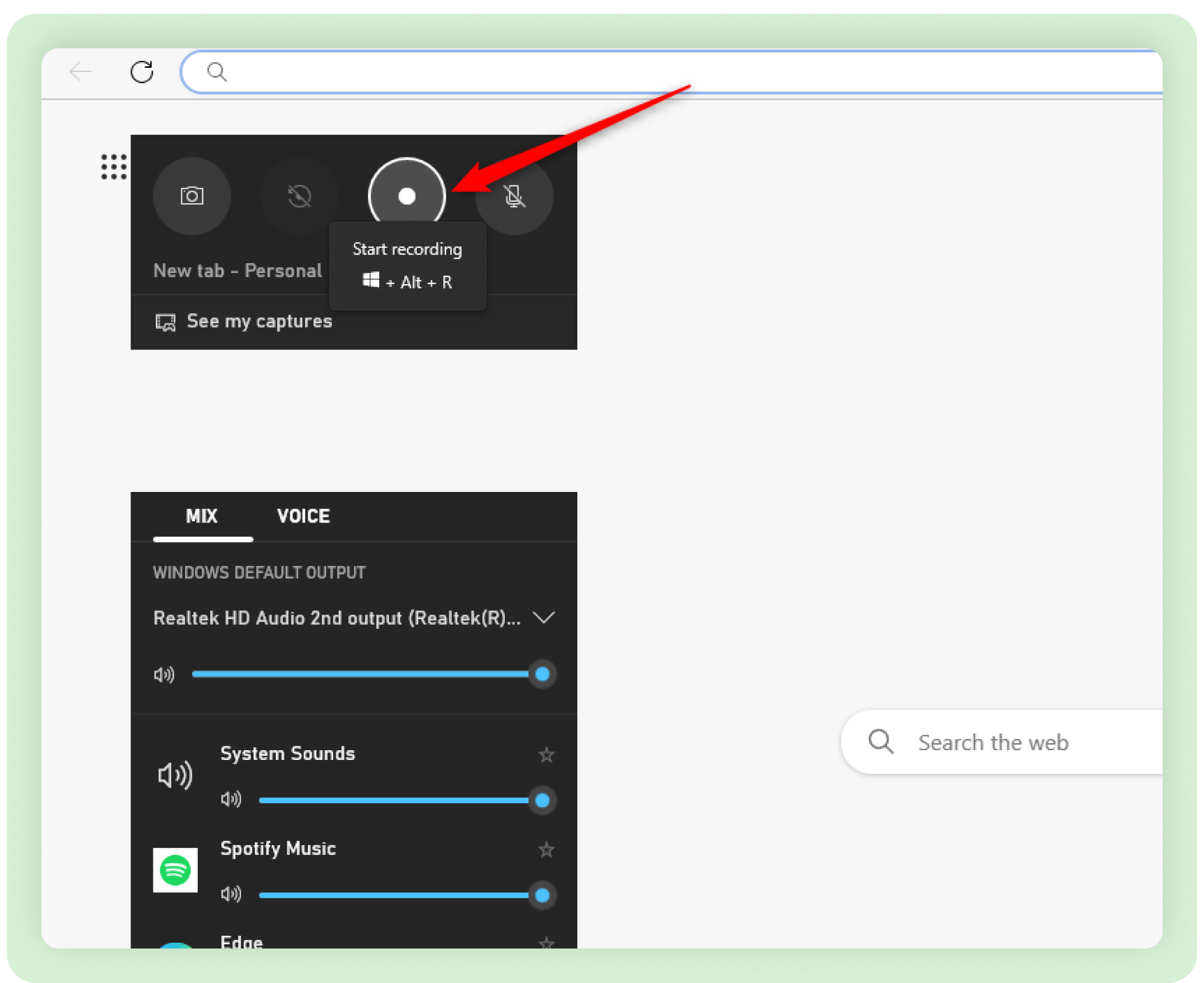
When you're done recording, click the Stop button. Click the See my captures option to view the video recordings.
4. How to Record Your Windows Screen With the Snipping Tool
On Windows 11, Snipping Tool can record a selected part of your screen. It supports microphone narration and PC audio; check the audio controls before starting. Microsoft documents the recording workflow and its audio recording options.
Use the Windows 11 recording instructions here. For a built-in option on Windows 10, use Xbox Game Bar instead.
Here's how to start a recording in Snipping Tool on Windows 11:
1. Search for the Snipping Tool in the Start menu and select the Best match.
2. Select the camcorder icon at the top.
3. Click the New button.\
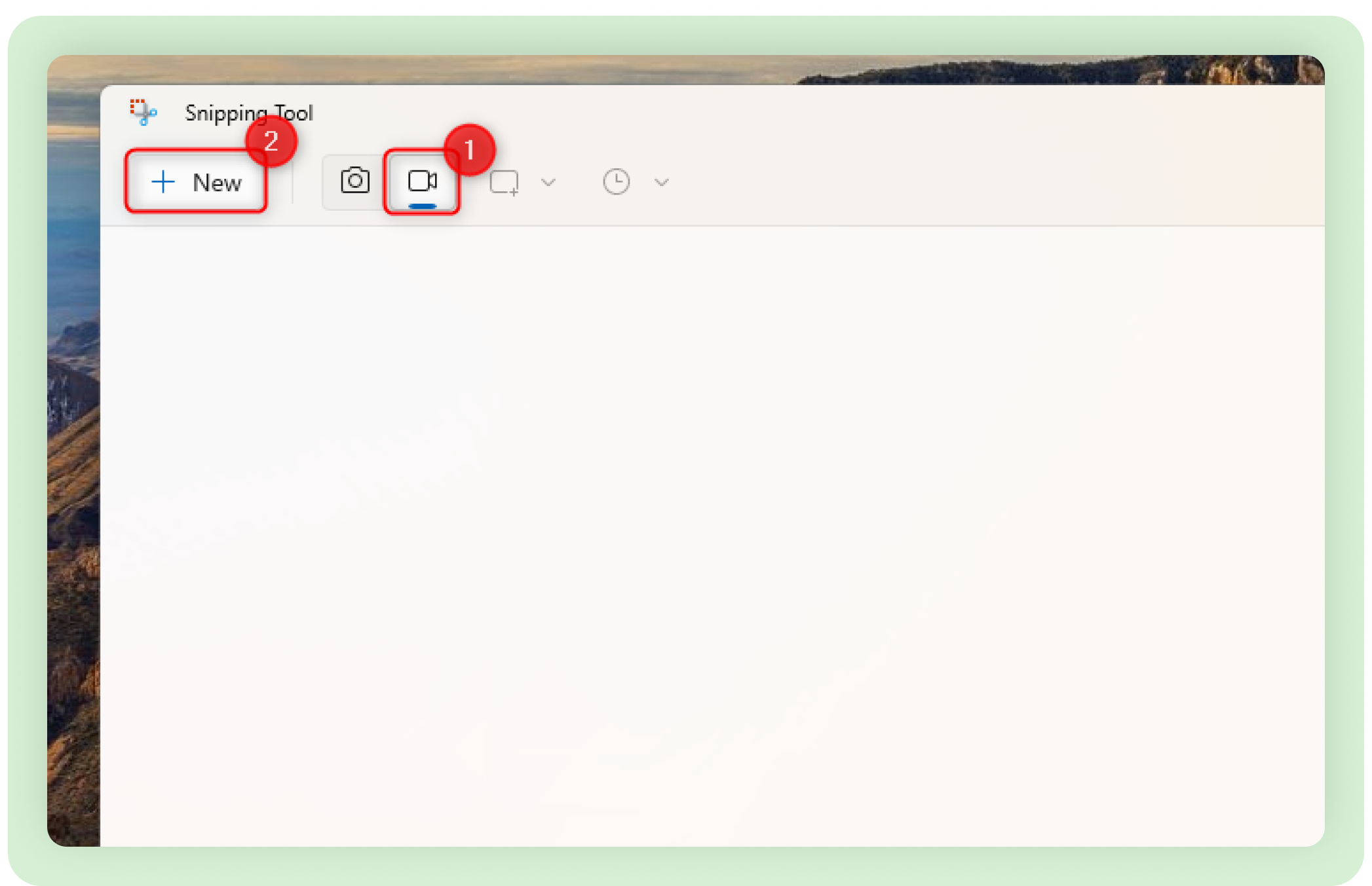
4. Select the area of the screen you want to record.
5. Check the microphone and PC audio controls, then click Start.
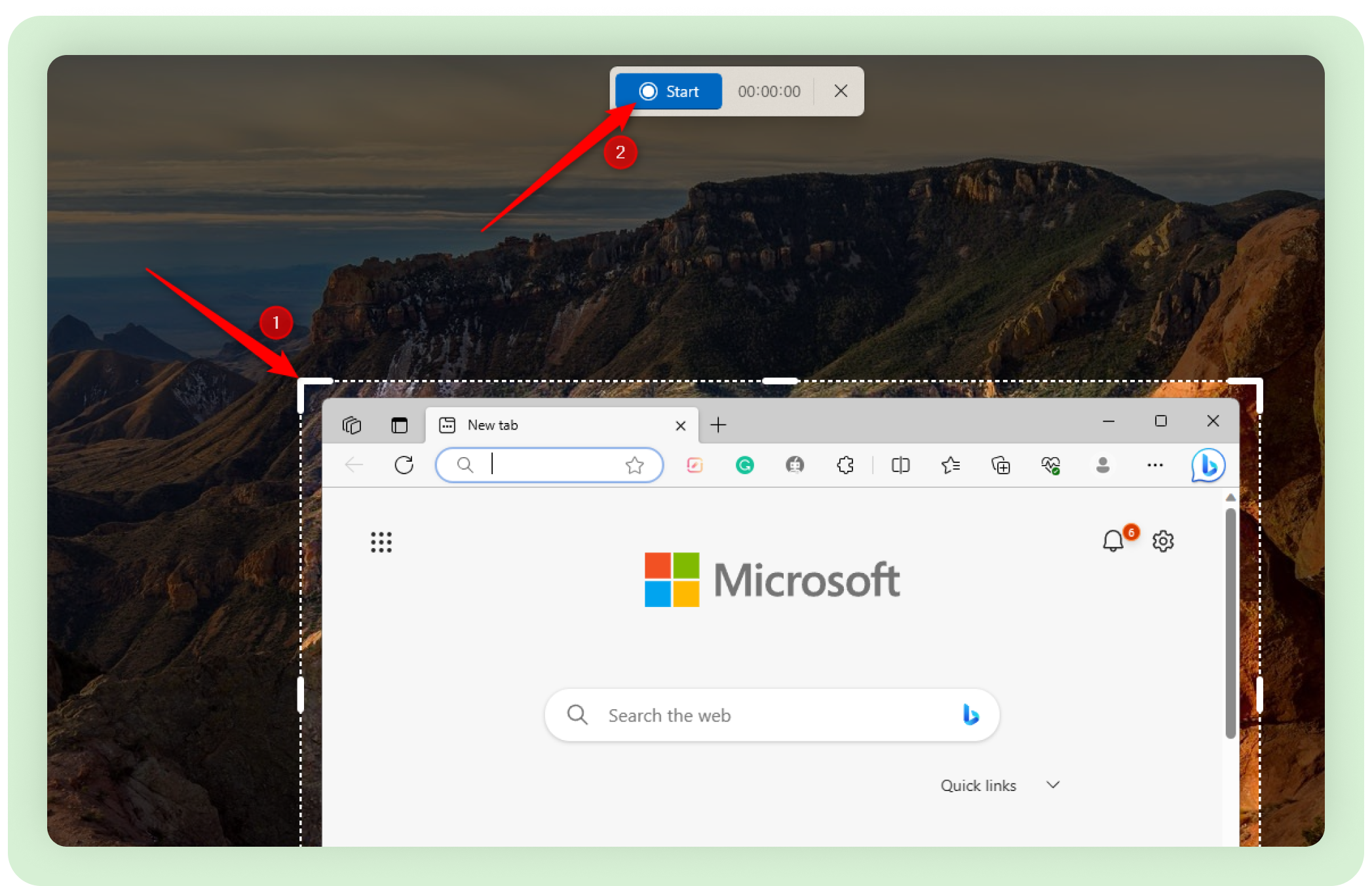
Press the Stop button (the red square) to stop recording and save it.
Built-In or Third-Party Tools for Recording Screen on Windows?
Choose by the output you need. Snipping Tool and Xbox Game Bar are useful when a local video file is enough. Kommodo and Loom add hosted sharing; Kommodo also offers a recording with a step-by-step guide.
Try one real task before choosing. Check whether the recording captures the right area and audio, whether another person can open it, and whether they can follow the instructions.
Try Kommodo free. Free plan limits apply.
About the author

Related Articles

Best Screen Recorder for Mac: 4 Free Ways to Record (2026)
Compare the best free screen recorders for Mac and learn how to screen record in under 60 seconds with the Screenshot Toolbar, QuickTime, Kommodo and OBS.

How to Screen Record on Chromebook: 4 Methods (2026 Guide)
Record your Chromebook screen using the built-in Screen Capture tool (Ctrl+Shift+Show Windows) or browser-based recorders. 4 free methods with step-by-step instructions for students, teachers, and managed devices.

How to Screen Record: Complete Guide for Any Device (2026)
Learn how to screen record on any device. Complete guide for Mac, Windows, iPhone, Android, and Chromebook with free tools and keyboard shortcuts.
 © Kommodo 2026